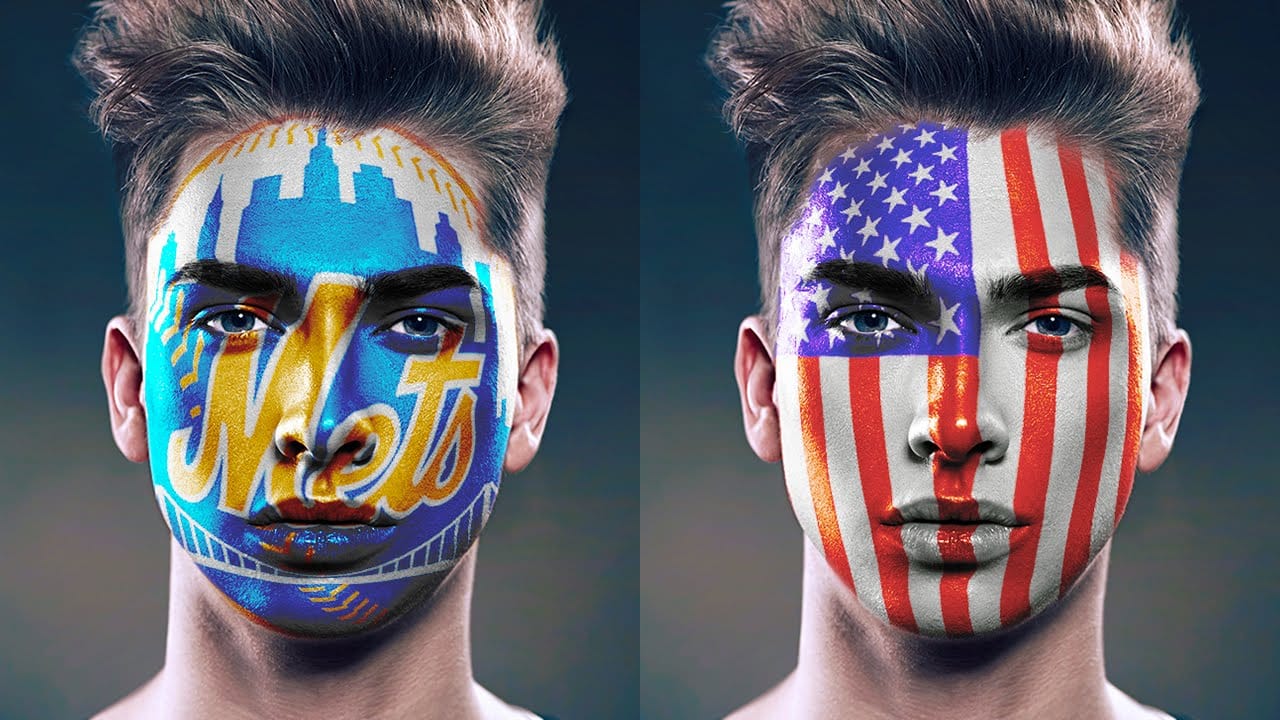
Digital face painting opens creative possibilities for portraits, costumes, and artistic projects without the mess of real paint. This technique uses adjustment layers and custom brushes to create convincing face paint that preserves natural skin texture and lighting.
The method works for any color scheme and includes specialized approaches for white and black paint, which require different handling to maintain realistic depth and highlights.
Watch the Video
Practical Tips
Master these key techniques for convincing digital face paint:
- Use hue/saturation adjustment layers with colorize enabled for colored face paint, then paint on the inverted layer mask
- Create white face paint by targeting skin reds with hue/saturation, maxing lightness, and using blend-if to reduce shadow visibility
- Build black face paint in two stages: paint solid black first, then add highlights back using channel selections
- Apply the blur tool on a sample-all-layers to match the painted areas with your photo's natural focus and resolution
- Leave intentional imperfections and overlapping areas to simulate realistic hand-painted effects
Related Articles and Tutorials
Explore more face painting and portrait enhancement techniques with these tutorials:
How to Paint Graphics onto a Face in Photoshop
Achieving realistic digital face paint in Photoshop can transform portraits, bringing creative visions to life for various purposes. This technique is particularly effective for applying elements like flags, sports team logos, or intricate designs directly onto a subject's face, making it appear as if the graphic is truly painted on.
This video tutorial guides you through the process of seamlessly applying graphics to a face using Photoshop's powerful features. You will learn how to prepare you
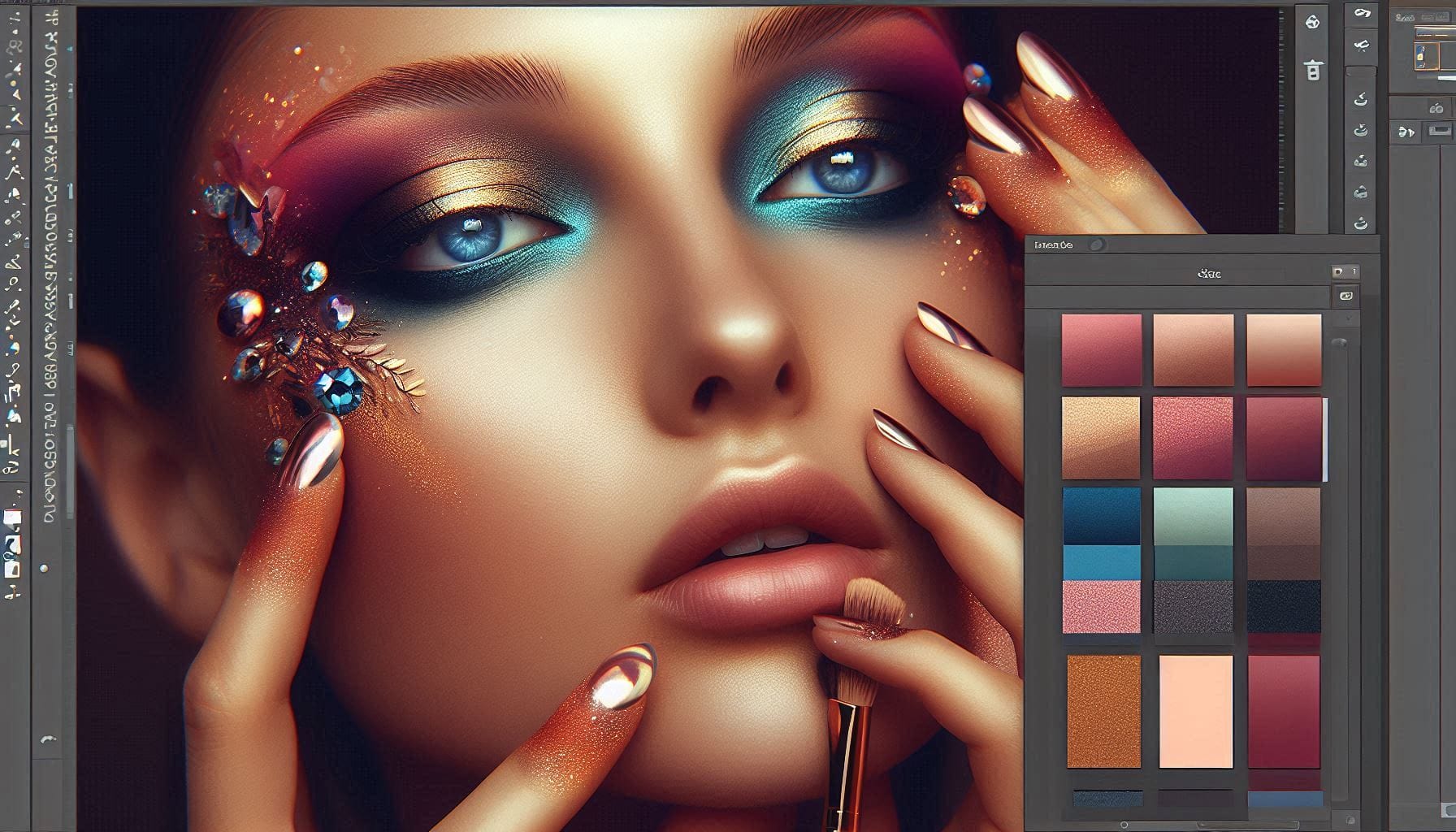
Learn How to Create Beauty Makeup and Face Painting Effects in Photoshop
This guide is designed to help you learn how to create beauty makeup and face painting effects using Photoshop. With clear instructions, you'll discover how to apply makeup digitally, utilizing techniques that professional makeup artists rely on in their work.
The focus is not limited to beauty makeup alone. You will also explore various effects, including horror themes, bruises, and scars. The content is suitable for anyone interested in enhancing their portrait skills, whether for personal pr
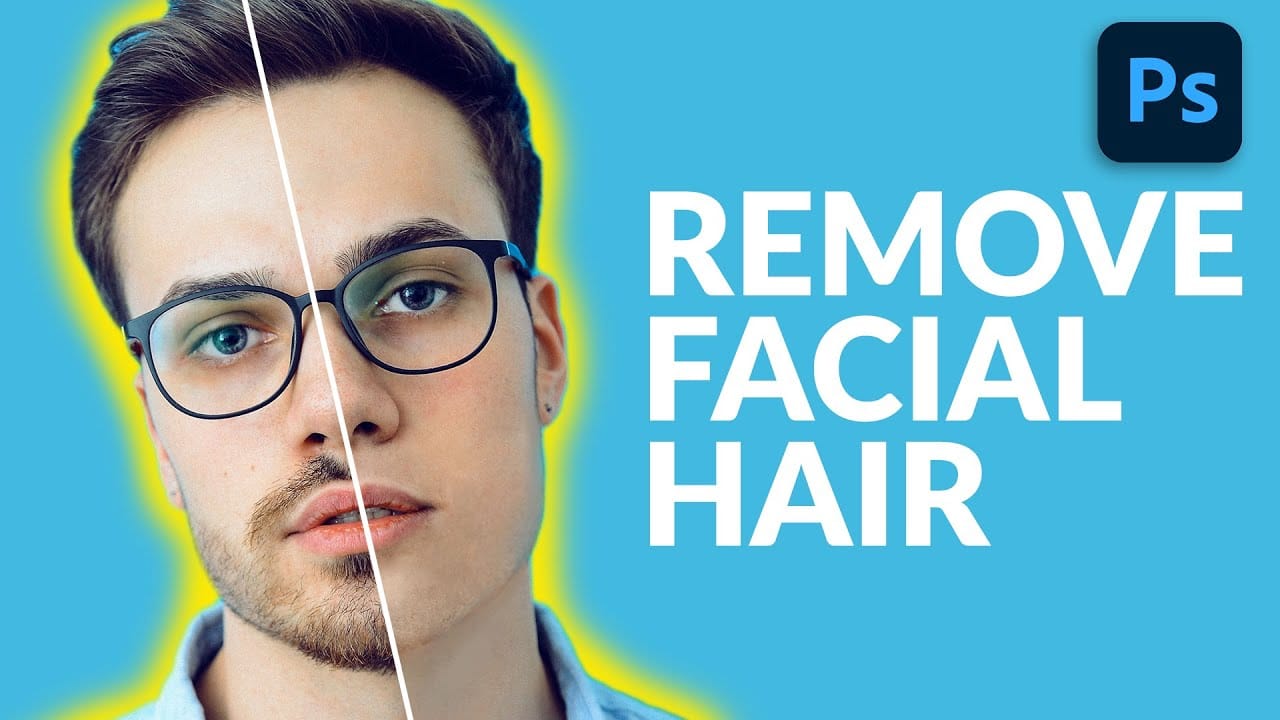
How to Remove Facial Hair in Photoshop
In today's tutorial, we will guide you through the process of effectively removing facial hair in Photoshop! Whether your subject has a prominent, full-on beard or merely a subtle 5 o'clock shadow, this lesson will equip you with the skills to paint away unwanted facial hair using the Brush Tool.
Additionally, you will learn how to recreate realistic skin texture by utilizing a second reference image, ensuring a natural look. We will also cover how to blend everything seamlessly together, emplo
How to Create Facial Hair in Photoshop
Men's facial hair rarely grows evenly, leaving patchy spots that stand out in portraits. From sparse beard areas to missing mustache sections, these gaps can detract from an otherwise polished look.
This tutorial demonstrates how to create custom brushes that paint realistic facial hair, complete with natural color variation and highlights that match existing growth patterns.
Watch the Tutorial
Essential Tips for Creating Facial Hair
Master these key techniques to paint convincing facial h
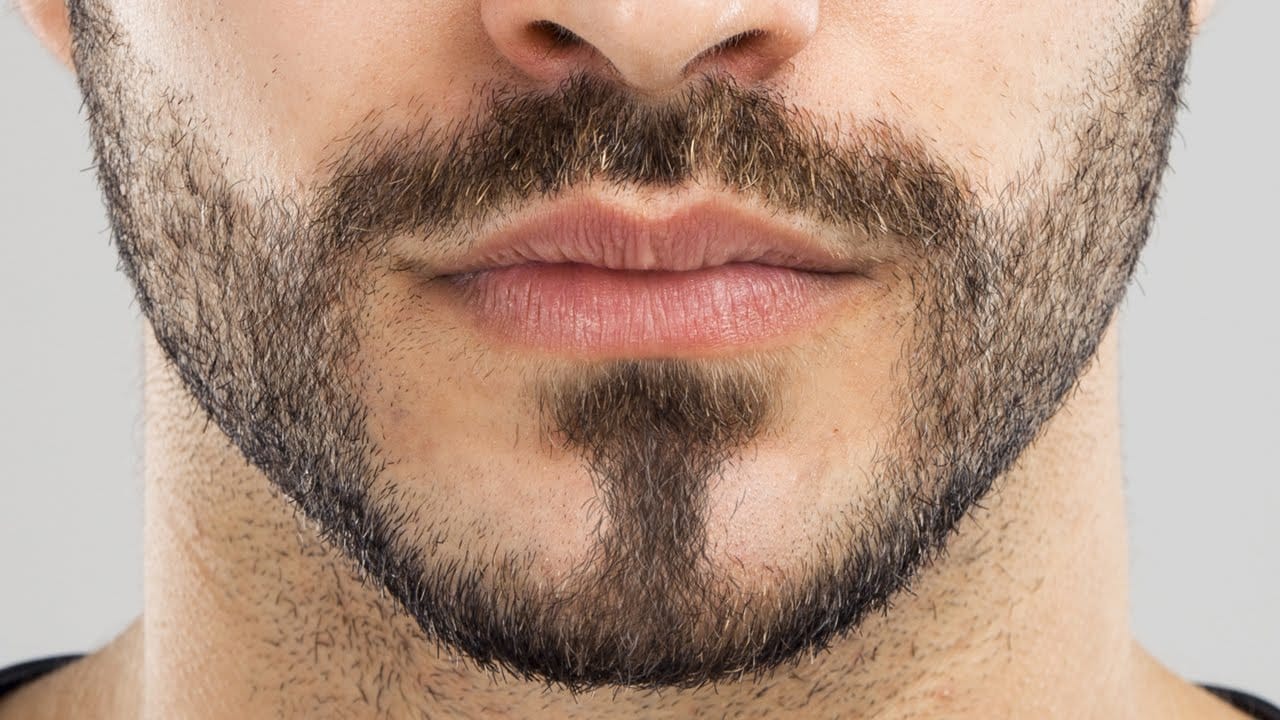
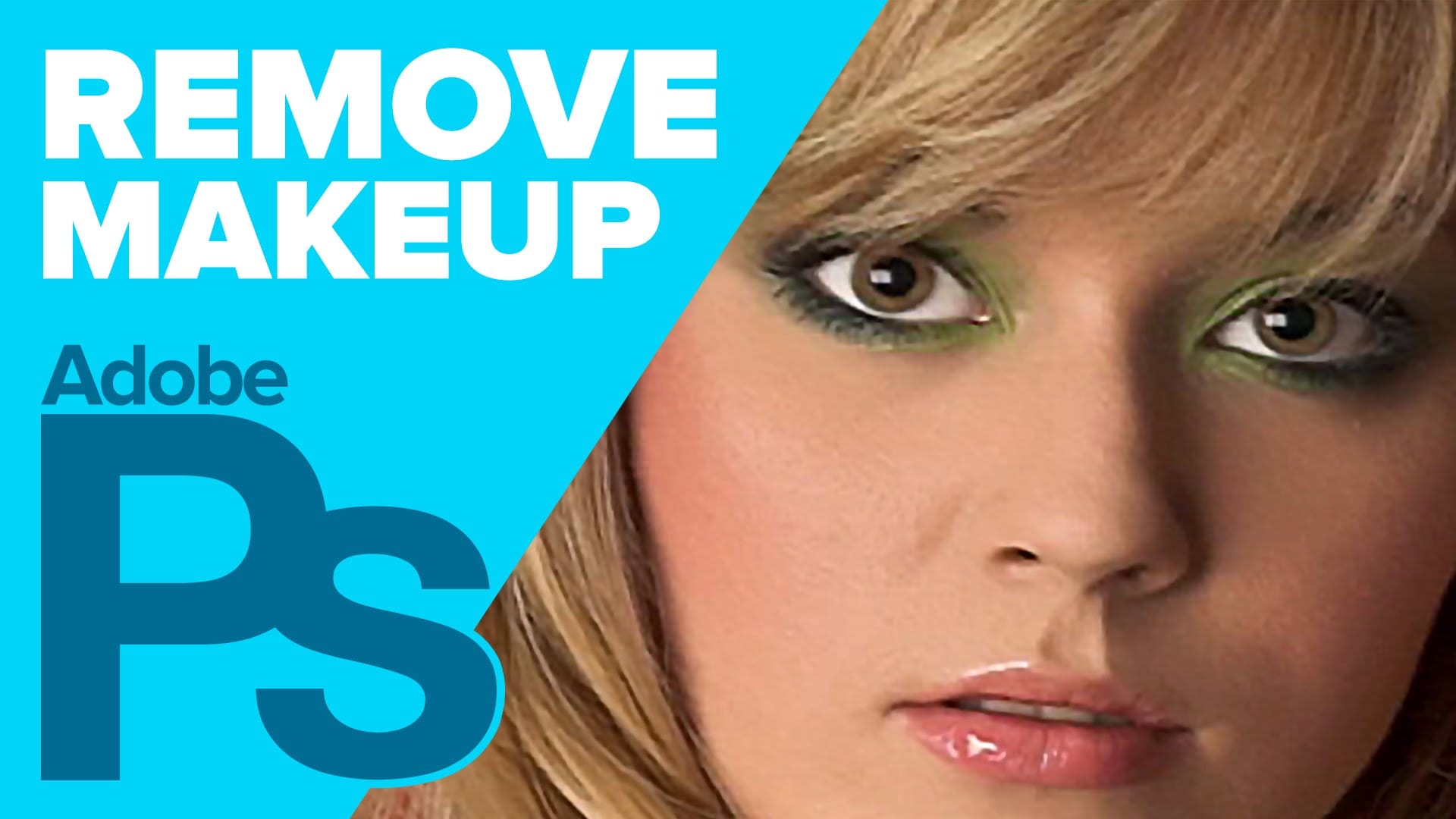
How to Remove Makeup in Photoshop
The author, Howard Pinksy, teaches how to remove makeup from a portrait photograph in this Photoshop tutorial. The tutorial guides the user through the process of removing makeup from a portrait image.
First, the user is shown how to select the areas of the face that have makeup. Then, they are instructed on how to use Photoshop's tools to erase the makeup and reveal the natural skin underneath. The tutorial also covers techniques for blending the edited areas seamlessly with the rest of the im
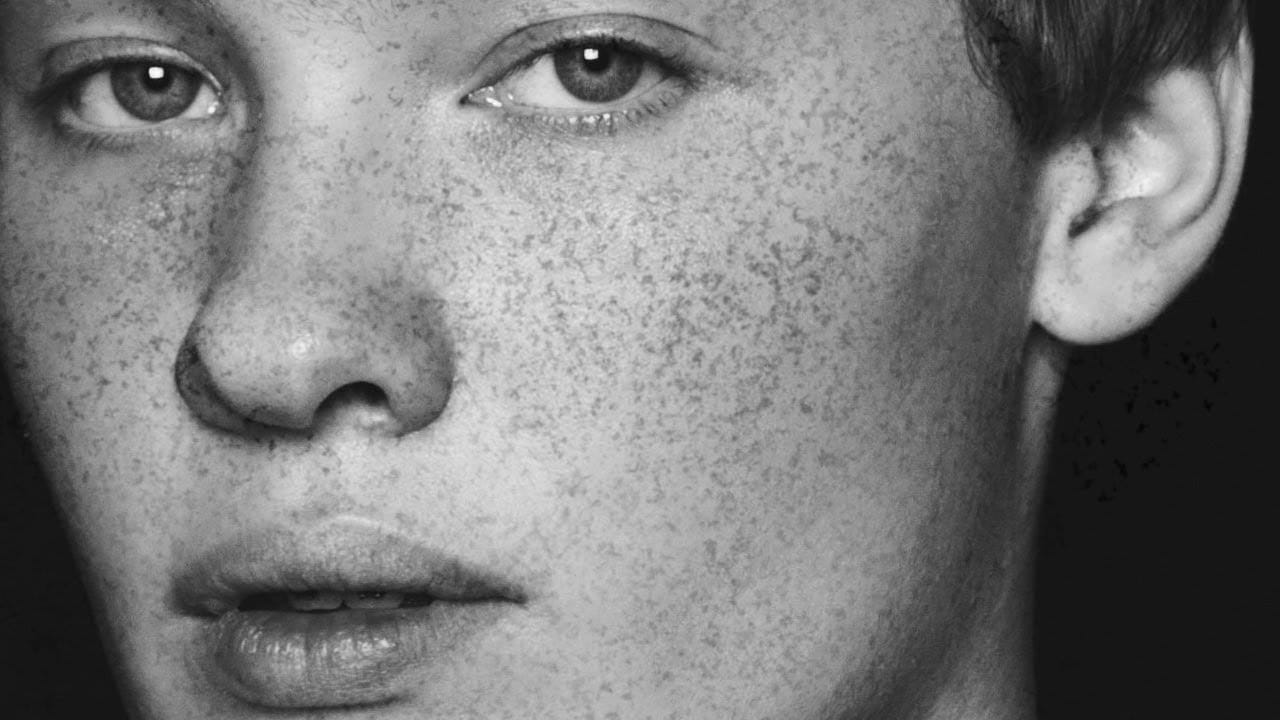
Add freckles to a face in Photoshop
In this tutorial by Aaron Nace from Phlearn, learn how to add realistic freckles to a face in Photoshop by creating a custom brush.
The process begins with using a photo of granite to create an organic freckle texture. You'll select the desired color range, create a black-and-white template, and define a brush preset. Adjust brush settings like shape dynamics and spacing for the best results. Apply the freckles on multiple layers for depth, using a layer mask to fade freckles in unwanted areas.
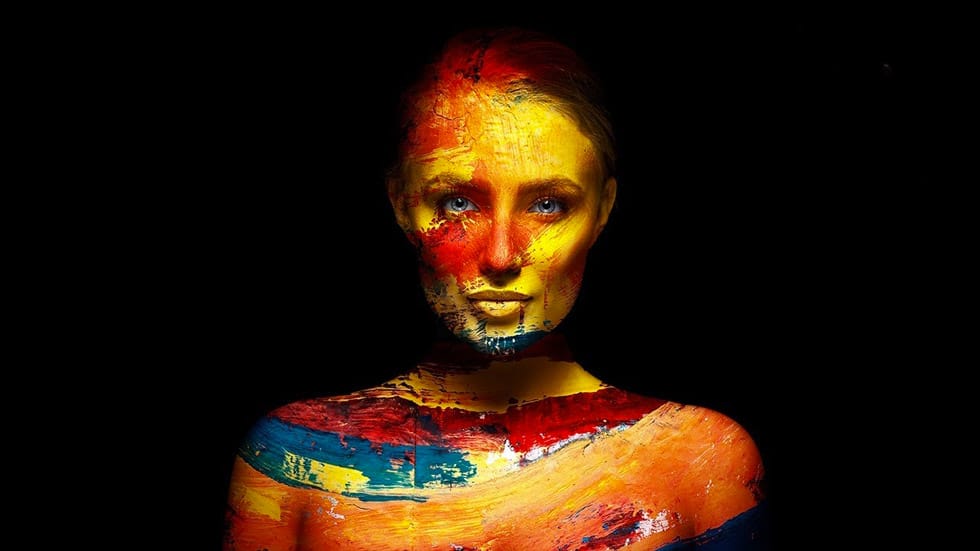
Add Creative Color and Texture to Portraits in Photoshop
In this tutorial by PiXimperfect you will learn how to apply highly realistic paints and textures to portraits in Photoshop. Learn how to manually mold the texture according to the shape of the portrait and use advanced blend modes and blend-if to blend in the colors in the most natural fashion.
In this tutorial, we will also learn how to dodge and burn to add more dimension and make your creative portrait really pop.
Watch tutorial
Apply a nice saturated paint effect to your photos in Photoshop
This beginner-friendly Photoshop tutorial by Marcin Mikus will teach you how to transform a regular photo into a painting.
Marcin begins by duplicating the background layer, enhancing the image's vibrance and saturation for a vivid look. Next, they convert the duplicated layer into a smart object and apply the "Oil Paint" filter, adjusting the settings to achieve the desired painted effect. The tutorial also suggests experimenting with other artistic filters like "Colored Pencil" for various st
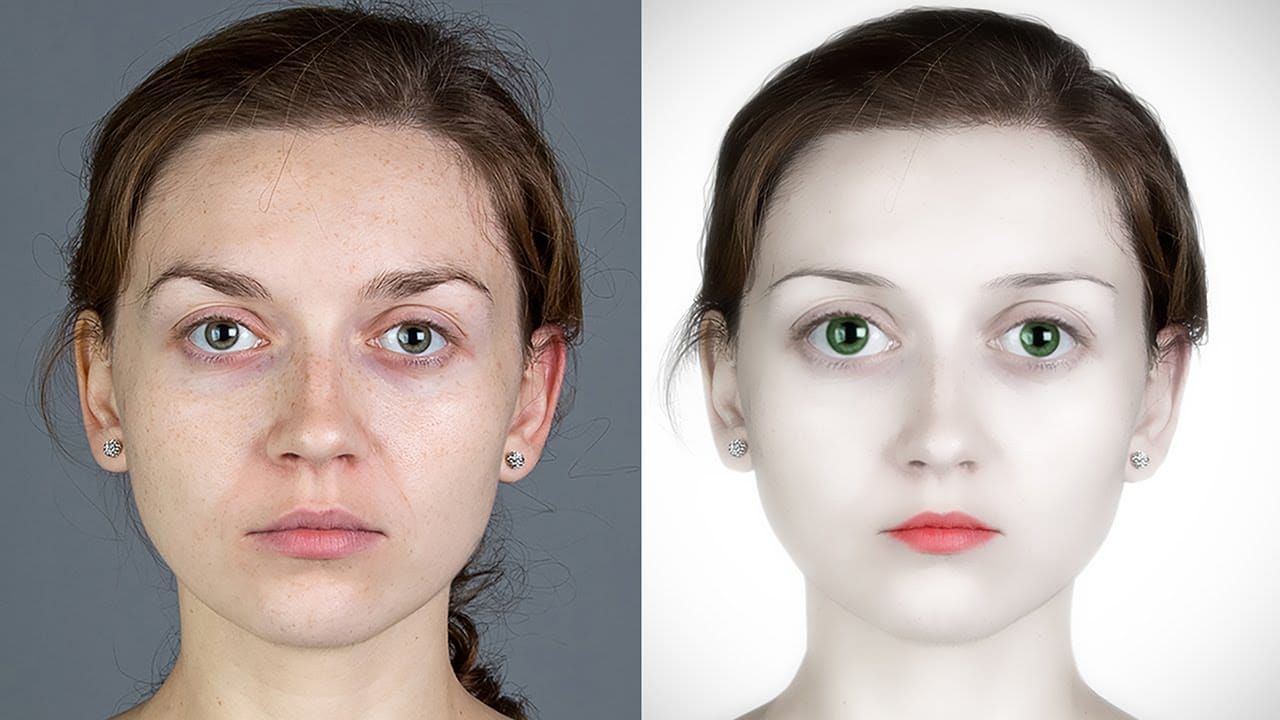
How to Create a Porcelain Doll Effect in Photoshop
This video demonstrates how to transform a subject's face into a distinctive porcelain doll appearance using Adobe Photoshop. The process involves a series of steps that refine and stylize facial features to achieve an ethereal, doll-like quality.
Viewers will learn practical techniques for isolating subjects, adjusting skin texture, enhancing eyes and lips, and subtly exaggerating proportions. This tutorial emphasizes the creative potential of Photoshop to achieve a unique artistic style, tran