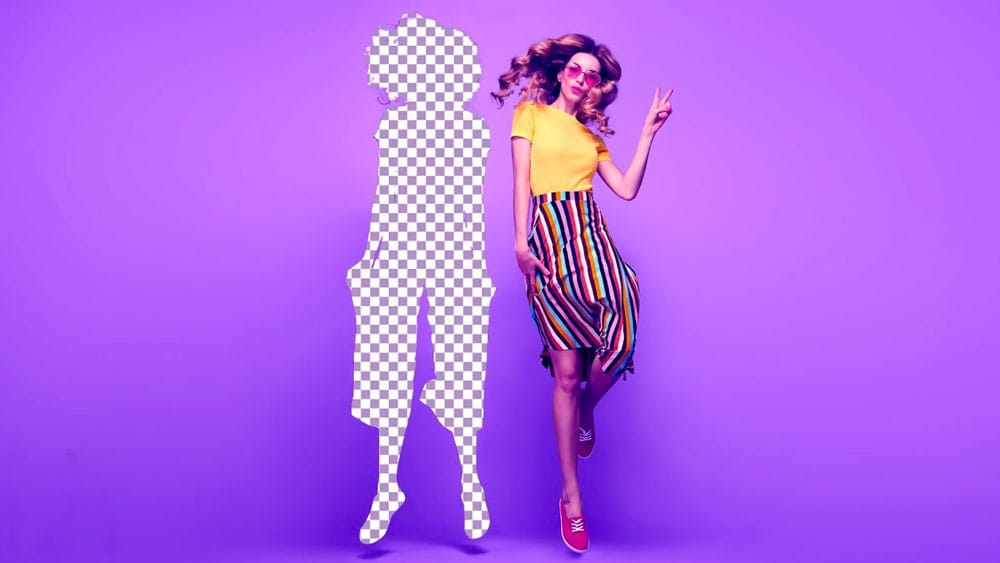
How to Smooth Pixelated Selection Edges in Photoshop

How to Smooth Pixelated Selection Edges in Photoshop

Automatic selections in Photoshop often create jagged, pixelated edges that look unprofessional when zoomed in. These blocky borders can ruin an otherwise perfect cutout, making your work appear amateurish regardless of how carefully you made the initial selection.

Three simple sliders in Photoshop's Select and Mask workspace can transform these rough edges into clean, professional results. Combined with selective blur techniques, these tools create realistic cutouts that blend seamlessly into any composite.

Watch the Tutorial

Video by Brendan Williams. Any links or downloads mentioned by the creator are available only on YouTube

Understanding Selection Edge Refinement

The quality of selection edges determines whether a composite looks natural or obviously manipulated. Digital selections create hard mathematical boundaries that don't exist in real photography, where edges naturally transition through space with varying degrees of sharpness and blur.

Photoshop's Select and Mask workspace addresses this challenge through global refinement controls that mathematically adjust edge properties. The smooth slider averages out pixel variations, the feather slider adds controlled blur, and the contrast slider sharpens the result. This three-step process mimics how camera lenses naturally render edges with depth and optical characteristics.

Professional compositing requires matching the edge quality to the source image's depth of field. Sharp edges against blurry backgrounds immediately reveal digital manipulation, while properly matched edge blur maintains the illusion of photographic authenticity.

Practical Tips for Edge Refinement

  • Access Select and Mask by double-clicking the layer mask thumbnail after making your initial selection
  • Use the smooth slider sparingly to preserve edge details while removing blockiness
  • Apply feather first to blur imperfections, then use contrast to restore sharpness
  • Convert refined selections to smart objects before adding Gaussian blur for non-destructive editing
  • Paint selective blur only on edges that match the background's depth of field

More Tutorials about Selection and Masking

Explore additional techniques for creating precise selections and professional cutouts.
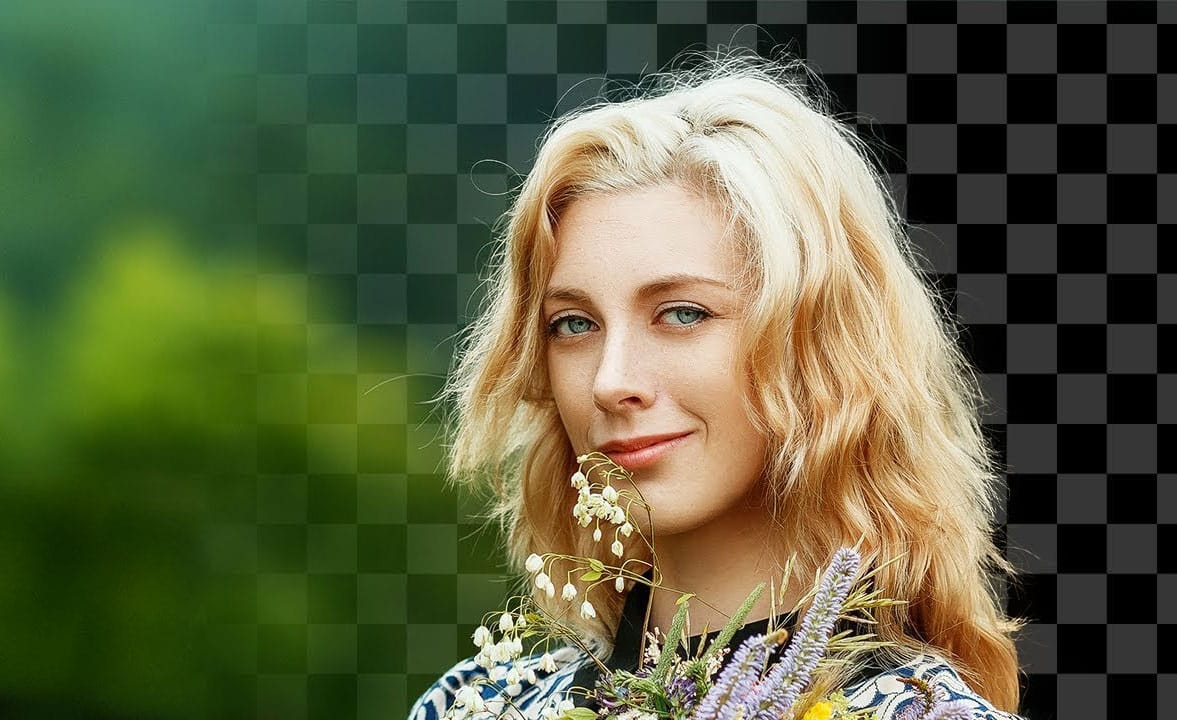
The easy background remover tool hidden in Photoshop!
In this Photoshop tutorial, PiXimperfect shares their insights on the amazing power of the Background Eraser tool. Viewers will learn how to easily cut out hair or complex edges using this versatile tool, as well as the best settings for various situations. The tutorial also covers how to make the Background Eraser tool completely non-destructive. This allows users to change the background or make it transparent without permanently altering the original image. Whether you want to remove the bac
How to make difficult selections easy in Photoshop
In this detailed Photoshop tutorial by TutVid, you will be guided through the process of making intricate selections within the software. The focus is on selecting a person and accurately cutting them out using the Select and Mask tool in a two-step approach. This method ensures precise selection edges, making it effective for both clean, straight lines and complex details such as hair. The tutorial aims to equip users with comprehensive knowledge about making refined selections in Photoshop, e
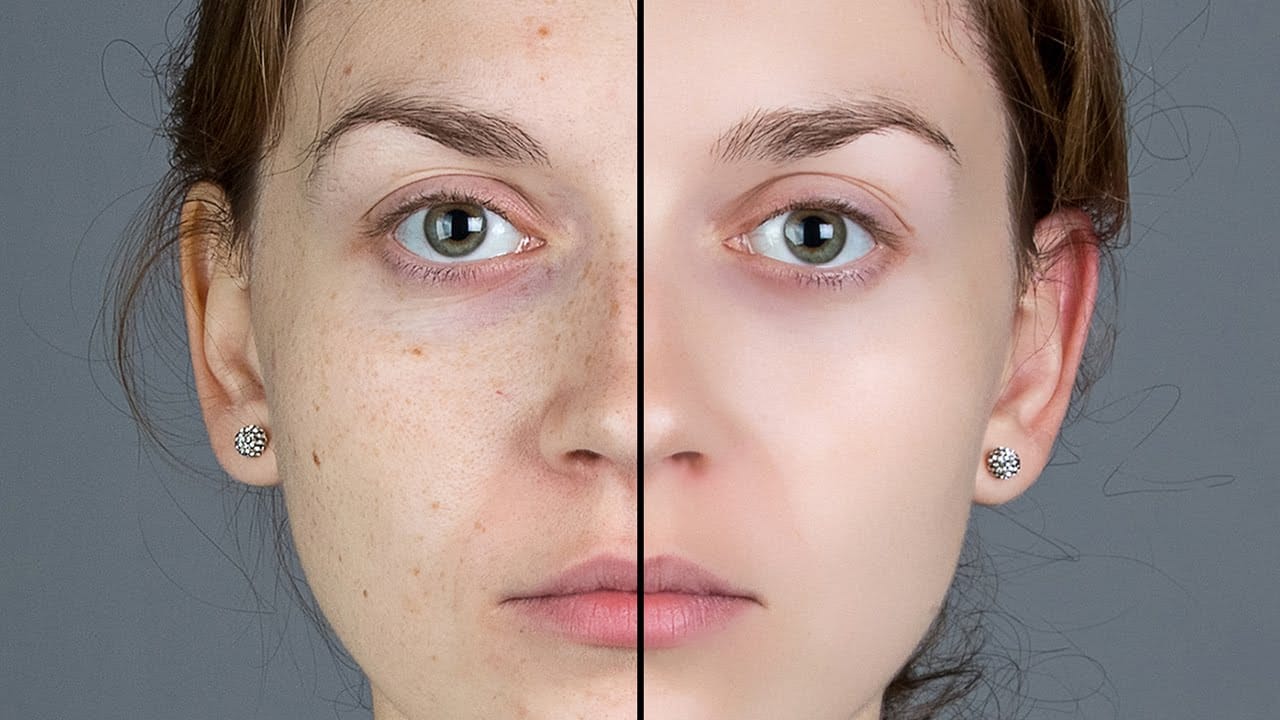
Smooth Skin and Remove Blemishes and Scars in Photoshop
In this Photoshop tutorial by Marty Geller from Blue Lightning TV, you'll learn how to retouch a face to achieve beautifully smooth and flawless skin. The tutorial provides step-by-step instructions on removing blemishes, scars, acne, and wrinkles, ensuring a polished and professional finish. Perfect for photographers and retouchers aiming to enhance their portrait editing skills, this tutorial will help you create stunning, clear, and natural-looking skin in your images Watch tutorial
Did you know Photoshop has new Quick Actions?
Discover how to speed up your workflow with Photoshop's new Quick Actions, presented by Colin Smith from Photoshop Cafe. This tutorial reveals the ease and efficiency of using Quick Actions to perform common tasks with just one click. Colin walks you through locating these Quick Actions and demonstrates how to use them to blur backgrounds, apply duotones, remove backgrounds, and more. While some features, like the Blur Background action, might not always produce perfect results, Colin shares a

Get tutorials & freebies delivered to you.

Subscribe to the Photoshop Roadmap newsletter, a weekly roundup of new tutorials, insights and quality downloads, trusted by 6500+ readers.

You might also like

How to Use AI Masking in Adobe Camera Raw for Professional Photo Editing

Adobe Camera Raw's AI masking tools automatically detect subjects, backgrounds, skies, and landscapes, letting you make precise adjustments to specific areas of your photos. These intelligent masks eliminate the need for manual selection work, while allowing you to combine and refine them for complete creative control. The technique...

How to Remove Objects from Photos Using AI Tools in Photoshop

Photoshop's AI-powered object removal tools can eliminate unwanted distractions from your photos with minimal effort. The Remove Tool and Generative Fill feature automated detection for common distractions like people and wires, plus manual painting options for custom removals. These tools work on separate layers, preserving your original image...

Speed Up Your Color Grading Workflow with Photoshop Actions

Color grading can transform your images, but manually adjusting curves and levels for every photo takes time. Photoshop actions offer a faster approach by applying professional color treatments with a single click. This workflow uses pre-built actions, tints, and LUTs to achieve various moods and styles instantly, letting you layer...

7 Essential Tips for Speed Painting in Digital Art

Speed painting isn't just about working faster—it's about eliminating friction from your creative process. These seven techniques help you get ideas onto canvas quickly without getting bogged down in unnecessary decisions or premature details. Whether you're exploring concepts for professional work or personal...

Professional Color Grading Techniques in Photoshop

Color grading transforms ordinary photos into compelling images with professional mood and atmosphere. These non-destructive techniques let you adjust tones, enhance specific colors, and create cinematic looks while preserving your original image data. Master these four essential color grading methods to develop a consistent editing workflow that elevates your photography....

How to Save Cut-Out Elements with Transparent Backgrounds in Photoshop

Creating seamless photo composites requires properly saving cut-out elements with transparent backgrounds. Whether you're extracting people, objects, or other elements for later use, the file format you choose determines how easily you can place these elements into new scenes. Two main approaches work best: saving as PSD files...

You’ve successfully subscribed to Photoshop Roadmap
Welcome back! You’ve successfully signed in.
Great! You’ve successfully signed up.
Success! Your email is updated.
Your link has expired
Success! Check your email for magic link to sign-in.