Most photographers avoid channels because they seem technical and intimidating. The breakthrough happens when you stop thinking of channels as red, green, and blue data and start seeing them as mask maps that reveal natural separation points in your images.
This approach transforms rough, scissors-cut selections into smooth, believable masks that blend naturally with your photos. Instead of fighting with basic tools, you'll read the image data to find exactly where clean selections already exist.
Watch the Video
Video by f64 Academy. Any links or downloads mentioned by the creator are available only on YouTube
Practical Tips
Essential techniques for building better channel-based masks:
- Look for the channel with the strongest contrast between your subject and background before starting any selection
- Test your channel selections quickly by loading them as masks to see how they perform before refining
- Focus on recognition over memorization - learn to spot natural separation points rather than following rigid formulas
- Build your skills through experimentation with different channel combinations rather than sticking to single channels
- Reserve channel masking for your most important images where precision matters more than speed
Related Articles and Tutorials
Explore more advanced masking techniques and selection methods:
Transform Your Photos with These Photoshop Masks
Masking in Photoshop is a powerful technique to isolate and enhance different parts of an image. However, many users find it complicated and time-consuming, often sticking to basic masks or selections that limit creative control. This can make photo editing feel frustrating and slow, especially when trying to achieve subtle but impactful adjustments.
This tutorial introduces a structured masking workflow within Camera Raw that simplifies the process while giving you precise control over highlig
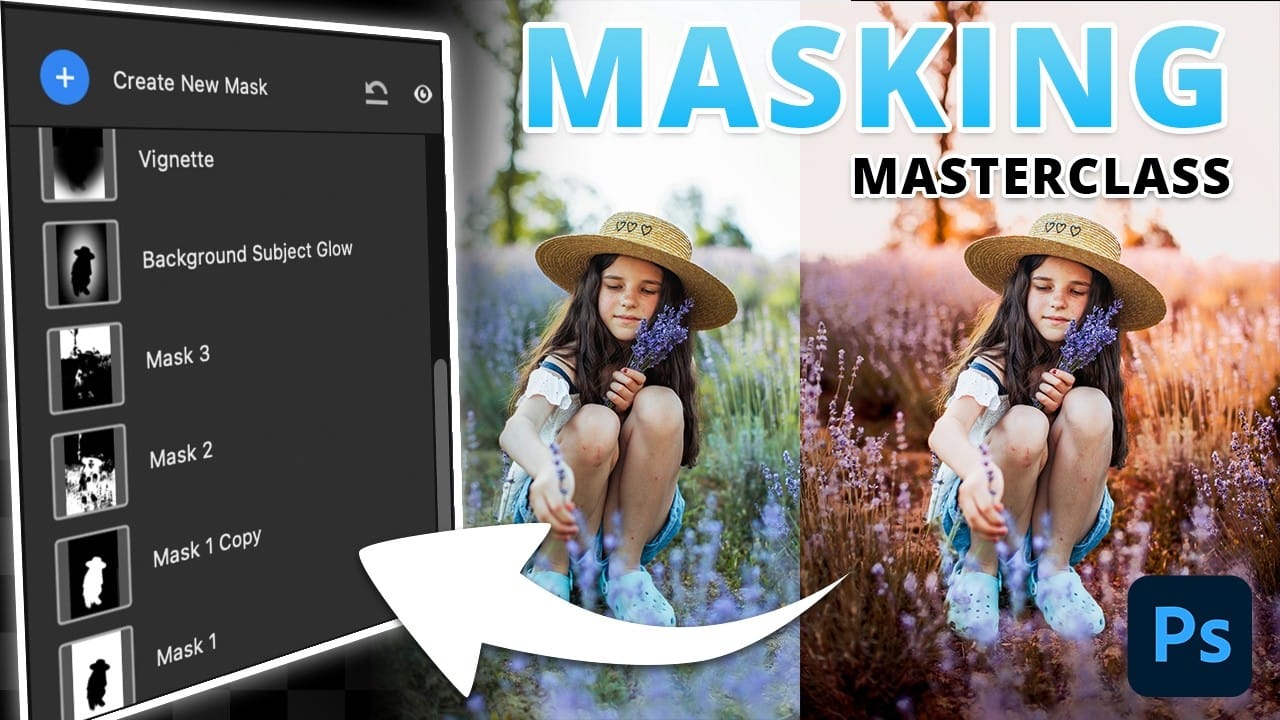
5 hidden Tips to make perfect Photoshop mask edges
Achieving flawless cutouts and seamless composites in Photoshop often depends on one crucial element: clean mask edges. Rough fringes, jagged lines, or semi-transparent halos can instantly undermine the realism of any image. This video demonstrates powerful techniques to transform your selections from good to truly professional.
It provides five actionable tips, allowing you to meticulously refine and perfect your mask edges, ensuring your subjects blend effortlessly into any new background wit
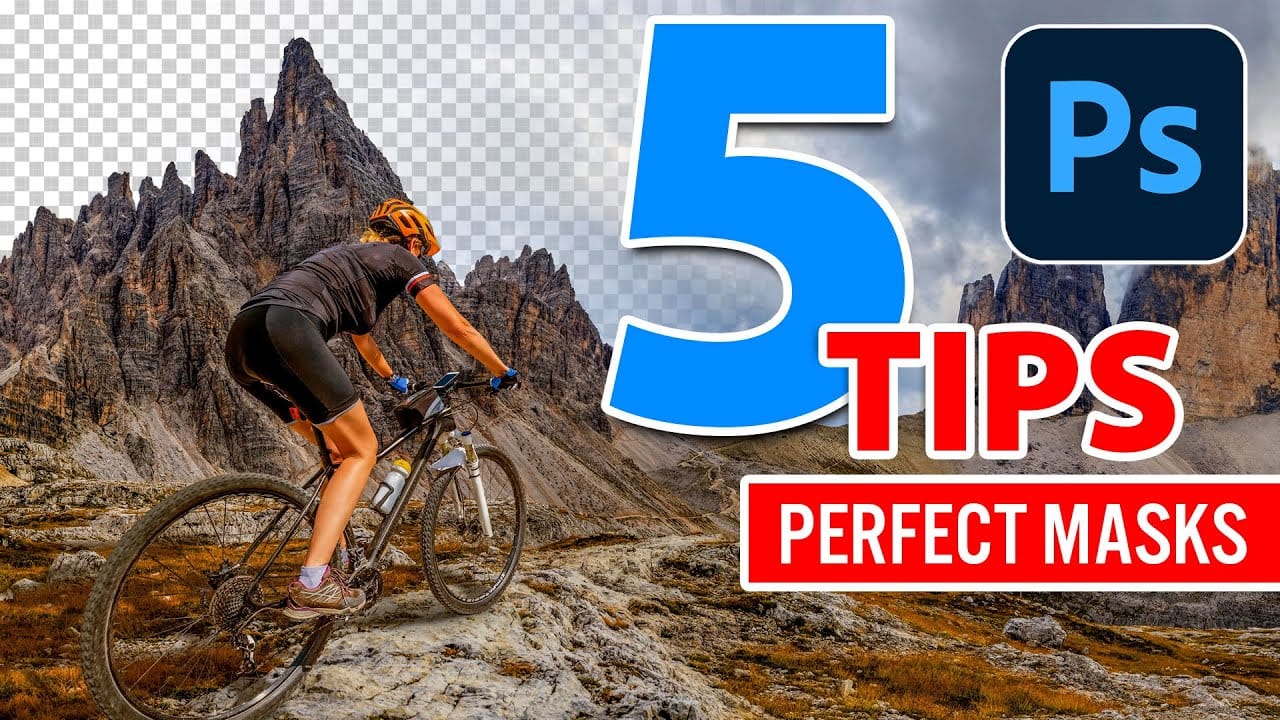
Photoshop auto masks, new feature no one is talking about
Making precise selections in Photoshop has historically been one of the most time-consuming and challenging aspects of image editing. From intricate hair strands to complex tree foliage, achieving a clean mask often required significant manual effort and advanced techniques. However, recent advancements in artificial intelligence are rapidly transforming this fundamental process.
The video demonstrates the groundbreaking improvements in Photoshop's auto-masking capabilities, specifically within

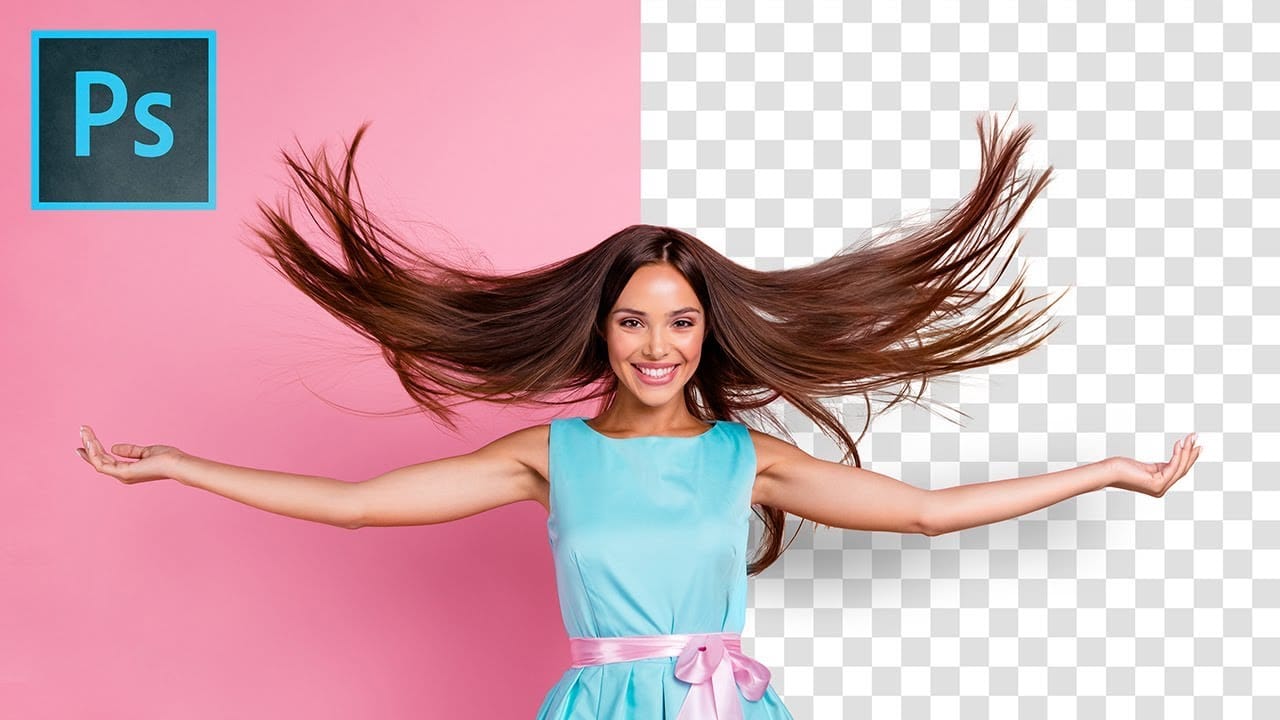
Precisely Cut Out Hair Using Color Range in Photoshop!
Mastering the Right Way to Use Color Range for Hair Masking in Photoshop! In this comprehensive guide, you'll discover how to accurately select and eliminate the background, even around challenging hair textures and styles. We will delve into crucial tips and techniques to enhance the quality of the mask so that it seamlessly blends with your new background.
Throughout this tutorial, we will also focus on effectively removing any unsightly edge fringes or halos that may occur, ensuring you achi
How to Use Photoshop's Smudge and Blur Tools for Perfect Masking
Professional photo composites often fall apart at the edges. Sharp selection lines and harsh transitions make even the best cutouts look artificial and fake. The solution lies in two overlooked Photoshop tools that most editors dismiss as destructive and useless. The smudge and blur tools become powerful allies when applied to layer masks instead of image pixels. This approach creates natural, realistic edges that match the original photo's depth of field and lighting conditions.
Watch the Tut
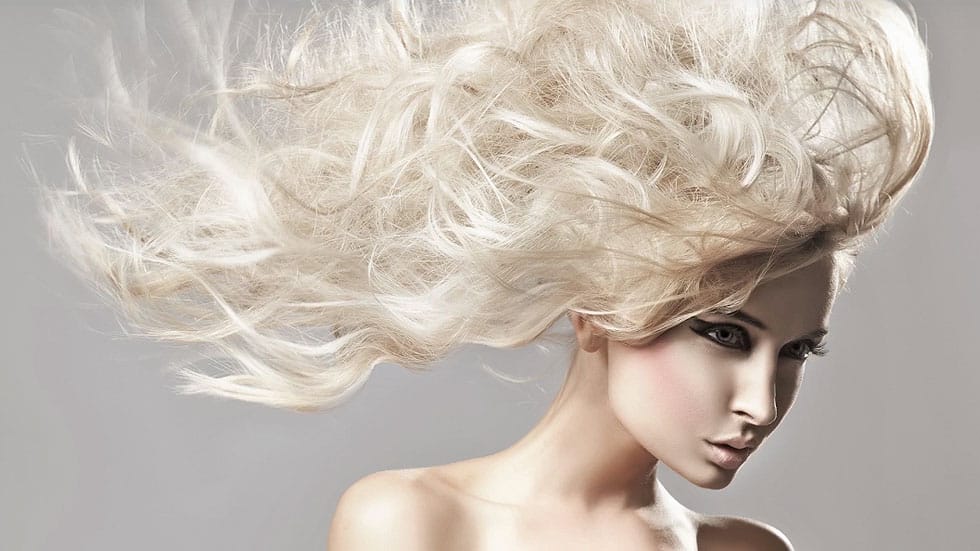
Professional hair masking technique in Photoshop
In this Photoshop tutorial, author Kevin Roodhorst provides a detailed guide on how to create a professional hair masking technique. The tutorial takes you through the step-by-step process of making the perfect hair mask.
The author explains the importance of masking hair in Photoshop, as it allows for precise selections and editing of individual strands. By following the instructions laid out in the tutorial, users can learn to isolate and refine the hair, enabling them to make seamless adjust
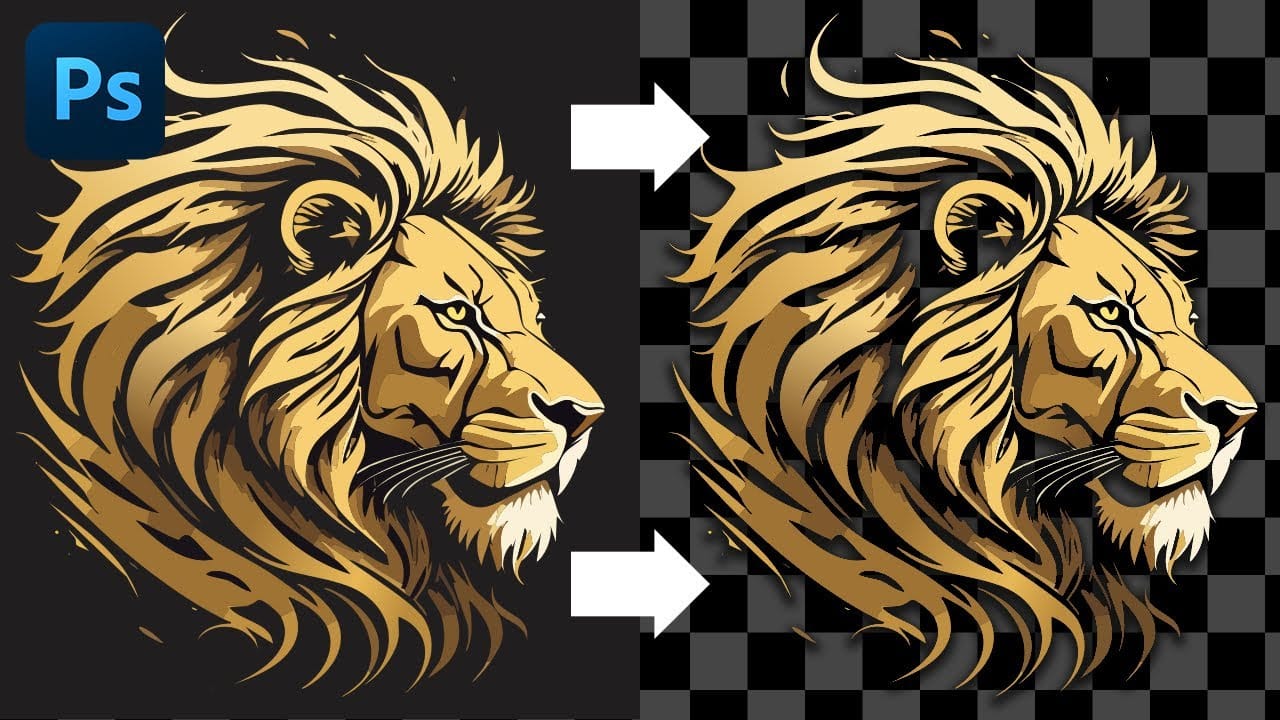
Cutting Out Complex AI Images Using Channel Masking in Photoshop
AI-generated images often contain intricate details that challenge standard background removal tools. When automatic selection methods fail to capture complex edges and fine details, manual techniques become essential.
This technique demonstrates how to use channel masking to create precise selections that preserve every detail of your AI artwork.
Watch the Tutorial
Essential Tips for Channel Masking
* Select the channel with the highest contrast between your subject and background before
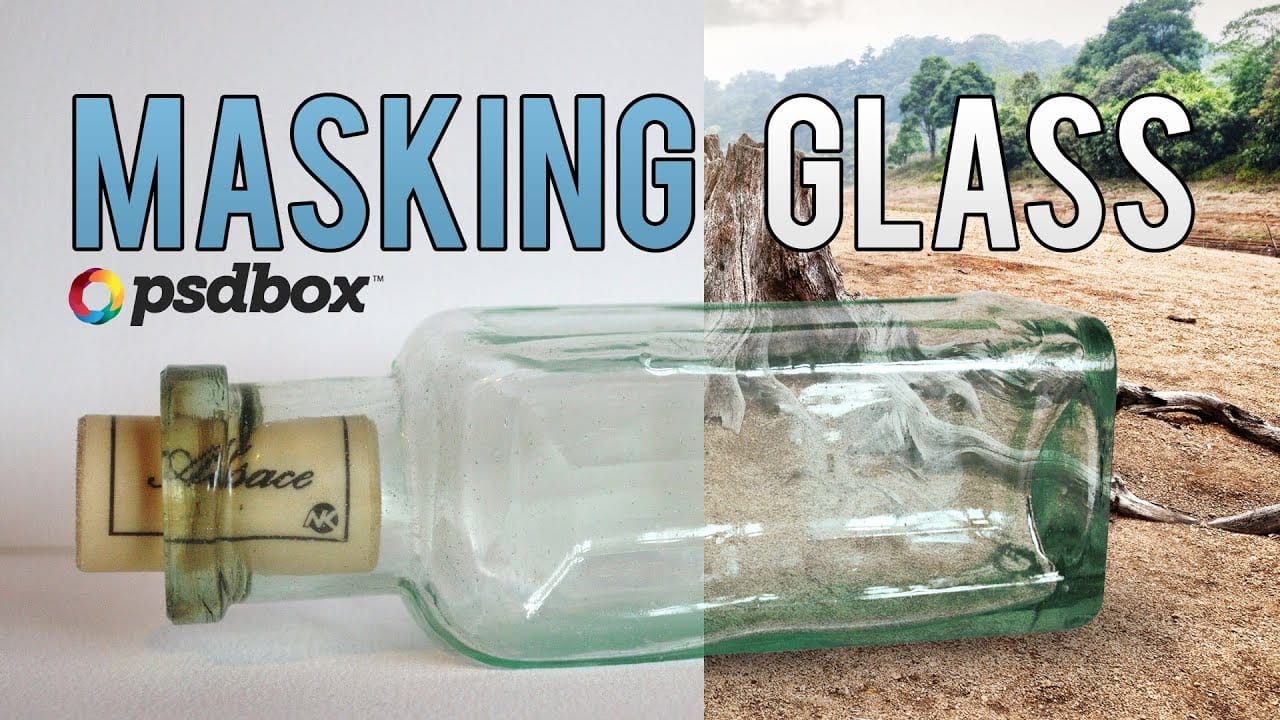
Masking Glass and Transparent Objects
In this Photoshop tutorial by PSD Box, you'll master the art of masking glass using a straightforward selection method.
The focus is on preserving the natural reflections and highlights present on the glass object, ensuring a realistic and seamless integration into new backgrounds or compositions. This technique is crucial for maintaining the transparency and depth of glass while removing its background, making it ideal for product photography or creative digital art projects.
Follow along as
TOP New Features in Photoshop – May 2025 Update
Many Photoshop users frequently encounter common challenges such as time-consuming manual selections for complex objects, difficulties in achieving precise color adjustments across an image, or struggling with inconsistent results when removing unwanted elements like reflections. These hurdles often slow down the creative process, making it frustrating to achieve a desired professional look efficiently.
This guide explains how Photoshop's latest updates introduce powerful new functionalities, i