Master Photoshop's Pen Tool in 5 Minutes

Master Photoshop's Pen Tool in 5 Minutes

The Pen Tool in Photoshop intimidates many designers, yet it remains one of the most powerful selection and shape creation tools in the software. While other selection methods work well for simple shapes, complex objects with curves and precise edges demand the accuracy that only the Pen Tool can deliver.

This tutorial breaks down the essential Pen Tool techniques into digestible steps, covering anchor points, control arms, and path creation. By understanding these fundamentals, you'll gain the ability to create precise selections, vector masks, and custom shapes that elevate your design work.

Watch the Tutorial

Any links or downloads mentioned by the creator are available only on YouTube

Why the Pen Tool Remains Essential for Professional Design

Vector-based tools like the Pen Tool operate differently from pixel-based selection methods. Instead of analyzing color differences or edge detection algorithms, the Pen Tool creates mathematically precise paths using Bézier curves. This approach produces clean, scalable results that maintain their quality at any resolution.

The tool's precision comes from its manual control system. Each anchor point serves as a coordinate on your canvas, while control arms determine the curvature between points. This direct manipulation gives designers complete authority over path creation, making it invaluable for logo design, product cutouts, and architectural illustrations.

Professional workflows often combine the Pen Tool with other Photoshop features. Paths convert seamlessly into selections, vector masks, or shape layers, providing flexibility that automated tools cannot match. This versatility explains why the Pen Tool remains a cornerstone skill in graphic design education.

Practical Tips for Pen Tool Mastery

  • Enable Auto Add/Delete in the options bar to streamline anchor point management by clicking directly on path segments
  • Use keyboard modifiers strategically: Cmd/Ctrl to move anchor points, Alt/Option to break control arm connections
  • Start with Path mode instead of Shape mode for maximum flexibility when converting to selections or masks later
  • Place fewer anchor points rather than more—smooth curves require minimal points with properly adjusted control arms
  • Zoom in closely when placing points along detailed edges to ensure accuracy in your final selection

Explore more essential Photoshop techniques and tool tutorials:

Learn Photoshop by Combining Tools and Techniques
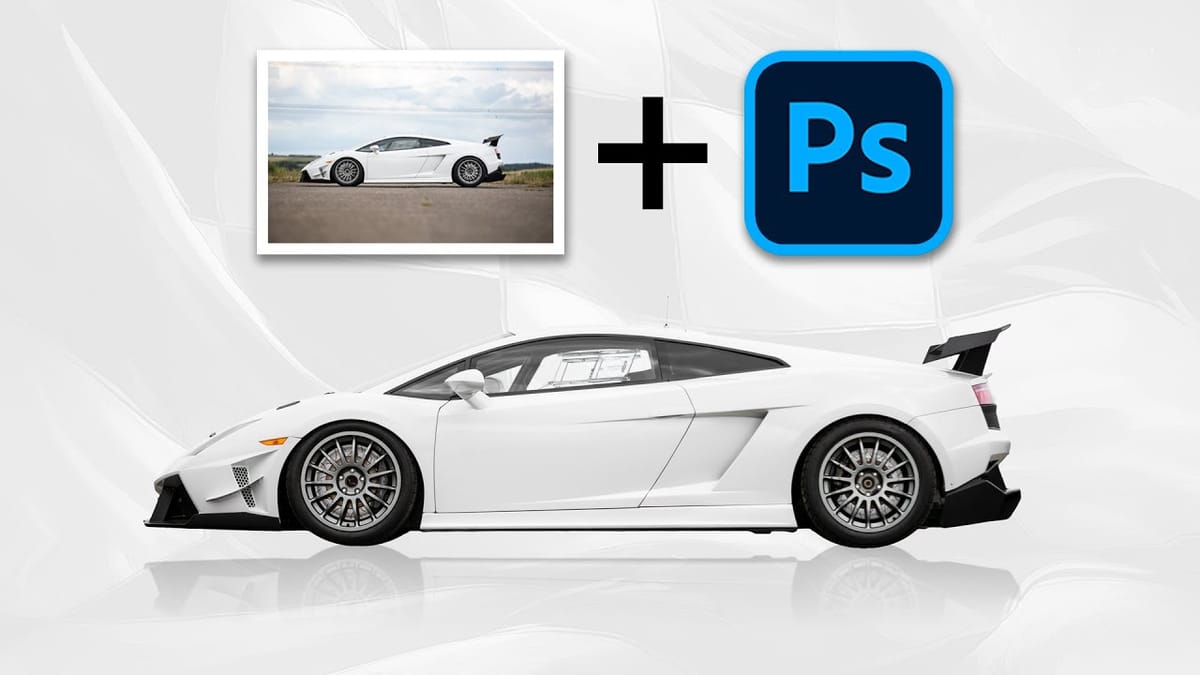
Learning Photoshop can be an exciting journey, especially when you explore various techniques and tools. This approach allows you to understand how different elements work together and enhance your creativity. In this presentation, you will follow along as the process begins with a straightforward out-of-camera photograph of a Supercar. Through
Customize Your Photoshop Toolbar for an Optimized Workflow
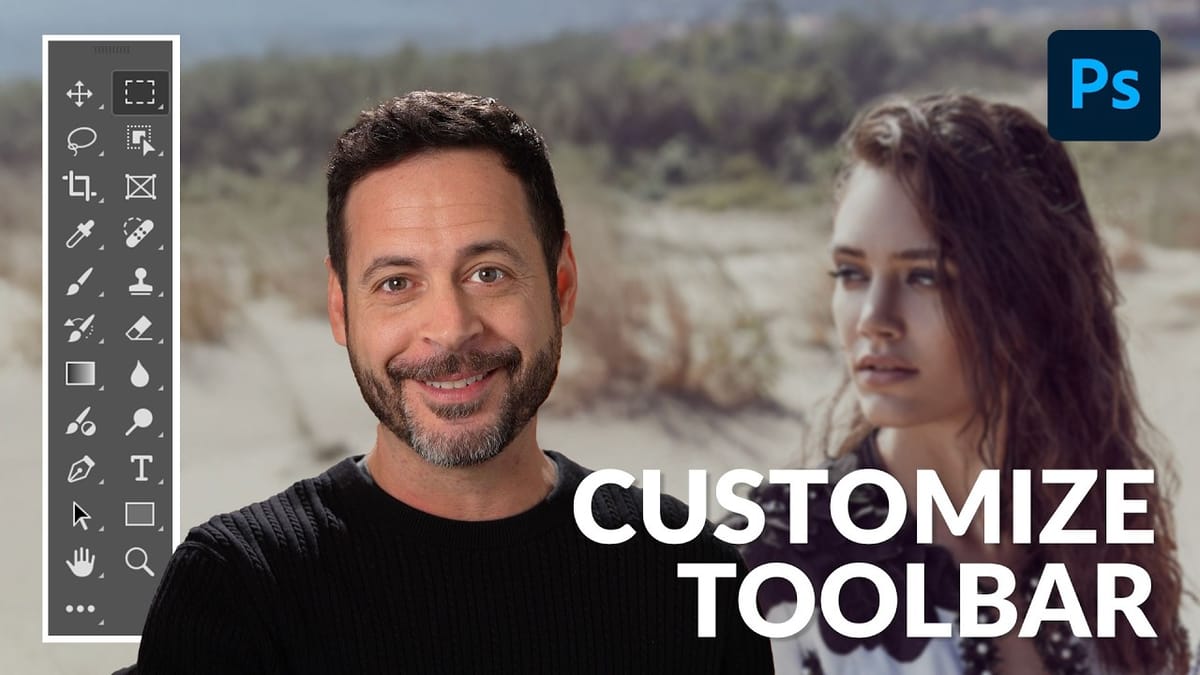
Working in Photoshop often means navigating a toolbar filled with dozens of tools, many of which may rarely or never be used in a typical workflow. This can lead to a cluttered interface, making it challenging to quickly locate essential tools and slowing down your creative process. The default arrangement,
7 Photoshop Tools Replaced by AI: Are They Still Relevant?
Photoshop continues to push boundaries with advanced tools like Distraction Removal, the Remove Tool, Generative Expand, Super Resolution, and AI Denoise. These features bring new possibilities to photo editing, making complex tasks faster and easier. However, classic tools such as Content-Aware Fill, Clone Stamp, Spot Healing, Dodge & Burn, and Sharpening

Get tutorials & freebies delivered to you.

Subscribe to the Photoshop Roadmap newsletter, a weekly roundup of new tutorials, insights and quality downloads, trusted by 6500+ readers.

You might also like

When to Use Saturation vs Vibrance for Better Color Enhancement

While vibrance gets praised for being "gentler" than saturation, the reality is more nuanced. Saturation works like a universal volume knob, boosting all colors equally, while vibrance acts like a smart equalizer, selectively enhancing less saturated areas first. Understanding when each approach serves your creative vision makes the...

How to Check Your Generative Fill Credit Balance in Photoshop

Keeping track of your AI credit usage becomes essential when working with premium generative features. Understanding your remaining balance helps you budget your edits and avoid unexpected interruptions during important projects. The credit system divides features into standard tools (like basic generative fill) that don't consume credits, and...

How to Create Realistic Depth Blur Effects in Photoshop

Creating professional depth of field effects can transform flat images into dynamic photographs with natural-looking focus transitions. Two powerful methods in Photoshop offer different advantages: Neural Filters provide automated depth detection with atmospheric effects like haze, while Camera Raw Filter delivers precise manual control with customizable bokeh shapes. Both techniques...

Three Professional Methods to Fix White Balance in Photoshop

Color casts can ruin even the best photographs, making whites appear yellow, blue, or green instead of neutral. Poor white balance destroys the natural look of your images and creates an unprofessional appearance that's immediately noticeable to viewers. These three techniques provide increasingly precise control over white balance...

Creating Dark Moody Wildlife Photo Edits in Photoshop

Dark, moody wildlife photography transforms ordinary animal portraits into dramatic, atmospheric pieces that capture the mystery and power of nature. This editing approach combines strategic lighting placement, careful color grading, and atmospheric effects to create compelling images that draw viewers into the scene. The workflow begins with essential noise reduction...

How to Create Professional Photo Composites in Photoshop

Creating compelling photo composites requires more than simply placing images together. This comprehensive tutorial demonstrates how to blend multiple elements seamlessly, from matching lighting and color to painting realistic shadows and highlights. The project showcases a dramatic scene inspired by Stranger Things, combining buildings, characters, and atmospheric effects with precise...

You’ve successfully subscribed to Photoshop Roadmap
Welcome back! You’ve successfully signed in.
Great! You’ve successfully signed up.
Success! Your email is updated.
Your link has expired
Success! Check your email for magic link to sign-in.