Monster themed text effect in Photoshop

Monster themed text effect in Photoshop

Transform ordinary text into a frightfully creative monster design. This tutorial helps you craft dynamic, textured text that stands out, perfect for themed projects or Halloween designs.

Learn how to apply multiple layer effects to achieve a unique, skin-like finish. This process creates engaging visuals, teaching you the steps to give your typography a truly monstrous appeal.

Watch the Full Tutorial

Video by EvanEckard. Any links or downloads mentioned by the creator are available only on YouTube

Mastering Layer Styles for Creature Textures

Crafting complex text effects in Photoshop often relies on an intricate combination of layer styles. Each effect builds upon the last, transforming simple typography into detailed, three-dimensional elements. From subtle lighting variations to pronounced textures, these styles allow designers to simulate organic surfaces like monster skin.

Understanding how to layer bevel and emboss, textures, and glows is key to achieving depth and realism. Further customization with gradients and shadows adds another dimension, ensuring the text integrates seamlessly into its background.

  • Layer style stacking for depth and realism.
  • Bevel and Emboss as a foundation for 3D form.
  • Texture application for surface details like skin.
  • Gradient Overlays to enhance shading and form.
  • Strategic masking to create dynamic edges.

Practical Tips for Monster Text Effects

  • Use specific hex values for foreground and background colors to establish a themed backdrop.
  • Apply Bevel and Emboss with an Inner Bevel and a Half Round gloss contour for initial depth.
  • Integrate a water or zebra pattern via the Texture setting within Bevel and Emboss to simulate skin.
  • Utilize the Pen tool to create a wavy selection and then a layer mask to break up the text edge.
  • Refine text edges by painting on the mask with black (to hide) and white (to reveal) using a hard round brush.

More Tutorials about Text Effects

Explore diverse text manipulation techniques with these additional Photoshop tutorials.
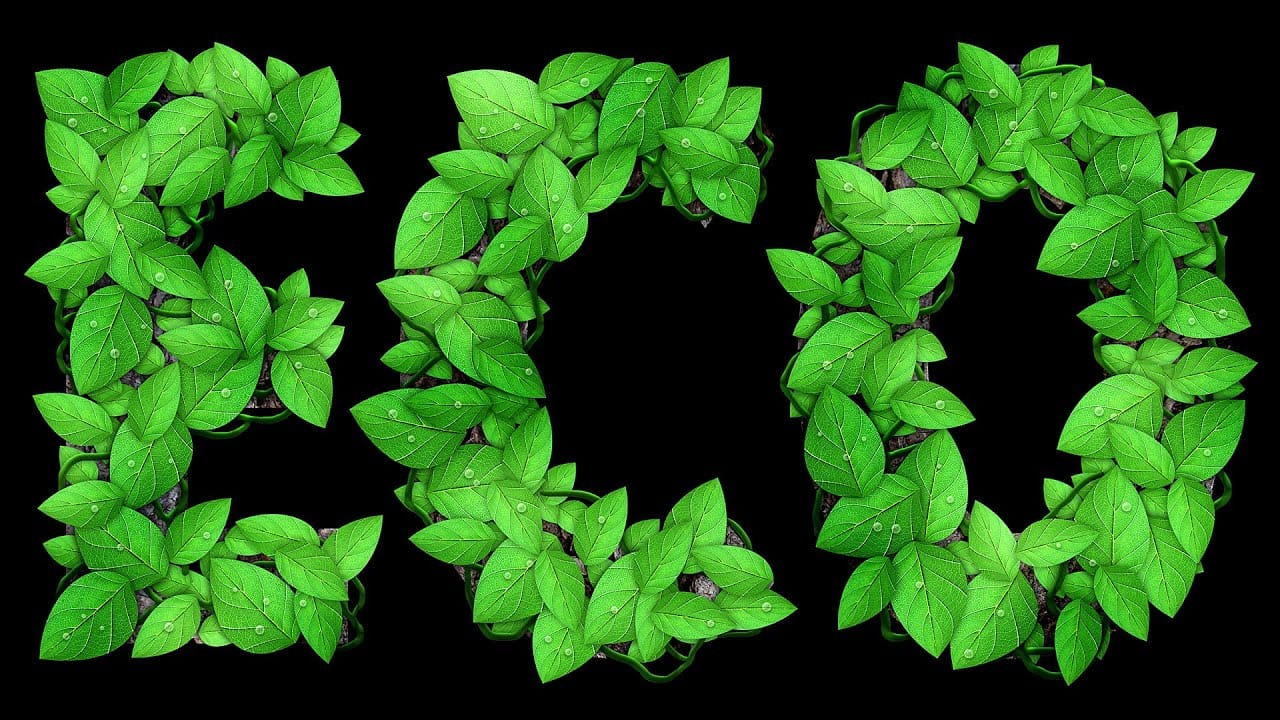
Leafy Text Effect Photoshop Tutorial
In this tutorial by Spoon Graphics, you'll learn how to create a text covered with leaves in Adobe Photoshop. The tutorial guides you through the process of designing text made up of tiny leaves, vines, and water droplets. While the tools and techniques used are straightforward, the tutorial emphasizes the importance of patience in achieving a complex and detailed final result. The outcome is a stunning and intricate piece of eco-themed artwork that showcases the beauty of nature. Watch tutor
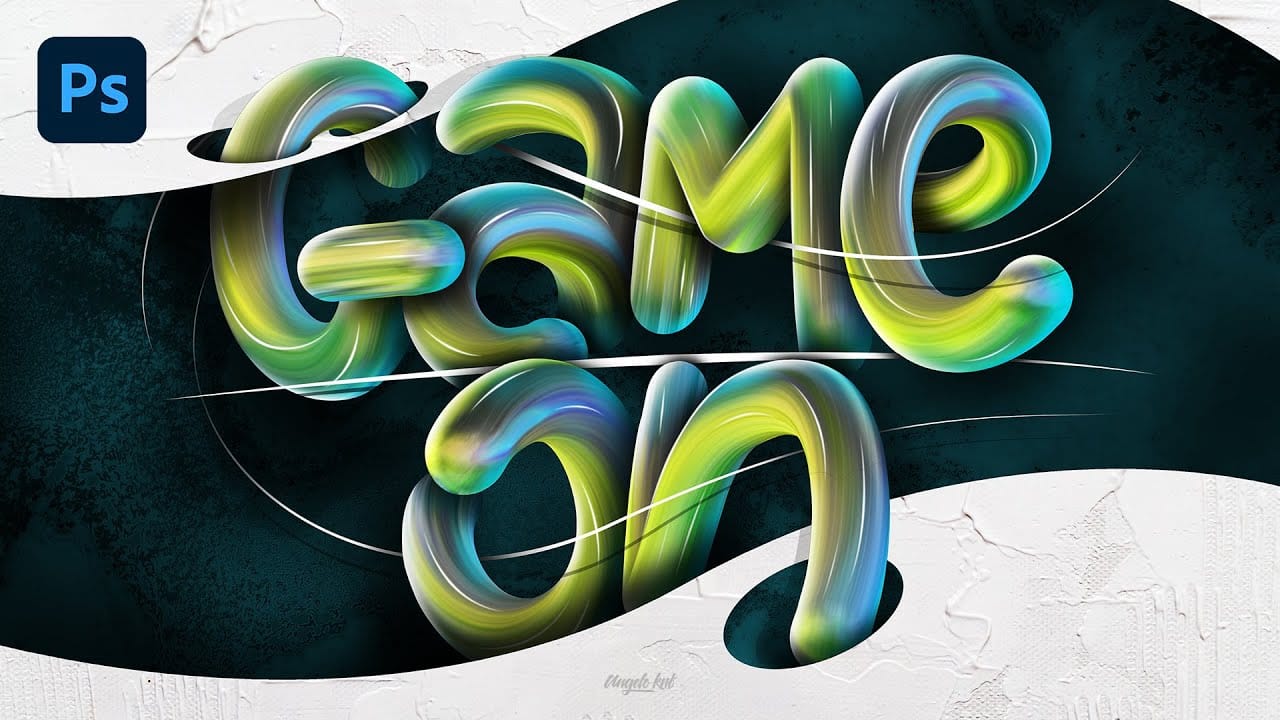
Colorful Painted 3D Text Effect Tutorial in Photoshop
In this tutorial by Angelo Konofaos, you'll explore how to create a 3D-style text effect in Photoshop, alongside techniques like adding shadows, highlights, shines, and colors. Utilizing a variety of Photoshop tools such as the Mixer Brush, Pen Tool, clipping masks, and adjustment layers, the tutorial demonstrates the process of refining text to achieve a polished and dimensional look. For optimal results, Konofaos recommends using a pen tablet like the Wacom Intuos to enhance precision and fl
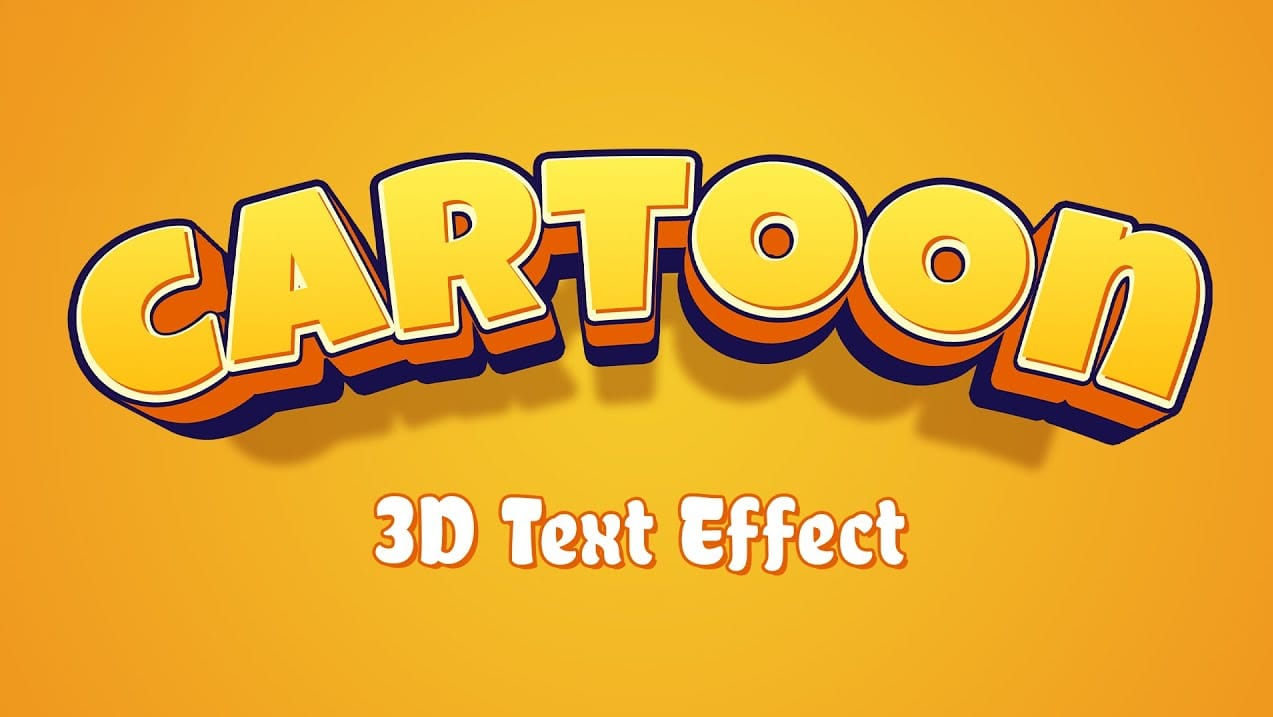
Cartoon 3D Text Effect in Photoshop
In this tutorial from PhoTuts, you'll discover how to create a colorful and playful cartoon-style 3D text effect in Photoshop, using basic techniques. The tutorial not only guides you through the steps to design vibrant and fun text that stands out, but also includes the font used in the tutorial available for download. This ensures you can easily follow along and replicate the dynamic, eye-catching effects, making it ideal for injecting a sense of whimsy and creativity into your designs. Wat
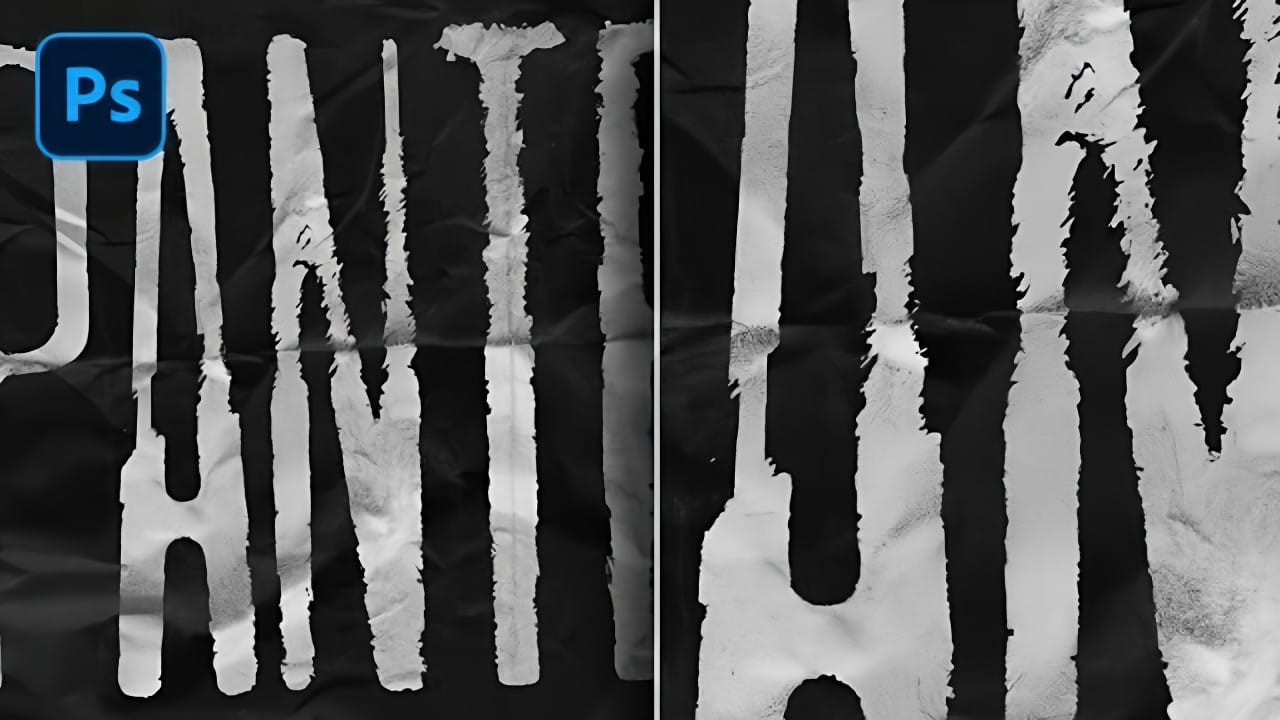
Grungy Ink Bleed Text Effect Tutorial in Photoshop
Street art and underground design capture attention through their raw, imperfect textures that feel authentic and rebellious. The ink bleed effect transforms clean typography into something that appears weathered and organic, as if ink has spread naturally on wet paper. This technique combines blur effects with texture overlays to create text that looks genuinely distressed and handcrafted, perfect for urban-themed designs, band merchandise, or any project needing gritty character. Watch the

Get tutorials & freebies delivered to you.

Subscribe to the Photoshop Roadmap newsletter, a weekly roundup of new tutorials, insights and quality downloads, trusted by 6500+ readers.

You might also like

Create an Old Masters Painting Effect from a Studio Portrait in Photoshop

Old Masters paintings capture drama and character through rich textures, dramatic lighting, and warm color palettes. By combining strategic dodging and burning with selective color adjustments and composite backgrounds, you can transform a simple studio portrait into a classical painterly masterpiece. This technique focuses on enhancing natural textures rather than...

How to Use AI Depth Masking in Photoshop for Targeted Subject and Background Editing

AI depth masking revolutionizes how you select and edit specific areas of your photos by analyzing three-dimensional space rather than shapes or colors. This powerful feature uses artificial intelligence to calculate depth layers, allowing you to brighten subjects while darkening backgrounds or apply targeted adjustments based on distance from the...

9 Lazy Photoshop Habits You Need to Break Right Now

Photoshop has added incredible AI features and smarter workflows over the last few years to save you time. Yet, you might still be stuck using clunky, manual workarounds you learned years ago. If you are constantly repeating tedious tasks, you are losing time and actively limiting the quality of your...

Professional Portrait Retouching with the B.S.T. Method in Photoshop

Professional portrait retouching requires artistic choices that automated tools can't make. The B.S.T. method breaks retouching into three focused steps: removing blemishes with precision, smoothing skin while preserving natural texture, and equalizing skin tones throughout the image. This systematic approach gives you complete control over every...

Create Motion Blur Light Effects in Photoshop

Transform ordinary portraits into dynamic, cinematic images by combining path blur effects with creative background textures. This technique creates the illusion of camera movement while maintaining focus on key elements like the subject's eyes, resulting in professional-looking motion blur effects that add energy and visual interest to static...

How to Paint Realistic Jewelry on Portraits in Photoshop

Adding painted jewelry to portraits transforms ordinary photos into fantasy portraits with ornate accessories that never existed. This digital painting technique uses careful layering, proper lighting, and realistic shadows to create convincing rings, earrings, and decorative headpieces. The method combines basic brush work with advanced blending techniques to build up...

You’ve successfully subscribed to Photoshop Roadmap
Welcome back! You’ve successfully signed in.
Great! You’ve successfully signed up.
Success! Your email is updated.
Your link has expired
Success! Check your email for magic link to sign-in.