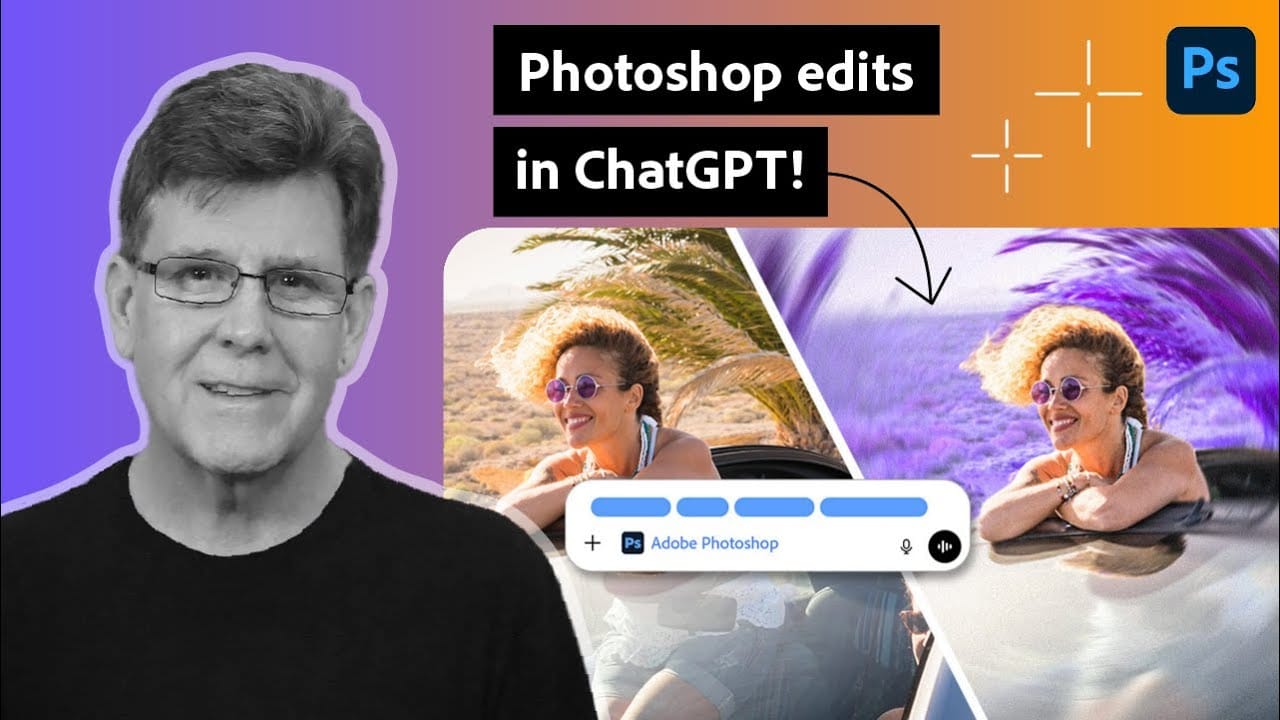
Adobe's new integration brings Photoshop functionality directly into ChatGPT, promising to streamline photo editing through conversational commands. This hands-on evaluation reveals how well the AI-powered interface actually performs compared to traditional Photoshop workflows.
Understanding the real capabilities and limitations of this integration helps determine when it's genuinely useful versus when conventional editing methods remain superior.
Watch the Video
Video by photoshopCAFE. Any links or downloads mentioned by the creator are available only on YouTube
Practical Tips
Key insights from testing the Photoshop integration in ChatGPT:
- Use conversational commands for basic adjustments like brightness, contrast, and color corrections
- Test complex edits in regular Photoshop first before relying on the ChatGPT integration
- Keep backup copies of original images since the AI may interpret instructions differently than expected
- Combine simple text descriptions with specific technical terms for better results
- Verify that advanced features like layer masks and blend modes work as intended in your specific use case
Related Articles and Tutorials
Explore more AI-powered editing techniques and Photoshop workflow improvements:
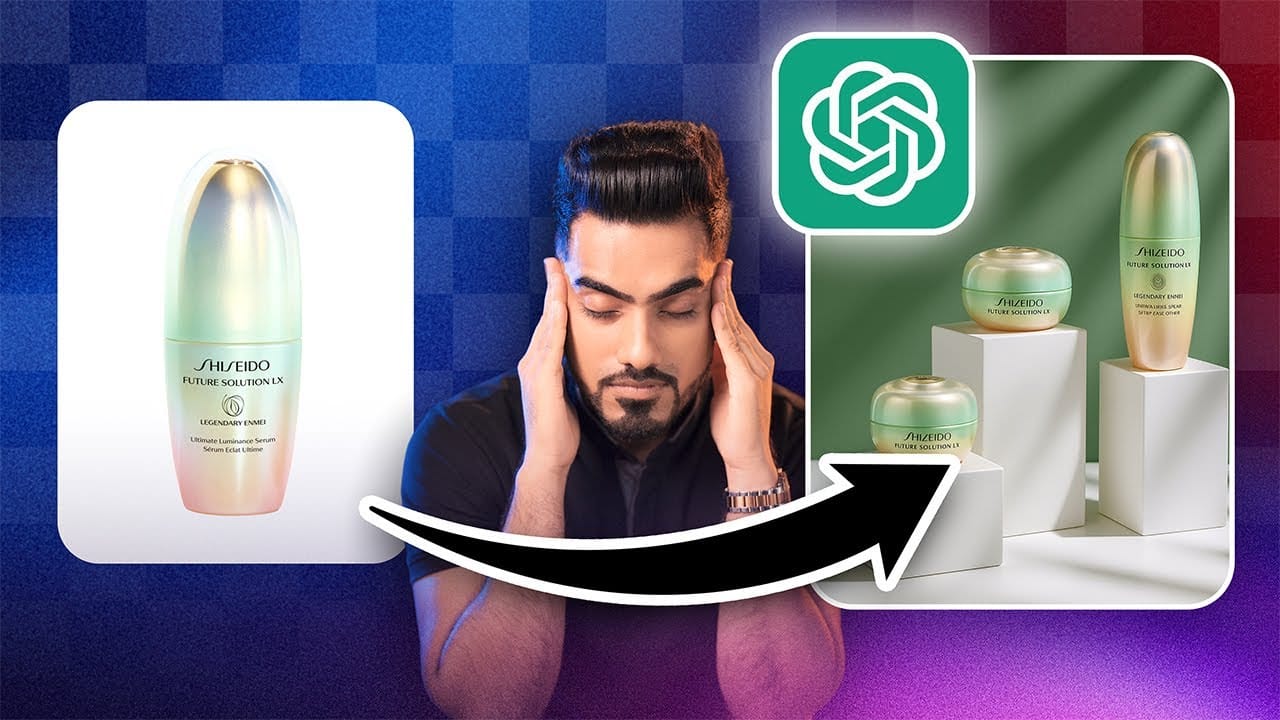
How to Use Adobe Photoshop in ChatGPT for Photo Editing
Adobe Photoshop is now integrated directly into ChatGPT, allowing you to edit photos using simple text descriptions. This new feature lets you enhance images, apply creative effects, and make targeted adjustments without needing a Photoshop subscription.
You can describe what you want to change and fine-tune adjustments using familiar Photoshop controls, all within the ChatGPT interface. The workflow is conversational and intuitive, making photo editing accessible to users at any skill level.
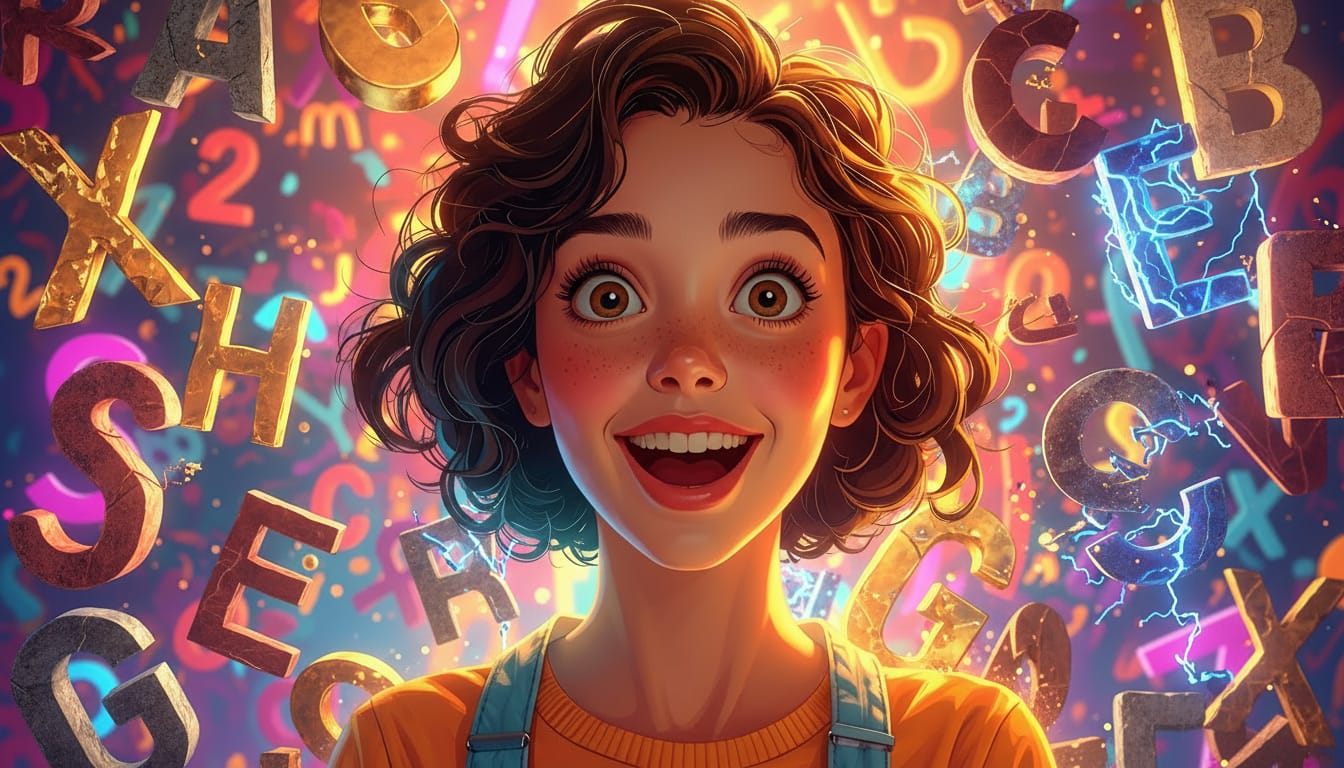
100+ Brilliant Photoshop Text Effects: The Ultimate 2025 Roundup
You won't admit this:
You spend hours making text look like liquid gold. Not for clients. Not for your portfolio. Just because.
Here's the thing:
Text effects are your guilty pleasure. You tell yourself you're "practicing." You say you're "building skills." But really? You just love watching letters transform into chrome, fire, or glass.
And you have that folder.
Hidden three levels deep on your hard drive. Named something innocent like "Typography Practice." Filled with 47 versions of your
Testing Photoshop's New Generative Upscale Against Topaz Photo AI and AIT Image Enhancer
Photoshop's new generative upscale feature promises to compete with established AI upscaling tools like Topaz Photo AI and AIT Image Enhancer. This comparison reveals significant performance differences between these popular upscaling solutions.
The test results show clear winners and losers when upscaling small 640x480 pixel images to four times their original size.
Watch the Comparison Test
Key Findings About AI Upscaling Performance
* Photoshop's generative upscale requires the beta ve
AI versus Photoshop: When Professional Design Skills Still Matter
The rise of AI tools like ChatGPT has sparked intense debate about the future of graphic design and digital art. Can artificial intelligence truly replace the precision and creative control that professional design software provides? While AI excels at generating quick concepts and basic layouts, the reality of professional design work tells a different story.
This detailed comparison reveals where AI falls short and why mastering traditional design skills remains essential for creating polishe
Photoshop Beta: Exploring the New Generative Workspace
This Photoshop tutorial focuses on blending graphics with portrait photography to create striking visuals. You will learn how to use the Super Zoom feature, which allows you to upscale graphics while maintaining their resolution. This is particularly useful for achieving high-quality results in your projects.
Another key component of the tutorial is the application of Gradient Maps for effective color matching. This technique helps to ensure that both the graphics and portraits harmonize well w
12 Visually Striking Photoshop Effects You'll Want to Add to Your Portfolio Right Now
Most people learning Photoshop quit way too early.
Here's why:
You start with excitement. Finally getting your hands on the world's most powerful image editing software. 'You'll create amazing things with just one click', they said.
You eagerly dive into generative fill, experiment with artistic brushes, play with those magical one-click filters.
Then reality hits.
Your creations look like amateur hour. The kind of work you'd be embarrassed to show your friends, let alone a potential client
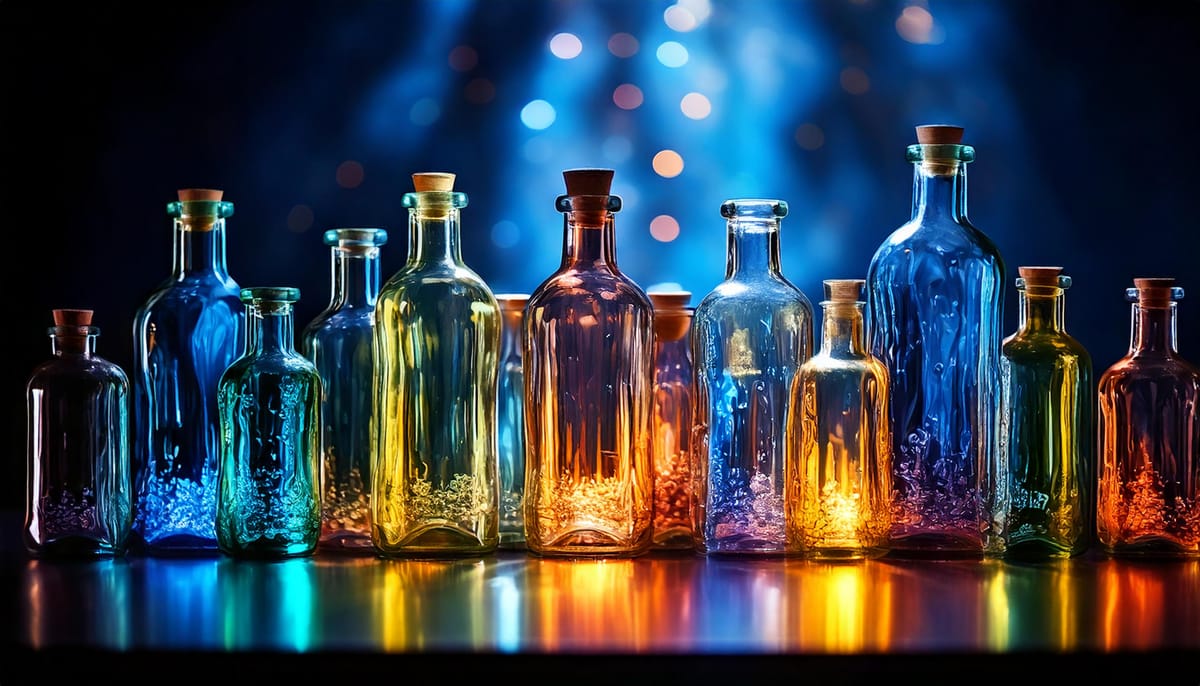
The Silent Poetry of Bottles: A Visual Exploration with Adobe Firefly
While often overlooked, bottles possess a unique artistic charm that transcends their everyday functionality. They are more than just containers; they are vessels of potential narratives, captivating forms, and evocative symbolism waiting to be explored through the lens of AI image creation. Beyond the Mundane: Unveiling the Artistic Essence of
 Enrique Flouret