How to Use Adobe Photoshop in ChatGPT for Photo Editing

How to Use Adobe Photoshop in ChatGPT for Photo Editing

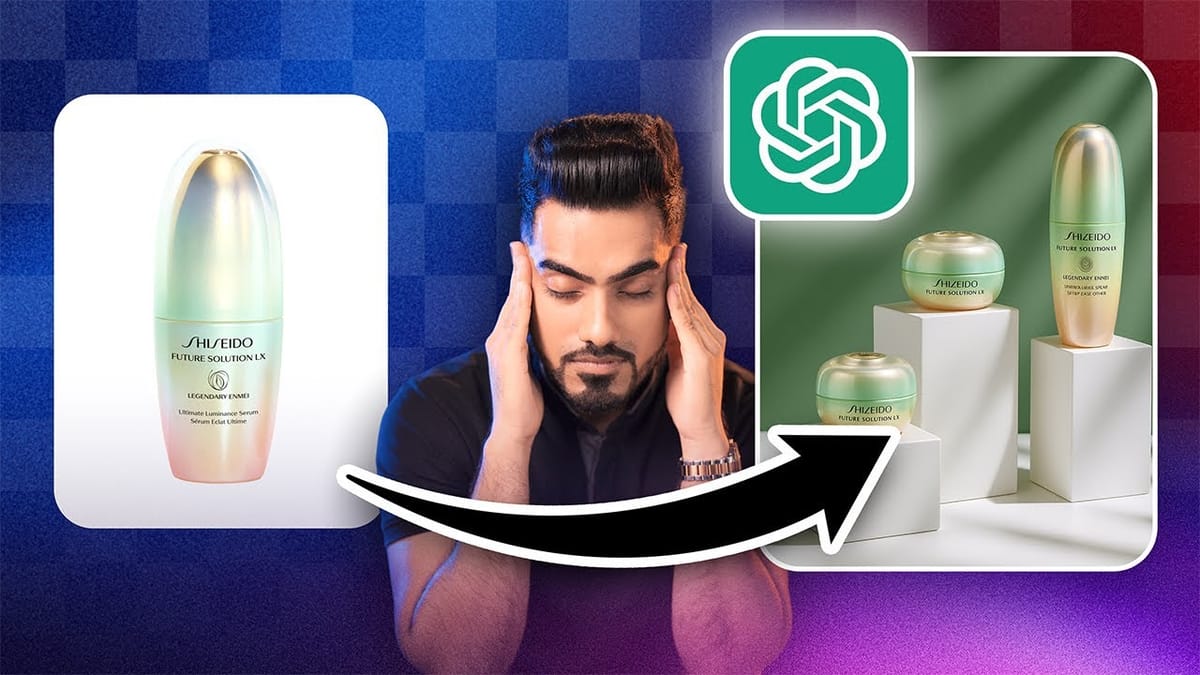
Adobe Photoshop is now integrated directly into ChatGPT, allowing you to edit photos using simple text descriptions. This new feature lets you enhance images, apply creative effects, and make targeted adjustments without needing a Photoshop subscription.

You can describe what you want to change and fine-tune adjustments using familiar Photoshop controls, all within the ChatGPT interface. The workflow is conversational and intuitive, making photo editing accessible to users at any skill level.

Watch the Video

Video by Adobe Photoshop. Any links or downloads mentioned by the creator are available only on YouTube

Practical Tips

Here are key techniques for getting the most out of Photoshop in ChatGPT:

  • Connect Photoshop by going to Settings > Apps & Connectors and selecting Adobe Photoshop - no subscription required
  • Upload your image and ask for feature suggestions if you're unsure what adjustments to make
  • Use specific prompts like "lighten shadow areas" or "change background color" for targeted edits
  • Experiment with creative effects like radial blur or color halftone by simply typing their names
  • Use "undo" commands to remove unwanted effects while keeping other adjustments intact

Explore more advanced techniques and creative workflows to enhance your editing skills.

How to Use Nano Banana Pro in Adobe Firefly for Advanced AI Image Generation
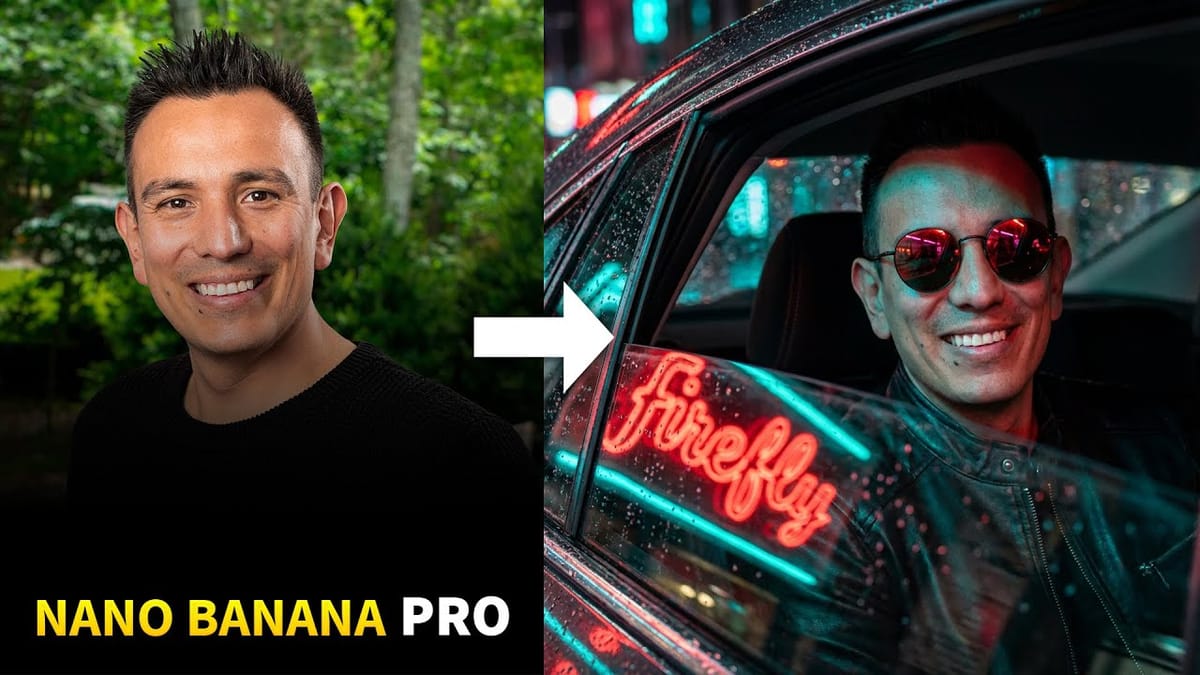
Adobe Firefly now includes Gemini 3 with Nano Banana Pro, offering sharper 2K image generation with improved text clarity and precision blending. This advanced AI model works seamlessly within Firefly’s generative workspace, enabling powerful workflows like multi-image composition and virtual try-on effects. The integration provides access to sophisticated presets and
AI versus Photoshop: When Professional Design Skills Still Matter
The rise of AI tools like ChatGPT has sparked intense debate about the future of graphic design and digital art. Can artificial intelligence truly replace the precision and creative control that professional design software provides? While AI excels at generating quick concepts and basic layouts, the reality of professional design
How to Use Gemini 3.0 Nano Banana Pro for Advanced AI Image Transformations in Photoshop
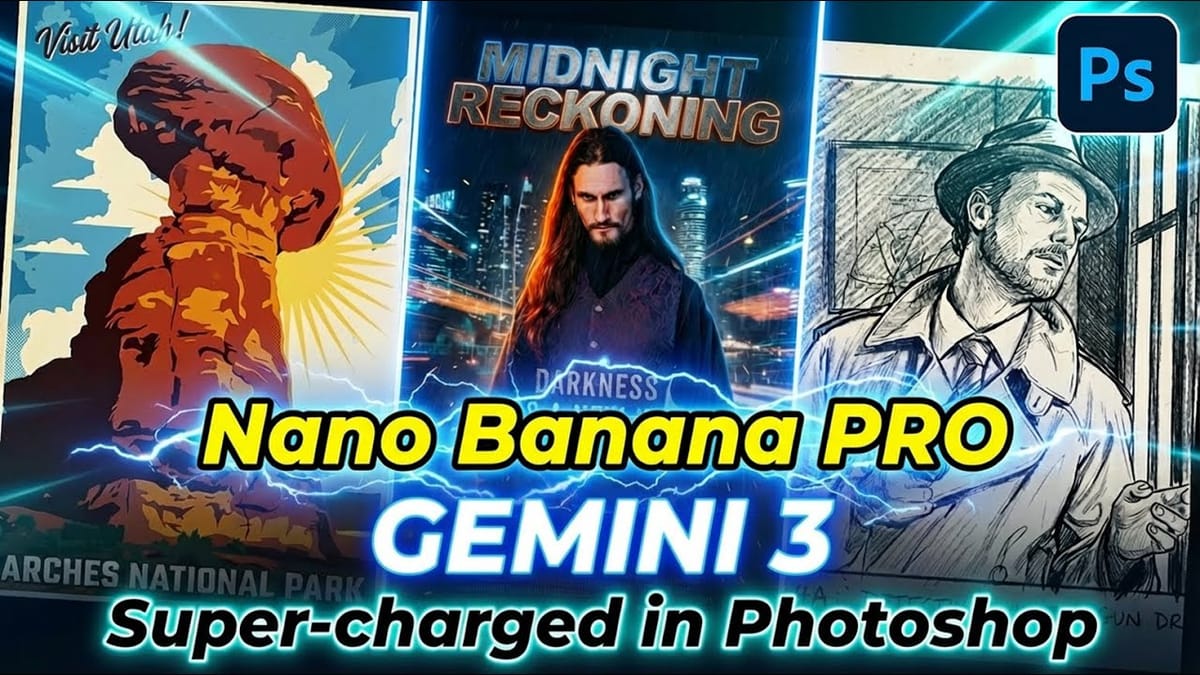
Gemini 3.0 Nano Banana Pro delivers 4K resolution transformations and contextual intelligence that surpasses previous AI models in Photoshop. This advanced system can create movie posters, redesign interiors, sharpen blurry photos, and even translate foreign text while maintaining original design elements. The model costs 10 generative credits per image
Magical things you can do in just 1 click in Photoshop
Colin Smith's latest tutorial dives into the incredible power of Photoshop's one-click tools and features. This session reveals how you can harness Photoshop 2020's capabilities to achieve impressive results with minimal effort. Colin demonstrates various techniques that allow you to enhance your images or apply complex effects with just a single click, making advanced editing accessible and efficient. In this video, you'll learn about features that simplify tasks like color enhancement, applyi
Discover Hidden Photoshop AI Tools to Transform Your Photos
Transform ordinary photographs into captivating works of art using advanced Generative AI features in Photoshop. This guide reveals a powerful, often overlooked technique to unlock incredible artistic potential from your images. Discover how to apply stunning styles, from delicate watercolors to bold Art Deco and futuristic visions, by mastering a subtle yet impactful control within Photoshop's AI capabilities. Watch the Video Understanding Generative AI's Creative Control Generative AI to
Aesthetic Glitter Effect in Photoshop
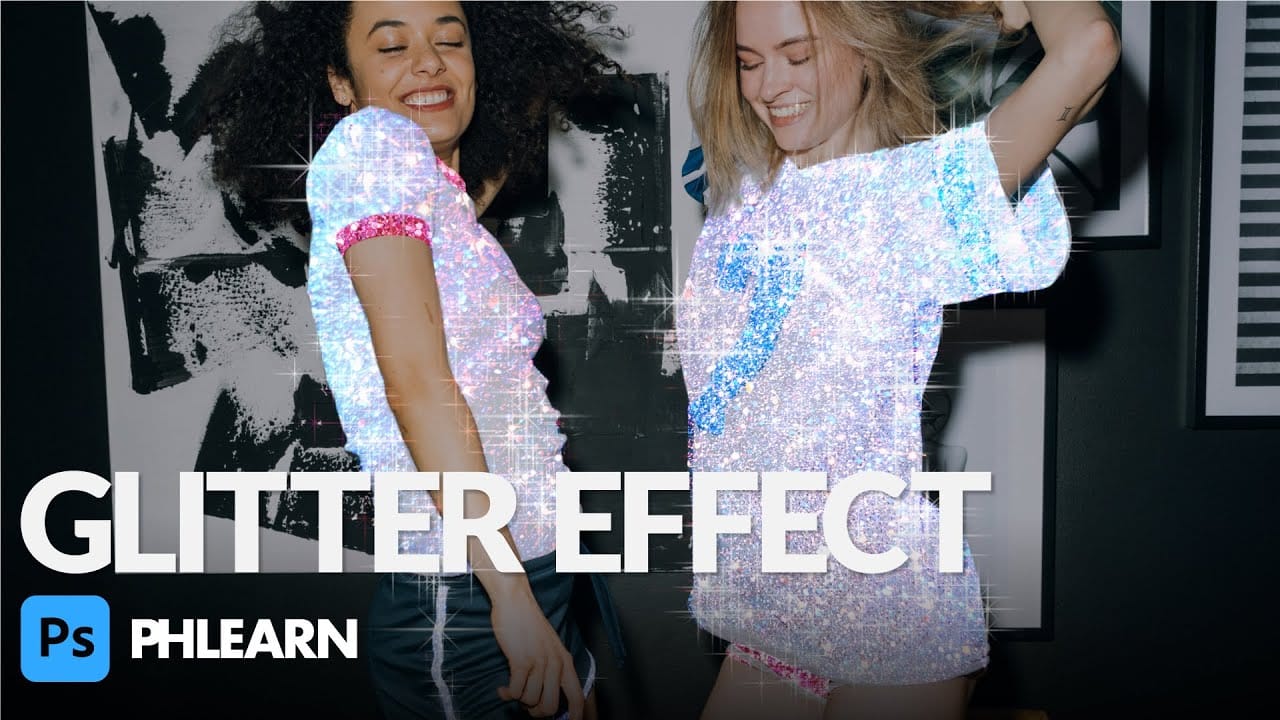
In this tutorial, Aaron Nace from Phlearn shows you how to add a stunning glitter effect to your photos in Photoshop. This effect will make your images shimmer, sparkle, glimmer, and glow, adding a touch of magic to any project. Aaron demonstrates how to use glitter textures along with Layer Masks and simple adjustments to make any part of a photo shine. He provides a step-by-step guide to seamlessly blend glitter textures into your images, creating a professional and eye-catching result. Best

Get tutorials & freebies delivered to you.

Subscribe to the Photoshop Roadmap newsletter, a weekly roundup of new tutorials, insights and quality downloads, trusted by 6500+ readers.

You might also like

Create a Liquid Gel Logo Effect in Photoshop

Liquid gel effects transform flat logos into dimensional, glossy designs that appear to bubble and flow. This technique uses multiple layer styles and strategic duplication to build depth, creating surfaces that catch light like thick, viscous liquid. The method combines gradient overlays, bevel effects, and inner glows across several duplicated...

How to Use Photoshop's AI Sharpen Filter and When It's Worth the Cost

Photoshop's new AI Sharpen filter promises one-click sharpening powered by advanced algorithms. This tool uses technology from Topaz Labs to enhance image details without manual adjustments, but it comes with a significant cost in credits. Understanding when to use this automated approach versus traditional methods like the High...

How to Use Harmonize and Generative Upscale Tools in Photoshop

Creating realistic photo composites requires matching lighting and color between different images—a traditionally time-consuming process. Two new AI-powered tools in Photoshop solve these challenges: Harmonize automatically adjusts lighting and shadows to blend subjects seamlessly into backgrounds, while Generative Upscale enlarges small images without losing detail. These tools work together...

How to Create Convincing Scale Effects in Photoshop Composites

Creating believable scale effects requires more than simply resizing objects—it demands understanding how light, perspective, and atmospheric conditions change with distance. When tiny subjects appear massive or giant objects seem miniature, viewers should feel the illusion is completely natural. This technique combines careful attention to lighting consistency, depth cues,...

How to Flip Images Horizontally and Vertically in Photoshop

Flipping images is a fundamental technique that can dramatically change the composition and impact of your photos. Whether you need to correct the orientation of a subject, create mirror effects, or simply improve the visual flow of your design, knowing how to quickly flip images both horizontally and vertically gives...

How to Use Nano Banana Pro in Photoshop for Background Replacement and Scene Changes

Nano Banana Pro transforms how you place subjects into new environments in Photoshop. This advanced AI model maintains perfect subject likeness while seamlessly integrating them into any background you can imagine. The tool excels at matching lighting, preserving facial features, and even adapting clothing to complement new scenes, all through...

You’ve successfully subscribed to Photoshop Roadmap
Welcome back! You’ve successfully signed in.
Great! You’ve successfully signed up.
Success! Your email is updated.
Your link has expired
Success! Check your email for magic link to sign-in.