Gemini 3.0 Nano Banana Pro delivers 4K resolution transformations and contextual intelligence that surpasses previous AI models in Photoshop. This advanced system can create movie posters, redesign interiors, sharpen blurry photos, and even translate foreign text while maintaining original design elements.
The model costs 10 generative credits per image but handles complex tasks like night-to-day conversions and multi-frame storyboard creation with remarkable accuracy.
Watch the Video
Video by Photoshop Arthouse. Any links or downloads mentioned by the creator are available only on YouTube
Practical Tips
These techniques will help you maximize Gemini 3.0's capabilities for professional results:
- Select your entire image with Ctrl/Cmd+A before generating to give the AI full context for better transformations
- Write detailed, specific prompts that include style preferences, layout instructions, and desired elements
- Access different AI models by clicking the icon in the contextual taskbar and selecting Gemini 3 from the dropdown
- Use quotes around specific text when requesting translations to preserve fonts, alignment, and graphic styles
- Specify exact furniture types and design eras when redesigning rooms to maintain realistic proportions and lighting
Related Articles and Tutorials
Explore more advanced AI editing techniques and model comparisons:
How to Use Gemini 2.5 Nano Banana AI in Photoshop 2026
Photoshop 2026 introduces Gemini 2.5 Nano Banana, a powerful AI model that transforms how you edit images. This advanced tool maintains scene coherence while allowing dramatic changes to poses, backgrounds, and camera angles.
The technology understands context and lighting, creating realistic results that feel naturally integrated into your original photos.
Watch the Video
Key Tips for Using Nano Banana
* Make loose selections around your target area — the model needs context to understan
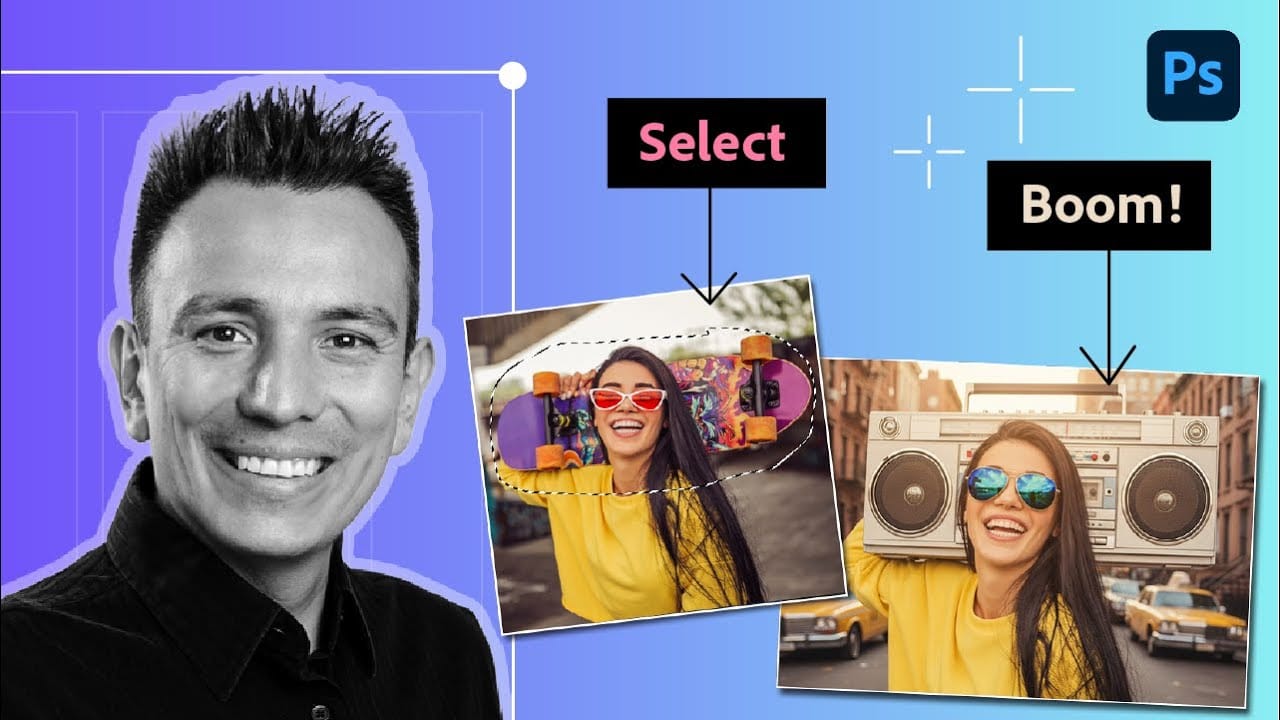
How to Use Gemini 3 Nano Banana Pro in Photoshop for Advanced AI Editing
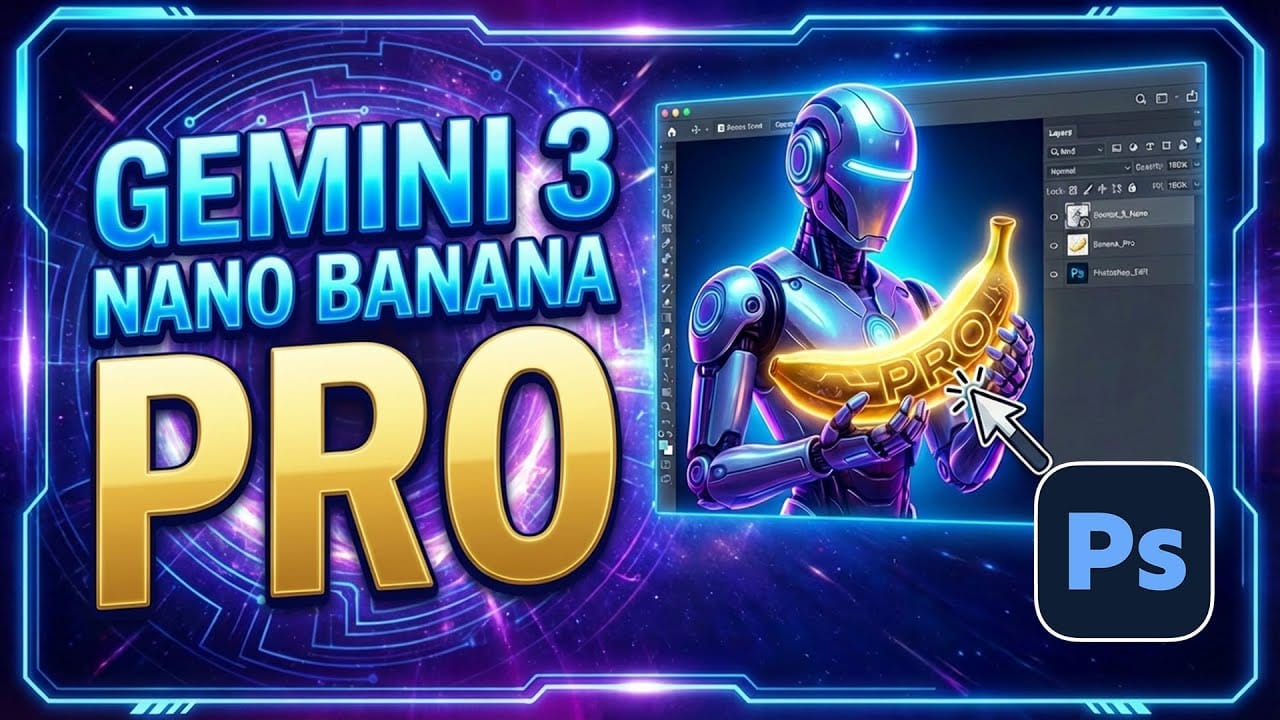
Google's Gemini 3 Nano Banana Pro brings powerful AI capabilities to Photoshop with features like focus shifting, text recognition, and 4K resolution support. Adobe integrated this advanced model immediately upon release.
The tool excels at maintaining context while transforming images, creating storyboards, and generating realistic text replacements with proper fonts and reflections.
Watch the Video
Essential Tips for Gemini 3 Nano Banana Pro
* Put text prompts in quotation marks when wo
Discover Hidden Photoshop AI Tools to Transform Your Photos
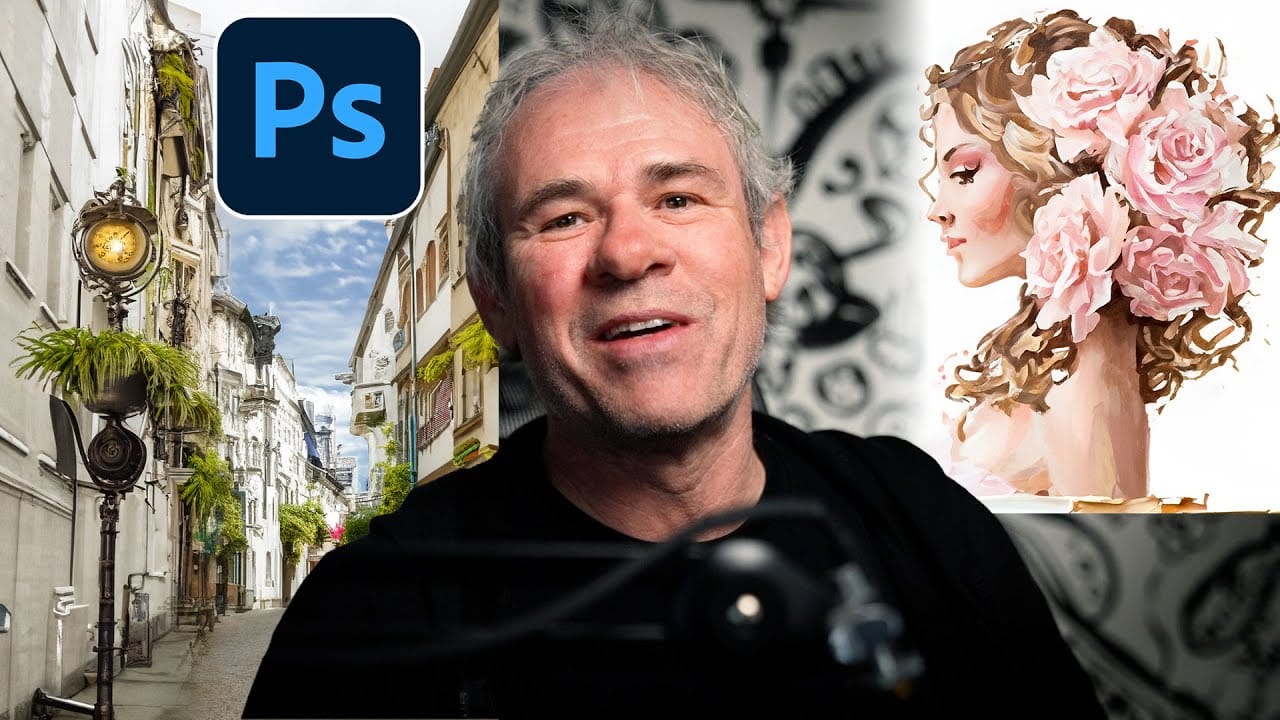
Transform ordinary photographs into captivating works of art using advanced Generative AI features in Photoshop. This guide reveals a powerful, often overlooked technique to unlock incredible artistic potential from your images.
Discover how to apply stunning styles, from delicate watercolors to bold Art Deco and futuristic visions, by mastering a subtle yet impactful control within Photoshop's AI capabilities.
Watch the Video
Understanding Generative AI's Creative Control
Generative AI to
Gemini Nano Banana vs Photoshop: A Detailed Performance Comparison
Modern AI tools promise instant photo editing magic with simple text prompts. Gemini's Nano Banana and similar platforms can generate impressive results for basic tasks, but professional work demands precision and consistency.
This comprehensive comparison tests AI capabilities against traditional Photoshop techniques across skin retouching, compositing, background removal, and photo restoration to reveal where each approach excels.
Watch the Video
Key Insights from AI vs Photoshop Testing