Photoshop's Dynamic Text Feature: Automatic Text Alignment and Resizing

Photoshop's Dynamic Text Feature: Automatic Text Alignment and Resizing

Text alignment in Photoshop has long been a tedious process of manual adjustments, multiple layers, and constant realignment whenever you change font sizes or content. The traditional workflow forces designers to work with separate text layers and spend valuable time fine-tuning positions with transform tools and guides.

Photoshop's new Dynamic Text feature eliminates this frustration by automatically handling text flow, alignment, and resizing within a single responsive layer. This beta feature represents a significant shift toward more intelligent text handling in the software.

Watch the Tutorial

Video by PiXimperfect. Any links or downloads mentioned by the creator are available only on YouTube

The Evolution of Text Handling in Design Software

Traditional text tools in design applications have remained largely unchanged for decades, requiring designers to manually manage every aspect of text layout. This approach works well for static designs but becomes problematic when clients request changes or when experimenting with different layouts and text lengths.

Dynamic text systems represent a fundamental shift toward adaptive design tools. Instead of fixed text blocks, these systems create responsive text containers that automatically adjust their internal layout based on available space and content changes. Professional design software has been moving toward this approach to reduce repetitive tasks and improve workflow efficiency.

The feature addresses several pain points that designers face regularly:

  • Managing multiple text layers for complex layouts
  • Realigning text elements after font or content changes
  • Maintaining consistent spacing and proportions across variations

Practical Tips for Dynamic Text

  • Access the beta version through Creative Cloud's beta apps section, as this feature is not yet available in the standard release.
  • Use manual line breaks by hitting Enter after specific words to control which phrases stay together when the text reflows.
  • Hold Control/Command while resizing the bounding box to maintain text proportions, and add Shift to preserve aspect ratio.
  • Adjust tracking and baseline shift in the Properties panel to fine-tune spacing between letters and lines within your dynamic text layout.
  • Remember the limitations — paragraph settings, individual font sizing, and kerning controls don't work the same way as traditional text layers.

Explore more advanced text techniques and creative applications in Photoshop.

Dynamic Text Tool in Photoshop - Auto-Resizing Text Feature
Text alignment and sizing across multiple layers can quickly turn into a time-consuming puzzle. Manually adjusting each text element, creating guides for alignment, and constantly repositioning elements whenever you make changes disrupts the creative flow. Photoshop’s new Dynamic Text feature bridges the gap between point text and paragraph text, automatically
Photoshop Introduces Dynamic Text Feature
Designers frequently encounter the challenge of fitting text creatively into layouts without compromising readability or aesthetics. Traditional text handling in design software often means manually adjusting font sizes, leading, or tracking every time a text box is resized, which can be a time-consuming and frustrating process, especially for complex designs
Photoshop Dynamic Text Feature Tutorial: Auto-Fitting Typography Design
Typography design often involves endless manual adjustments to make text fit perfectly within defined spaces. Every resize means recalculating font sizes, line breaks, and spacing to maintain clean alignment and readability. Photoshop’s new Dynamic Text feature automatically handles these calculations, creating pixel-perfect left and right margins while intelligently adjusting font
How to Wrap Text Around Any Shape in Photoshop
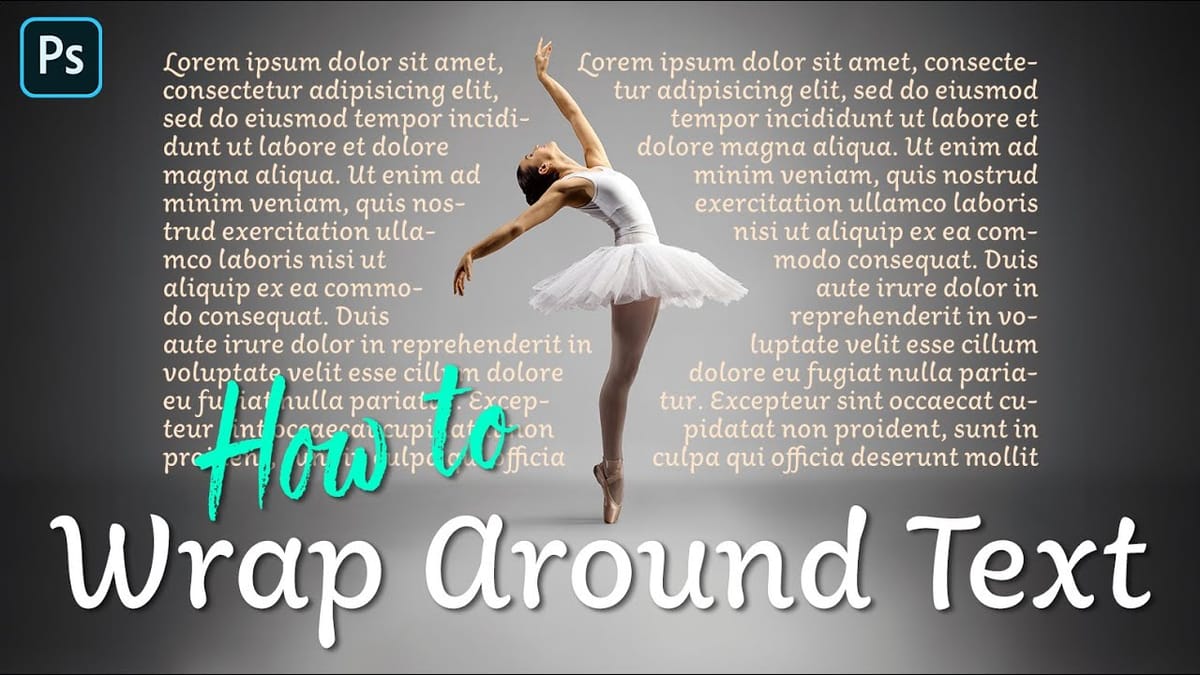
Integrating text seamlessly with complex or irregular shapes can elevate a design from good to exceptional. While standard text boxes are straightforward, the ability to make text flow naturally around the contours of a subject opens up significant creative possibilities, adding dynamism and visual interest to layouts. This tutorial will

Get tutorials & freebies delivered to you.

Subscribe to the Photoshop Roadmap newsletter, a weekly roundup of new tutorials, insights and quality downloads, trusted by 6500+ readers.

You might also like

How to Use AI Masking in Adobe Camera Raw for Professional Photo Editing

Adobe Camera Raw's AI masking tools automatically detect subjects, backgrounds, skies, and landscapes, letting you make precise adjustments to specific areas of your photos. These intelligent masks eliminate the need for manual selection work, while allowing you to combine and refine them for complete creative control. The technique...

How to Remove Objects from Photos Using AI Tools in Photoshop

Photoshop's AI-powered object removal tools can eliminate unwanted distractions from your photos with minimal effort. The Remove Tool and Generative Fill feature automated detection for common distractions like people and wires, plus manual painting options for custom removals. These tools work on separate layers, preserving your original image...

Speed Up Your Color Grading Workflow with Photoshop Actions

Color grading can transform your images, but manually adjusting curves and levels for every photo takes time. Photoshop actions offer a faster approach by applying professional color treatments with a single click. This workflow uses pre-built actions, tints, and LUTs to achieve various moods and styles instantly, letting you layer...

7 Essential Tips for Speed Painting in Digital Art

Speed painting isn't just about working faster—it's about eliminating friction from your creative process. These seven techniques help you get ideas onto canvas quickly without getting bogged down in unnecessary decisions or premature details. Whether you're exploring concepts for professional work or personal...

Professional Color Grading Techniques in Photoshop

Color grading transforms ordinary photos into compelling images with professional mood and atmosphere. These non-destructive techniques let you adjust tones, enhance specific colors, and create cinematic looks while preserving your original image data. Master these four essential color grading methods to develop a consistent editing workflow that elevates your photography....

How to Save Cut-Out Elements with Transparent Backgrounds in Photoshop

Creating seamless photo composites requires properly saving cut-out elements with transparent backgrounds. Whether you're extracting people, objects, or other elements for later use, the file format you choose determines how easily you can place these elements into new scenes. Two main approaches work best: saving as PSD files...

You’ve successfully subscribed to Photoshop Roadmap
Welcome back! You’ve successfully signed in.
Great! You’ve successfully signed up.
Success! Your email is updated.
Your link has expired
Success! Check your email for magic link to sign-in.