Learn How to Create a Watercolor Photo Effect in Photoshop

Learn How to Create a Watercolor Photo Effect in Photoshop

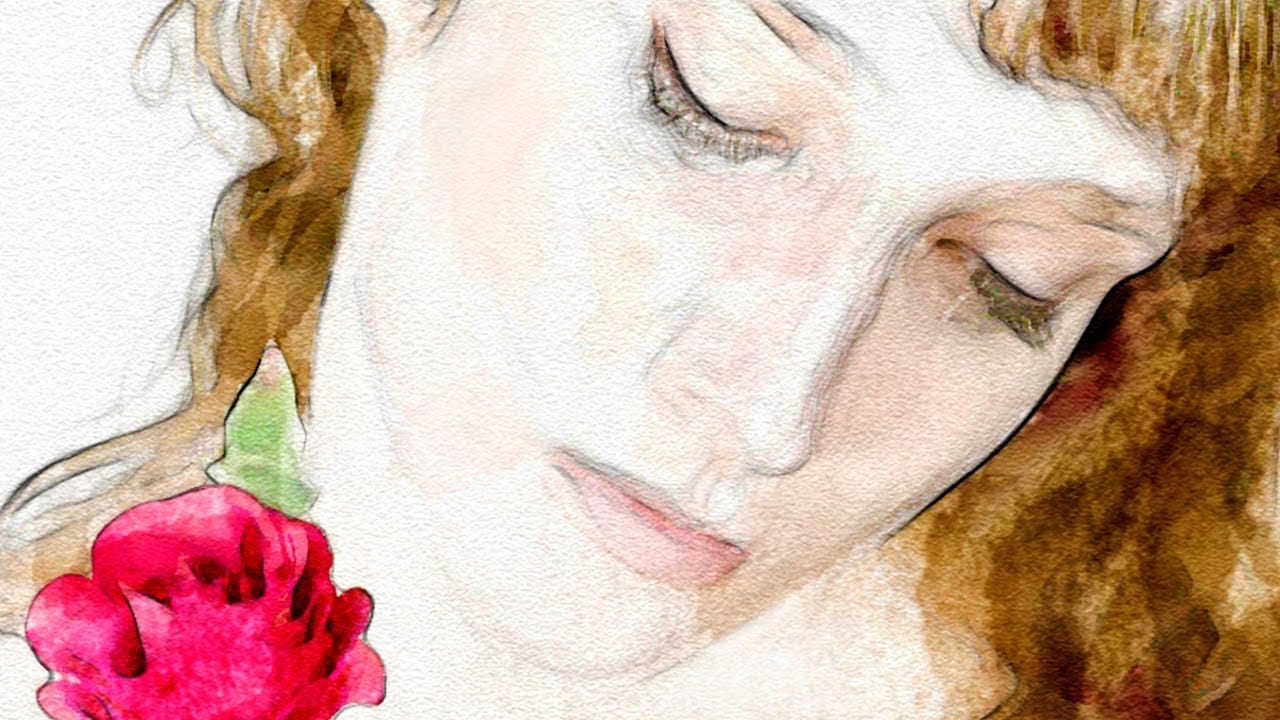
Transforming a photograph into a convincing watercolor painting opens up a world of creative possibilities. This artistic effect adds depth and emotion, turning ordinary images into unique pieces of art. The result captures the delicate washes and textures of traditional watercolor, bringing a hand-painted feel to your digital art.

This tutorial guides you through creating a hand-painted effect in Photoshop, going beyond basic filters. By using a combination of smart blurs, glowing edges, and custom brush strokes, you can achieve a nuanced, painterly look that's uniquely your own. Learn to mimic the subtle gradations and textures of watercolor, giving you full creative control over the final image.

Watch the Video Tutorial

Video by Blue Lightning. Any links or downloads mentioned by the creator are available only on YouTube

The Allure of Digital Watercolor Effects

Watercolor painting is renowned for its fluid, ethereal quality. The way colors blend and bleed into one another creates a unique sense of depth and texture. Digitally replicating this effect offers artists and designers the best of both worlds: the organic beauty of watercolor with the precision and flexibility of digital tools. While traditional watercolor relies on the unpredictable nature of water and pigment, digital watercolor techniques allow for precise control over every brushstroke and color blend.

The key to a convincing digital watercolor effect lies in understanding the nuances of the medium. It's not just about applying a simple filter; it's about mimicking the way watercolor interacts with paper, the way different pigments layer and blend, and the subtle variations in tone and texture. By paying attention to these details, you can create digital artwork that captures the essence of traditional watercolor.

When creating digital watercolor effects, keep in mind these qualities:

  • Blending: Soft color transitions are essential.
  • Texture: Paper grain and brushstrokes add depth.
  • Light: Subtle gradations create form and volume.

Practical Tips for Digital Watercolor Effects

  • Make a smart blur copy of the base layer to soften details while retaining key shapes.
  • Apply glowing edges and invert the layer to create fine pencil-like lines, simulating the outlines in a watercolor painting.
  • Use a dry brush with low opacity to add random strokes, building up texture gradually.
  • Incorporate wet media brushes and vary brush sizes to emulate the natural variations in watercolor washes.
  • Increase the vibrance to enhance the colors, making the image look more vivid and painterly.

Explore these hand-picked articles and tutorials to deepen your knowledge and skills in creating authentic and stunning watercolor effects in Photoshop.
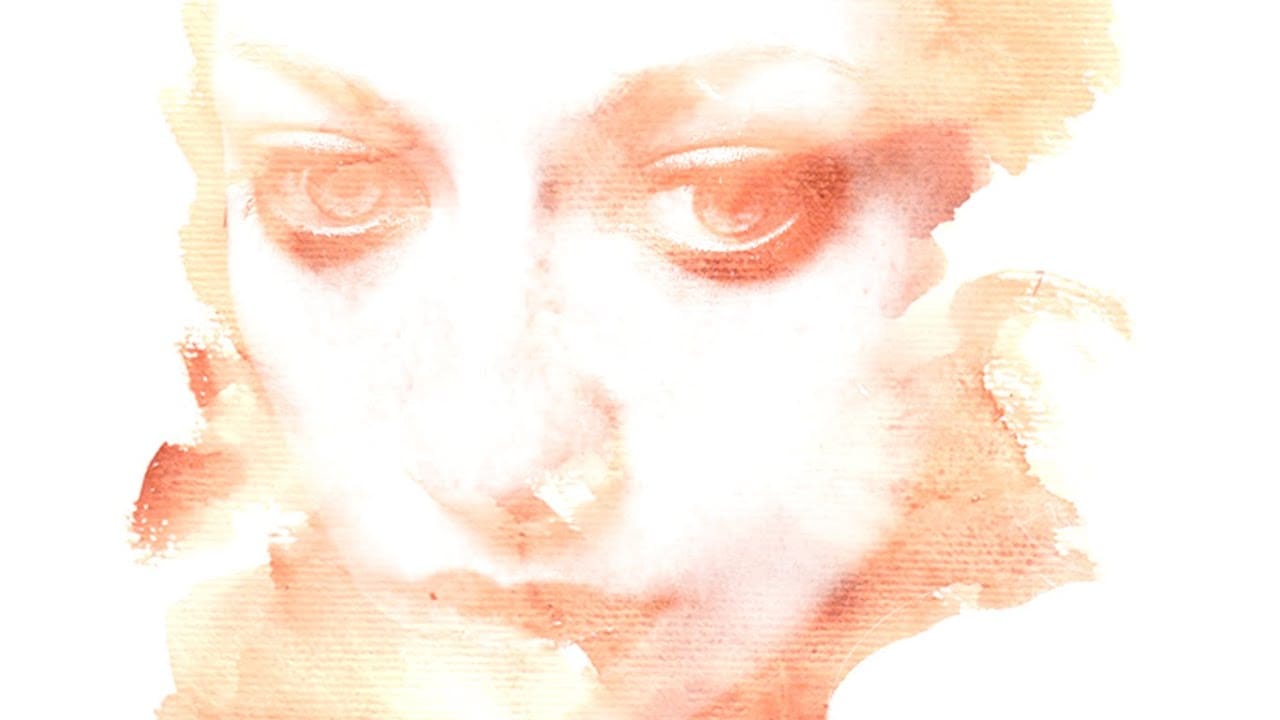
Photoshop Watercolor Photo Effect Tutorial
In this comprehensive tutorial by Arunz Creations, you'll discover how to transform a portrait into a beautiful watercolor painting using Photoshop. The process begins by organizing your layers into a group and temporarily hiding it. Next, you'll select specific colors from the portrait using the Color Range tool to create a precise selection. After applying the selection as a mask on the group and inverting it, you'll create a new empty layer beneath the group and fill it with white to serve a
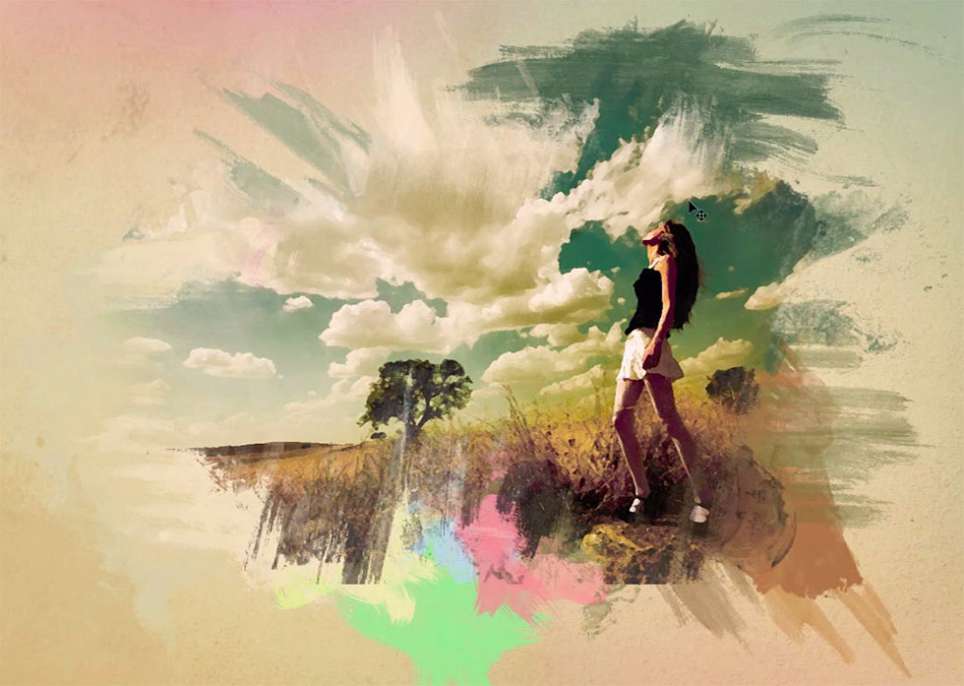
How To Make a Watercolor Photo Manipulation In Photoshop
This tutorial by Maarten Rietdijk provides a step-by-step guide on how to combine watercolor brushstrokes and photos in Photoshop. The author explains the process in a clear and concise manner, making it accessible to both beginners and experienced Photoshop users. The tutorial begins by teaching the reader how to create a set of custom watercolor brushes. These brushes are then used to add a unique, artistic touch to the photograph. The author emphasizes the importance of experimenting with di
Add a beautiful watercolor effect to your photos in Photoshop
In this Photoshop tutorial by Marty Geller from Blue Lightning TV you will learn how to create a beautiful, nuanced, watercolor portrait of someone from a photograph. Forget about Photoshop default ugly watercolor filters. Unlike other watercolor effects, the methods shown here allow you to create unique, personal touches because you brush in your own strokes. Watch tutorial
Artistic Watercolor Effects Photoshop Tutorials
Many users find themselves frustrated with the Watercolor Photoshop Plugin that comes with the default installation. Often, simply applying the plugin doesn't yield the most satisfying results. This is a common experience among photographers and artists alike. This collection of watercolor effects Photoshop tutorials is designed to help you overcome that challenge. With step-by-step guidance, these tutorials provide effective techniques that lead to stunning watercolor paintings derived from yo

Get tutorials & freebies delivered to you.

Subscribe to the Photoshop Roadmap newsletter, a weekly roundup of new tutorials, insights and quality downloads, trusted by 6500+ readers.

You might also like

10 Photoshop Tricks You Probably Forgot Exist

There’s a funny pattern with Photoshop. The longer you use it, the more you rely on the same small set of tools… while some of the most powerful techniques quietly fade into the background. Not because they stopped working — but because they’re just a bit hidden, or not...

Add Floral Patterns to Black Dresses Using Brushes in Photoshop

Transform plain black clothing into vibrant, patterned garments using custom brushes and strategic layer blending. This non-destructive technique combines precise selections with clipping masks to paint realistic floral designs directly onto fabric while preserving the original photograph. The method works particularly well on black materials because the hard light blend...

How to Replace Objects Using Reference Images in Photoshop Generative Fill

Reference images transform Generative Fill from a text-based tool into a precise visual command system. Instead of describing what you want, you show the AI exactly which object to create, leading to more accurate and predictable results. This technique works by combining traditional selection tools with the new reference image...

How to Use Blend If Sliders for Pixel-Perfect Transparency in Photoshop

Blend If sliders control transparency based on brightness levels, making complex selections unnecessary. Understanding how these two simple sliders work with RGB channels opens up precise compositing possibilities that would otherwise require multiple masks and selections. The technique works by targeting specific brightness ranges from 0 to 255, allowing you...

How to Create a Double Exposure Effect in Photoshop Using Screen Blend Mode

Double exposure effects transform ordinary portraits into striking artistic compositions by blending two images seamlessly. This technique works best with high-contrast images—silhouettes against bright backgrounds paired with nature scenes or textures. The key to successful double exposures lies in the contrast between light and dark areas. When you combine...

You’ve successfully subscribed to Photoshop Roadmap
Welcome back! You’ve successfully signed in.
Great! You’ve successfully signed up.
Success! Your email is updated.
Your link has expired
Success! Check your email for magic link to sign-in.