Add a Snow Storm Effect to a Regular Winter Photo in Photoshop

Add a Snow Storm Effect to a Regular Winter Photo in Photoshop

The serene beauty of a winter landscape often hinges on the delicate dance of falling snow, transforming ordinary scenes into magical vistas. Capturing this ephemeral quality in photography, however, often requires more than just waiting for the perfect storm. Digital artistry can enhance or even generate these atmospheric elements, lending a profound sense of depth and realism to any image.

This tutorial unveils a surprisingly effective method for generating photorealistic snow using just a few standard Photoshop filters. By combining noise, Gaussian blur, and precise level adjustments, the process creates a diverse mix of large, small, bright, and dim snow specs. Adding motion blur then simulates the camera's shutter speed and wind, resulting in a dynamic, natural snowfall.

Watch the Tutorial

Video by Blue Lightning. Any links or downloads mentioned by the creator are available only on YouTube

Simulating Natural Atmospheric Effects

Digital artists frequently aim to imbue static images with the dynamism of nature. Replicating atmospheric conditions, such as falling snow, involves understanding how natural elements interact with light and perception. For instance, the appearance of snow varies significantly based on factors like particle size, density, and movement—elements that must be carefully considered when building digital effects.

One common challenge in digital snow generation is avoiding a flat or artificial look. Real snow appears at different depths and scales, with some flakes sharp and close, others blurred and distant. Achieving this visual complexity often relies on techniques that manipulate apparent depth of field and motion blur, mimicking the way a camera captures these details in the physical world. This ensures the digital snow integrates seamlessly into the scene, enhancing its realism.

Practical Tips for Enhancing Snow Effects

  • Start with a black-filled layer to ensure optimal visibility of the white noise particles before blending.
  • Adjust Levels carefully (e.g., Blacks 127, Midtones 74, Highlights 169) to create a varied distribution of snow speck sizes and brightness, mimicking natural snowfall diversity.
  • Apply Motion Blur with a slight angle (e.g., -53 degrees) and distance (e.g., 10 pixels) to simulate wind and camera shutter speed, adding dynamic realism.
  • Change the blend mode to Screen to effectively remove the black background and make the white snow transparently overlay your image.
  • Duplicate and transform the snow layer into different quadrants to increase snow density and create a heavier, more blizzard-like effect.

More Tutorials about Creating Snow Effects

Explore additional methods and creative approaches for adding realistic snow and winter elements to your Photoshop projects.
Add realistic falling snow to a photo in Photoshop
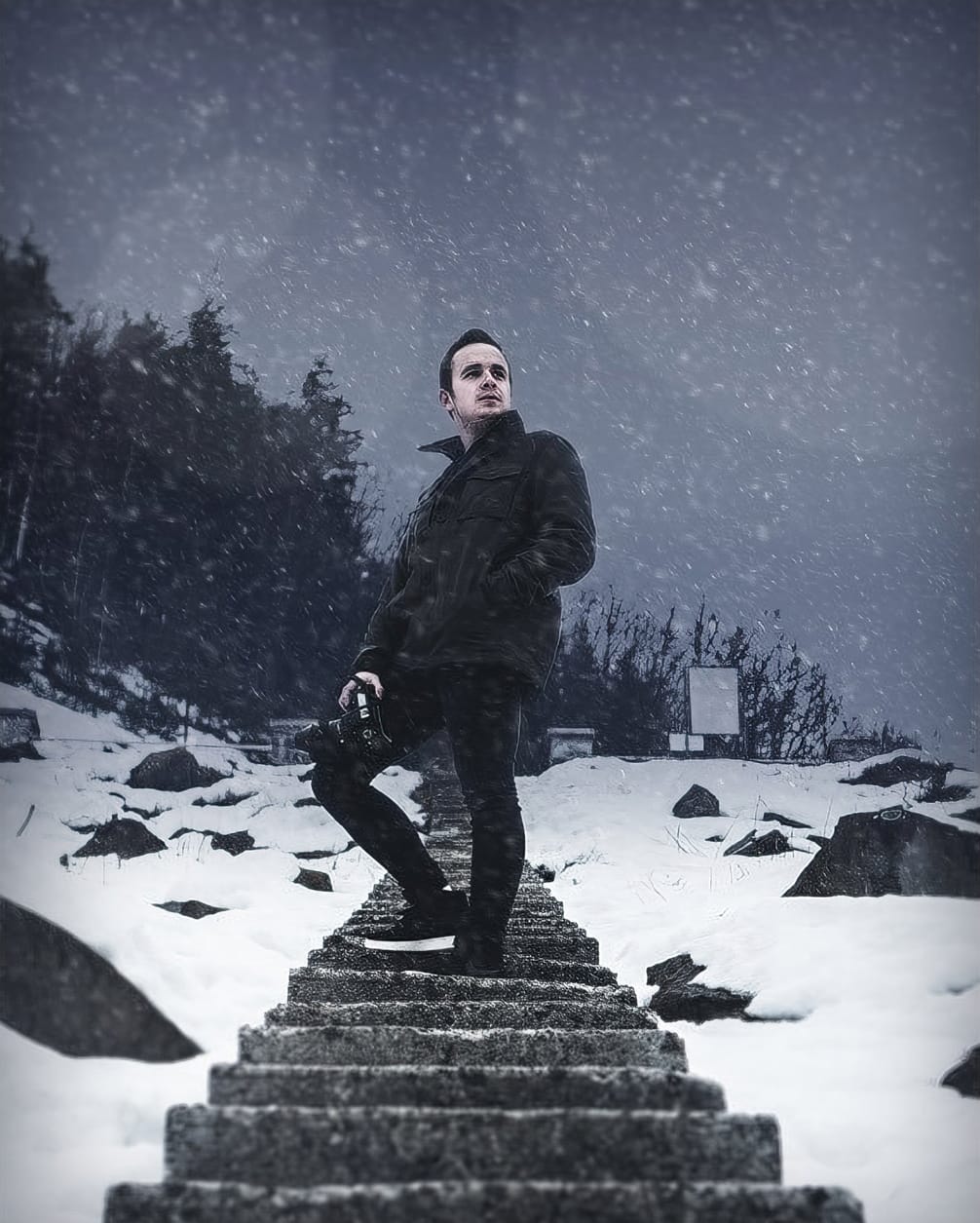
The process involves a few simple steps that can help enhance your winter photography and make it more visually appealing. First, you'll need to create a snowflake brush. This can be done by selecting a suitable image of a snowflake and converting it into a custom brush. Once you have your snowflake brush, you can then use it to add the falling snow effect to your image. Next, you'll need to adjust the brush settings to create a realistic snowfall. This includes adjusting the size, opacity, an
Create a Winter Snow Scene with Photoshop
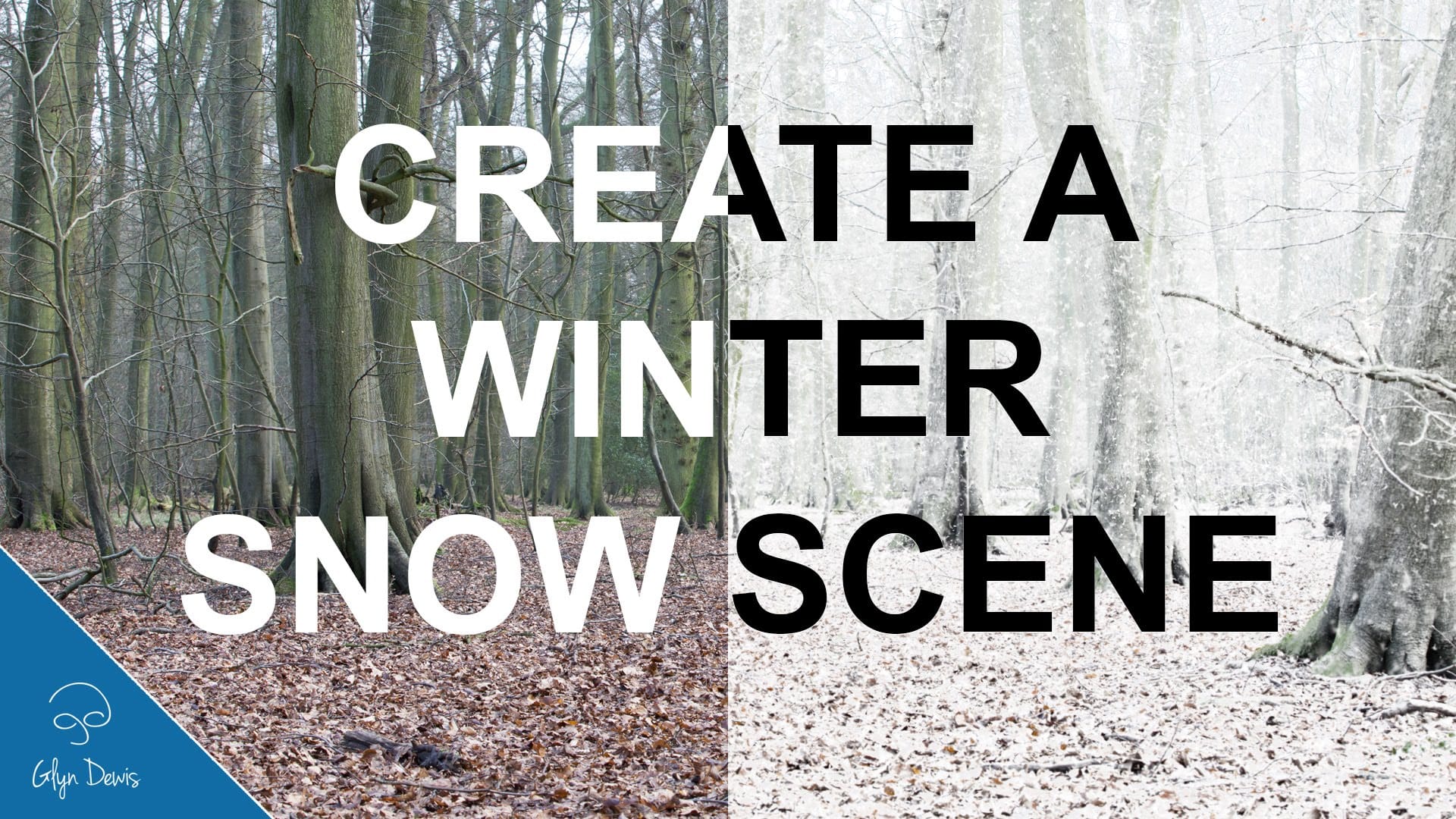
In this tutorial, you'll learn how to transform a regular photograph into a captivating winter snow scene using Adobe Photoshop. The step-by-step approach is straightforward and easy to follow, making it accessible for both beginners and experienced Photoshop users. The tutorial covers the key techniques required to add realistic-looking snow to your image. You'll discover how to create a snowy atmosphere, including snowflakes and icy effects, to bring your scene to life. The instructor's clear
Add a realistic snowfall to a photo in Photoshop
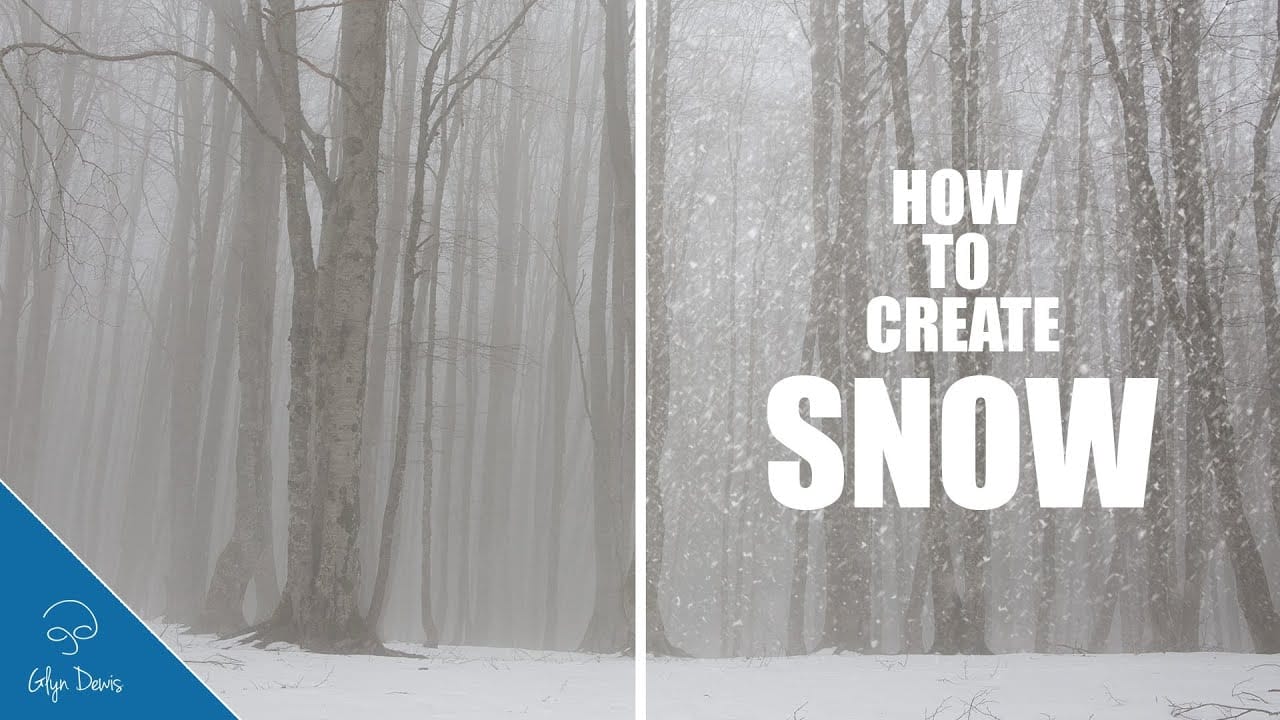
In this tutorial video by Glyn Dewis, you are guided on how to add a realistic snowfall effect to your winter scene photos using Photoshop. The step-by-step instructions make it easy for you to follow along, even if you are not an experienced user. You will learn the techniques necessary to create convincing snow that enhances the mood of your images. Additionally, the tutorial shows you how to turn the snow effect into a brush, allowing for quick and easy application in future projects. By th
Colorful and Snowy Christmas Photoshop Tutorials
As Christmas approaches, a fresh collection of festive tutorials has arrived, showcasing snowy scenes, vibrant decorations, and delightful designs. Each tutorial captures the spirit of the holiday season, featuring white trees, colorful ornaments, and various cheerful effects that bring joy to any project. These tutorials not only highlight traditional Christmas themes but also incorporate the latest design trends, making them both relevant and inspiring. Whether you’re looking to enhance your
Snow painting and ice texturing on a text in Photoshop
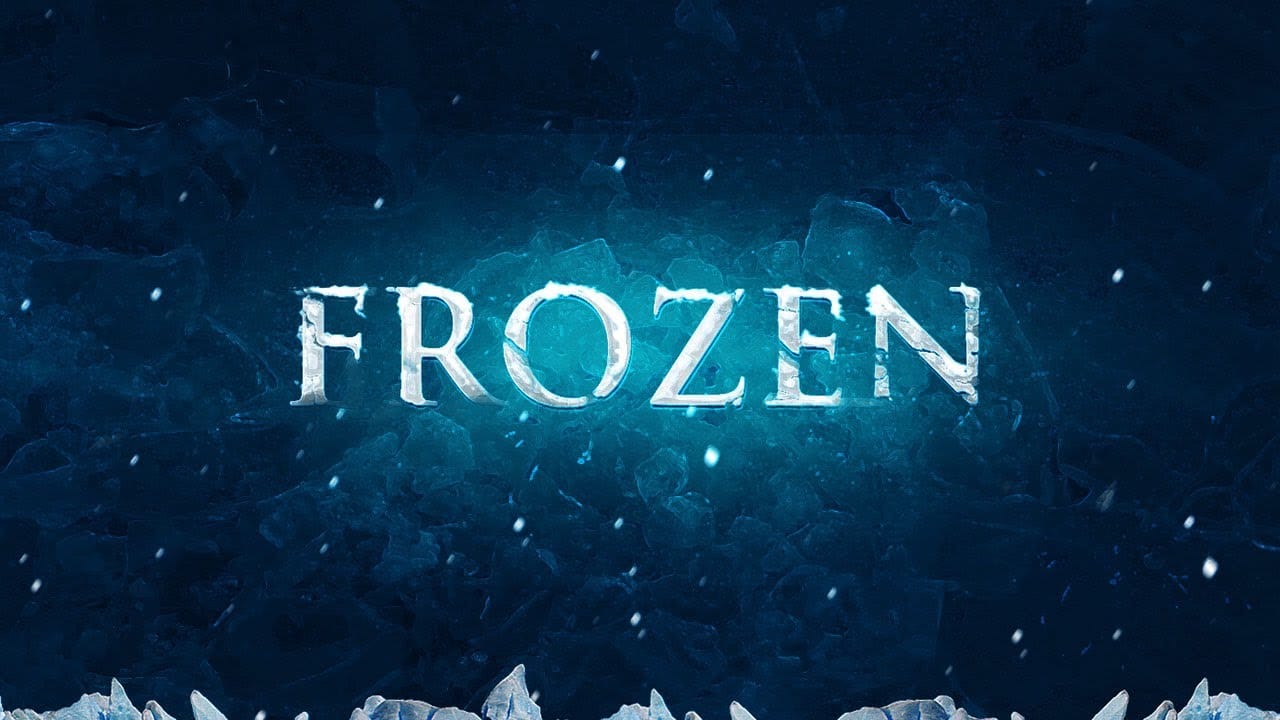
In this Photoshop tutorial by James Qu from PSD Vault, you'll learn how to create a realistic frozen text effect. The tutorial focuses on using ice textures, custom brushes, adjustment layers, and filters to achieve the desired icy appearance. James guides you through the process step-by-step, demonstrating techniques to enhance realism and texture, making the text appear as if it's frozen solid. This tutorial is ideal for those looking to add a chilling and visually captivating effect to thei

Get tutorials & freebies delivered to you.

Subscribe to the Photoshop Roadmap newsletter, a weekly roundup of new tutorials, insights and quality downloads, trusted by 6500+ readers.

You might also like

How to Expand Photos Beyond Their Edges Using AI Generative Expand in Photoshop

Sometimes your best photos need more breathing room or a different aspect ratio. Generative Expand in Photoshop lets you extend your canvas beyond the original image boundaries, using AI to intelligently fill in missing areas with content that matches your scene. This technique works for changing portrait photos to landscape...

How to Create Digital Scrapbook Carousels in Photoshop

Digital scrapbook pages capture memories beautifully, but a single page limits your storytelling. Creating a carousel format lets you design multiple connected panels that work together as one cohesive piece while giving viewers more content to explore. This technique uses frames, custom shapes, and smart export settings to build templates...

How to Use Auto Align Layers in Photoshop for Perfect Layer Alignment

When working with multiple layers that need perfect alignment, manual positioning often falls short. Slight camera movement, different crops, or rotated images can make precise alignment seem impossible through visual adjustment alone. Auto Align Layers automatically handles rotation, scaling, and positioning to create perfect layer alignment, even when images have...

How to Use Nano Banana Pro in Adobe Firefly for Advanced AI Image Generation

Adobe Firefly now includes Gemini 3 with Nano Banana Pro, offering sharper 2K image generation with improved text clarity and precision blending. This advanced AI model works seamlessly within Firefly's generative workspace, enabling powerful workflows like multi-image composition and virtual try-on effects. The integration provides access to sophisticated...

Create Colorful Retro Text Compositions in Photoshop

Retro design trends continue to captivate audiences with their bold colors and geometric shapes. This tutorial demonstrates how to build a complete vintage-inspired composition using text, geometric elements, and vibrant color schemes that capture the essence of classic graphic design. You'll learn to combine typography with custom shapes,...

Photoshop's New Color and Temperature Tool for Advanced Color Grading

Photoshop's latest update introduces temperature and tint controls directly into the adjustment layer panel, bringing white balance tools from Camera Raw into the main editing workspace. This addition transforms color grading workflows by enabling precise local adjustments with custom brushes and blend modes. The new Color and Vibrance...

You’ve successfully subscribed to Photoshop Roadmap
Welcome back! You’ve successfully signed in.
Great! You’ve successfully signed up.
Success! Your email is updated.
Your link has expired
Success! Check your email for magic link to sign-in.