Create a Whimsical Vintage Image in Photoshop: Complete Layer Breakdown and Color Matching Technique

Create a Whimsical Vintage Image in Photoshop: Complete Layer Breakdown and Color Matching Technique

The magic of vintage circus imagery lies in its ability to transport viewers to a world of wonder and nostalgia. Soft, muted tones paired with whimsical characters create compositions that feel both timeless and enchanting.

This tutorial demonstrates how to build a complete vintage-inspired scene using strategic layering, color grading techniques, and a clever color-matching method for harmonizing different elements within your composition.

Watch the Complete Tutorial

Video by SandraD Imagery. Any links or downloads mentioned by the creator are available only on YouTube

Building Vintage Atmosphere Through Strategic Layering

Creating convincing vintage imagery requires understanding how different adjustment layers work together to build atmosphere. The process involves more than simply applying filters—it's about crafting depth and mood through careful tonal adjustments.

The Nik Collection proves invaluable for achieving authentic vintage tones, offering control over film emulation and color grading that mimics classic photography. Combined with texture overlays and blend modes, these tools create the foundation for nostalgic imagery.

  • Layer foundation with brightness and contrast adjustments for initial depth
  • Strategic use of Nik Analog for vintage color grading and film emulation
  • Texture application through crackle overlays for aged poster effects
  • Stamp visible technique for non-destructive editing workflow
  • Color harmony achieved through selective brush work and sampling

Practical Tips for Vintage Image Creation

  • Work with stamp visible layers before major adjustments to preserve your editing flexibility and maintain a non-destructive workflow
  • Use the eyedropper tool with low-opacity brushes to sample colors from one area and paint them onto another for seamless color matching
  • Apply texture overlays at reduced opacity with blend modes like Multiply or Overlay to achieve subtle vintage aging effects
  • Make selections before brush work using object selection tools to ensure precise color matching within specific areas
  • Adjust levels focusing on midtones rather than highlights and shadows for more natural vintage color grading

More Tutorials about Photoshop Layer Techniques

Explore additional layer management and creative compositing techniques.
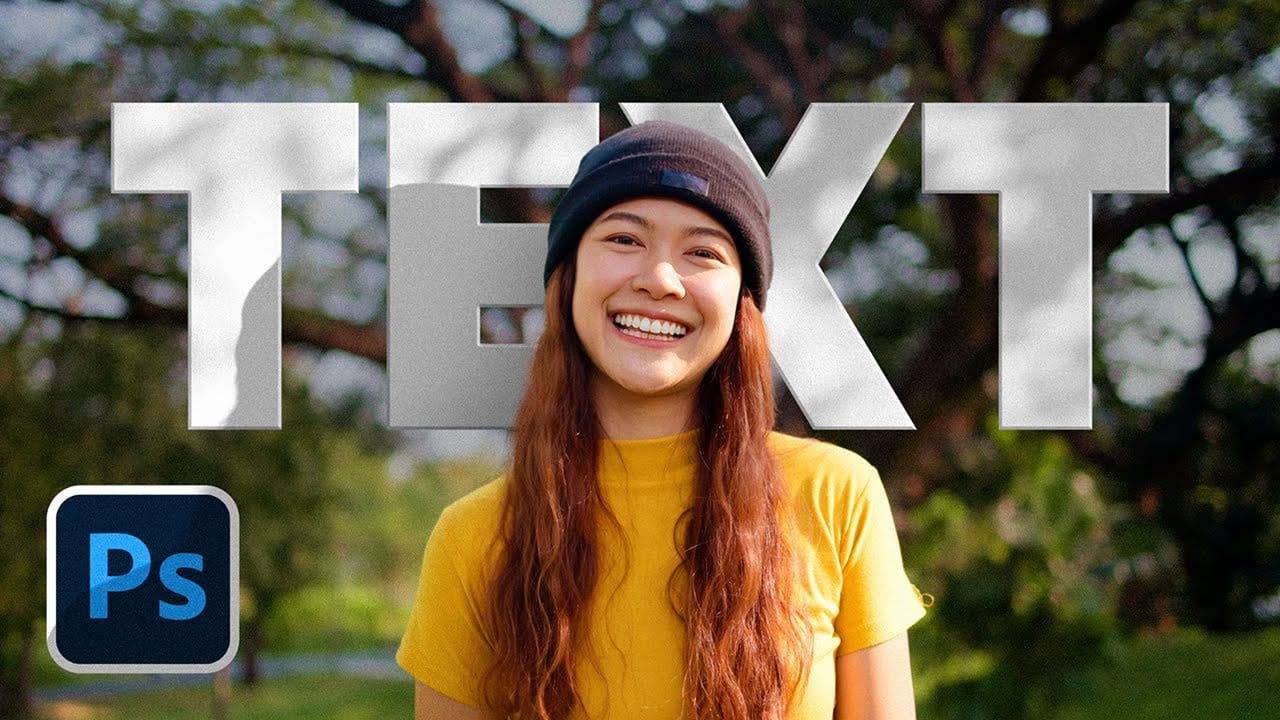
Add Text Behind a Subject with Realistic Shadows in Photoshop
Creating convincing text-behind-object effects in Photoshop requires more than basic masking techniques. While separating a subject and placing text behind it seems straightforward, achieving realistic results means accounting for proper lighting, shadow behavior, and environmental effects that make the composition believable. This tutorial demonstrates advanced techniques for creating text-behind-subject effects with authentic shadows and lighting. The methods cover subject extraction, shadow
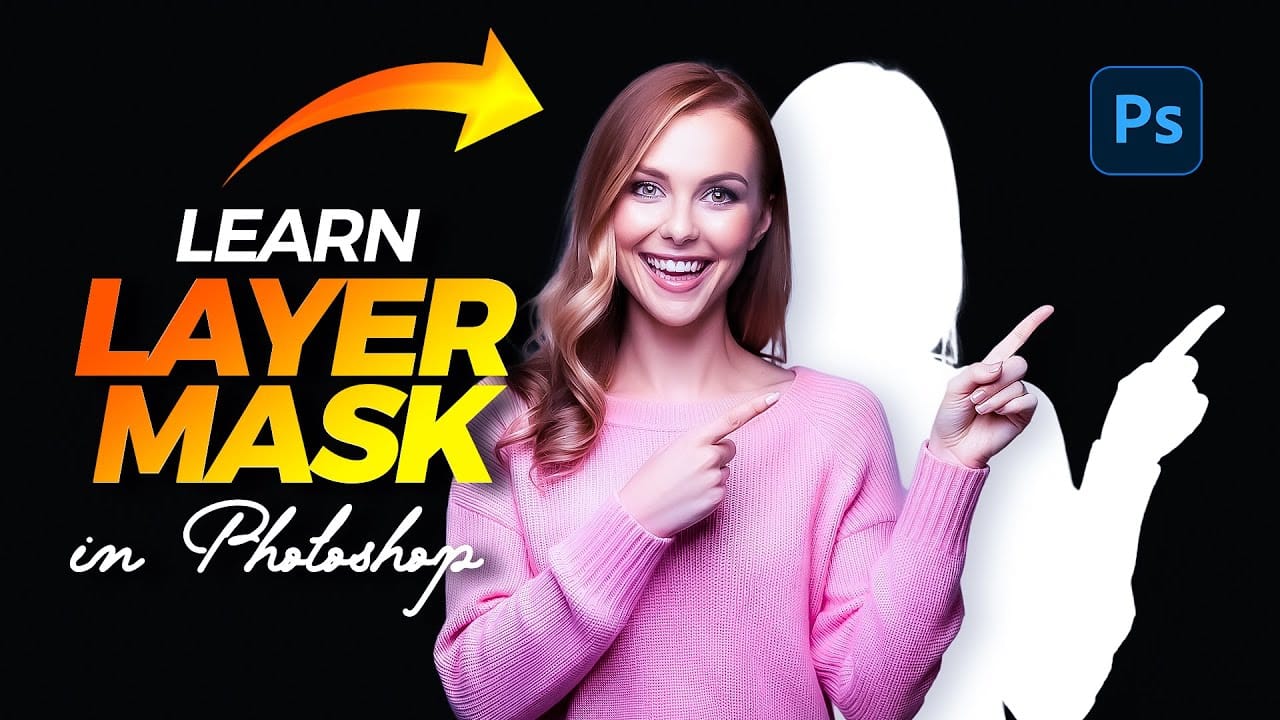
Unlocking the Power of Layer Masks in Photoshop
Layer masks are a fundamental feature in Photoshop that allow for greater control over images. They enable you to hide or reveal portions of a layer without permanently altering the original content. This non-destructive editing approach is beneficial for making precise adjustments to your designs. You can use layer masks in various ways. For example, they help blend multiple images, create seamless transitions, or apply effects to specific areas. By painting on the mask with black or white, yo
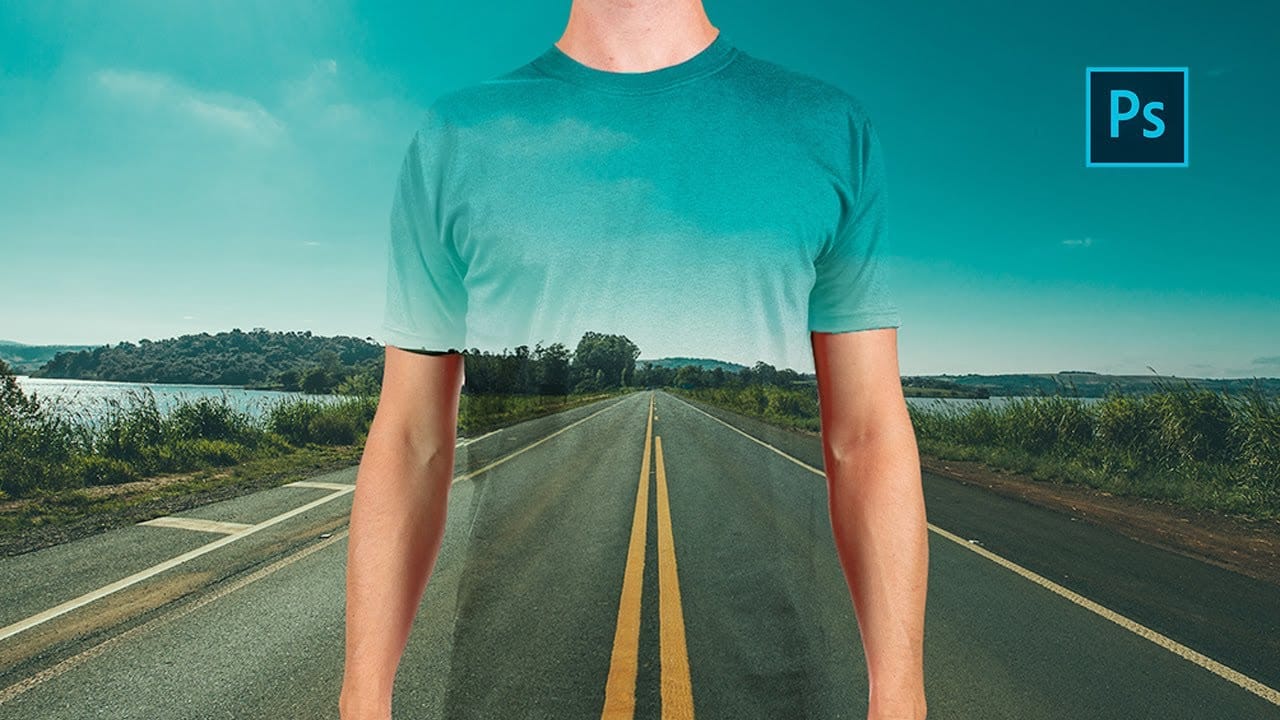
Create a transparent clothes effect in Photoshop
In this Photoshop tutorial you will to achieve a camouflage photo effect where we make t shirt look transparent. It's a super simple tutorial, quite easy for beginners to learn some things. We will cut out the background and and than separate t-shirt from body and will change the blending mode to make it mix with background. The real trick is to make t-shirt black and white before making it transparent so we don't have any trouble with miss matching colors. Also we will use displacement map, wh
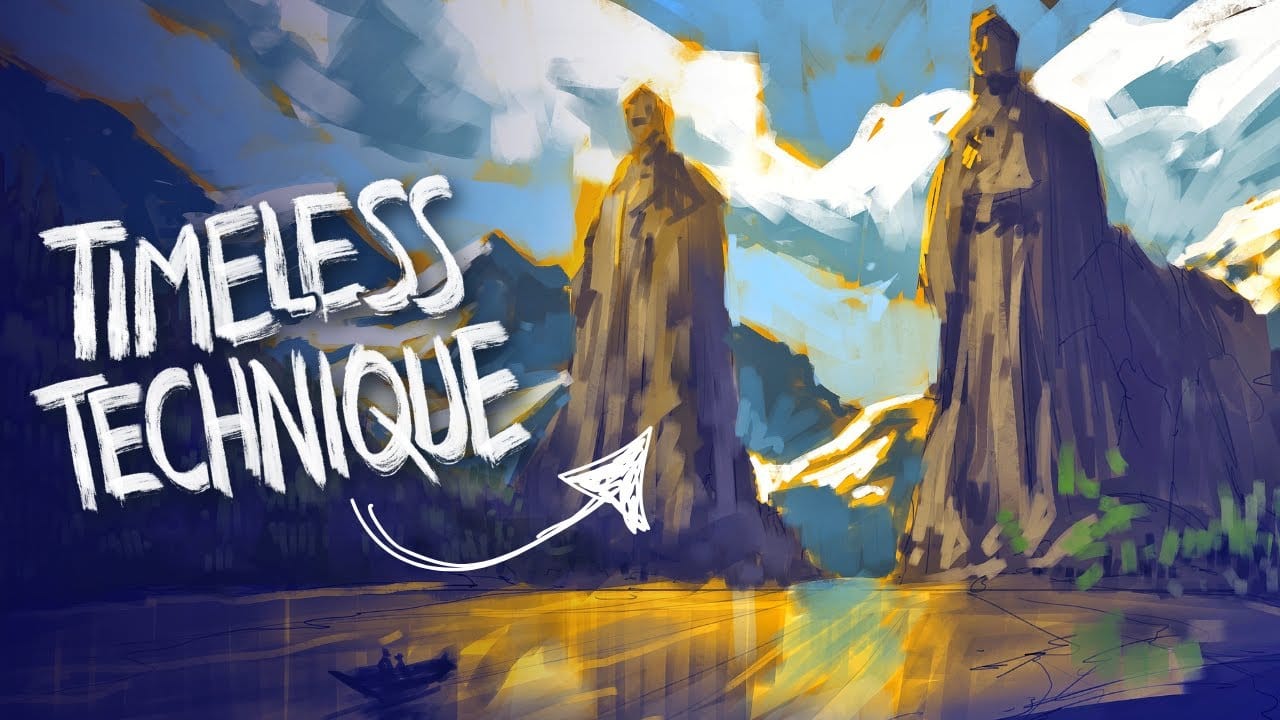
The Underpainting Technique in Adobe Photoshop
In this presentation, you will explore an oil painting technique that has stood the test of time, used by Old Masters for centuries. This method begins with a basic CPA underpainting, which serves as a foundation for the artwork. Following this, layers of color are added on top to create depth and richness. The speaker will demonstrate this technique through digital speedpaints, showing how you can apply it to your own work. The process starts with loose sketching to establish composition, foll

Get tutorials & freebies delivered to you.

Subscribe to the Photoshop Roadmap newsletter, a weekly roundup of new tutorials, insights and quality downloads, trusted by 6500+ readers.

You might also like

When to Use Saturation vs Vibrance for Better Color Enhancement

While vibrance gets praised for being "gentler" than saturation, the reality is more nuanced. Saturation works like a universal volume knob, boosting all colors equally, while vibrance acts like a smart equalizer, selectively enhancing less saturated areas first. Understanding when each approach serves your creative vision makes the...

How to Check Your Generative Fill Credit Balance in Photoshop

Keeping track of your AI credit usage becomes essential when working with premium generative features. Understanding your remaining balance helps you budget your edits and avoid unexpected interruptions during important projects. The credit system divides features into standard tools (like basic generative fill) that don't consume credits, and...

How to Create Realistic Depth Blur Effects in Photoshop

Creating professional depth of field effects can transform flat images into dynamic photographs with natural-looking focus transitions. Two powerful methods in Photoshop offer different advantages: Neural Filters provide automated depth detection with atmospheric effects like haze, while Camera Raw Filter delivers precise manual control with customizable bokeh shapes. Both techniques...

Three Professional Methods to Fix White Balance in Photoshop

Color casts can ruin even the best photographs, making whites appear yellow, blue, or green instead of neutral. Poor white balance destroys the natural look of your images and creates an unprofessional appearance that's immediately noticeable to viewers. These three techniques provide increasingly precise control over white balance...

Creating Dark Moody Wildlife Photo Edits in Photoshop

Dark, moody wildlife photography transforms ordinary animal portraits into dramatic, atmospheric pieces that capture the mystery and power of nature. This editing approach combines strategic lighting placement, careful color grading, and atmospheric effects to create compelling images that draw viewers into the scene. The workflow begins with essential noise reduction...

How to Create Professional Photo Composites in Photoshop

Creating compelling photo composites requires more than simply placing images together. This comprehensive tutorial demonstrates how to blend multiple elements seamlessly, from matching lighting and color to painting realistic shadows and highlights. The project showcases a dramatic scene inspired by Stranger Things, combining buildings, characters, and atmospheric effects with precise...

You’ve successfully subscribed to Photoshop Roadmap
Welcome back! You’ve successfully signed in.
Great! You’ve successfully signed up.
Success! Your email is updated.
Your link has expired
Success! Check your email for magic link to sign-in.