How to Make a Scary Dungeon Wall in Photoshop

How to Make a Scary Dungeon Wall in Photoshop

Horror and macabre art often rely on textures and effects to convey a sense of decay and dread. One of the most effective elements is the rusted chain, suggesting confinement, age, and neglect. Learning to create this effect can significantly enhance your digital art, lending an authentic and chilling feel to your projects.

This Photoshop tutorial demonstrates how to construct realistic rusted chains from scratch. By mastering these techniques, you can add a haunting touch to any visual narrative, making your work more compelling and immersive.

Watch the Video

Video by Blue Lightning. Any links or downloads mentioned by the creator are available only on YouTube

The Psychology of Rust in Art

Rust transcends mere visual texture; it evokes deep-seated psychological responses. The sight of rust often implies neglect, decay, and the passage of time. In art, this translates to a powerful tool for conveying themes of abandonment, horror, and the relentless march of entropy. The color palette, ranging from dull oranges to deep browns, adds to the somber, unsettling effect. By understanding these associations, artists can wield rust as a potent symbol.

The *tactile* quality of rust—its rough, uneven surface—further enhances its symbolic weight. This invites a sensory engagement, making the decay feel almost tangible. In digital art, replicating this texture requires careful attention to detail, from color variations to subtle distortions. The goal is to create an illusion so convincing that viewers can almost feel the corroded surface. Consider these elements when designing rusted elements:

  • Texture
  • Color
  • Form

Practical Tips for Creating Rusted Chains

  • Use Rounded Rectangles: Start with rounded rectangles to form the basic links of the chain, ensuring a consistent shape before applying effects.
  • Apply Bevel and Emboss: Enhance the three-dimensionality of the chains by using the Bevel and Emboss effect, adjusting the depth and size to create a realistic appearance.
  • Incorporate Rust Textures: Overlay rust textures using blend modes like Multiply and Darker Color to infuse the chain with authentic corrosion details.
  • Create Layer Masks: Use layer masks to seamlessly blend rust textures with the chain links, removing harsh edges and ensuring a natural integration.
  • Add Subtle Shadows: Introduce subtle shadows beneath the horizontal chain links to ground the object and enhance the overall depth of the composition.

Expand your skills and explore similar techniques with these hand-picked tutorials and articles, designed to inspire your next creative project.

Create a Colorful Graffiti on a Grungy Brick Wall in Photoshop
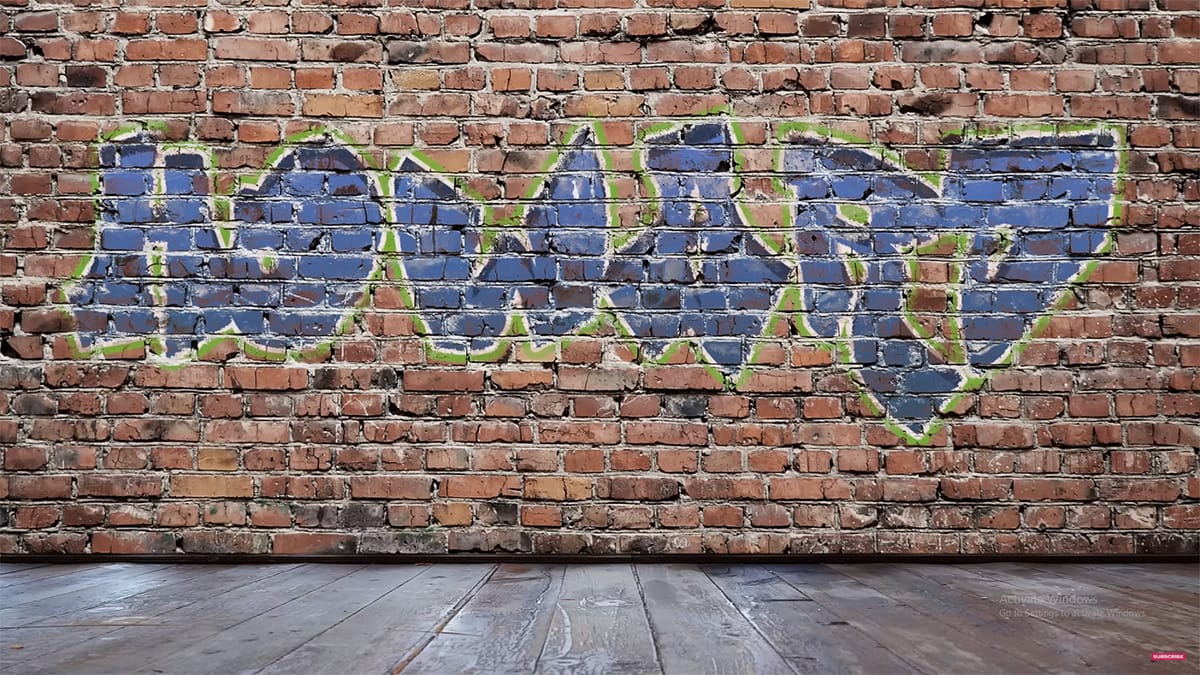
Graffiti text in Photoshop has been a popular request over the years. In this tutorial, Howard Pinsky demonstrates how to create vibrant graffiti on a grungy brick wall using Layer Styles, a displacement map, and Layer blending modes. This tutorial is designed to show just how simple it is to achieve a striking graffiti effect, making it accessible even for beginners. Follow along to bring your graffiti art to life with vivid colors and realistic textures. Watch tutorial
Create a Cute and Scary Children’s Illustration in Photoshop
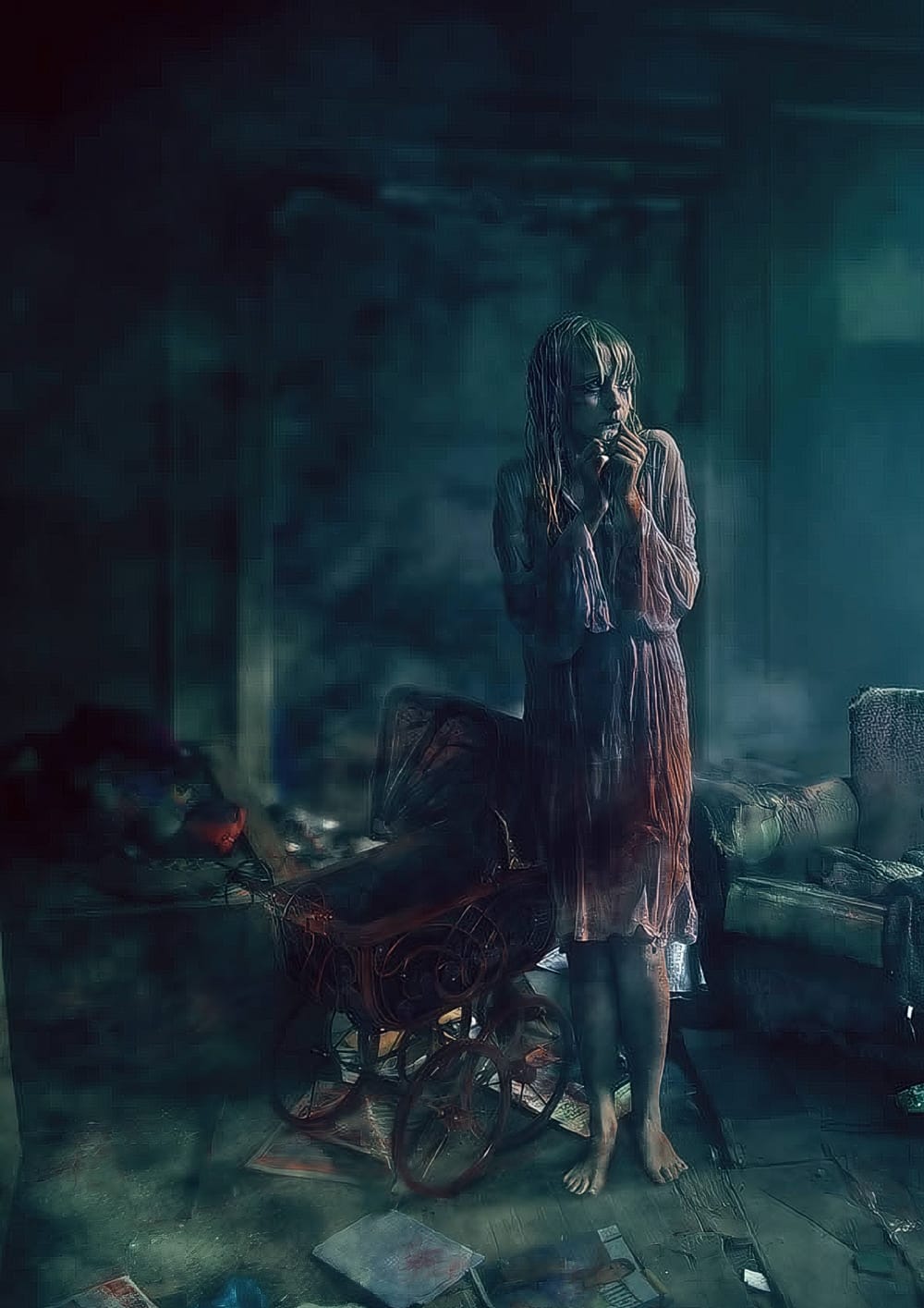
As the fall approaches in many parts of the world, many designers and illustrators might already be thinking about the upcoming Halloween holiday, especially those that are based in the U.S. In this tutorial, we will show you how to illustrate a cute and scary children’s illustration using techniques that you could easily incorporate into your own Halloween artwork. Watch tutorial
Learn how to freak people out in Photoshop
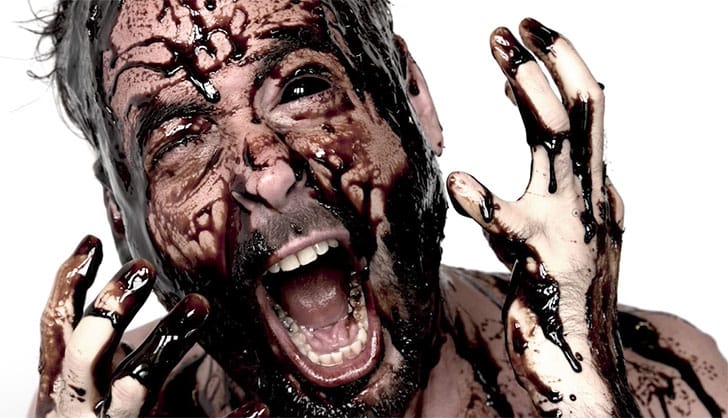
In this tutorial, follow along during a photoshoot where Aaron Nace’s head gets black liquid poured on. Aaron then takes the image into Photoshop for finishing touches to get the proper lighting to black out his own eyes. The key to making a black eye ball look believable in Photoshop is lighting. Be sure your subject is facing a large window or other lighting source that will create light reflections in their eyes. If there is no reflection in the person’s eye, the effect will look flat and li
Create a Horror Scene Photo Composition in Photoshop
In this engaging tutorial, Mario Sanchez Nevado from Tuts+ guides you through the process of creating a horror movie-themed photo composition in Photoshop. You'll learn how to choose the right photos and blend them together seamlessly to achieve a realistic and believable result. Key techniques covered include balancing light, using midtones, creating depth of field, and mastering blending methods. This tutorial is perfect for those looking to enhance their photo manipulation skills and create

Get tutorials & freebies delivered to you.

Subscribe to the Photoshop Roadmap newsletter, a weekly roundup of new tutorials, insights and quality downloads, trusted by 6500+ readers.

You might also like

6 Essential Photoshop Effects You Really Need to Learn

Not every Photoshop effect is worth your time. Some are novelties, some are niche, and some will date your work faster than you expect. These six are different — they show up constantly across editorial, advertising, and digital design, and they're the ones most self-taught users have somehow never...

How to Use Photoshop's New Offline AI Remove Tool (No Credits Required)

Photoshop's latest update introduces an offline AI-powered Remove tool that works without internet connectivity or generative credits. This on-device feature processes a 4-5GB AI model locally, enabling fast object removal while maintaining complete privacy since your images never leave your computer. The tool requires high system specifications but...

How to Use the Harmonize Tool for Advanced Photo Compositing in Photoshop 2026

The Harmonize tool transforms compositing by automatically adjusting lighting, color, and shadows to blend objects seamlessly into new backgrounds. This AI-powered feature analyzes both your subject and background, then creates realistic color bleed, reflections, and contact shadows with a single click. While the tool delivers impressive results instantly, combining it...

How to Use Split Toning and Enhanced AI Masks in Camera Raw

Adobe's latest Camera Raw update brings two powerful enhancements that transform how photographers work with masks and color grading. Split toning is now available directly within individual masks, allowing precise color control over shadows, midtones, and highlights in specific image areas. Additionally, AI masks like landscape selection and...

How to Use Harmonize and Rotate Object Tools for Better Composites in Photoshop

Creating believable composites traditionally required hours of manual perspective adjustments and color matching. Two new AI-powered tools in Photoshop change this workflow dramatically. The Rotate Object tool lets you adjust positioning and perspective with interactive 3D controls, while the Harmonize tool automatically matches lighting, shadows, and color tones to blend...

Camera Raw Feathering and Color Grading Features (May 2026 Update)

Adobe Camera Raw's latest update introduces two powerful masking features that solve common editing problems. The new feather and edge controls help create cleaner selections around complex shapes like trees, while color grading within masks allows for precise adjustments without affecting the entire image. These tools work exclusively...

You’ve successfully subscribed to Photoshop Roadmap
Welcome back! You’ve successfully signed in.
Great! You’ve successfully signed up.
Success! Your email is updated.
Your link has expired
Success! Check your email for magic link to sign-in.