How to create a ghost in Photoshop

How to create a ghost in Photoshop

Transforming ordinary photos into something extraordinary often involves exploring creative digital manipulation techniques. The ability to create a convincing ghostly apparition, for instance, adds an intriguing and ethereal dimension to an image. This process, once more complex, has become significantly more streamlined with updates in modern photo editing software.

This tutorial guides you through the process of converting a regular subject into a transparent, spectral figure. You will discover practical methods for isolating subjects, applying non-destructive adjustments, and utilizing blend modes to achieve a captivating ghostly effect.

Watch the Tutorial

Video by Blue Lightning. Any links or downloads mentioned by the creator are available only on YouTube

Mastering Transparency for Ethereal Photo Effects

Creating ethereal imagery in digital art frequently relies on a nuanced understanding of light, transparency, and subtle distortions to evoke a sense of the supernatural. The perception of a ghost or spirit is often linked to its translucent quality and how it interacts with its environment, appearing as if it's not fully present in the physical world.

Key to achieving this illusion are blend modes, particularly Screen and Color Dodge. The Screen mode is fundamental as it brightens underlying layers, making elements appear luminous and translucent, mimicking light passing through a semi-transparent object. Conversely, Color Dodge increases brightness and contrast, often employed for intensifying glowing effects or accentuating highlights, which can simulate an otherworldly glow emanating from the spectral figure.

Beyond blend modes, the practice of non-destructive editing is crucial for fine-tuning such delicate effects. Techniques like using Smart Objects allow for transformations and filter applications without permanently altering original pixel data. Similarly, Clipping Masks restrict adjustment layers to affect only specific underlying layers, ensuring precise control over the spectral appearance without impacting the background, thereby preserving flexibility throughout the creative process.

Practical Tips for Creating Ghostly Effects

  • Optimize background choice: Darker backgrounds provide better contrast, enhancing the visibility of translucent effects.
  • Utilize Smart Objects: Convert your subject to a Smart Object early in the process for non-destructive transformations and filter applications, allowing for flexible adjustments.
  • Employ Clipping Masks: Restrict adjustment layers, such as Curves or Solid Color, to affect only the specific layers below them, preventing unintended changes to your background.
  • Control effects with Layer Masks: Invert layer masks (Ctrl/Cmd + I) to initially hide an effect, then use a white brush to selectively reveal it in desired areas, such as the eyes.
  • Leverage Blend Modes: Apply the Screen blend mode for overall transparency and luminosity, and consider Color Dodge for specific glowing or ethereal highlights.
  • Experiment with Liquify: Use the Liquify filter (available in Photoshop CC versions and later) to subtly distort facial features, adding an otherworldly and unsettling appearance to your ghost.

Explore these additional resources to further enhance your skills in creating captivating and eerie photo manipulations.
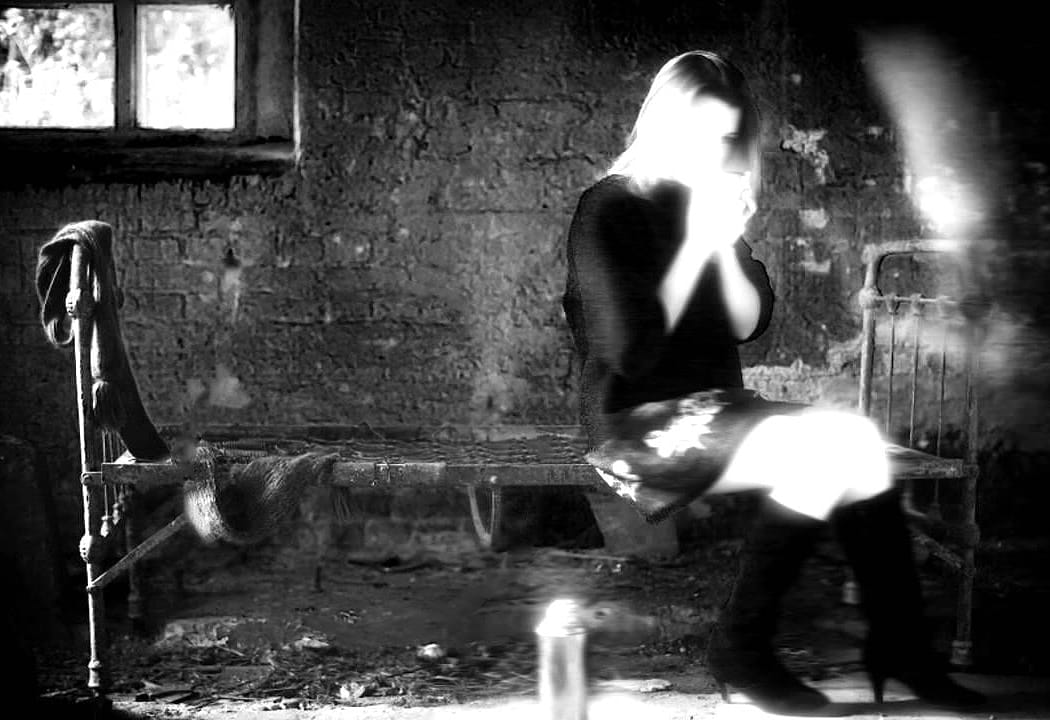
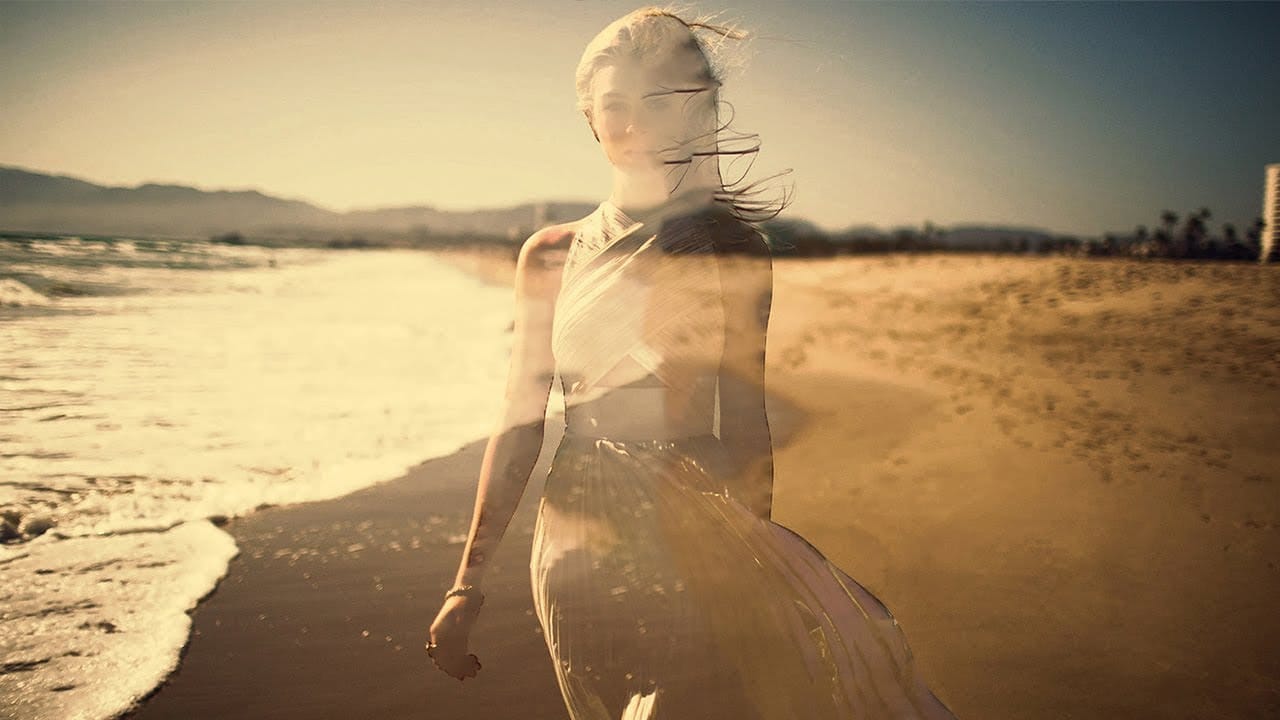
Create See-Through Ghost Photos in Photoshop
This tutorial offers a straightforward guide to creating an eerie see-through ghost photo using just one image. Perfect for beginners, it simplifies the process while ensuring you can achieve impressive results. You will learn essential techniques that allow you to manipulate your image effectively. The tutorial walks you through each step, ensuring that even those new to Photoshop can follow along with ease. By the end, you'll be able to transform an ordinary photo into something hauntingly b
Create a Ghostly Image Effect in Photoshop
In this engaging Photoshop tutorial, you will discover how to create a ghostly effect that transforms a person into a transparent figure, resembling a ghost. This technique is perfect for adding an eerie vibe to your images. You'll begin by selecting the person in your photo and adjusting the layers to achieve the desired transparency. The step-by-step instructions will guide you through the process of refining the edges and enhancing the overall look to ensure a realistic ghost appearance. By
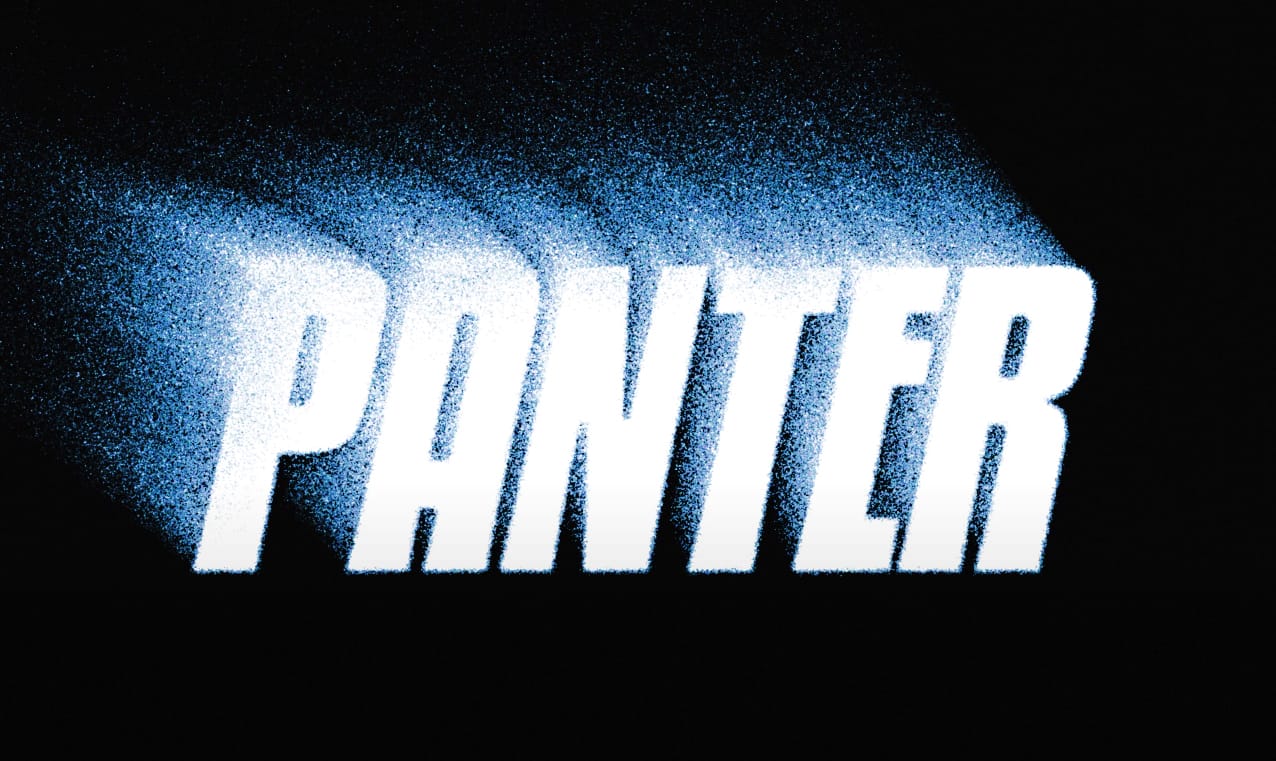
How to Make Grungy Ghost Text Effects in Photoshop
In this tutorial, you'll learn how to create a grungy ghost text effect in Photoshop. The process begins with setting up your artboard and using the type tool to input your desired text. By scaling the text with shortcuts, you can achieve the perfect size for your design. Next, converting the text to a smart object enables you to apply filters. Two important steps involve using the path blur to customize the direction and speed of the blur. After applying this effect, you can adjust the blend m
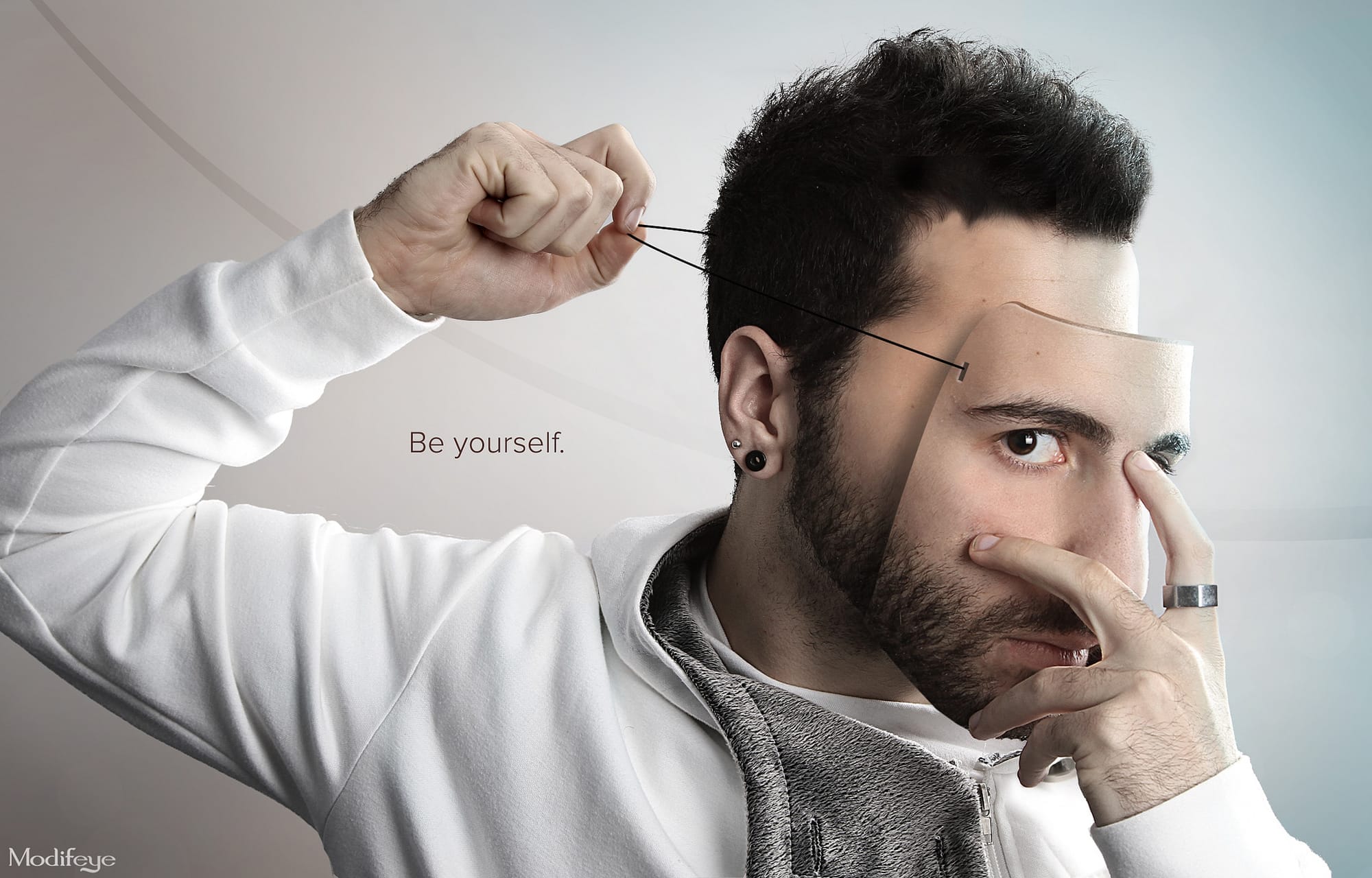
Create a Portrait Mask Illusion With Photoshop
Here is a longer version with paragraphs, written in the third person or second singular voice, and without using the prohibited words: If you're looking to create an eye-catching portrait illusion, this tutorial is for you. You'll learn how to make a face mask using a photo of the subject's own face. The author demonstrates the simple techniques they used to achieve this effect in Photoshop. First, you'll need to capture a high-quality photo of the subject's face. Then, you'll edit the image

Get tutorials & freebies delivered to you.

Subscribe to the Photoshop Roadmap newsletter, a weekly roundup of new tutorials, insights and quality downloads, trusted by 6500+ readers.

You might also like

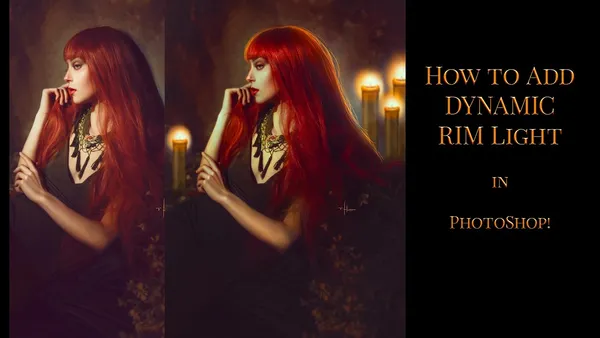
Create Realistic Rim Light Effects on Portraits in Photoshop

Rim lighting transforms ordinary portraits into dramatic, professional-looking images by adding bright highlights around the edges of your subject. This technique simulates light hitting the outer contours of a person, making them stand out from their background with a natural, glowing effect. The key to convincing rim light lies...

How to Use Photoshop's Layer Cleanup Tool to Organize Messy Projects

Complex editing projects with Generative Fill and Expand often result in dozens of unnamed layers cluttering your workspace. The new Layer Cleanup tool automates the tedious process of renaming layers and removing empty ones, transforming chaotic layer panels into organized, manageable structures. This workflow improvement saves significant time during post-...

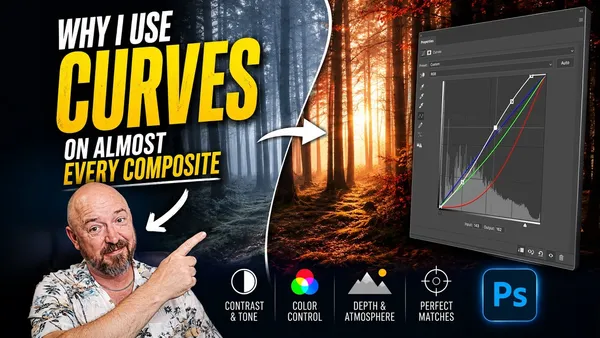
How to Use Curves for Composite Color Matching in Photoshop

Curves adjustments are essential for making composite elements look natural and cohesive. Understanding how curves manipulate light values and color channels gives you precise control over matching different elements to their new backgrounds. The key to successful color matching lies in analyzing the color temperature and brightness relationships between your...

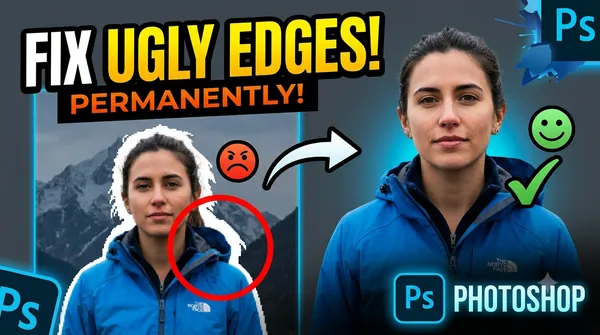
How to Fix Color Fringing in Subject Cutouts Using Clipping Masks

Perfect layer masks can still produce disappointing results when color fringing appears around hair and fur edges. This common problem isn't caused by poor masking technique—it's the original background bleeding through at the edges. Clipping masks offer a powerful solution by allowing you to paint...

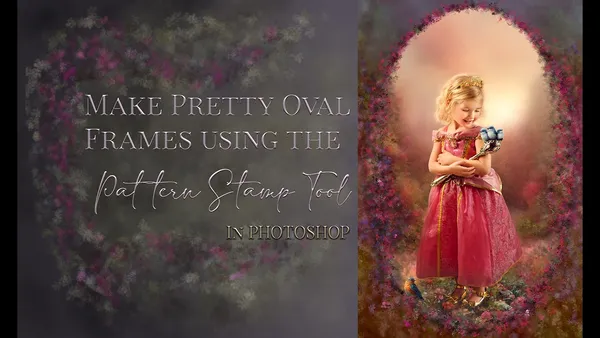
Create Beautiful Floral Oval Frames for Portraits in Photoshop

Transform ordinary portraits into elegant artwork with decorative floral oval frames that blend seamlessly with your subject. This technique combines traditional framing with digital floral elements, creating a painterly effect that's perfect for fine art prints and creative portraits. The process involves creating an oval cutout, adding custom...

You’ve successfully subscribed to Photoshop Roadmap
Welcome back! You’ve successfully signed in.
Great! You’ve successfully signed up.
Success! Your email is updated.
Your link has expired
Success! Check your email for magic link to sign-in.