How to Create a Liquid Acid Melting Effect in Photoshop

How to Create a Liquid Acid Melting Effect in Photoshop

The liquid acid effect transforms ordinary portraits into surreal, otherworldly visuals that seem to melt and flow across the canvas. This distinctive distortion technique creates an organic, fluid appearance that suggests corrosive forces reshaping reality itself.

This tutorial demonstrates how to achieve this striking visual using Photoshop's smudge tool combined with strategic color grading and noise textures to enhance the melting illusion.

Watch the Video Tutorial

Video by P A N T E R. Any links or downloads mentioned by the creator are available only on YouTube

The Psychology of Distortion Effects

Liquid distortion effects tap into our fascination with transformation and decay. The melting aesthetic suggests powerful forces at work, whether supernatural, chemical, or psychological. This visual language has deep roots in surrealist art and horror imagery, where distorted human features represent altered consciousness or external threats.

Digital artists often use these techniques to convey themes of change, vulnerability, or otherworldly influence. The organic flow patterns mimic natural processes like erosion or dissolution, creating an unsettling but compelling visual narrative. The effect works particularly well on facial features because viewers instinctively recognize the distortion as unnatural.

Modern applications range from album covers and movie posters to social media art and conceptual photography. The technique bridges traditional artistic concepts with digital manipulation capabilities, allowing precise control over what appears to be chaotic transformation.

Essential Tips for Liquid Acid Effects

  • Use images sized around 1080p for optimal smudge tool performance and processing speed
  • Set the smudge tool to zero hardness and 90% strength for smooth, flowing distortions
  • Add noise layers with screen blend mode to create realistic texture variations in smooth areas
  • Apply gradient maps with yellow, red, purple, and gray stops to achieve the characteristic acidic color palette
  • Use layer masks to selectively remove unwanted distortion areas while preserving important details

Explore more creative distortion and surreal portrait techniques.
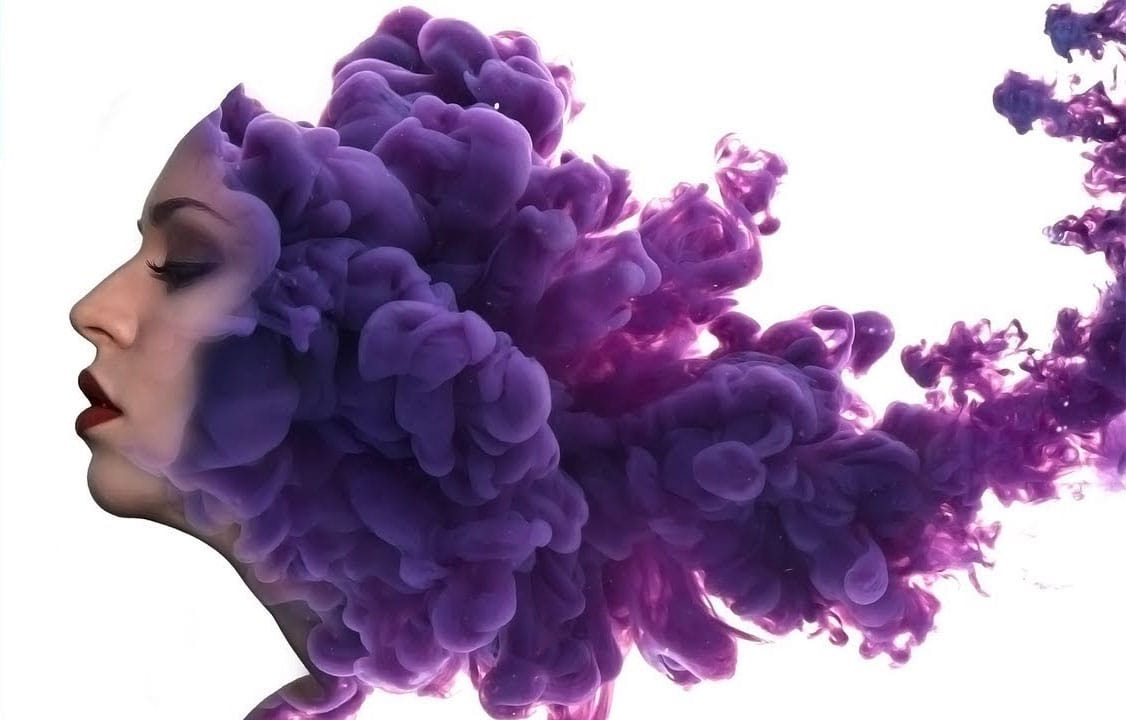
Create a surreal ink in water portrait effect in Photoshop
This tutorial by Photoshop Tutorials Channel will show you how to create surreal portraits. Learn how to seamlessly blend a human face with an "ink in water" stock photo, crafting a dreamlike and captivating image. The video will guide you through using layer masks and filters to achieve a harmonious fusion, where the textures of the ink and the details of the face intertwine for a truly surreal effect. Unleash your creativity and explore the possibilities of photo manipulation in this unique t
How to make stuff float in Photoshop
You can easily make stuff float on photos by searching for a stock image, cutting the object and pasting it in a layer of your psd file. There are millions of drawbacks in using that technique, being the correct lighting and the getting the exact object the main ones. In this video tutorial by Patrick McKinnon, you will learn, in detailed steps, how to make a photoshoot of your object and how to apply some Photoshop magic to create the perfect floating object scene, with the perfect lighting an
Create Creepy Lighting and Mysterious Atmosphere Effects in Photoshop
This tutorial offers a clear guide on creating eerie lighting and mysterious atmospheric effects in Photoshop. You will learn how to enhance your photos by manipulating different lighting techniques. The author explains the process step by step, starting with how to select the right colors and apply various effects to a chosen stock image. Each technique is thoroughly detailed, making it easy for you to follow along. The end results are impressive, showcasing how these methods can transform an
How to create a dripping paint text effect in Photoshop
In this tutorial, you will discover how to create a striking paint-dripping effect using Adobe Photoshop. This guide breaks down the process into clear, manageable steps, making it easy for you to follow along, regardless of your skill level. First, you will start by preparing the base image, where you will add the paint element. Then, you'll learn how to manipulate and position the paint to achieve the desired dripping effect. Each step includes helpful tips and tricks to enhance your work. F

Get tutorials & freebies delivered to you.

Subscribe to the Photoshop Roadmap newsletter, a weekly roundup of new tutorials, insights and quality downloads, trusted by 6500+ readers.

You might also like

Create a Liquid Gel Logo Effect in Photoshop

Liquid gel effects transform flat logos into dimensional, glossy designs that appear to bubble and flow. This technique uses multiple layer styles and strategic duplication to build depth, creating surfaces that catch light like thick, viscous liquid. The method combines gradient overlays, bevel effects, and inner glows across several duplicated...

How to Use Photoshop's AI Sharpen Filter and When It's Worth the Cost

Photoshop's new AI Sharpen filter promises one-click sharpening powered by advanced algorithms. This tool uses technology from Topaz Labs to enhance image details without manual adjustments, but it comes with a significant cost in credits. Understanding when to use this automated approach versus traditional methods like the High...

How to Use Harmonize and Generative Upscale Tools in Photoshop

Creating realistic photo composites requires matching lighting and color between different images—a traditionally time-consuming process. Two new AI-powered tools in Photoshop solve these challenges: Harmonize automatically adjusts lighting and shadows to blend subjects seamlessly into backgrounds, while Generative Upscale enlarges small images without losing detail. These tools work together...

How to Create Convincing Scale Effects in Photoshop Composites

Creating believable scale effects requires more than simply resizing objects—it demands understanding how light, perspective, and atmospheric conditions change with distance. When tiny subjects appear massive or giant objects seem miniature, viewers should feel the illusion is completely natural. This technique combines careful attention to lighting consistency, depth cues,...

How to Flip Images Horizontally and Vertically in Photoshop

Flipping images is a fundamental technique that can dramatically change the composition and impact of your photos. Whether you need to correct the orientation of a subject, create mirror effects, or simply improve the visual flow of your design, knowing how to quickly flip images both horizontally and vertically gives...

How to Use Nano Banana Pro in Photoshop for Background Replacement and Scene Changes

Nano Banana Pro transforms how you place subjects into new environments in Photoshop. This advanced AI model maintains perfect subject likeness while seamlessly integrating them into any background you can imagine. The tool excels at matching lighting, preserving facial features, and even adapting clothing to complement new scenes, all through...

You’ve successfully subscribed to Photoshop Roadmap
Welcome back! You’ve successfully signed in.
Great! You’ve successfully signed up.
Success! Your email is updated.
Your link has expired
Success! Check your email for magic link to sign-in.