How to Create a VHS Glitch Effect in Photoshop

How to Create a VHS Glitch Effect in Photoshop

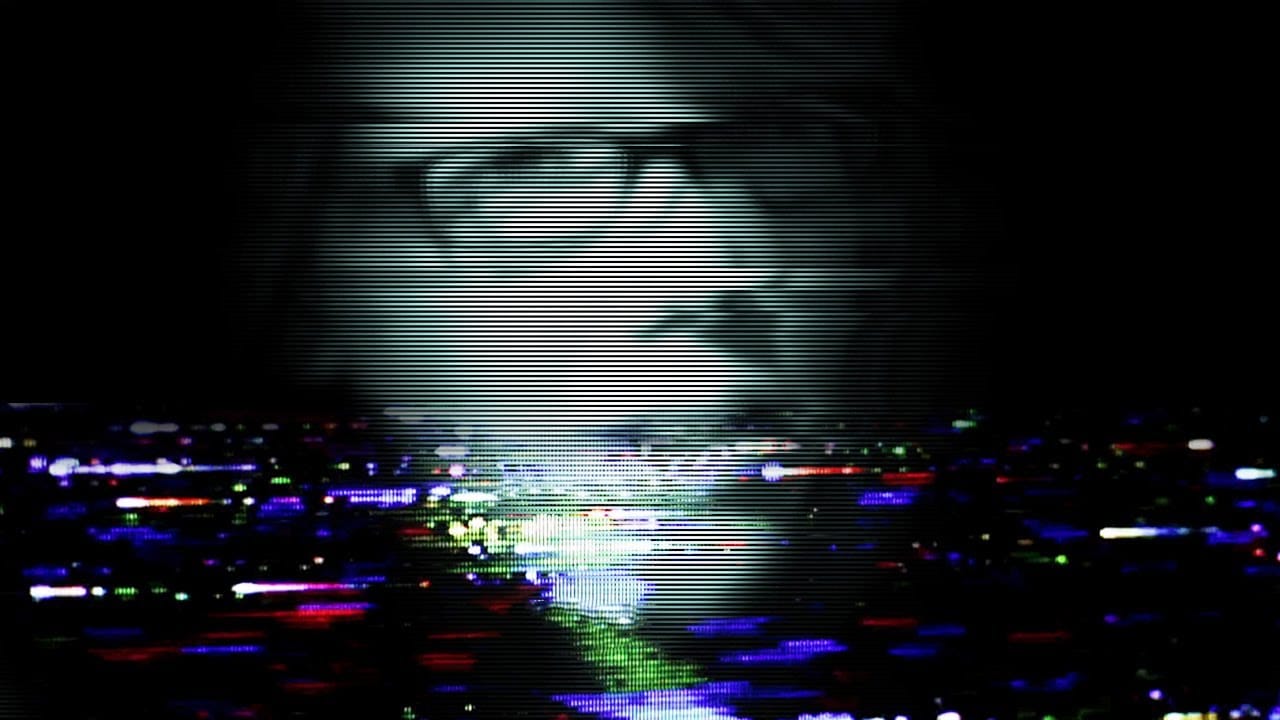
VHS glitch effects capture the nostalgic charm of analog video distortion, transforming clean digital images into retro masterpieces. These effects recreate the visual artifacts of old videotapes — horizontal scan lines, color channel separation, and pixelated interference that defined an entire era of visual media.

This tutorial demonstrates how to build a convincing VHS glitch effect using Photoshop's filters, blend modes, and displacement techniques. You'll learn to create authentic-looking analog distortion that brings vintage video aesthetics to modern digital work.

Watch the Video Tutorial

Video by P A N T E R. Any links or downloads mentioned by the creator are available only on YouTube

The Science Behind VHS Distortion

VHS glitch effects stem from real technical limitations of analog video recording. Magnetic tape degradation, tracking errors, and signal interference created the distinctive visual artifacts we now recreate digitally. The most recognizable elements include chromatic aberration from color channel misalignment and horizontal scan line disruption.

Digital recreation of these effects requires understanding how analog systems processed video signals. Color information was stored separately from luminance data, which explains why VHS glitches often show red, green, and blue channels shifting independently. The horizontal nature of most glitch patterns reflects how analog video was recorded in scan lines.

Modern glitch art embraces these technical "failures" as aesthetic choices. The imperfection becomes intentional, creating visual interest through controlled chaos that references our collective memory of analog media.

Essential Tips for VHS Glitch Effects

  • Separate your image into red, green, and blue channels using smart objects to maintain editability throughout the process
  • Use horizontal displacement rather than vertical to mimic authentic VHS tracking errors and scan line distortion
  • Apply the Unsharp Mask filter with high contrast settings to create the harsh, over-processed look of degraded video
  • Create scan lines using the Halftone Pattern filter with line patterns, then blend them using Multiply mode at low opacity
  • Add rectangular selections and reposition them to simulate video frame corruption and digital artifacts

More Tutorials About Glitch Effects

Explore additional techniques for creating digital distortion and retro video effects.
Create a Glitch Art Effect in Photoshop
Glitch art has emerged as a distinctive aesthetic in the digital age, rooted in the unexpected visual outcomes of digital errors. This art form transforms technical malfunctions into deliberate creative expressions, offering a unique visual language. This tutorial explores how to simulate this captivating effect from a standard photograph in Photoshop, guiding you through the essential steps to transform your images into compelling glitch art pieces. Watch the Video The Digital Aesthetic of
How to Make Tape Effect in Photoshop
In this tutorial, you will learn how to create a realistic masking tape effect in Photoshop. The step-by-step instructions make it easy for anyone, regardless of skill level, to follow along and achieve impressive results. You will start by familiarizing yourself with the necessary tools and techniques. The tutorial guides you through each stage, ensuring that you understand the process clearly. As you progress, you will see how simple adjustments can make a significant difference in the final
Double Exposure Glitch Poster Design in Photoshop
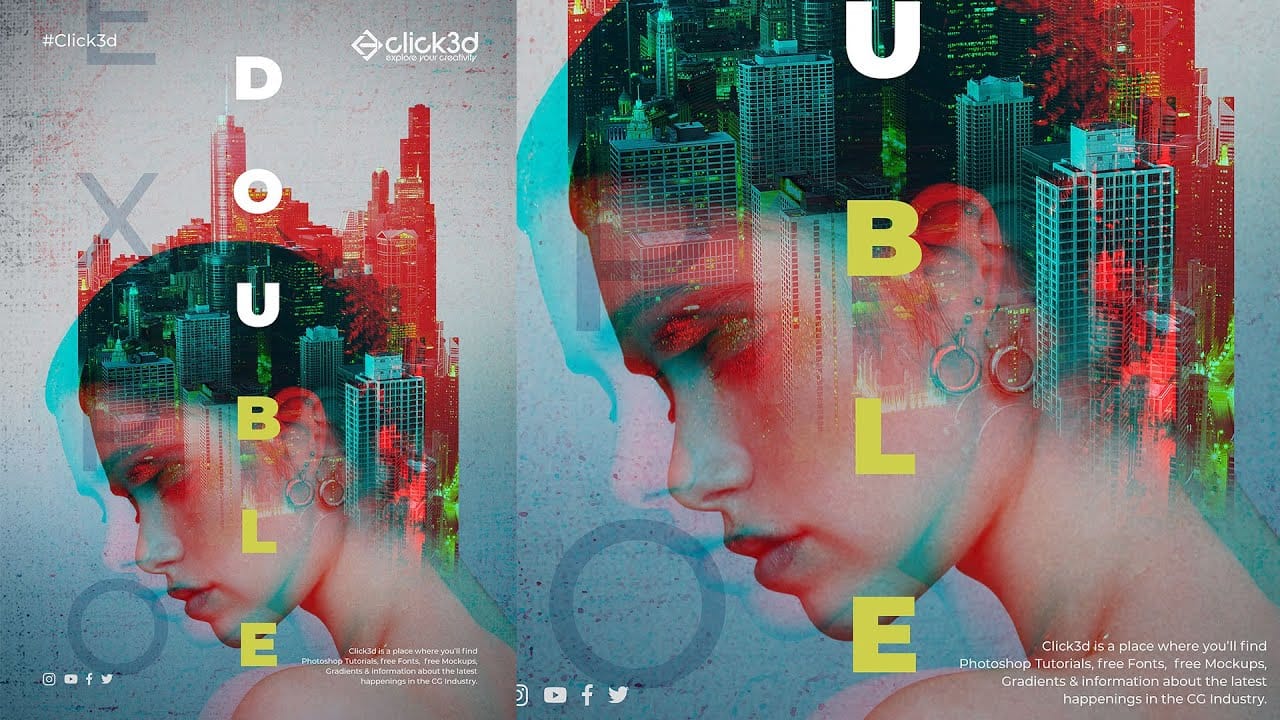
In this Photoshop tutorial by Click3D, you'll learn how to create a striking double exposure glitch poster design. The tutorial guides you through the process step by step, starting with the basics of setting up your project and selecting your images. You'll discover how to combine double exposure techniques with glitch effects to achieve a unique and eye-catching design. The tutorial covers essential steps like blending layers, applying distortion effects, and refining your poster to enhance t
How to Add Special Effects in Photoshop
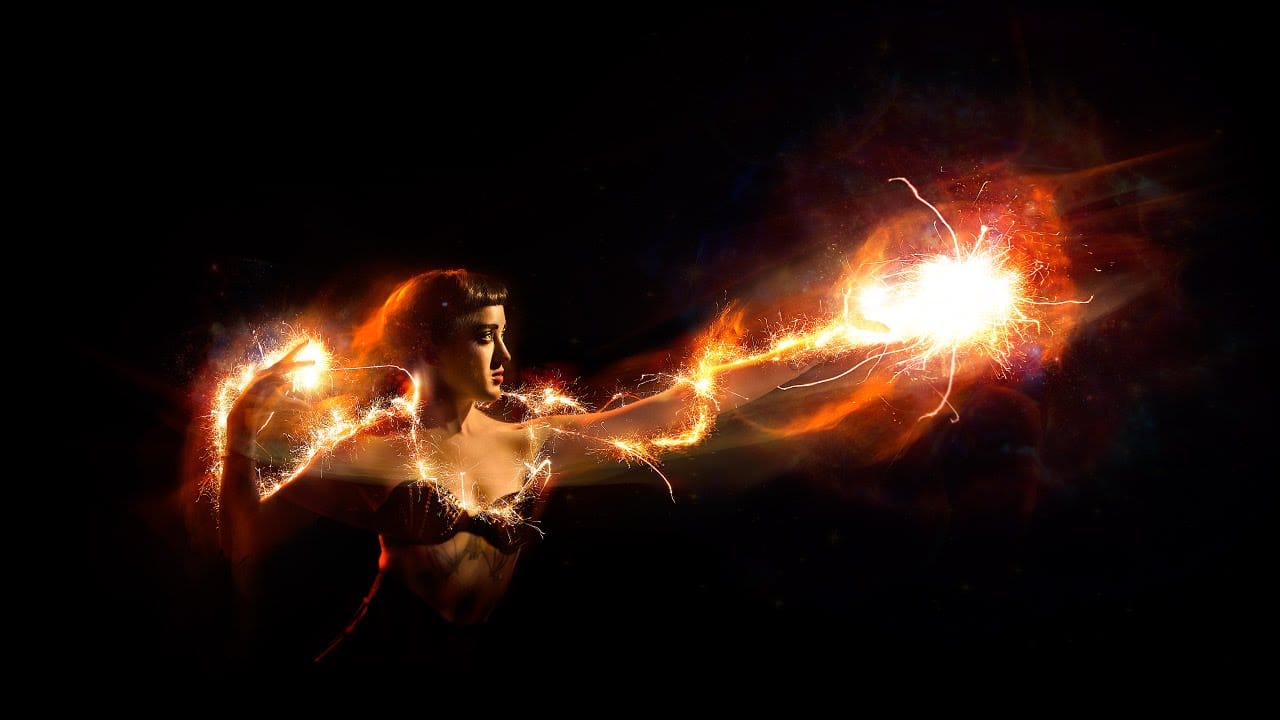
This video tutorial by PHLEARN demonstrates how to add special effects in Photoshop using photos from the same photoshoot. Aaron begins with a photo taken for a Fourth of July sale, featuring sparklers around the subject. The tutorial covers the use of blending modes and adjustment layers to create visually striking effects. Throughout the video, viewers are guided on how to group photos, change blending modes, use the move tool for positioning, and apply layer masks to hide unwanted areas. Add

Get tutorials & freebies delivered to you.

Subscribe to the Photoshop Roadmap newsletter, a weekly roundup of new tutorials, insights and quality downloads, trusted by 6500+ readers.

You might also like

Create a Liquid Gel Logo Effect in Photoshop

Liquid gel effects transform flat logos into dimensional, glossy designs that appear to bubble and flow. This technique uses multiple layer styles and strategic duplication to build depth, creating surfaces that catch light like thick, viscous liquid. The method combines gradient overlays, bevel effects, and inner glows across several duplicated...

How to Use Photoshop's AI Sharpen Filter and When It's Worth the Cost

Photoshop's new AI Sharpen filter promises one-click sharpening powered by advanced algorithms. This tool uses technology from Topaz Labs to enhance image details without manual adjustments, but it comes with a significant cost in credits. Understanding when to use this automated approach versus traditional methods like the High...

How to Use Harmonize and Generative Upscale Tools in Photoshop

Creating realistic photo composites requires matching lighting and color between different images—a traditionally time-consuming process. Two new AI-powered tools in Photoshop solve these challenges: Harmonize automatically adjusts lighting and shadows to blend subjects seamlessly into backgrounds, while Generative Upscale enlarges small images without losing detail. These tools work together...

How to Create Convincing Scale Effects in Photoshop Composites

Creating believable scale effects requires more than simply resizing objects—it demands understanding how light, perspective, and atmospheric conditions change with distance. When tiny subjects appear massive or giant objects seem miniature, viewers should feel the illusion is completely natural. This technique combines careful attention to lighting consistency, depth cues,...

How to Flip Images Horizontally and Vertically in Photoshop

Flipping images is a fundamental technique that can dramatically change the composition and impact of your photos. Whether you need to correct the orientation of a subject, create mirror effects, or simply improve the visual flow of your design, knowing how to quickly flip images both horizontally and vertically gives...

How to Use Nano Banana Pro in Photoshop for Background Replacement and Scene Changes

Nano Banana Pro transforms how you place subjects into new environments in Photoshop. This advanced AI model maintains perfect subject likeness while seamlessly integrating them into any background you can imagine. The tool excels at matching lighting, preserving facial features, and even adapting clothing to complement new scenes, all through...

You’ve successfully subscribed to Photoshop Roadmap
Welcome back! You’ve successfully signed in.
Great! You’ve successfully signed up.
Success! Your email is updated.
Your link has expired
Success! Check your email for magic link to sign-in.