Collage text transforms simple typography into visually striking artwork by combining wrapped paper textures, strategic warping, and careful masking techniques. This creative approach gives letters dimension and character, perfect for artistic projects and unique design elements.
The technique involves layering textured materials within letter shapes, then using Photoshop's puppet warp tool to create realistic folds and curves that bring the collage to life.
Watch the Video
Video by P A N T E R. Any links or downloads mentioned by the creator are available only on YouTube
Essential Tips for Collage Text Effects
- Use the polygonal lasso tool for precise letter selections, then add layer masks to create clean cutouts for your collage materials
- Apply puppet warp strategically by placing pins at corners and key points before manipulating the wrapped paper to follow natural fold patterns
- Clean up edges with black brush on the mask to remove unwanted areas, then switch to white to reveal additional texture where needed
- Add wrinkle paper textures above your letter layer and set the blend mode to multiply for realistic surface detail
- Group all collage elements and apply drop shadow effects to give your text depth and visual separation from the background
Related Tutorials About Collage Effects
Explore more creative collage techniques and text effects with these comprehensive guides.
100+ Brilliant Photoshop Text Effects: The Ultimate 2025 Roundup
You won’t admit this: You spend hours making text look like liquid gold. Not for clients. Not for your portfolio. Just because. Here’s the thing: Text effects are your guilty pleasure. You tell yourself you’re “practicing.” You say you’re “building skills.” But really? You just love watching letters transform into
 Enrique Flouret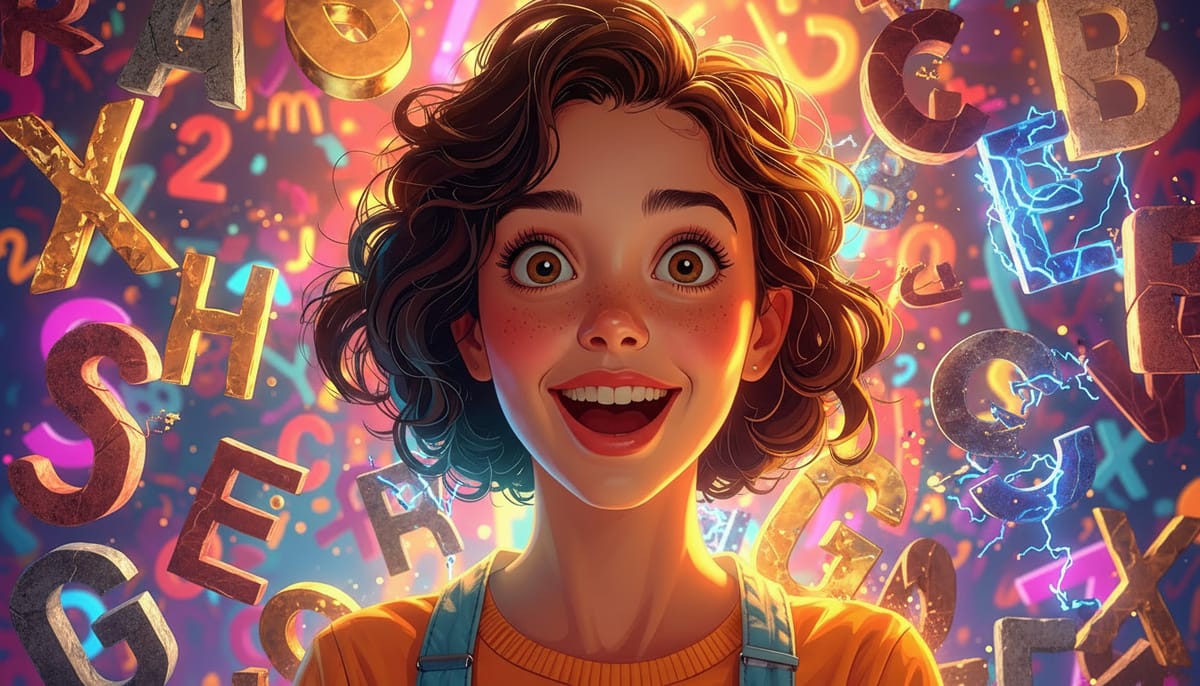
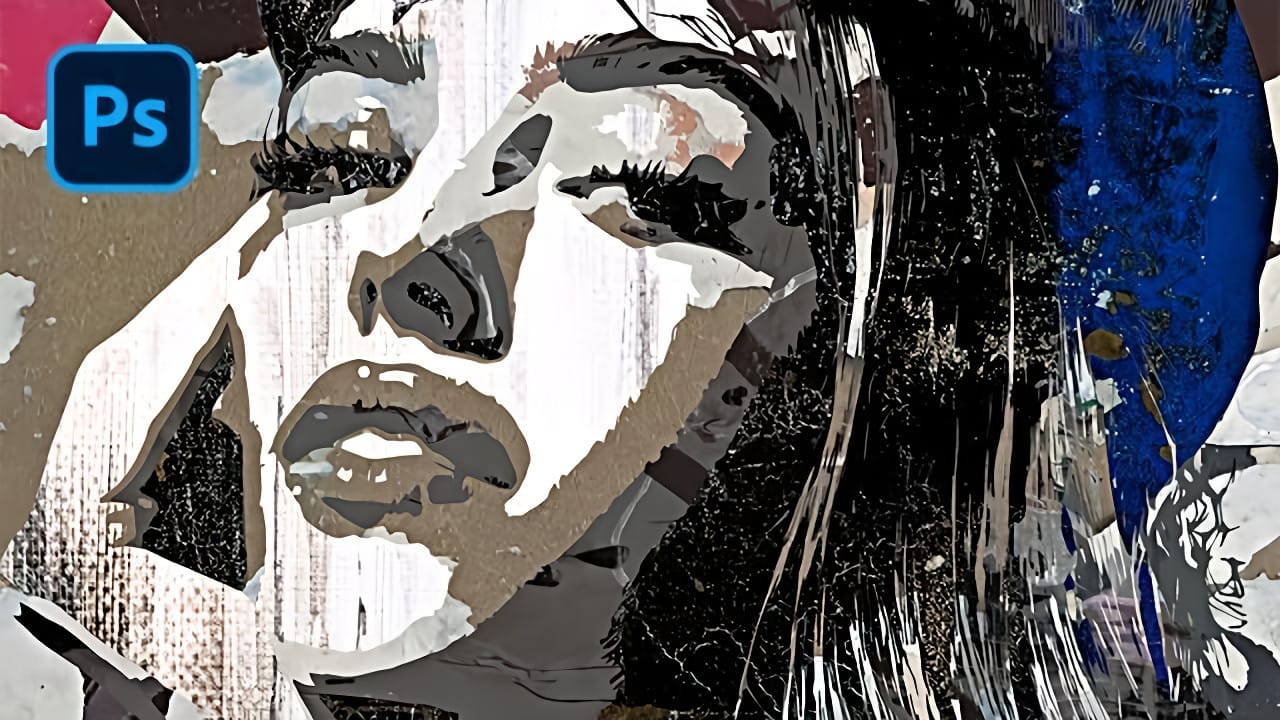
How to Create Textured Portrait Collages in Photoshop
Portrait collages open up creative possibilities that go far beyond traditional photo editing. By combining artistic filters, color manipulation, and texture mapping, you can transform ordinary portraits into striking visual compositions that blend photography with graphic design elements.
This technique breaks down complex imagery into simplified color zones, then maps different textures to each area. The result is a unique artistic effect that maintains the subject's recognizable features whi
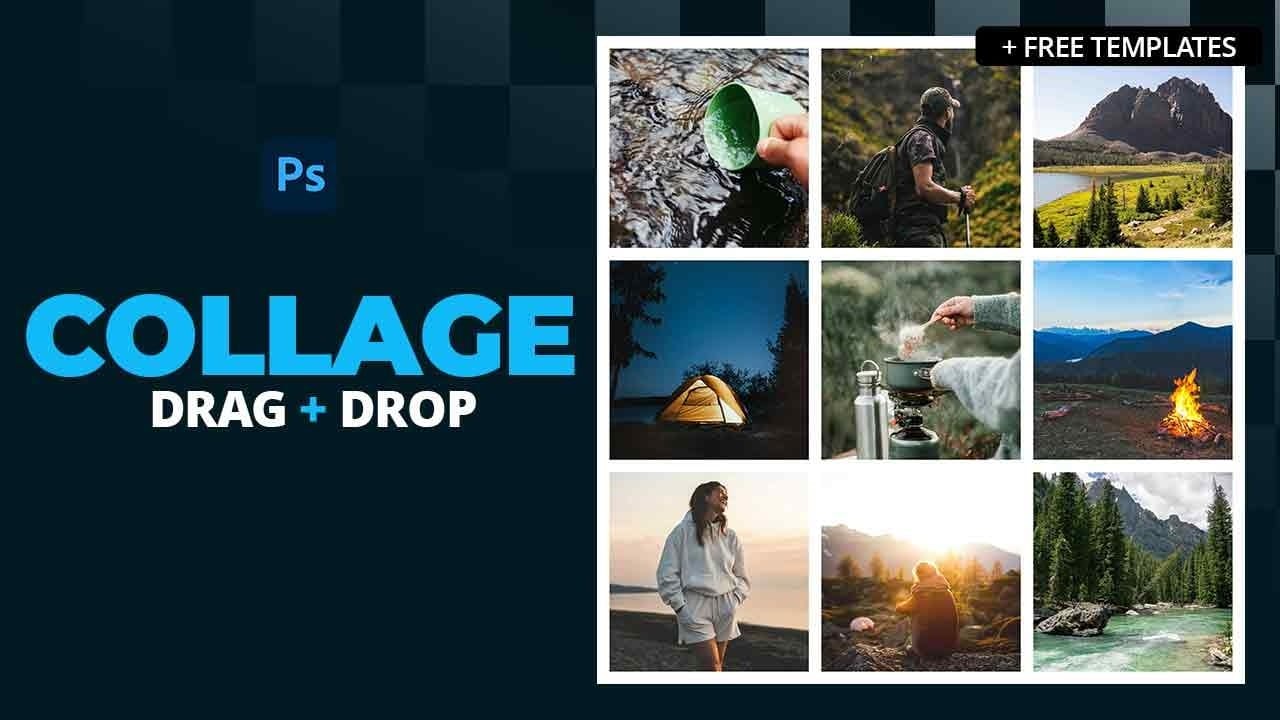
How to Create Simple Photo Collages in Photoshop
Photo collages offer a versatile way to combine multiple images into a cohesive visual story or artistic display. Whether for personal projects, digital scrapbooks, or social media content, effectively arranging diverse photographs is key to a compelling outcome.
This tutorial demonstrates a straightforward method for creating structured photo collages in Photoshop, leveraging powerful features like guides and frames to achieve precise layouts with minimal effort.
Watch the Video
Structurin
How to Make a Photo Collage in Photoshop
In this tutorial by Envato Tuts, you'll delve into a unique technique for creating photo collages in Photoshop. Rather than assembling a traditional multi-image composition, this approach focuses on crafting a striking portrait using scattered polaroid-style photos. The tutorial guides you through the process of arranging individual snapshots of a young teen girl smiling, each positioned to contribute to a cohesive, unified portrait. This technique is distinct from standard collages as it forms