


Car photography looks dramatically more compelling when there's a wet road reflection beneath the vehicle. When the pavement is dry and you don't have water available during the shoot, you can create convincing reflections in post-production.
This tutorial demonstrates both traditional manual techniques and modern AI-powered methods for adding realistic water reflections to automotive photography, plus explores the ethical considerations of digitally enhancing reality.
Watch the Video
Video by Glyn Dewis. Any links or downloads mentioned by the creator are available only on YouTube
Practical Tips
Key techniques for creating believable car reflections:
- Use the Object Selection Tool set to "Cloud" mode for the most accurate car selections
- Hold Shift while dragging with the Move Tool to keep reflections perfectly aligned vertically
- Apply black layer masks first, then paint in the puddle shape with white to reveal only specific reflection areas
- Blur layer masks with a 3-pixel Gaussian Blur to soften hard edges and create natural blending
- Consider AI generative fill for more realistic results that include sky reflections and natural water variations
Related Articles and Tutorials
Explore more techniques for creating realistic digital enhancements and photo manipulations.
Create Realistic Reflections in Photoshop: Boxes and Cylinders
Creating convincing reflections in Photoshop requires different approaches depending on the shape of your object. While the basic concept remains the same—duplicating and flipping the original—the transformation techniques vary significantly between geometric shapes like boxes and curved forms like bottles or cylinders. This tutorial demonstrates the specific methods
 Kepo Art Studio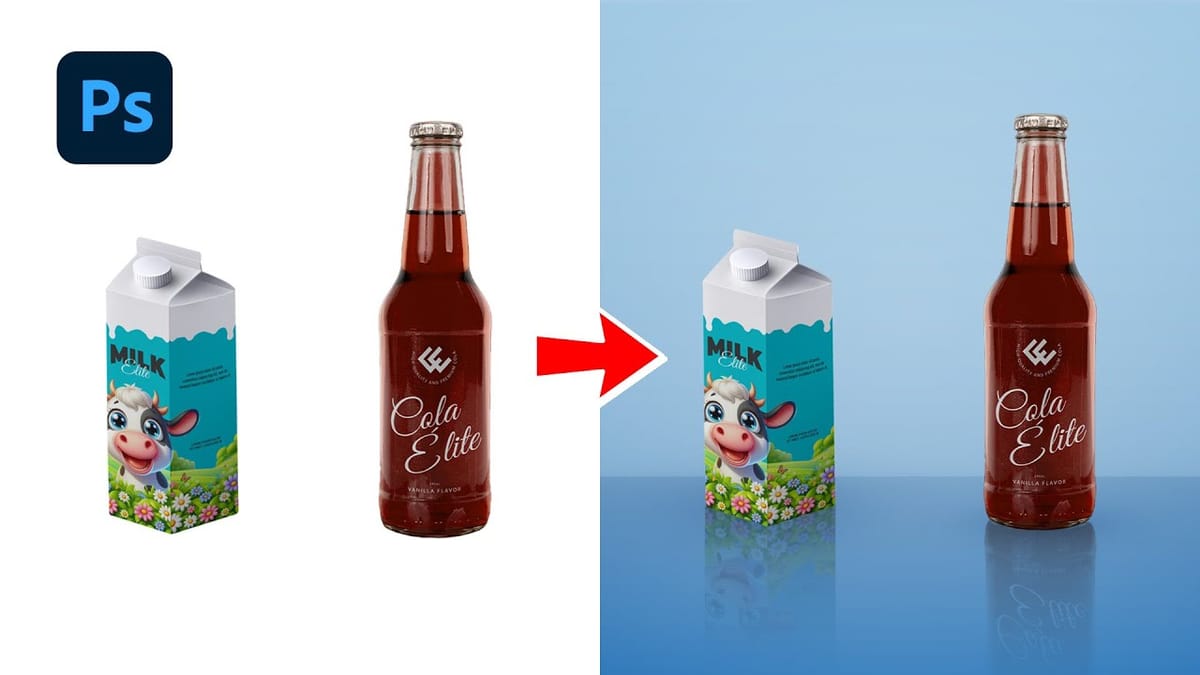
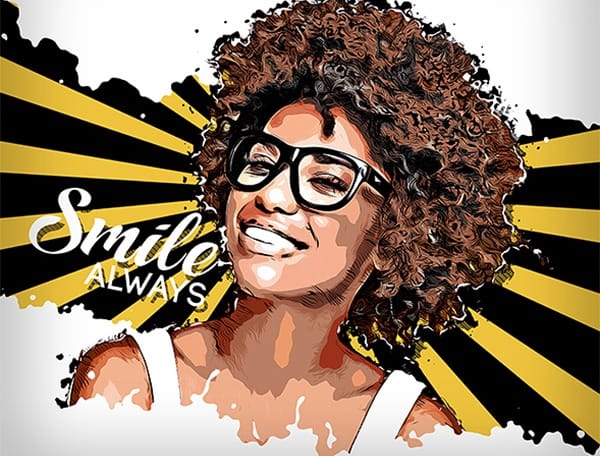
5 hyper-realistic Photoshop sketch actions that are hard to believe aren't actual drawings
It's not a lie to say that Photoshop default artistic effects filters are ugly. Yes, maybe you can find some obscure effects combination that can give you some decent results, but these tools are quite limited overall.
Fortunately some clever artist managed to hack Photoshop to it's maximum extent to create some amazing hyper-realistic effects. Since those effects require multiple and complex steps, they pack them in Photoshop Actions that are almost one-click effects, with just a little interv
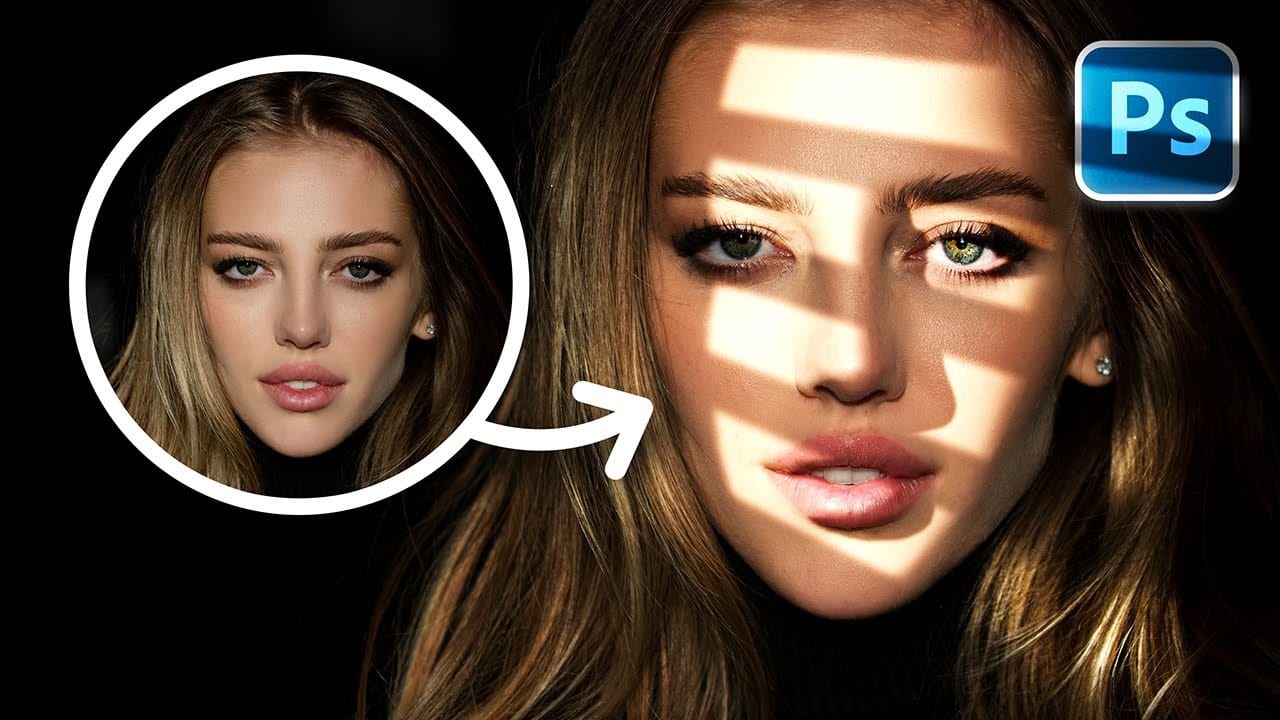
Create Fake Lights for Portraits in Photoshop
Adding artificial light to a portrait can dramatically transform its mood and visual impact, offering creative control far beyond what natural or studio lighting might initially provide. This technique allows artists to craft specific atmospheres, highlight key features, and introduce dynamic elements that enhance the subject's presence.
This tutorial explores a comprehensive method for creating realistic fake lights and, crucially, their corresponding shadows in Photoshop. You will learn how t
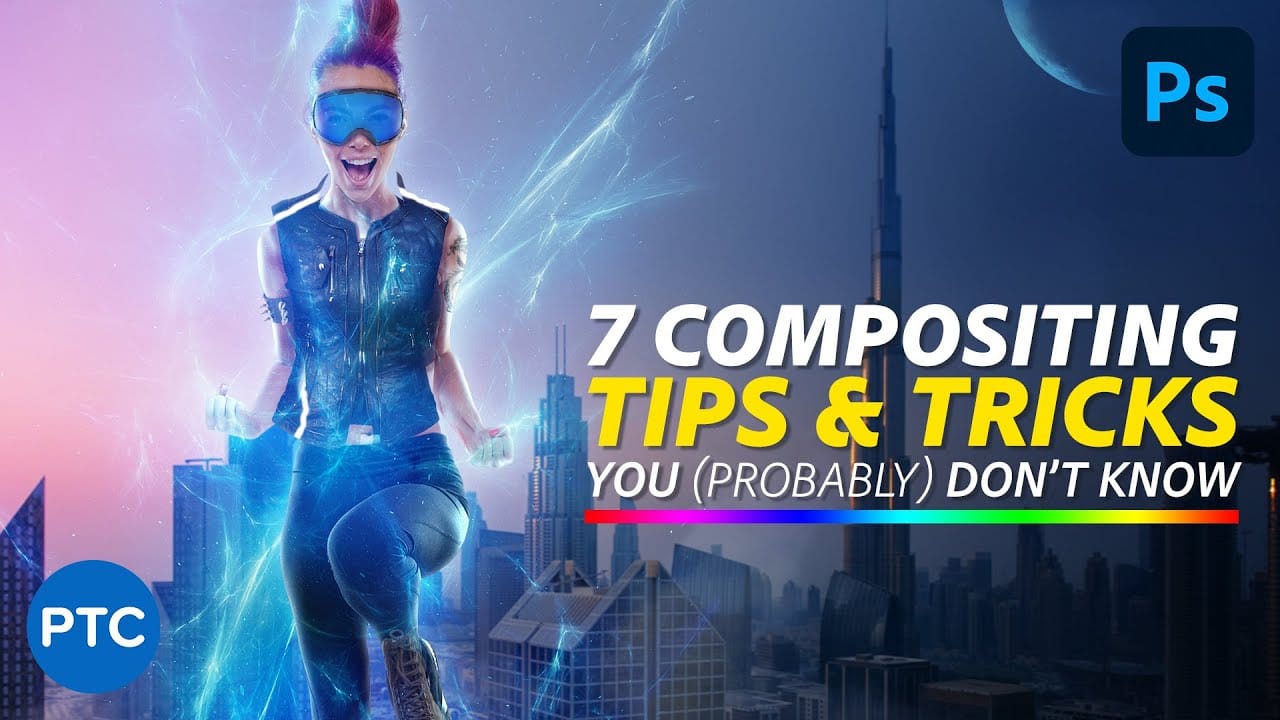
7 easy Photoshop tips to make your composites more realistic
In this tutorial, Jesus Ramirez shares seven essential Photoshop tips and tricks to help you create more realistic composites. If you're struggling to make your composites look convincing, this video is a must-watch.
Jesus covers a range of techniques designed to enhance the realism of your composite images. These tips include how to match lighting and shadows, blend edges seamlessly, and use adjustment layers effectively. You'll also learn about color matching and the importance of perspective
How to Create Realistic Design Mockups in Photoshop
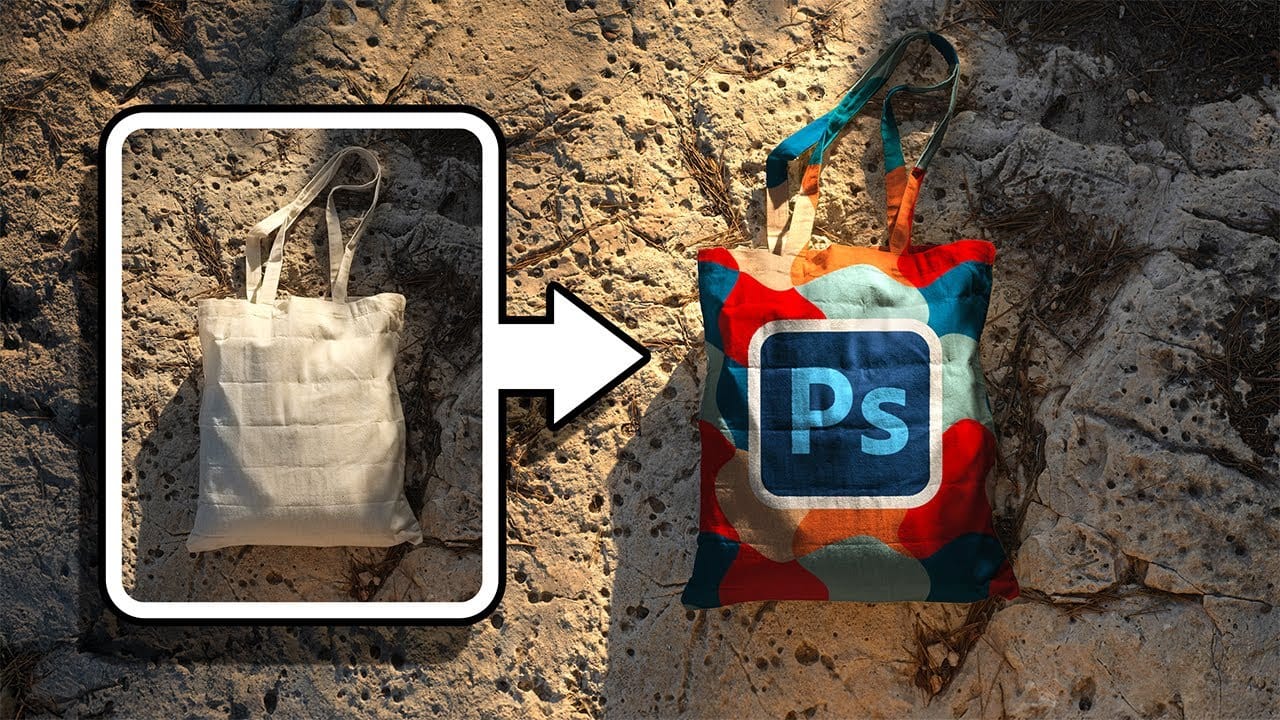
Creating convincing product mockups requires more than simply placing a design onto a template. Real fabric surfaces have subtle color variations, texture bumps, and complex lighting that affect how printed designs actually appear.
This comprehensive tutorial demonstrates professional techniques for building realistic mockups from scratch. You'll learn to control surface preparation, blend modes, displacement mapping, and lighting effects to achieve results that match real-world printing condit
Photoshop vs Affinity Photo: Feature Comparison and Professional Analysis
When choosing professional photo editing software, the decision often comes down to comparing features, performance, and value. This detailed comparison examines the core capabilities of both applications across noise reduction, smart selections, object removal, masking, and AI-powered tools.
The analysis covers real-world scenarios that professionals encounter daily, from complex background removal to advanced retouching tasks. Understanding these differences helps determine which software bes

How to Add Realistic 3D Objects in Photoshop
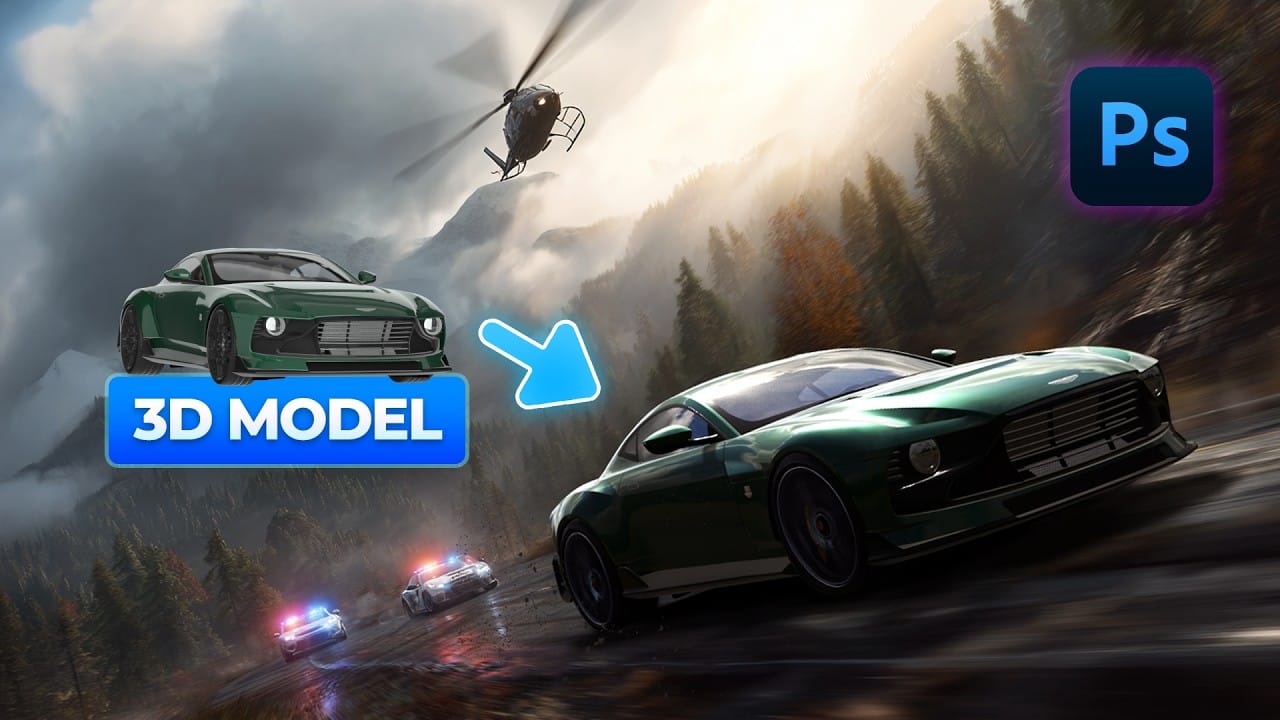
Adding 3D objects to photos often results in fake-looking composites that scream "digital manipulation." The biggest challenge isn't importing the 3D model—it's making the lighting, shadows, and perspective match seamlessly with your background image.
This tutorial demonstrates how to use Photoshop Beta and Substance 3D Beta to create convincing 3D composites. You'll learn essential techniques for matching lighting direction, positioning objects accurately, and applying realistic shadows that i
Create a Fake Past vs Present Photoshop Effect in Photoshop
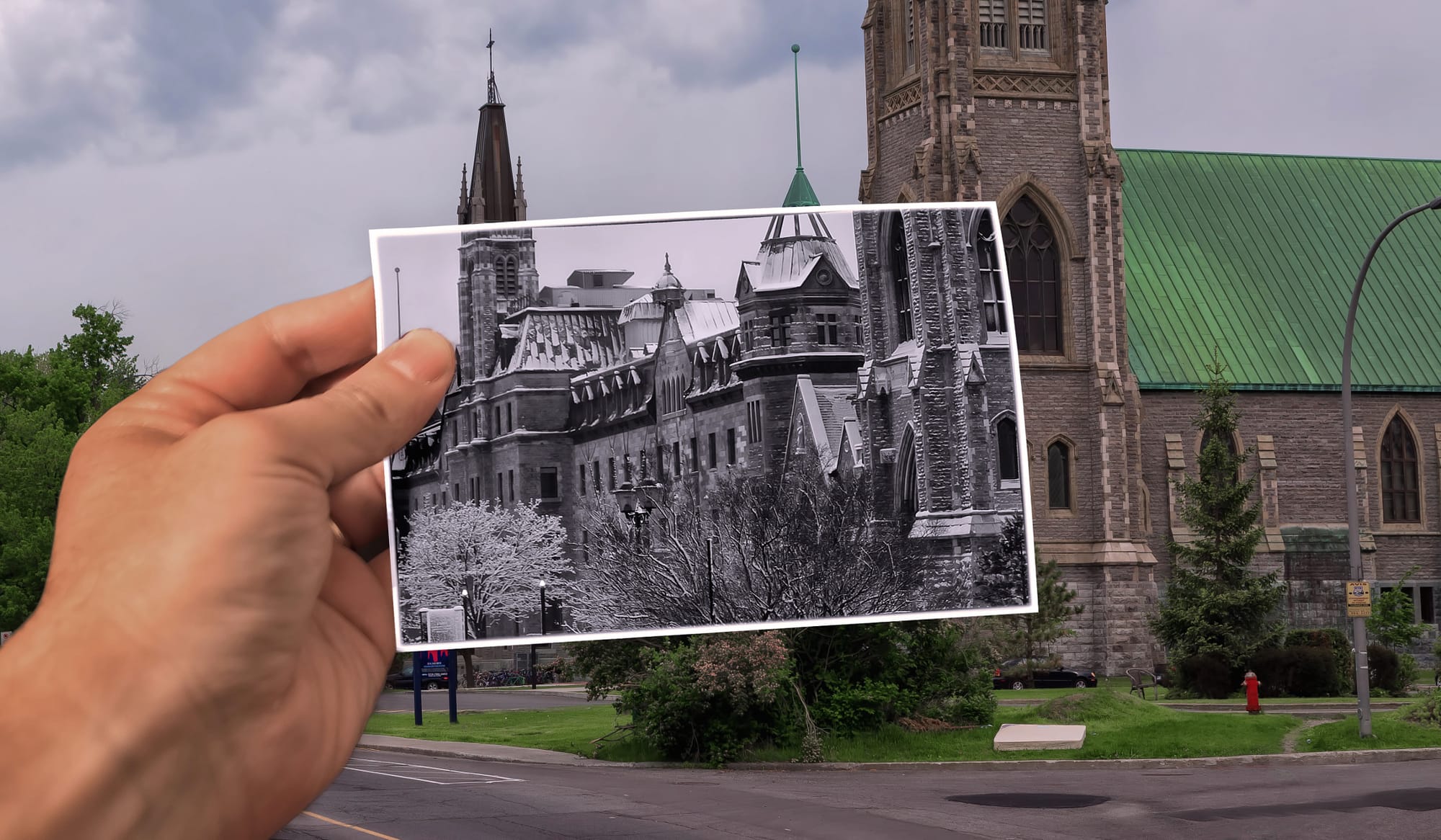
This tutorial from 500px ISO guides you through creating a unique photo effect that merges a past and present photo into one using Photoshop.
Begin by selecting two images: one as the present-day background and another, possibly converted to black and white, representing the past. Enhance the past image with a frame or border for aesthetic appeal. The crucial step involves seamlessly integrating the past image into the present scene using Photoshop's layer mask techniques.
Finally, refine your
Realistic Blend Effect in Photoshop
In this advanced Photoshop tutorial, WebFlippy guides you through creating a realistic blend effect for text, graphics, or logos on any surface. This tutorial is designed to help you seamlessly integrate elements into various backgrounds, making them look like a natural part of the scene.
WebFlippy starts by demonstrating how to properly blend text or logos using Photoshop's powerful tools and techniques. You'll learn how to adjust and match the texture, lighting, and perspective of your surfac





