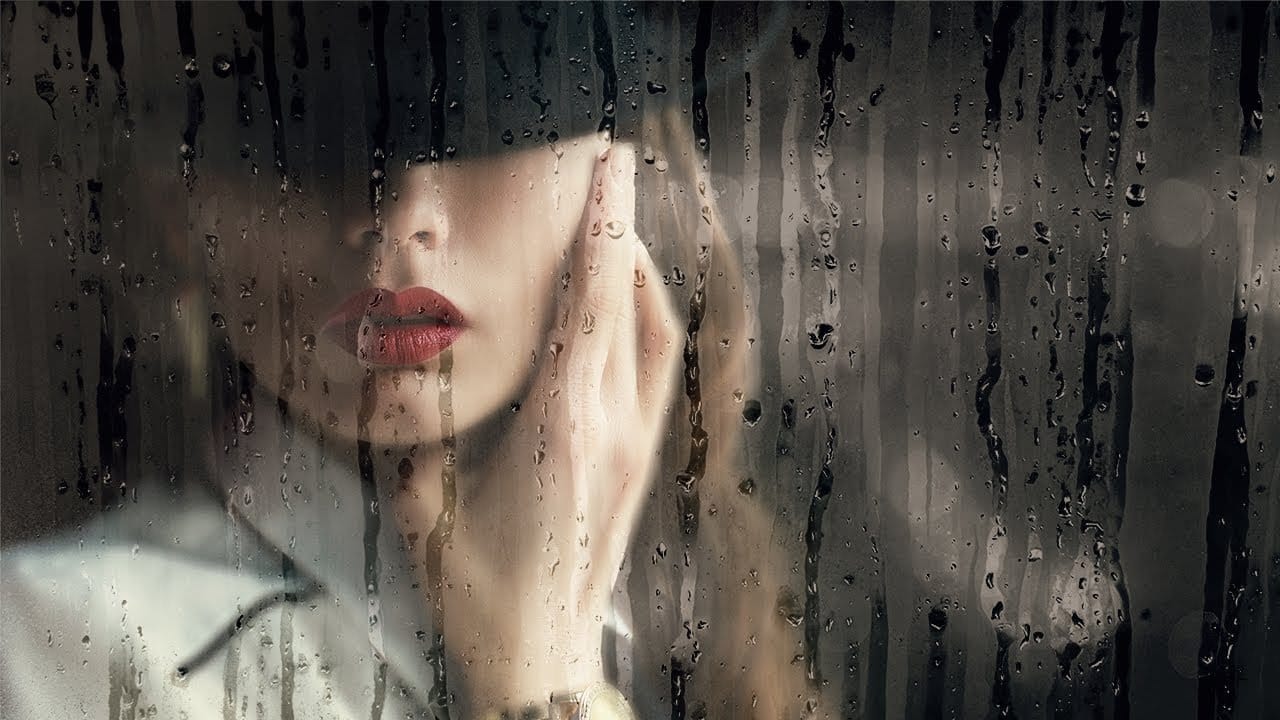
How to Create Realistic Water Droplets on Glass in Photoshop

How to Create Realistic Water Droplets on Glass in Photoshop

Water droplets on glass create one of the most captivating visual effects in photography and digital art. The interplay of refraction, reflection, and transparency transforms ordinary scenes into atmospheric masterpieces that draw viewers into the story.

This comprehensive tutorial demonstrates how to recreate this cinematic effect using photographic textures, blend modes, and strategic layering techniques. You'll learn to build convincing glass surfaces complete with fog, handwritten messages, and realistic water behavior.

Watch the Video

Video by Nucly • Photoshop and Creative Design Training. Any links or downloads mentioned by the creator are available only on YouTube

Practical Tips for Water Droplet Effects

  • Apply Gaussian Blur to background elements to simulate realistic depth of field when focusing on glass surfaces
  • Use Linear Light blend mode on droplet textures to achieve proper refraction and transparency effects
  • Layer grunge textures with Screen and Soft Light modes to build convincing glass surface imperfections
  • Create water drips using custom brushes positioned at the bottom of handwritten letters for realistic condensation behavior
  • Apply Curves adjustments with layer masks to enhance contrast only in specific areas without affecting the entire composition

More Tutorials about Water Effects

Explore additional techniques for creating realistic water and glass effects in your digital artwork.
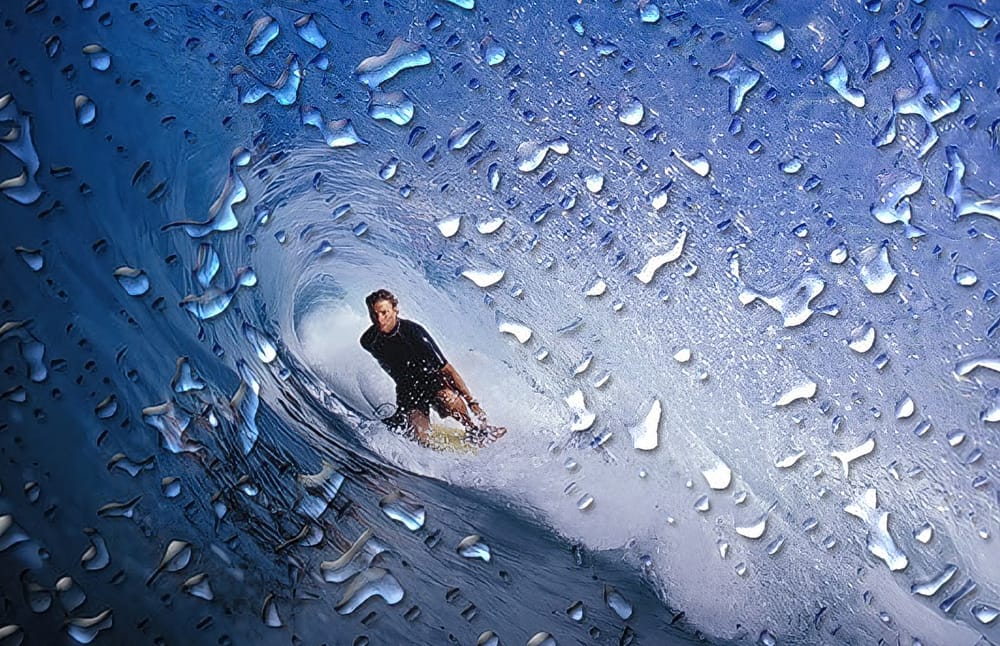
Add Realistic Water Drops To A Photo
This Photoshop Effects tutorial guides you in adding realistic water drops to your photos, making it seem as though water has splashed across the image. You'll explore various filters and adjustments to create random shapes that resemble water droplets. The tutorial emphasizes the importance of using simple layer styles to enhance these shapes, focusing on adding shadows and highlights. This technique helps in achieving that lifelike quality you desire in your images. To wrap up the process, a
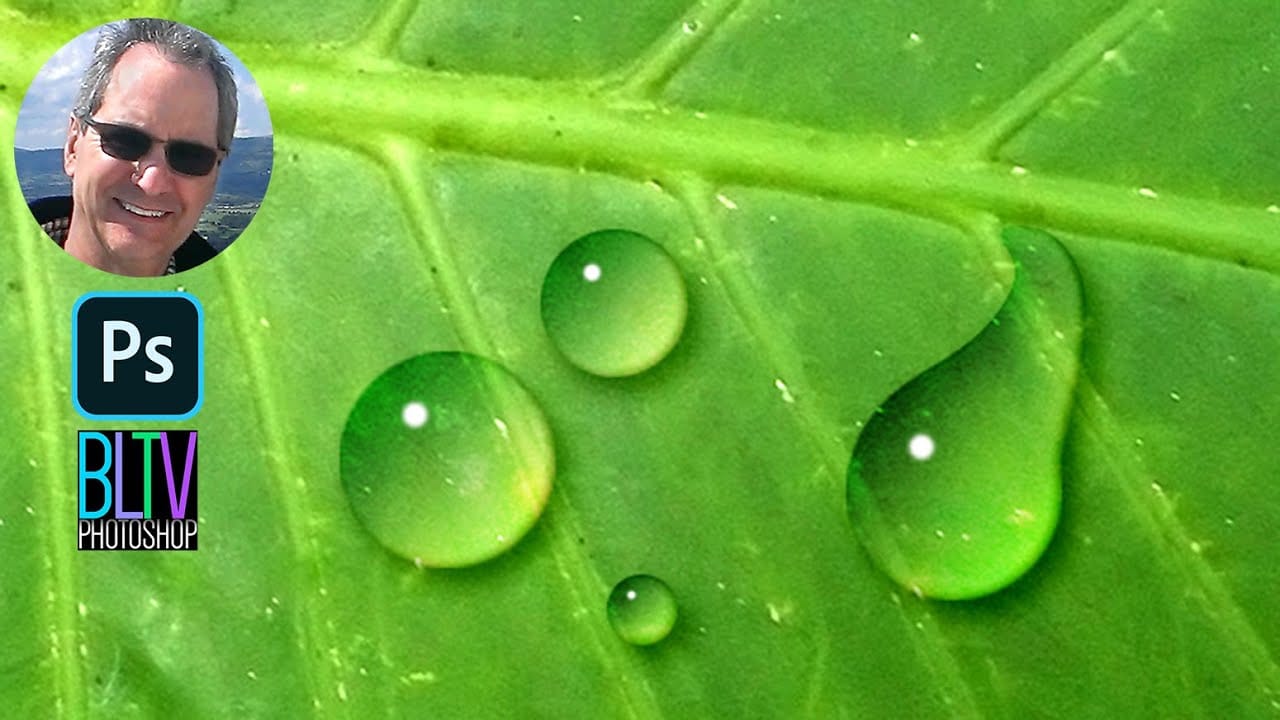
Create waterdrops in Photoshop
A simple gradient applied from the upper left corner to the lower right corner forms the foundation of convincing digital water drops. This technique transforms a basic circular selection into droplets that appear to hold actual depth and weight on any surface. The effect relies on precise layer style combinations and strategic highlight placement rather than complex filters or specialized brushes. Watch the Video The Science Behind Digital Water Drop Effects Water drops appear three-dimens
Create a beautiful wet glass effect with raindrops in Photoshop
In this tutorial by PiXimperfect, we will use the power of observation to achieve any effect we desire. We'll start off by applying a different kind of blur that looks much more natural than Gaussian Blur. Then, we will limit the blur only to certain areas to go with the texture by using Color Range. Next, using blend modes, we will put up another layer of texture on top of our subject to add depth and authenticity to the effect and the overall mood of the image. In the end, the power of Adjust
Create Realistic Wet Glass Effect in Photoshop
Achieving a realistic wet glass effect in Photoshop can transform an ordinary image into a captivating scene, adding depth and a sense of atmosphere. This technique is especially useful for creative compositions, weather simulations, or product visualization. By understanding how light interacts with glass and water, you can craft truly convincing visuals. This tutorial provides a comprehensive approach, guiding you through the process of layering textures and applying precise blending methods.

Get tutorials & freebies delivered to you.

Subscribe to the Photoshop Roadmap newsletter, a weekly roundup of new tutorials, insights and quality downloads, trusted by 6500+ readers.

You might also like

How Photoshop's Enhance Edge Feature Removes Hair Masking Halos

Hair masking has long been one of the most tedious tasks in photo compositing — especially when switching between dark and light backgrounds reveals unwanted halos along the edges. Photoshop's new Enhance Edge feature, available in beta 27.11, offers an AI-powered approach to this problem by generating...

How to Use Quick Compare and Dynamic Layers in Photoshop Beta

Photoshop Beta's latest update introduces two tools worth knowing: a Quick Compare toggle for instant before/after previews, and a Dynamic Layer feature that lets you control AI-generated effects with a simple slider. Together, they streamline how you review edits and apply prompt-based changes like adding...

Retouching Pet Portraits in Photoshop: Cleaning Fur, Eyes, and Fine Details

Pet photos rarely arrive perfectly clean — staining around the eyes, discolored fur near the mouth, and stray hairs are common problems that need fixing before any serious portrait work begins. This workflow covers how to remove those distractions manually using overpaint and fur brushes, then finish with eye enhancement techniques...

Before and After View Plus Dynamic Layers in Photoshop Beta

Photoshop Beta currently includes two features that work quite differently from each other. The first adds a straightforward before-and-after comparison tool directly into the editing workspace — something that sounds simple but solves a real problem when a file already has multiple layers. The second, Dynamic Layers, uses AI...

How to Blend Multiple Exposures for Car Light Trails in Photoshop

Stacking multiple exposures of a night scene lets you capture far more light trail detail than any single shot can deliver. This technique uses the Lighten blending mode to combine a bright base image with several car light trail frames, keeping only the brightest pixels from each layer for a...

You’ve successfully subscribed to Photoshop Roadmap
Welcome back! You’ve successfully signed in.
Great! You’ve successfully signed up.
Success! Your email is updated.
Your link has expired
Success! Check your email for magic link to sign-in.