Curves adjustment layers offer far more flexibility and control than traditional dodge and burn tools in Photoshop. This non-destructive method allows you to selectively lighten and darken areas while maintaining the ability to adjust intensity and modify your edits at any time.
The technique uses layer masks with soft brushes and low flow settings to build up gradual lighting effects. You can enhance natural highlights and shadows to create three-dimensional depth, or use blend modes to automatically target specific tonal ranges.
Watch the Video
Practical Tips
Master these essential settings and techniques for professional dodge and burn results:
- Set brush hardness to 0% and flow to 10% for subtle, gradual buildup effects
- Create separate curves layers for general lightening and detailed highlight enhancement
- Use Blend If settings on the underlying layer to automatically target highlights or shadows
- Match your brush size to the area you're painting for more natural-looking results
- Apply Gaussian blur to layer masks if your painting appears too localized or harsh
Related Articles and Tutorials
Explore these complementary techniques for advanced dodging and burning workflows:
How to Dodge and Burn using High Pass in Photoshop
Dodging and burning in Photoshop is a powerful technique that enhances your images by adjusting the brightness and darkness of specific areas. This method enables you to lighten highlights and deepen shadows, creating a more dynamic composition.
By applying a High Pass filter, you can separate highlights and shadows from midtones, which is essential for achieving an effective dodging and burning effect. Once you have this separation, using a blending mode like "soft light" helps blend your adju
Apply Non-Destructive Burn/Dodge in Photoshop
For those who frequently retouch models, non-destructive burning and dodging in Photoshop is essential. This technique, clearly explained by Howard Pinsky, simplifies the retouching process and prevents the need to restart edits.
Applicable to many recent versions of Photoshop, including CS6, CS5, and CS4, this method ensures a more efficient and flexible workflow. Discover how to master this indispensable technique and enhance your retouching skills.
Watch tutorial
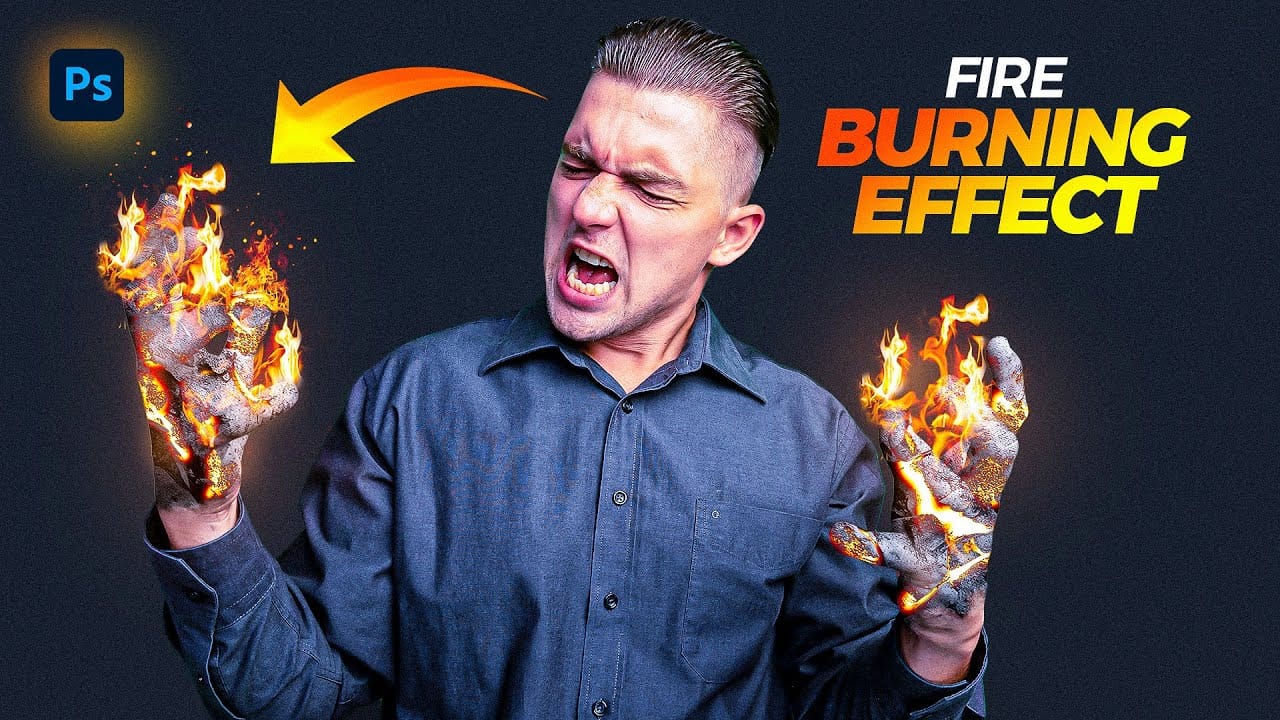
Create a Fire Burning Effect in Photoshop
Creating a fire-burning effect in Photoshop is a fascinating process that can enhance your images dramatically. Start by setting up a new file with dimensions of 1920 x 1080 pixels. Import the necessary images, which can be found in the provided link. Duplicate your main layer using Ctrl + J, then convert it to black and white through the Image Adjustments menu by selecting Hue/Saturation and removing all saturation.
Next, apply an inverted mask to the black and white layer. Use the brush tool
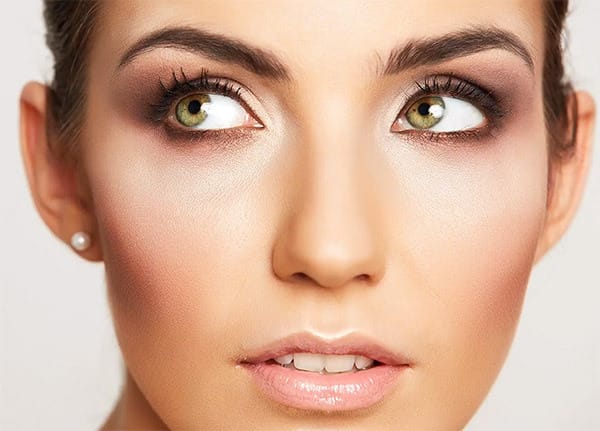
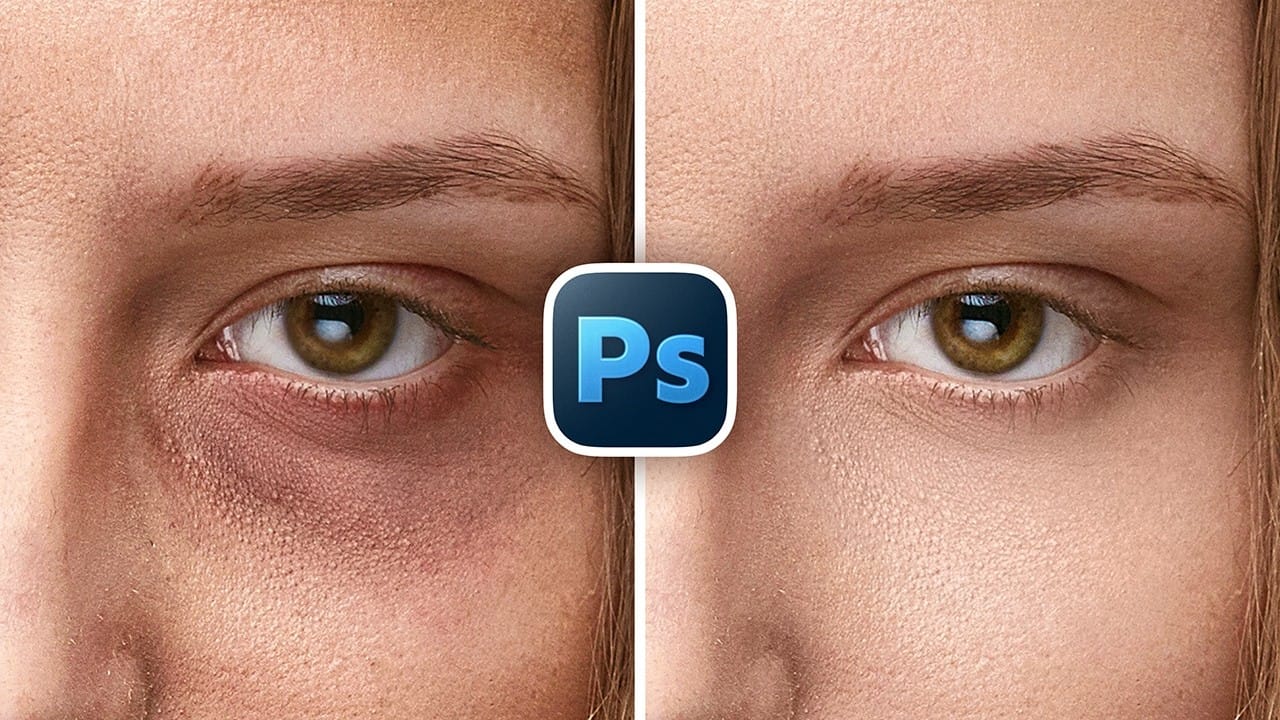
How to Remove Eye Bags Using Dodge and Burn in Photoshop
Eye bags can dramatically age a portrait, making subjects appear tired or unhealthy. Traditional removal methods often destroy skin texture or create unnatural results that look obviously retouched.
This professional dodge and burn technique removes even severe eye bags while preserving every detail of natural skin texture. The method uses selective lightening and darkening to reshape facial contours without any blurring or cloning.
Watch the Video
Practical Tips
Master this texture-preser
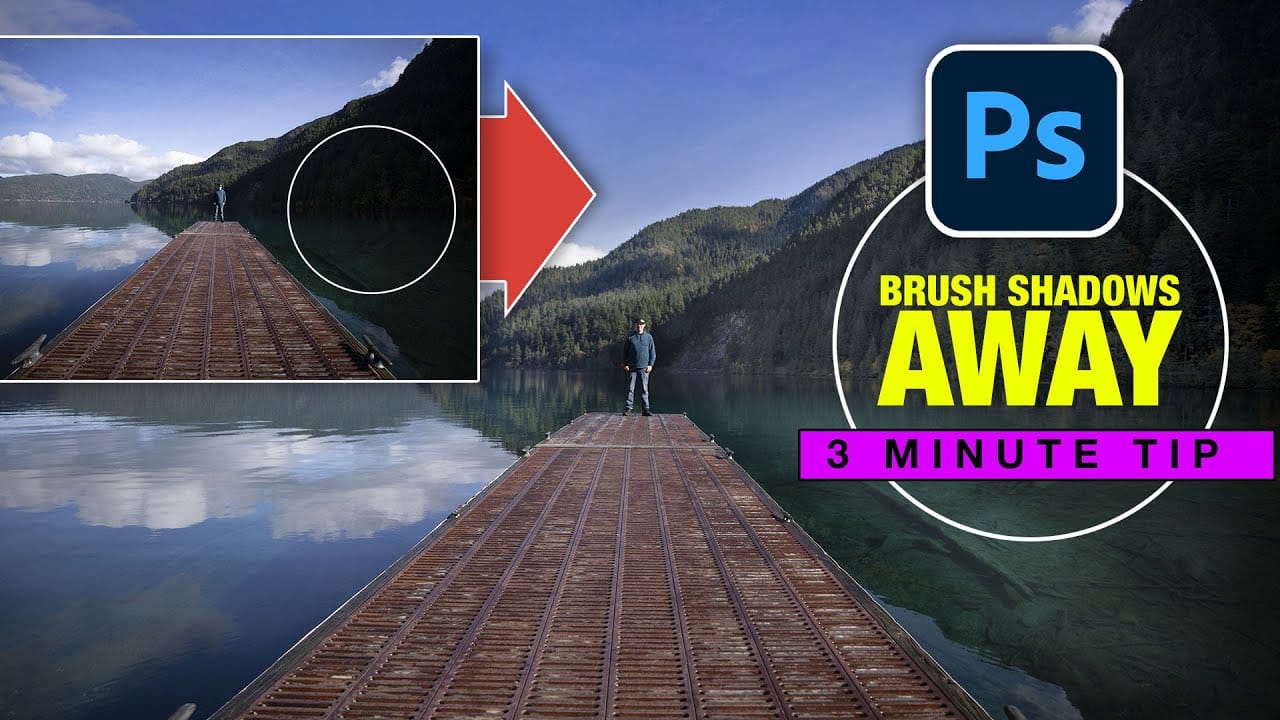
Instantly Recover details in photos with Photoshop
In this tutorial, Colin Smith reveals an effective technique for recovering hidden details in photos using Photoshop. The focus is on a method known as reverse dodge and burn, which allows you to selectively enhance shadow and highlight areas to bring out fine details.
Colin demonstrates how to paint over shadows and highlights in a realistic manner, blending the adjustments seamlessly into the image. This approach helps to restore lost details and improve the overall dynamic range of your phot
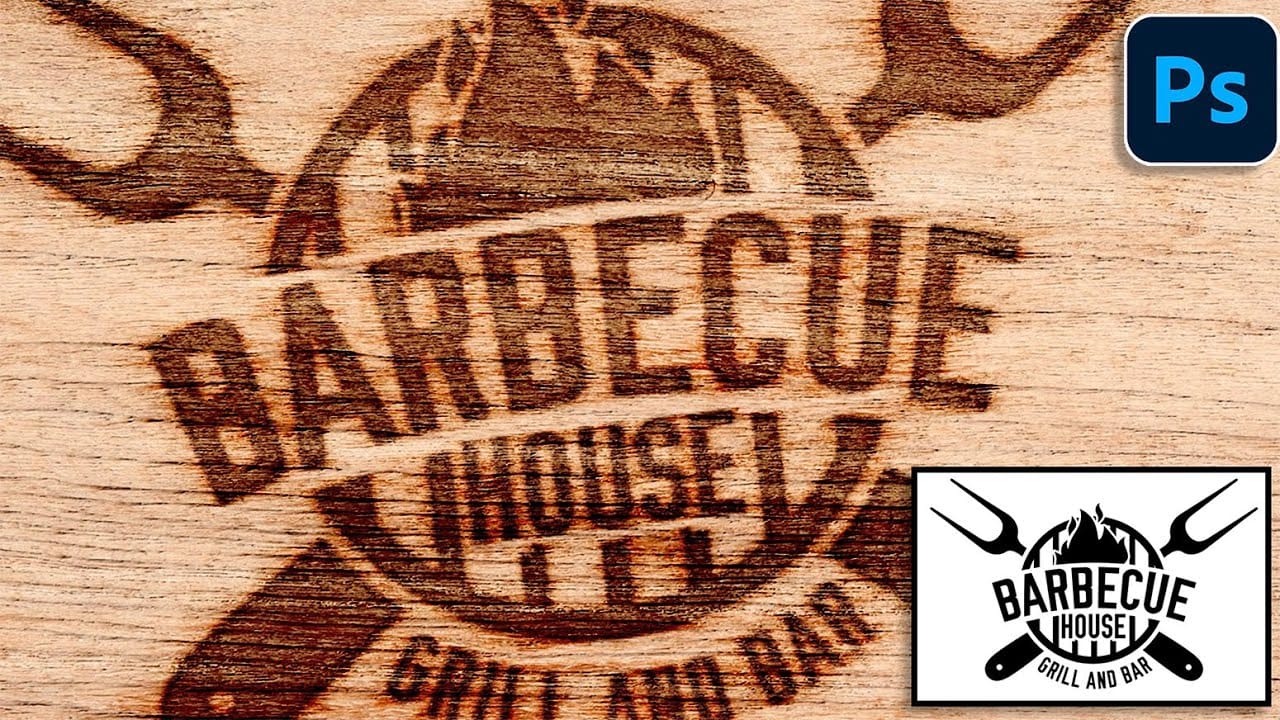
How to Create a Wood Burn Effect in Photoshop
Wood burning transforms simple text and graphics into rustic, branded designs that carry the authenticity of crafted woodwork. This timeless aesthetic connects digital art with traditional craftsmanship, creating visuals that feel both handmade and professional.
Photoshop's layering and blending capabilities make it possible to simulate the charred, weathered appearance of wood burning without needing actual pyrography tools. The technique combines texture work, strategic blending modes, and ca
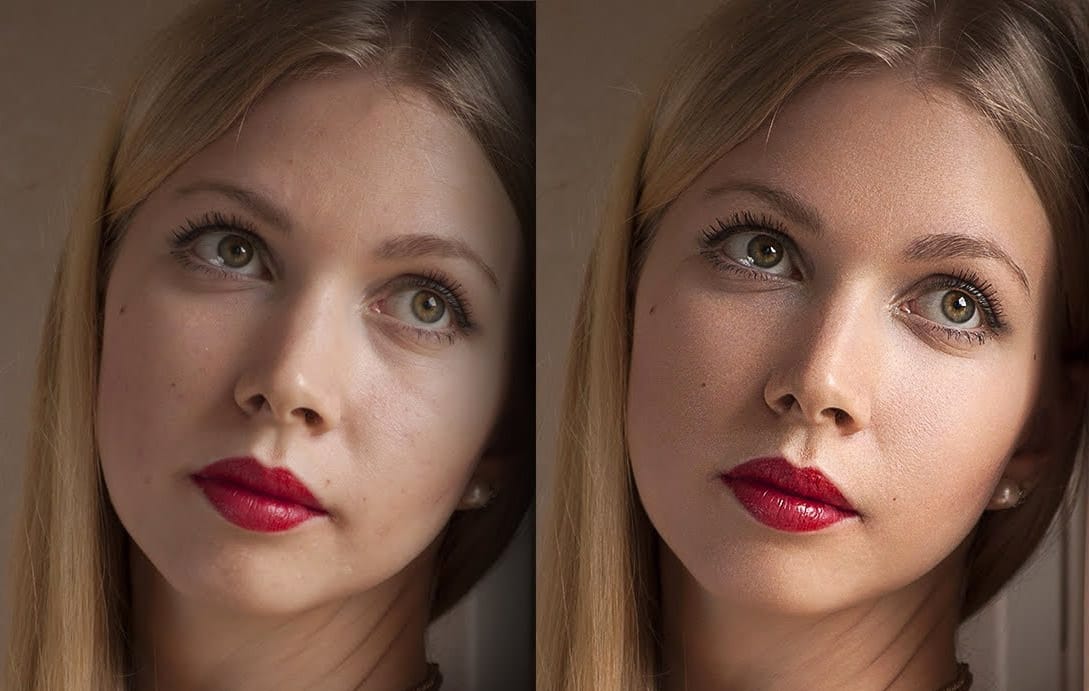
High-end skin retouching with just 2 layers in Photoshop
One of the simplest ways to perform high-end skin retouching in Photoshop! Whether you are creating magazine covers or working on a high-end project, achieve the best quality skin using just 2 layers! In this tutorial by PiXimperfect, we will learn a simple blend mode to do extensive dodging and burning to get the most realistic skin texture, maintaining the softness, and keeping the skin flawless.
This two-layer technique is just another way to do dodging and burning, but a little more easily
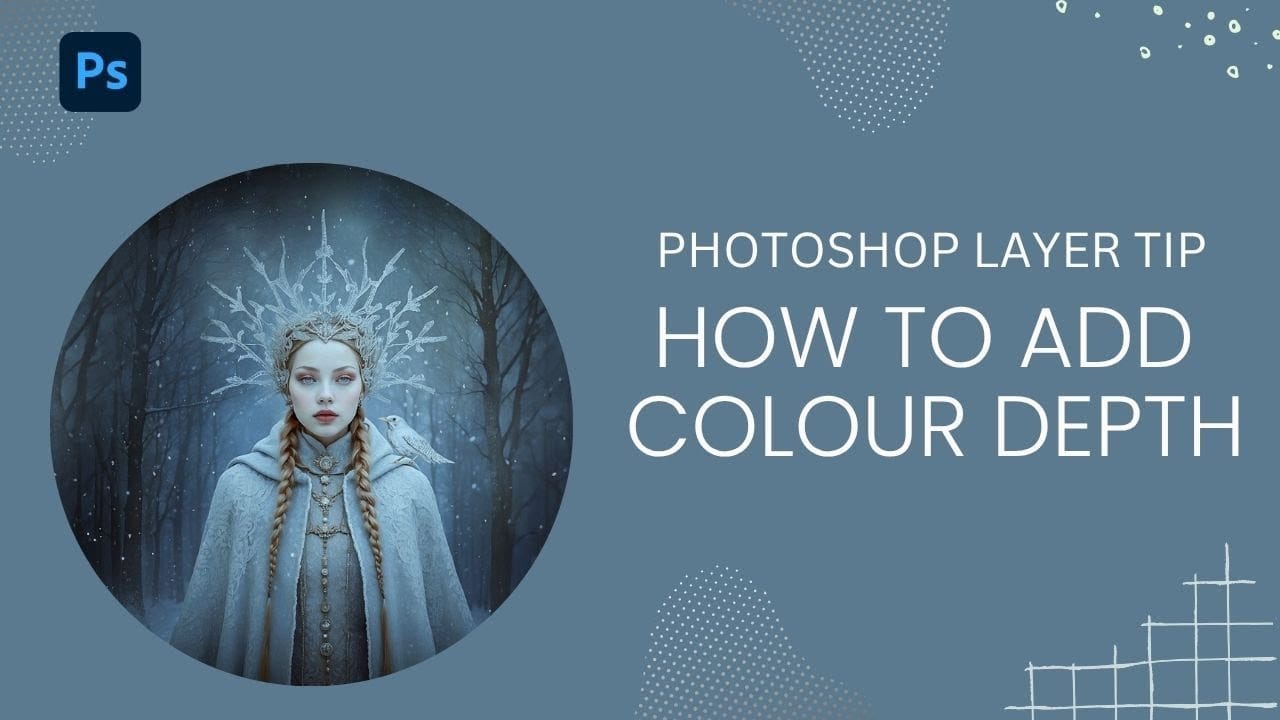
How to Add Color Depth Using Color Dodge Layers in Photoshop
Color depth transforms flat images into rich, dimensional works that hold the viewer's attention. The secret lies in selectively enhancing specific areas rather than applying blanket adjustments that can muddy your colors.
The color dodge technique offers precise control over where and how you add vibrancy. This method works particularly well for portrait enhancement, bringing life to eyes, lips, hair, and jewelry without creating an over-processed look.
Watch the Tutorial
Understanding Non
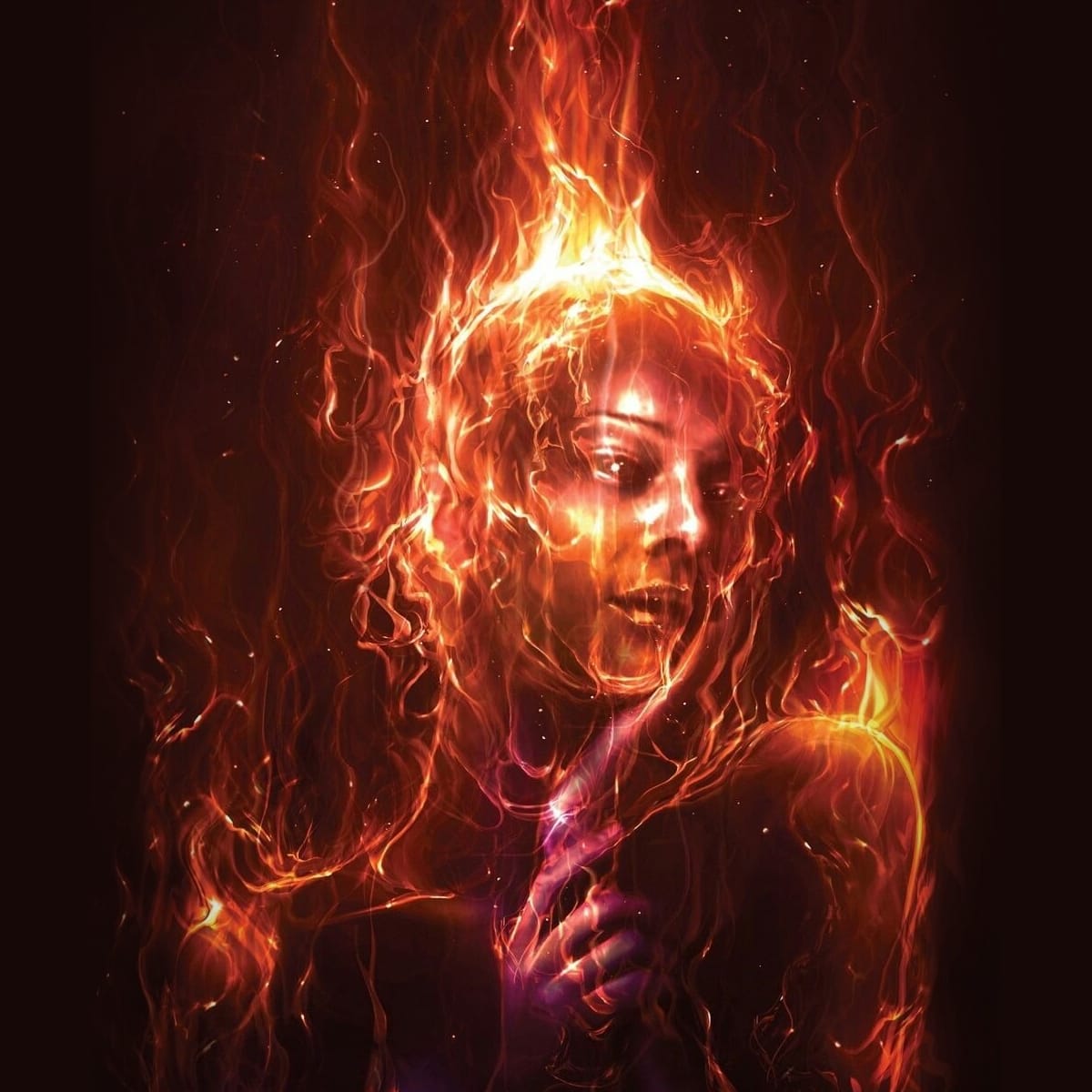
Apply a Burning Flames Effect to a Photo in Photoshop
In this tutorial by Neville D'Souza, you will learn how to take a simple model shot and transform it into a striking, dynamic piece of art that resembles a spitting, crackling beacon of fire. The tutorial guides you through the process using some of the most common tools available in Photoshop, showcasing techniques that allow you to create intricate and impressive effects.
The author meticulously explains each step, ensuring you can follow along without the need for third-party plug-ins. By th