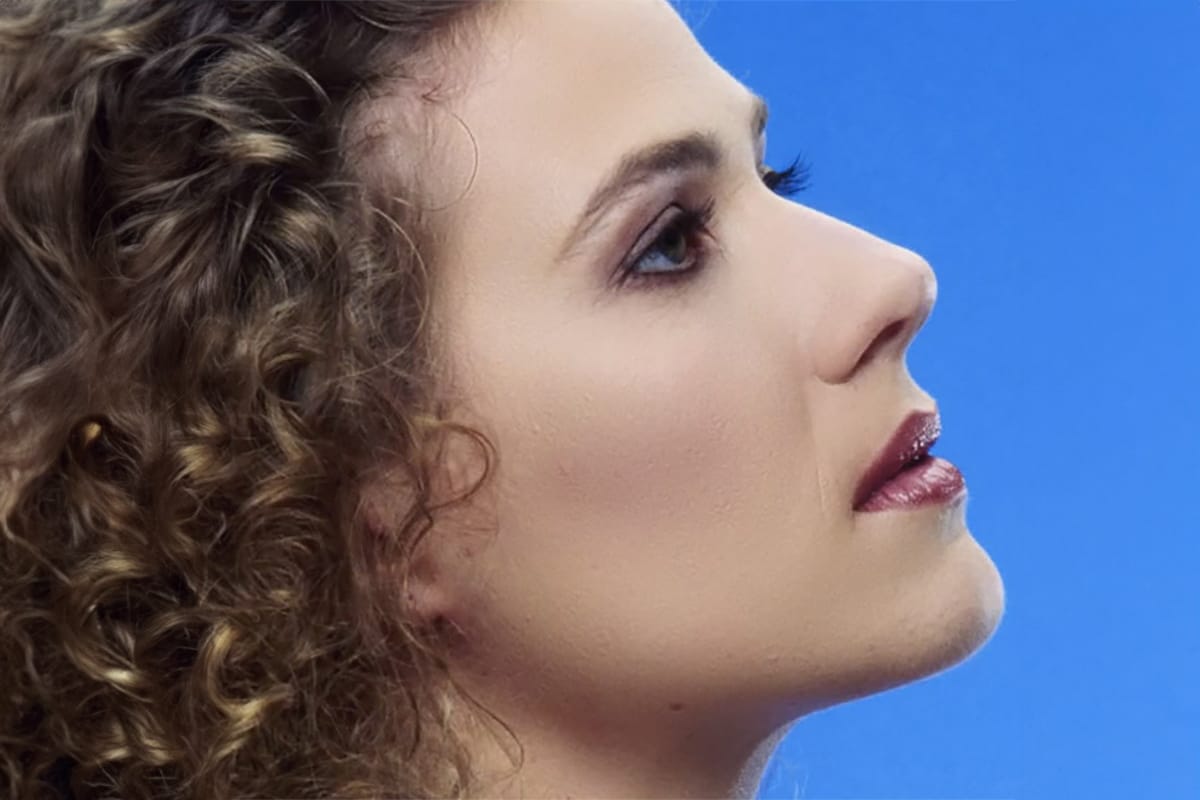
Skin tones often appear washed out or lifeless in photographs due to challenging lighting conditions or camera settings. This gradient-based technique brings vibrancy back to portraits while creating natural-looking dimensional highlights that draw the viewer's eye to key facial features.
The method uses Color Range selections combined with radial or reflected gradients to add warmth and depth to skin without over-processing. It works across all skin complexions and can rescue otherwise dull portrait lighting.
Watch the Video
Video by f64 Academy. Any links or downloads mentioned by the creator are available only on YouTube
Practical Tips
These techniques will help you achieve natural-looking skin tone enhancements:
- Use Color Range's "Skin Tones" option for quick selections, then refine with the lasso tool while holding Alt to subtract unwanted areas
- Start with Soft Light blend mode at 50% opacity for natural results - Linear Light with reduced Fill works better for very pale complexions
- Position radial gradients with the lighter center over the eyes and nose to create natural facial highlights that guide viewer attention
- Try reflected gradients for a "light beam" effect that brightens the center of the face while darkening the edges
- Adjust gradient colors manually by double-clicking stops to match the subject's natural undertones - move toward browns for shadows and peach tones for highlights
Related Articles and Tutorials
Explore more techniques for perfecting portrait color and skin enhancement: