Two Simple Color Grading Techniques Using Photoshop Curves and Levels

Two Simple Color Grading Techniques Using Photoshop Curves and Levels

Color grading transforms flat images into vibrant, cinematic visuals that capture attention and convey mood. The difference between an ordinary photo and one with professional depth often comes down to how well shadows, midtones, and highlights work together to create visual interest.

These two Photoshop techniques using Curves and Levels offer a quick path to achieving that coveted "pop of color" without complex workflows or advanced skills.

Watch the Tutorial

Video by SandraD Imagery. Any links or downloads mentioned by the creator are available only on YouTube

Understanding Auto Color Options in Photoshop

The hidden power of Photoshop's Auto Color options lies in their ability to intelligently analyze and enhance images beyond simple brightness adjustments. When you hold Alt/Option and click Auto in Curves or Levels, you unlock targeted color selection tools that many users never discover.

These options work by identifying the tonal ranges in your image and allowing precise color assignment to shadows, midtones, and highlights. The Find Dark and Light Colors option proves particularly effective for dramatic color grading.

  • Enhanced Brightness and Contrast - Basic tonal correction
  • Find Dark and Light Colors - Best for color grading workflows
  • Enhance Per Channel - Individual RGB channel adjustments
  • Target Colors - Custom shadow, midtone, and highlight color selection

Practical Tips for Color Grading

  • Test different Auto Color options before committing to see which works best for your specific image
  • Choose cooler colors (blues, purples) for shadows and warmer colors (yellows, oranges) for highlights to create natural contrast
  • Always click "No" when prompted to save as defaults to avoid applying unwanted settings to future projects
  • Experiment with Soft Light and Overlay blend modes to control the intensity of your color grading effects
  • Reduce opacity on your adjustment layers when the effect appears too strong for a more subtle result

Explore more advanced color grading and adjustment techniques.

Curves vs Levels in Photoshop: Learn The Difference
In this Photoshop tutorial, you will learn the key differences between using Curves and Levels for image adjustment. Aaron Nace from Phlearn provides a clear and effective approach to enhance your photos and graphics. Throughout the lesson, techniques like the Super Zoom feature are highlighted, allowing you to upscale graphics without losing resolution, ensuring that your work retains high quality. You will also discover the benefits of applying Gradient Maps for better color matching, which c
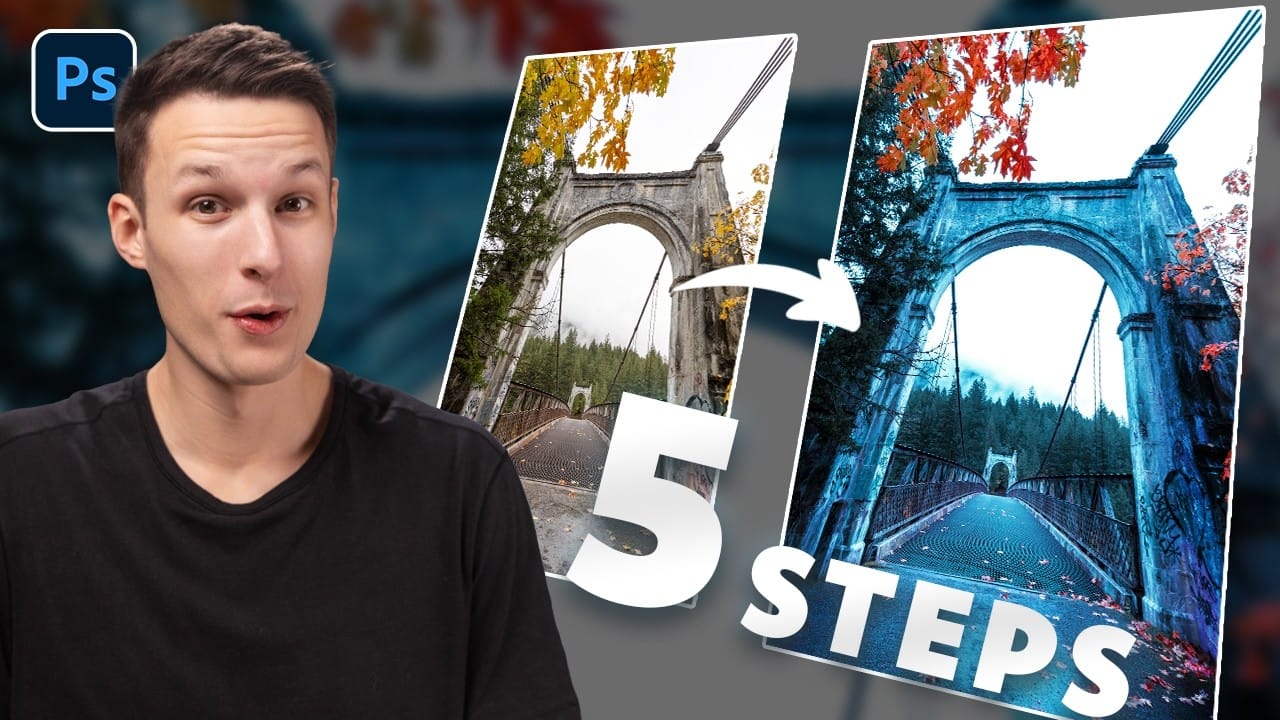
How to Create Dramatic Colors in Photoshop: A 5-Step Color Grading Process
Photography often captures moments in natural tones, but sometimes an image calls for something bolder. Dramatic color grading transforms ordinary photos into striking visual statements that grab attention and evoke emotion. This comprehensive approach combines Camera Raw adjustments with Photoshop's powerful color tools to create rich, cinematic looks. The process works especially well for outdoor scenes where you can push blues, oranges, and complementary colors to their limits. Watch the T
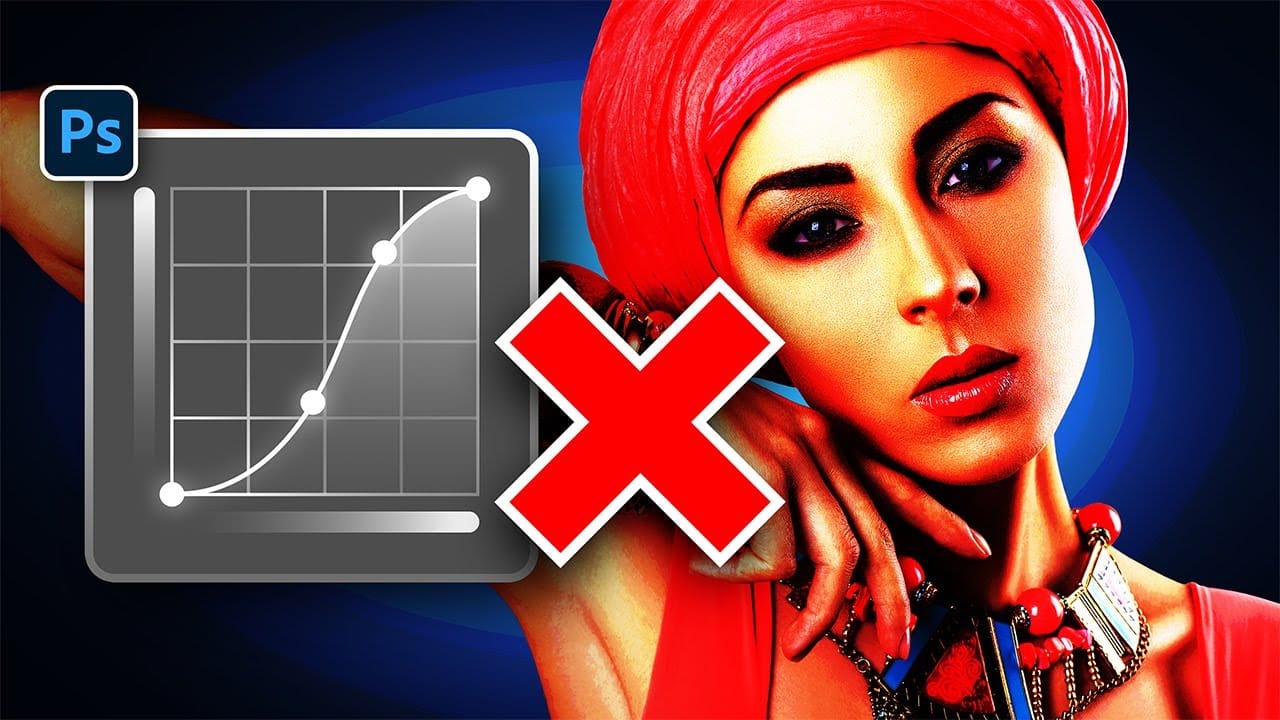
Stop Ruining Colors with Curves With This Photoshop Trick Instead
Using Curves adjustments in Photoshop often creates unwanted color shifts that can make images look oversaturated or unnatural. While the traditional solution involves switching to Luminosity blend mode, this approach tends to drain the vibrancy from your photos, leaving them flat and lifeless. This tutorial reveals a superior technique using Camera Raw's refined saturation control that gives you precise command over color intensity while maintaining natural-looking results. You'll discover how
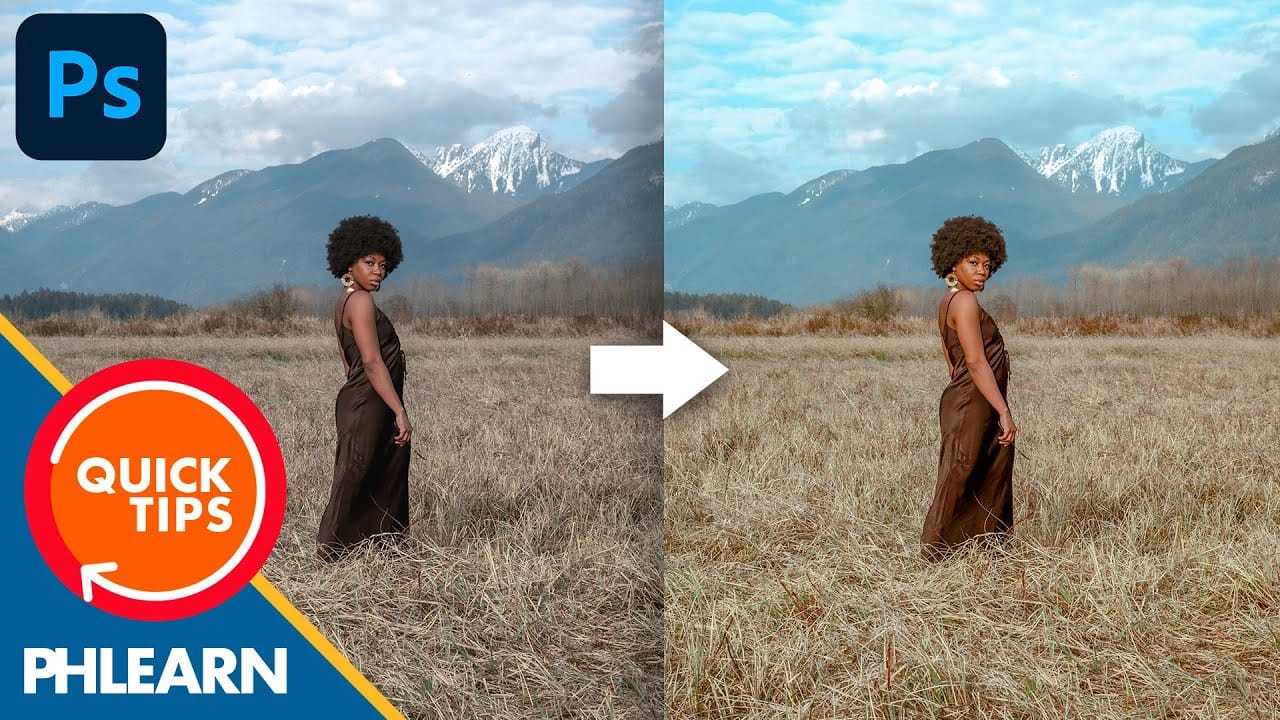
Create a bright and beautiful color grade in Photoshop
In this tutorial, Aaron Nace from Phlearn demonstrates how to enhance your photos with a bright and vibrant color grade using the Camera RAW filter in Photoshop. This technique is particularly effective for model photography and landscape shots, offering a way to elevate the visual appeal of your images with a polished, professional finish. Aaron guides you through the process of applying and adjusting color grades, showing how the Camera RAW filter can be used to fine-tune colors and achieve a

Get tutorials & freebies delivered to you.

Subscribe to the Photoshop Roadmap newsletter, a weekly roundup of new tutorials, insights and quality downloads, trusted by 6500+ readers.

You might also like

10 Photoshop Tricks You Probably Forgot Exist

There’s a funny pattern with Photoshop. The longer you use it, the more you rely on the same small set of tools… while some of the most powerful techniques quietly fade into the background. Not because they stopped working — but because they’re just a bit hidden, or not...

Add Floral Patterns to Black Dresses Using Brushes in Photoshop

Transform plain black clothing into vibrant, patterned garments using custom brushes and strategic layer blending. This non-destructive technique combines precise selections with clipping masks to paint realistic floral designs directly onto fabric while preserving the original photograph. The method works particularly well on black materials because the hard light blend...

How to Replace Objects Using Reference Images in Photoshop Generative Fill

Reference images transform Generative Fill from a text-based tool into a precise visual command system. Instead of describing what you want, you show the AI exactly which object to create, leading to more accurate and predictable results. This technique works by combining traditional selection tools with the new reference image...

How to Use Blend If Sliders for Pixel-Perfect Transparency in Photoshop

Blend If sliders control transparency based on brightness levels, making complex selections unnecessary. Understanding how these two simple sliders work with RGB channels opens up precise compositing possibilities that would otherwise require multiple masks and selections. The technique works by targeting specific brightness ranges from 0 to 255, allowing you...

How to Create a Double Exposure Effect in Photoshop Using Screen Blend Mode

Double exposure effects transform ordinary portraits into striking artistic compositions by blending two images seamlessly. This technique works best with high-contrast images—silhouettes against bright backgrounds paired with nature scenes or textures. The key to successful double exposures lies in the contrast between light and dark areas. When you combine...

You’ve successfully subscribed to Photoshop Roadmap
Welcome back! You’ve successfully signed in.
Great! You’ve successfully signed up.
Success! Your email is updated.
Your link has expired
Success! Check your email for magic link to sign-in.