Portrait photographers and retouchers often encounter images where subjects have crossed or lazy eyes, which can distract from an otherwise great shot. Whether caused by timing, lighting, or natural eye alignment issues, these problems can be corrected effectively without compromising image quality.
This tutorial demonstrates two practical approaches: using AI-powered generative fill for quick results, and a free alternative method that works with any version of the software.
Watch the Video
Video by PiXimperfect. Any links or downloads mentioned by the creator are available only on YouTube
Practical Tips
Key techniques for successful eye correction:
- Always make square selections when using generative fill to prevent unwanted shifts in facial features
- Keep selections as small as possible while maintaining enough context for realistic results
- Use negative masks with soft brushes to selectively apply corrections only where needed
- Set brush flow and opacity to 100% when painting on masks for consistent coverage
- Use difference blend mode temporarily to check alignment when combining processed elements
Related Articles and Tutorials
Explore more eye enhancement and portrait retouching techniques to improve your photo editing skills.
15 Fantastic Photoshop Portrait Effects You’ll Want to Slap on Every Selfie Right Now
Sure, the title says you’ll want to slap these effects on every selfie (that was me trying to grab your attention 😅) — but let’s be honest: these aren’t one-tap filters. Every tutorial here is built on real Photoshop craftsmanship — lighting, masking, blending, and a good dose of creative
 Enrique Flouret
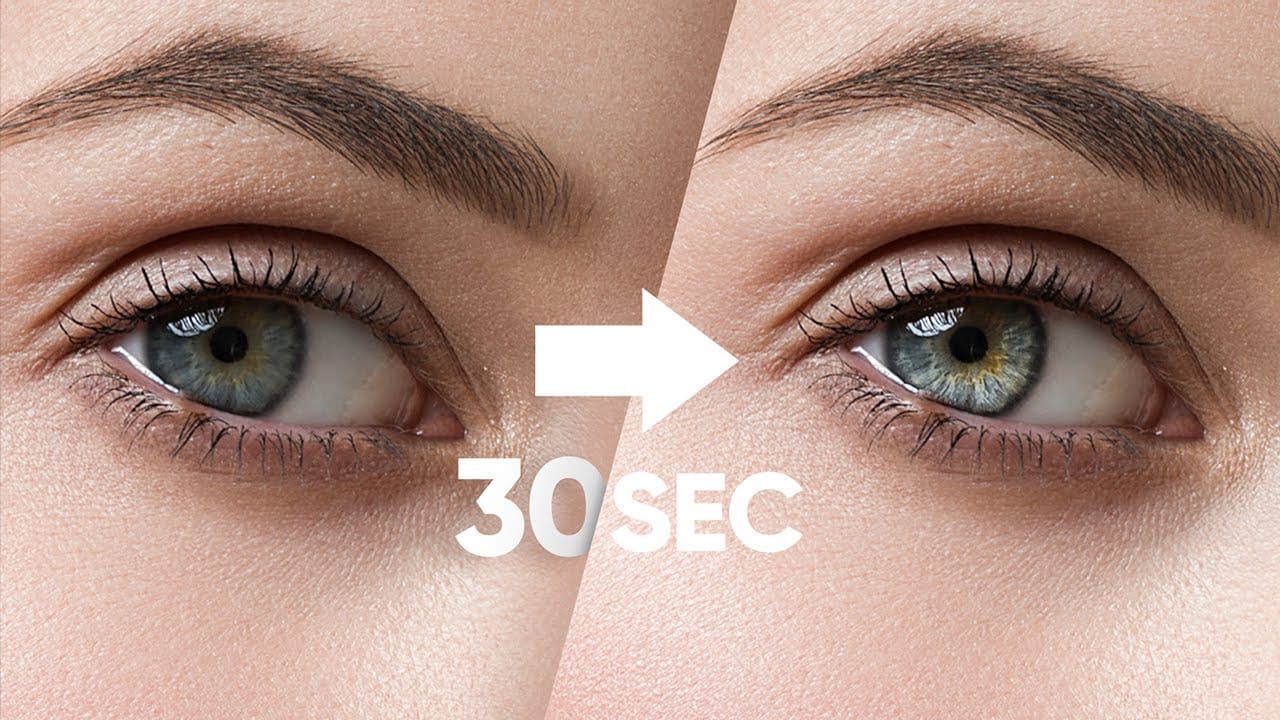
Make Eyes Dramatic in 30 Seconds with Photoshop
In this tutorial, PiXimperfect reveals a fast and effective technique to make eyes more dramatic and engaging in just 30 seconds using Photoshop. The focus is on enhancing the eyes by adding shine and depth, which can significantly elevate the overall impact of a portrait. The method involves using blend modes in combination with simple selections to introduce eye-catching highlights and contrasts.
The tutorial starts by demonstrating how to select the eye areas accurately, ensuring that the ad
How to edit eyes in Photoshop
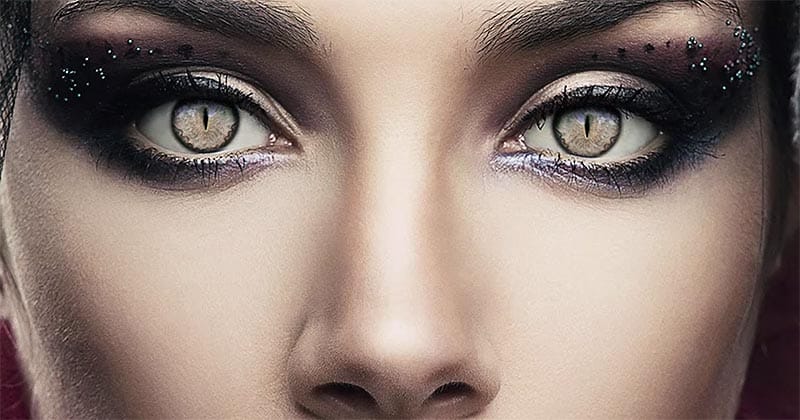
In this Photoshop tutorial by PSD Box, viewers learn how to creatively alter and enhance eye appearance in portraits.
The tutorial begins by introducing a photo of a woman and a cat's eye, demonstrating how to replace the woman's eyes with those of the cat using adjustment layers. Key adjustments include Hue/Saturation and Curves layers to modify eye color, contrast, and overall look. Techniques like layer masking ensure smooth integration of the cat's eyes onto the woman's face, while addition
Create Insane Details in the Eyes with Photoshop
In this tutorial from PiXimperfect, you will learn how to add remarkable details to eyes in Photoshop. The process begins with the use of an iris brush that allows you to create intricate highlights and shadows, enhancing the eyes' natural beauty.
As you progress, you'll discover how to incorporate shine with a kicker light, making the eyes stand out and appear more engaging. This step is crucial for adding depth and dimension, pulling viewers' attention directly to the eyes.Finally, the tutori
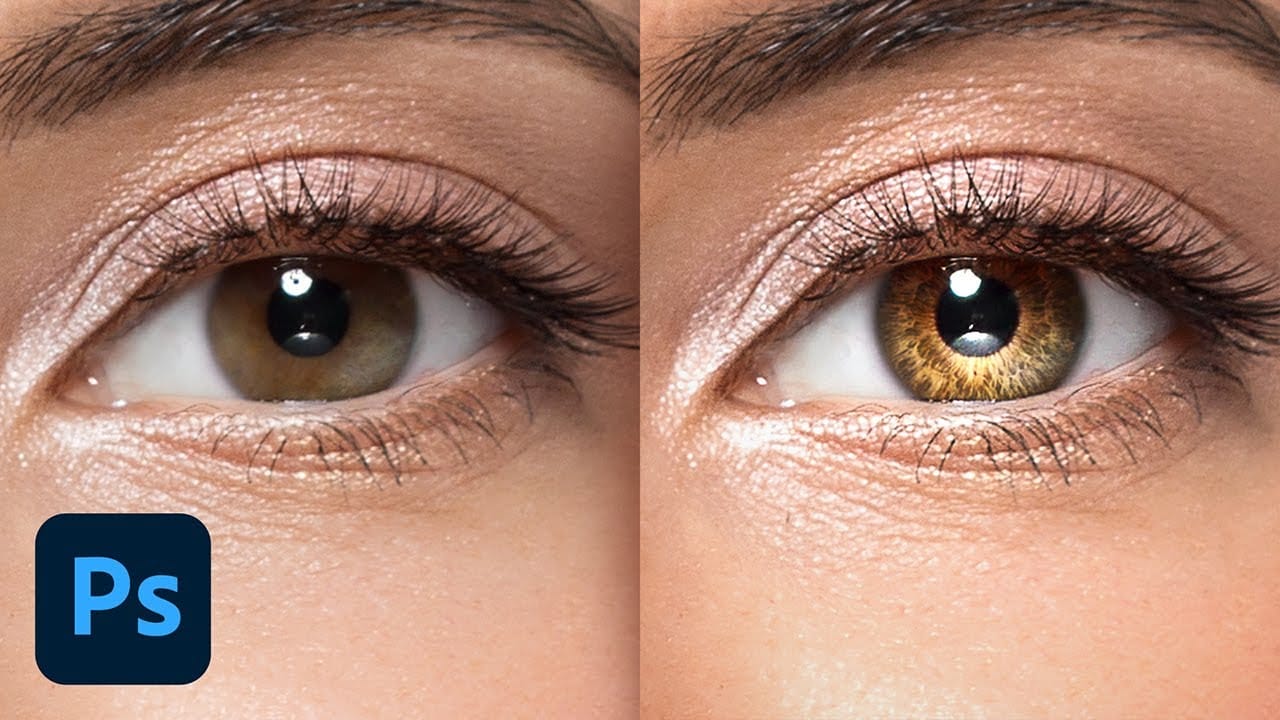
Change Eye Color in Photoshop
In this tutorial by Aaron Nace from Phlearn, discover how to transform eye colors effortlessly using Photoshop.
Aaron demonstrates techniques to precisely select and adjust eye colors using adjustment layers and masks. Learn to create realistic eye color changes by refining selections and applying hue adjustments. This tutorial is essential for photographers and digital artists looking to enhance portraits with eye-catching eye color variations, showcasing the versatility and creative possibili
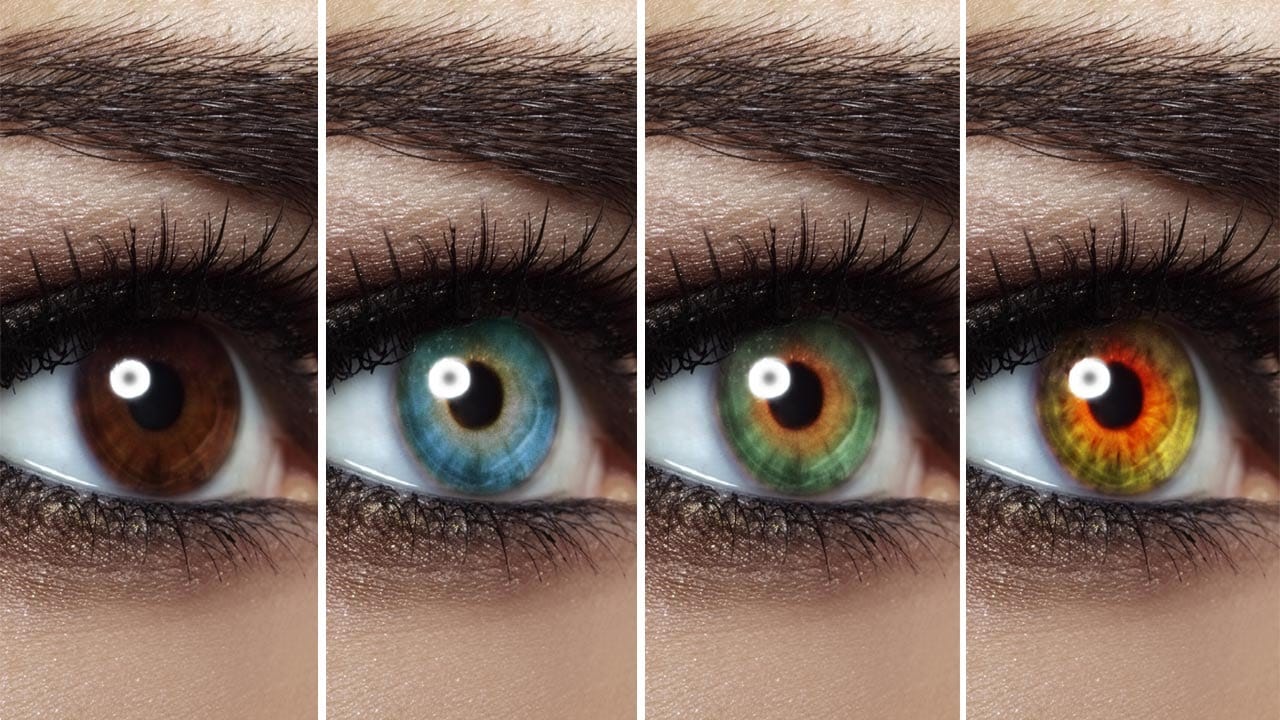
How to apply Realistic Eye Makeup Easily in Photoshop
In a step-by-step tutorial, the author provides a guide on how to add digital eye makeup using Photoshop. The video demonstrates the process of applying realistic eye makeup by utilizing various blend modes.
The author suggests using a 'Soft Brush' to apply different eye shadow colors. This technique ensures that the colors are well-blended. Additionally, the author recommends applying 'Gaussian blur' to further blend the colors and create a more seamless appearance.
Finally, the author advise
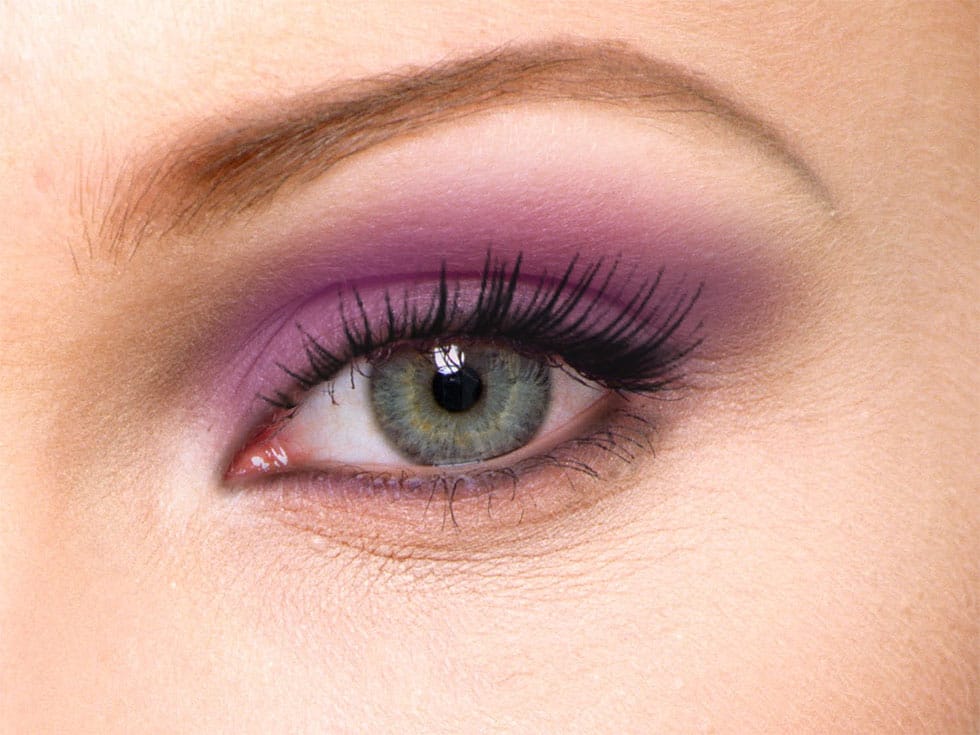
How to Enhance Eyes in Photoshop
In his tutorial, Aaron Nace, the founder of Phlearn, guides viewers through the process of enhancing any set of eyes to achieve their absolute best appearance. Nace demonstrates techniques using Photoshop's powerful tools, including Curves for sculpting highlights and shadows, Solid Color Fill Layers for color enhancement and adjustment, and the Unsharp Mask filter for professional-level sharpening.
The tutorial offers a comprehensive approach to eye retouching, equipping viewers with the skill
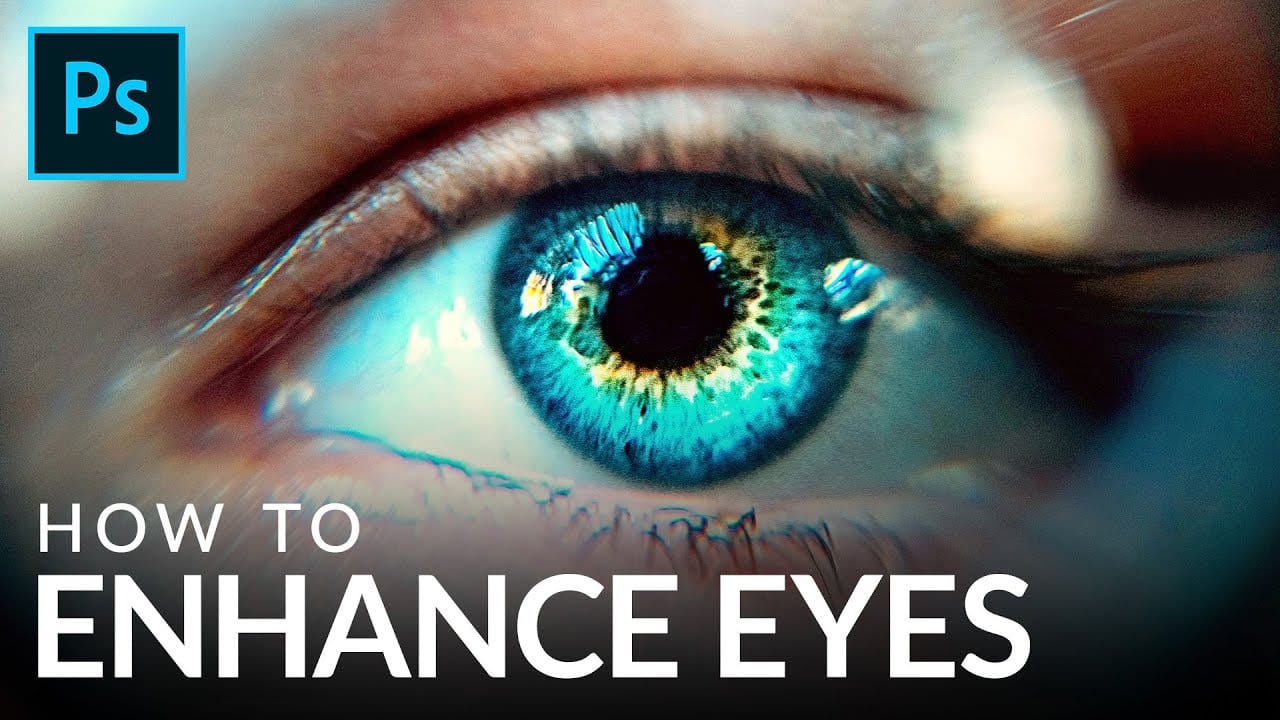
How to Color, Brighten and Sharpen Eyes in Photoshop
In this tutorial by Aaron Nace from Phlearn, learn how to enhance eyes in Photoshop to make them captivating and sharp.
Techniques include coloring the eyes by sampling natural hues and adjusting lightness and saturation, using blending modes like "Soft Light" or "Overlay" for a natural look, and softening edges with Gaussian Blur. Dodge and Burn techniques are used to enhance depth and light in the pupils, while selective sharpening draws attention to the eyes, making them stand out in portrai
Removing Red Eye and Whitening Teeth
This video tutorial by Bryan O'Neil Hughes, for Adobe Photoshop Playbook series, covers how to fix red eye and whiten teeth in Photoshop.
The first part focuses on the red eye correction tool, which is straightforward: simply zoom in on the eye and draw a box around the red area, and Photoshop will automatically correct it.
The second part addresses teeth whitening, which is a bit more complex. After zooming in on the teeth, you use the Dodge tool set to mid-tones with low exposure to lighten