How to Organize and Customize Your Photoshop Workspace

How to Organize and Customize Your Photoshop Workspace

A cluttered workspace can slow down even the most experienced Photoshop user. With dozens of panels, tools, and windows competing for screen space, the default interface often includes features you rarely use while hiding the ones you need most.

This tutorial demonstrates how to organize your Photoshop workspace to match your specific workflow. You'll learn to remove unnecessary panels, arrange essential tools, and create custom workspace presets for different types of projects.

Watch the Tutorial

Video by PHLEARN. Any links or downloads mentioned by the creator are available only on YouTube

The Psychology of Workspace Design

Photoshop's default workspace follows a design philosophy of comprehensive access — every tool and panel is available from the start. This approach ensures that new users can discover features, but it creates visual noise that can overwhelm focused creative work.

Professional workflows benefit from progressive disclosure, where only the most relevant tools remain visible during specific tasks. Photo retouchers need constant access to layers, adjustments, and properties panels, while digital painters might prioritize brushes, colors, and navigator windows. The key lies in identifying which panels you access multiple times per session versus those you use occasionally.

Custom workspaces also reduce cognitive load by eliminating decision fatigue. When your essential tools occupy consistent positions, muscle memory develops naturally, allowing you to focus on creative decisions rather than interface navigation.

Practical Tips for Workspace Organization

  • Start by removing panels you rarely use — drag tabs out and close them to create more space for frequently accessed tools
  • Group related panels together using drag-and-drop, such as combining Properties and Adjustments for photo editing workflows
  • Use the compact view (collapse panels) to organize window arrangements more easily, then expand when satisfied with the layout
  • Create multiple workspace presets for different project types — photo editing, typography, or digital painting each benefit from unique panel arrangements
  • Lock your workspace once organized to prevent accidental panel movements, while still allowing height adjustments between grouped windows

More Tutorials about Photoshop Workspace

These related articles explore additional workspace optimization techniques.
Customize Your Photoshop Toolbar for an Optimized Workflow
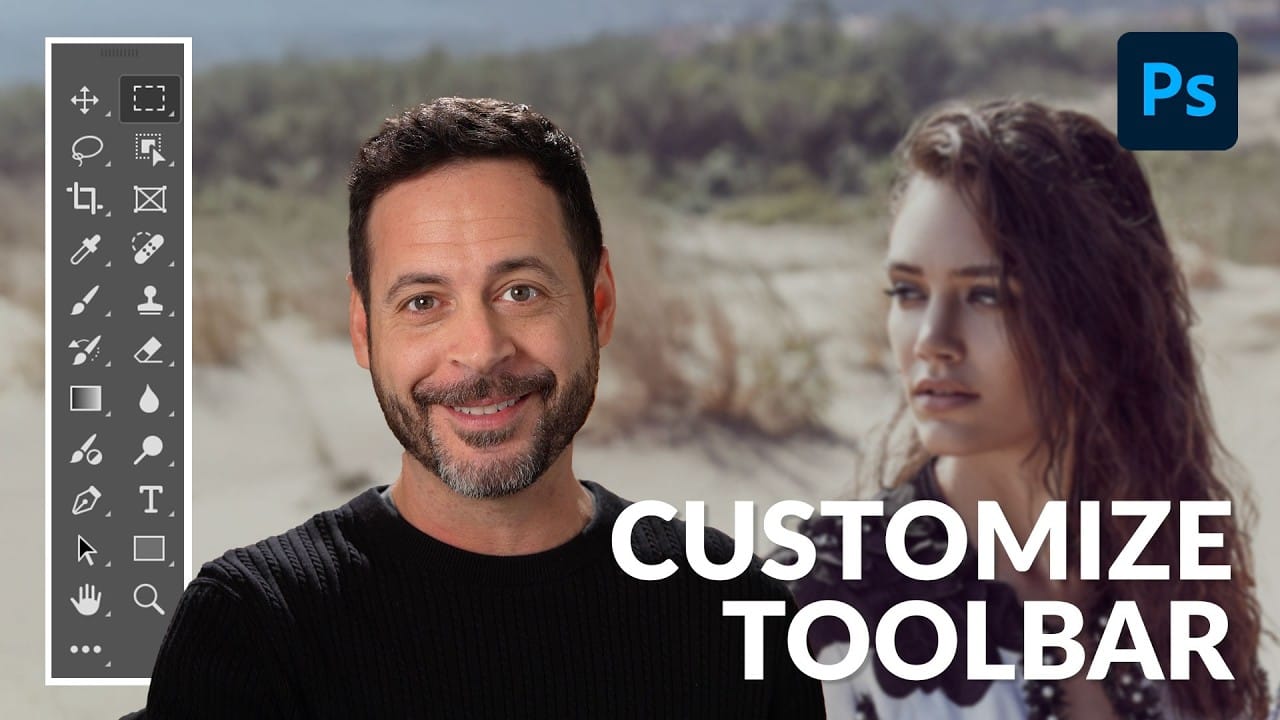
Working in Photoshop often means navigating a toolbar filled with dozens of tools, many of which may rarely or never be used in a typical workflow. This can lead to a cluttered interface, making it challenging to quickly locate essential tools and slowing down your creative process. The default arrangement, while functional, isn't optimized for every user's specific needs, leading to wasted time searching for features. This guide demonstrates how to personalize your Photoshop toolbar by rearra
Customize and Create Your Own Photoshop Tools
Unlock the Power of "Tool Presets" to Create Custom Tools & Make Your Workflow Extremely Fast! Simplify your Photoshop life by learning the concepts of Tool Presets, and then, we will explore some built-in presets to get you started. In this tutorial, we will learn to create two super useful custom tools, and also how to create your own tools according to your personal workflow in Photoshop. No matter what you do in Photoshop, from designing to retouching or even compositing, custom tools are i
Photoshop Beta: Exploring the New Generative Workspace
This Photoshop tutorial focuses on blending graphics with portrait photography to create striking visuals. You will learn how to use the Super Zoom feature, which allows you to upscale graphics while maintaining their resolution. This is particularly useful for achieving high-quality results in your projects. Another key component of the tutorial is the application of Gradient Maps for effective color matching. This technique helps to ensure that both the graphics and portraits harmonize well w
How to Apply Graphics and Change Colors in Photoshop
Integrating graphics and adjusting colors are fundamental skills in Photoshop, enabling designers and artists to transform disparate elements into cohesive visual narratives. From compositing a logo onto a product image to blending text into a scene, mastering these techniques is crucial for achieving professional results. This video demonstrates practical methods for seamlessly applying graphics from one image to another, extracting specific elements like text, and efficiently changing their c

Get tutorials & freebies delivered to you.

Subscribe to the Photoshop Roadmap newsletter, a weekly roundup of new tutorials, insights and quality downloads, trusted by 6500+ readers.

You might also like

Using Foliage Brushes for Photo Enhancement and Digital Art

Transforming ordinary photographs into whimsical, romantic scenes often requires replacing or enhancing natural environments. Foliage brushes offer photographers and digital artists a powerful way to overpaint backgrounds, create dimensional leaf structures, and build entirely new environmental elements that feel both surreal and believable. The key to realistic foliage work lies...

How to Add a Film Border to Any Image in Photoshop

Film borders add instant vintage character to digital photos, recreating the nostalgic feel of analog photography. This technique combines layer masking, texture overlays, and strategic positioning to seamlessly frame your images with realistic film edges that look naturally weathered and imperfect. Watch the Video Practical Tips These essential techniques will...

How to Create Double Exposure Portraits in Photoshop

Double exposure portraits blend two images into one artistic composition, creating striking visuals where a silhouette merges with landscapes, textures, or abstract elements. This technique transforms ordinary portraits into compelling artwork by layering the second image inside the dark areas of your subject. The process relies on high contrast between...

How to Remove Glasses Reflections with Firefly Image Model 5 in Photoshop

Glasses reflections can ruin otherwise perfect portraits, obscuring your subject's eyes and creating distracting bright spots. While traditional AI models can remove these reflections, they often alter facial features and frame details in the process. Photoshop's new Firefly Image Model 5 changes this by preserving facial...

How to Create Realistic Specular Highlights Using Basic Brush Techniques

Specular highlights bring objects to life by simulating how light reflects off surfaces. These bright spots of reflected light add dimension and realism to your digital artwork, making flat surfaces appear three-dimensional and convincing. This technique uses simple brush strokes combined with strategic blending modes to create professional-looking highlights that...

How to Create a Wood Engraving Effect from Photos in Photoshop

Wood engravings capture the timeless aesthetic of traditional printmaking, transforming ordinary photographs into artwork that resembles hand-carved illustrations. This technique combines the rustic charm of wood textures with the precise detail of engraved lines, creating images that feel both historical and artistic. The process uses non-destructive editing methods and smart...

You’ve successfully subscribed to Photoshop Roadmap
Welcome back! You’ve successfully signed in.
Great! You’ve successfully signed up.
Success! Your email is updated.
Your link has expired
Success! Check your email for magic link to sign-in.