How to Transform Photos into Oil Paintings Using Generative Fill in Photoshop

How to Transform Photos into Oil Paintings Using Generative Fill in Photoshop

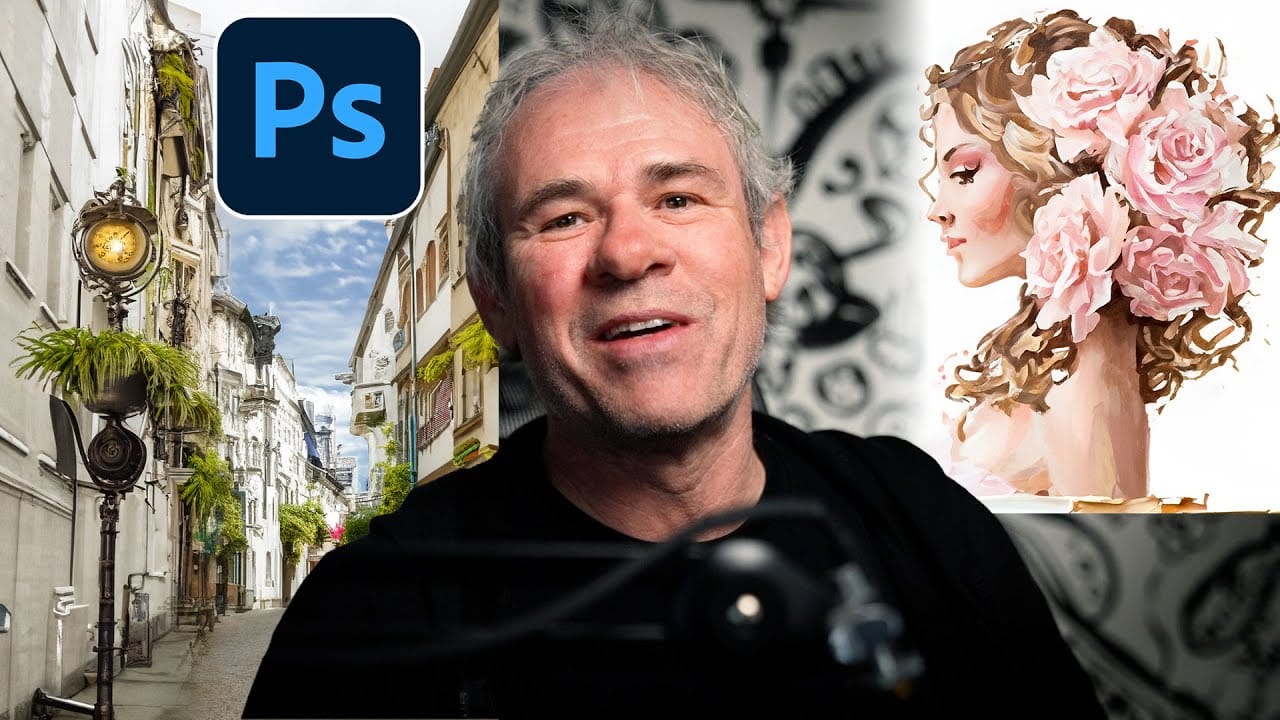
Generative Fill can transform ordinary photographs into convincing oil paintings when combined with the right selection technique. The key is using channel-based selections rather than selecting the entire image, which allows the AI to apply painterly effects while preserving the original composition and lighting.

This method also works for watercolor effects and other artistic styles. Adding texture and brush stroke details through layer styles creates even more realistic painted results.

Watch the Video

Video by Blue Lightning. Any links or downloads mentioned by the creator are available only on YouTube

Practical Tips

Here are essential techniques for creating realistic painted effects from your photos:

  • Create a new alpha channel with 30-40% gray and use it as a selection mask instead of selecting the entire image
  • Use specific prompts like "oil painting" or "watercolor painting" rather than generic painting terms
  • Add texture with the Texturizer filter using Canvas settings at 100% scaling and Relief of 2
  • Apply Bevel and Emboss layer styles to desaturated composite layers for convincing brush stroke depth
  • Convert layers to Smart Objects before applying filters to maintain non-destructive editing capabilities

Explore more AI-powered creative techniques and artistic transformations:
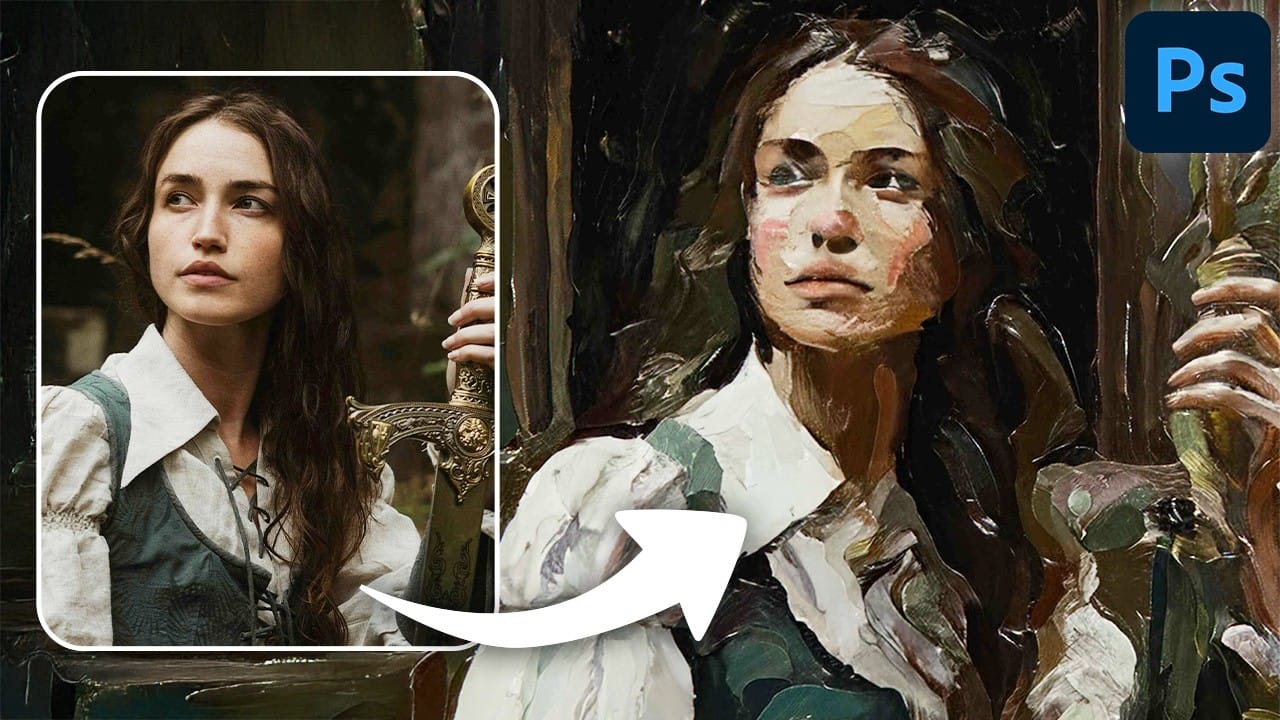
Turn Pictures Into Paintings Using Generative Fill In Photoshop
Converting photographs into artistic paintings has traditionally required advanced Photoshop skills, complex layer blending techniques, or expensive third-party plugins. Many photographers and designers struggle with creating convincing painted effects that maintain the original image's character while adding genuine artistic style. This tutorial demonstrates how to transform photos into paintings using Photoshop's generative fill feature combined with channel-based selections. The technique cr
Complete Guide to AI Photo Editing with Photoshop's Generative Fill
Modern photo editing has entered a new era where artificial intelligence can solve complex visual problems in seconds. Tasks that once required hours of manual work—removing unwanted objects, changing skies, adding realistic elements—can now be accomplished with simple selections and text prompts. This comprehensive tutorial demonstrates 37 practical applications of Photoshop's AI-powered generative fill feature. From basic sky replacements to advanced portrait retouching, these techniques show
Discover Hidden Photoshop AI Tools to Transform Your Photos
Transform ordinary photographs into captivating works of art using advanced Generative AI features in Photoshop. This guide reveals a powerful, often overlooked technique to unlock incredible artistic potential from your images. Discover how to apply stunning styles, from delicate watercolors to bold Art Deco and futuristic visions, by mastering a subtle yet impactful control within Photoshop's AI capabilities. Watch the Video Understanding Generative AI's Creative Control Generative AI to
How Generative Fill in Photoshop is Transforming Photo Editing
Generative Fill represents the most significant advancement in photo editing technology in decades. Using artificial intelligence, this tool can remove objects, change backgrounds, extend images, and add new elements with simple selections and text prompts. The feature analyzes your image's lighting, perspective, and depth of field to create seamless, photorealistic results that would previously require hours of manual work and advanced compositing skills. Watch the Video Practical Tips He
How to Add Objects to Photos Using Photoshop's Generative Fill
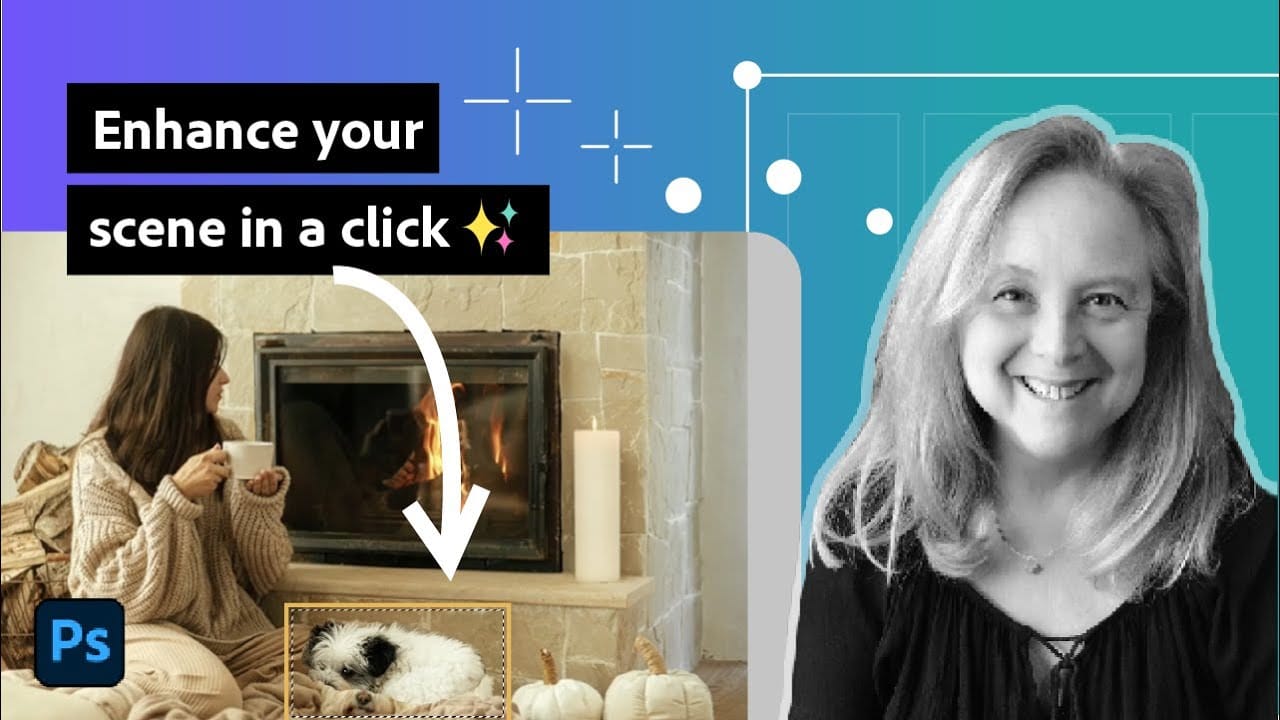
Photoshop's Generative Fill transforms photo editing by letting you add realistic objects using simple text descriptions. This AI-powered feature creates seamless additions that match your image's lighting, perspective, and style. The process requires just a basic selection and a descriptive prompt to generate professional-looking results in seconds. Watch the Tutorial Essential Tips for Generative Fill Success * Make your selection slightly larger than the object you want to generate — t
Photoshop Generative Expand and Composite Techniques Using AI-Generated Images
AI-generated imagery opens up endless creative possibilities, but the real magic happens when you know how to refine and enhance these digital creations. Raw AI images often need compositional adjustments, element removal, and seamless blending to reach their full potential. This tutorial demonstrates practical techniques for extending canvas space, removing backgrounds, and creating cohesive composites using Photoshop's modern tools. The workflow combines traditional compositing skills with AI
Generative AI: A new era of Photoshop begins
Generative AI has made its way into the world of Photoshop, and in this fascinating video, Colin Smith from Photoshop Cafe explores its transformative capabilities. Generative AI is an incredible technology that's transforming the world of artificial intelligence. It's like having a creative companion that can generate all sorts of new content, from stunning images to captivating music and even imaginative stories. With its advanced algorithms and neural networks, generative AI brings a touch o
How to Use Reference Images with Generative Fill in Photoshop
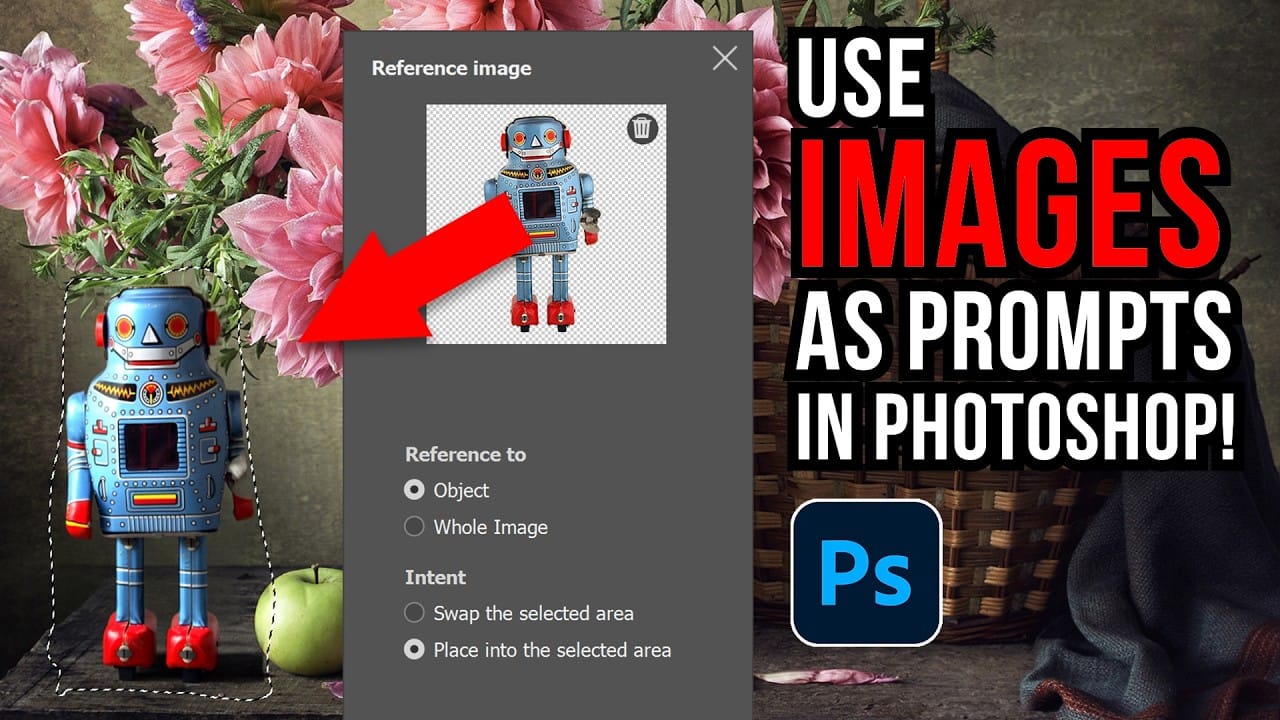
Generative Fill transforms when you replace text prompts with actual images. Instead of describing what you want, you show the AI exactly what to create using reference photos. This feature works for adding objects like toys and electronics, or swapping clothing items with precise visual control. The AI automatically matches lighting, shadows, and perspective to blend seamlessly with your original photo. Watch the Video Practical Tips Here are key techniques to get the best results with re
Creating AI-Enhanced Autumn Fantasy Images in Photoshop
Fantasy imagery comes alive when artificial intelligence meets traditional photo manipulation techniques. AI-generated backgrounds provide the perfect foundation for creating moody, atmospheric scenes that would be difficult or impossible to capture with a camera alone. This approach combines the creative potential of AI image generation with Photoshop's precise editing tools to craft compelling visual narratives. The result is a seamless blend of imagination and technical skill that transforms
How to Add Accessories Using AI in Photoshop
Photoshop's Generative Fill makes it possible to add realistic clothing and accessories to your photos with simple selections and text prompts. This AI-powered technique can transform outfits, add jewelry, or create entirely new looks that match your image's lighting and style. The process works by selecting the area where you want to add items, then using descriptive prompts to generate realistic additions that blend seamlessly with the original photo. Watch the Video Practical Tips These

Get tutorials & freebies delivered to you.

Subscribe to the Photoshop Roadmap newsletter, a weekly roundup of new tutorials, insights and quality downloads, trusted by 6500+ readers.

You might also like

35 Artistic Photoshop Effects Tutorials and Actions That Actually Look Good

Creating illustration effects from a photo has never been easier. AI tools can generate a sketch, a painting, or a cartoon version in seconds, and the first result can look surprisingly good. The problem is control. Even with conversational AI models (like ChatGPT or Gemini Nano Banana) that let you...

Transform Photos Into Art Using AI Generative Fill and Quick Mask Mode

Traditional photo-to-art conversion often produces completely synthetic results that lose the essence of your original image. This technique uses partial selections to blend your photograph's authentic details with AI-generated artistic interpretations, creating watercolor paintings, oil paintings, and abstract art that retains the core elements of your source material....

Create Artistic Effects with Generative AI in Photoshop

Transforming photographs into artistic masterpieces becomes possible when you combine quick mask techniques with generative AI. By controlling selection density, you can guide how dramatically the AI transforms your images while preserving the original's character and composition. This method works by creating partial selections at specific transparency levels,...

How to Create Digital Collages Using Layers and Blend Modes in Photoshop

Digital collages combine multiple images through strategic layering and blending techniques to create compelling visual stories. This beginner-friendly approach demonstrates how to build complex compositions by layering textures, portraits, and objects while using blend modes to seamlessly integrate each element. The process focuses on practical workflow techniques including smart object...

Building Complex Composites Using Generative Fill and Layer Blending

Complex surreal composites require more than just combining random images. The key to professional results lies in systematic layering, consistent masking techniques, and building a reusable library of generated elements. This approach transforms scattered AI-generated content into cohesive artistic visions. The tutorial demonstrates how to deconstruct an existing composite to...

How to Add Any Face to Mount Rushmore Using Photoshop and AI

Adding faces to Mount Rushmore creates striking digital art that combines portrait photography with AI-powered stone carving effects. This technique uses generative AI to transform any portrait into a realistic granite sculpture that matches the lighting, texture, and monumental style of the famous presidential memorial. The process combines traditional selection...

You’ve successfully subscribed to Photoshop Roadmap
Welcome back! You’ve successfully signed in.
Great! You’ve successfully signed up.
Success! Your email is updated.
Your link has expired
Success! Check your email for magic link to sign-in.