Transform Photos Into Art Using AI Generative Fill and Quick Mask Mode

Transform Photos Into Art Using AI Generative Fill and Quick Mask Mode

Traditional photo-to-art conversion often produces completely synthetic results that lose the essence of your original image. This technique uses partial selections to blend your photograph's authentic details with AI-generated artistic interpretations, creating watercolor paintings, oil paintings, and abstract art that retains the core elements of your source material.

The key lies in controlling selection opacity through Quick Mask mode, allowing you to dictate how much original information the AI preserves versus how much artistic transformation it applies.

Watch the Video

Video by PHLEARN. Any links or downloads mentioned by the creator are available only on YouTube

Practical Tips

Master the balance between original photo fidelity and artistic transformation with these essential techniques:

  • Start with 20% brightness in Quick Mask mode to retain most original details while adding subtle artistic effects
  • Increase brightness to 30-40% for more stylized, abstract interpretations that emphasize AI creativity over photo accuracy
  • Use lower brightness values (10-15%) when working with portraits or detailed subjects where facial features must remain recognizable
  • Test different artistic prompts like "watercolor painting," "oil painting," or simply "painting" to explore various styles
  • Generate multiple variations using the same settings to compare results and choose the most successful artistic interpretation

Explore more AI-powered artistic techniques and creative workflows:
Creating AI-Enhanced Autumn Fantasy Images in Photoshop
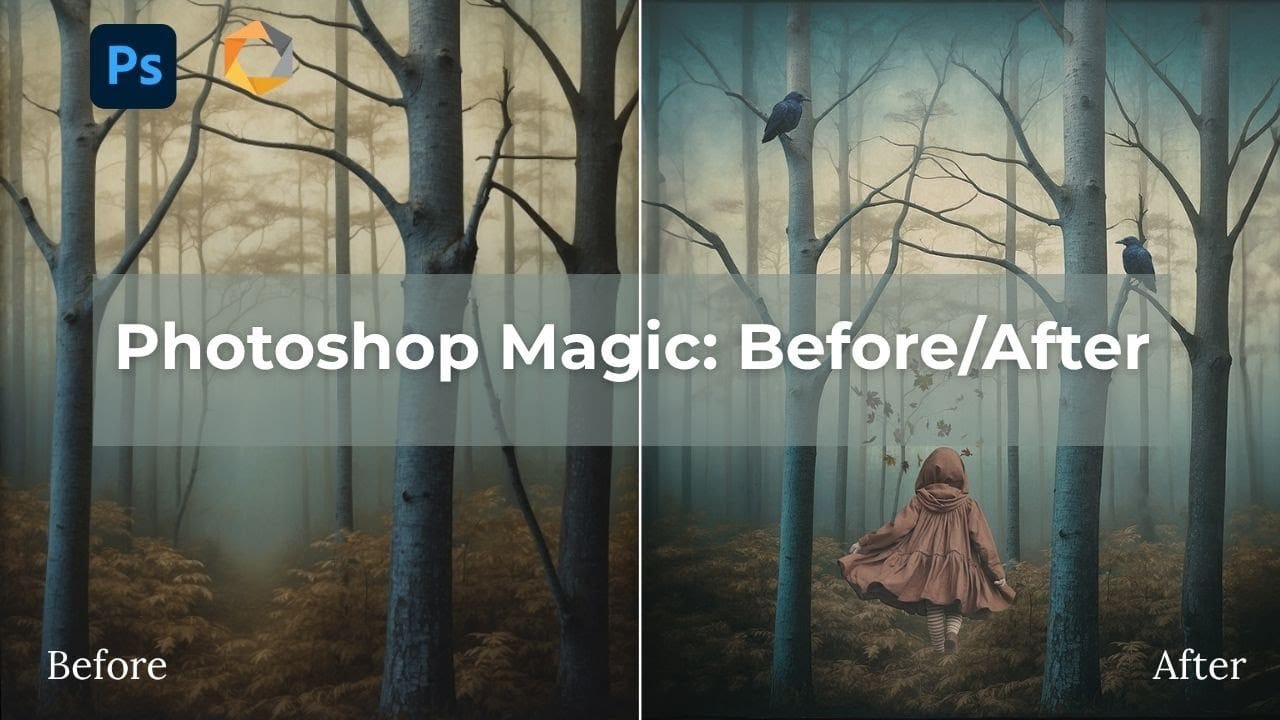
Fantasy imagery comes alive when artificial intelligence meets traditional photo manipulation techniques. AI-generated backgrounds provide the perfect foundation for creating moody, atmospheric scenes that would be difficult or impossible to capture with a camera alone. This approach combines the creative potential of AI image generation with Photoshop's precise editing tools to craft compelling visual narratives. The result is a seamless blend of imagination and technical skill that transforms
Discover Hidden Photoshop AI Tools to Transform Your Photos
Transform ordinary photographs into captivating works of art using advanced Generative AI features in Photoshop. This guide reveals a powerful, often overlooked technique to unlock incredible artistic potential from your images. Discover how to apply stunning styles, from delicate watercolors to bold Art Deco and futuristic visions, by mastering a subtle yet impactful control within Photoshop's AI capabilities. Watch the Video Understanding Generative AI's Creative Control Generative AI to
Create Dream-Like Images in Photoshop
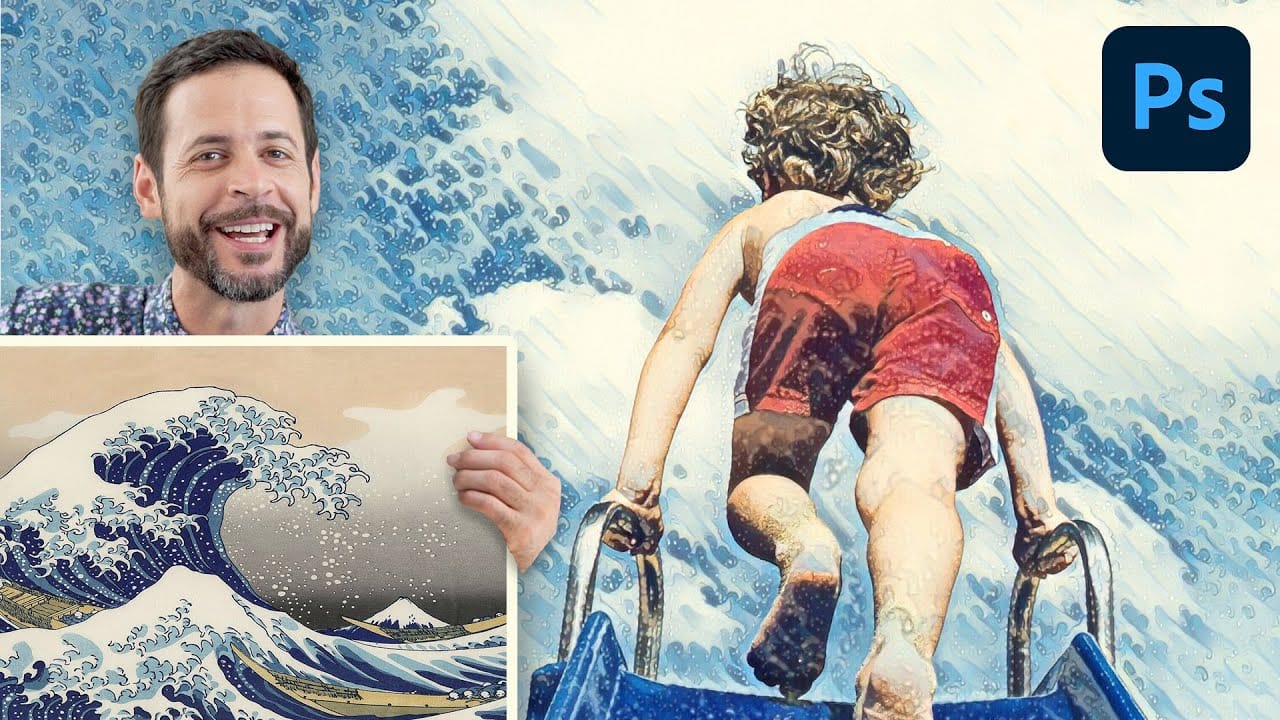
Transform ordinary photographs into artistic masterpieces using artificial intelligence-powered neural filters. This technique automatically applies painting styles from classic artworks to your images, creating effects that range from Van Gogh-inspired oil paintings to abstract wave patterns. The style transfer process works entirely within the application, requiring just a few clicks to achieve results that would traditionally take hours of manual work. Watch the Video Practical Tips Mas
Photoshop Generative Expand and Composite Techniques Using AI-Generated Images
AI-generated imagery opens up endless creative possibilities, but the real magic happens when you know how to refine and enhance these digital creations. Raw AI images often need compositional adjustments, element removal, and seamless blending to reach their full potential. This tutorial demonstrates practical techniques for extending canvas space, removing backgrounds, and creating cohesive composites using Photoshop's modern tools. The workflow combines traditional compositing skills with AI
10 Ways AI Completely Transformed My Photoshop Techniques
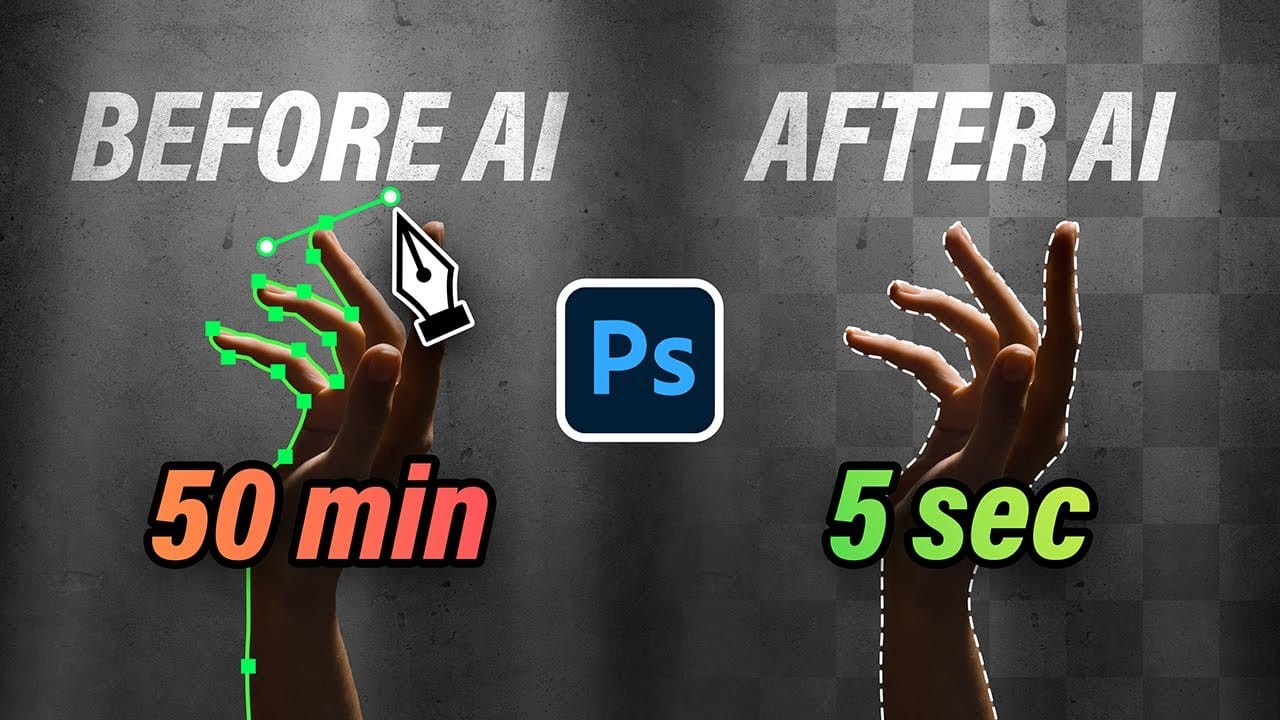
Repetitive tasks like making complex selections, removing unwanted objects, and cleaning up blemishes can consume hours of an editor's time. While traditional Photoshop methods offer precise control, they are often slow and require significant technical skill for what should be simple fixes. This guide demonstrates how to integrate modern AI features into your daily workflow. You will learn practical techniques for everything from one-click selections and generative fills to automated retouchin
Using AI to Create Seamless Patterns For Photoshop
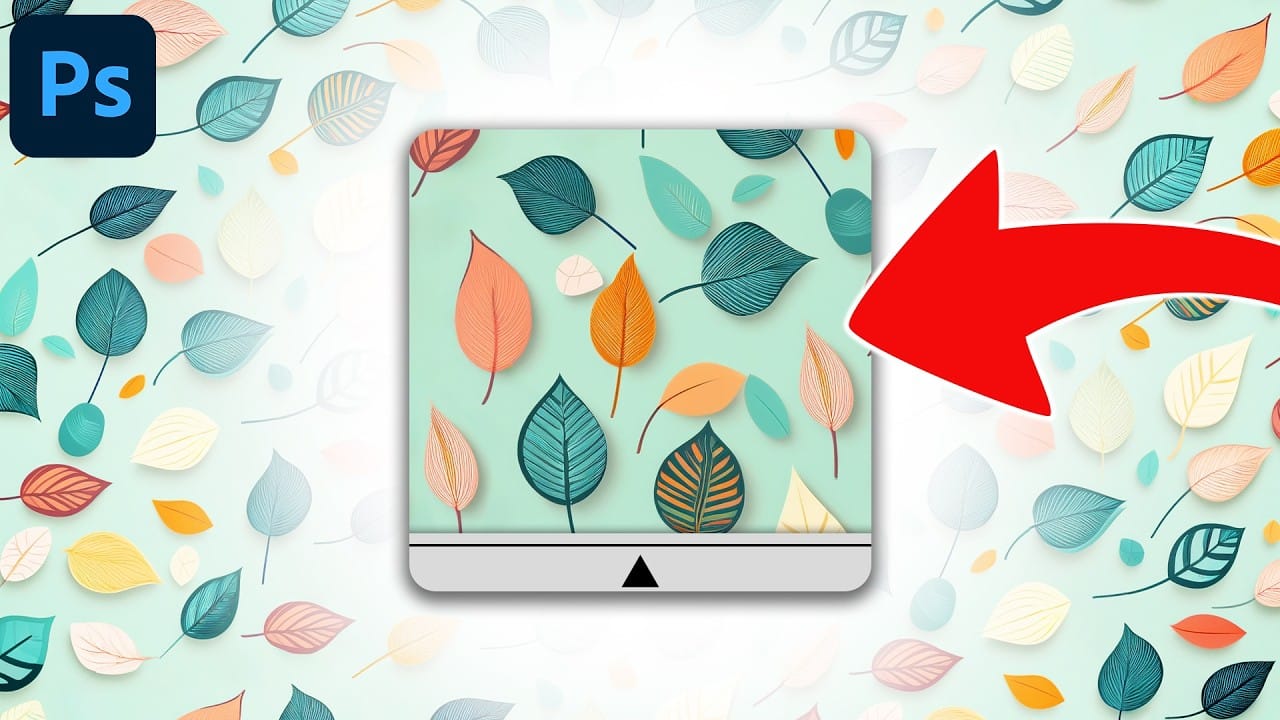
Creating beautiful, endless patterns for your design projects just got easier with the power of artificial intelligence. This tutorial explores an efficient workflow to generate intricate designs and transform them into perfectly tiling patterns. Discover how to leverage AI tools to craft unique starting points, then refine them within Photoshop to achieve professional, seamless results. This process offers a creative boost for backgrounds, textiles, and other visual assets. Watch the Full Tu
How to Use Photoshop's New AI-Powered Actions Panel
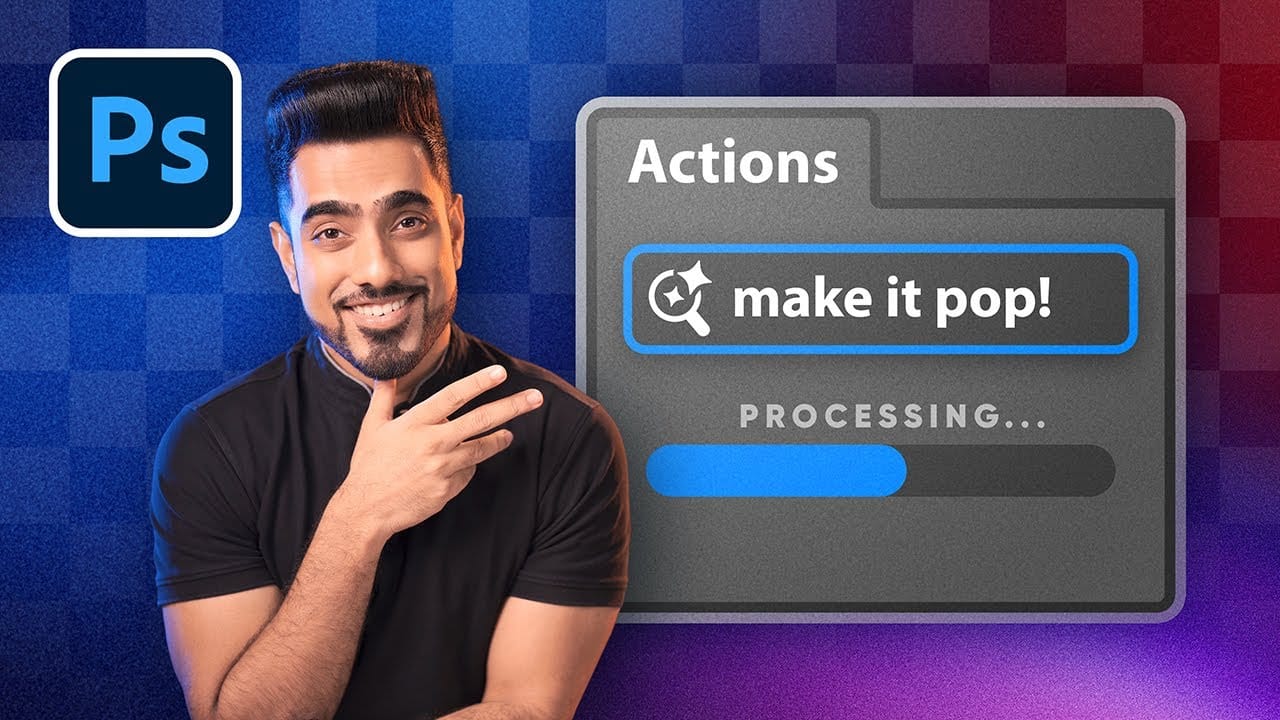
Photoshop's actions just became significantly smarter with AI integration. The new Actions panel understands natural language searches, automatically suggests relevant effects based on your image content, and provides live previews before you commit to changes. This revolutionary update transforms how designers work with automated processes. Instead of browsing through countless preset names, you can simply type "make it pop" or "remove haze" and watch AI deliver exactly what you need. Watch
Photo Restoration: Combining AI with Photoshop for Optimal Results
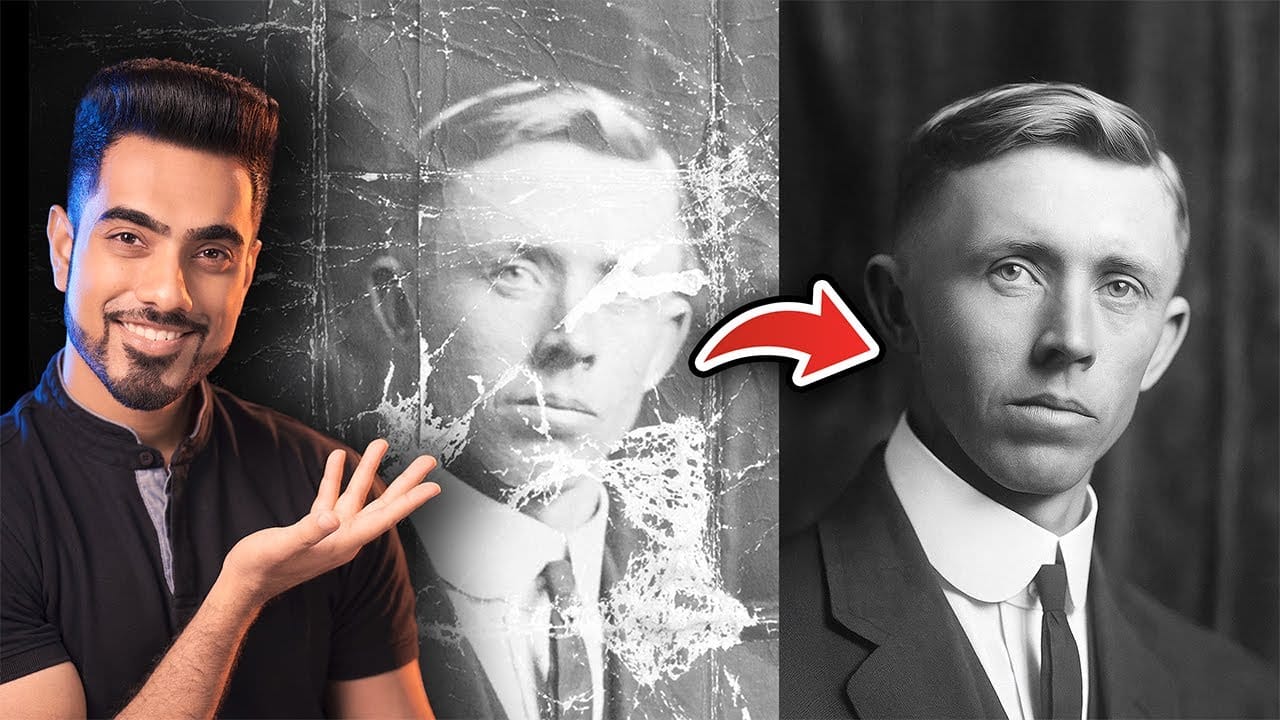
Restoring old, damaged photographs can be a challenging endeavor. While many AI-powered tools promise to breathe new life into vintage images, they often fall short, either over-sharpening details, neglecting certain areas, or, most critically, altering the original likeness of individuals. This often leads to frustrating and uncanny results that strip the photos of their authentic charm. This tutorial unveils a comprehensive workflow that marries the efficiency of AI-driven enhancement with th
New Photoshop AI Features – Smarter, Faster, and More Efficient Tools!
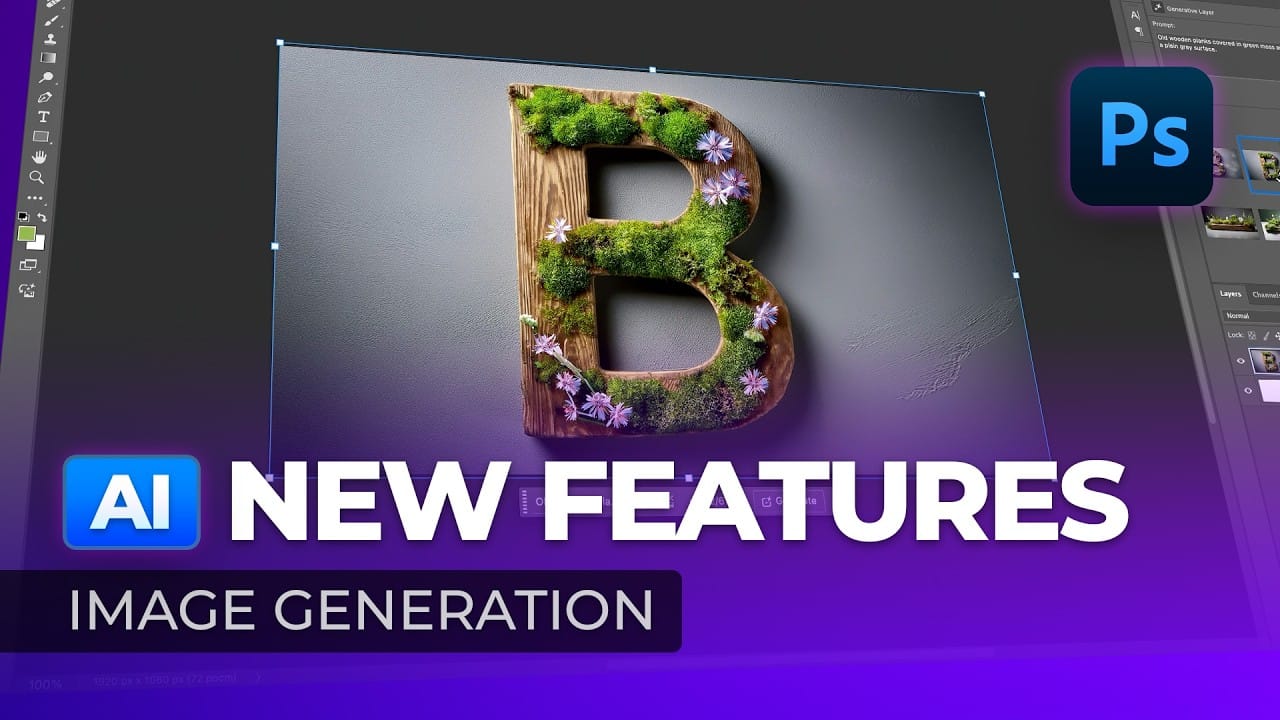
Editing detailed selections, adjusting colors, and removing backgrounds in Photoshop can be tedious, especially when working with complex edges like hair or challenging objects. Manual work often stalls creative flow and makes it tough to achieve clean, professional results on tight deadlines. This article introduces essential, time-saving features in the latest Photoshop update—including advanced AI-powered selection, color, and removal tools. Learn how these updates streamline everyday editin
Cutting Out Complex AI Images Using Channel Masking in Photoshop
AI-generated images often contain intricate details that challenge standard background removal tools. When automatic selection methods fail to capture complex edges and fine details, manual techniques become essential. This technique demonstrates how to use channel masking to create precise selections that preserve every detail of your AI artwork. Watch the Tutorial Essential Tips for Channel Masking * Select the channel with the highest contrast between your subject and background before

Get tutorials & freebies delivered to you.

Subscribe to the Photoshop Roadmap newsletter, a weekly roundup of new tutorials, insights and quality downloads, trusted by 6500+ readers.

You might also like

How to Use Color Average for Color Toning in Photoshop

Color average creates a unified color tone by analyzing all the colors in your image and calculating their mathematical average. This technique adds depth and cohesion to photos, composites, and AI-generated images by applying a subtle color wash that ties all elements together. The method works particularly well for composites...

How to Remove Complex Background Elements Using AI in Photoshop

Removing complex background elements like fencing or wire mesh has traditionally been one of the most time-consuming tasks in photo editing. New AI-powered tools in Photoshop can now eliminate these distracting elements while preserving fine details in your subject. This tutorial demonstrates two practical workflows: one using the latest Firefly...

How to Use Photoshop's Auto Layer Rename Feature

Messy layer names like "Layer 52 copy 4" and "Untitled 5" clutter your workspace and slow down complex projects. Photoshop's new auto-rename feature uses AI to automatically identify and name layers based on their content, from "Woman in yellow shirt" to "...

New Generative Fill Features in Photoshop Beta: Reference Images and Credit Tracking

Photoshop Beta introduces significant improvements to Generative Fill that address the most requested features from users. The updated interface now displays your generative credit balance and usage, while the new reference image capability lets you add up to eight specific images to guide AI generation with precise visual examples. These...

Essential Photoshop Tools for Beginners: Brush, Crop, and Move Tool Tutorial

Learning Photoshop tools feels overwhelming when you don't know where to start. This tutorial focuses on three essential tools that form the foundation of most Photoshop work: the brush tool for painting and retouching, the crop tool for resizing and straightening images, and the move tool for positioning...

How to Add Custom Textures to Photos in Photoshop

Adding textures to photographs can transform ordinary images into compelling artistic compositions. This technique uses multiple texture layers combined with strategic blending modes and color adjustments to create depth and visual interest. The process involves layering different texture types—color overlays, surface patterns, and lighting effects—then using masking techniques...

You’ve successfully subscribed to Photoshop Roadmap
Welcome back! You’ve successfully signed in.
Great! You’ve successfully signed up.
Success! Your email is updated.
Your link has expired
Success! Check your email for magic link to sign-in.