How to Transform Photos into Watercolor Paintings in Photoshop

How to Transform Photos into Watercolor Paintings in Photoshop

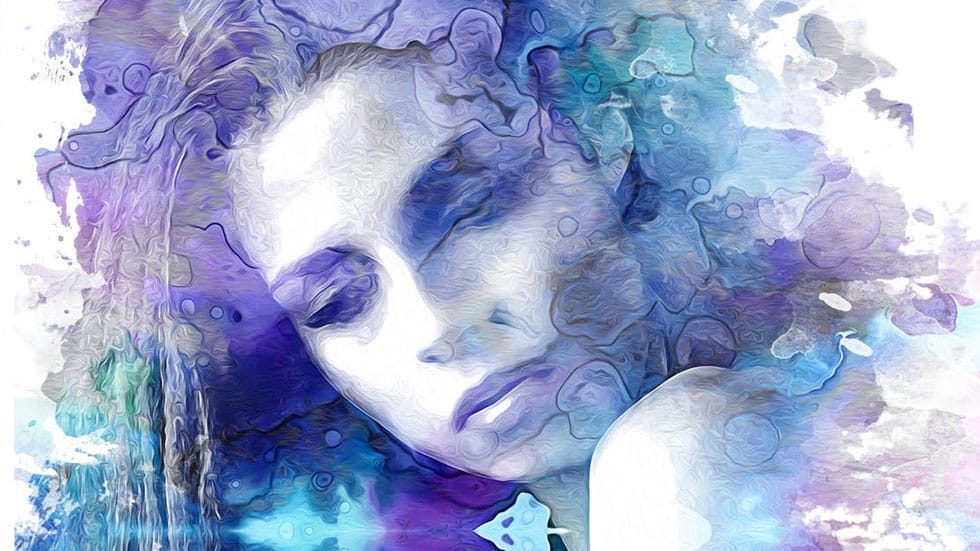
Watercolor paintings capture light and emotion in ways that photography alone cannot achieve. The flowing pigments, soft edges, and organic textures create an artistic interpretation that transforms mundane subjects into compelling visual stories.

This tutorial demonstrates how to recreate these traditional watercolor qualities digitally, combining Photoshop filters with custom brushwork to achieve authentic-looking results that maintain the spontaneous, hand-painted feel of real watercolor art.

Watch the Tutorial

Video by Photoshop Arthouse. Any links or downloads mentioned by the creator are available only on YouTube

Understanding Digital Watercolor Techniques

Traditional watercolor painting relies on the unpredictable interaction between water, pigment, and paper texture. Artists work with controlled accidents, allowing colors to bleed and blend naturally. Digital recreation of this medium requires mimicking these organic processes through strategic layer combinations and texture applications.

The most effective digital watercolor effects combine multiple approaches: filter-based edge simplification reduces photographic detail to painterly shapes, while texture overlays simulate the tooth of watercolor paper. Smart Objects preserve flexibility, allowing artists to experiment with different blend modes and opacity settings without destroying the original image data.

Professional digital artists often emphasize the importance of restraint in watercolor effects. Real watercolor paintings show areas of varying transparency, with some regions remaining completely untouched by paint. This selective application creates visual breathing room and prevents the heavy, over-processed look that characterizes amateur digital artwork.

Practical Tips for Photoshop Watercolor Effects

  • Set your image resolution to 72 PPI before applying filters to match the tutorial settings, or adjust filter values proportionally for different resolutions
  • Convert layers to Smart Objects before adding effects to maintain non-destructive editing and easy adjustments
  • Use watercolor paper textures at 25% scale or lower to avoid overwhelming the image with texture details
  • Apply brush strokes with reduced opacity (60-70%) and flow (50-60%) to build up color gradually like real watercolor
  • Leave some areas completely transparent or lightly painted to create authentic watercolor breathing space

Explore more techniques for creating artistic photo effects in Photoshop.
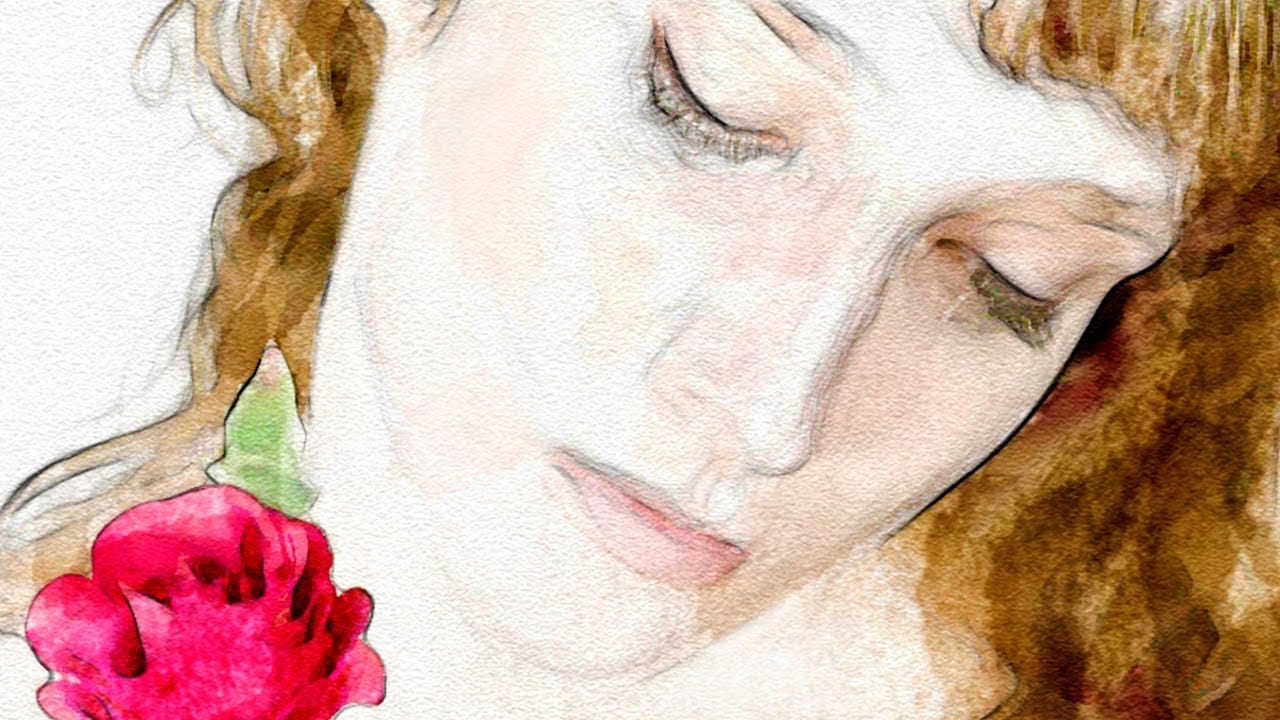
Add a beautiful watercolor effect to your photos in Photoshop
Digital art offers versatile ways to reinterpret photography. One popular technique involves transforming ordinary photographs into painterly artworks, such as watercolor portraits. This tutorial demonstrates a method for achieving a beautiful watercolor effect in Photoshop, emphasizing the use of custom brush strokes to introduce unique artistic nuances. Viewers will learn how to prepare images, apply specific filters, and utilize various brushes to mimic the fluidity and texture of traditiona
Beautiful watercolor portrait effect in Photoshop
This video explores the artistic technique of adding watercolor textures to photographs. Learn how to seamlessly overlay a watercolor texture onto your image, creating a beautiful painterly effect. You'll discover methods for adjusting the texture's opacity and blending modes for a natural, watercolor-like finish. This tutorial is a great way to add a touch of artistic flair to your photography projects. Watch tutorial
Easy Watercolor Painting Effects in Photoshop
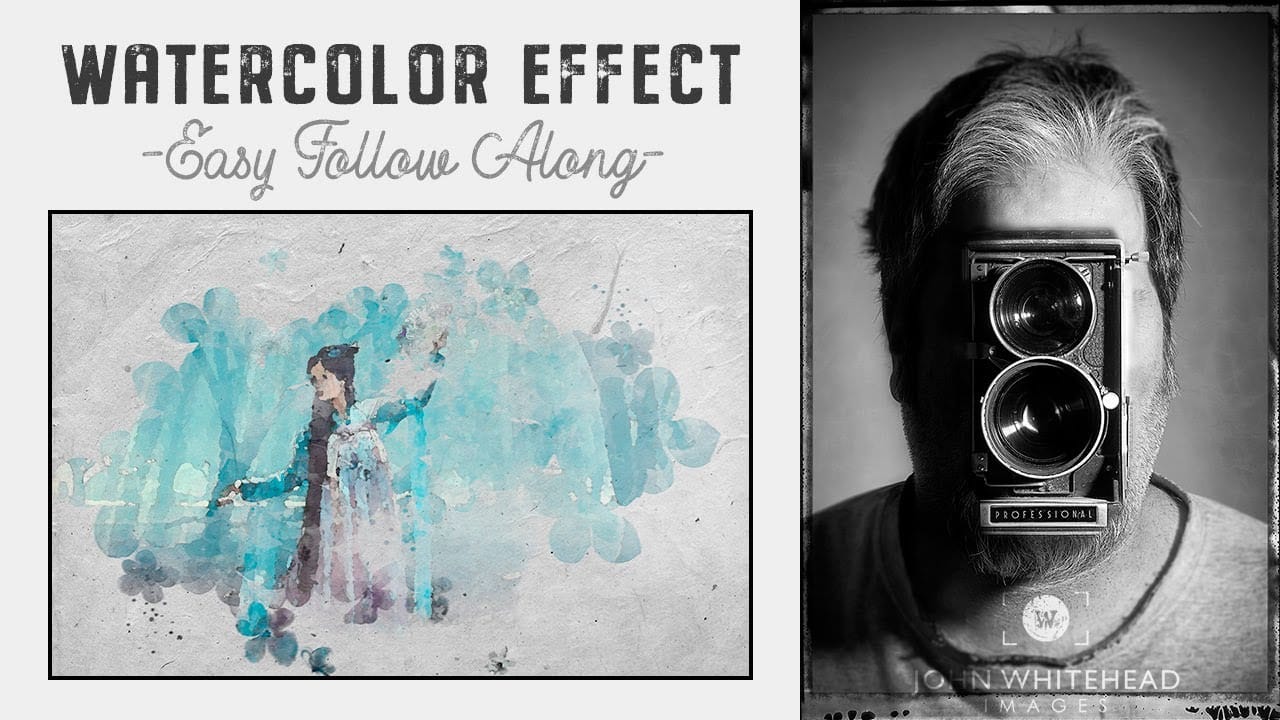
Creating watercolor painting effects in Photoshop is easy and fun with this step-by-step tutorial by John Whitehead. In this guide, you'll learn how to transform any image into a beautiful watercolor painting using Adobe Photoshop. John walks you through the entire process, from selecting the right brushes to applying the effects. If you don't already have watercolor brushes, don't worry! John also shows you how to create your own brushes from watercolor images, allowing you to customize and en
Learn How to Create a Watercolor Photo Effect in Photoshop
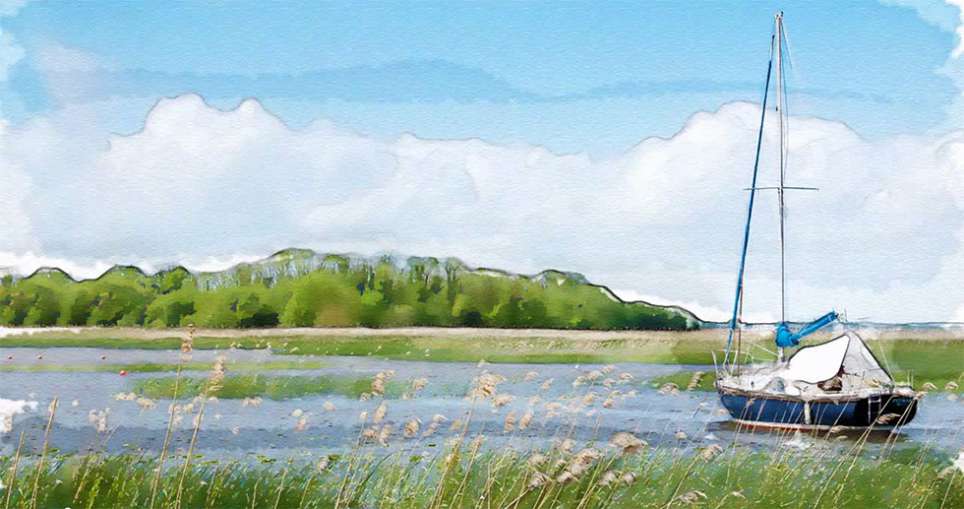
Transforming a photograph into a convincing watercolor painting opens up a world of creative possibilities. This artistic effect adds depth and emotion, turning ordinary images into unique pieces of art. The result captures the delicate washes and textures of traditional watercolor, bringing a hand-painted feel to your digital art. This tutorial guides you through creating a hand-painted effect in Photoshop, going beyond basic filters. By using a combination of smart blurs, glowing edges, and c

Get tutorials & freebies delivered to you.

Subscribe to the Photoshop Roadmap newsletter, a weekly roundup of new tutorials, insights and quality downloads, trusted by 6500+ readers.

You might also like

How to Use Color Average for Color Toning in Photoshop

Color average creates a unified color tone by analyzing all the colors in your image and calculating their mathematical average. This technique adds depth and cohesion to photos, composites, and AI-generated images by applying a subtle color wash that ties all elements together. The method works particularly well for composites...

How to Remove Complex Background Elements Using AI in Photoshop

Removing complex background elements like fencing or wire mesh has traditionally been one of the most time-consuming tasks in photo editing. New AI-powered tools in Photoshop can now eliminate these distracting elements while preserving fine details in your subject. This tutorial demonstrates two practical workflows: one using the latest Firefly...

How to Use Photoshop's Auto Layer Rename Feature

Messy layer names like "Layer 52 copy 4" and "Untitled 5" clutter your workspace and slow down complex projects. Photoshop's new auto-rename feature uses AI to automatically identify and name layers based on their content, from "Woman in yellow shirt" to "...

New Generative Fill Features in Photoshop Beta: Reference Images and Credit Tracking

Photoshop Beta introduces significant improvements to Generative Fill that address the most requested features from users. The updated interface now displays your generative credit balance and usage, while the new reference image capability lets you add up to eight specific images to guide AI generation with precise visual examples. These...

Essential Photoshop Tools for Beginners: Brush, Crop, and Move Tool Tutorial

Learning Photoshop tools feels overwhelming when you don't know where to start. This tutorial focuses on three essential tools that form the foundation of most Photoshop work: the brush tool for painting and retouching, the crop tool for resizing and straightening images, and the move tool for positioning...

How to Add Custom Textures to Photos in Photoshop

Adding textures to photographs can transform ordinary images into compelling artistic compositions. This technique uses multiple texture layers combined with strategic blending modes and color adjustments to create depth and visual interest. The process involves layering different texture types—color overlays, surface patterns, and lighting effects—then using masking techniques...

You’ve successfully subscribed to Photoshop Roadmap
Welcome back! You’ve successfully signed in.
Great! You’ve successfully signed up.
Success! Your email is updated.
Your link has expired
Success! Check your email for magic link to sign-in.