How to Trim and Shape Eyebrows in Photoshop

How to Trim and Shape Eyebrows in Photoshop

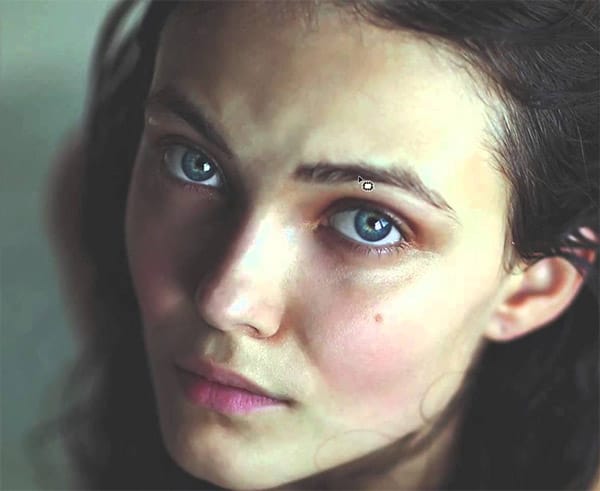
Eyebrow retouching requires precision and the right technique to maintain natural-looking results. Whether you're cleaning up stray hairs, reshaping uneven brows, or reconstructing missing sections, the key lies in understanding how to blend seamlessly with existing hair patterns and skin texture.

This comprehensive approach covers three distinct scenarios: minor cleanup work, extensive reshaping, and eyebrow reconstruction using samples from other areas of the face.

Watch the Video

Video by PiXimperfect. Any links or downloads mentioned by the creator are available only on YouTube

Practical Tips

Master these essential techniques for professional eyebrow retouching that maintains natural appearance:

  • Make selections perpendicular to eyebrow direction for the most natural hair flow and easier blending
  • Use Quick Mask mode (Q key) with gaussian blur to preview and adjust selection softness before copying areas
  • Rotate your canvas with the R key to make drawing easier when working at difficult angles
  • Apply the "island technique" with clone stamp tool - isolate individual hairs before removing them with healing tools
  • Clean skin areas of blemishes and artifacts before copying sections to avoid transferring imperfections

Explore these portrait retouching tutorials to enhance your facial feature editing skills:
Create and Shape Eyebrows in Photoshop
Well-shaped eyebrows dramatically transform facial appearance, yet many portraits suffer from sparse or poorly defined brows. This technique shows how to create custom brushes that paint individual hairs, producing natural-looking eyebrows that enhance any portrait. The method builds a reusable brush system that works for both eyebrows and eyelashes, making it valuable for consistent portrait retouching work. Watch the Video Practical Tips Master these essential techniques for creating rea
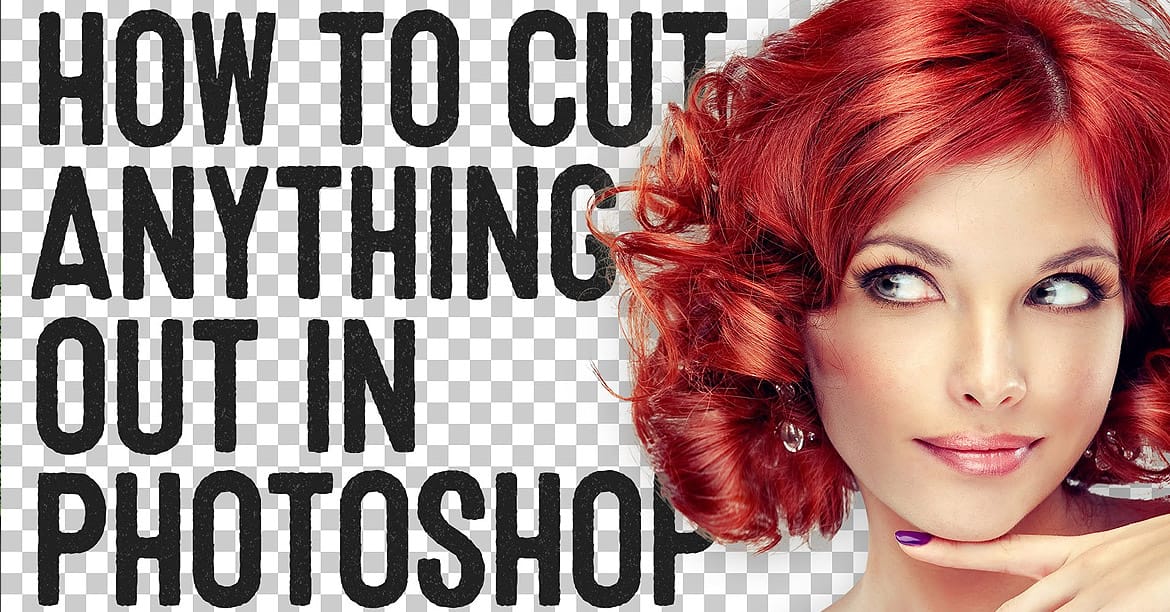
Learn how to cut things out like a pro in Photoshop
If you're using Photoshop, chances are you're going to have to clip a subject from its background and work your editing magic. As a newbie, you may have been using the eraser tool to death, making memes that you hope would impress your Facebook friends and go viral. Well, that's fine. But, ever wondered how to retouch a bad hair cut or trim a bonsai plant for a professional retouching job? This video is your answer. Watch, practice, and repeat. In no time, you'd be editing fur. Yes, fur. And wh
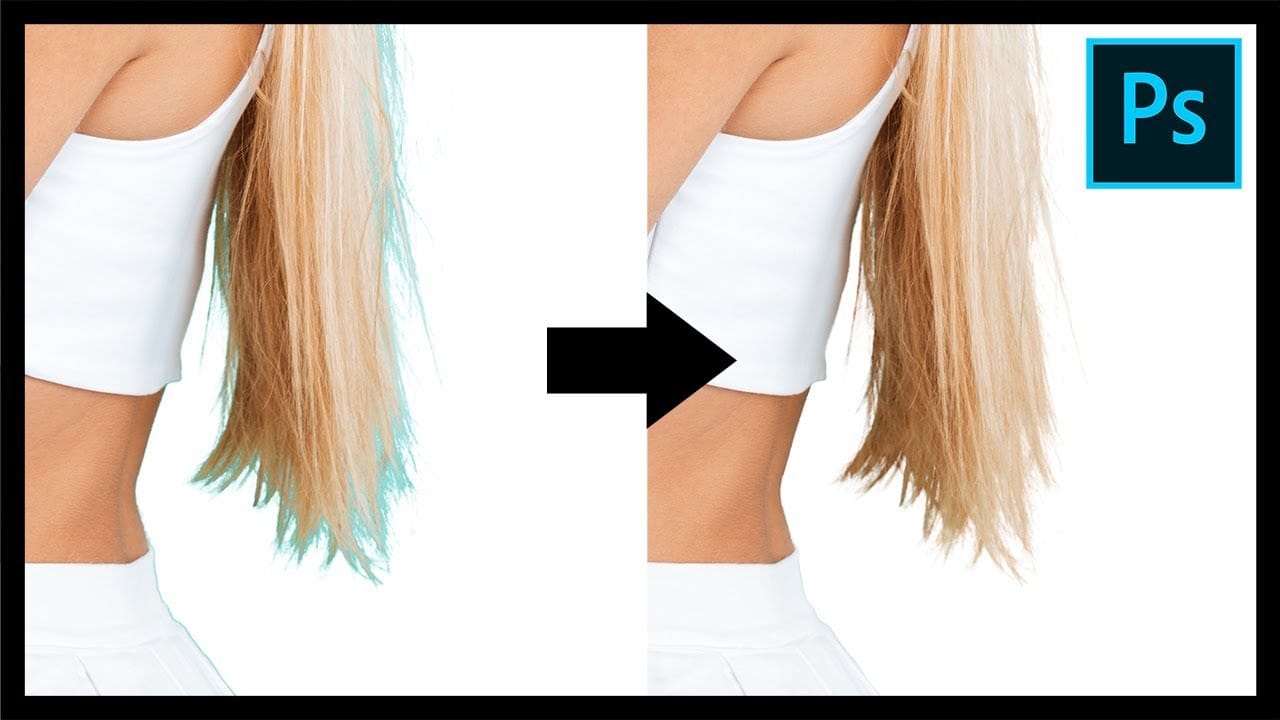
Remove Fringes After Cutting Out Hair in Photoshop
This tutorial by PiXimperfect addresses the crucial challenge of removing edge fringes that frequently arise during hair masking in Photoshop, a common issue that can compromise the integrity of composite images. For design professionals, achieving a flawless finish is paramount, and understanding how to eliminate these distracting color edges is essential for creating high-quality visuals. In this guide, the focus is on utilizing Clipping Masks to enhance hair selection, allowing for a more pr
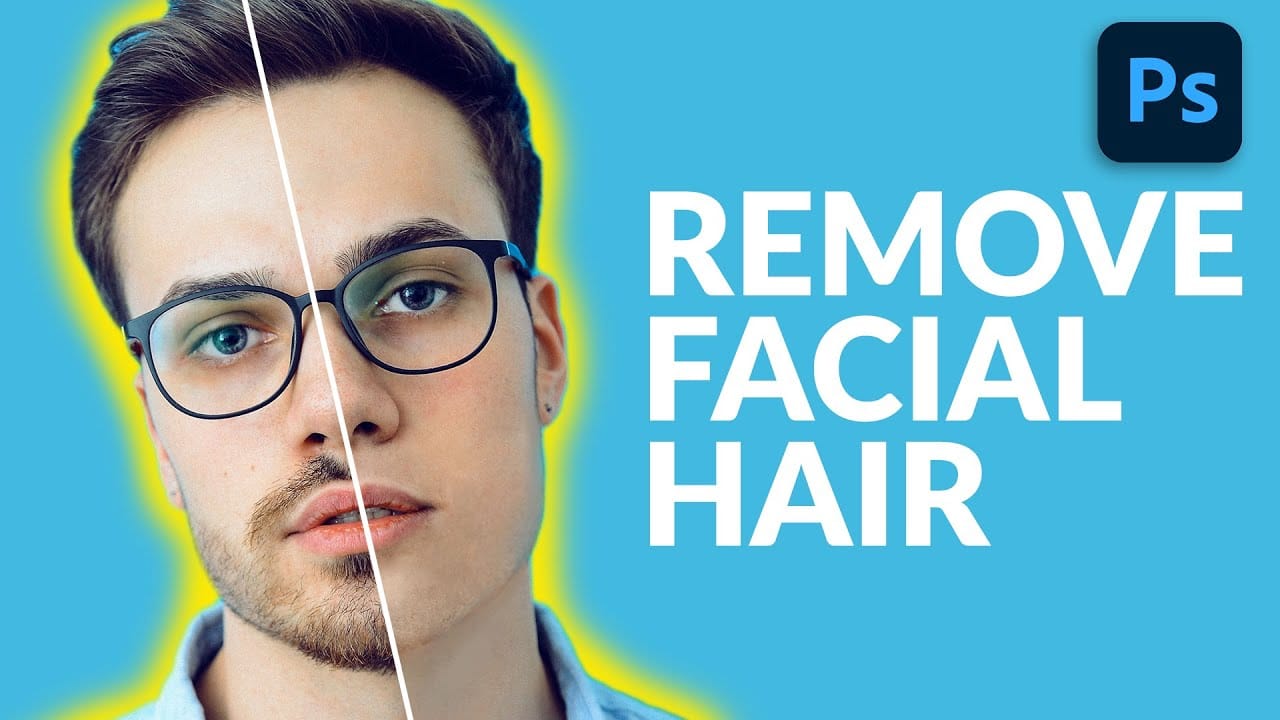
How to Remove Facial Hair in Photoshop
Removing facial hair from portraits requires more than just automatic healing tools. When dealing with beards, mustaches, or stubble, you need to essentially repaint the person's face while maintaining realistic skin texture and natural-looking results. This technique combines manual brush painting with texture borrowing from reference photos to create seamless facial hair removal that looks convincing at any zoom level. Watch the Video Practical Tips Master these essential techniques for
Remove bags and blemishes from portraits using the patch tool in Photoshop
Under eye bags and skin imperfections can detract from otherwise stunning portraits. The patch tool combined with the fade command offers a quick, effective solution that preserves natural skin texture while eliminating unwanted blemishes. This technique works by selecting problem areas and blending them with cleaner sections of nearby skin, creating seamless results without complex retouching skills. Watch the Video Practical Tips Master these essential techniques for natural-looking skin
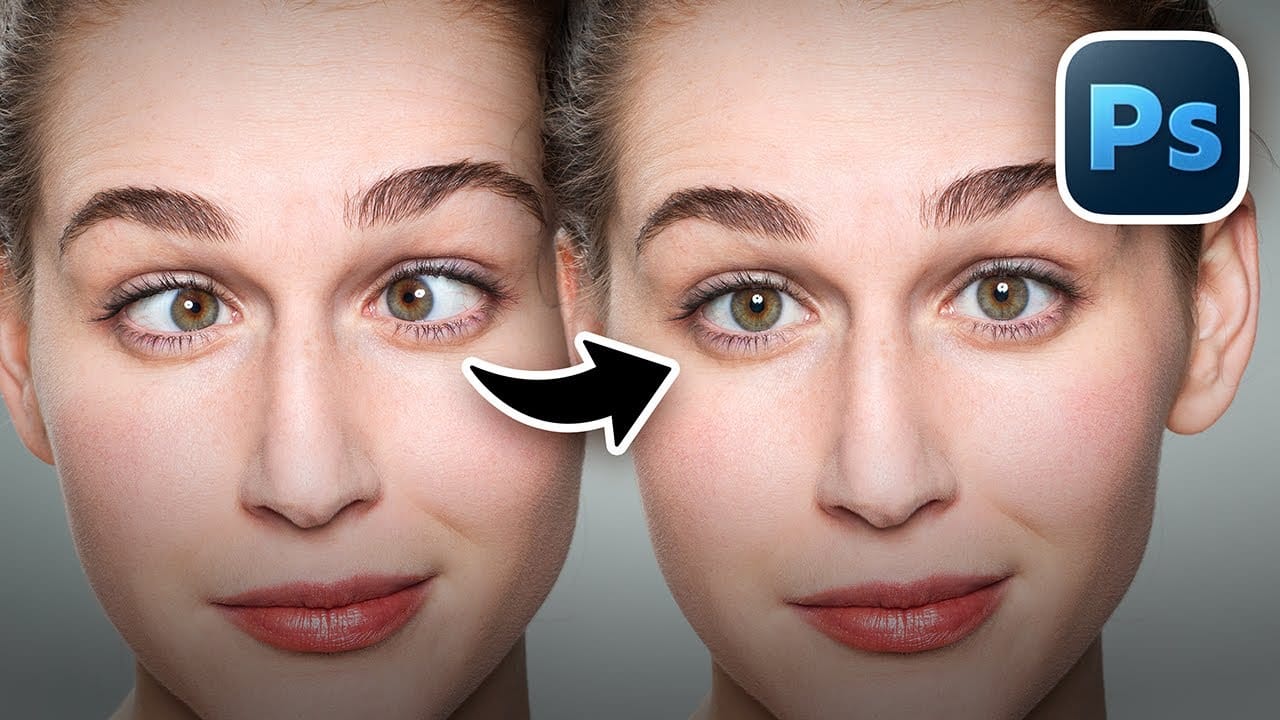
How to Fix Crossed Eyes and Lazy Eyes in Photoshop
Portrait photographers and retouchers often encounter images where subjects have crossed or lazy eyes, which can distract from an otherwise great shot. Whether caused by timing, lighting, or natural eye alignment issues, these problems can be corrected effectively without compromising image quality. This tutorial demonstrates two practical approaches: using AI-powered generative fill for quick results, and a free alternative method that works with any version of the software. Watch the Video
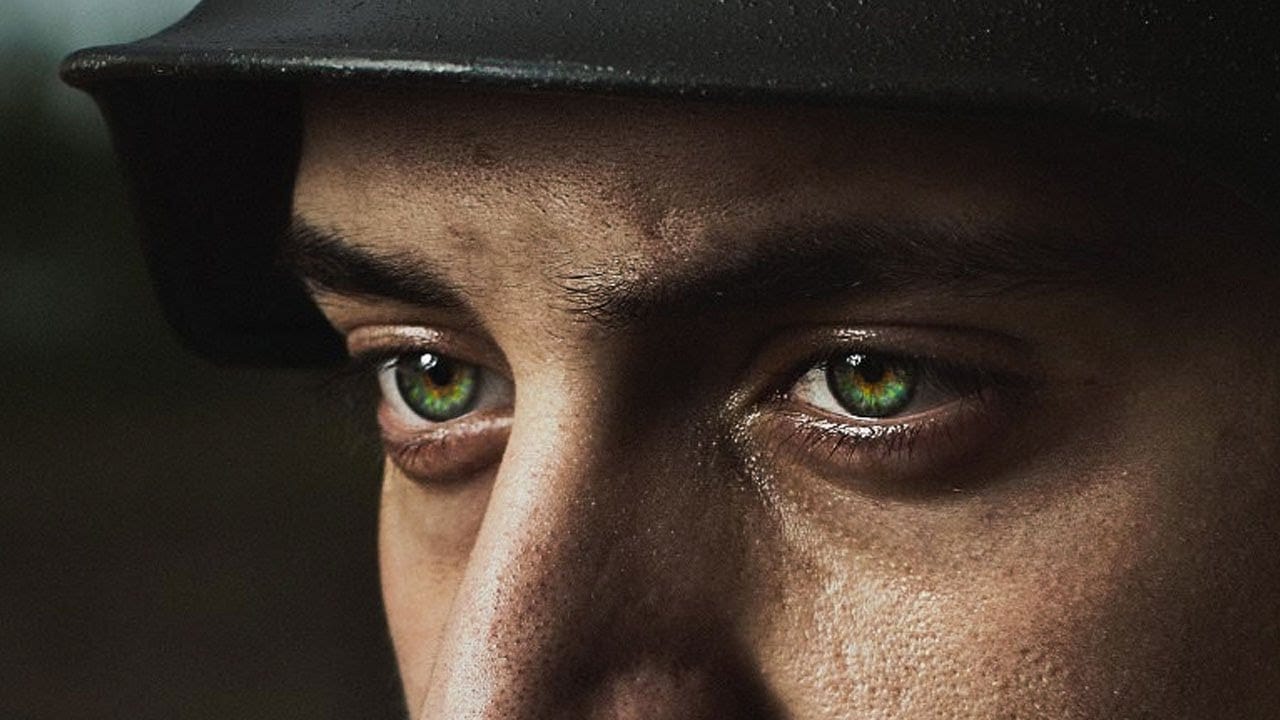
How to Color, Brighten and Sharpen Eyes in Photoshop
Eyes are often the focal point of portrait photography, but they don't always capture attention in their natural state. This comprehensive tutorial demonstrates how to transform ordinary eyes into captivating features through strategic color enhancement, precise lighting adjustments, and professional sharpening techniques. The method focuses on enhancing existing eye colors rather than completely changing them, creating natural-looking results that draw viewers into the portrait. You'll learn t
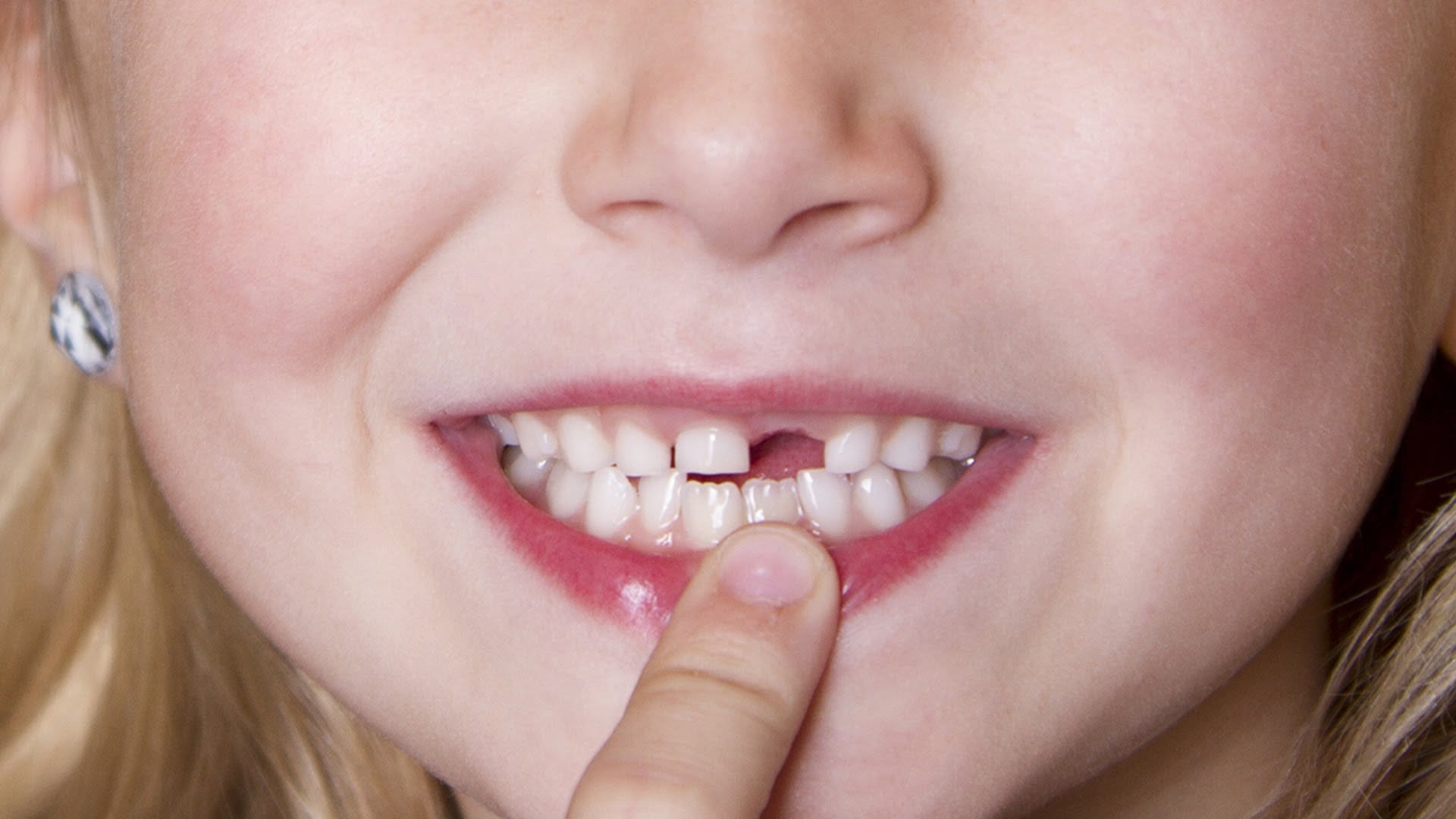
How to Fix Missing Teeth in Photoshop
Have you ever needed to fix missing teeth in a photo? It's a common issue, but luckily, Photoshop makes it easy to address. In this quick tutorial, you'll learn a simple technique to make those gaps disappear. The process is straightforward. First, use the Stamp Tool to copy the surrounding tooth enamel and fill in the missing area. Then, refine the edges using the Healing Brush to blend it seamlessly. Finally, add some subtle shading to make the repair look natural. The whole thing can be don
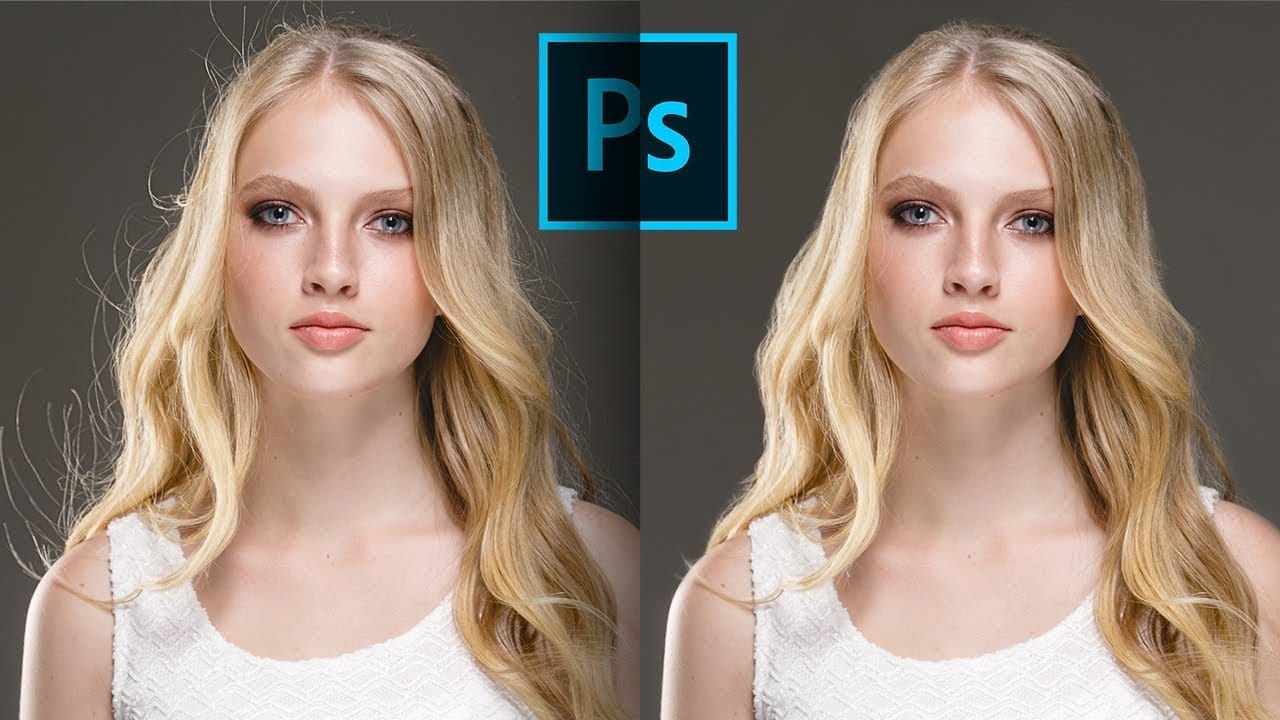
3 steps to remove stray flyaway hair fast in Photoshop
Removing stray flyaway hair in Photoshop can be a quick and efficient process. This guide offers a straightforward workflow that allows you to tackle multiple flyaways at once, saving you time and effort. The tutorial emphasizes the use of masks, which enables you to manage the unwanted hairs without the tedious job of cloning out each one individually. You will find that by following these three simple steps, you can achieve a clean and polished look for your images. Whether for portrait phot
Removing Red Eye and Whitening Teeth
This video tutorial by Bryan O'Neil Hughes, for Adobe Photoshop Playbook series, covers how to fix red eye and whiten teeth in Photoshop. The first part focuses on the red eye correction tool, which is straightforward: simply zoom in on the eye and draw a box around the red area, and Photoshop will automatically correct it. The second part addresses teeth whitening, which is a bit more complex. After zooming in on the teeth, you use the Dodge tool set to mid-tones with low exposure to lighten

Get tutorials & freebies delivered to you.

Subscribe to the Photoshop Roadmap newsletter, a weekly roundup of new tutorials, insights and quality downloads, trusted by 6500+ readers.

You might also like

How to Create Digital Collages Using Layers and Blend Modes in Photoshop

Digital collages combine multiple images through strategic layering and blending techniques to create compelling visual stories. This beginner-friendly approach demonstrates how to build complex compositions by layering textures, portraits, and objects while using blend modes to seamlessly integrate each element. The process focuses on practical workflow techniques including smart object...

Building Complex Composites Using Generative Fill and Layer Blending

Complex surreal composites require more than just combining random images. The key to professional results lies in systematic layering, consistent masking techniques, and building a reusable library of generated elements. This approach transforms scattered AI-generated content into cohesive artistic visions. The tutorial demonstrates how to deconstruct an existing composite to...

How to Add Any Face to Mount Rushmore Using Photoshop and AI

Adding faces to Mount Rushmore creates striking digital art that combines portrait photography with AI-powered stone carving effects. This technique uses generative AI to transform any portrait into a realistic granite sculpture that matches the lighting, texture, and monumental style of the famous presidential memorial. The process combines traditional selection...

Creating Floral Wreath Overlays in Photoshop

Floral overlays transform ordinary portraits into magical compositions perfect for pet photography, baby portraits, and creative projects. This technique shows you how to build custom floral wreaths using AI-generated base elements and real floral PNG files, creating frames that can hold any subject in the center. The process combines symmetry...

Concept Development and Mood Boarding with Firefly Boards for Fashion Design

Fashion design concept development traditionally requires gathering inspiration from multiple sources, creating mood boards, and iterating through ideas before presenting to clients. Firefly Boards streamlines this entire workflow into a single workspace where you can source inspiration, generate new variations through AI remixing, and organize final concepts into professional presentations....

How to Use Dynamic Text Shapes in Photoshop

The Dynamic Text tool introduced in 2025 was revolutionary for automatic text sizing and layout, but 2026 brings an exciting update that adds shape options to this powerful feature. You can now create circular text, arches, and bow configurations with the same intelligent resizing capabilities that made the original tool...

You’ve successfully subscribed to Photoshop Roadmap
Welcome back! You’ve successfully signed in.
Great! You’ve successfully signed up.
Success! Your email is updated.
Your link has expired
Success! Check your email for magic link to sign-in.