How to Use Reference Images with Generative Fill in Photoshop

How to Use Reference Images with Generative Fill in Photoshop

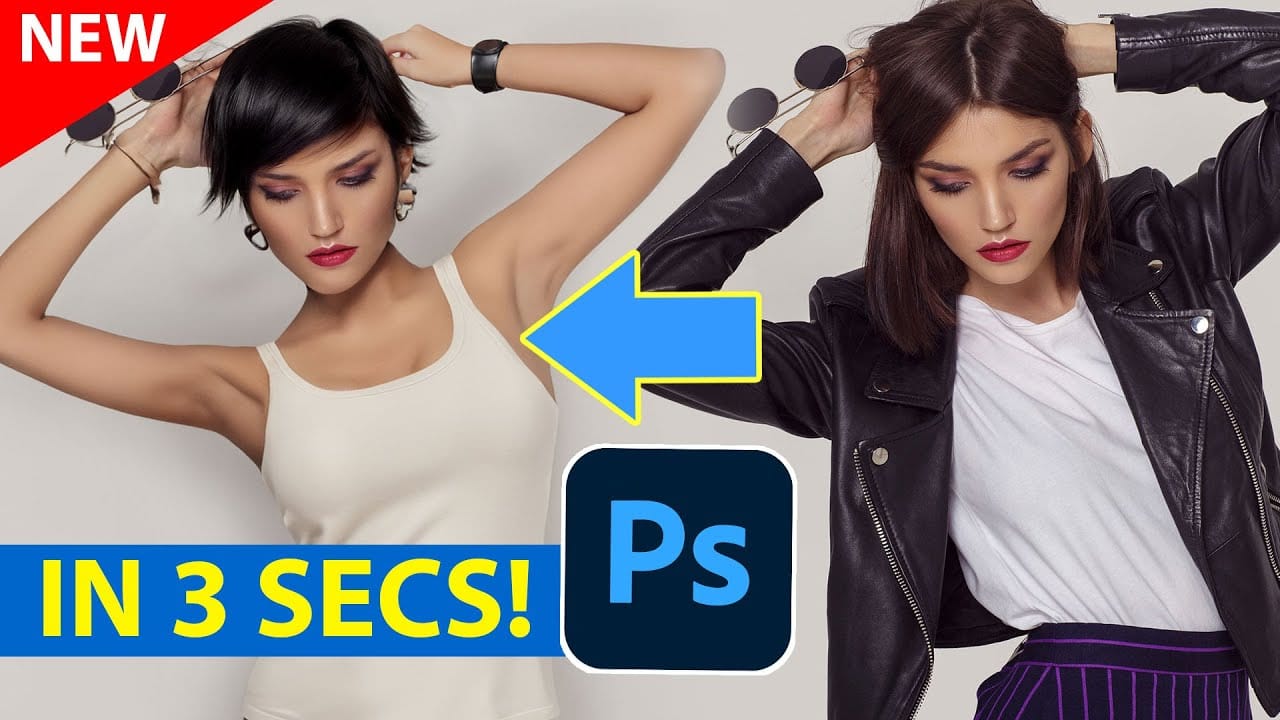
Reference images revolutionize how Generative Fill works, letting you guide AI with actual photos instead of text prompts. This feature enables precise clothing swaps, object replacements, and realistic additions by showing the AI exactly what you want rather than describing it.

The technique works with everything from custom t-shirts and branded merchandise to complex items like leather jackets, automatically handling wrapping, shadows, and perspective to create convincing results.

Watch the Video

Video by photoshopCAFE. Any links or downloads mentioned by the creator are available only on YouTube

Practical Tips

These essential techniques will help you get the best results when using reference images with Generative Fill:

  • Select the Firefly Fill and Expand model to access reference image functionality
  • Make selections larger than the target area to give AI room to generate sleeves, collars, and other extensions
  • Use "Swap" intent for replacing clothing items and "Place" intent for adding new objects to scenes
  • Choose "Object" mode to hide backgrounds from reference images when working with plain backgrounds
  • Combine traditional techniques with AI results, like copying coffee from existing cups when generation falls short

Explore more AI-powered editing techniques and advanced workflows:
How Generative Fill in Photoshop is Transforming Photo Editing
In the ever-evolving realm of photo editing, a game-changing feature has emerged that promises to revolutionize the way we approach image enhancement. Enter Generative Fill, an innovative tool introduced in the Photoshop Beta, and it's already making waves. Spearheaded by the renowned creative mind Aaron Nace from PHLEARN, this tool is poised to reshape the landscape of digital editing. Generative Fill isn't your typical editing tool that relies on traditional methods. Instead, it leverages the
How to Add Objects to Photos Using Photoshop's Generative Fill
Photoshop's Generative Fill transforms photo editing by letting you add realistic objects using simple text descriptions. This AI-powered feature creates seamless additions that match your image's lighting, perspective, and style. The process requires just a basic selection and a descriptive prompt to generate professional-looking results in seconds. Watch the Tutorial Essential Tips for Generative Fill Success * Make your selection slightly larger than the object you want to generate — t
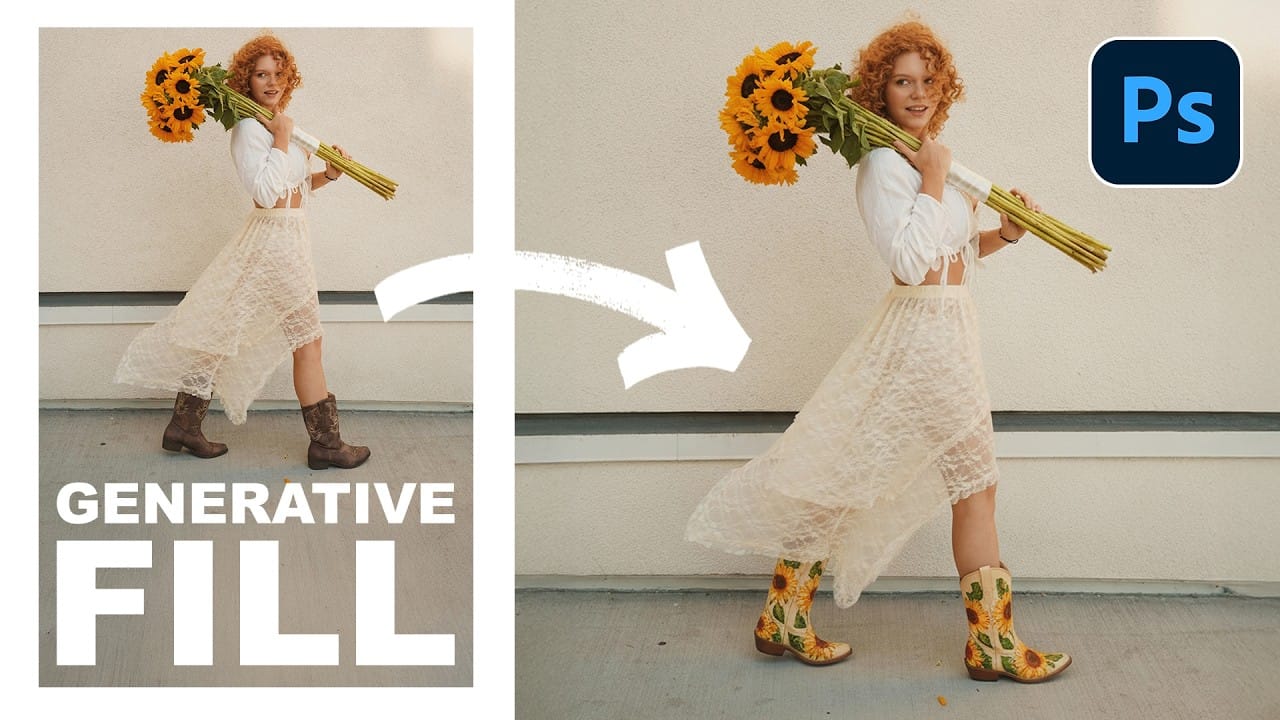
Essential Guide to Generative Fill: Remove, Add, and Replace Objects in Photos
Generative Fill has transformed how photographers handle object removal, additions, and replacements in their images. This comprehensive tutorial demonstrates four practical applications using real examples—from cleaning up unwanted graffiti to adding garden gnomes and creating custom sunflower boots. You'll learn to work with both Adobe's Firefly Image 3 and Google's Gemini 2.5 models, understanding when to use each approach for optimal results. Watch the Video Practical Tips Here are the
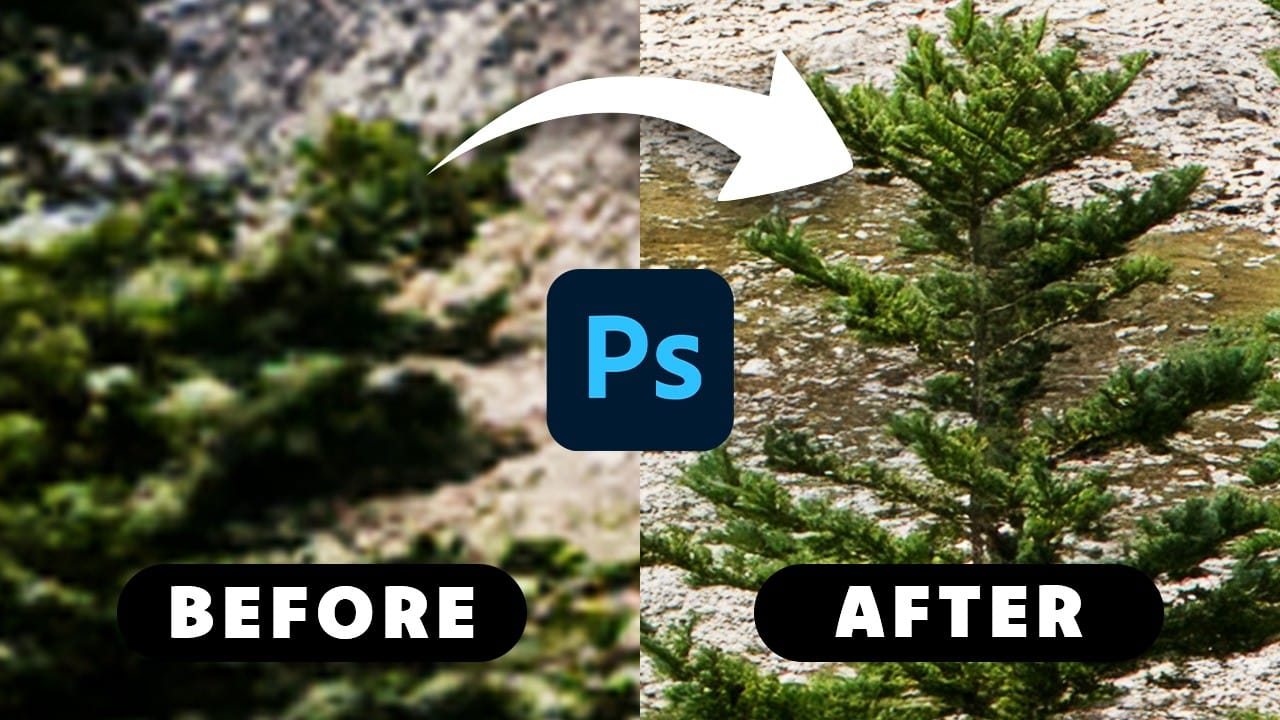
How to Get Higher Quality Results from Photoshop's Generative Fill Tool
Photoshop's Generative Fill creates impressive AI extensions, but the results often look blurry and pixelated when viewed at full size. This quality limitation makes many AI-generated areas unusable for printing or large displays. This technique shows how to work around the 1024x1024 pixel quality limit to create much sharper, more professional-looking generative fill results. Watch the Tutorial Essential Tips for Better Generative Fill Quality * Keep selections under 1024x1024 pixels — G
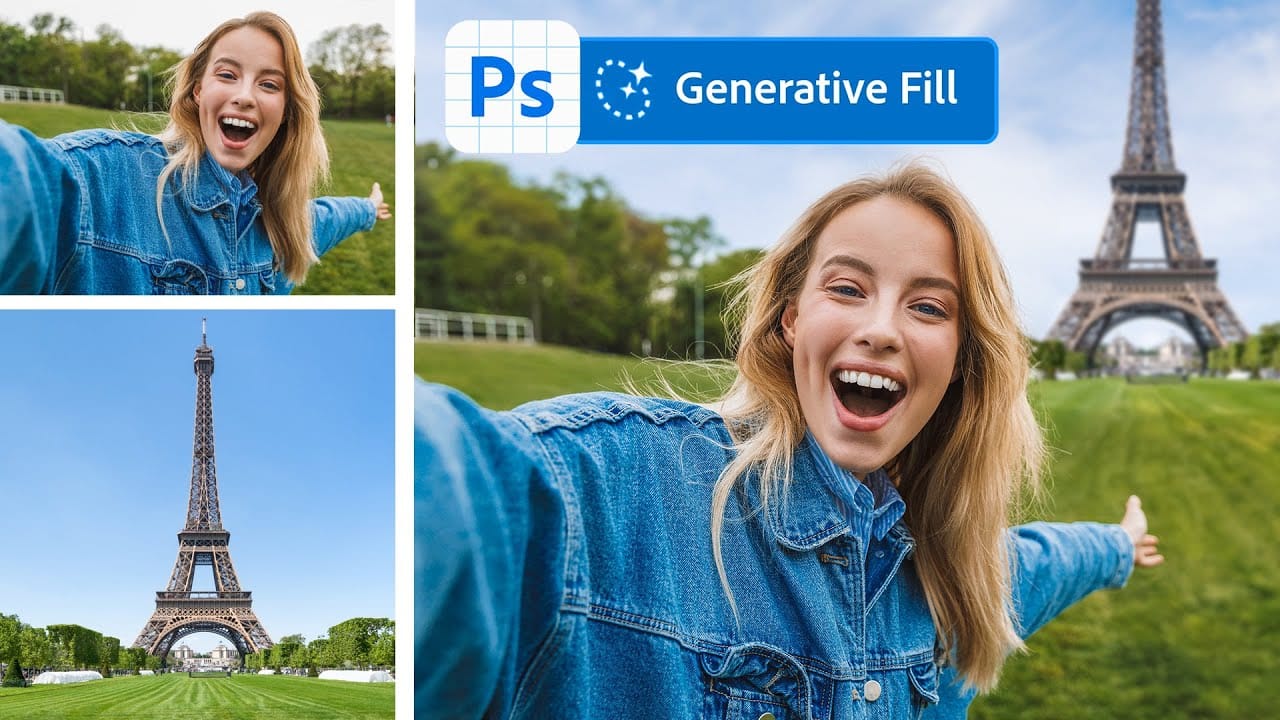
Merge two photos in just a few clicks using Photoshop's Generative Fill
Photoshop Training Channel presents a helpful guide for blending multiple images together with ease. Generative Fill is one of Photoshop's most powerful but underutilized tools, and in this video PTC shows users how they can take advantage of its full capabilities. Through a simple step-by-step process, viewers will learn how to use Generative Fill to automatically composite numerous photos into a single cohesive image. Presented in PTC's clear training style, photographers and image editors of
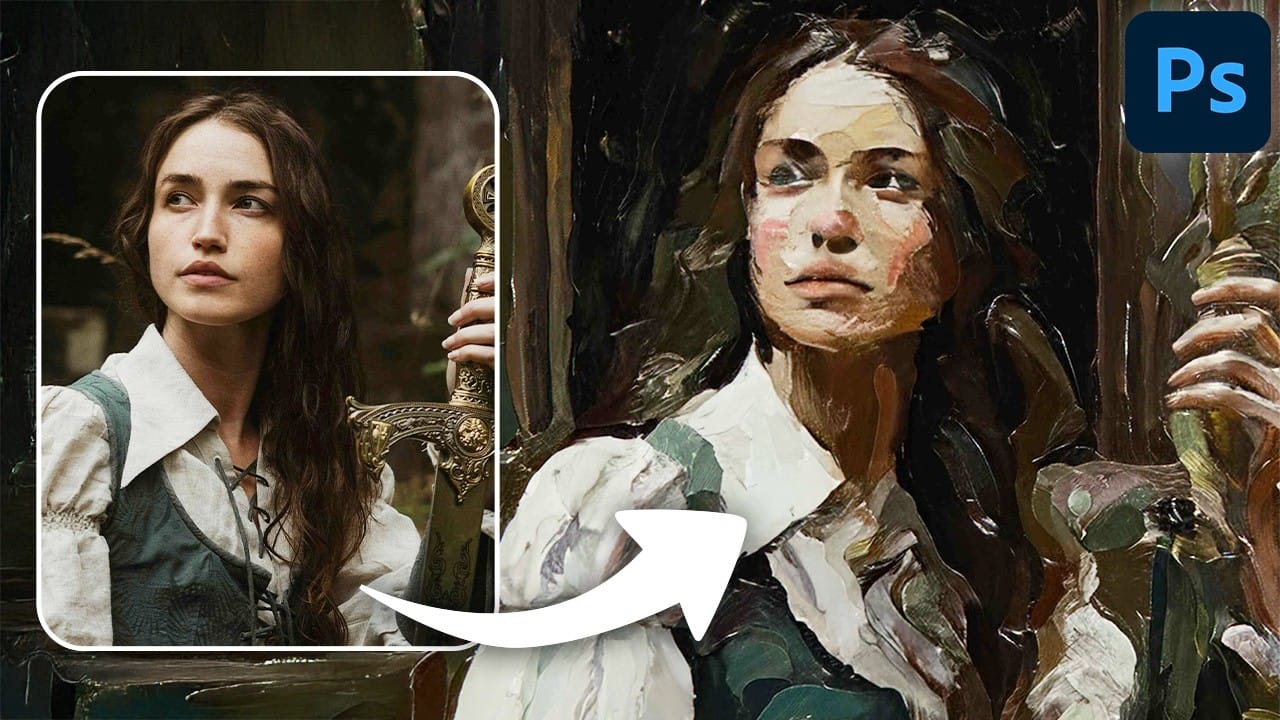
Turn Pictures Into Paintings Using Generative Fill In Photoshop
Converting photographs into artistic paintings has traditionally required advanced Photoshop skills, complex layer blending techniques, or expensive third-party plugins. Many photographers and designers struggle with creating convincing painted effects that maintain the original image's character while adding genuine artistic style. This tutorial demonstrates how to transform photos into paintings using Photoshop's generative fill feature combined with channel-based selections. The technique cr
Complete Guide to AI Photo Editing with Photoshop's Generative Fill
Modern photo editing has entered a new era where artificial intelligence can solve complex visual problems in seconds. Tasks that once required hours of manual work—removing unwanted objects, changing skies, adding realistic elements—can now be accomplished with simple selections and text prompts. This comprehensive tutorial demonstrates 37 practical applications of Photoshop's AI-powered generative fill feature. From basic sky replacements to advanced portrait retouching, these techniques show
Generative AI: A new era of Photoshop begins
Generative AI has made its way into the world of Photoshop, and in this fascinating video, Colin Smith from Photoshop Cafe explores its transformative capabilities. Generative AI is an incredible technology that's transforming the world of artificial intelligence. It's like having a creative companion that can generate all sorts of new content, from stunning images to captivating music and even imaginative stories. With its advanced algorithms and neural networks, generative AI brings a touch o
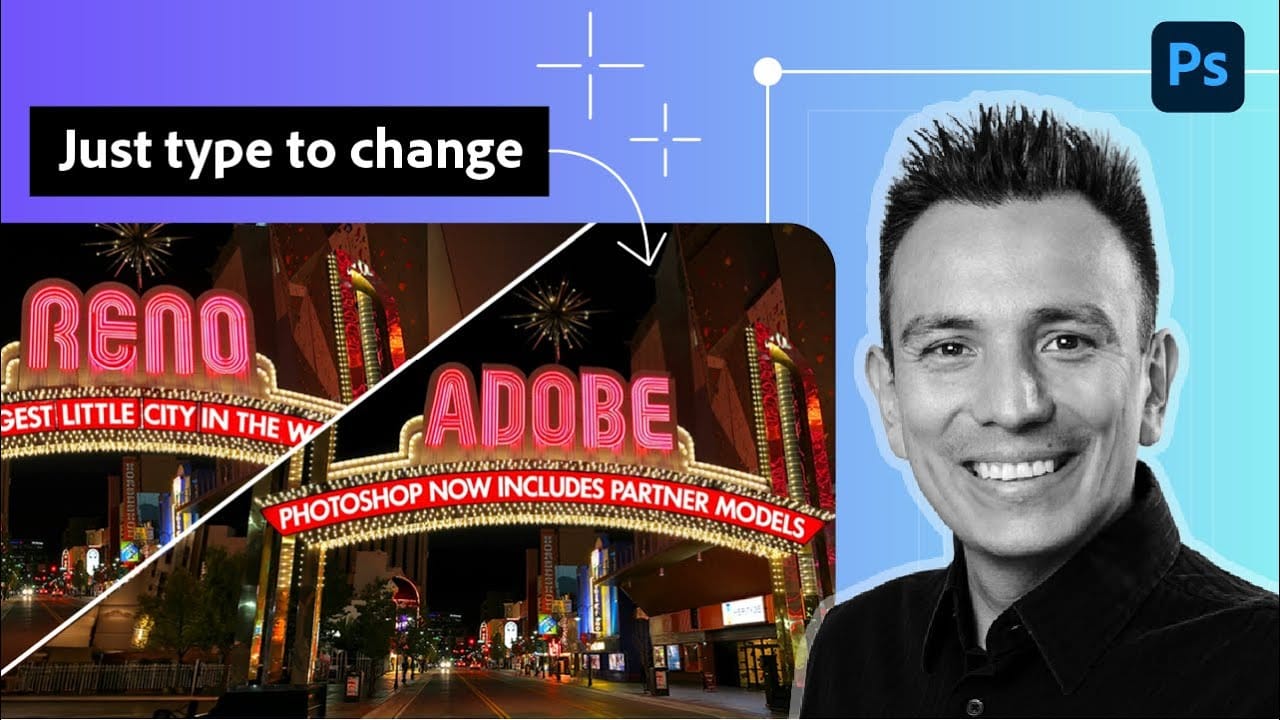
How to Edit Text in Images Using Generative Fill
Changing text within existing images has traditionally required complex masking and reconstruction techniques. Modern AI-powered tools now make it possible to seamlessly replace words and phrases in photographs while maintaining realistic typography, lighting, and perspective that matches the original scene. This technique works particularly well for signs, storefronts, billboards, and other text elements embedded in photographic content, offering designers a powerful way to customize images wi
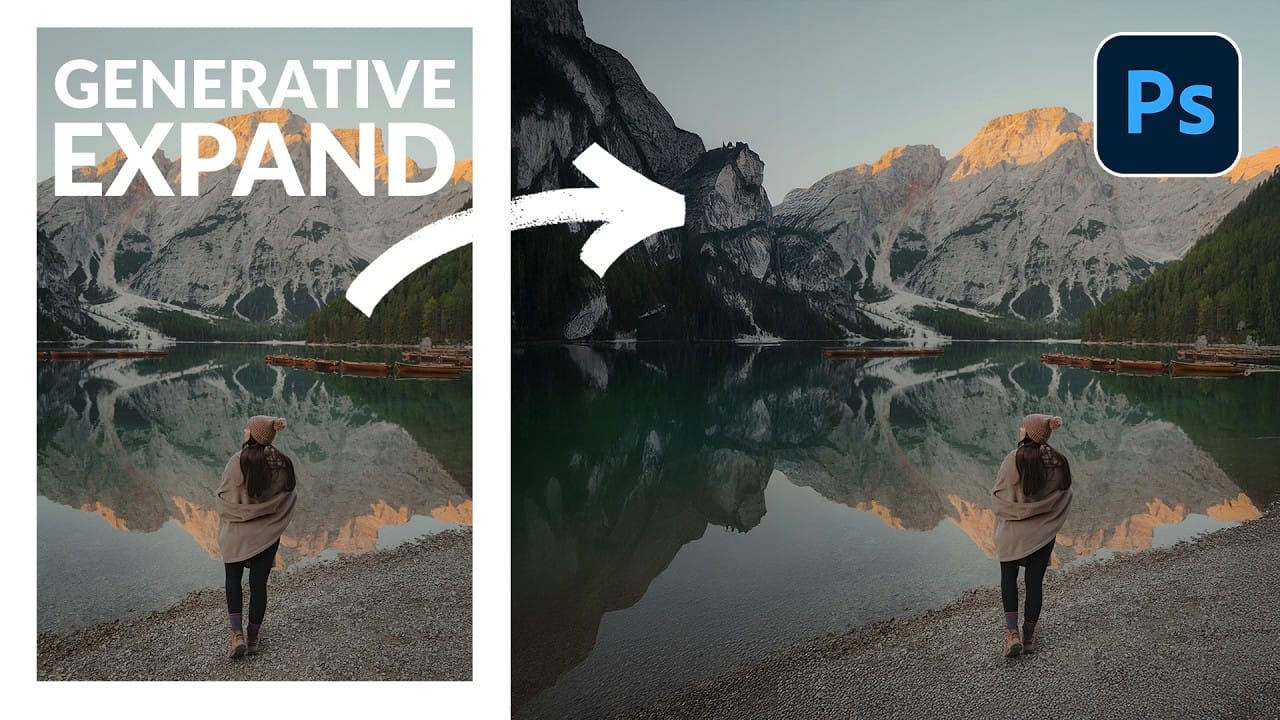
How to Expand Photos Beyond Their Edges Using AI Generative Expand in Photoshop
Sometimes your best photos need more breathing room or a different aspect ratio. Generative Expand in Photoshop lets you extend your canvas beyond the original image boundaries, using AI to intelligently fill in missing areas with content that matches your scene. This technique works for changing portrait photos to landscape orientation, adding more space around subjects, or even changing the camera angle of existing photographs entirely. Watch the Video Practical Tips These key techniques

Get tutorials & freebies delivered to you.

Subscribe to the Photoshop Roadmap newsletter, a weekly roundup of new tutorials, insights and quality downloads, trusted by 6500+ readers.

You might also like

How to Change Object Colors in Photoshop Using Hue/Saturation

Changing the color of specific objects in your photos requires precision and the right technique. The key is creating an accurate selection and using a targeted adjustment layer that affects only your chosen subject while preserving the rest of the image. This method combines the Object Selection tool with Hue/...

Create a Distorted Wave Glitch Effect in Photoshop

Digital distortion effects transform ordinary portraits into striking visual art by warping reality through deliberate technical manipulation. This technique uses multiple wave filters layered together to create increasingly complex distortions, while selective masking preserves important facial features from becoming completely unrecognizable. Watch the Video Practical Tips Master the wave distortion...

How to Create Glow Motion Effects with Gradient Maps in Photoshop

Motion blur combined with colorful gradients creates striking visual effects that transform ordinary photos into dynamic, cinematic images. This technique uses gradient maps to automatically color light and dark values, producing flowing color transitions that follow the movement of your subject. The process involves subject isolation, strategic gradient placement, path...

How to Remove Eye Bags Using Dodge and Burn in Photoshop

Eye bags can dramatically age a portrait, making subjects appear tired or unhealthy. Traditional removal methods often destroy skin texture or create unnatural results that look obviously retouched. This professional dodge and burn technique removes even severe eye bags while preserving every detail of natural skin texture. The method uses...

How to Fix Crossed Eyes and Lazy Eyes in Photoshop

Portrait photographers and retouchers often encounter images where subjects have crossed or lazy eyes, which can distract from an otherwise great shot. Whether caused by timing, lighting, or natural eye alignment issues, these problems can be corrected effectively without compromising image quality. This tutorial demonstrates two practical approaches: using AI-powered...

You’ve successfully subscribed to Photoshop Roadmap
Welcome back! You’ve successfully signed in.
Great! You’ve successfully signed up.
Success! Your email is updated.
Your link has expired
Success! Check your email for magic link to sign-in.