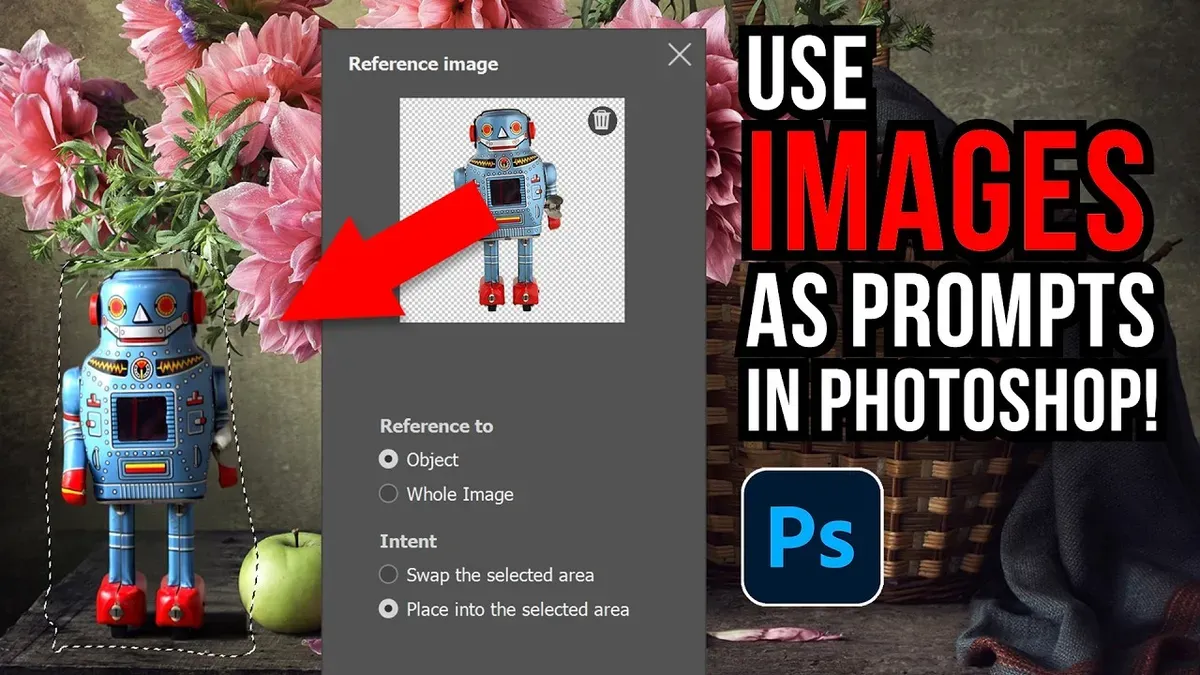
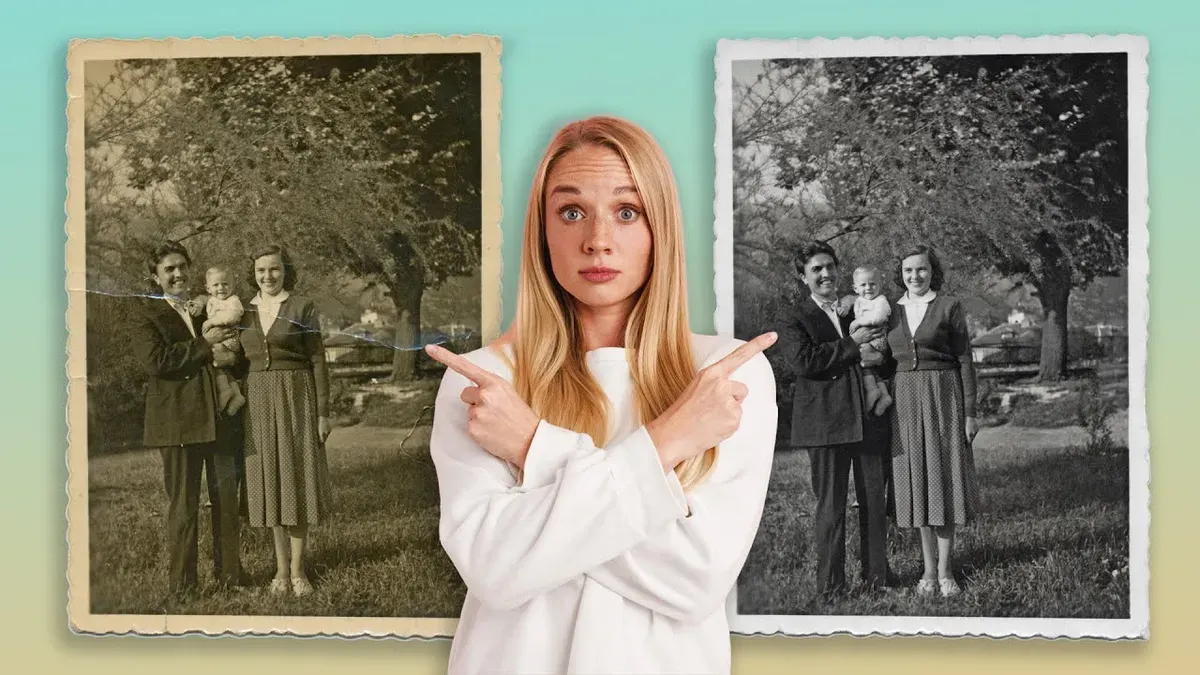
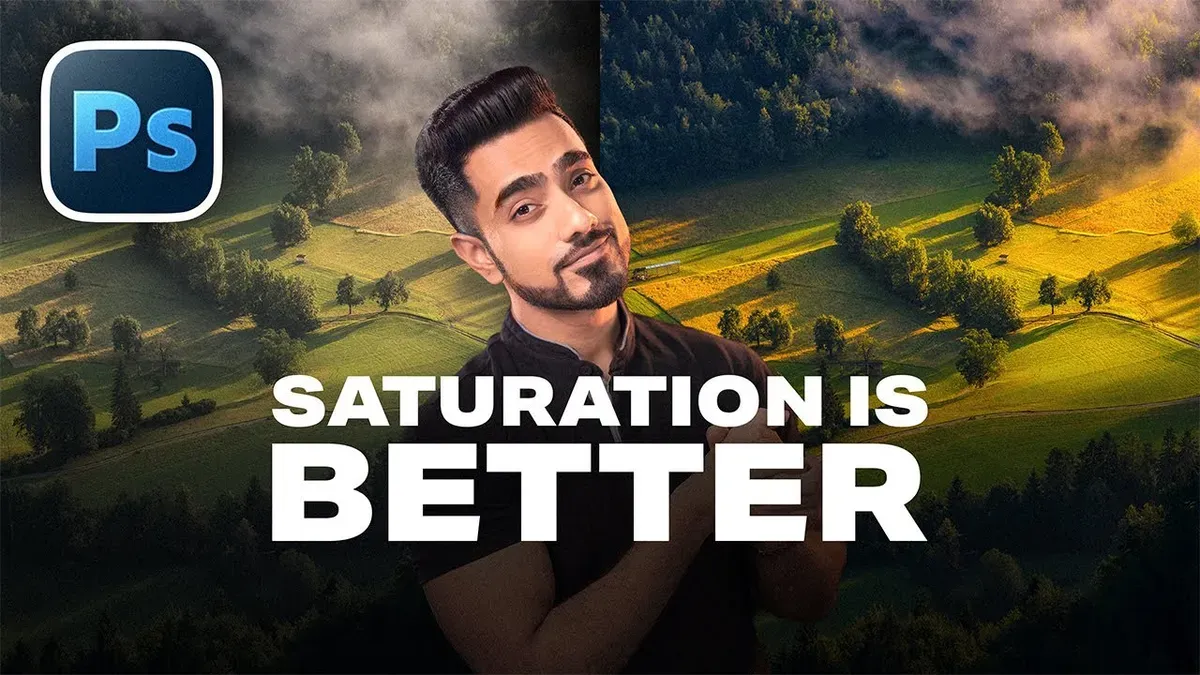
This week’s Photoshop Roadmap roundup is all about smarter workflows and bold creative effects. You’ll see how to set up custom keyboard shortcuts to speed up your daily tasks, work with reference images inside Generative Fill, and test the new Firefly Fill and Expand model with a detailed quality comparison. There’s also a practical look at AI photo restoration with Gemini 3 Nano Banana Pro, plus a clear breakdown of when to use Saturation vs Vibrance for cleaner, more natural color.

On the creative side, learn how to build a futuristic sci-fi hologram effect, create sharp halftone patterns with crisp detail, and turn a simple image into a custom chain brush you can paint with. You’ll also find a step-by-step method for converting a portrait into a bold black and white logo, along with seven essential shortcuts for digital illustrators to help you spot mistakes and work faster.

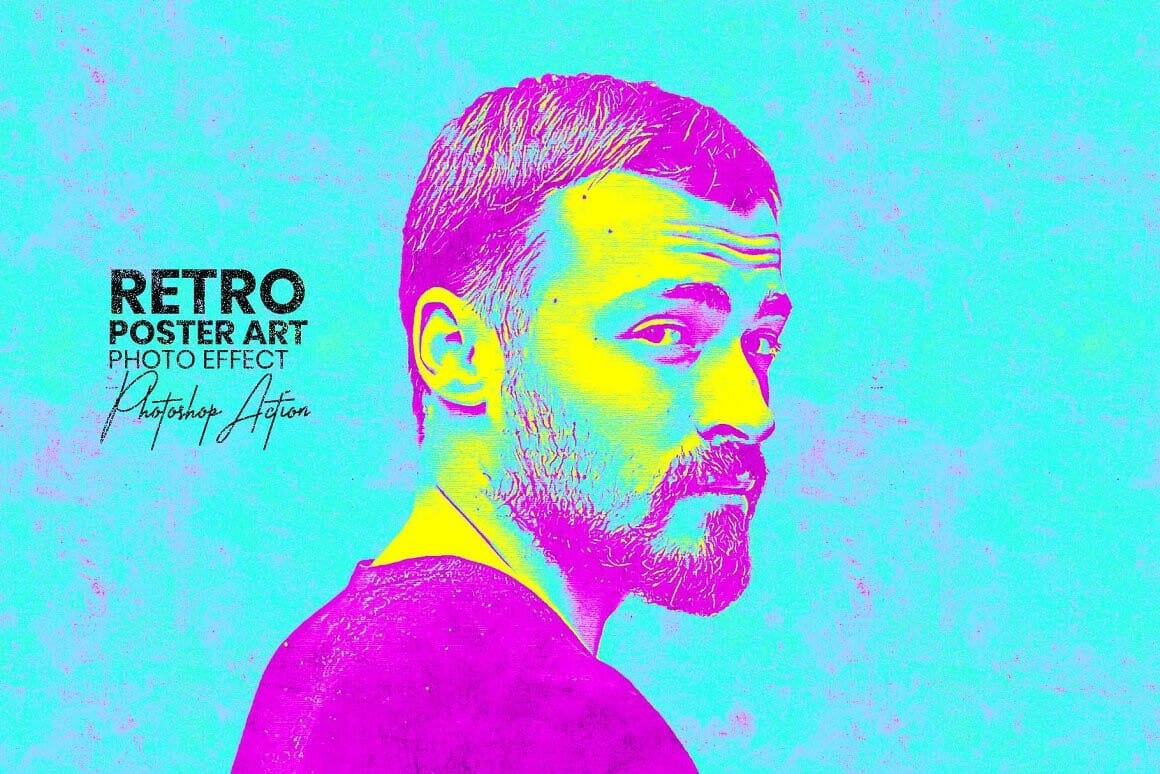
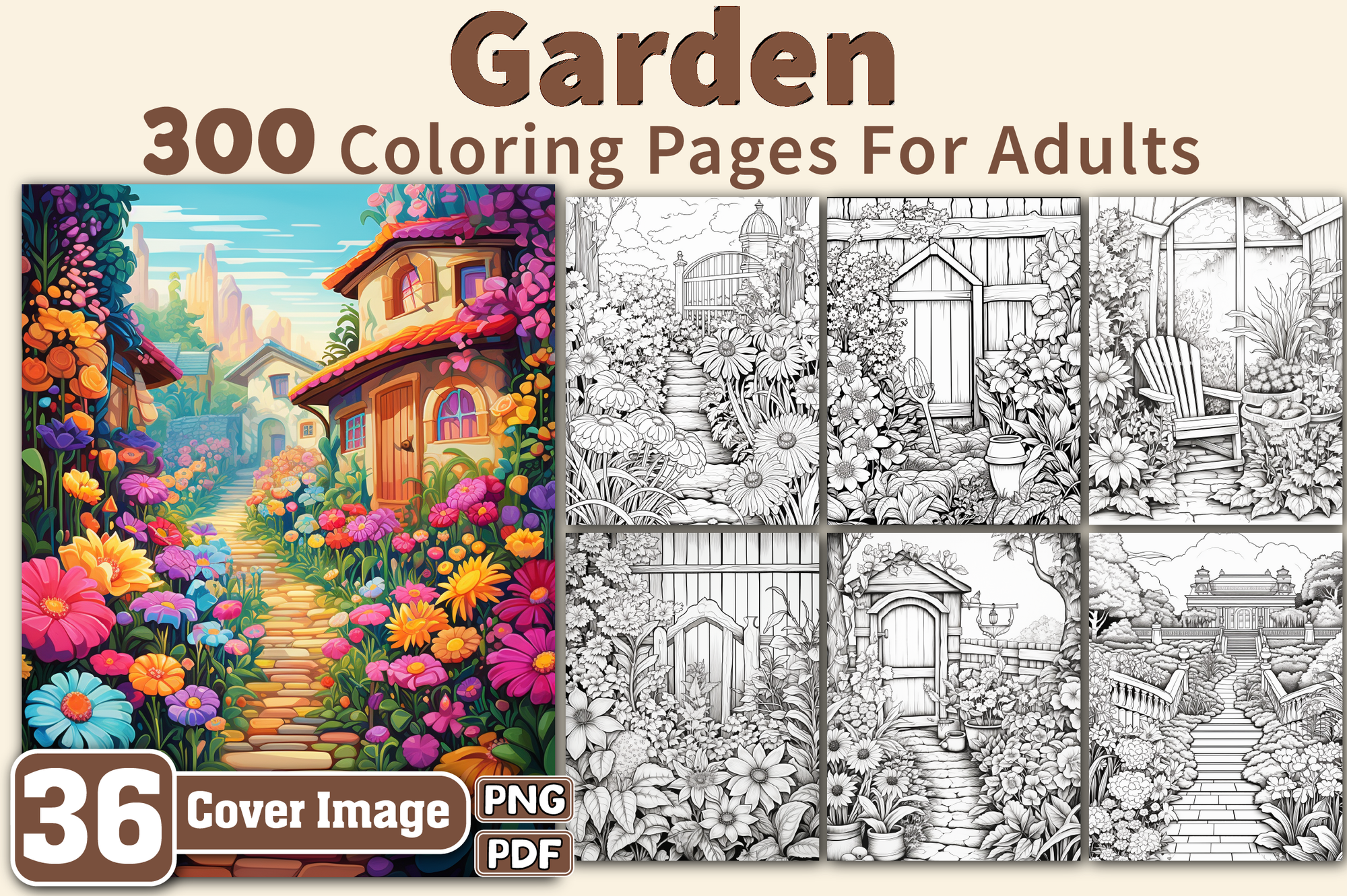
This week’s creative picks include Retro Poster Art Photoshop Actions and Garden Coloring Pages for Adults—a solid mix of practical training and ready-to-use assets to keep your projects moving.

Editor’s Picks: Photoshop Tutorials
How to Create Custom Keyboard Shortcuts in Photoshop

Read Article

How to Use Reference Images with Generative Fill in Photoshop

Read Article

Using Gemini 3 Nano Banana Pro for AI Photo Restoration in Photoshop

Read Article

When to Use Saturation vs Vibrance for Better Color Enhancement

Read Article

Editor’s Picks: Creative Assets

Retro Poster Art Photoshop Actions

Download Here

Garden Coloring Pages for Adults

Download Here
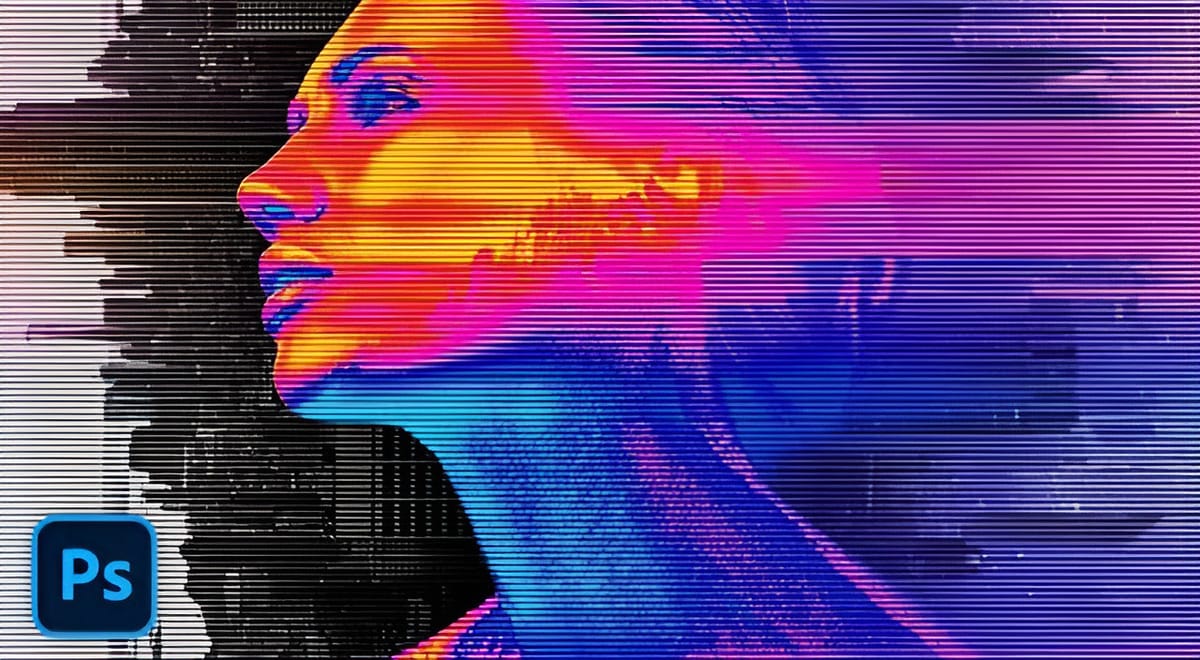
Create a Sci-Fi Hologram Effect in Photoshop
Transform ordinary portraits into futuristic holographic projections with this sci-fi effect technique. The process combines motion blur, gradient mapping, and scan line patterns to create the distinctive translucent appearance of holographic displays. This method keeps your subject vibrant and colorful while converting the background to black and white, emphasizing the
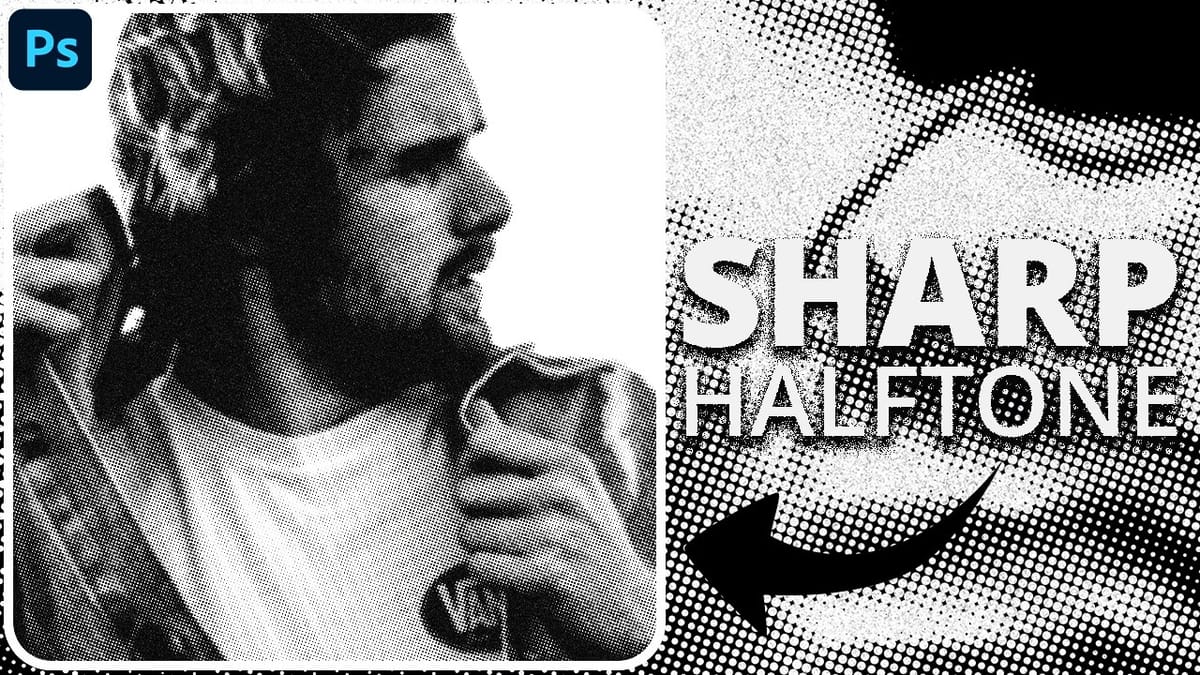
How to Create Sharp Halftone Effects in Photoshop
Traditional halftone effects in print media created depth through visible dot patterns that gave images character and texture. While Photoshop’s built-in Filter Gallery offers a quick halftone option, it produces blurry results that lack the crisp definition of professional halftone work. This technique uses the Color Halftone filter combined with
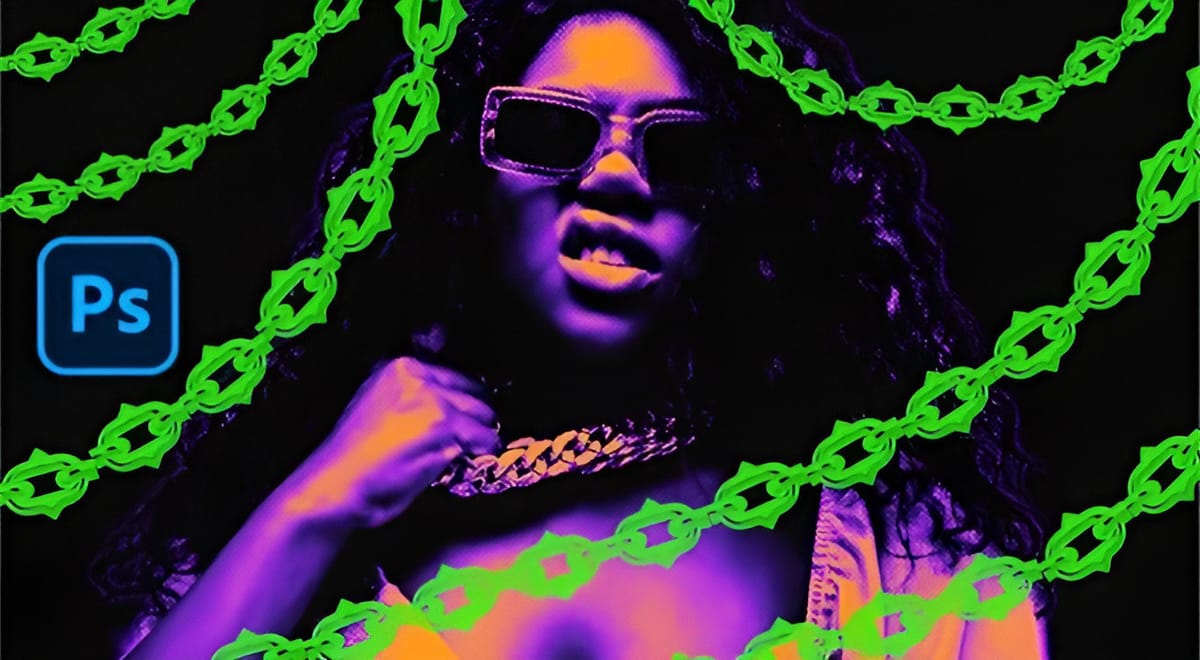
How to Create a Custom Chain Brush in Photoshop
Custom chain brushes unlock creative possibilities for digital artwork, fantasy scenes, and decorative designs. This technique transforms a basic chain image into a seamless, paintable brush that automatically links segments together as you draw. The process combines image preparation, background removal, and precise brush settings to create a tool that
Photoshop’s Generative Fill Gets Major Upgrade: New Model Comparison and Quality Test
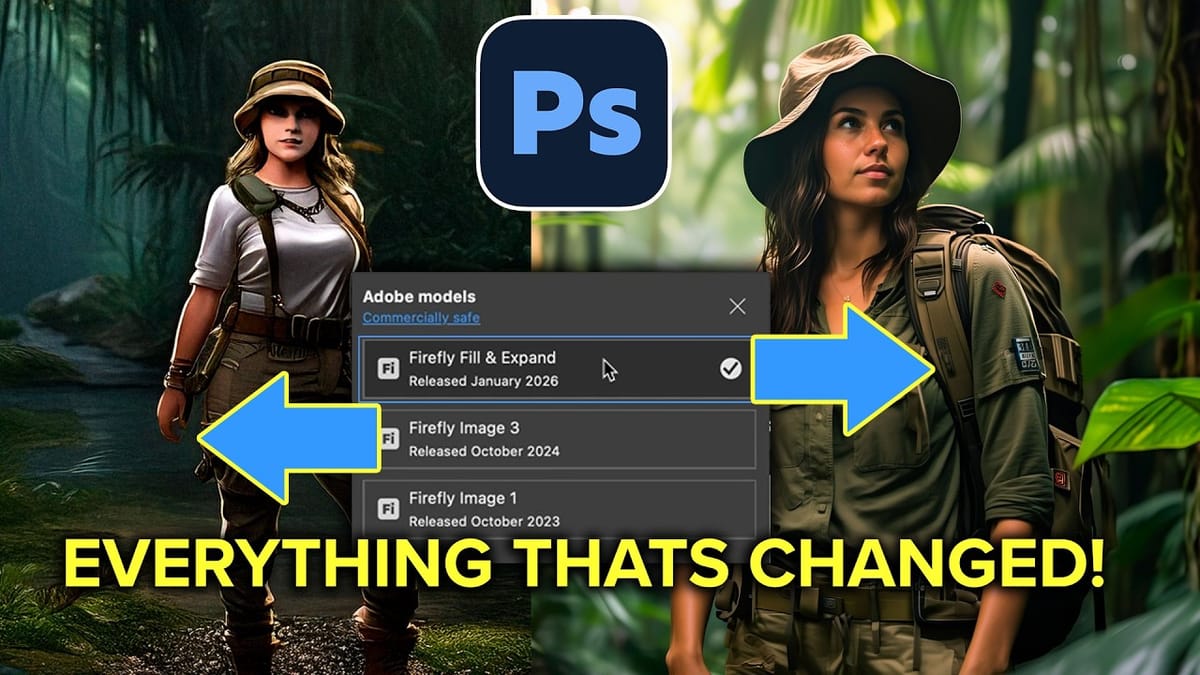
Adobe’s latest Generative Fill update brings the new Firefly Fill and Expand model with double the resolution and dramatically improved quality for generating people, hands, and complex objects. The upgrade moves from 1024x1024 to 2048x2048 pixel output, allowing for larger selections without quality loss. This comprehensive comparison tests both the
How to Convert a Portrait Photo into a Black and White Logo Design
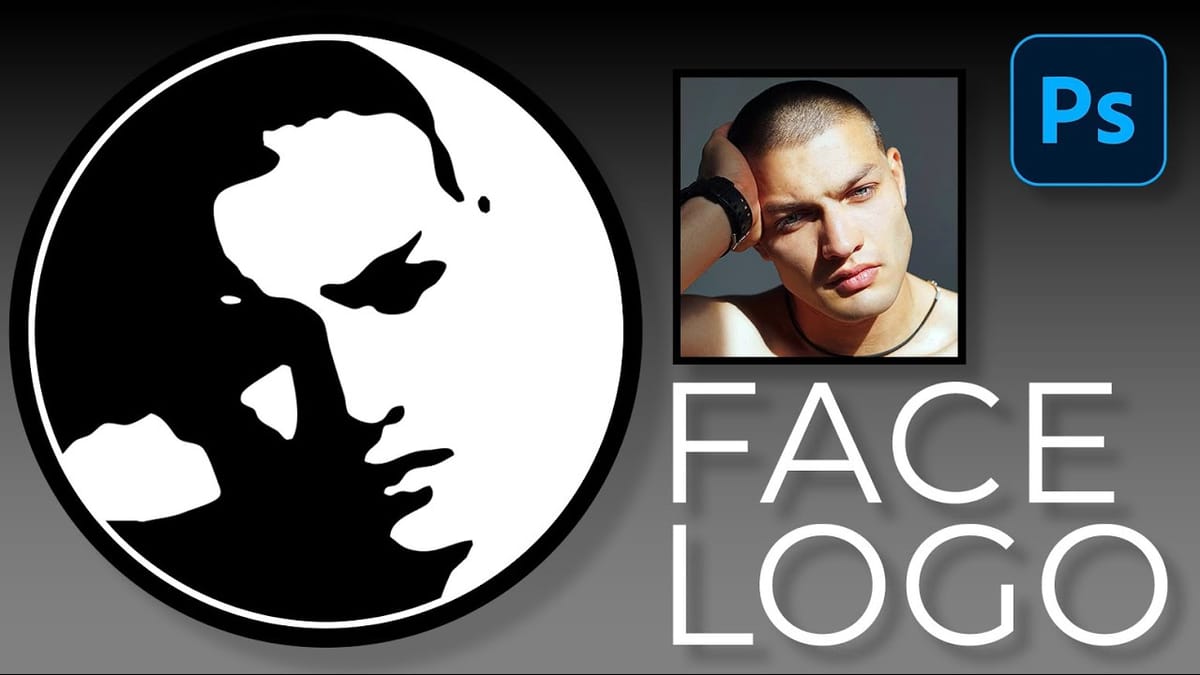
Portrait photos can be transformed into bold, graphic logos with the right combination of filters and adjustments. This technique uses Gaussian blur and threshold adjustments to convert photographs into high-contrast black and white designs suitable for branding, badges, or stamps. The process involves subject isolation, smart filtering, and precise path
7 Essential Photoshop Shortcuts for Digital Illustrators
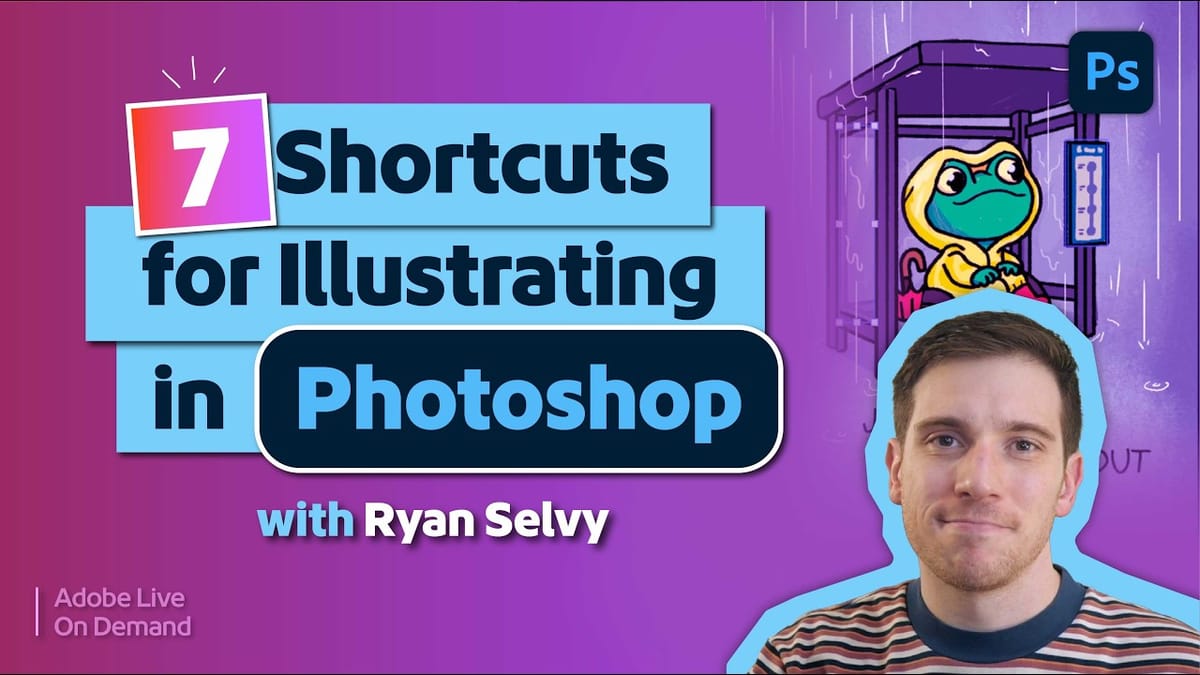
Digital illustration in Photoshop becomes significantly faster when you master the right shortcuts and viewing techniques. The biggest challenge illustrators face is objectively evaluating their own work—spotting errors that would be obvious in someone else’s art. These seven shortcuts focus on two key areas: seeing your work more clearly