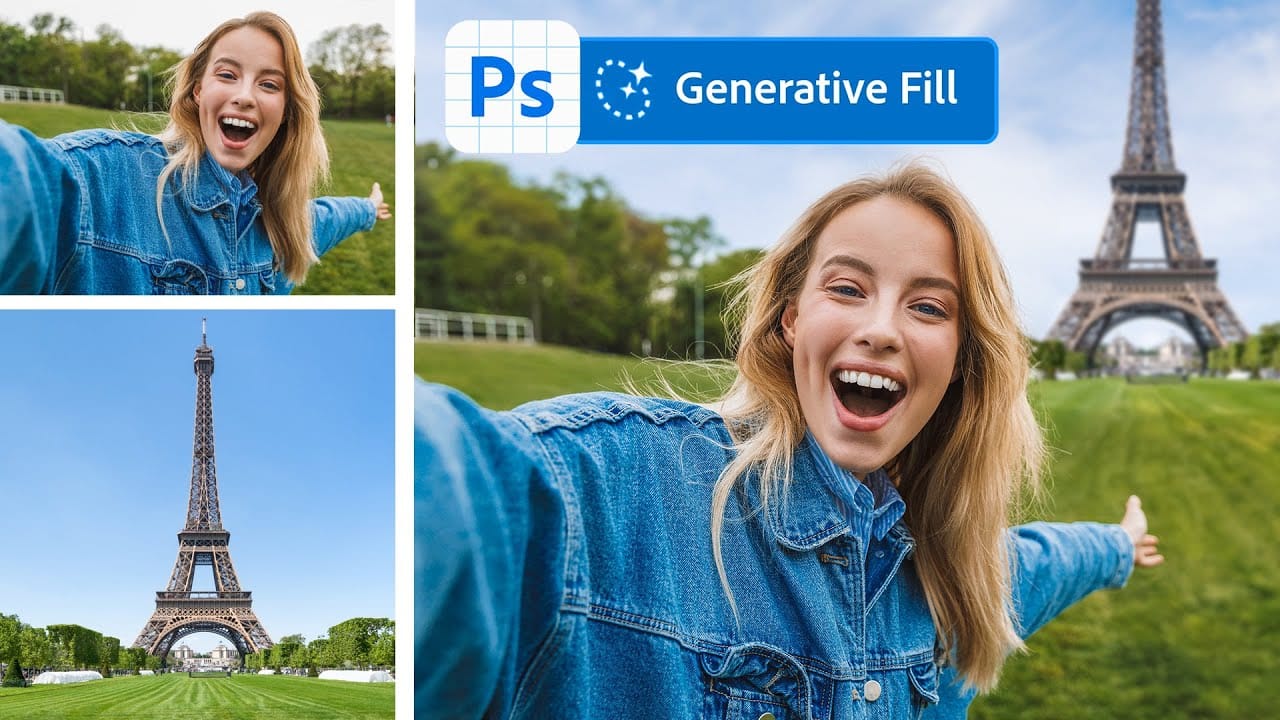
Photoshop's Generative Fill Gets Major Upgrade: New Model Comparison and Quality Test

Photoshop's Generative Fill Gets Major Upgrade: New Model Comparison and Quality Test

Adobe's latest Generative Fill update brings the new Firefly Fill and Expand model with double the resolution and dramatically improved quality for generating people, hands, and complex objects. The upgrade moves from 1024x1024 to 2048x2048 pixel output, allowing for larger selections without quality loss.

This comprehensive comparison tests both the old Firefly Image 3 and new Fill and Expand models across challenging subjects like realistic portraits, hands, and cars to show exactly where the improvements make the biggest difference.

Watch the Video

Video by photoshopCAFE. Any links or downloads mentioned by the creator are available only on YouTube

Practical Tips

Here are the key strategies for getting better results with the upgraded model:

  • Always select the newest "Firefly Fill and Expand" model from the dropdown menu for best quality
  • Use detailed prompts like "realistic anatomy, photorealistic, studio lighting" for generating people
  • Take advantage of the 2K resolution limit by making larger selections without worrying about stretching
  • Work in smaller sections for print projects since quality still degrades on very large areas
  • Both old and new models cost the same—one credit per generation with three variations included

Explore more advanced techniques and tips for maximizing your results with AI-powered editing tools.
How Generative Fill in Photoshop is Transforming Photo Editing
In the ever-evolving realm of photo editing, a game-changing feature has emerged that promises to revolutionize the way we approach image enhancement. Enter Generative Fill, an innovative tool introduced in the Photoshop Beta, and it's already making waves. Spearheaded by the renowned creative mind Aaron Nace from PHLEARN, this tool is poised to reshape the landscape of digital editing. Generative Fill isn't your typical editing tool that relies on traditional methods. Instead, it leverages the
Complete Guide to AI Photo Editing with Photoshop's Generative Fill
Modern photo editing has entered a new era where artificial intelligence can solve complex visual problems in seconds. Tasks that once required hours of manual work—removing unwanted objects, changing skies, adding realistic elements—can now be accomplished with simple selections and text prompts. This comprehensive tutorial demonstrates 37 practical applications of Photoshop's AI-powered generative fill feature. From basic sky replacements to advanced portrait retouching, these techniques show
How to Add Objects to Photos Using Photoshop's Generative Fill
Photoshop's Generative Fill transforms photo editing by letting you add realistic objects using simple text descriptions. This AI-powered feature creates seamless additions that match your image's lighting, perspective, and style. The process requires just a basic selection and a descriptive prompt to generate professional-looking results in seconds. Watch the Tutorial Essential Tips for Generative Fill Success * Make your selection slightly larger than the object you want to generate — t
Essential Guide to Generative Fill: Remove, Add, and Replace Objects in Photos
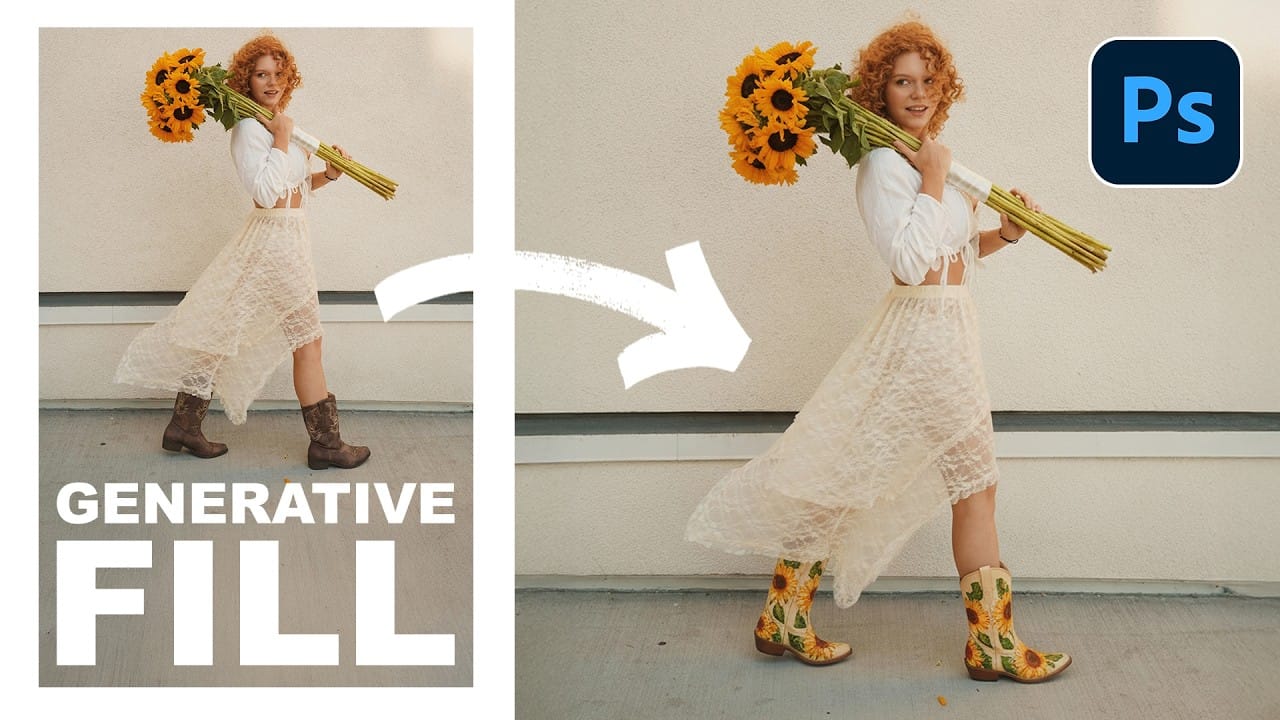
Generative Fill has transformed how photographers handle object removal, additions, and replacements in their images. This comprehensive tutorial demonstrates four practical applications using real examples—from cleaning up unwanted graffiti to adding garden gnomes and creating custom sunflower boots. You'll learn to work with both Adobe's Firefly Image 3 and Google's Gemini 2.5 models, understanding when to use each approach for optimal results. Watch the Video Practical Tips Here are the
Generative AI: A new era of Photoshop begins
Generative AI has made its way into the world of Photoshop, and in this fascinating video, Colin Smith from Photoshop Cafe explores its transformative capabilities. Generative AI is an incredible technology that's transforming the world of artificial intelligence. It's like having a creative companion that can generate all sorts of new content, from stunning images to captivating music and even imaginative stories. With its advanced algorithms and neural networks, generative AI brings a touch o
Photoshop 2026 New Features: AI Tools and Credit System Overview
Photoshop 2026 introduces powerful AI-driven features including advanced generative fill models, sophisticated upscaling tools, and seamless harmonization effects. These updates promise to streamline complex editing tasks while delivering professional-quality results. The software now operates on a credit-based system that divides features into standard and premium tiers, fundamentally changing how users access certain tools. Watch the Video Key Features and Practical Tips * Access the co
How to Get Higher Quality Results from Photoshop's Generative Fill Tool
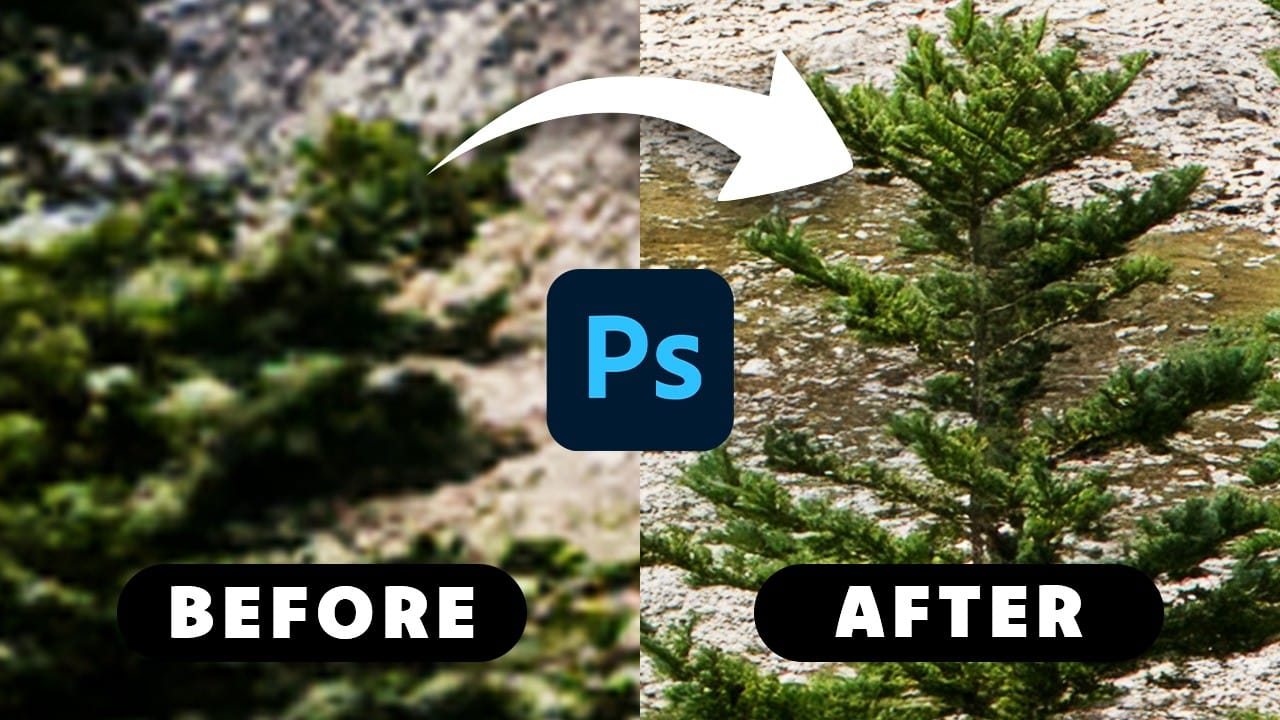
Photoshop's Generative Fill creates impressive AI extensions, but the results often look blurry and pixelated when viewed at full size. This quality limitation makes many AI-generated areas unusable for printing or large displays. This technique shows how to work around the 1024x1024 pixel quality limit to create much sharper, more professional-looking generative fill results. Watch the Tutorial Essential Tips for Better Generative Fill Quality * Keep selections under 1024x1024 pixels — G
Discover Hidden Photoshop AI Tools to Transform Your Photos
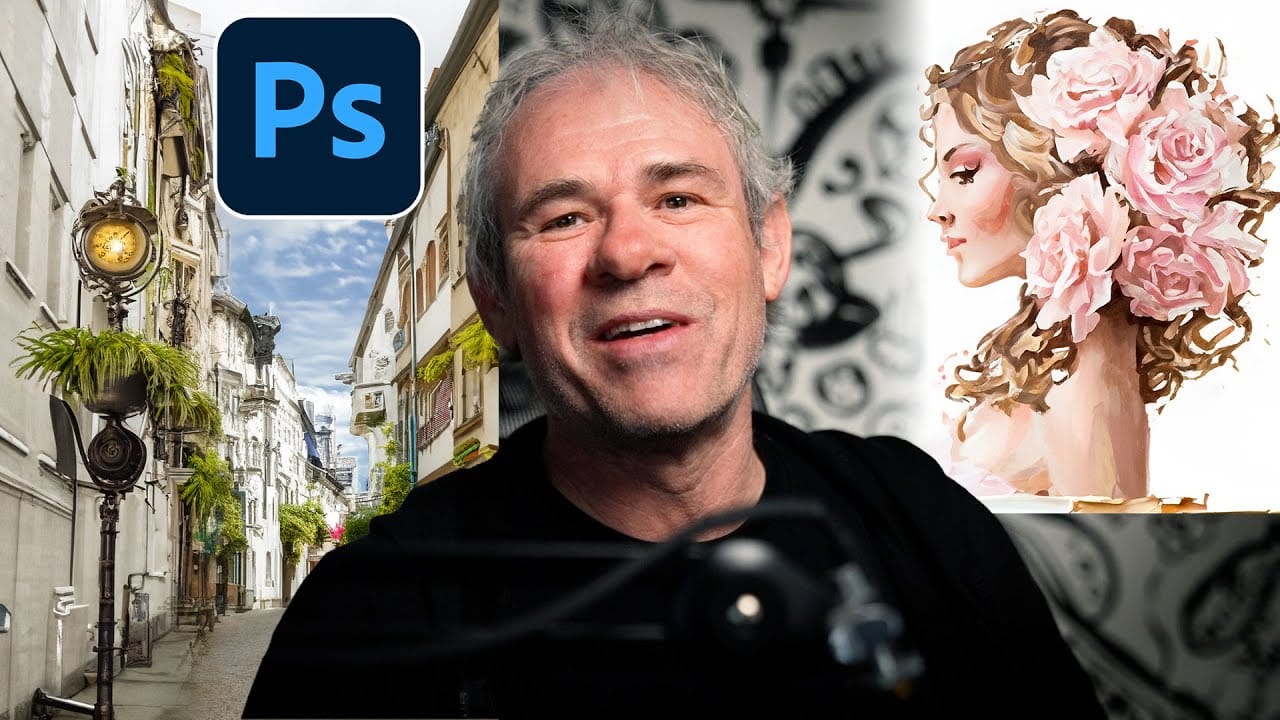
Transform ordinary photographs into captivating works of art using advanced Generative AI features in Photoshop. This guide reveals a powerful, often overlooked technique to unlock incredible artistic potential from your images. Discover how to apply stunning styles, from delicate watercolors to bold Art Deco and futuristic visions, by mastering a subtle yet impactful control within Photoshop's AI capabilities. Watch the Video Understanding Generative AI's Creative Control Generative AI to
Merge two photos in just a few clicks using Photoshop's Generative Fill
Photoshop Training Channel presents a helpful guide for blending multiple images together with ease. Generative Fill is one of Photoshop's most powerful but underutilized tools, and in this video PTC shows users how they can take advantage of its full capabilities. Through a simple step-by-step process, viewers will learn how to use Generative Fill to automatically composite numerous photos into a single cohesive image. Presented in PTC's clear training style, photographers and image editors of

Get tutorials & freebies delivered to you.

Subscribe to the Photoshop Roadmap newsletter, a weekly roundup of new tutorials, insights and quality downloads, trusted by 6500+ readers.

You might also like

How to Create Digital Collages Using Layers and Blend Modes in Photoshop

Digital collages combine multiple images through strategic layering and blending techniques to create compelling visual stories. This beginner-friendly approach demonstrates how to build complex compositions by layering textures, portraits, and objects while using blend modes to seamlessly integrate each element. The process focuses on practical workflow techniques including smart object...

Building Complex Composites Using Generative Fill and Layer Blending

Complex surreal composites require more than just combining random images. The key to professional results lies in systematic layering, consistent masking techniques, and building a reusable library of generated elements. This approach transforms scattered AI-generated content into cohesive artistic visions. The tutorial demonstrates how to deconstruct an existing composite to...

How to Add Any Face to Mount Rushmore Using Photoshop and AI

Adding faces to Mount Rushmore creates striking digital art that combines portrait photography with AI-powered stone carving effects. This technique uses generative AI to transform any portrait into a realistic granite sculpture that matches the lighting, texture, and monumental style of the famous presidential memorial. The process combines traditional selection...

Creating Floral Wreath Overlays in Photoshop

Floral overlays transform ordinary portraits into magical compositions perfect for pet photography, baby portraits, and creative projects. This technique shows you how to build custom floral wreaths using AI-generated base elements and real floral PNG files, creating frames that can hold any subject in the center. The process combines symmetry...

Concept Development and Mood Boarding with Firefly Boards for Fashion Design

Fashion design concept development traditionally requires gathering inspiration from multiple sources, creating mood boards, and iterating through ideas before presenting to clients. Firefly Boards streamlines this entire workflow into a single workspace where you can source inspiration, generate new variations through AI remixing, and organize final concepts into professional presentations....

How to Use Dynamic Text Shapes in Photoshop

The Dynamic Text tool introduced in 2025 was revolutionary for automatic text sizing and layout, but 2026 brings an exciting update that adds shape options to this powerful feature. You can now create circular text, arches, and bow configurations with the same intelligent resizing capabilities that made the original tool...

You’ve successfully subscribed to Photoshop Roadmap
Welcome back! You’ve successfully signed in.
Great! You’ve successfully signed up.
Success! Your email is updated.
Your link has expired
Success! Check your email for magic link to sign-in.