How to Apply an Impressionist Oil Painting Effect to a Photo

How to Apply an Impressionist Oil Painting Effect to a Photo

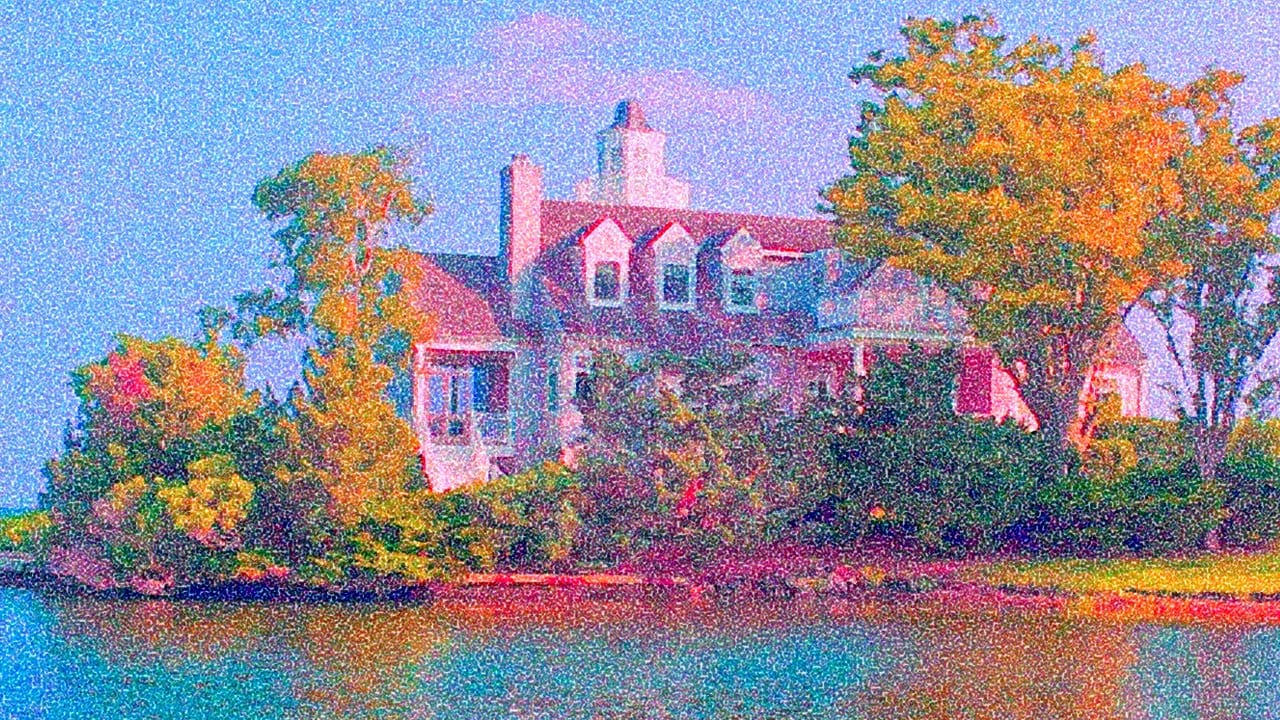
Imagine turning an ordinary photo into a vibrant, swirling masterpiece reminiscent of Van Gogh’s "Starry Night." This effect captures the essence of impressionism, adding depth and emotion to your images. The beauty of this technique lies in its ability to transform reality into a dreamlike vision, inviting viewers to see the world through a painterly lens.

With the help of Photoshop and a few creative steps, you can achieve this stunning transformation. This video tutorial guides you through the process, using filters and brushes to create a unique, artistic effect that brings your photos to life with texture and color.

Watch the Video

Video by Blue Lightning. Any links or downloads mentioned by the creator are available only on YouTube

Exploring the Impressionistic Style in Digital Art

The impressionistic style seeks to capture the subjective impression of a scene, rather than a precise representation. This artistic movement, characterized by visible brush strokes, vibrant colors, and an emphasis on light, lends itself surprisingly well to digital manipulation. By mimicking these elements in Photoshop, digital artists can evoke the same sense of movement and emotion found in classic paintings.

Key components in achieving this effect involve using filters to create texture and applying brush strokes to simulate the look of paint. Colors often blend and contrast sharply, mimicking the way light interacts with surfaces. Digital tools offer a unique advantage by allowing for experimentation with effects that might be challenging or time-consuming with traditional media. One can easily adjust the intensity of filters, brush sizes, and color palettes to achieve the desired level of artistic abstraction.

To replicate the *Starry Night* aesthetic, focus on:

  • Swirling brush strokes
  • A vivid, contrasting color palette
  • A dreamlike and textured surface

Practical Tips for Creating an Oil Paint Effect

  • Liquify the image to create swirling patterns, mimicking the flow of paint.
  • Use thick, heavy brushes to add texture and simulate the look of brush strokes.
  • Experiment with the Glass filter to add distortion and depth to the image.
  • Apply the Oil Paint filter, adjusting stylization and bristle detail to refine the painted effect.
  • Incorporate a canvas texture to enhance the realism of the final painting.

Dive deeper into the world of digital art with these related tutorials, which offer different approaches to transforming photos into stunning painterly artworks.
How to Transform a Photo into an Antique, Oil Painting Photoshop
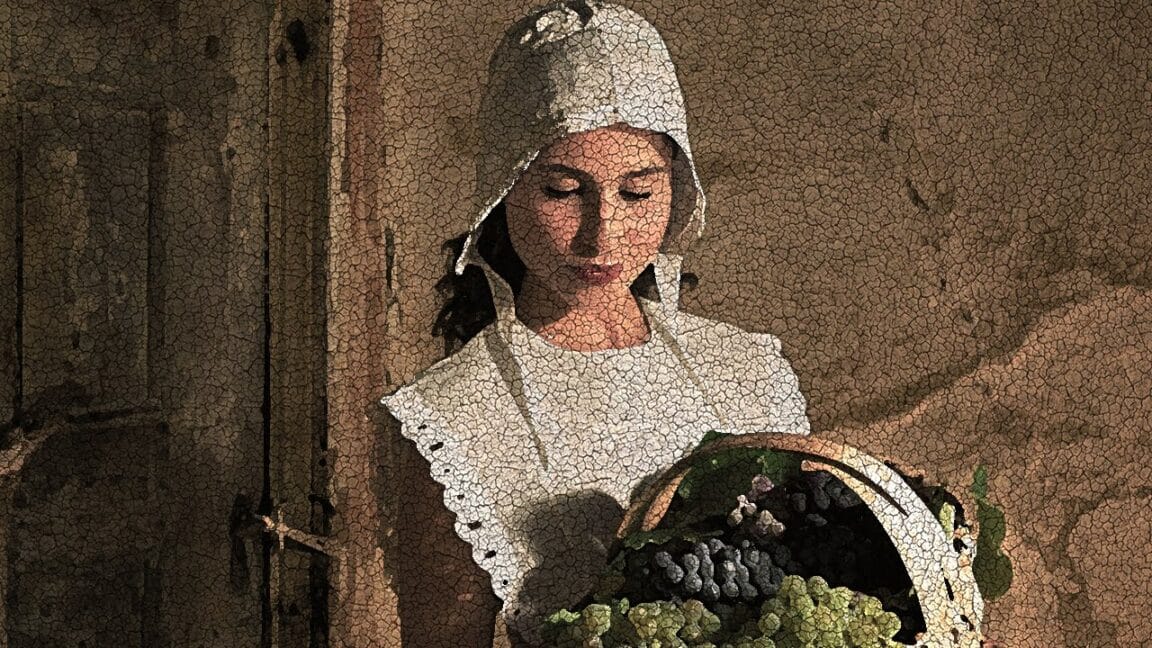
In this Blue Lightning TV tutorial by Marty Geller, you'll learn how to transform a modern photo into an antique-style oil painting with a cracked, aged effect. The tutorial guides you through applying a craquelure texture to give the image an authentic, vintage look. This technique adds depth and character to your photos, making them appear as if they were painted and aged over decades. The final result is a beautifully textured, timeless piece of art. Watch tutorial
Apply a beautiful impressionist paint effect to your photos in Photoshop
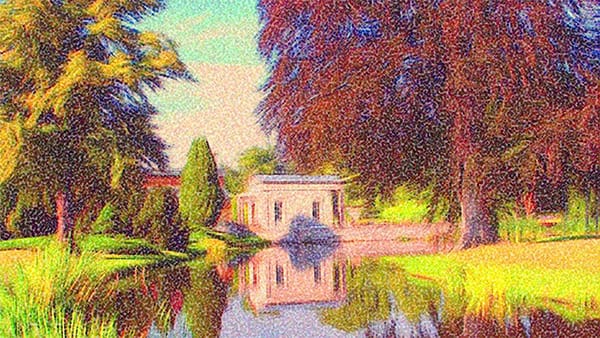
This tutorial by BlueLightningTV will show you how to transform your outdoor photos into the look of beautiful, impressionist paintings. You can also apply these techniques to your other photos, as well. Source Files: Monet painting. If working with Photoshop CS5 or earlier: Pixel Bender Windows, Pixel Bender Mac. Final Image Video Tutorial
Create an Action to Transform your Photos into Impressionist Paintings
Marty Geller from Blue Lightning TV shares a Photoshop tutorial that teaches you how to create an action to transform your photos into impressionist paintings. This action allows you to instantly apply the look of beautiful, impressionist paintings to your images. The tutorial guides you through the step-by-step process of creating the action. You'll learn how to use various Photoshop tools and techniques to achieve the desired impressionist effect. The author provides detailed instructions and
Abstract Portrait Manipulation in Photoshop CS 6
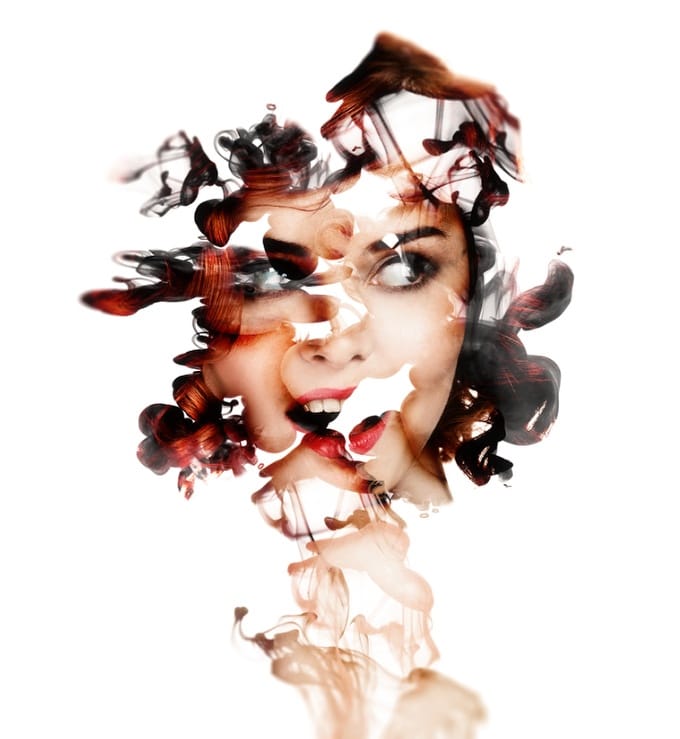
This tutorial from Abduzeedo provides a straightforward approach to replicating the stunning effects created by Italian digital artist Alberto Seveso for the Adobe CS6 promotional campaign. Seveso is known for his innovative use of Photoshop, pushing creative boundaries in the digital art world. You will discover a simple yet effective technique that relies on masks and layer effects, combined with stock images. This method allows you to produce impressive visuals with ease, even if you're not

Get tutorials & freebies delivered to you.

Subscribe to the Photoshop Roadmap newsletter, a weekly roundup of new tutorials, insights and quality downloads, trusted by 6500+ readers.

You might also like

Create an Old Masters Painting Effect from a Studio Portrait in Photoshop

Old Masters paintings capture drama and character through rich textures, dramatic lighting, and warm color palettes. By combining strategic dodging and burning with selective color adjustments and composite backgrounds, you can transform a simple studio portrait into a classical painterly masterpiece. This technique focuses on enhancing natural textures rather than...

How to Use AI Depth Masking in Photoshop for Targeted Subject and Background Editing

AI depth masking revolutionizes how you select and edit specific areas of your photos by analyzing three-dimensional space rather than shapes or colors. This powerful feature uses artificial intelligence to calculate depth layers, allowing you to brighten subjects while darkening backgrounds or apply targeted adjustments based on distance from the...

9 Lazy Photoshop Habits You Need to Break Right Now

Photoshop has added incredible AI features and smarter workflows over the last few years to save you time. Yet, you might still be stuck using clunky, manual workarounds you learned years ago. If you are constantly repeating tedious tasks, you are losing time and actively limiting the quality of your...

Professional Portrait Retouching with the B.S.T. Method in Photoshop

Professional portrait retouching requires artistic choices that automated tools can't make. The B.S.T. method breaks retouching into three focused steps: removing blemishes with precision, smoothing skin while preserving natural texture, and equalizing skin tones throughout the image. This systematic approach gives you complete control over every...

Create Motion Blur Light Effects in Photoshop

Transform ordinary portraits into dynamic, cinematic images by combining path blur effects with creative background textures. This technique creates the illusion of camera movement while maintaining focus on key elements like the subject's eyes, resulting in professional-looking motion blur effects that add energy and visual interest to static...

How to Paint Realistic Jewelry on Portraits in Photoshop

Adding painted jewelry to portraits transforms ordinary photos into fantasy portraits with ornate accessories that never existed. This digital painting technique uses careful layering, proper lighting, and realistic shadows to create convincing rings, earrings, and decorative headpieces. The method combines basic brush work with advanced blending techniques to build up...

You’ve successfully subscribed to Photoshop Roadmap
Welcome back! You’ve successfully signed in.
Great! You’ve successfully signed up.
Success! Your email is updated.
Your link has expired
Success! Check your email for magic link to sign-in.