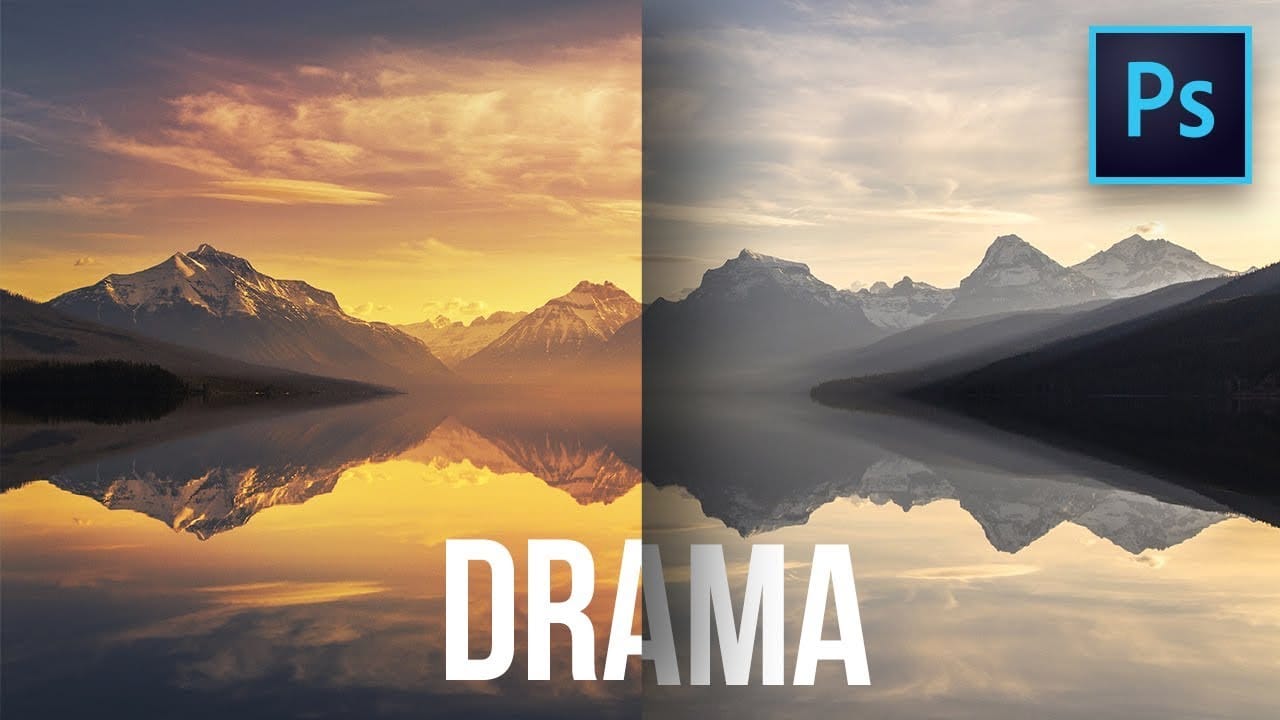
Professional sky replacement starts with mastering the fundamental selection tools that many photographers overlook. While advanced AI tools grab attention, understanding marquee, lasso, and magic wand selections gives you precise control over every cutout.
This tutorial demonstrates how to combine multiple selection tools to cut out mountain landscapes and seamlessly integrate dramatic new skies using layer masks and basic selection techniques.
Watch the Video
Practical Tips
These essential techniques will improve your selection accuracy and workflow efficiency:
- Hold spacebar while making selections to reposition them before completing the selection
- Use Shift to add to selections, Alt/Option to subtract, and Shift+Alt/Option to create intersections between multiple selections
- Combine different selection tools within the same project - start with magic wand for similar colors, then refine edges with lasso tools
- Lower magic wand tolerance (10-20) for precise selections in areas with subtle color variations
- Toggle between regular and polygonal lasso by holding Alt/Option while drawing your selection
Related Articles and Tutorials
Expand your selection skills with these complementary sky replacement and cutting techniques:
How to Replace Any Sky in Photoshop Using Selection Tools and Color Adjustments
A dull, overexposed sky can drain the life from an otherwise compelling photograph. Sky replacement transforms flat images into dramatic scenes that capture attention and convey mood.
This tutorial demonstrates the complete process of replacing skies in Photoshop using built-in selection tools, smart objects, and color matching techniques for natural-looking results.
Watch the Video
Essential Tips for Sky Replacement
* Match the sun position between your original photo and replacement sky
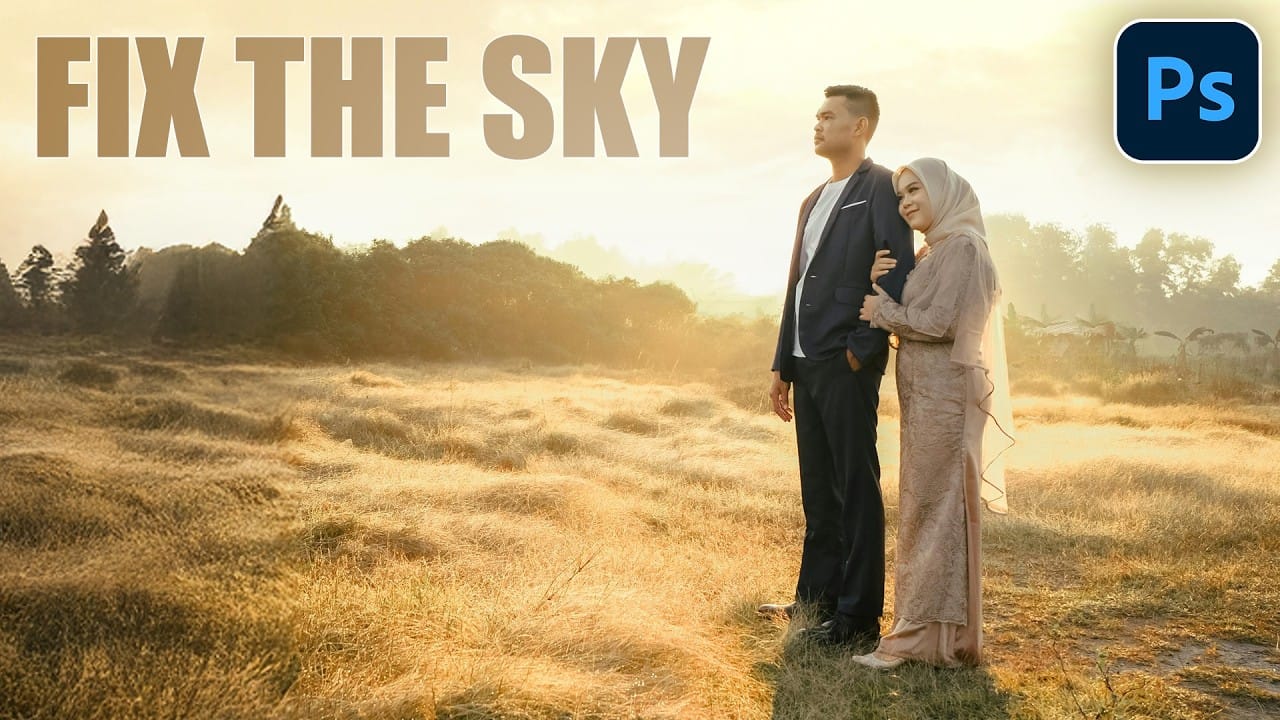
How To Easily Change The Sky In Photoshop
Transforming the mood and visual impact of a photograph often begins with its sky. A drab or overexposed sky can diminish the overall appeal of an otherwise great image, leaving it feeling flat or uninspired. Replacing the sky can dramatically enhance the scene, introducing vibrant colors, dramatic clouds, or a serene atmosphere.
This tutorial provides a straightforward method for updating skies in Photoshop, allowing creators to effortlessly blend new atmospheric elements into their photos. It
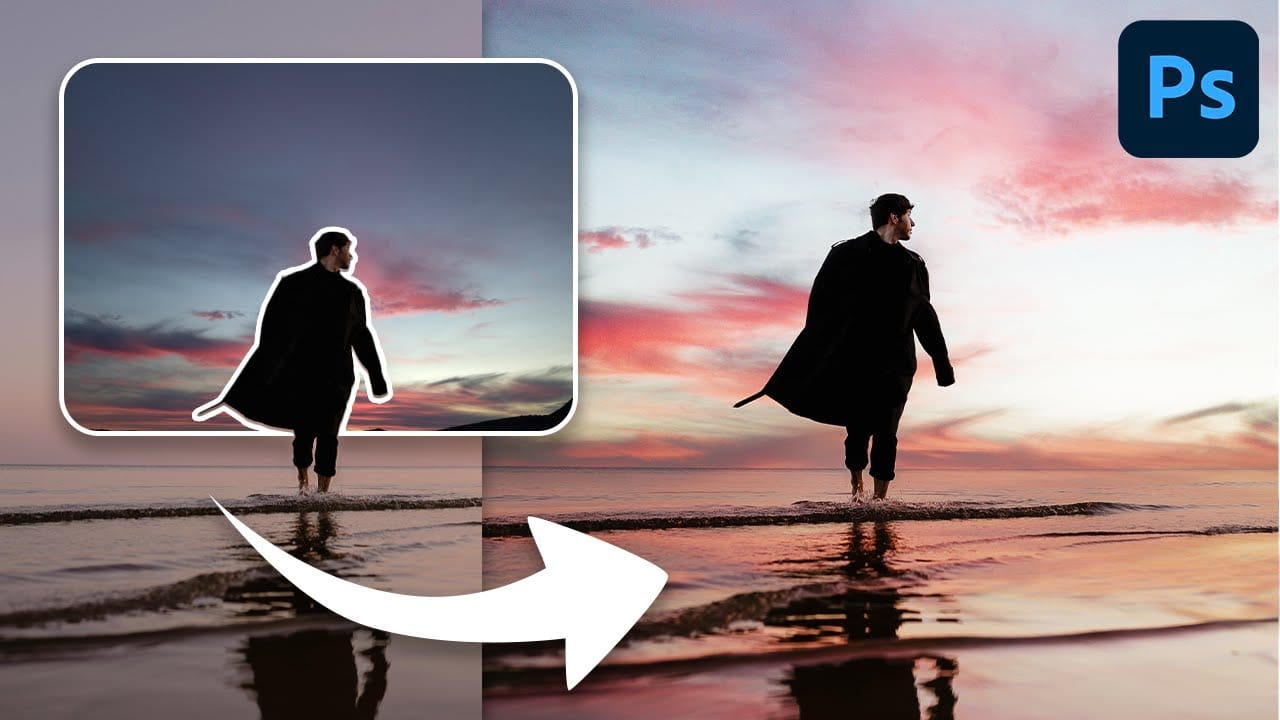
Learn how to replace the sky in a landscape photo
Photography often presents challenges with lighting conditions, especially when a bright sky overexposes and loses detail. Replacing a sky can dramatically transform the mood and visual impact of an image, turning a washed-out scene into a captivating landscape.
This video tutorial demonstrates a comprehensive method for replacing a sky in Photoshop, guiding viewers through the process of selecting, refining, and integrating a new, vibrant blue sky complete with custom-rendered clouds.
Watch
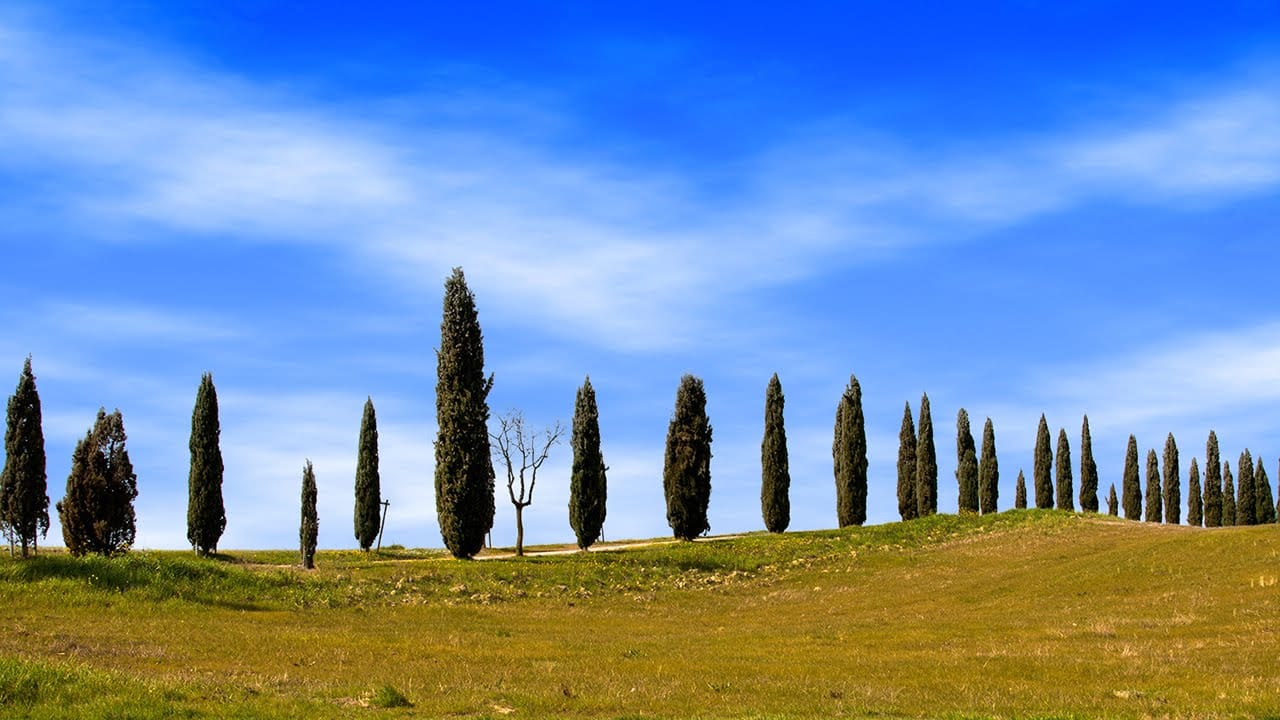
Add clouds to a sky in Photoshop
Transforming a photo's atmosphere often starts with its sky. A dull, overexposed, or uninteresting sky can detract from an otherwise great image, leaving it feeling flat or uninspired. Enhancing or replacing the sky can dramatically improve the scene, introducing vibrant colors, dramatic clouds, or a serene backdrop.
This tutorial provides a straightforward method for updating skies in Photoshop, allowing creators to effortlessly blend new atmospheric elements into their photos. It covers every

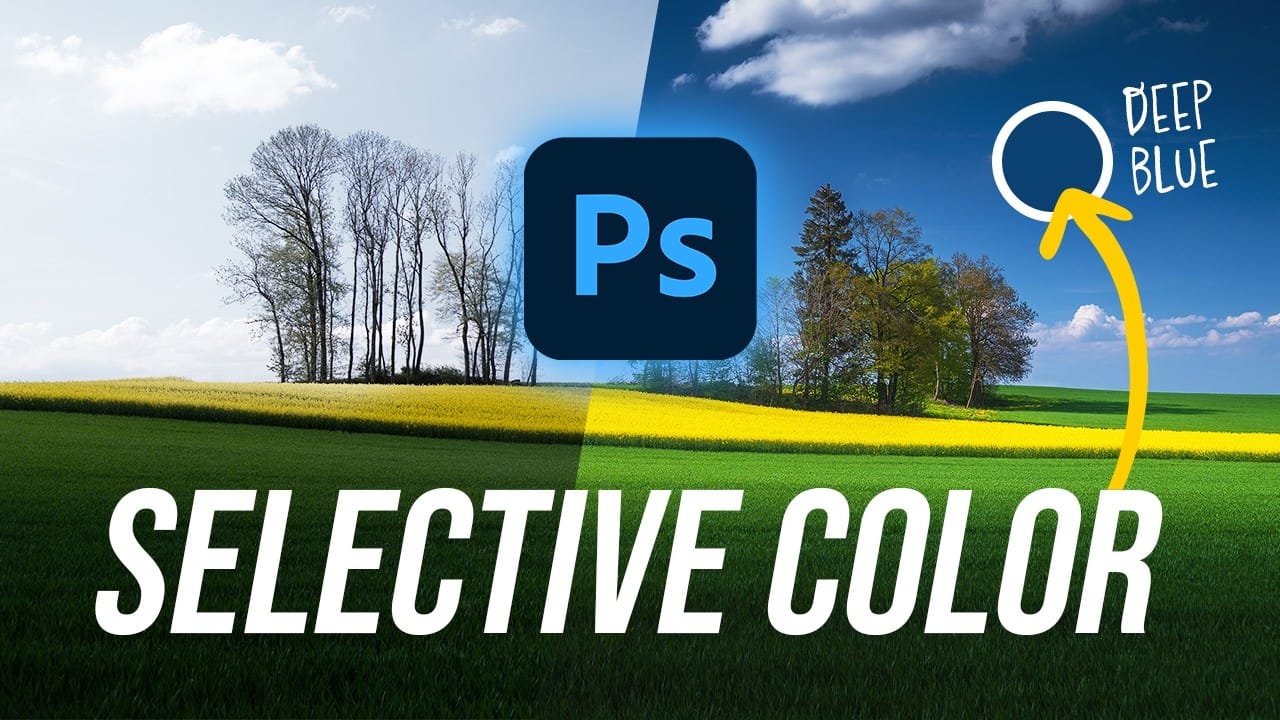
Create Deep Blue Skies Using Photoshop's Selective Color Tool
Blue skies can make or break a landscape photograph. When they appear too intense or cartoonish, they distract from the entire image. When they look flat and lifeless, the whole scene loses its impact.
This video demonstrates how to create rich, dramatic skies using Photoshop's selective color adjustment layer. The technique produces natural-looking results that enhance rather than overpower your landscape images.
Watch the Tutorial
Practical Tips for Sky Color Adjustment
* Start with the
Photoshop Selection Tools: Quick Methods for Better Cutouts
Clean cutouts and precise selections form the foundation of professional composite work in Photoshop. The difference between amateur and polished results often comes down to mastering the right selection techniques for each situation.
Sandra demonstrates several quick selection methods that can streamline your workflow and improve your results. These techniques help you choose the most effective approach based on your specific image and project needs.
Watch the Tutorial
Understanding Select

How to Use Photoshop's Select Subject Tool for One-Click Selections
Complex selections in Photoshop just became effortless. The Select Subject tool uses advanced AI to automatically identify and select main subjects in images, even those with intricate details like bicycle spokes or hair.
This tutorial demonstrates how to achieve professional-quality selections with a single click, saving hours of manual masking work.
Watch the Video
Practical Tips for Using Select Subject
* Access Select Subject through the Contextual Task Bar for quickest results - find

How to Change Backgrounds and Match Lighting in Photoshop
Creating seamless background replacements requires more than just cutting out your subject. The real challenge lies in making the new composition look natural through proper lighting, color matching, and depth of field consistency.
Modern Photoshop tools have simplified this process significantly, allowing you to achieve professional results with automated background removal and smart masking techniques that handle even complex details like hair.
Watch the Video
Practical Tips
These essent

Create colorful dramatic skies with a simple blending trick in Photoshop
A photograph's impact often starts with its sky. A drab or overexposed backdrop can diminish an otherwise strong image, leaving it flat or uninspired. Elevate your photos by transforming ordinary skies into vibrant, dramatic elements that capture attention.
This guide explores a powerful, yet simple Photoshop technique. It uses the Blend If feature to effortlessly integrate colorful new atmospheric elements. You can create stunning, colorful skies that truly enhance your imagery.
Watch the Fu