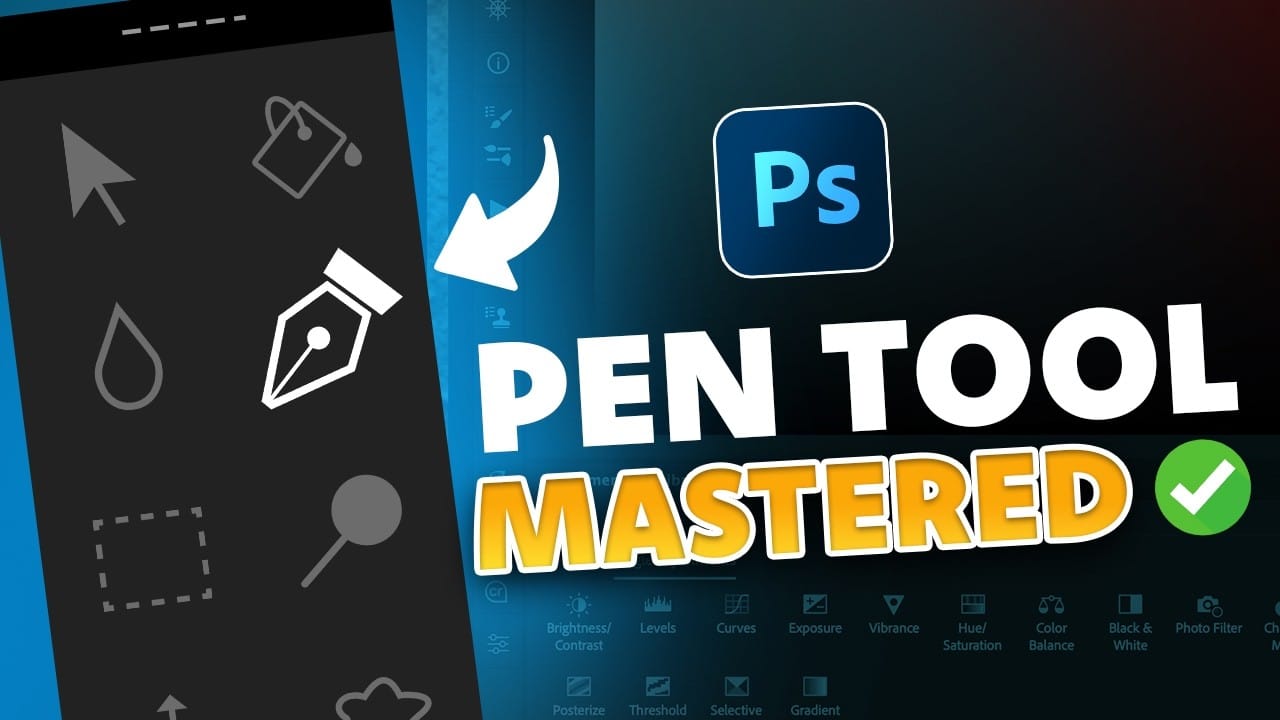
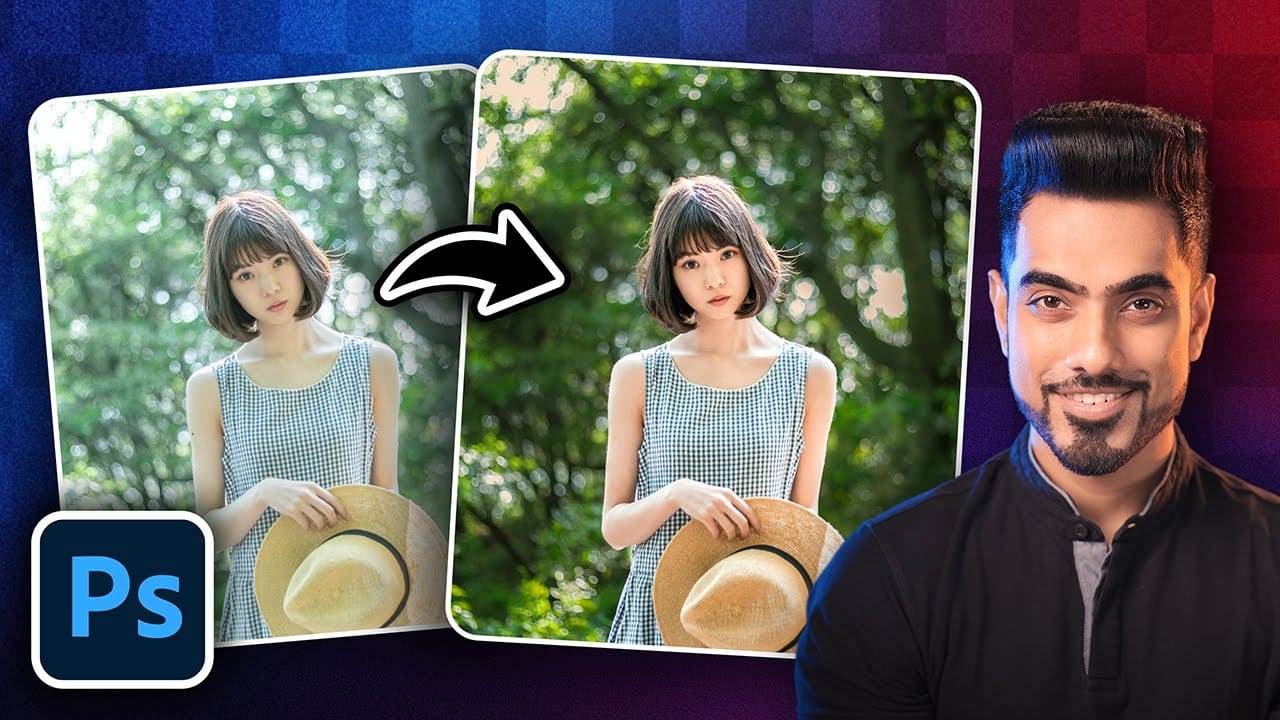
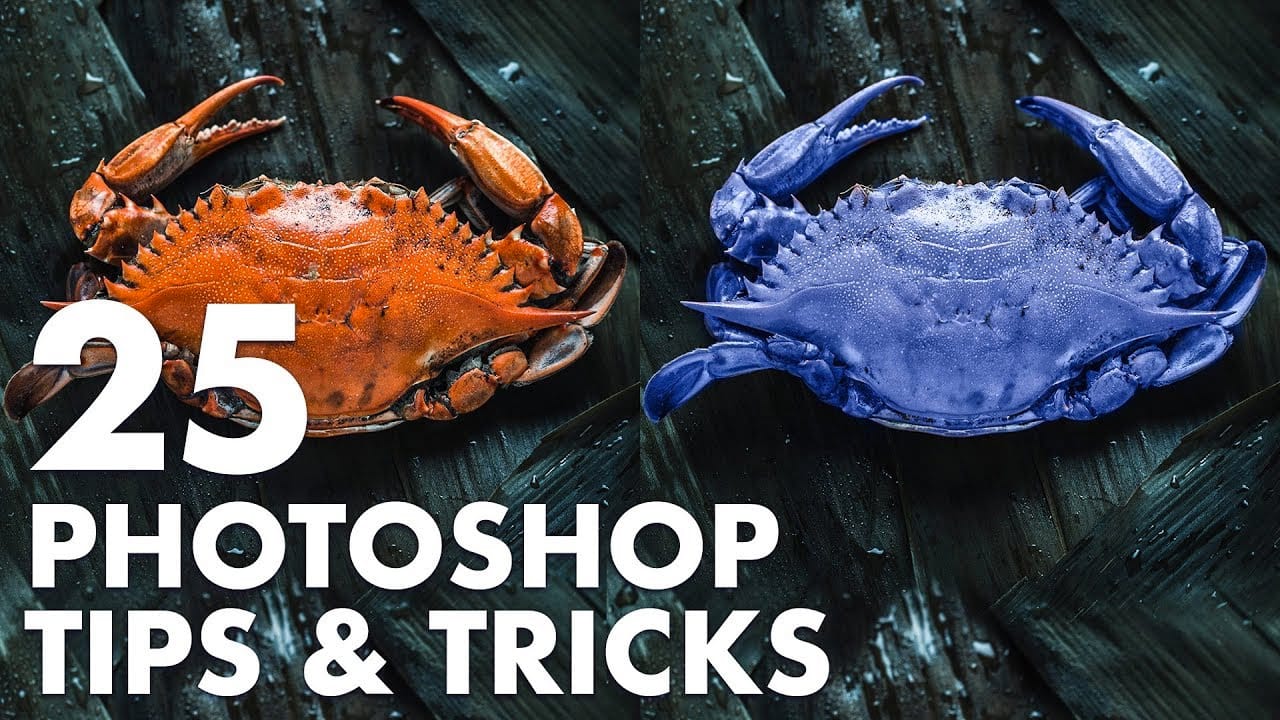
5 Essential Pen Tool Tips for Better Photoshop Selections

5 Essential Pen Tool Tips for Better Photoshop Selections

Perfect selections separate amateur work from professional results in Photoshop. When quick selection tools fail on complex subjects with curves and intricate edges, the Pen Tool becomes your most precise option for creating flawless cutouts.

These five essential techniques transform the intimidating Pen Tool into a reliable selection method. Master these fundamentals to handle any subject, from smooth curves to sharp corners, with confidence and accuracy.

Watch the Tutorial

Video by Nucly • Photoshop and Creative Design Training. Any links or downloads mentioned by the creator are available only on YouTube

Understanding Pen Tool Precision

The Pen Tool's strength lies in its mathematical precision. Unlike brush-based selection tools that rely on pixel detection, paths use vector mathematics to create infinitely scalable selections. This approach eliminates the jagged edges common with other selection methods.

Professional retouchers prefer paths because they remain editable throughout the entire workflow. Each anchor point can be adjusted, moved, or converted between straight and curved segments without starting over.

Key concepts that make the Pen Tool powerful:

  • Anchor points define the shape's structure and corner positions
  • Bezier curves create smooth transitions between anchor points
  • Handle manipulation controls curve direction and intensity
  • Path conversion transforms vectors into pixel-based selections
  • Non-destructive editing allows unlimited adjustments to saved paths

Essential Pen Tool Tips

  • Enable rubber band preview - Turn on this option in the gear menu to see your next line before clicking
  • Use keyboard modifiers - Hold Option/Alt to convert anchor points and Command/Ctrl to access the direct selection tool
  • Zoom efficiently while working - Press Spacebar first, then Command/Ctrl to zoom without switching tools
  • Minimize anchor points - Fewer points create smoother selections; avoid using the pen tool like a lasso
  • Convert paths quickly - Press Command/Ctrl + Enter to instantly turn your path into a selection

More Tutorials About Photoshop Selection Techniques

Explore these related resources to expand your selection and editing skills in Photoshop.
5 tips to make your photos better in Photoshop
Colin Smith from Photoshop Cafe shares a comprehensive tutorial on five essential tips to rapidly enhance your photos using Photoshop. These tips are designed to help both beginners and experienced users elevate the quality of their images with ease. One key aspect Smith covers is improving exposure. He demonstrates how to adjust brightness and contrast effectively to bring out the best in your photos, ensuring they are well-lit and visually appealing. Sharpening details is another crucial tip,
Master Photoshop's Pen Tool in 5 Minutes
The Pen Tool in Photoshop intimidates many designers, yet it remains one of the most powerful selection and shape creation tools in the software. While other selection methods work well for simple shapes, complex objects with curves and precise edges demand the accuracy that only the Pen Tool can deliver. This tutorial breaks down the essential Pen Tool techniques into digestible steps, covering anchor points, control arms, and path creation. By understanding these fundamentals, you'll gain the
5 Essential Photoshop Techniques for Better Portrait Editing
Portrait editing often feels overwhelming, especially when trying to balance natural-looking results with professional polish. Many photographers struggle with where to start and which adjustments will have the biggest impact on their images without making them look over-processed. This tutorial covers five fundamental Photoshop techniques that will immediately improve any portrait. From creating better subject focus to color correction and skin retouching, these methods provide a solid foundat
25 Photoshop tips and tricks you must know
Nathaniel Dodson, a renowned Photoshop expert, has crafted a comprehensive tutorial that guides you through the depths of the software's capabilities. In this 120-word exploration, readers will uncover a treasure trove of 25 invaluable tips and tricks that can significantly enhance their Photoshop experience. From mastering the art of brush smoothing to unlocking the hidden potential of sliders and views, Dodson's tutorial promises to elevate one's Photoshop prowess. Rubberband tricks, seamless

Get tutorials & freebies delivered to you.

Subscribe to the Photoshop Roadmap newsletter, a weekly roundup of new tutorials, insights and quality downloads, trusted by 6500+ readers.

You might also like

How to Change Object Colors in Photoshop Using Hue/Saturation

Changing the color of specific objects in your photos requires precision and the right technique. The key is creating an accurate selection and using a targeted adjustment layer that affects only your chosen subject while preserving the rest of the image. This method combines the Object Selection tool with Hue/...

Create a Distorted Wave Glitch Effect in Photoshop

Digital distortion effects transform ordinary portraits into striking visual art by warping reality through deliberate technical manipulation. This technique uses multiple wave filters layered together to create increasingly complex distortions, while selective masking preserves important facial features from becoming completely unrecognizable. Watch the Video Practical Tips Master the wave distortion...

How to Create Glow Motion Effects with Gradient Maps in Photoshop

Motion blur combined with colorful gradients creates striking visual effects that transform ordinary photos into dynamic, cinematic images. This technique uses gradient maps to automatically color light and dark values, producing flowing color transitions that follow the movement of your subject. The process involves subject isolation, strategic gradient placement, path...

How to Use Reference Images with Generative Fill in Photoshop

Reference images revolutionize how Generative Fill works, letting you guide AI with actual photos instead of text prompts. This feature enables precise clothing swaps, object replacements, and realistic additions by showing the AI exactly what you want rather than describing it. The technique works with everything from custom t-shirts and...

How to Remove Eye Bags Using Dodge and Burn in Photoshop

Eye bags can dramatically age a portrait, making subjects appear tired or unhealthy. Traditional removal methods often destroy skin texture or create unnatural results that look obviously retouched. This professional dodge and burn technique removes even severe eye bags while preserving every detail of natural skin texture. The method uses...

You’ve successfully subscribed to Photoshop Roadmap
Welcome back! You’ve successfully signed in.
Great! You’ve successfully signed up.
Success! Your email is updated.
Your link has expired
Success! Check your email for magic link to sign-in.