Color toning transforms ordinary photos into stylized images with distinct mood and atmosphere. Using solid color fill layers with blend modes creates subtle color shifts that enhance your photographs without overwhelming the original tones.
This technique works particularly well when you want to add warmth to highlights and coolness to shadows, or vice versa. The method is completely non-destructive and easily adjustable, making it perfect for experimenting with different color combinations.
Watch the Video
Practical Tips
Here are key techniques for effective color toning with fill layers:
- Set your solid color fill layer to Soft Light blend mode for natural-looking color integration
- Use the Blend If sliders in Layer Style to restrict colors to highlights or shadows only
- Hold Alt/Option while dragging Blend If sliders to create smooth transitions
- Always mask out skin tones when using cool colors like green or blue to maintain natural skin appearance
- Lower layer opacity if the color effect becomes too strong or overwhelming
Related Articles and Tutorials
Explore more color correction and toning techniques to enhance your photo editing skills.
How to Color Correct Photos in Adobe Camera Raw
Color toning in Photoshop is an essential skill for anyone looking to enhance their images. With the Camera Raw Filter, you can easily adjust the warmth and coolness of your photos, bringing out the desired mood and atmosphere. This feature allows you to go beyond basic edits and introduce a dynamic range of tones that can transform your work.
In addition, creating custom presets can simplify your editing process significantly. By saving your favorite adjustments, you can apply them to future p
Beautiful Warmtone and Cooltone Photo Effects Photoshop Tutorial
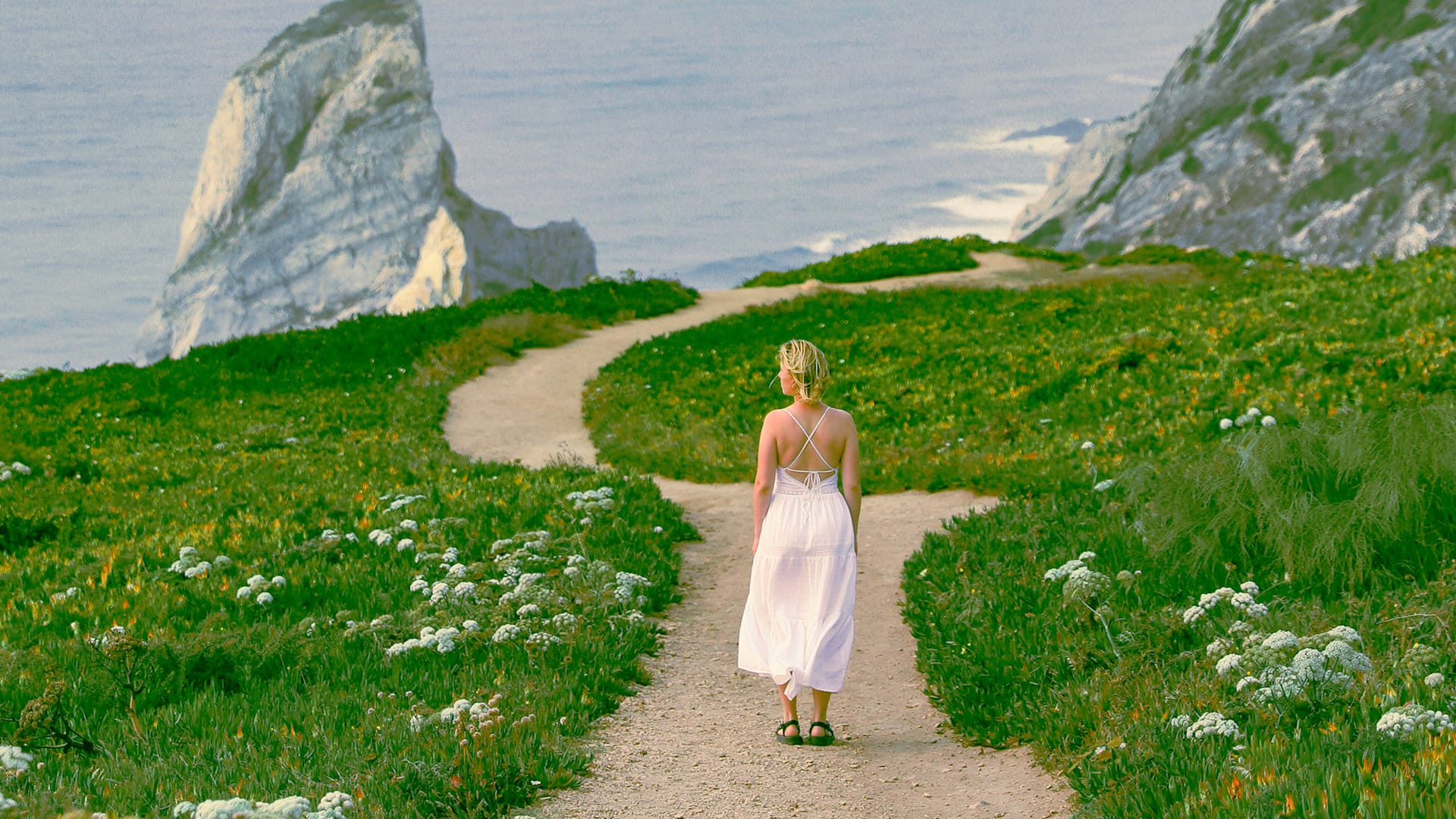
Back in the day, when one would print their own black and white prints, you had a choice of a zillion different papers. They basically boiled down to cooltone and warmtone papers. This combined with different developers gave one an array of tones to choose from for any given picture. Sadly, nowadays it's getting harder to find specific papers and certain developers are no longer being manufactured. In the digital era, most people who might not have gone through the trouble of trying different to
One click instantly fixes color in Photoshop
In this tutorial by Colin Smith from Photoshop Cafe, you'll learn how to instantly fix the color of your photos in a single click using Photoshop and Lightroom. Colin introduces a powerful tool that can correct color issues effortlessly, making your images look more natural and vibrant.
This quick tutorial focuses on achieving perfect color balance with minimal effort. Whether you're a beginner or a seasoned Photoshop user, Colin's method is straightforward and effective, allowing you to enhanc

The easiest way to change any color in Photoshop
Changing the color of specific elements within an image can often be a frustrating challenge for designers and photographers. Achieving a precise color shift without affecting surrounding areas, or dealing with complex selections, often leads to a time-consuming and imperfect process.
This guide introduces a highly efficient method utilizing Photoshop's latest updates, specifically the "Adjust Colors" feature found in the contextual taskbar. This technique simplifies accurate color manipulation
Turn White into Any Color in Photoshop
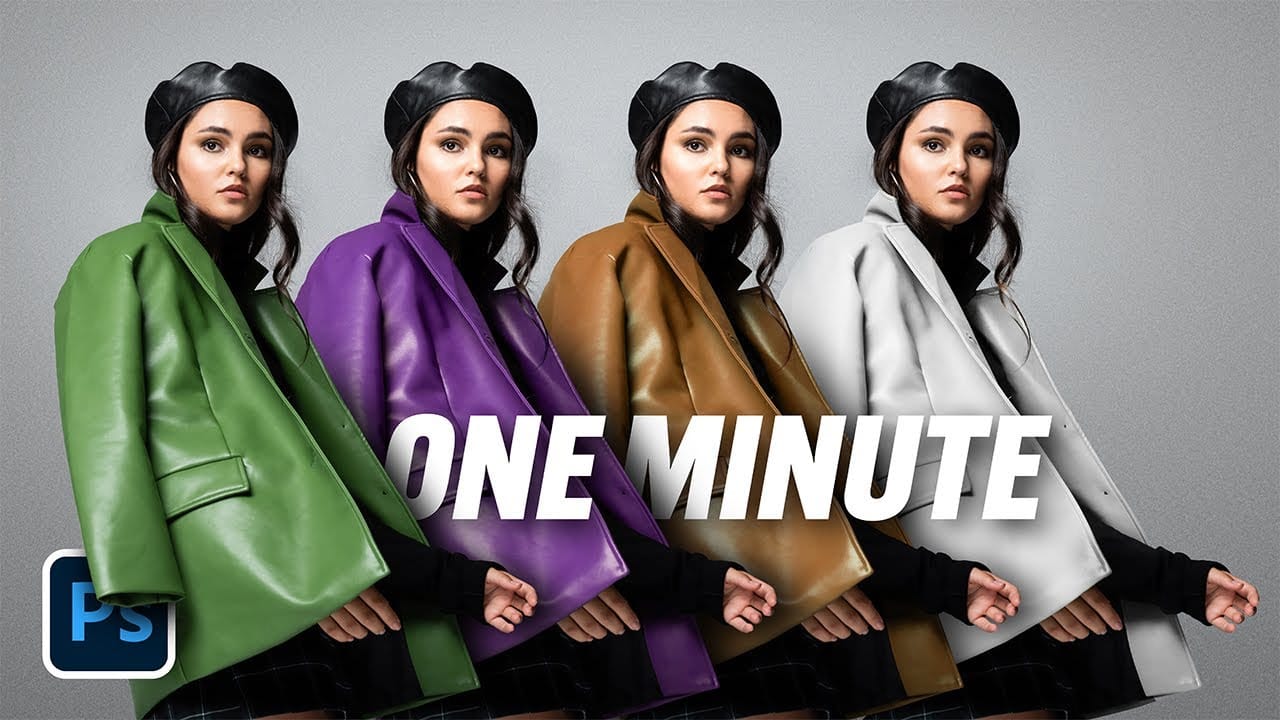
In this tutorial, WebFlippy demonstrates how to effortlessly transform white areas into any color using blending modes in Photoshop. This technique is especially useful for photo retouching and product photography, allowing for versatile color adjustments without affecting the overall image quality.
The tutorial provides a straightforward approach to applying this method, ensuring that you can quickly adapt white elements in your photos to match your desired color scheme. With clear instruction
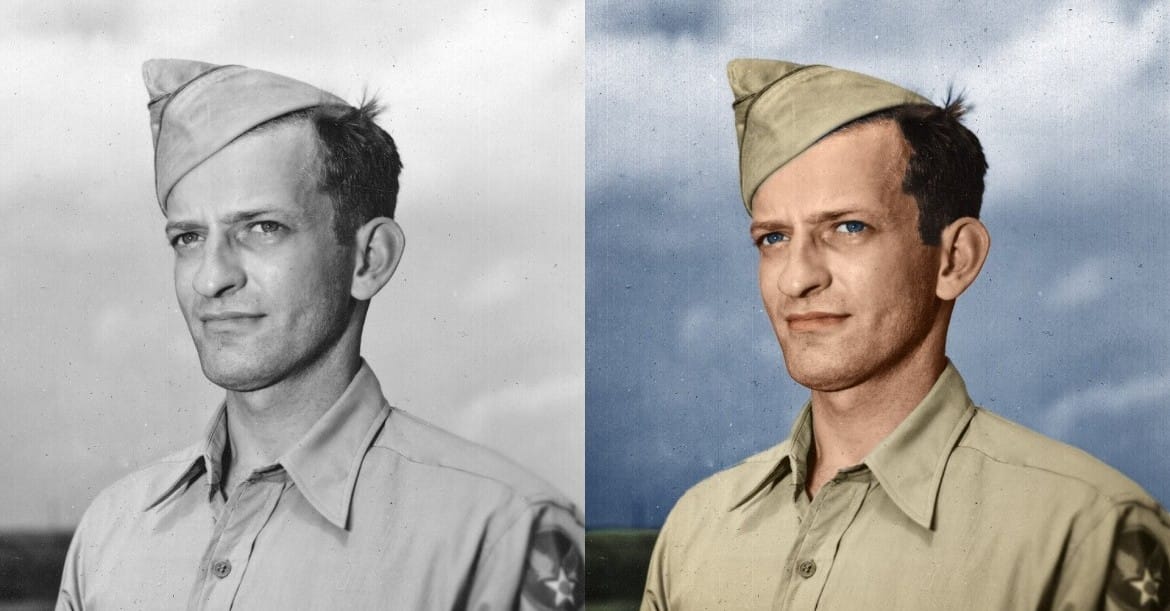
How to Colorize a Old Black and White Photo in Photoshop
Bringing vintage photos into life in Photoshop is fun, especially if it involves old family pictures and portraits. Your first attempts probably were a mess. Don't worry, it's not that simple without the proper knowledge, but it isn't a complex task either. In fact, after watching this video tutorial chances are that you'll become a serial colorizer.
John Shaver from Photoshop Video Academy, explains in this detailed tutorial how to colorize photos using a 100% non-desctrucive technique, wich w
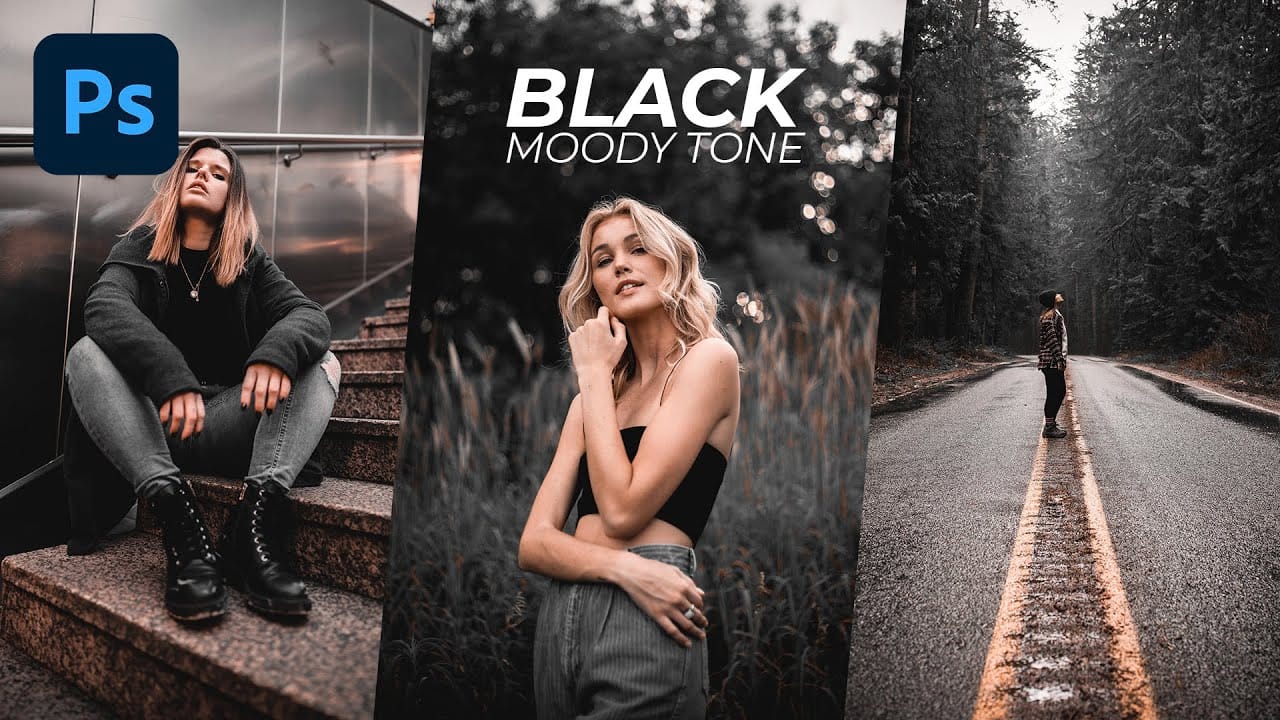
Black Moody Color Grading in Photoshop
In this comprehensive Photoshop tutorial from WebFlippy, you'll learn how to create a stunning black tone moody color grading effect. This technique is perfect for adding depth and atmosphere to your photos, giving them a dramatic and sophisticated look.
The tutorial provides a detailed, step-by-step guide on how to achieve this effect, making it accessible even for those new to Photoshop. You'll also discover how to save your adjustments as a preset, which allows you to quickly apply the same
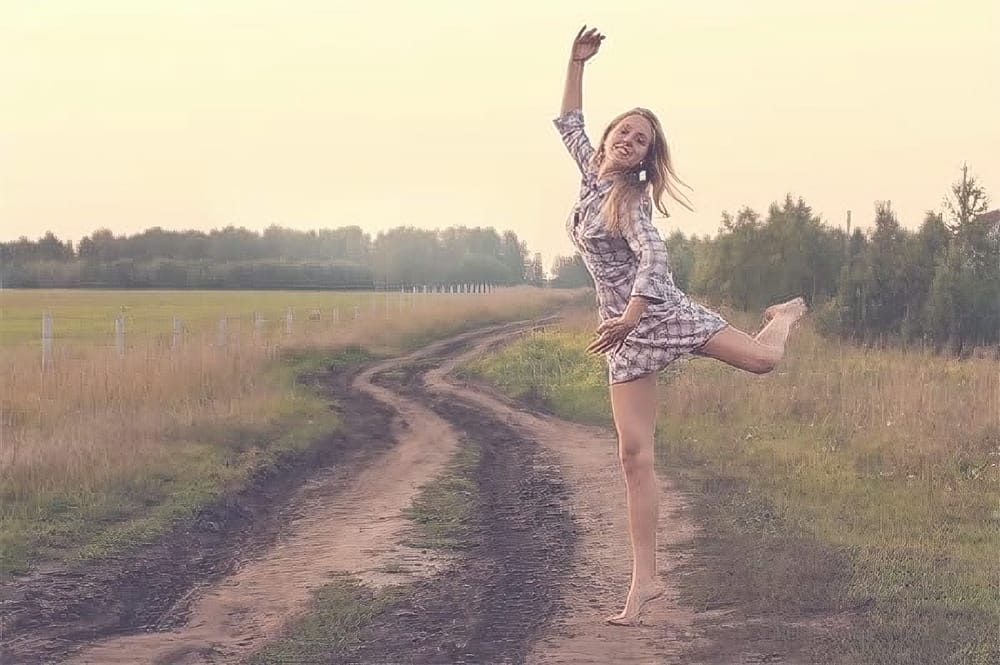
Add Creamy Tones to a Photo for a Vintage Look in Photoshop
This Photoshop tutorial by JustThisGood teaches you how to add creamy tones to your photos, achieving a vintage aesthetic that many find appealing. With clear and simple steps, you'll be guided through the process, making it easy for anyone to follow along.
You will explore various techniques for adjusting color balance and applying soft filters to create that perfect aged look. The tutorial emphasizes accessibility, allowing even beginners to achieve stunning results without extensive experien
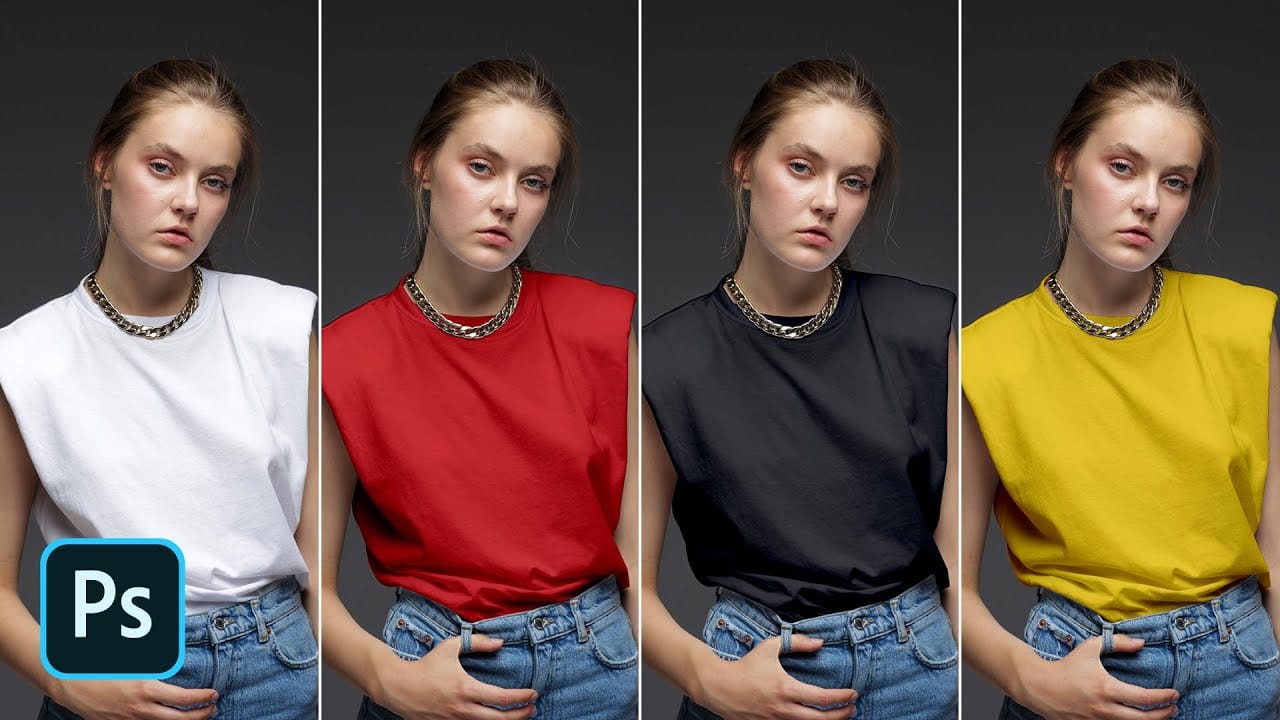
How to Change Black into Any Color in Photoshop
In this tutorial, Aaron Nace demonstrates how to transform black elements in your images into any color using Photoshop. This technique involves utilizing Levels and Hue/Saturation Adjustment Layers to achieve the desired color changes.
Aaron guides you through the process of adjusting these settings to effectively modify black areas in your photos. This method is particularly useful for fashion and product photo retouching, allowing you to customize colors for creative or branding purposes.
T
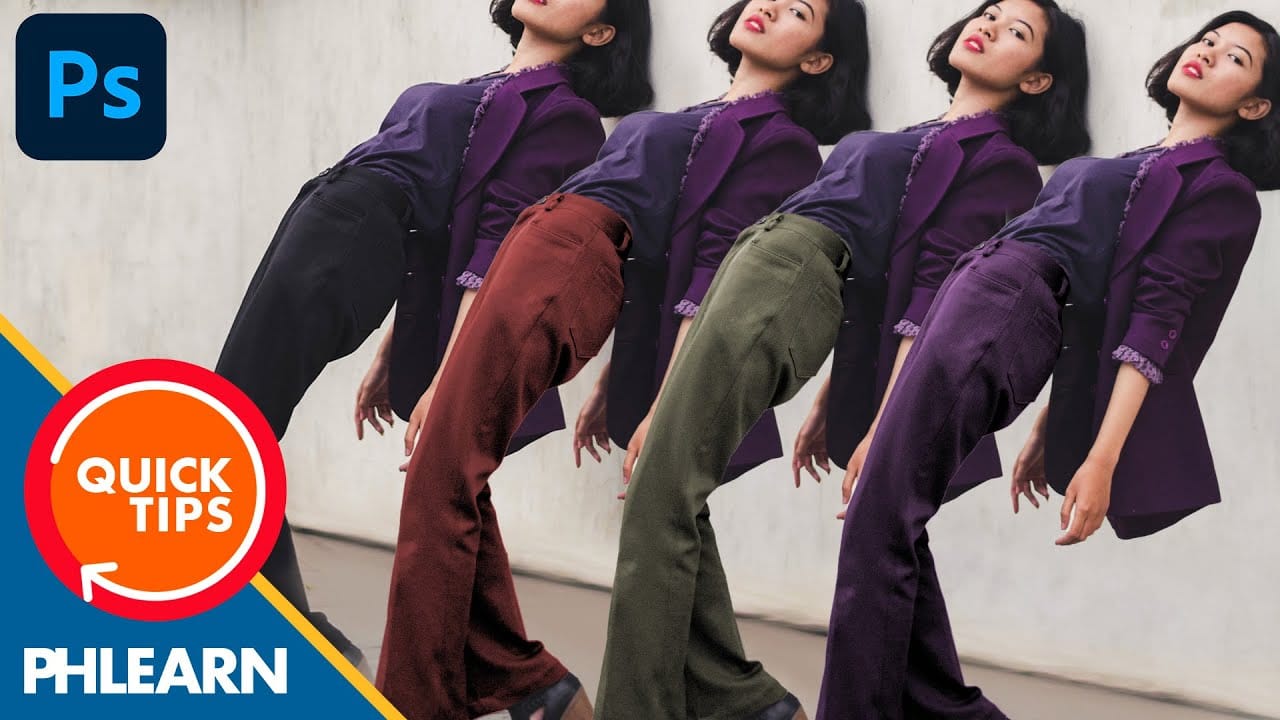
How to Change Black and White to Any Color in Photoshop
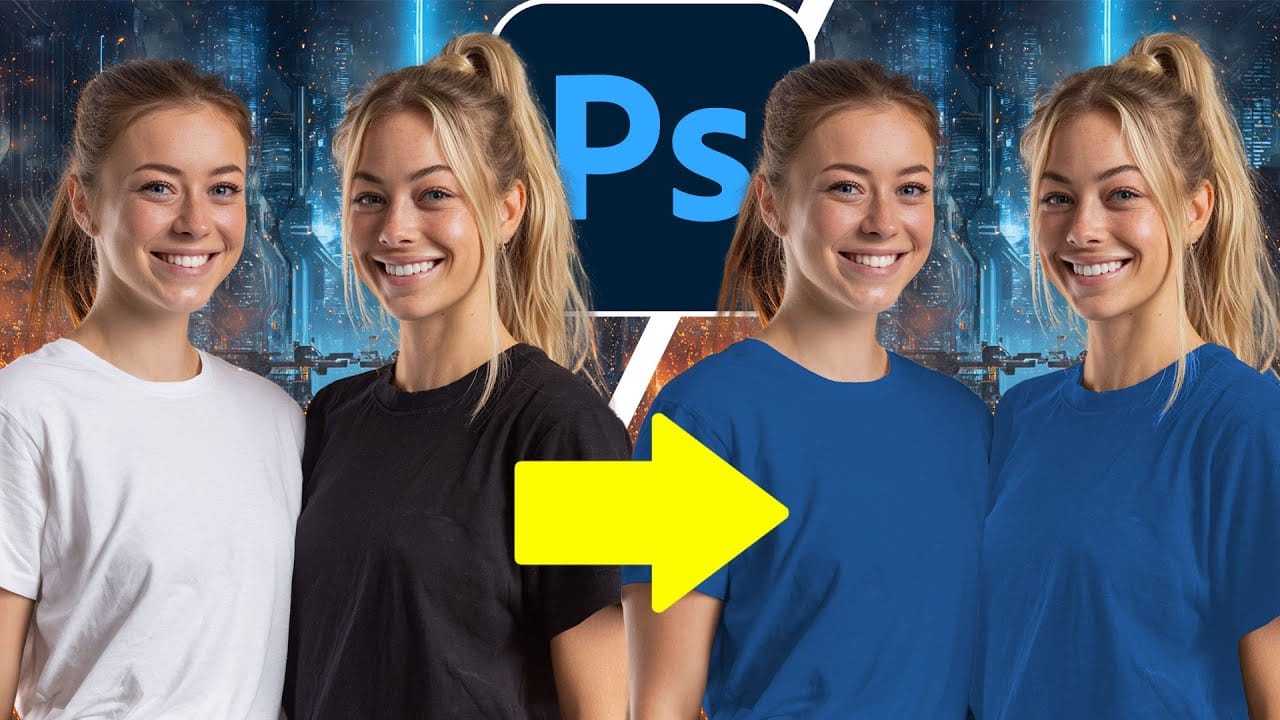
Standard color adjustment tools fail when you try to change pure black or white elements in your photos. These neutral tones lack the hue and saturation data that typical color replacement methods require.
This technique uses Hue/Saturation adjustment layers with strategic lightness modifications to transform both black and white areas into any color you need.
Watch the Tutorial
Essential Tips for Changing Black and White Colors
* Use the Object Selection tool with rectangle mode for fast