Create an Old Masters Painting Effect from a Studio Portrait in Photoshop

Create an Old Masters Painting Effect from a Studio Portrait in Photoshop

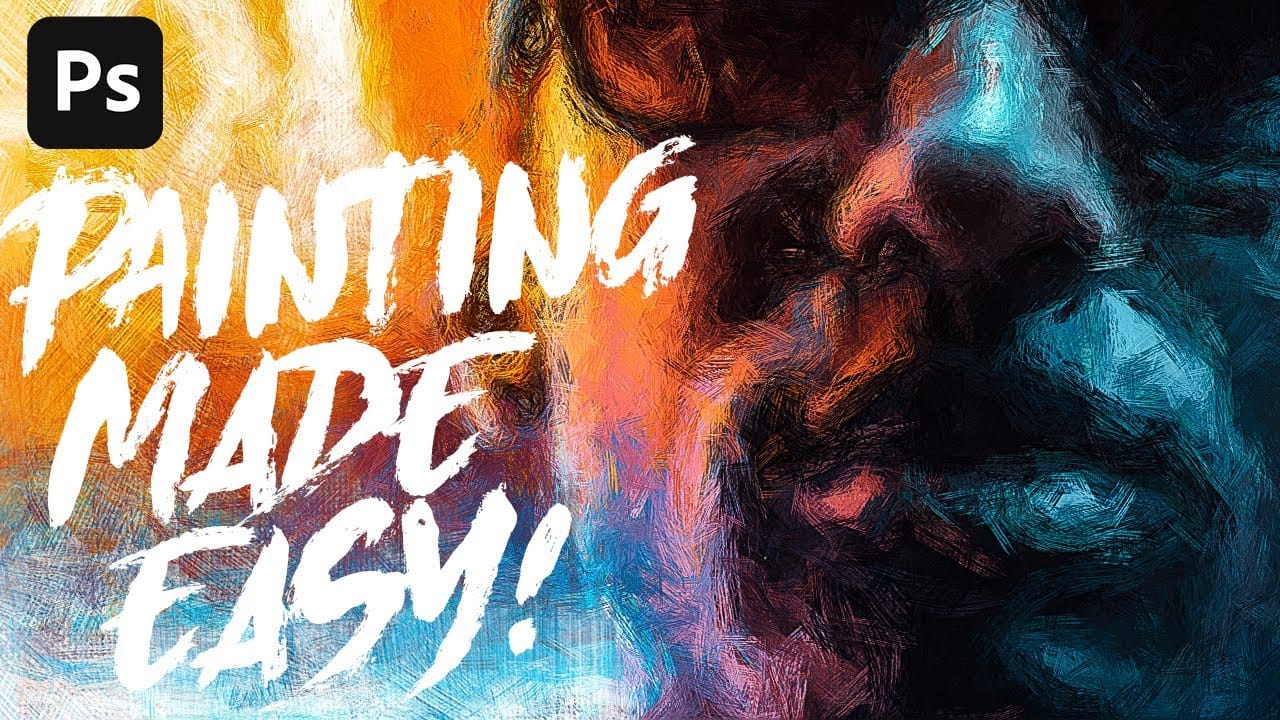
Old Masters paintings capture drama and character through rich textures, dramatic lighting, and warm color palettes. By combining strategic dodging and burning with selective color adjustments and composite backgrounds, you can transform a simple studio portrait into a classical painterly masterpiece.

This technique focuses on enhancing natural textures rather than smoothing them, using high contrast lighting and warm golden tones to achieve that timeless artistic quality found in Renaissance and Baroque portraits.

Watch the Video

Video by Nikki Harrison. Any links or downloads mentioned by the creator are available only on YouTube

Practical Tips

These key techniques will help you achieve professional Old Masters painting effects:

  • Use high contrast studio lighting without reflectors to create dramatic shadows that enhance facial textures and details
  • Apply multiple curves adjustments with blend modes to selectively brighten highlights without overexposing the entire image
  • Enhance textures using clarity and texture sliders in Camera Raw, then use dodging and burning to emphasize skin details and fabric
  • Convert bright whites to warm golden tones using gradient maps with hard light blend mode for authentic period coloring
  • Match light sources when compositing by flipping backgrounds and adding warm color adjustments to create believable atmospheric perspective

Explore more artistic photo transformation techniques to expand your creative toolkit.

35 Artistic Photoshop Effects Tutorials and Actions That Actually Look Good
Creating illustration effects from a photo has never been easier. AI tools can generate a sketch, a painting, or a cartoon version in seconds, and the first result can look surprisingly good. The problem is control. Even with conversational AI models (like ChatGPT or Gemini Nano Banana) that let you
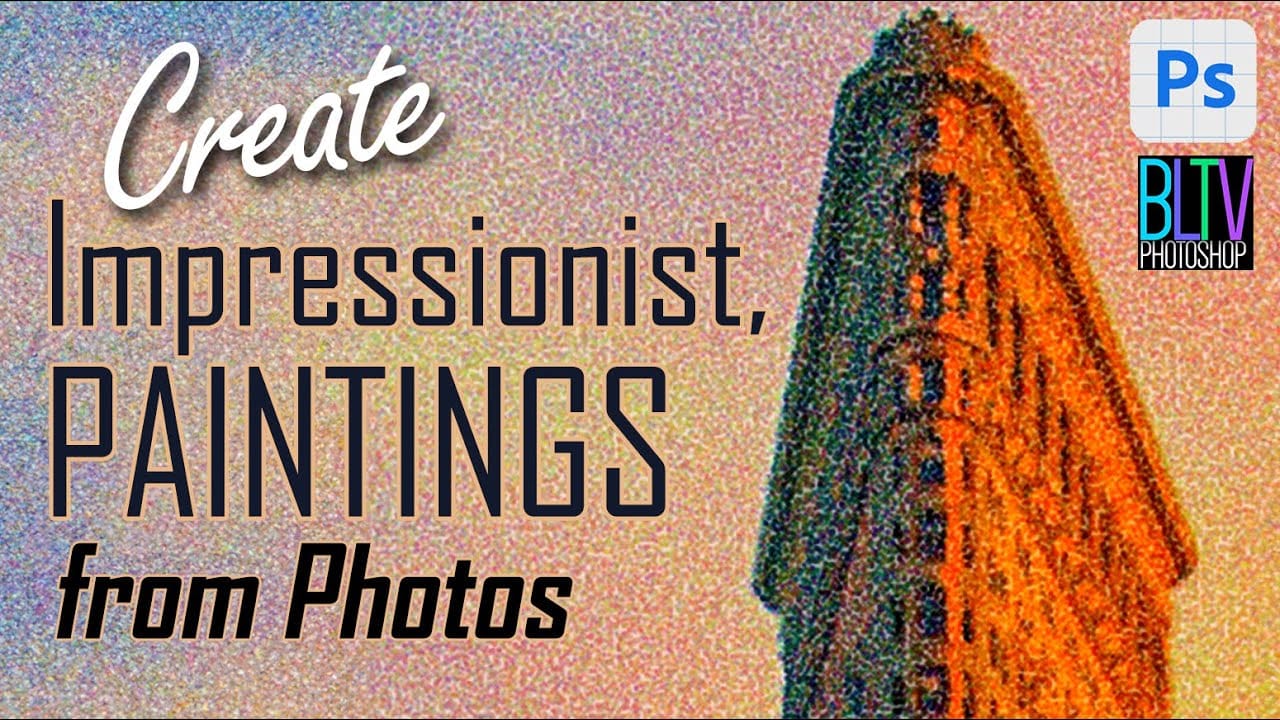
Create impressionist paintings from your photos in Photoshop
One intriguing technique in digital art involves leveraging a master's work as a direct reference for color and tone. This tutorial demonstrates how to use a Claude Monet painting to guide the color matching of your own photographs, achieving a cohesive impressionist style. The process also emphasizes a non-destructive workflow by converting images to Smart Objects, allowing for flexible adjustments and easy photo replacement without redoing effects. Additionally, it highlights efficient conten
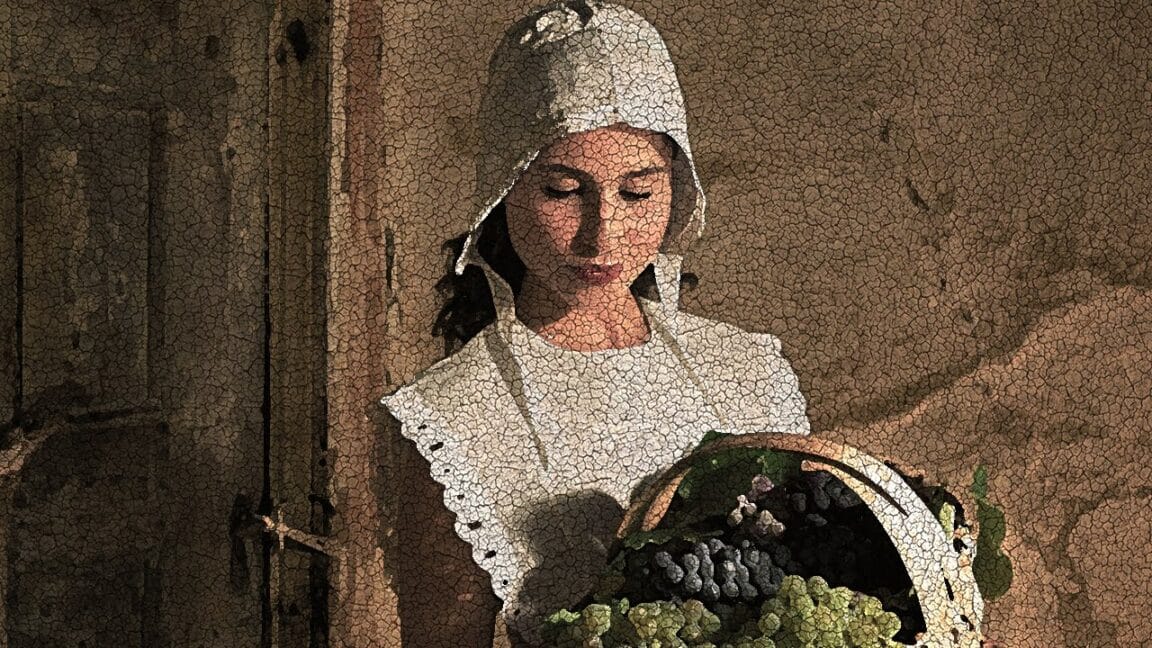
How to Transform a Photo into an Antique, Oil Painting Photoshop
This tutorial explores a fascinating method to transform digital photographs into timeless antique oil paintings. It focuses on techniques that emulate the classic appearance of aged art, adding character and depth to modern images. Viewers will discover how to apply artistic effects within Photoshop, including specific color adjustments, textural overlays, and brushstroke simulations, to achieve a convincing vintage aesthetic reminiscent of historical artworks. Watch the Video Crafting the
Create Dream-Like Images in Photoshop
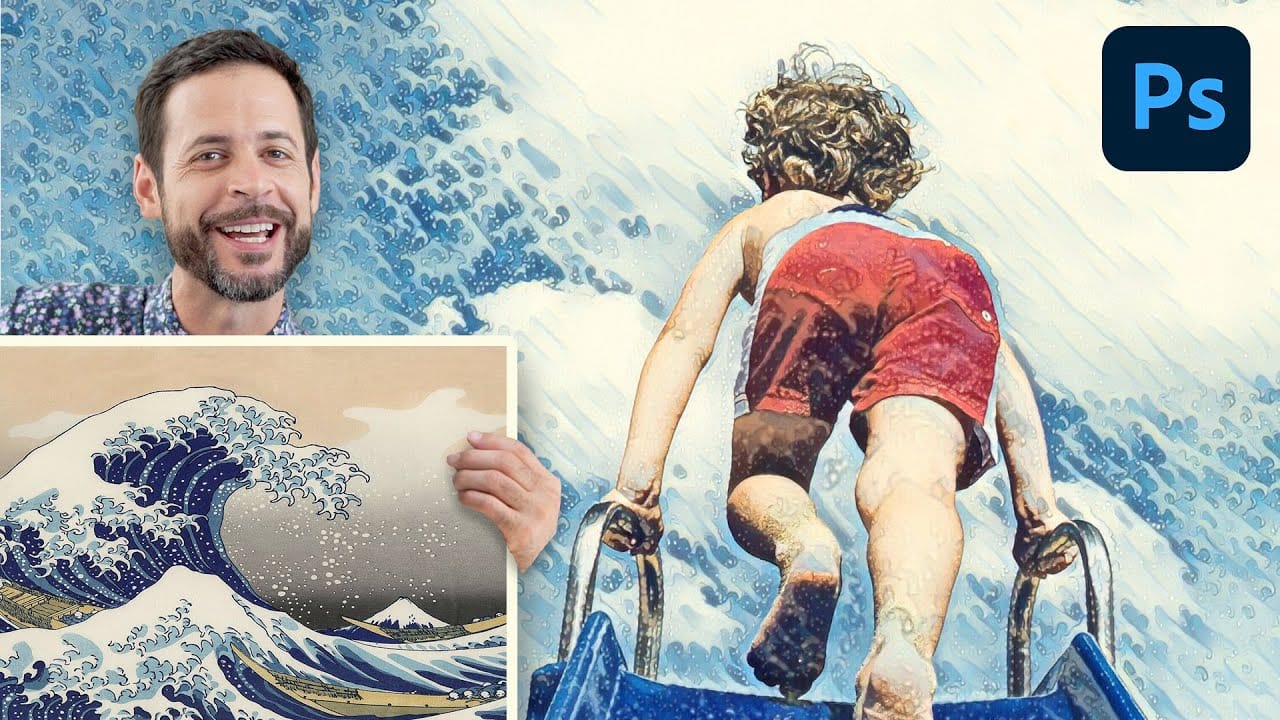
Transform ordinary photographs into artistic masterpieces using artificial intelligence-powered neural filters. This technique automatically applies painting styles from classic artworks to your images, creating effects that range from Van Gogh-inspired oil paintings to abstract wave patterns. The style transfer process works entirely within the application, requiring just a few clicks to achieve results that would traditionally take hours of manual work. Watch the Video Practical Tips Mas
Add a Painterly Effect to a Portrait in Photoshop
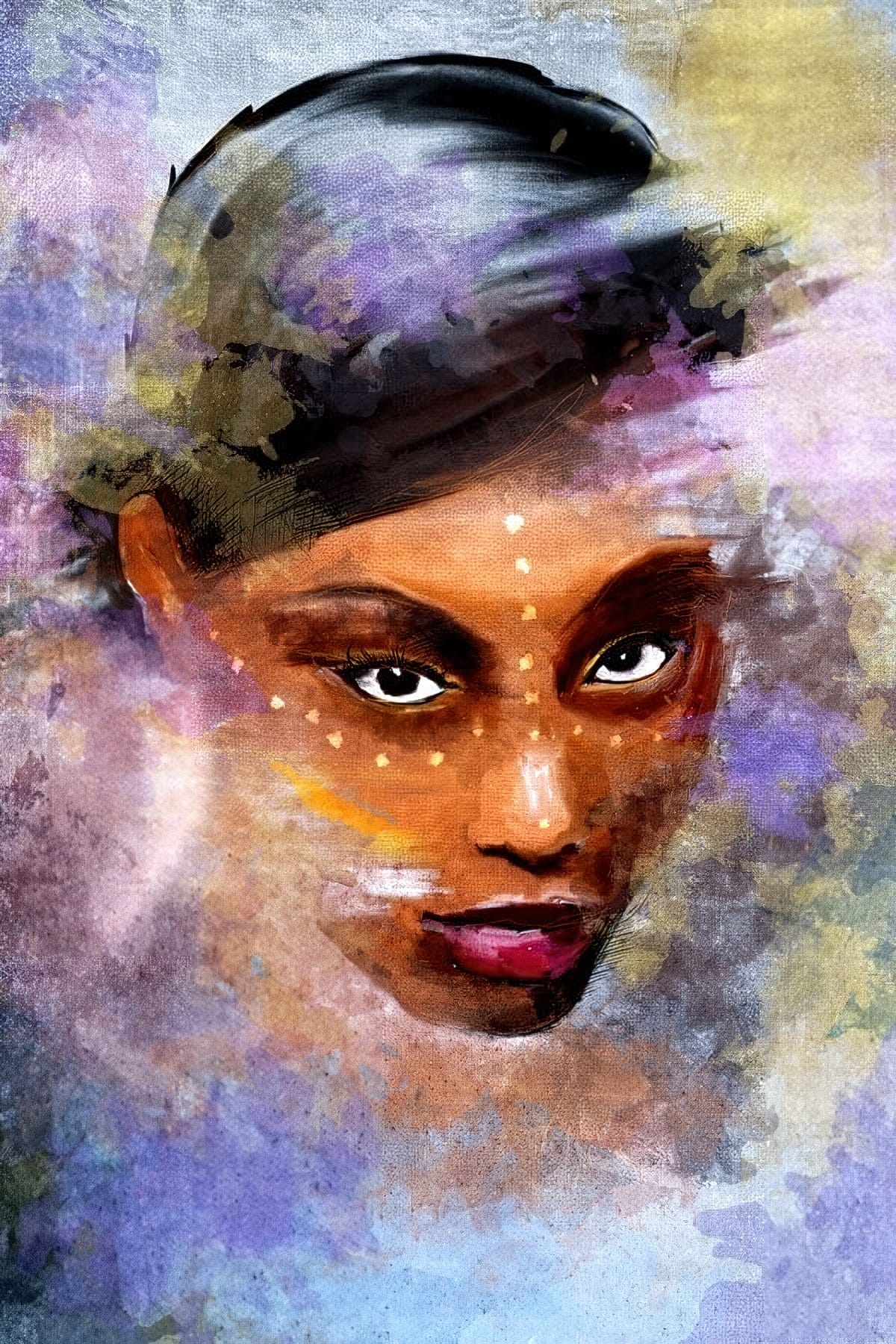
Transforming a simple photograph into a breathtaking pencil sketch is a skill that sits at the intersection of art and technology. For designers seeking to push the boundaries of their creativity, mastering this technique can open up new avenues for artistic expression. Adobe Photoshop, with its vast array of tools and features, provides the perfect platform to achieve this intricate effect. In today's post, we delve into the sophisticated process of turning a photo into a pencil sketch, offerin
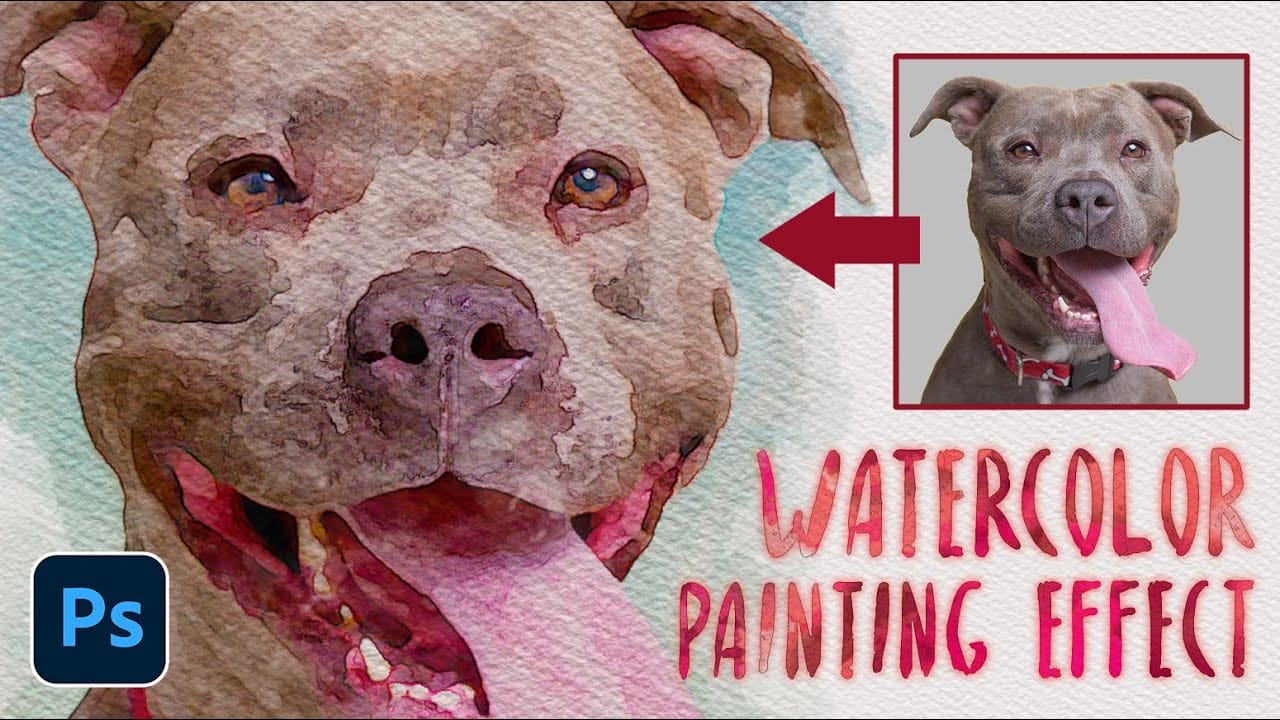
How to Transform Photos into Watercolor Paintings in Photoshop
Watercolor paintings capture light and emotion in ways that photography alone cannot achieve. The flowing pigments, soft edges, and organic textures create an artistic interpretation that transforms mundane subjects into compelling visual stories. This tutorial demonstrates how to recreate these traditional watercolor qualities digitally, combining Photoshop filters with custom brushwork to achieve authentic-looking results that maintain the spontaneous, hand-painted feel of real watercolor art
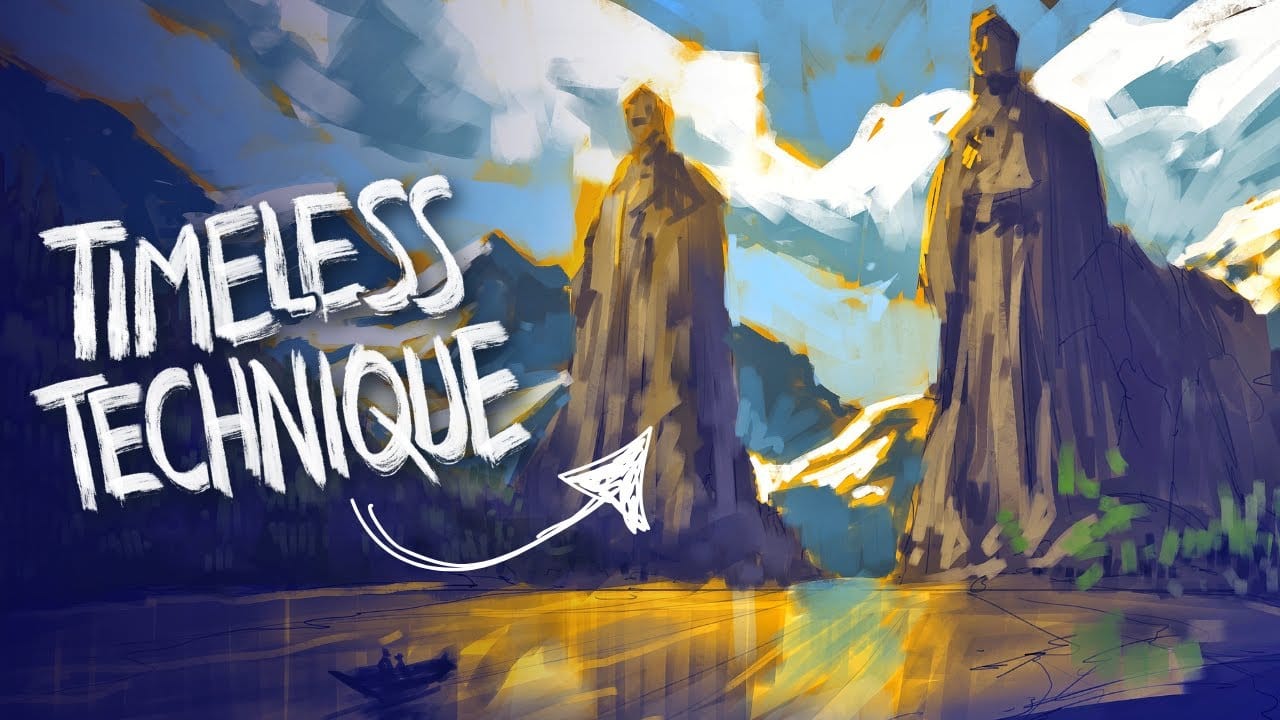
The Underpainting Technique in Adobe Photoshop
In this presentation, you will explore an oil painting technique that has stood the test of time, used by Old Masters for centuries. This method begins with a basic CPA underpainting, which serves as a foundation for the artwork. Following this, layers of color are added on top to create depth and richness. The speaker will demonstrate this technique through digital speedpaints, showing how you can apply it to your own work. The process starts with loose sketching to establish composition, foll
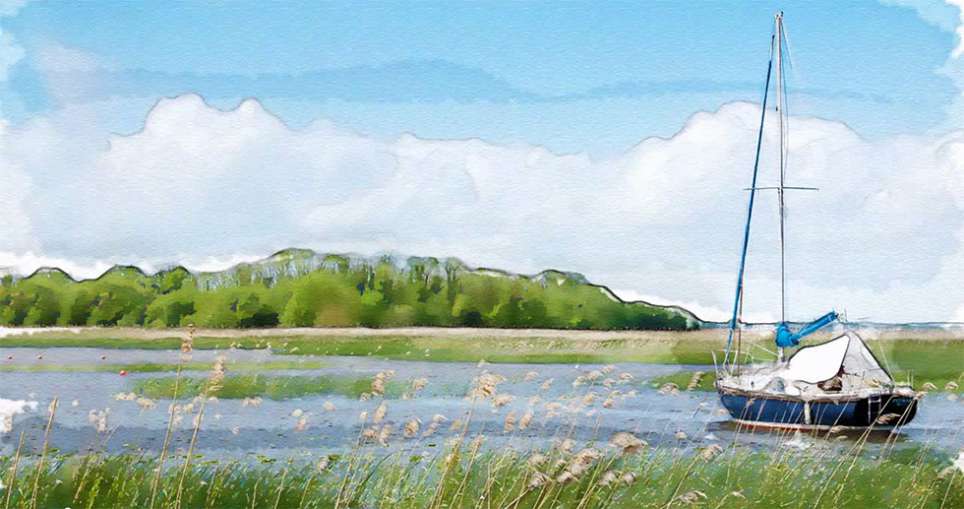
Learn How to Create a Watercolor Photo Effect in Photoshop
Transforming a photograph into a convincing watercolor painting opens up a world of creative possibilities. This artistic effect adds depth and emotion, turning ordinary images into unique pieces of art. The result captures the delicate washes and textures of traditional watercolor, bringing a hand-painted feel to your digital art. This tutorial guides you through creating a hand-painted effect in Photoshop, going beyond basic filters. By using a combination of smart blurs, glowing edges, and c
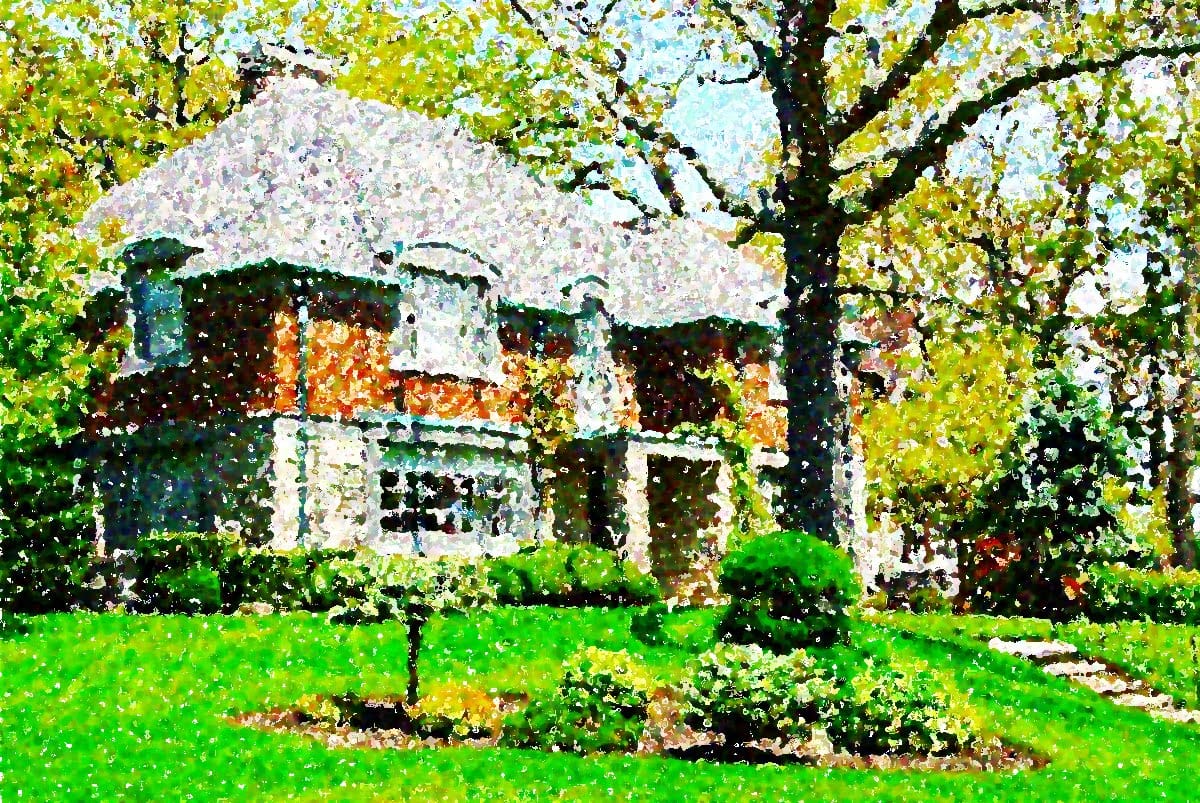
Apply a nice saturated paint effect to your photos in Photoshop
Converting photographs into artistic paintings becomes straightforward when you combine basic adjustment layers with built-in filters. This beginner-friendly technique uses vibrance adjustments, pixelate effects, and artistic filters to create convincing painted effects from any image. The method works particularly well for landscapes and portraits, transforming them into stylized artwork that maintains the original composition while adding painterly qualities and reduced detail. Watch the Vi
Anyone can create incredible paintings in Photoshop with a single tool
In this tutorial, we'll explore a fun and easy way to create digital oil paintings using Adobe Photoshop. Our focus will be on the art history brush tool, which allows you to produce unique and impressive results. However, before you start using this tool, it's important to understand its basic principles and be aware of some common issues that may arise during setup. Once you get the hang of it, the art history brush can unlock all sorts of possibilities for your digital art projects. So let'
Add a beautiful watercolor effect to your photos in Photoshop
Digital art offers versatile ways to reinterpret photography. One popular technique involves transforming ordinary photographs into painterly artworks, such as watercolor portraits. This tutorial demonstrates a method for achieving a beautiful watercolor effect in Photoshop, emphasizing the use of custom brush strokes to introduce unique artistic nuances. Viewers will learn how to prepare images, apply specific filters, and utilize various brushes to mimic the fluidity and texture of traditiona

Get tutorials & freebies delivered to you.

Subscribe to the Photoshop Roadmap newsletter, a weekly roundup of new tutorials, insights and quality downloads, trusted by 6500+ readers.

You might also like

Create Realistic Rim Light Effects on Portraits in Photoshop

Rim lighting transforms ordinary portraits into dramatic, professional-looking images by adding bright highlights around the edges of your subject. This technique simulates light hitting the outer contours of a person, making them stand out from their background with a natural, glowing effect. The key to convincing rim light lies in...

How to Use Photoshop's Layer Cleanup Tool to Organize Messy Projects

Complex editing projects with Generative Fill and Expand often result in dozens of unnamed layers cluttering your workspace. The new Layer Cleanup tool automates the tedious process of renaming layers and removing empty ones, transforming chaotic layer panels into organized, manageable structures. This workflow improvement saves significant time during post-production...

How to Use Curves for Composite Color Matching in Photoshop

Curves adjustments are essential for making composite elements look natural and cohesive. Understanding how curves manipulate light values and color channels gives you precise control over matching different elements to their new backgrounds. The key to successful color matching lies in analyzing the color temperature and brightness relationships between your...

How to Fix Color Fringing in Subject Cutouts Using Clipping Masks

Perfect layer masks can still produce disappointing results when color fringing appears around hair and fur edges. This common problem isn't caused by poor masking technique—it's the original background bleeding through at the edges. Clipping masks offer a powerful solution by allowing you to paint...

Create Beautiful Floral Oval Frames for Portraits in Photoshop

Transform ordinary portraits into elegant artwork with decorative floral oval frames that blend seamlessly with your subject. This technique combines traditional framing with digital floral elements, creating a painterly effect that's perfect for fine art prints and creative portraits. The process involves creating an oval cutout, adding custom...

You’ve successfully subscribed to Photoshop Roadmap
Welcome back! You’ve successfully signed in.
Great! You’ve successfully signed up.
Success! Your email is updated.
Your link has expired
Success! Check your email for magic link to sign-in.