How to Create a Molten Metal Text Effect in Photoshop

How to Create a Molten Metal Text Effect in Photoshop

Molten metal text effects transform ordinary typography into blazing, dimensional masterpieces that appear to glow with intense heat. This technique combines strategic layer styles, textural overlays, and color grading to simulate the appearance of scorching hot metal with fiery edges and realistic surface details.

The process builds layers of metallic gradients, rust textures, and glowing ember effects that create convincing depth and heat distortion. Smart objects keep the text fully editable while preserving all the complex styling.

Watch the Video

Video by Dansky. Any links or downloads mentioned by the creator are available only on YouTube

Practical Tips

Master the molten metal effect with these essential techniques:

  • Build the base metal appearance using gradient overlay with dark to light grays, then add bevel and emboss with chisel hard technique for realistic dimensional edges
  • Layer multiple textures with different blending modes - use overlay for subtle surface details and color dodge for intense glowing hotspots
  • Create clipping masks by grouping the text layer first, then clipping textures to the group rather than directly to styled text layers
  • Apply the ripple filter to a duplicate smart object to simulate heat distortion on the lower portion while keeping the top crisp and readable
  • Use blend if sliders while holding Alt to split the markers, creating smooth transitions that blend shadows and highlights naturally into underlying layers

Explore more advanced text effects and metallic surface techniques:
Learn How to Create a Magma Hot Text Effect in Photoshop
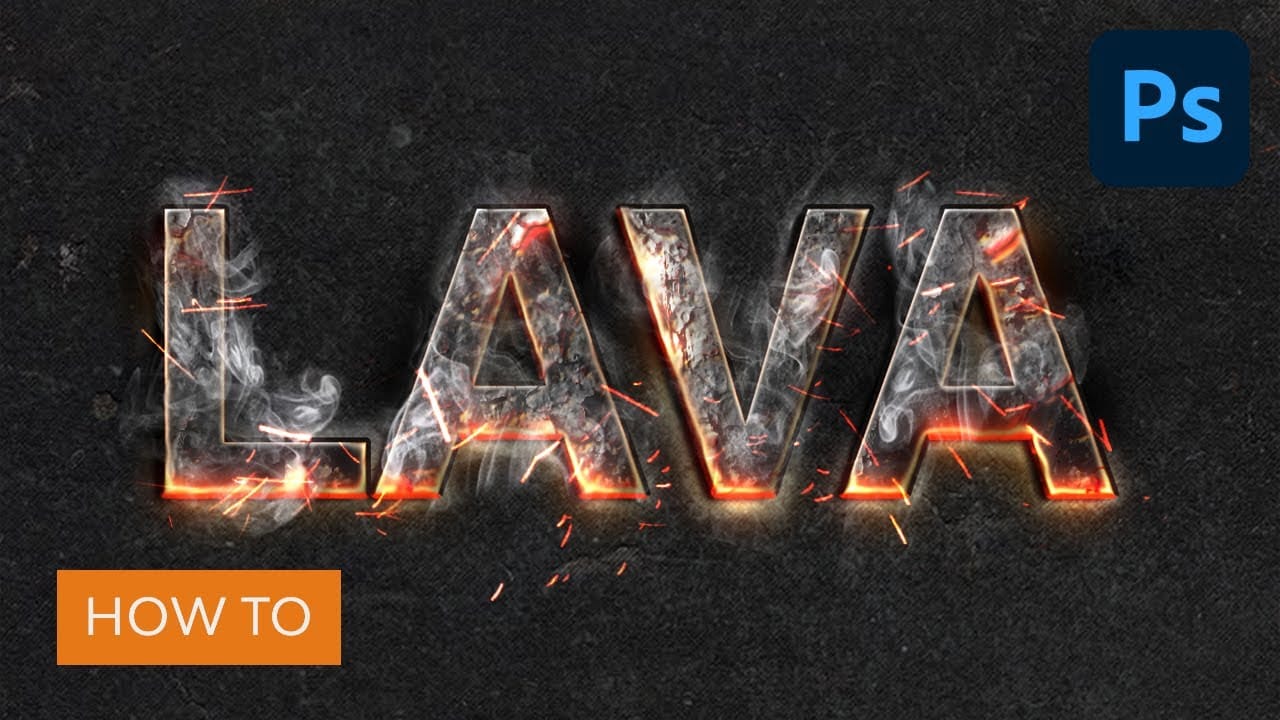
Transform ordinary text into a striking display of molten rock and fiery glow with this Photoshop tutorial. Discover how to apply various layer styles and textures to achieve a dynamic, incandescent magma effect. Watch the Video Practical Tips for Magma Hot Text Effects Achieve a realistic magma hot text effect by following these essential steps and techniques: * Apply initial layer styles: Start by adding Bevel & Emboss, Outer Glow, Inner Shadow, Color Overlay, and Stroke to your base te
Create a Spinning Melting Fire Text Effect in Photoshop
Fire effects transform ordinary text into dynamic visual statements that command attention. The melting, flowing appearance mimics liquid fire or molten metal, creating depth and movement that static text simply cannot achieve. This technique combines warping, gradient mapping, and strategic blurring to build layers of flowing color. The smudge tool becomes your primary instrument for sculpting those signature dripping effects that make text appear to melt before your eyes. Watch the Tutorial
How to Create a Foil Text Effect in Photoshop
Foil text effects bring luxurious shine and metallic depth to typography, mimicking the reflective quality of embossed metallic lettering. This dimensional effect works perfectly for premium branding, elegant invitations, or any design that needs an upscale metallic finish. The technique relies heavily on Photoshop's layer styles, particularly bevel and emboss settings, to create realistic highlights and shadows that simulate light bouncing off a metallic surface. Watch the Foil Text Effect T
Electric chrome text effect Photoshop Tutorial
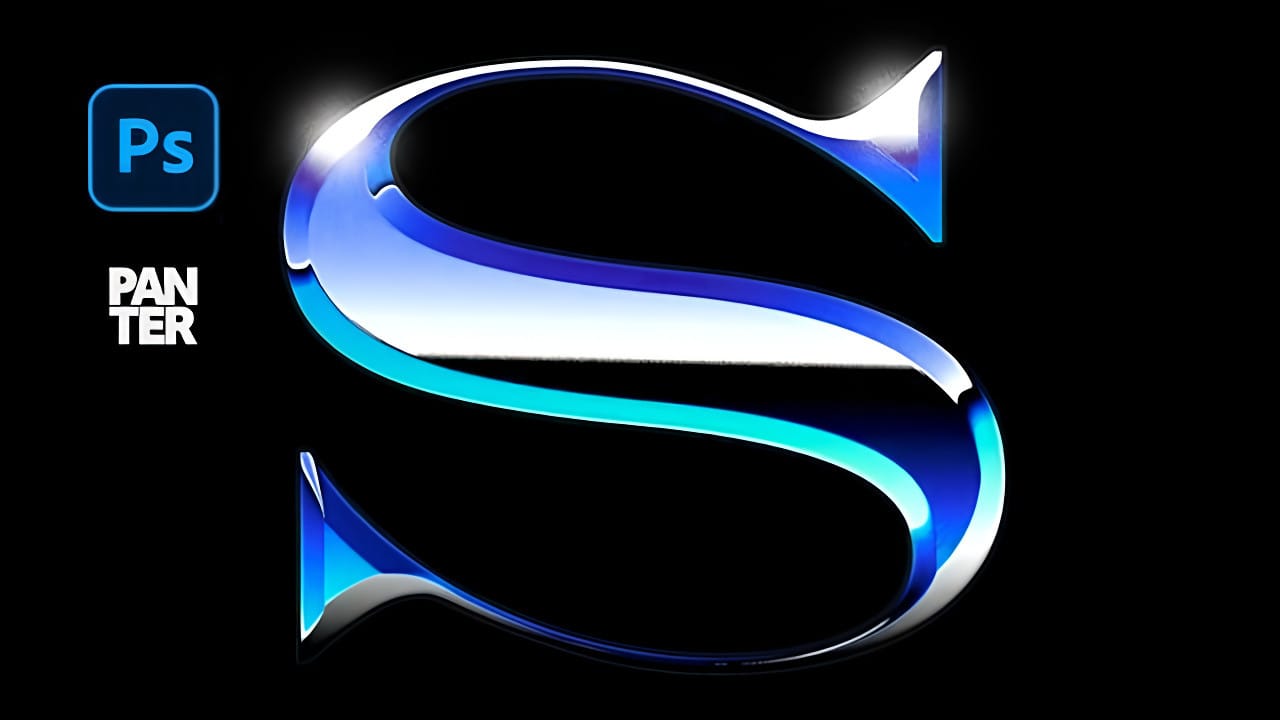
Enhance your designs with an electric chrome text effect, adding a vibrant, metallic sheen and modern edge. This tutorial demonstrates creating this captivating look in Adobe Photoshop, primarily using layer blending options, to transform ordinary text into a glowing chrome masterpiece. Watch the Video Tutorial The Art of Chrome Effects Through Layer Blending Achieving a sophisticated chrome effect in Photoshop largely hinges on the strategic application of layer blending options. These pow
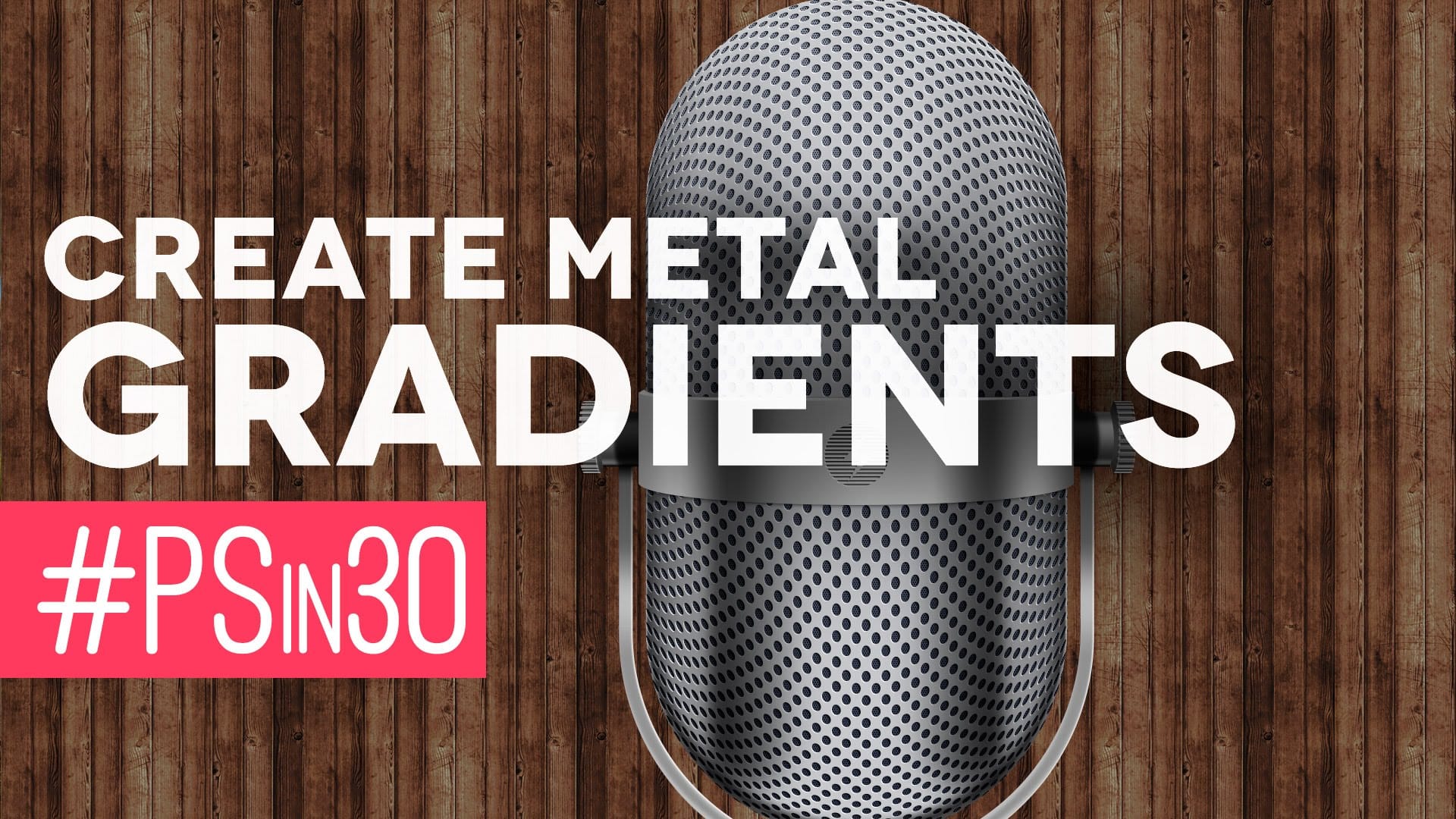
Create Metal Gradients in Photoshop
Nathaniel Dodson, a renowned expert from TutVid, shares a Photoshop tutorial that explores the art of creating metal gradients. The tutorial offers a nostalgic journey into the realm of skeuomorphic design, guiding the user through the process of crafting a captivating metal gradient. The author delves into the intricacies of color selection, providing valuable insights on the hues that work best for this particular design approach. By following the step-by-step instructions, the user can effor
How to Create Gradient Chrome Text Effect in Photoshop
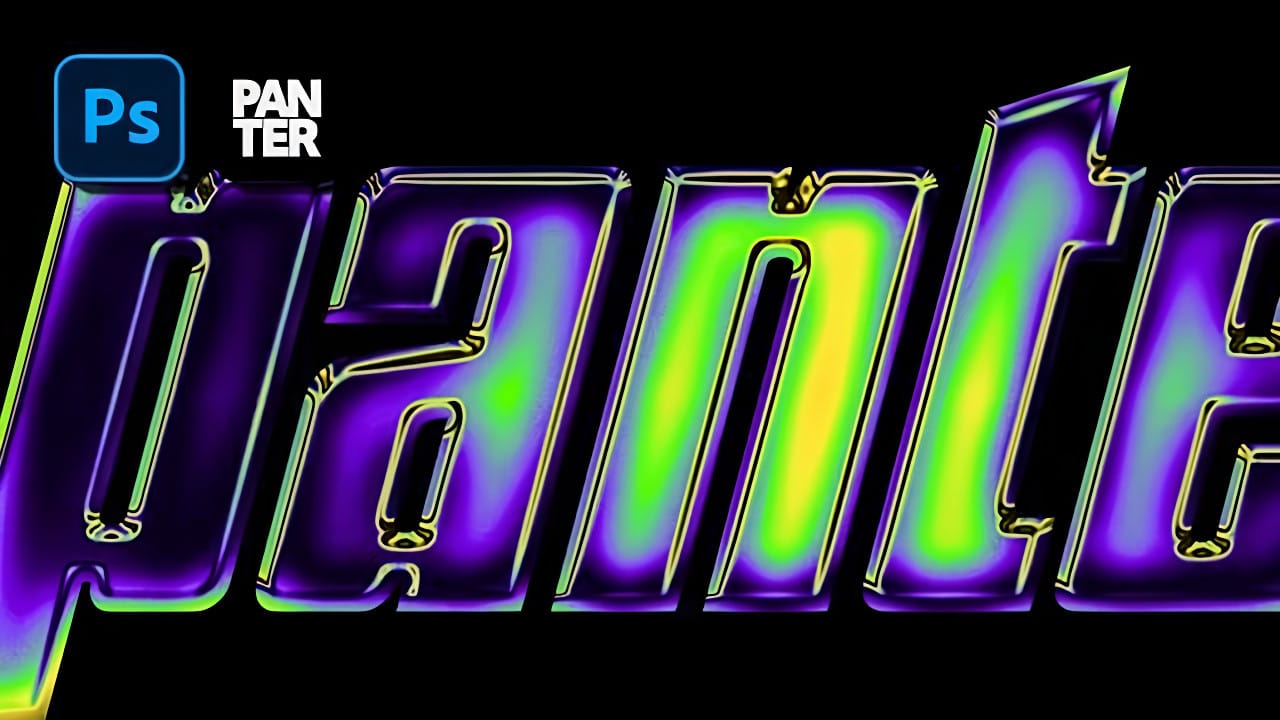
Chrome effects elevate text from ordinary typography into polished, metallic masterpieces that command attention. The reflective surfaces and dimensional depth create that premium look perfect for modern logos, eye-catching headlines, and promotional graphics that need to stand out. This technique demonstrates how to build realistic chrome text using gradient overlays, strategic layer effects, and color adjustments to achieve a sophisticated metallic finish with vibrant rainbow reflections. W
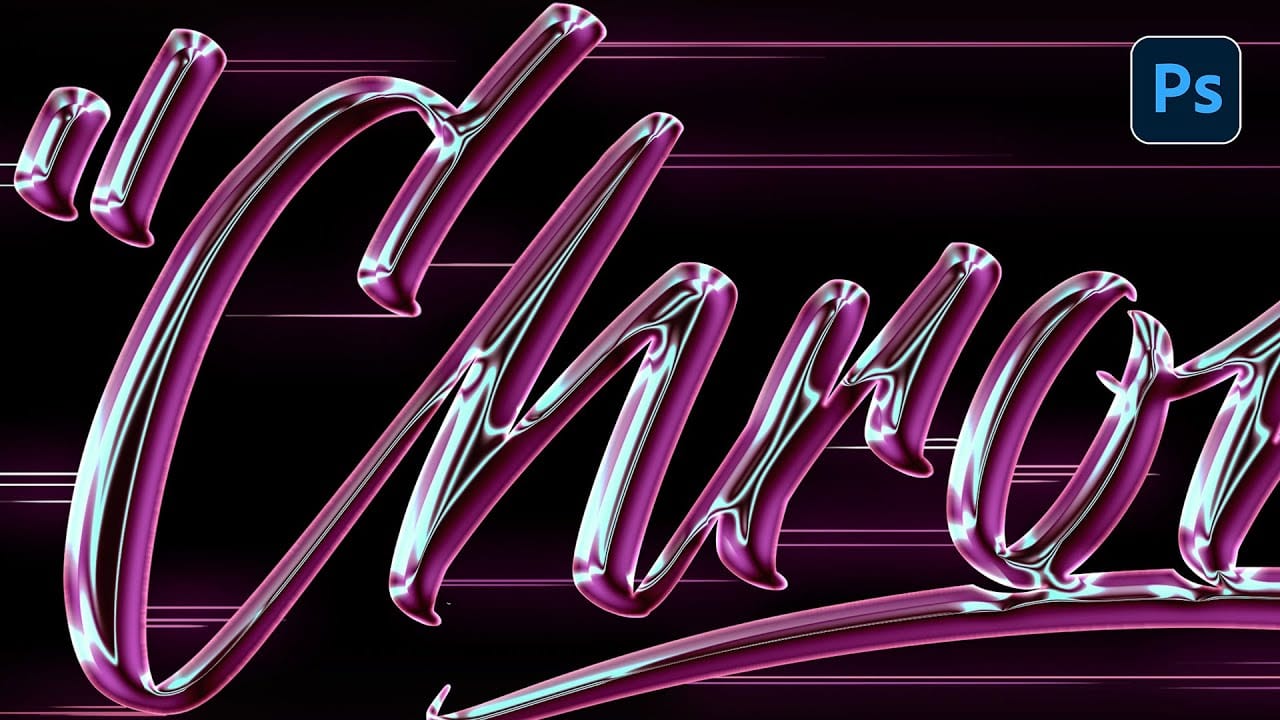
How to Create Retro Chrome Text Effects in Photoshop
Chrome text effects instantly elevate any design with their sleek, metallic finish and dimensional depth. The reflective surfaces and gradient layers create that premium, high-end aesthetic perfect for retro-futuristic designs, gaming graphics, and eye-catching headlines. This tutorial demonstrates how to build convincing chrome effects using layer styles, gradient mapping, and color blending techniques that transform ordinary text into polished metallic artwork. Watch the Video Tutorial Un
Create a Photo-Realistic Metal Apple in Photoshop
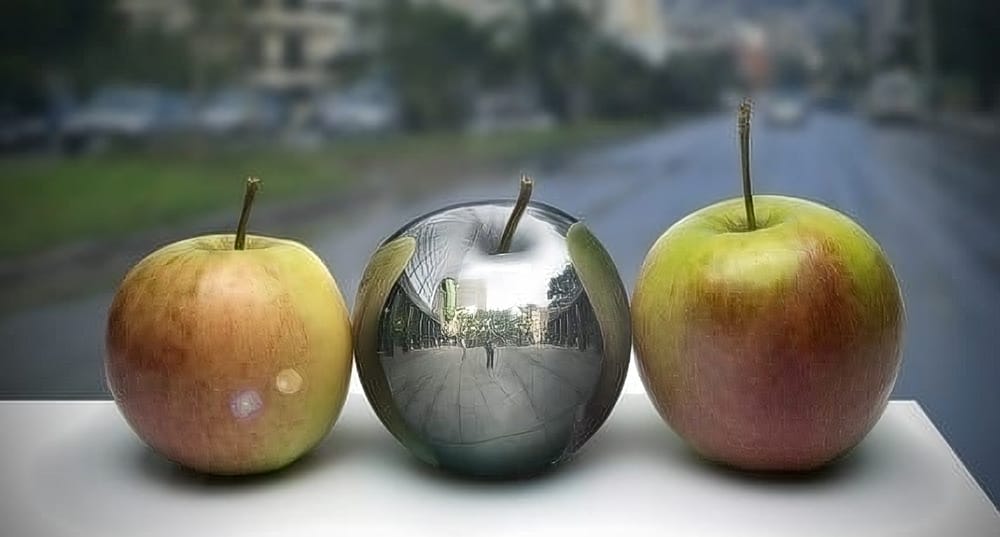
In this engaging tutorial by Adrian Scheffe, you will learn to create a chrome metallic apple featuring mirror-like reflections. The step-by-step instructions make it easy to follow along, even if you are a beginner. You will explore essential techniques such as warping objects, which allows for more realistic shapes, and applying dodge and burn methods to enhance depth and detail. The tutorial also emphasizes the importance of adding reflections, ensuring your metallic surface looks convincing
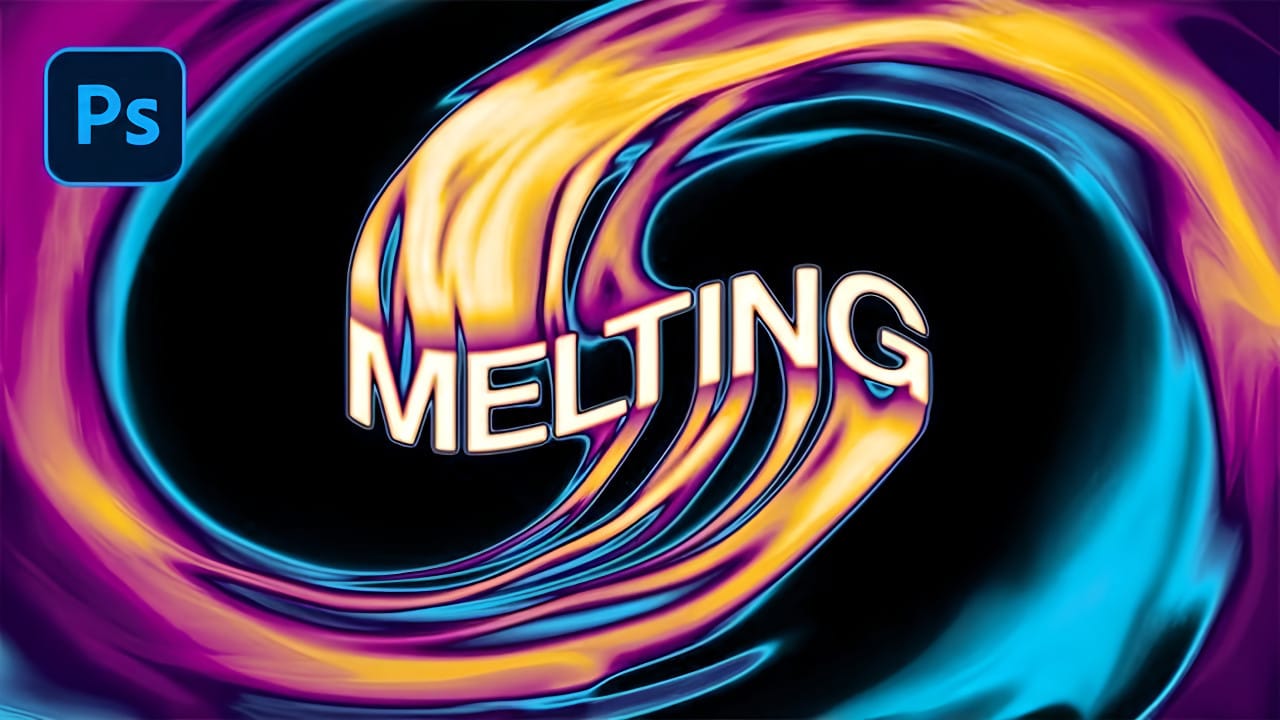
How to Create a Melting RGB Text Effect in Photoshop
RGB chromatic aberration creates that distinctive glitched look where colors separate and shift, mimicking old TV distortions or digital malfunctions. When combined with melting effects, this technique produces text that appears to dissolve into streams of separated color channels. This tutorial demonstrates how to combine Photoshop's Liquify filter with color overlay techniques to achieve this striking visual effect. The result transforms ordinary text into dynamic, fluid typography that seems

Get tutorials & freebies delivered to you.

Subscribe to the Photoshop Roadmap newsletter, a weekly roundup of new tutorials, insights and quality downloads, trusted by 6500+ readers.

You might also like

How to Change Object Colors in Photoshop Using Hue/Saturation

Changing the color of specific objects in your photos requires precision and the right technique. The key is creating an accurate selection and using a targeted adjustment layer that affects only your chosen subject while preserving the rest of the image. This method combines the Object Selection tool with Hue/...

Create a Distorted Wave Glitch Effect in Photoshop

Digital distortion effects transform ordinary portraits into striking visual art by warping reality through deliberate technical manipulation. This technique uses multiple wave filters layered together to create increasingly complex distortions, while selective masking preserves important facial features from becoming completely unrecognizable. Watch the Video Practical Tips Master the wave distortion...

How to Create Glow Motion Effects with Gradient Maps in Photoshop

Motion blur combined with colorful gradients creates striking visual effects that transform ordinary photos into dynamic, cinematic images. This technique uses gradient maps to automatically color light and dark values, producing flowing color transitions that follow the movement of your subject. The process involves subject isolation, strategic gradient placement, path...

How to Use Reference Images with Generative Fill in Photoshop

Reference images revolutionize how Generative Fill works, letting you guide AI with actual photos instead of text prompts. This feature enables precise clothing swaps, object replacements, and realistic additions by showing the AI exactly what you want rather than describing it. The technique works with everything from custom t-shirts and...

How to Remove Eye Bags Using Dodge and Burn in Photoshop

Eye bags can dramatically age a portrait, making subjects appear tired or unhealthy. Traditional removal methods often destroy skin texture or create unnatural results that look obviously retouched. This professional dodge and burn technique removes even severe eye bags while preserving every detail of natural skin texture. The method uses...

You’ve successfully subscribed to Photoshop Roadmap
Welcome back! You’ve successfully signed in.
Great! You’ve successfully signed up.
Success! Your email is updated.
Your link has expired
Success! Check your email for magic link to sign-in.