How to Create a Melting RGB Text Effect in Photoshop

How to Create a Melting RGB Text Effect in Photoshop

RGB chromatic aberration creates that distinctive glitched look where colors separate and shift, mimicking old TV distortions or digital malfunctions. When combined with melting effects, this technique produces text that appears to dissolve into streams of separated color channels.

This tutorial demonstrates how to combine Photoshop's Liquify filter with color overlay techniques to achieve this striking visual effect. The result transforms ordinary text into dynamic, fluid typography that seems to drip with separated red, green, and blue components.

Watch the Tutorial

Video by P A N T E R. Any links or downloads mentioned by the creator are available only on YouTube

Understanding RGB Color Separation Effects

The RGB melting effect relies on chromatic aberration principles where individual color channels become displaced from their normal positions. This creates the illusion that light itself is being refracted through the text, similar to how a prism splits white light into component colors.

The melting component adds organic flow to what could otherwise be a rigid digital glitch. By warping the text first and then applying color separations, the effect suggests that the very pixels are becoming unstable and flowing like liquid.

  • Liquify transformations create the base melting structure
  • Color overlay techniques generate separated RGB channels
  • Layer displacement produces the chromatic aberration effect
  • Mixer brush blending adds realistic color mixing at boundaries

Practical Tips for RGB Melting Effects

  • Use expanded or bold fonts to provide more surface area for the melting distortions
  • Keep Forward Warp tool settings moderate to maintain readable text structure while creating drips
  • Convert layers to smart objects before color overlays to preserve editing flexibility
  • Set mixer brush to 1% spacing for smooth color blending between RGB channels
  • Enable Sample All Layers on the mixer brush to blend colors from multiple text copies

Explore more melting and distortion effects for creative text design.
Create a Spinning Melting Fire Text Effect in Photoshop
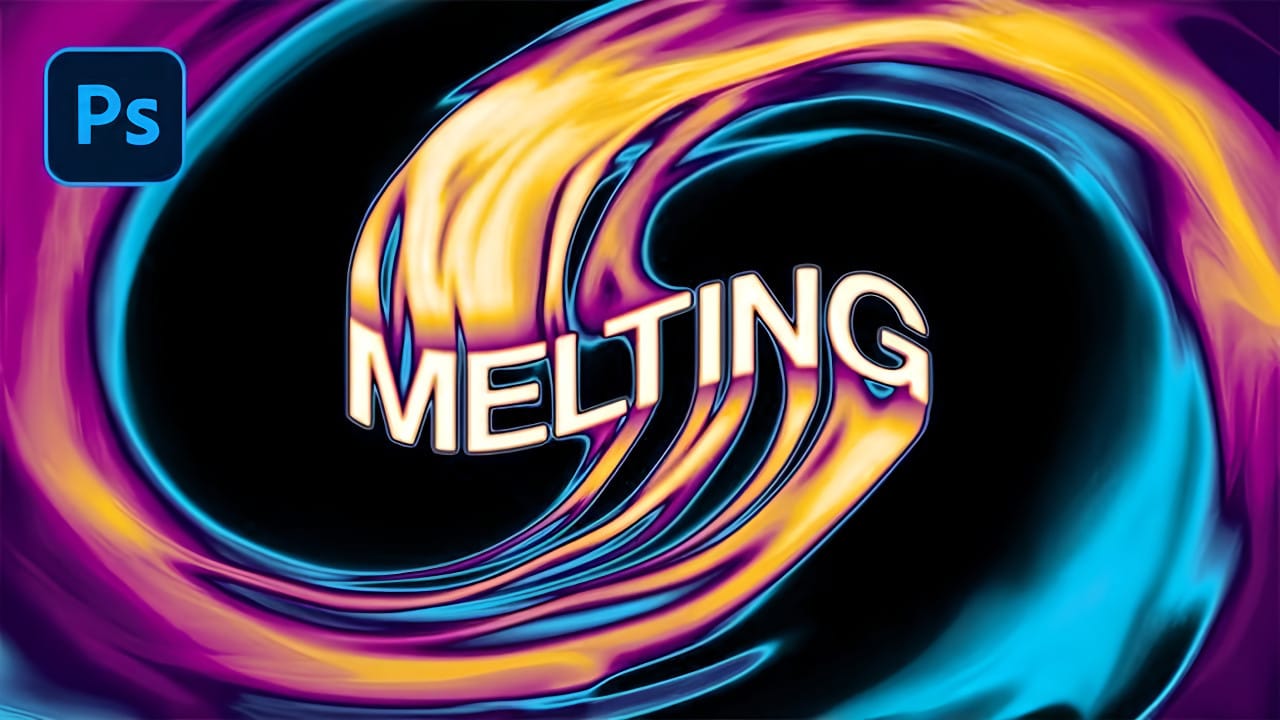
Fire effects transform ordinary text into dynamic visual statements that command attention. The melting, flowing appearance mimics liquid fire or molten metal, creating depth and movement that static text simply cannot achieve. This technique combines warping, gradient mapping, and strategic blurring to build layers of flowing color. The smudge tool becomes your primary instrument for sculpting those signature dripping effects that make text appear to melt before your eyes. Watch the Tutorial
How to Create a Liquid Acid Melting Effect in Photoshop
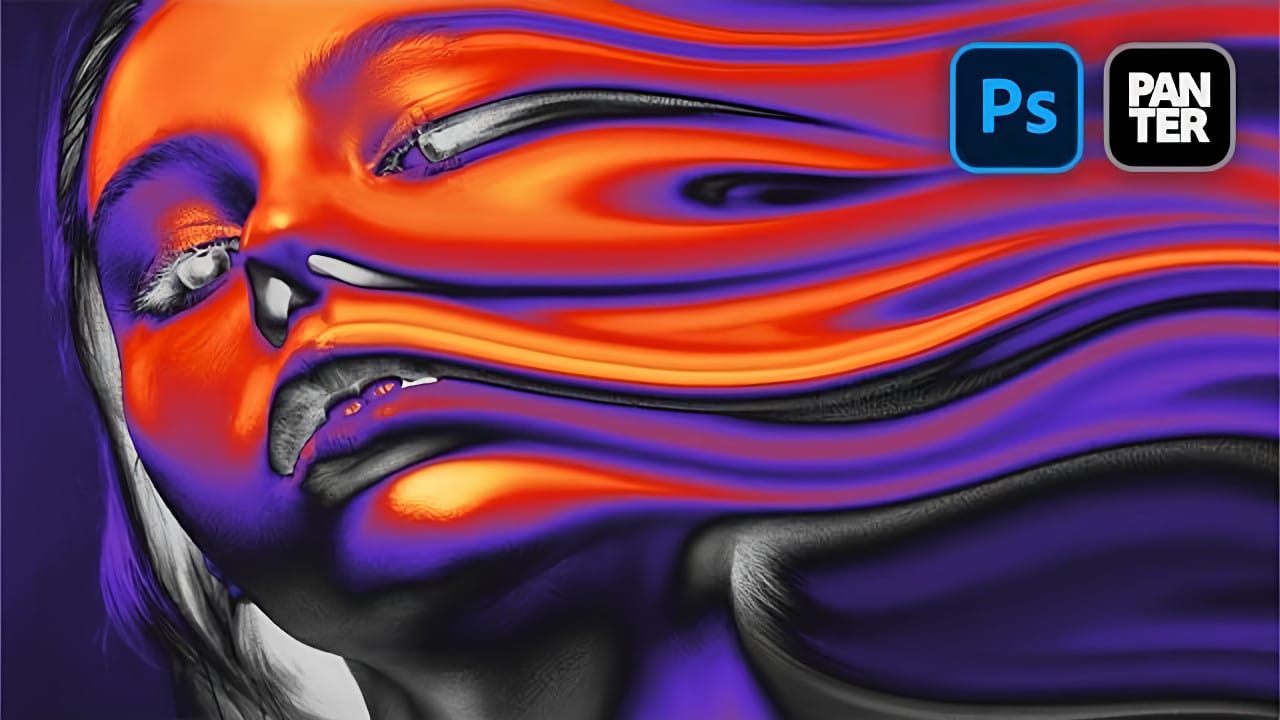
The liquid acid effect transforms ordinary portraits into surreal, otherworldly visuals that seem to melt and flow across the canvas. This distinctive distortion technique creates an organic, fluid appearance that suggests corrosive forces reshaping reality itself. This tutorial demonstrates how to achieve this striking visual using Photoshop's smudge tool combined with strategic color grading and noise textures to enhance the melting illusion. Watch the Video Tutorial The Psychology of Dis
Create a frosty text effect in Photoshop
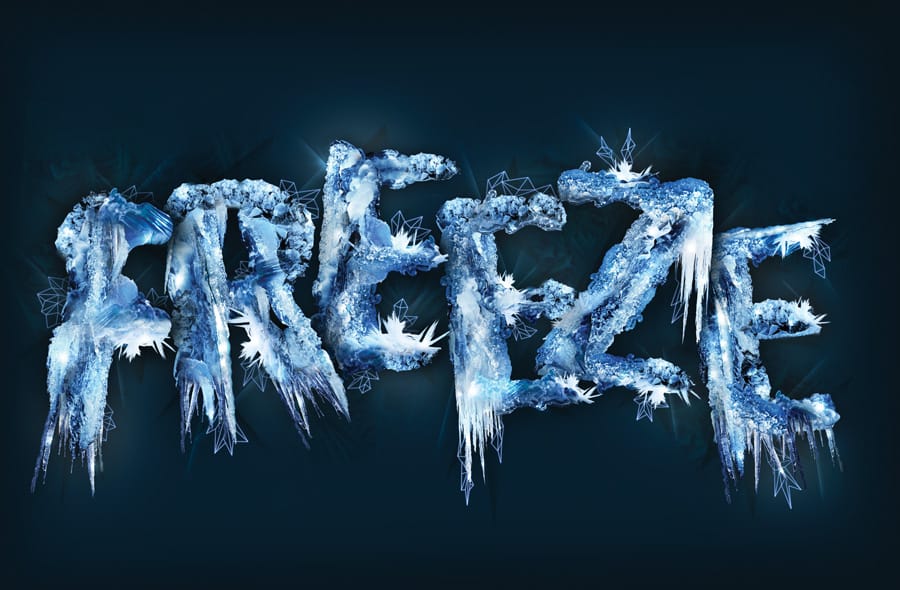
Are you looking to add some winter magic to your Photoshop designs? This tutorial from Advanced Photoshop Magazine has got you covered. You can learn how to create a stunning frosty text effect, complete with icicles and a wintry vibe. The step-by-step instructions make it easy to follow along and achieve the desired result. You'll start by setting up your document and choosing the font you want to use. Then, you'll add the icy texture and elements to bring the text to life. The tutorial even s
Create a Fire and Rust Text Effect in Photoshop
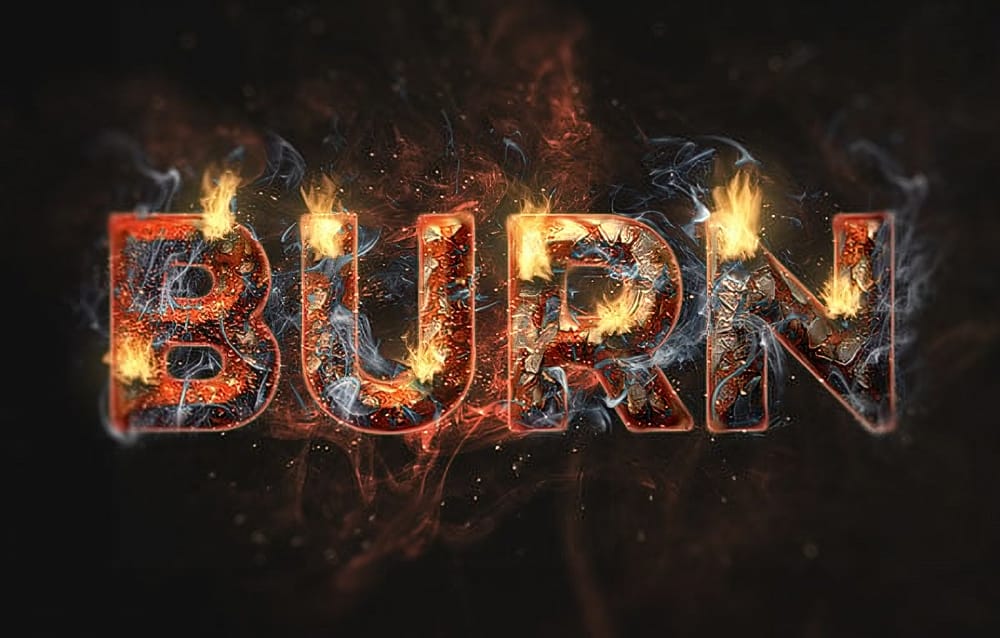
If you're looking to add some fiery flair to your text, this tutorial has you covered. The team at TutsPlus walks you through the process of creating a striking fire and rust text effect in Photoshop. First, you'll learn how to style and texture a rusty, weathered look for your text. This involves using various tools and techniques to achieve an authentic, gritty appearance. Once the base is set, the tutorial then demonstrates how to incorporate flames using the Flame filter, as well as other s

Get tutorials & freebies delivered to you.

Subscribe to the Photoshop Roadmap newsletter, a weekly roundup of new tutorials, insights and quality downloads, trusted by 6500+ readers.

You might also like

When to Use Saturation vs Vibrance for Better Color Enhancement

While vibrance gets praised for being "gentler" than saturation, the reality is more nuanced. Saturation works like a universal volume knob, boosting all colors equally, while vibrance acts like a smart equalizer, selectively enhancing less saturated areas first. Understanding when each approach serves your creative vision makes the...

How to Check Your Generative Fill Credit Balance in Photoshop

Keeping track of your AI credit usage becomes essential when working with premium generative features. Understanding your remaining balance helps you budget your edits and avoid unexpected interruptions during important projects. The credit system divides features into standard tools (like basic generative fill) that don't consume credits, and...

How to Create Realistic Depth Blur Effects in Photoshop

Creating professional depth of field effects can transform flat images into dynamic photographs with natural-looking focus transitions. Two powerful methods in Photoshop offer different advantages: Neural Filters provide automated depth detection with atmospheric effects like haze, while Camera Raw Filter delivers precise manual control with customizable bokeh shapes. Both techniques...

Three Professional Methods to Fix White Balance in Photoshop

Color casts can ruin even the best photographs, making whites appear yellow, blue, or green instead of neutral. Poor white balance destroys the natural look of your images and creates an unprofessional appearance that's immediately noticeable to viewers. These three techniques provide increasingly precise control over white balance...

Creating Dark Moody Wildlife Photo Edits in Photoshop

Dark, moody wildlife photography transforms ordinary animal portraits into dramatic, atmospheric pieces that capture the mystery and power of nature. This editing approach combines strategic lighting placement, careful color grading, and atmospheric effects to create compelling images that draw viewers into the scene. The workflow begins with essential noise reduction...

How to Create Professional Photo Composites in Photoshop

Creating compelling photo composites requires more than simply placing images together. This comprehensive tutorial demonstrates how to blend multiple elements seamlessly, from matching lighting and color to painting realistic shadows and highlights. The project showcases a dramatic scene inspired by Stranger Things, combining buildings, characters, and atmospheric effects with precise...

You’ve successfully subscribed to Photoshop Roadmap
Welcome back! You’ve successfully signed in.
Great! You’ve successfully signed up.
Success! Your email is updated.
Your link has expired
Success! Check your email for magic link to sign-in.