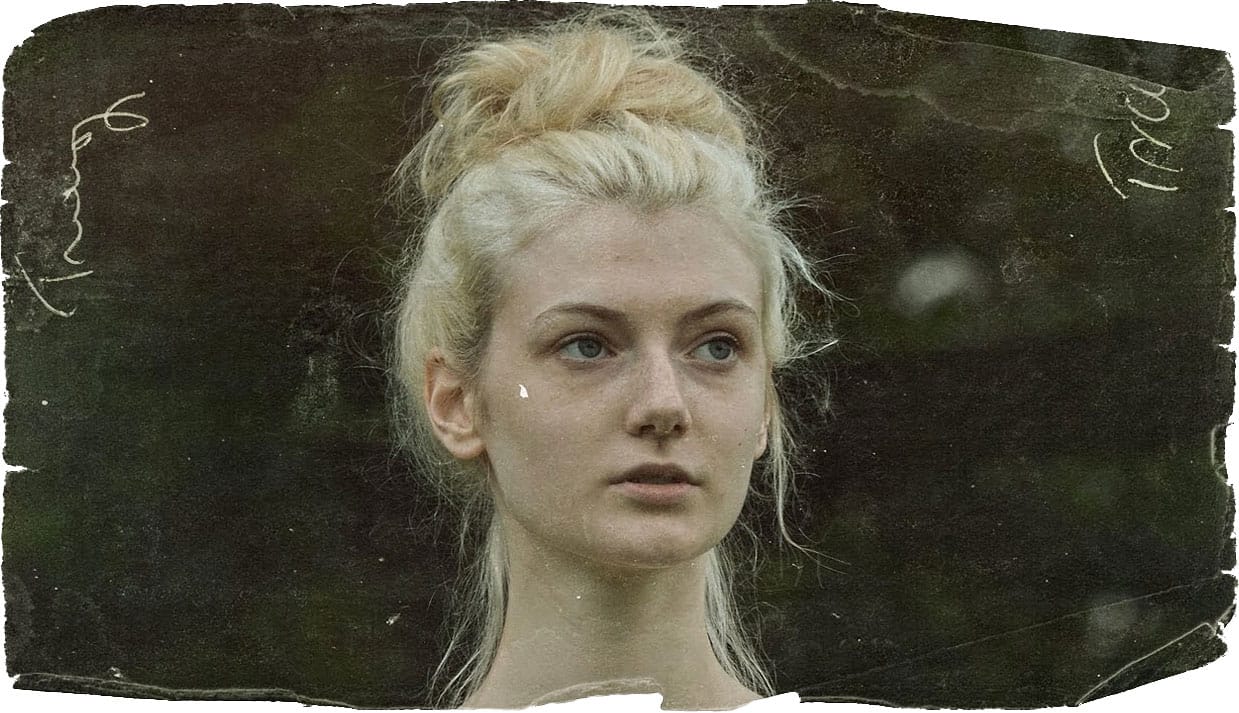
Create a vintage creased pulp fiction magazine cover in Photoshop

Create a vintage creased pulp fiction magazine cover in Photoshop

Vintage pulp fiction magazine covers evoke a distinct era of storytelling, characterized by their bold typography, dramatic imagery, and vibrant, often gritty, aesthetics. These covers were designed to grab attention on newsstands, promising thrilling tales of adventure, mystery, and crime.

This tutorial demonstrates how to recreate the iconic look of a 1950s pulp fiction magazine cover using Adobe Photoshop. Viewers will learn practical techniques for crafting a compelling design, from establishing the foundational layout to applying authentic vintage effects.

Watch the Tutorial

Video by Blue Lightning. Any links or downloads mentioned by the creator are available only on YouTube

The Enduring Appeal of Pulp Fiction Aesthetics

Pulp fiction magazines, popular from the 1920s to the 1950s, were named for the cheap wood pulp paper they were printed on. Despite their humble origins, these publications fostered a unique visual language that continues to influence design today. Their covers often featured sensational illustrations and dynamic typography, reflecting the thrilling and often lurid stories within.

The distinctive visual style of pulp covers relied on several key elements:

  • Bold, expressive typography: Titles were often large, angled, and layered, designed to be read quickly and convey excitement.
  • Dramatic, often exaggerated, imagery: Illustrations depicted action, suspense, or romance, frequently featuring heroes, villains, and damsels in distress.
  • Limited color palettes: Printing limitations often led to the use of strong, contrasting colors that popped off the page.

Recreating this aesthetic in modern digital design involves understanding these historical constraints and artistic choices. Designers can leverage Photoshop's tools to simulate the textures, printing imperfections, and stylistic flourishes that defined the original pulp art, bringing a nostalgic yet timeless quality to new projects.

Practical Tips for Vintage Magazine Cover Design

  • Utilize a template for foundational elements: Start with a pre-designed template to establish the basic layout, including the cover shape, textures, and publisher details.
  • Master text manipulation for impact: Adjust leading (space between lines) and kerning (space between characters) to create dynamic and visually appealing titles that mimic vintage typography.
  • Incorporate strokes and shadows for depth: Apply layer styles like Stroke and Drop Shadow to text and graphic elements to give them a classic, embossed, or layered appearance.
  • Employ the Transform Tool for authentic angles: Use Ctrl/Cmd + T and modifier keys (Ctrl/Cmd + Shift + Alt/Option) to angle and distort elements, replicating the often skewed and energetic layouts of pulp covers.
  • Apply color halftone filters for a retro print effect: Enlarge your image before applying the Color Halftone filter, then reduce it back to size, to achieve a pixelated, printed look reminiscent of old comic books or magazines.

Explore more tutorials and articles that delve into vintage design aesthetics and Photoshop techniques.
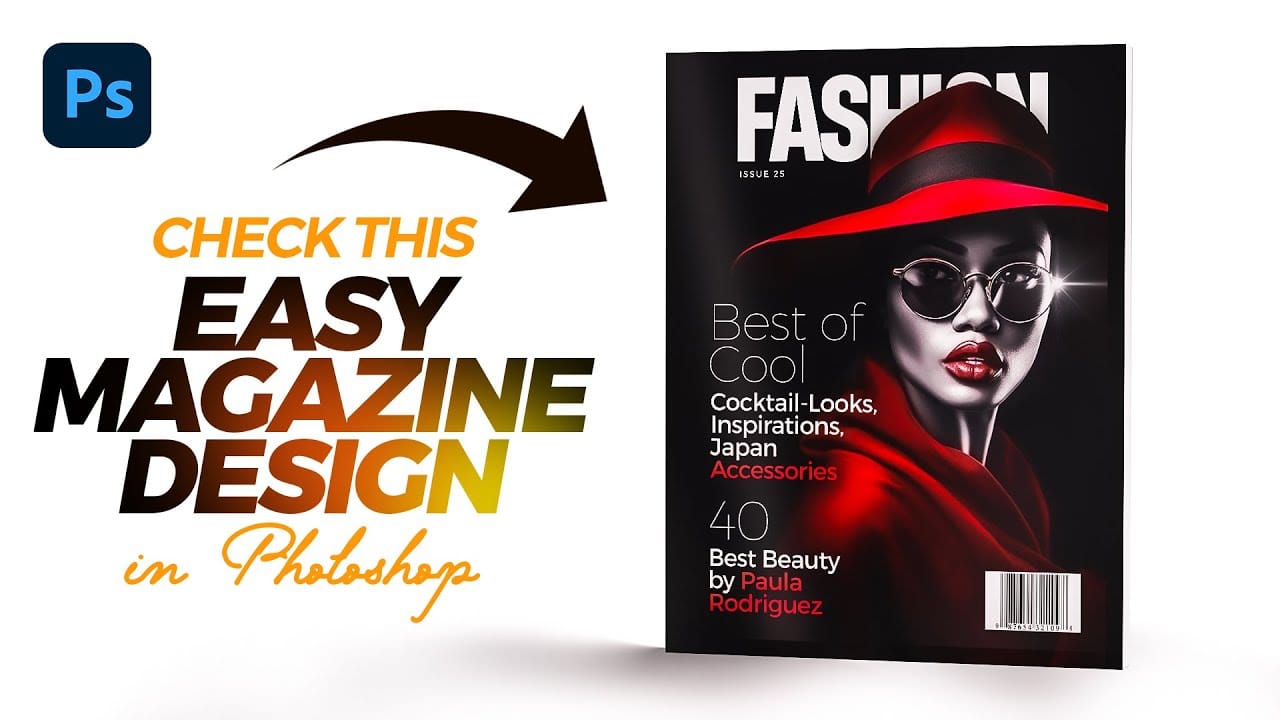
Designing a Magazine Cover in Photoshop
Magazine cover design combines typography, visual hierarchy, and image composition to create compelling editorial layouts that grab attention on crowded shelves. Modern magazine designs often feature bold typography that interacts dynamically with the cover subject, creating depth and visual interest through layering techniques. This tutorial demonstrates the complete process of designing a professional magazine cover in Photoshop, from initial setup to final details. You'll learn essential tec
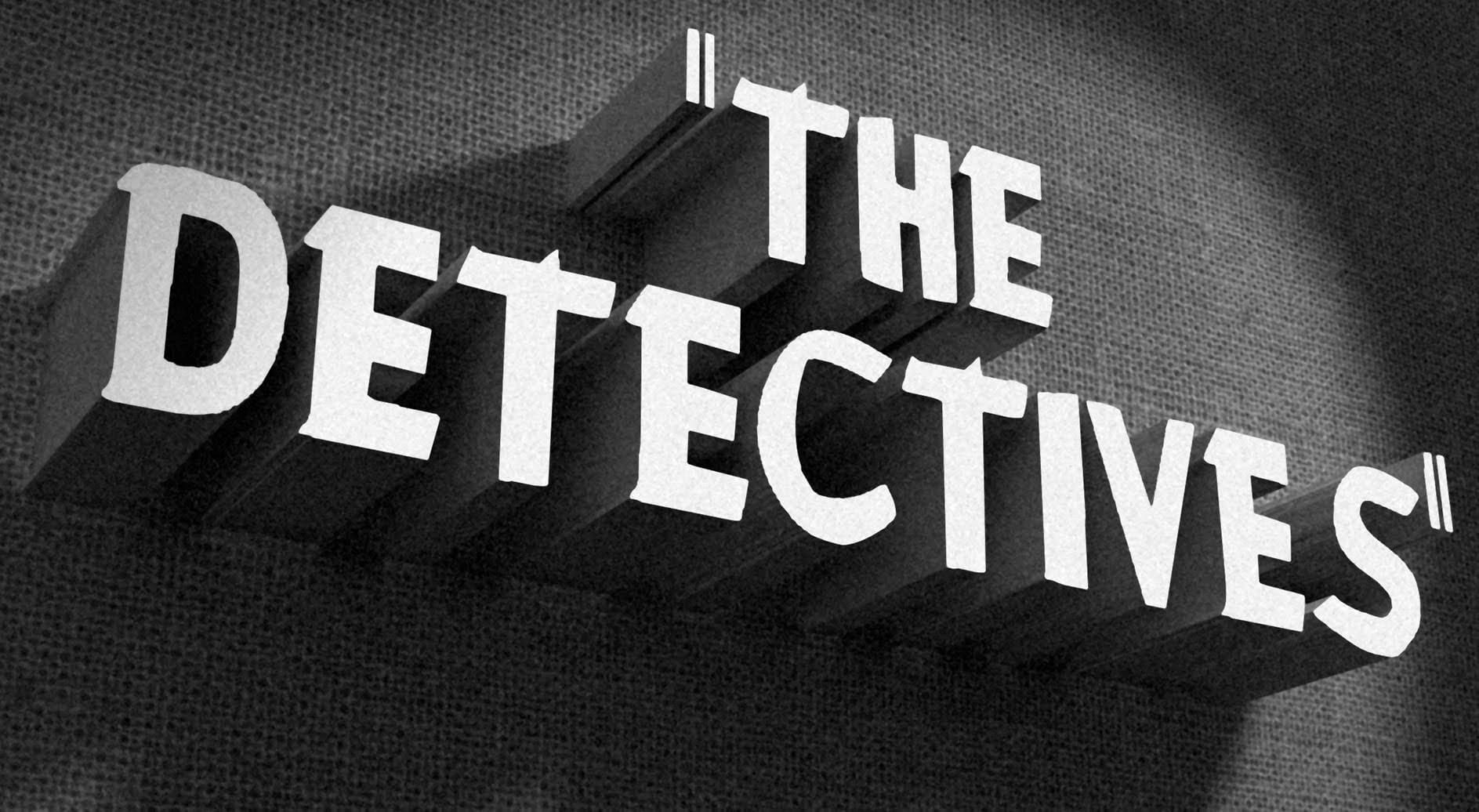
How to Create a Vintage, Film Noir Movie Title in Photoshop
In this Photoshop tutorial by BlueLightning TV, you'll learn how to design and create a film noir movie opening title card, reminiscent of crime dramas from the 1940s and 1950s. The tutorial guides you through the process step-by-step, demonstrating techniques to achieve the classic film noir aesthetic using typography, textures, and atmospheric effects in Photoshop. Whether you're a fan of vintage cinema or looking to create a nostalgic title card for a project, this tutorial provides the ski
How to Make a 1920s, Jazz Age, Title Design from Scratch
In this Photoshop tutorial, Marty Geller from Blue Lightning TV walks you through the process of designing and creating a bold, 1920s-style Jazz Age title design. The tutorial covers everything from selecting the right fonts and colors to crafting a striking swirling marble background. By following along, you’ll learn how to capture the essence of the Jazz Age with vintage typography and elegant design elements, resulting in a visually captivating title design that evokes the glamour and sophis
Apply a vintage and gritty old paper effect to your photos in Photoshop
In this tutorial by Jobe from DR Design Resources, readers will learn a quick and easy technique to transform their photos into a vintage-inspired look with an old paper effect in Adobe Photoshop. The process involves using a texture of an old paper and applying it to the desired image. The author demonstrates how to apply this effect on two different images, one with a light background and one with a dark background. This straightforward method allows users to easily achieve a gritty, aged ae

Get tutorials & freebies delivered to you.

Subscribe to the Photoshop Roadmap newsletter, a weekly roundup of new tutorials, insights and quality downloads, trusted by 6500+ readers.

You might also like

How to Create Circle Cropped Photos with Transparent Backgrounds in Photoshop

Circular cropping transforms standard photographs into clean, professional profile images perfect for websites, social media, and presentations. The frame tool method creates non-destructive crops with transparent backgrounds that export seamlessly across different platforms. This streamlined workflow eliminates the need for complex selections or masks while maintaining full control over image...

How to Use Generative Upscale to Restore and Enhance Low-Resolution Images in Photoshop

Low-resolution images often limit your creative projects, especially when you need sharp prints or high-quality displays. Photoshop's Generative Upscale feature transforms small, pixelated photos into crisp, detailed images using AI-powered enhancement. This tool offers three distinct AI models, each designed for specific image types—from landscapes and portraits...

How to Use Harmonize to Automatically Match Lighting in Photoshop Composites

Creating seamless composites traditionally requires hours of manual color correction and lighting adjustments. The new Harmonize tool changes this by automatically analyzing your background and matching your subject's lighting, shadows, and color tones with a single click. This AI-powered feature eliminates the need for complex adjustment layers and...

How to Use Adobe Photoshop in ChatGPT for Photo Editing

Adobe Photoshop is now integrated directly into ChatGPT, allowing you to edit photos using simple text descriptions. This new feature lets you enhance images, apply creative effects, and make targeted adjustments without needing a Photoshop subscription. You can describe what you want to change and fine-tune adjustments using familiar Photoshop...

How to Fix Skin Tones in Photoshop - Complete Guide

Skin tones can make or break a portrait, yet color casts and uneven lighting often leave subjects looking unnatural or flat. Whether dealing with mixed lighting conditions, camera white balance issues, or post-processing mishaps, getting skin colors right requires a systematic approach that works consistently across different scenarios. This comprehensive...

You’ve successfully subscribed to Photoshop Roadmap
Welcome back! You’ve successfully signed in.
Great! You’ve successfully signed up.
Success! Your email is updated.
Your link has expired
Success! Check your email for magic link to sign-in.