Generative Fill has transformed how photographers handle object removal, additions, and replacements in their images. This comprehensive tutorial demonstrates four practical applications using real examples—from cleaning up unwanted graffiti to adding garden gnomes and creating custom sunflower boots.
You'll learn to work with both Adobe's Firefly Image 3 and Google's Gemini 2.5 models, understanding when to use each approach for optimal results.
Watch the Video
Video by PHLEARN. Any links or downloads mentioned by the creator are available only on YouTube
Practical Tips
Here are the key techniques for maximizing your generative fill results:
- Use the Selection Brush Tool to paint circles around objects you want to remove—accuracy isn't critical as it fills in the center automatically
- Leave the prompt field blank when removing objects; the AI will understand you want deletion rather than replacement
- Select your entire image when using Google's Gemini model, but make precise selections around specific areas when using Adobe's Firefly
- Fix any unwanted changes by painting black on the layer mask with a brush to restore the original image in those areas
- Generate multiple variations by clicking the generate button repeatedly—Adobe's AI provides three options while partner models create one at a time
Related Articles and Tutorials
Explore these additional resources to master advanced editing techniques:
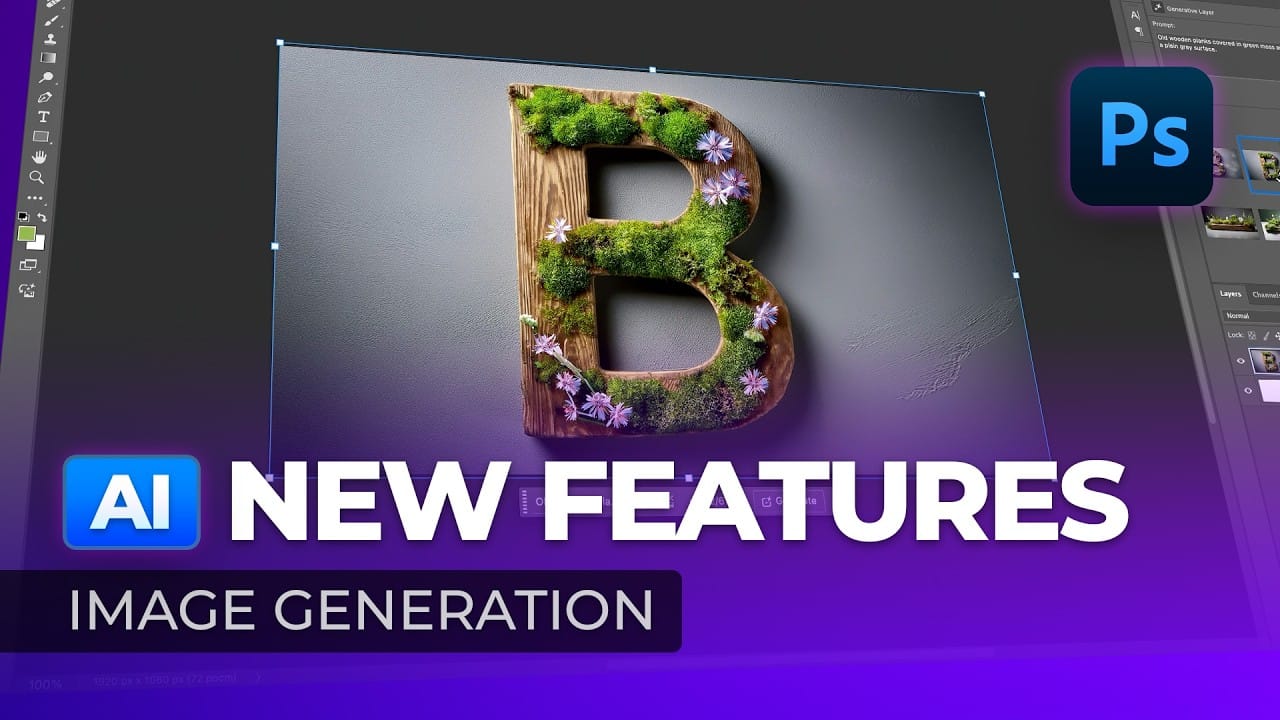
New Photoshop AI Features – Smarter, Faster, and More Efficient Tools!
Editing detailed selections, adjusting colors, and removing backgrounds in Photoshop can be tedious, especially when working with complex edges like hair or challenging objects. Manual work often stalls creative flow and makes it tough to achieve clean, professional results on tight deadlines.
This article introduces essential, time-saving features in the latest Photoshop update—including advanced AI-powered selection, color, and removal tools. Learn how these updates streamline everyday editin
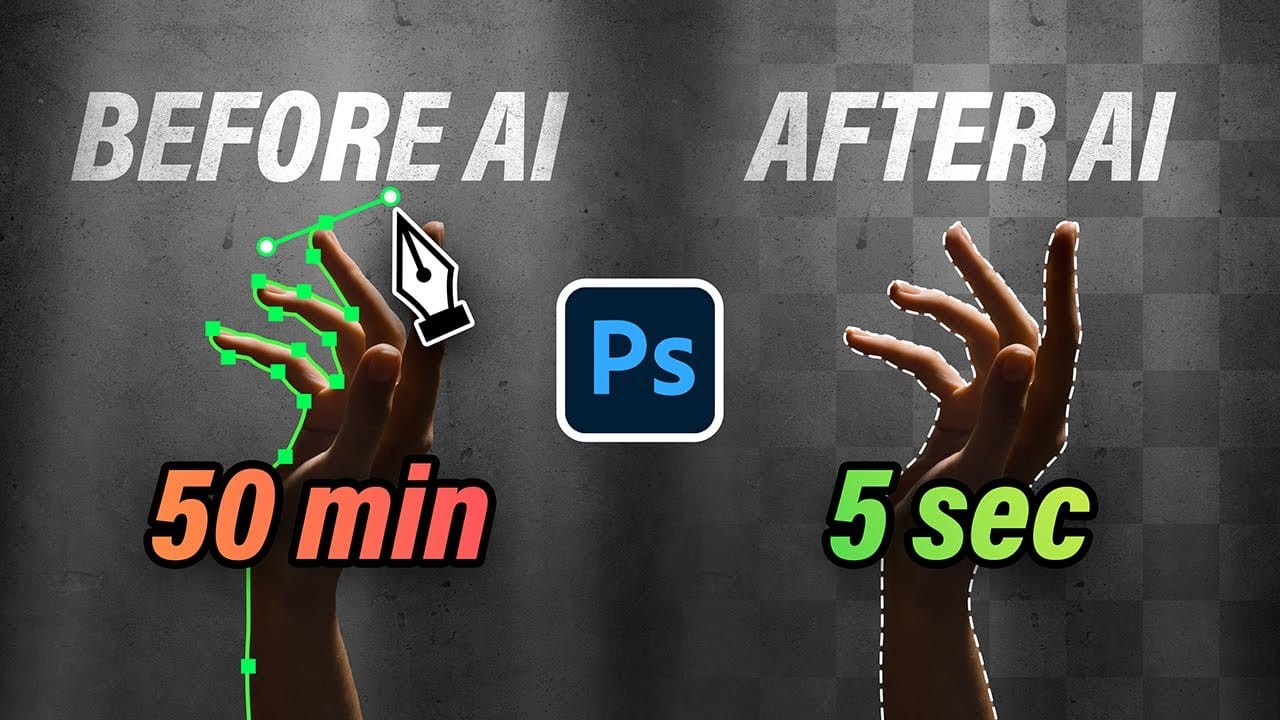
10 Ways AI Completely Transformed My Photoshop Techniques
Repetitive tasks like making complex selections, removing unwanted objects, and cleaning up blemishes can consume hours of an editor's time. While traditional Photoshop methods offer precise control, they are often slow and require significant technical skill for what should be simple fixes.
This guide demonstrates how to integrate modern AI features into your daily workflow. You will learn practical techniques for everything from one-click selections and generative fills to automated retouchin
Complete Guide to AI Photo Editing with Photoshop's Generative Fill
Modern photo editing has entered a new era where artificial intelligence can solve complex visual problems in seconds. Tasks that once required hours of manual work—removing unwanted objects, changing skies, adding realistic elements—can now be accomplished with simple selections and text prompts.
This comprehensive tutorial demonstrates 37 practical applications of Photoshop's AI-powered generative fill feature. From basic sky replacements to advanced portrait retouching, these techniques show
7 Photoshop Tools Replaced by AI: Are They Still Relevant?
Adobe's integration of AI-powered features has fundamentally changed how photographers and designers approach common editing tasks. From reflection removal to noise reduction, many traditional Photoshop tools now have AI counterparts that promise faster results with minimal manual work.
This video demonstrates how seven classic Photoshop tools compare against their AI replacements, showing practical examples of when the new technology excels and when traditional methods still hold their ground.