Creating realistic skin patterns and tattoos requires more than simply overlaying images onto photographs. The key lies in using proper blending techniques and layer settings to make decorative elements appear naturally integrated with skin texture.
This technique works for everything from Japanese kintsugi-inspired cracks to floral tattoo designs, transforming flat graphics into convincing skin art that follows natural contours and lighting.
Watch the Video
Video by Nikki Harrison. Any links or downloads mentioned by the creator are available only on YouTube
Practical Tips
These essential techniques will help you achieve natural-looking skin patterns and tattoos:
- Start with Multiply blend mode to instantly see how patterns interact with skin tones and shadows
- Use Blend If sliders to remove white backgrounds automatically - drag the white triangle left while holding Alt to split for smoother transitions
- Add Color Dodge layers with "Transparency Shapes Layer" unchecked for realistic metallic highlights on crack effects
- Convert patterns to Smart Objects before rasterizing to preserve the ability to resize and transform multiple times
- Use hard brushes for masking rather than soft ones to avoid unwanted spray effects when removing patterns from jewelry or clothing
Related Articles and Tutorials
Explore more techniques for adding realistic textures and patterns to skin and fabric:
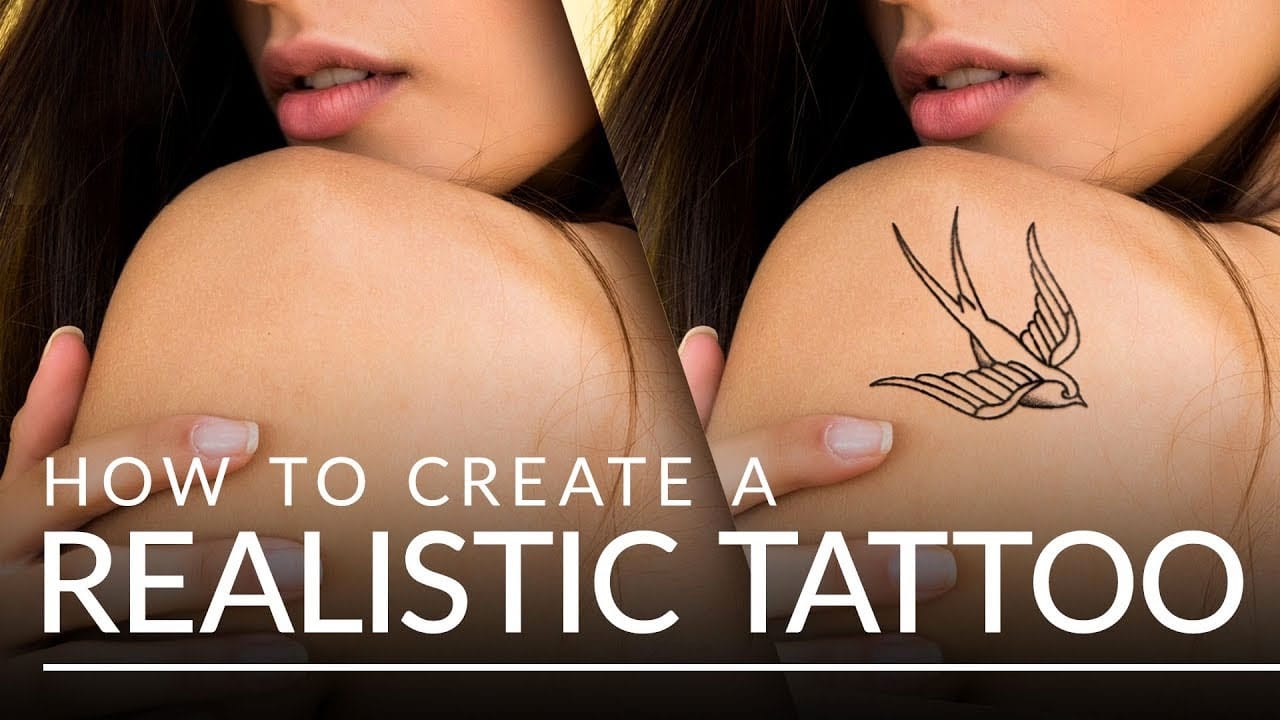
Create a realistic tattoo out of any design in Photoshop
Digital tattoo creation transforms flat illustrations into convincing skin art through careful texture work and blending techniques. The key lies in making computer-generated designs look hand-drawn and naturally integrated with skin.
This technique converts vector artwork or digital drawings into realistic tattoos by adding organic line variation, proper lighting effects, and skin integration that mimics how real ink settles beneath the surface.
Watch the Video
Practical Tips
Master these
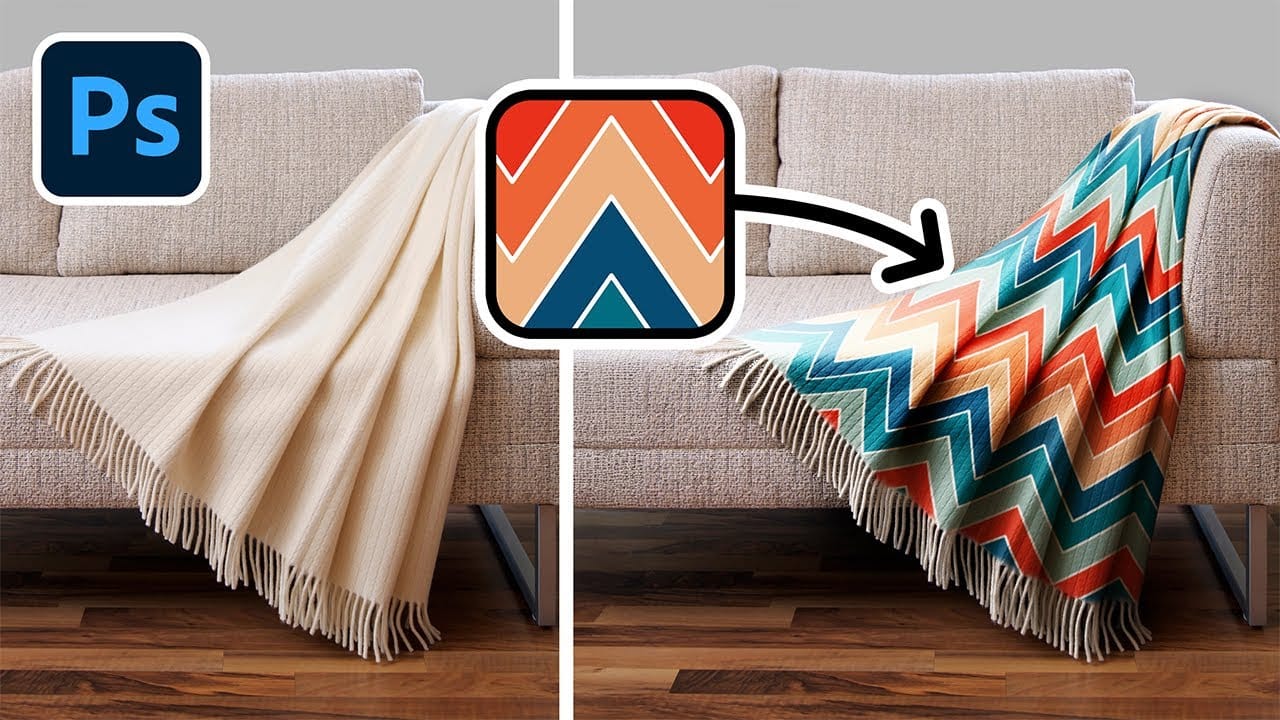
Add Patterns to Any Fabric in Photoshop
Digital artists and designers often face the challenge of integrating patterns onto fabric textures in a way that looks natural and convincing. Simply overlaying a pattern rarely achieves the desired realism, as fabric surfaces are rarely flat and uniform. Understanding how to make patterns conform to the unique contours of textiles is essential for creating believable composites and product mockups.
This video tutorial provides a comprehensive guide to applying patterns to various fabric types
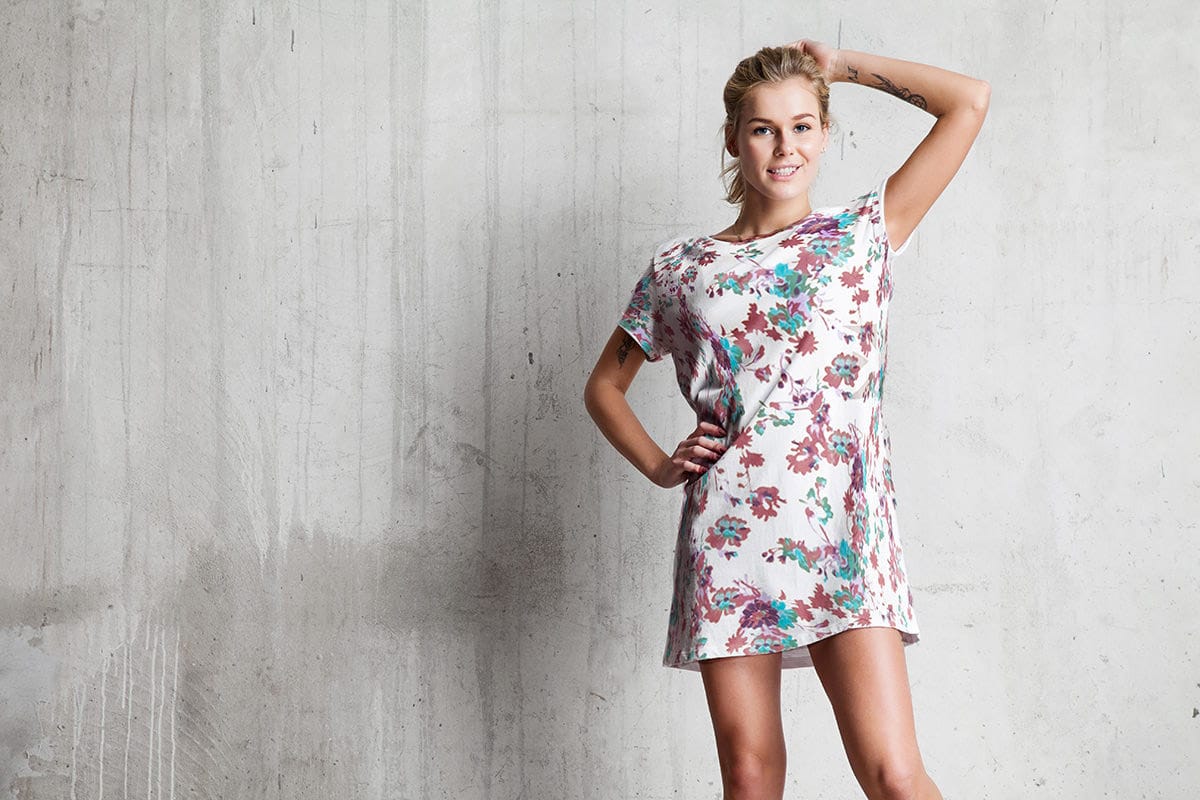
How to Add Patterns to Clothing in Photoshop
Creating realistic pattern overlays on clothing requires more than simply placing a texture on top. The fabric needs to conform to wrinkles, follow the garment's contours, and blend naturally with existing highlights and shadows.
This technique combines precise selection work, the Liquify filter, and strategic blending modes to transform any pattern into convincing fabric that appears to be part of the original garment.
Watch the Video
Practical Tips
These key techniques will help you achi
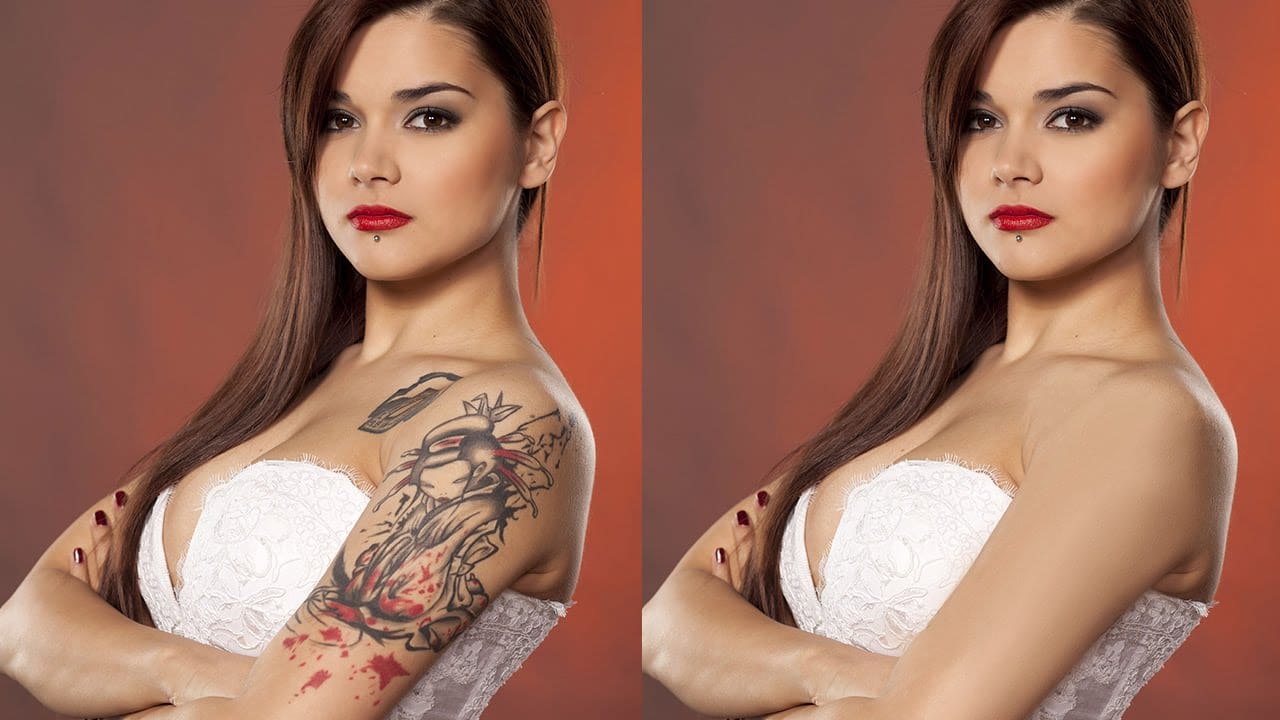
How to Remove a Tattoo in Photoshop
Removing tattoos from photos requires a systematic approach that preserves natural skin appearance. This technique combines automated tools with manual refinement to achieve realistic results that maintain proper skin tone and texture.
The process involves three essential steps: rough removal using healing tools, skin smoothing with brush techniques, and texture restoration to ensure the final image looks natural and convincing.
Watch the Video
Practical Tips
Follow these key techniques to
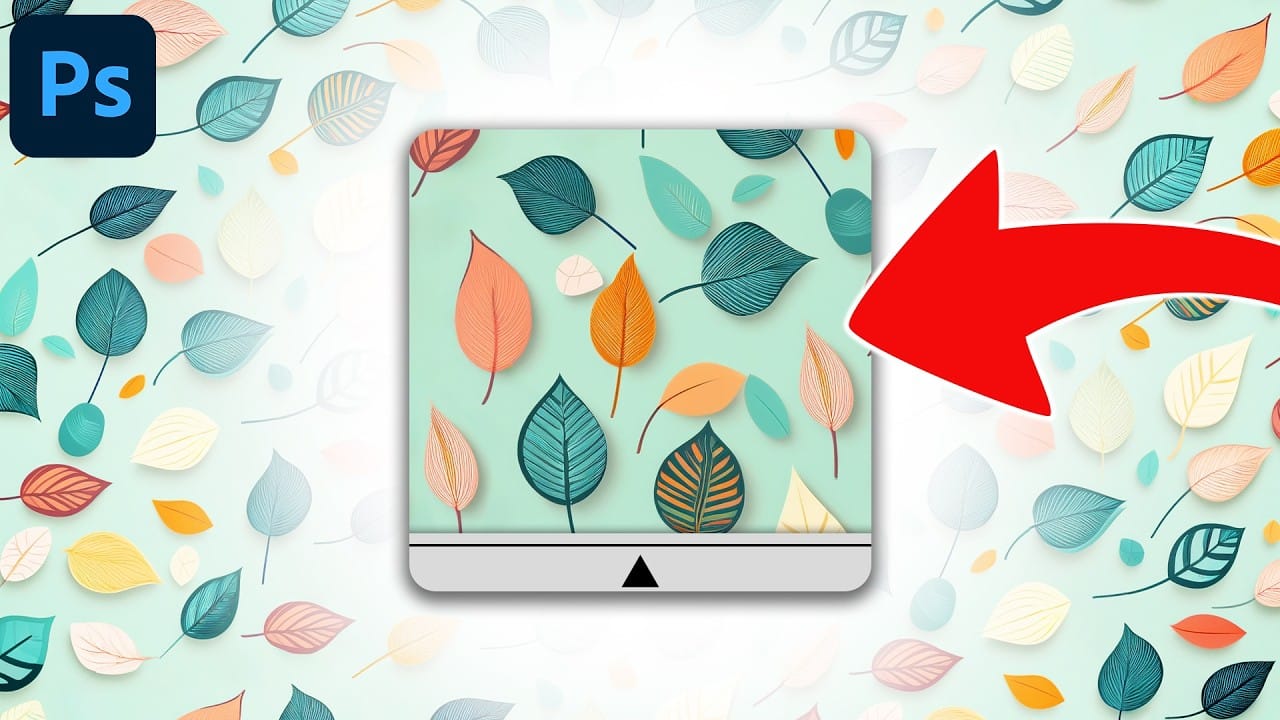
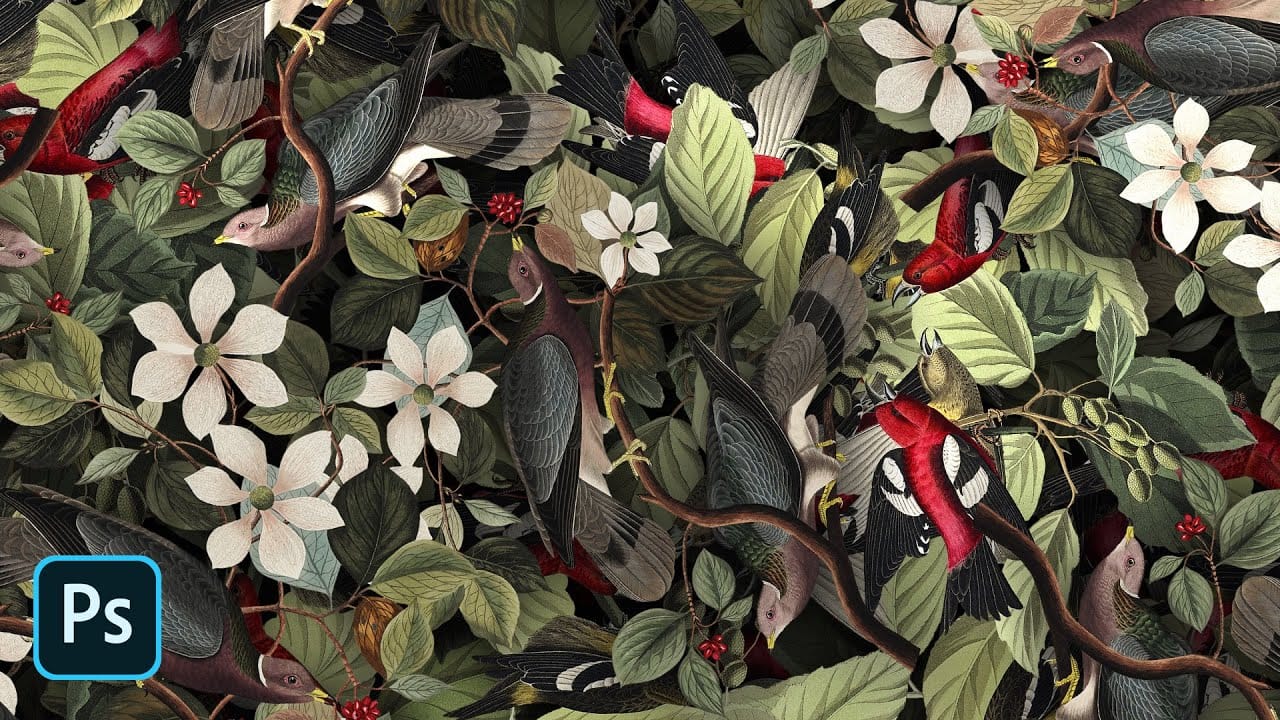
How To Create Detailed Graphic Patterns in Photoshop
Transforming a single image into a sprawling, intricate design can elevate any creative project, from custom fabrics to unique digital backgrounds. This technique allows designers to fill vast areas with graphics, producing complex visual textures without noticeable repetition. It offers an innovative way to generate dynamic backgrounds and decorative elements that truly stand out.
This tutorial reveals an effective method for developing detailed abstract patterns using any source image, like a
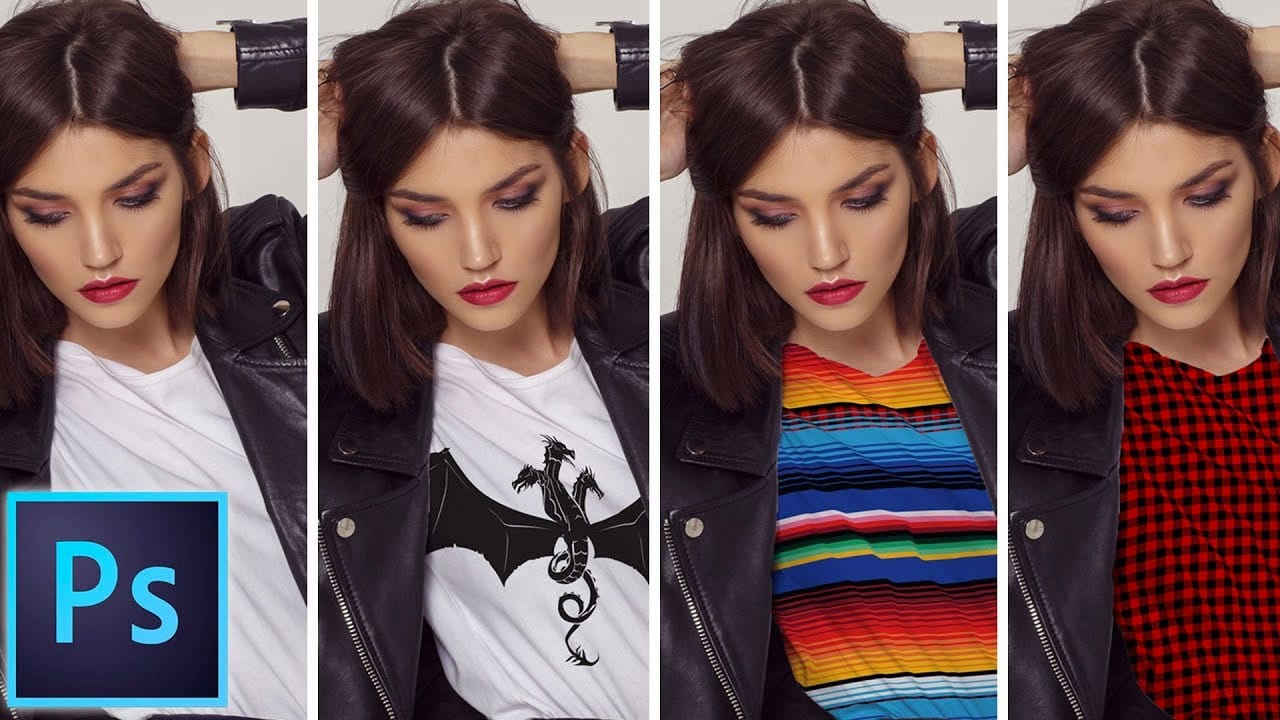
How to add a logo or pattern to a shirt in Photoshop
In his Photoshop tutorial, author Colin Smith guides viewers through the process of adding a logo, graphic, pattern, or texture onto clothing. This technique allows for quick and easy customization of apparel, enabling users to swap out designs in a matter of seconds.
Smith's step-by-step instructions demonstrate how to seamlessly incorporate the desired visual element onto a shirt or other garment. By leveraging the power of Photoshop's layers and blending modes, users can achieve a profession
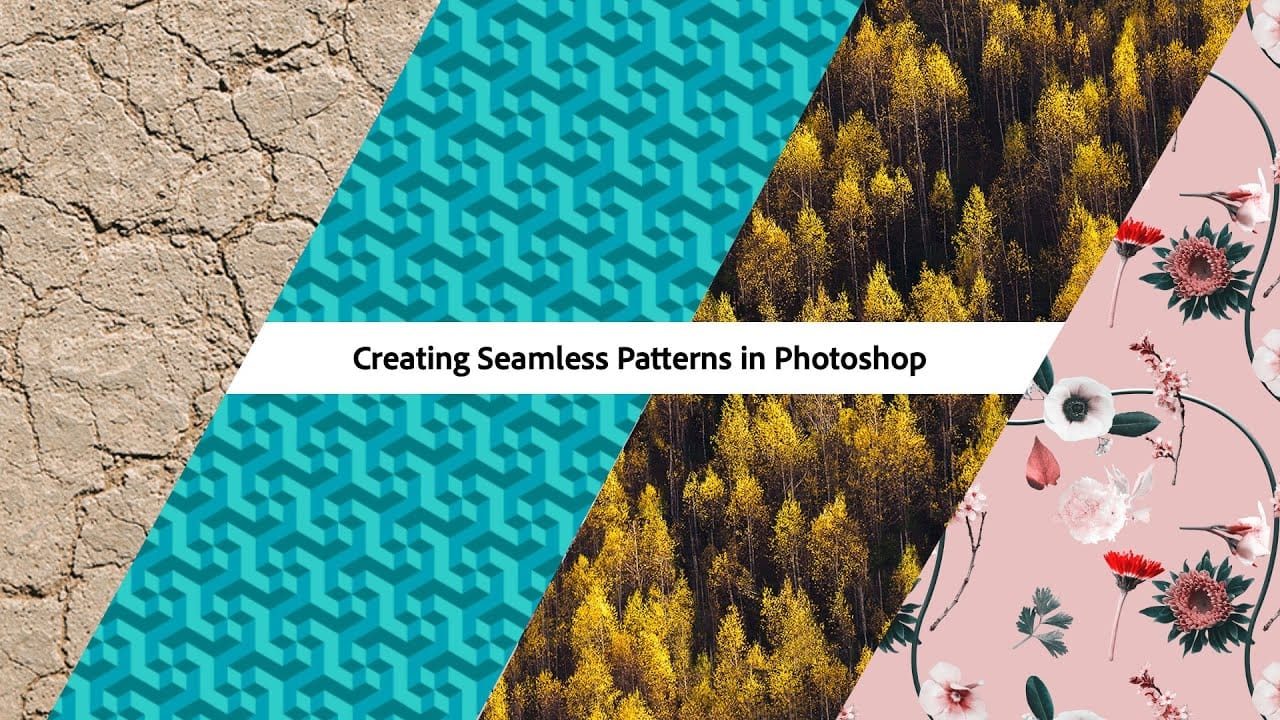
Creating Seamless Patterns in Photoshop
In this tutorial, Adobe Evangelist Paul Trani delves into the process of creating seamless patterns in Photoshop. Seamless patterns are essential for various design projects, from backgrounds to textiles, and mastering them can significantly enhance your design capabilities.
Paul takes you through the entire process, from setting up your initial design to ensuring that the pattern tiles seamlessly across any surface. He covers essential techniques such as defining pattern edges, adjusting spaci
3 Powerful Techniques to Create Seamless Patterns in Photoshop
Seamless patterns are a fundamental element in graphic design, essential for creating engaging backgrounds, unique textures, and cohesive visual branding. Crafting patterns that repeat flawlessly, without visible edges or disruptions, can transform your design projects from good to exceptional. This capability proves invaluable for everything from digital art to professional composites, ensuring visual continuity and aesthetic appeal.
This tutorial offers a comprehensive guide to producing seam
How to Remove Tattoos Using AI in Photoshop
Removing tattoos from photos is now incredibly simple thanks to AI-powered generative fill. What once required complex cloning and healing techniques can now be accomplished in minutes with just a few selections and clicks.
This method works perfectly for commercial photography, brand projects, or any situation where tattoos need to be temporarily hidden while maintaining natural-looking skin texture.
Watch the Video
Practical Tips
These key strategies will help you achieve clean, natural
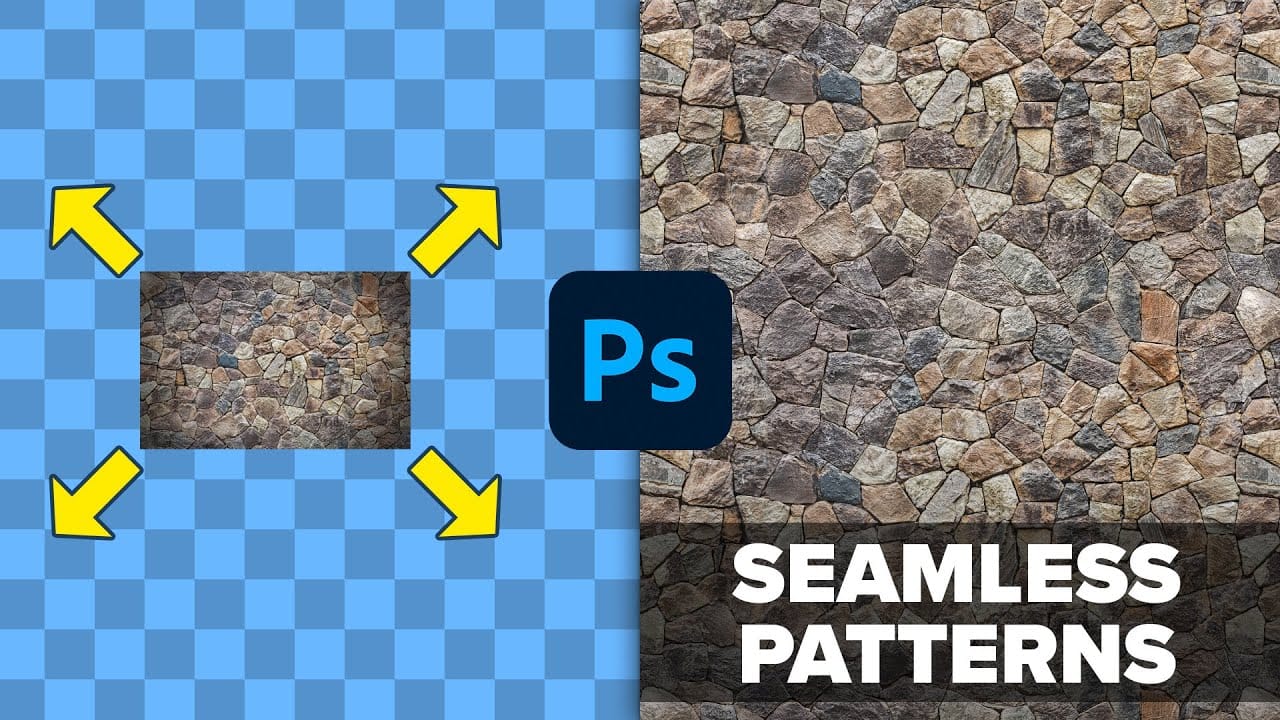
Using AI to Create Seamless Patterns For Photoshop
Creating beautiful, endless patterns for your design projects just got easier with the power of artificial intelligence. This tutorial explores an efficient workflow to generate intricate designs and transform them into perfectly tiling patterns.
Discover how to leverage AI tools to craft unique starting points, then refine them within Photoshop to achieve professional, seamless results. This process offers a creative boost for backgrounds, textiles, and other visual assets.
Watch the Full Tu