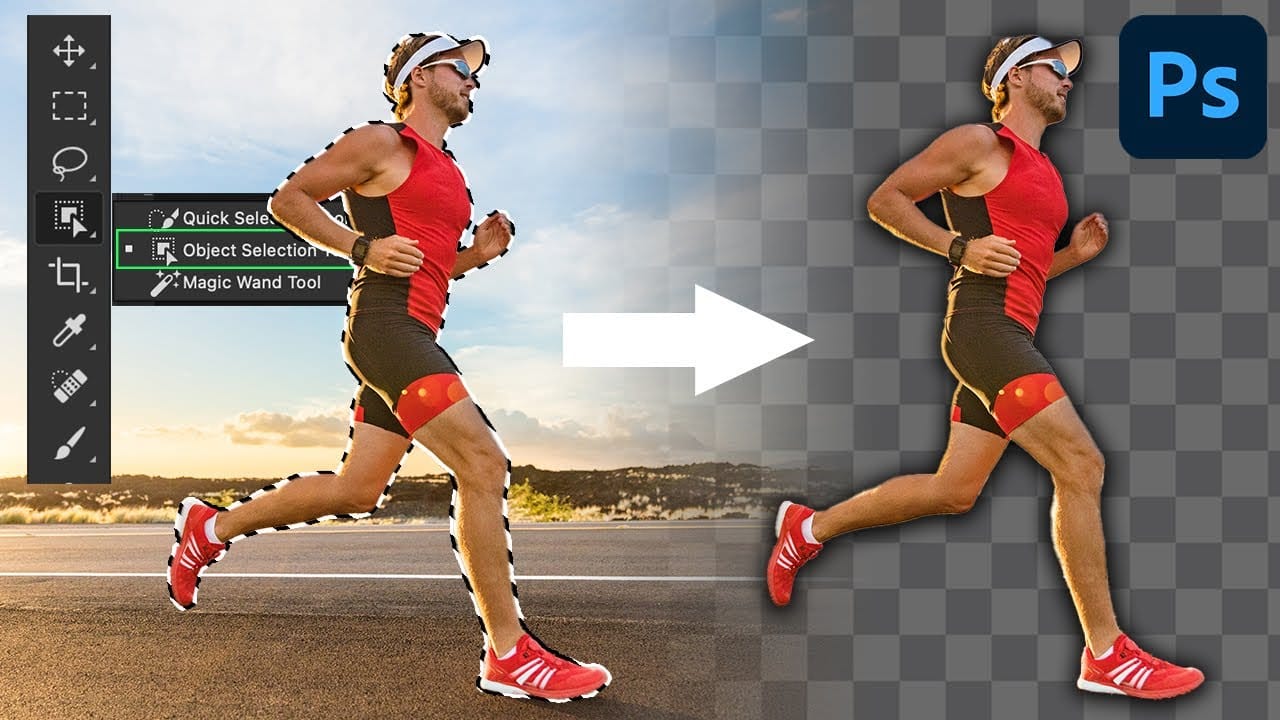
White edge artifacts can ruin otherwise perfect cutouts, appearing as unwanted halos around selected objects after background removal. These artifacts occur when selection edges capture tiny fragments of the original background, creating visible white outlines that become obvious against new backgrounds.
The Contract modifier in Photoshop's Select menu offers a simple solution by shrinking selection edges inward by a specified number of pixels. This technique effectively eliminates edge artifacts while maintaining clean, professional-looking cutouts ready for compositing or saving as transparent PNG files.
Watch the Video
Video by SandraD Imagery. Any links or downloads mentioned by the creator are available only on YouTube
Practical Tips
These techniques will help you achieve cleaner selections without visible edge artifacts:
- Start with 1-2 pixels for the Contract value - higher values may remove too much of your subject
- Create a soft light layer filled with neutral gray to preview edge artifacts before applying the contract modifier
- Use Ctrl+J immediately after contracting your selection to copy the refined selection to a new layer
- Apply the Contract modifier particularly when working with AI-generated selections or photos with high contrast backgrounds
- Delete the original background layer after contracting to see the full effect of your edge cleanup
Related Articles and Tutorials
Explore more selection techniques and refinement methods to improve your cutout workflow.
 Enrique Flouret