How to Create Product Mockups Using New Generative Fill Partner Models in Photoshop

How to Create Product Mockups Using New Generative Fill Partner Models in Photoshop

Low-quality product photos from clients can make creating professional mockups challenging. With Photoshop's new Generative Fill partner models, you can transform rough sample images into polished product mockups in minutes rather than hours.

This workflow demonstrates how Nano Banana and Flux Context Pro streamline the entire process from background cleanup to multi-product arrangements, letting you focus on the detailed design work that matters most.

Watch the Video

Video by Adobe Photoshop. Any links or downloads mentioned by the creator are available only on YouTube

Practical Tips

These key techniques will help you create professional product mockups efficiently using the new partner models.

  • Use Nano Banana for background cleanup and product isolation with contextually aware prompts that preserve bottle details
  • Apply Flux Context Pro to unify multiple products in a single scene while maintaining consistent lighting and shadows
  • Convert label artwork to Smart Objects before warping to allow easy client revisions and realistic bottle curvature
  • Set label blend mode to Multiply to let underlying shadows and highlights show through for more realistic integration
  • Use simple color fills with Multiply blend mode for quick lid color changes that match product flavors

Explore more advanced techniques for enhancing images and creating professional designs with these tutorials.

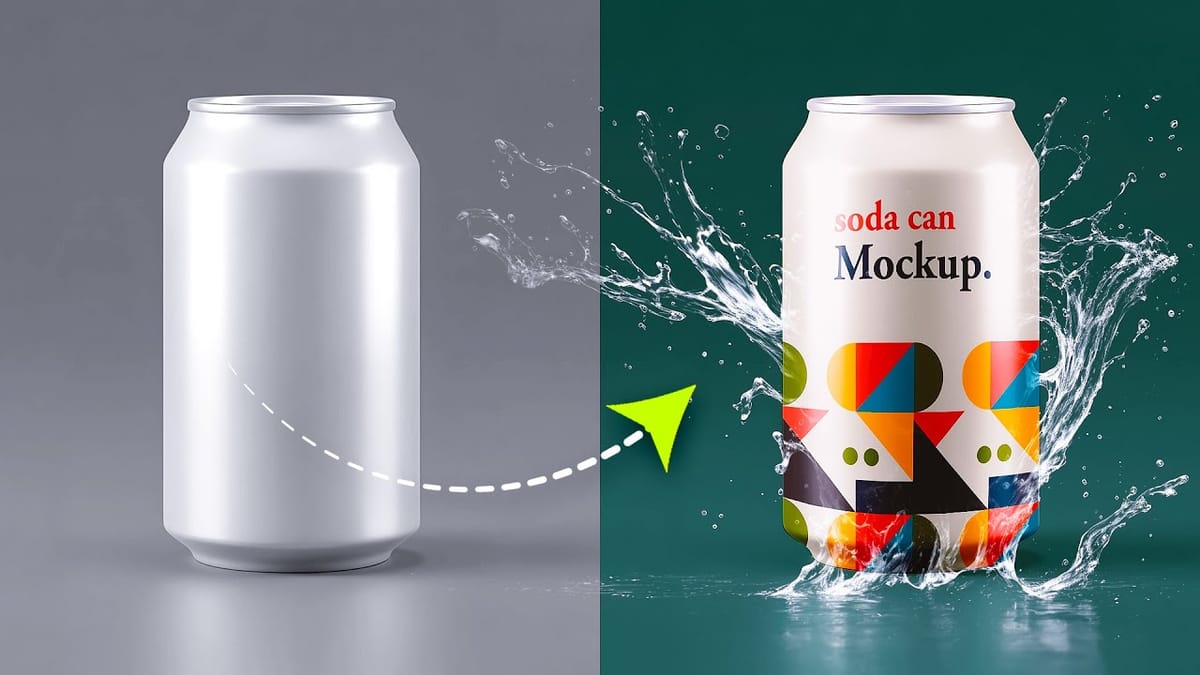
How to Create a Can Mockup in Photoshop Using Smart Objects and Masks
Professional can mockups transform flat designs into realistic product presentations that clients can instantly visualize. This technique combines precise measurement, smart object workflow, and blending modes to wrap your graphics seamlessly around curved surfaces. The process creates reusable templates that automatically apply proper perspective and lighting effects to any design
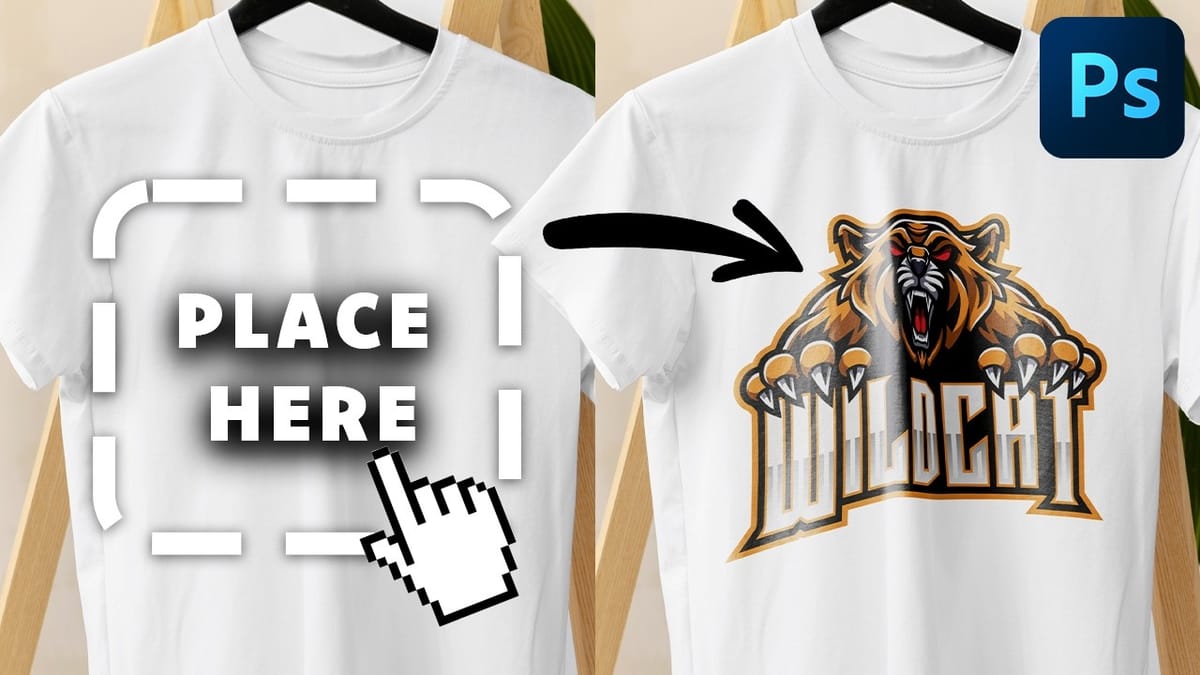
How to Create Reusable Drag & Drop Mockup Templates in Photoshop
Manually warping and blending logos onto product photos takes 15-30 minutes each time. Smart objects in Photoshop transform this repetitive process into a one-time setup that creates reusable templates. This technique lets you drag and drop any design into a pre-configured mockup that automatically applies warping, blending, and lighting effects.
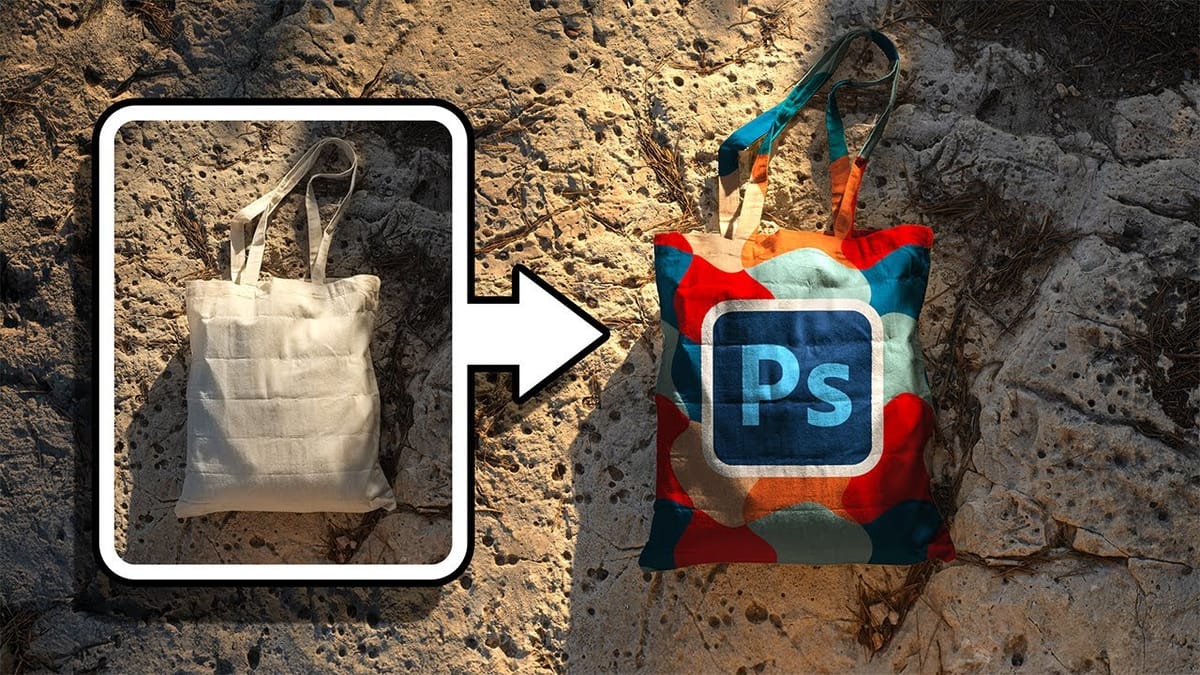
How to Create Realistic Design Mockups in Photoshop
Creating convincing product mockups requires more than simply placing a design onto a template. Real fabric surfaces have subtle color variations, texture bumps, and complex lighting that affect how printed designs actually appear. This comprehensive tutorial demonstrates professional techniques for building realistic mockups from scratch. You’ll learn to control surface
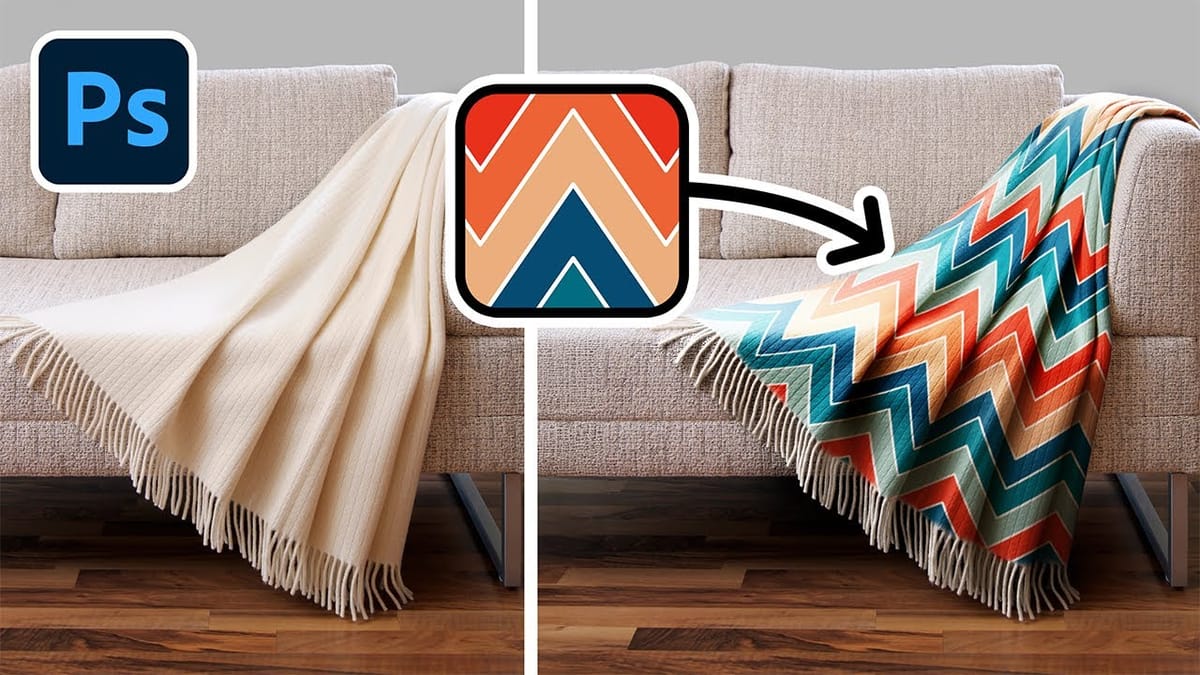
Add Patterns to Any Fabric in Photoshop
Digital artists and designers often face the challenge of integrating patterns onto fabric textures in a way that looks natural and convincing. Simply overlaying a pattern rarely achieves the desired realism, as fabric surfaces are rarely flat and uniform. Understanding how to make patterns conform to the unique contours of

Get tutorials & freebies delivered to you.

Subscribe to the Photoshop Roadmap newsletter, a weekly roundup of new tutorials, insights and quality downloads, trusted by 6500+ readers.

You might also like

Create Realistic Rim Light Effects on Portraits in Photoshop

Rim lighting transforms ordinary portraits into dramatic, professional-looking images by adding bright highlights around the edges of your subject. This technique simulates light hitting the outer contours of a person, making them stand out from their background with a natural, glowing effect. The key to convincing rim light lies in...

How to Use Photoshop's Layer Cleanup Tool to Organize Messy Projects

Complex editing projects with Generative Fill and Expand often result in dozens of unnamed layers cluttering your workspace. The new Layer Cleanup tool automates the tedious process of renaming layers and removing empty ones, transforming chaotic layer panels into organized, manageable structures. This workflow improvement saves significant time during post-production...

How to Use Curves for Composite Color Matching in Photoshop

Curves adjustments are essential for making composite elements look natural and cohesive. Understanding how curves manipulate light values and color channels gives you precise control over matching different elements to their new backgrounds. The key to successful color matching lies in analyzing the color temperature and brightness relationships between your...

How to Fix Color Fringing in Subject Cutouts Using Clipping Masks

Perfect layer masks can still produce disappointing results when color fringing appears around hair and fur edges. This common problem isn't caused by poor masking technique—it's the original background bleeding through at the edges. Clipping masks offer a powerful solution by allowing you to paint...

Create Beautiful Floral Oval Frames for Portraits in Photoshop

Transform ordinary portraits into elegant artwork with decorative floral oval frames that blend seamlessly with your subject. This technique combines traditional framing with digital floral elements, creating a painterly effect that's perfect for fine art prints and creative portraits. The process involves creating an oval cutout, adding custom...

You’ve successfully subscribed to Photoshop Roadmap
Welcome back! You’ve successfully signed in.
Great! You’ve successfully signed up.
Success! Your email is updated.
Your link has expired
Success! Check your email for magic link to sign-in.