How to Design a Workshop Poster in Photoshop

How to Design a Workshop Poster in Photoshop

Professional workshop posters combine clean typography with compelling visuals to attract attendees and communicate essential information at a glance. The challenge lies in balancing text hierarchy with visual elements while maintaining readability across different sizes and formats.

This Photoshop tutorial demonstrates a structured approach to poster design using basic tools like rectangles, clipping masks, and typography to create a polished workshop announcement.

Watch the Tutorial

Video by WeJustClickme. Any links or downloads mentioned by the creator are available only on YouTube

Essential Elements of Workshop Poster Design

Workshop posters serve as both promotional tools and information sources, requiring careful attention to visual hierarchy and content organization. The most effective designs establish a clear focal point while ensuring all essential details remain accessible to viewers scanning quickly.

Color psychology plays a crucial role in workshop marketing materials. Bold colors like red convey urgency and energy, making them ideal for action-oriented workshops or limited-time events. The strategic use of clipping masks allows designers to contain images within specific shapes, creating clean boundaries that enhance the overall composition.

Typography choices significantly impact both readability and brand perception. Rotated text elements can add visual interest and help break up large blocks of information, but should be used sparingly to maintain legibility across different viewing distances.

Practical Tips for Poster Design

  • Start with standard print dimensions like A3 (42 x 29.7 cm) to ensure compatibility with common printing formats
  • Use clipping masks to keep images contained within geometric shapes for cleaner composition
  • Add subtle color overlays at low opacity (around 16%) to improve text readability over busy backgrounds
  • Apply the Alt + drag technique to quickly duplicate text elements while maintaining consistent formatting
  • Rotate key text elements 90 degrees to create visual interest and utilize vertical space effectively

More Tutorials about Poster Design

Explore additional techniques for creating impactful poster designs in Photoshop.
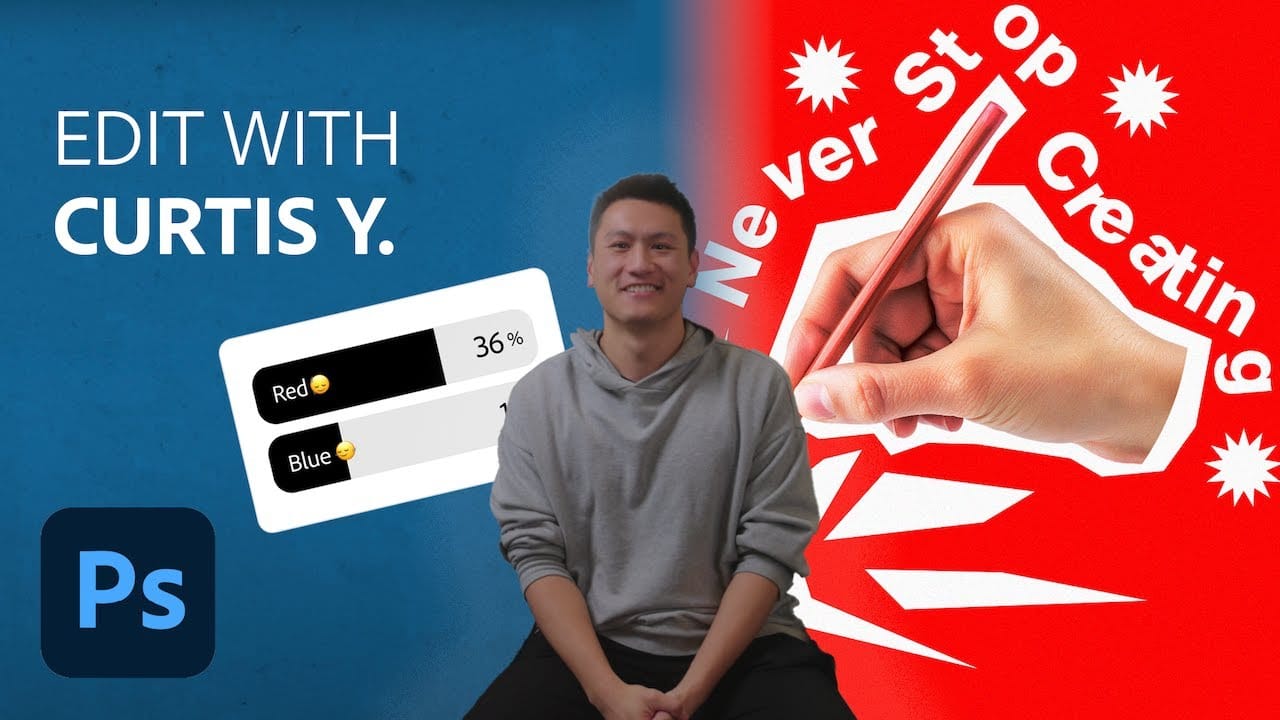
Crafting a Typographic Poster in Adobe Photoshop
Join Adobe's UX Growth Designer, Curtis Ying, as he transforms a Swiss Typographic poster through an engaging design process. With the input from the Instagram community, this presentation showcases how he carefully selects a bold red background that sets the tone for the entire piece. Throughout the process, Curtis shares his techniques for integrating organic shapes and text that harmoniously flow within the design. Utilizing various Photoshop tools, he guides you step-by-step, making it easy
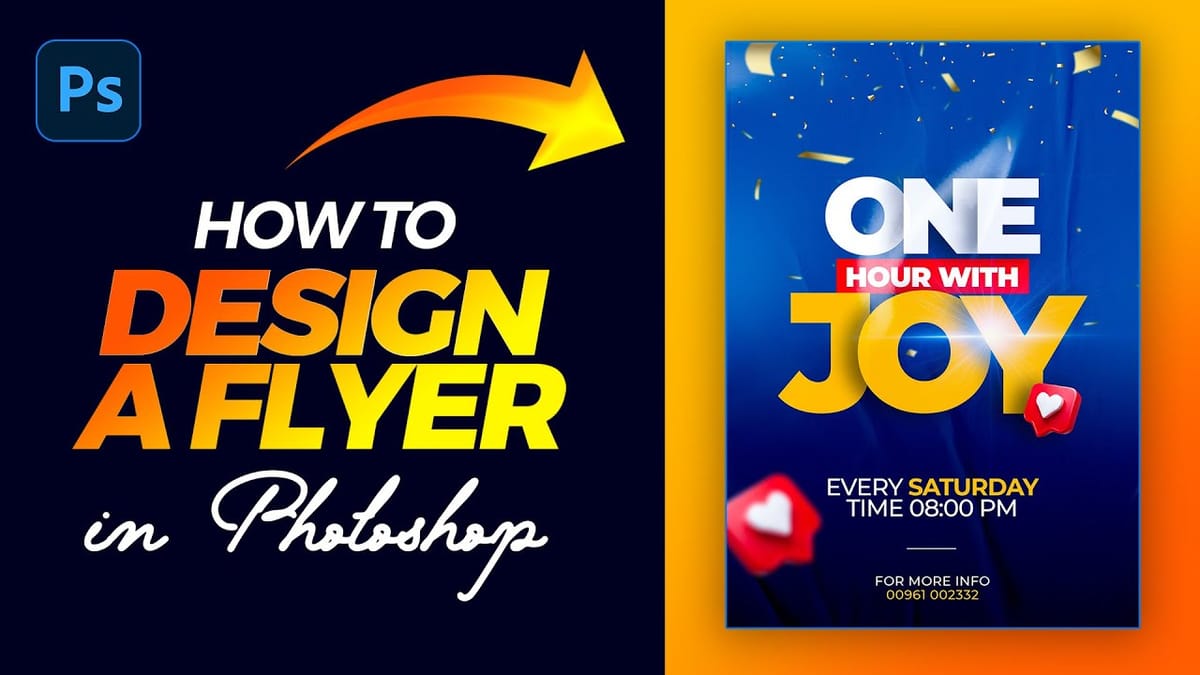
Create a Colorful Flyer Design in Photoshop
This tutorial provides a straightforward guide to designing a flyer using Adobe Photoshop, perfect for both beginners and those with some experience. It starts with an introduction to the type tool, allowing you to add and manipulate text for your flyer. You’ll set the foreground color to white and choose
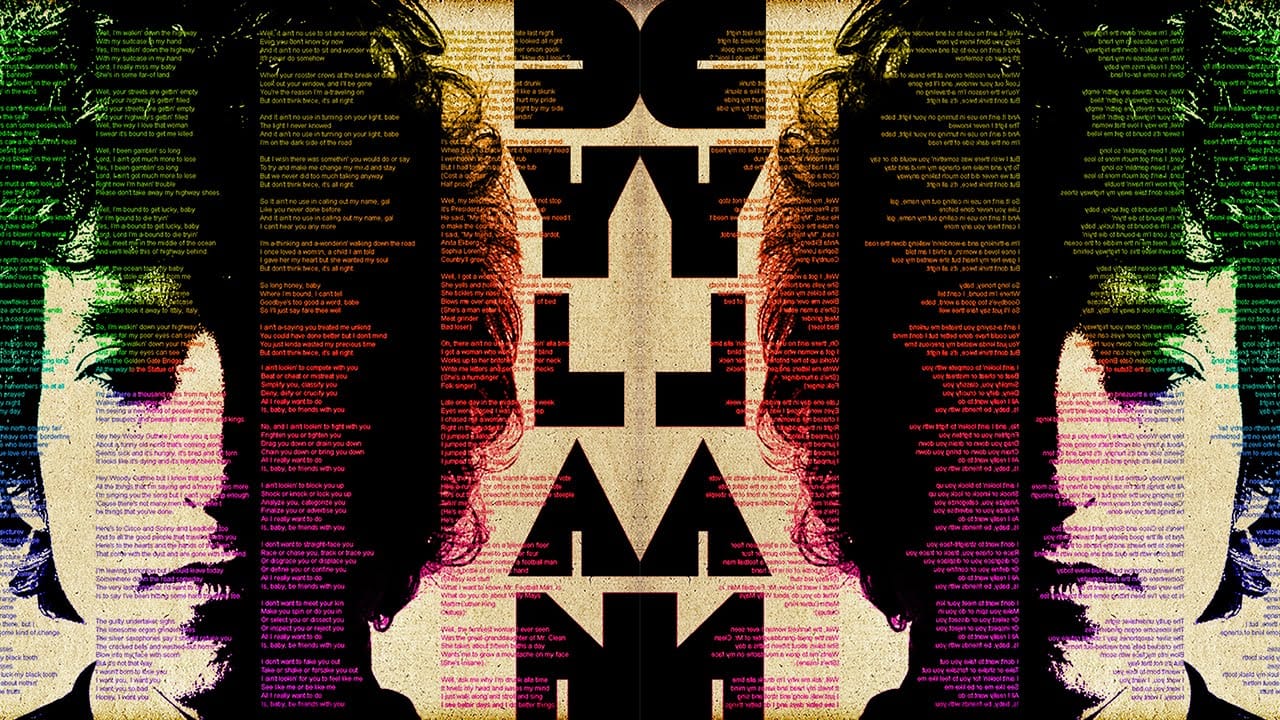
Create a Creative Text Portrait Poster in Photoshop
The author, Marty Geller from Blue Lightning TV, provides a tutorial on how to create a creative text portrait poster in Photoshop. This project allows you to design a powerful, custom text portrait poster of a musician, songwriter, poet, or author, featuring their lyrics, poems, or prose. The process involves using Photoshop to arrange the text elements in a visually striking way, highlighting the subject's creative work. By following the step-by-step instructions, you can craft a unique and p
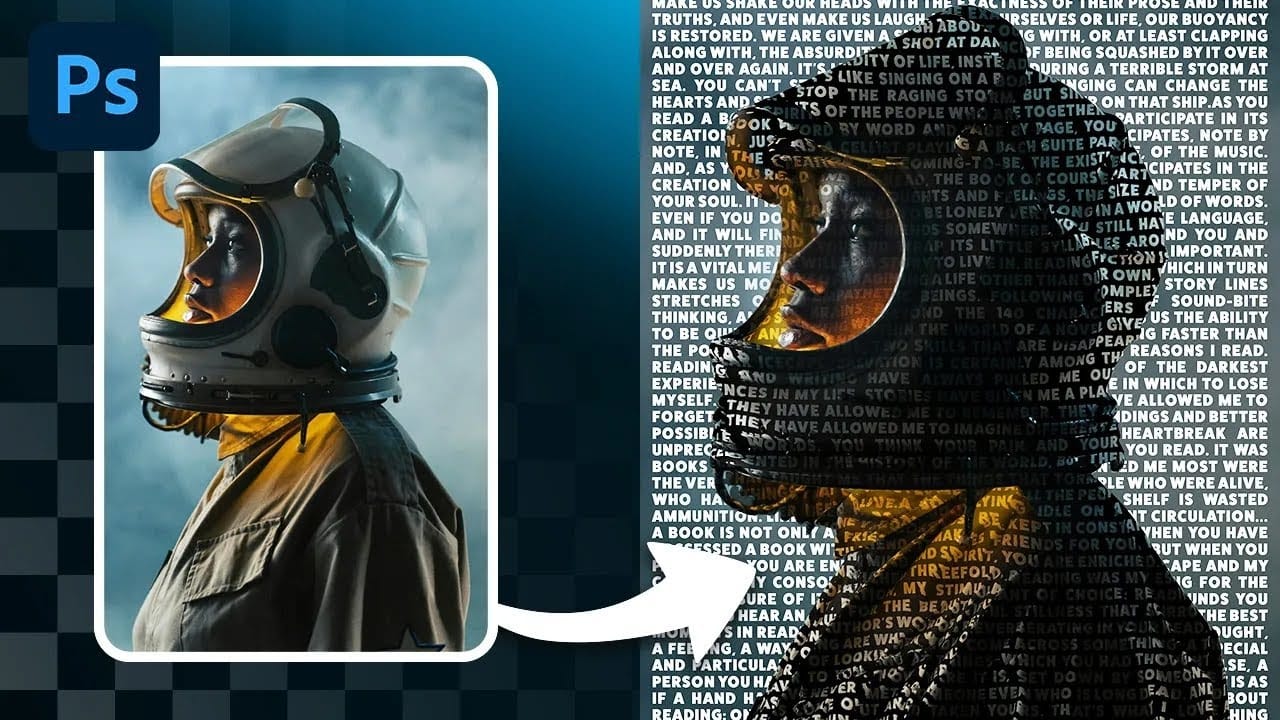
Create a Striking Text Portrait Poster in Photoshop
Transforming an ordinary portrait into a captivating text-based artwork presents a unique creative challenge in Photoshop. Often, the frustration lies in making text appear to organically wrap around a subject's contours rather than just sitting flat over the image. Achieving this seamless integration, especially when dealing with complex shapes, can feel like navigating an intricate technical puzzle. This tutorial offers a clear pathway to mastering text portrait effects using advanced masking

Get tutorials & freebies delivered to you.

Subscribe to the Photoshop Roadmap newsletter, a weekly roundup of new tutorials, insights and quality downloads, trusted by 6500+ readers.

You might also like

How to Create Digital Collages Using Layers and Blend Modes in Photoshop

Digital collages combine multiple images through strategic layering and blending techniques to create compelling visual stories. This beginner-friendly approach demonstrates how to build complex compositions by layering textures, portraits, and objects while using blend modes to seamlessly integrate each element. The process focuses on practical workflow techniques including smart object...

Building Complex Composites Using Generative Fill and Layer Blending

Complex surreal composites require more than just combining random images. The key to professional results lies in systematic layering, consistent masking techniques, and building a reusable library of generated elements. This approach transforms scattered AI-generated content into cohesive artistic visions. The tutorial demonstrates how to deconstruct an existing composite to...

How to Add Any Face to Mount Rushmore Using Photoshop and AI

Adding faces to Mount Rushmore creates striking digital art that combines portrait photography with AI-powered stone carving effects. This technique uses generative AI to transform any portrait into a realistic granite sculpture that matches the lighting, texture, and monumental style of the famous presidential memorial. The process combines traditional selection...

Creating Floral Wreath Overlays in Photoshop

Floral overlays transform ordinary portraits into magical compositions perfect for pet photography, baby portraits, and creative projects. This technique shows you how to build custom floral wreaths using AI-generated base elements and real floral PNG files, creating frames that can hold any subject in the center. The process combines symmetry...

Concept Development and Mood Boarding with Firefly Boards for Fashion Design

Fashion design concept development traditionally requires gathering inspiration from multiple sources, creating mood boards, and iterating through ideas before presenting to clients. Firefly Boards streamlines this entire workflow into a single workspace where you can source inspiration, generate new variations through AI remixing, and organize final concepts into professional presentations....

How to Use Dynamic Text Shapes in Photoshop

The Dynamic Text tool introduced in 2025 was revolutionary for automatic text sizing and layout, but 2026 brings an exciting update that adds shape options to this powerful feature. You can now create circular text, arches, and bow configurations with the same intelligent resizing capabilities that made the original tool...

You’ve successfully subscribed to Photoshop Roadmap
Welcome back! You’ve successfully signed in.
Great! You’ve successfully signed up.
Success! Your email is updated.
Your link has expired
Success! Check your email for magic link to sign-in.