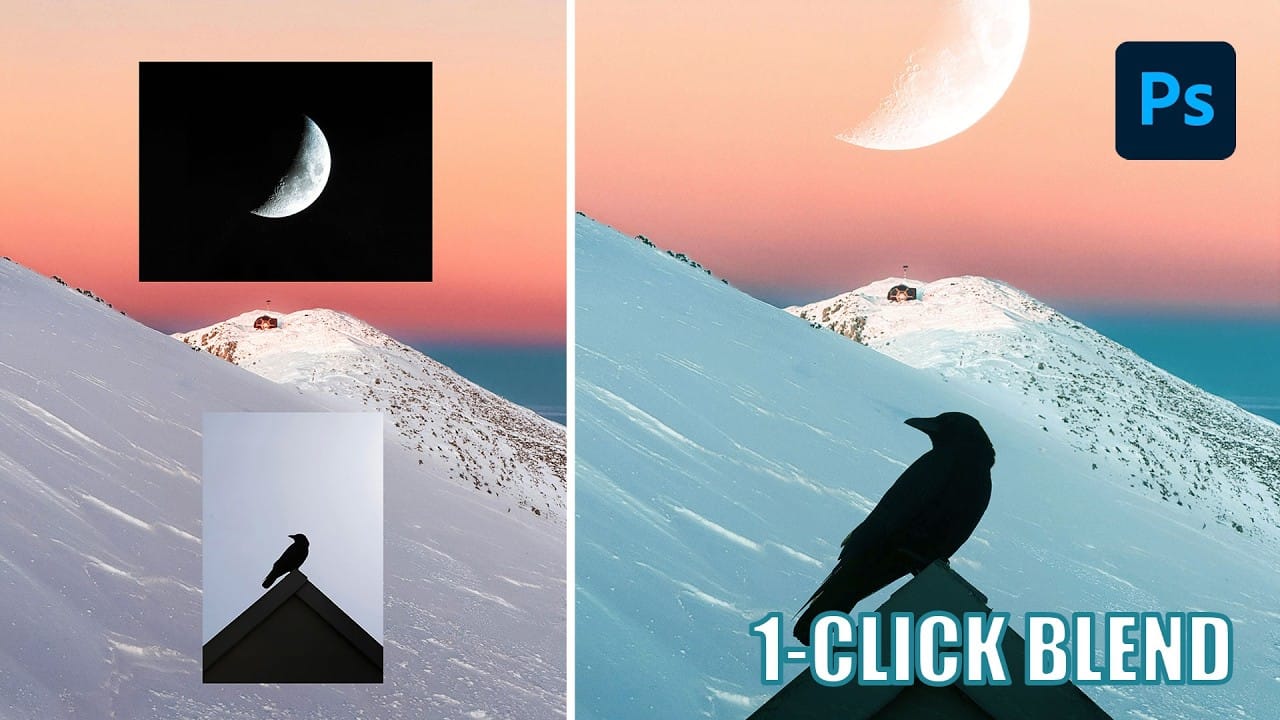
Blend If sliders control transparency based on brightness levels, making complex selections unnecessary. Understanding how these two simple sliders work with RGB channels opens up precise compositing possibilities that would otherwise require multiple masks and selections.
The technique works by targeting specific brightness ranges from 0 to 255, allowing you to hide or reveal pixels based on their tonal values. This approach is particularly powerful for sky replacements, removing backgrounds, and creating natural-looking composites.
Watch the Video
Video by Photoshop Training Channel. Any links or downloads mentioned by the creator are available only on YouTube
Practical Tips
These essential techniques will help you master Blend If sliders for professional compositing results:
- Hold Alt/Option and click sliders to split them in half, creating smooth gradual transitions instead of hard cutoffs
- Use current layer sliders to hide pixels on the active layer based on brightness—drag black point right to remove dark areas, white point left to remove bright areas
- Apply underlying layer sliders to reveal pixels from layers below—useful for making clouds appear in front of objects or bringing texture through overlays
- Check individual RGB channels first to identify which has the most contrast between areas you want to keep and remove
- Target specific color channels instead of overall brightness for more precise control over which colors become transparent
Related Articles and Tutorials
Explore more advanced blending and masking techniques to enhance your compositing skills: