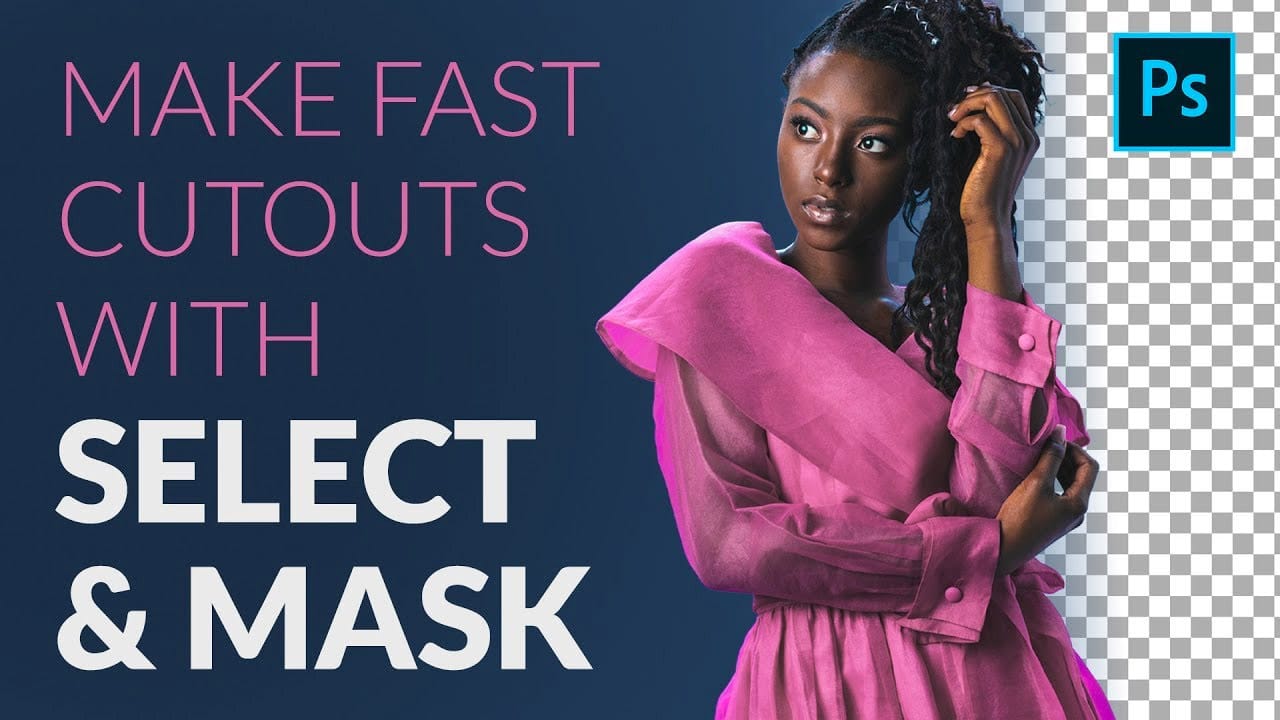
Background removal becomes effortless when you know how to use the right tools. AI-powered selection can instantly isolate subjects from their backgrounds, but the real skill lies in refining those selections to create professional results.
This guide covers the complete workflow from initial selection to edge refinement, plus creative techniques for backgrounds, adjustments, and color changes that transform your images.
Watch the Video
Video by PHLEARN. Any links or downloads mentioned by the creator are available only on YouTube
Practical Tips
Master these essential techniques to achieve clean selections and professional results:
- Use Remove Background instead of Select Subject when you know you want transparency - it automatically creates a layer mask
- Refine edges with Shift Edge in Select and Mask by moving the slider left to contract the selection and eliminate halos
- Paint with the Refine Edge Brush on hair areas to automatically remove unwanted background fringing
- Place new fill layers beneath your masked subject layer to create solid color or gradient backgrounds
- Apply adjustments with active selections to automatically load those selections into layer masks
Related Articles and Tutorials
Explore more advanced selection and background removal techniques with these tutorials.
How to Use Photoshop's Select Subject Tool for One-Click Selections
Complex selections in Photoshop just became effortless. The Select Subject tool uses advanced AI to automatically identify and select main subjects in images, even those with intricate details like bicycle spokes or hair.
This tutorial demonstrates how to achieve professional-quality selections with a single click, saving hours of manual masking work.
Watch the Video
Practical Tips for Using Select Subject
* Access Select Subject through the Contextual Task Bar for quickest results - find
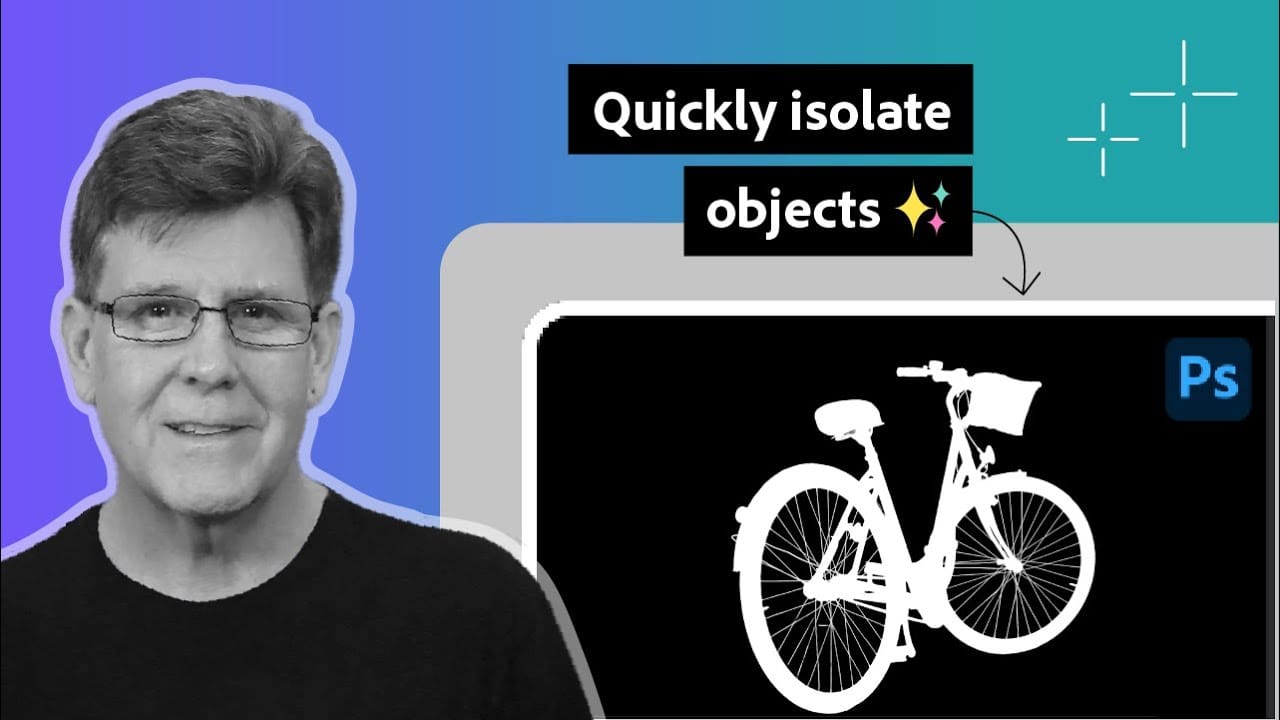
How to Remove Backgrounds in Photoshop: 5 Essential Tools
Background removal can make or break your image editing workflow. The right tool depends on your specific image: solid backgrounds need different approaches than complex hair details or high-contrast scenes.
This tutorial covers five powerful Photoshop tools that handle different background removal challenges, from simple graphics to intricate details.
Watch the Tutorial
Practical Tips for Background Removal
* Use Blend If for solid colored backgrounds by accessing layer styles and adjust
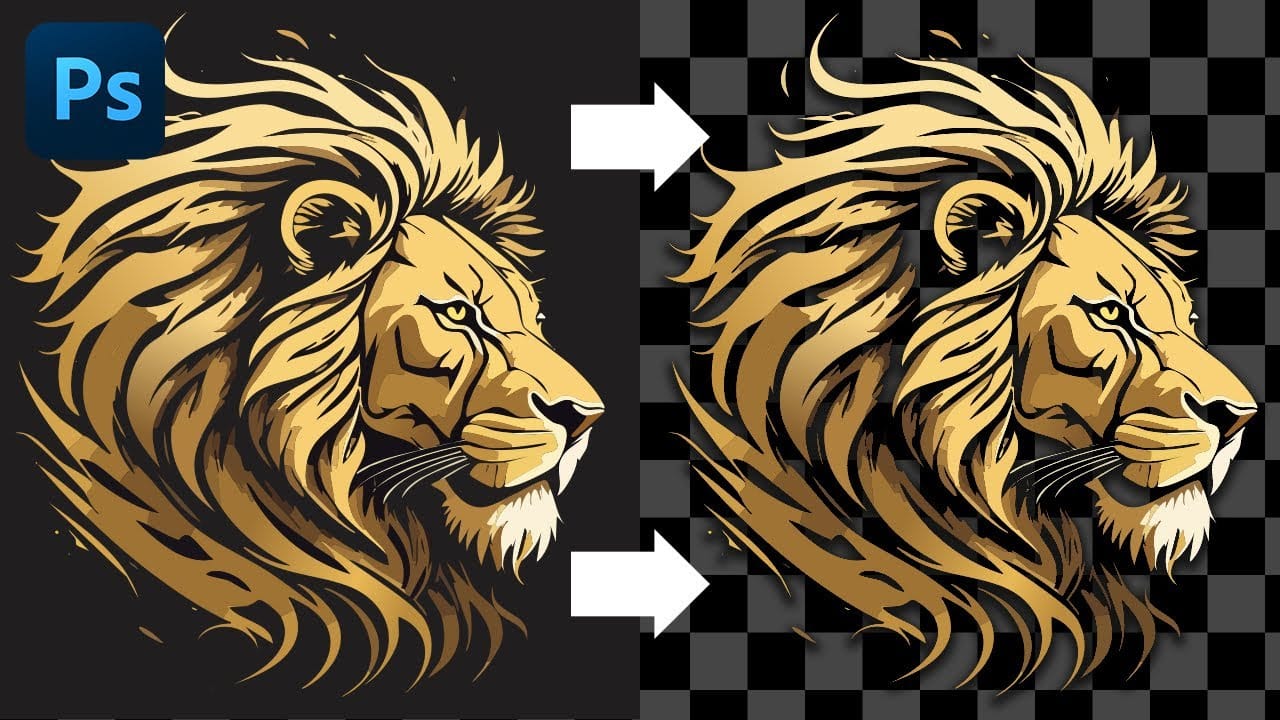
Cutting Out Complex AI Images Using Channel Masking in Photoshop
AI-generated images often contain intricate details that challenge standard background removal tools. When automatic selection methods fail to capture complex edges and fine details, manual techniques become essential.
This technique demonstrates how to use channel masking to create precise selections that preserve every detail of your AI artwork.
Watch the Tutorial
Essential Tips for Channel Masking
* Select the channel with the highest contrast between your subject and background before
How to Cut Out Objects from Backgrounds in Photoshop
Perfect cutouts can transform ordinary photos into stunning composites. Photoshop's automated tools have revolutionized background removal, making complex selections accessible to photographers at any skill level.
This tutorial demonstrates a practical approach to object extraction that balances speed with quality, perfect for creating composite images where elements need to blend seamlessly into new environments.
Watch the Tutorial
Practical Tips for Object Extraction
* Unlock the backgr
The easy background remover tool hidden in Photoshop!
In this Photoshop tutorial, PiXimperfect shares their insights on the amazing power of the Background Eraser tool. Viewers will learn how to easily cut out hair or complex edges using this versatile tool, as well as the best settings for various situations.
The tutorial also covers how to make the Background Eraser tool completely non-destructive. This allows users to change the background or make it transparent without permanently altering the original image. Whether you want to remove the bac

New Photoshop AI Features – Smarter, Faster, and More Efficient Tools!
Editing detailed selections, adjusting colors, and removing backgrounds in Photoshop can be tedious, especially when working with complex edges like hair or challenging objects. Manual work often stalls creative flow and makes it tough to achieve clean, professional results on tight deadlines.
This article introduces essential, time-saving features in the latest Photoshop update—including advanced AI-powered selection, color, and removal tools. Learn how these updates streamline everyday editin
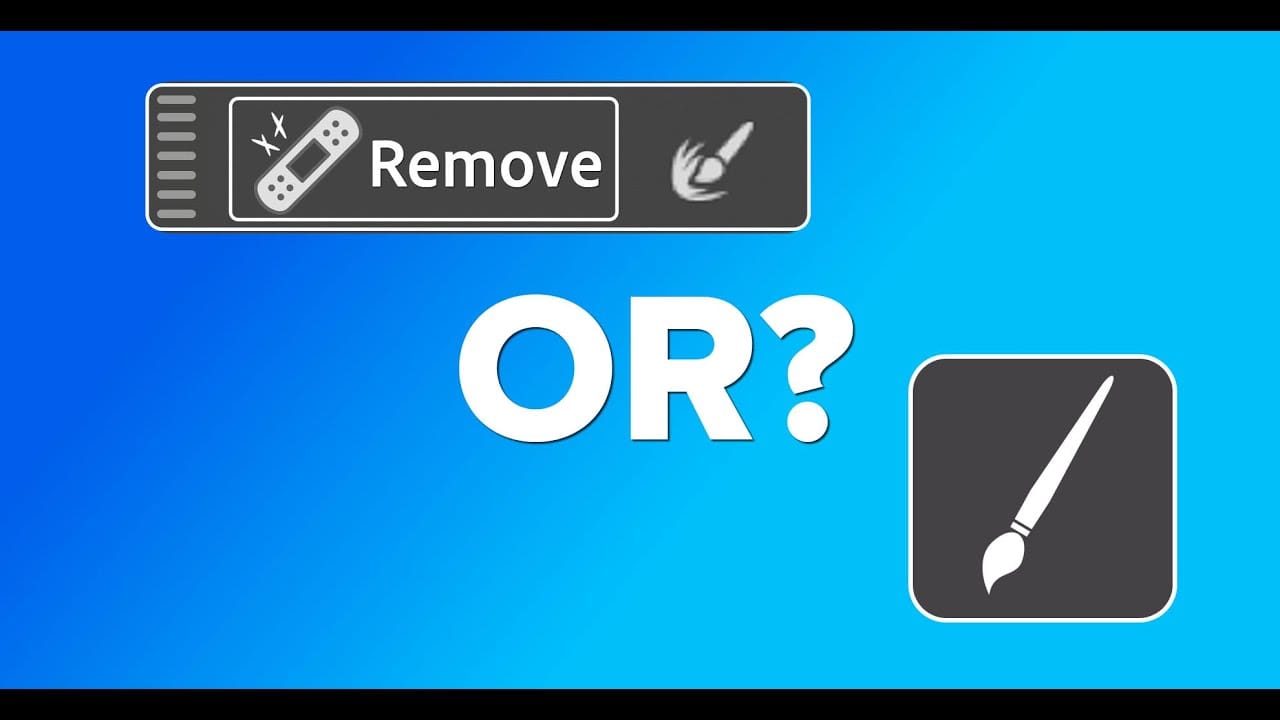
Photoshop Object Removal: Remove Tool vs Contextual Remove Button Compared
Photoshop offers two main approaches for removing unwanted objects: the Remove Tool brush and the contextual Remove button that appears after making selections. Each method has distinct advantages depending on your image and workflow needs.
This comparison explores both techniques across multiple real-world examples to help you choose the most effective approach for different removal scenarios.
Watch the Tutorial
Key Techniques for Object Removal
* Use the Remove Tool for faster selection
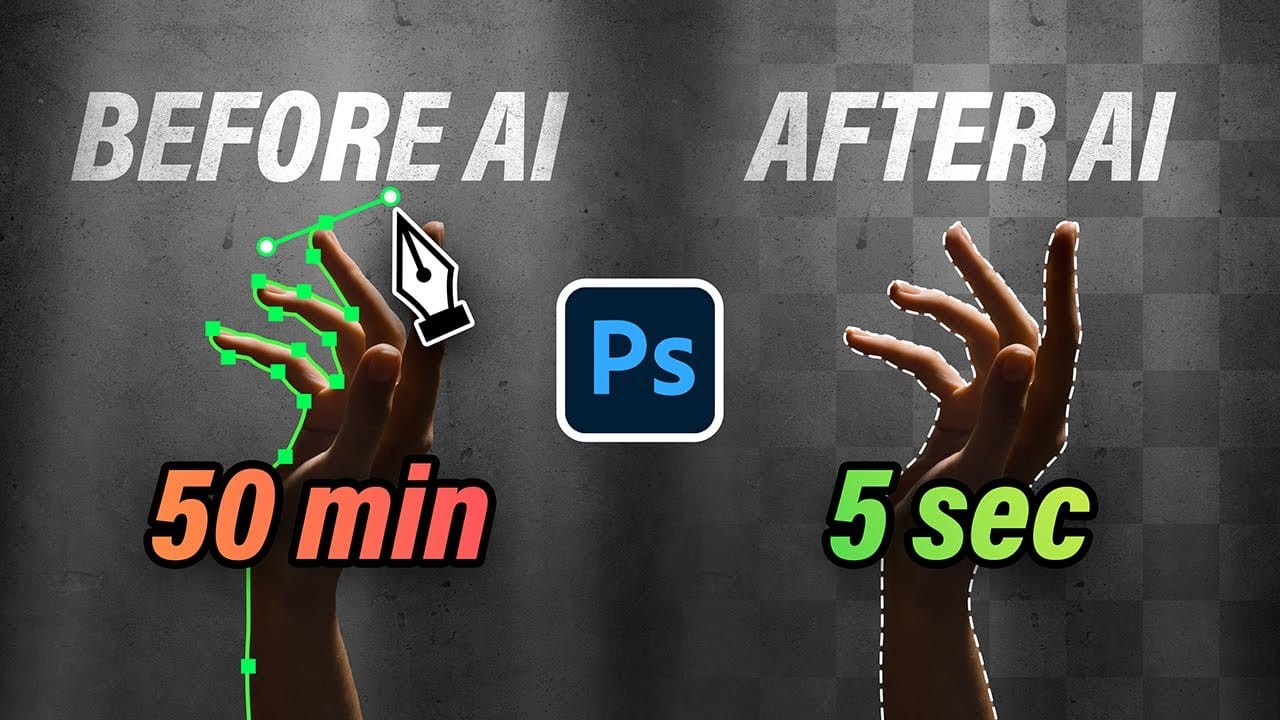
10 Ways AI Completely Transformed My Photoshop Techniques
Repetitive tasks like making complex selections, removing unwanted objects, and cleaning up blemishes can consume hours of an editor's time. While traditional Photoshop methods offer precise control, they are often slow and require significant technical skill for what should be simple fixes.
This guide demonstrates how to integrate modern AI features into your daily workflow. You will learn practical techniques for everything from one-click selections and generative fills to automated retouchin
How to Cut Out a Person fast with Select & Mask in Photoshop
In this article Aaron Nace from Phlearn presents a comprehensive tutorial on creating fast and accurate cutouts of people using the Select and Mask feature in Photoshop. The author guides readers through the process, starting with the use of the Quick Selection Tool to make the initial selection, followed by the Refine Edge Tool to clean up the soft edges of hair and clothing. Additionally, the author demonstrates how to change the background color and add a spotlight effect to the subject, draw