Learn how to create the Stranger Things tv show logo in Photoshop

Learn how to create the Stranger Things tv show logo in Photoshop

Learn to create the iconic, glowing Stranger Things text style. This tutorial demonstrates how simple Photoshop adjustments and layer styles can transform ordinary text into a captivating, retro design perfect for themed projects.

Step-by-Step Video Guide

Video by Envato Tuts+. Any links or downloads mentioned by the creator are available only on YouTube

Mastering Iconic Text Effects with Layer Styles

Recreating a recognizable text effect like the "Stranger Things" title involves more than just selecting a font. It requires a meticulous application of Photoshop's capabilities to capture depth, texture, and luminescence. The secret lies in understanding how various layer styles interact to build the visual complexity seen in professional designs.

From the subtle bevels that define letter edges to the layered glows that mimic an otherworldly light source, each element contributes to the overall atmospheric aesthetic. This approach demonstrates how simple tools can yield complex, high-impact results, emphasizing precision in design rather than elaborate techniques.

  • Effective use of Layer Styles to add depth and glow.
  • Precise Character Panel Adjustments for authentic typography.
  • Strategic application of Blending Modes for light and color interaction.
  • Creation of structural accents using basic Rectangular Shapes.
  • Combining effects within a Group Layer for unified adjustments.

Practical Tips for Crafting Text Effects

  • Adjust individual letter sizes and baseline shifts to achieve unique typographic variations, like the larger "S" and "R" for stylistic emphasis.
  • Set the text layer's Fill value to 0% to make only the applied layer styles visible, which is crucial for glow effects without solid letter fill.
  • Merge multiple simple shape layers, such as decorative bars, before applying common layer styles to ensure a consistent appearance across all elements.
  • Fine-tune the kerning between letters to optimize visual spacing, ensuring balance and readability within the text design.
  • Apply final gradient overlays and outer glows to the entire text effect group to create a unified color and light ambience.

Expand your graphic design skills with more tutorials focused on creating stunning text effects in Photoshop.
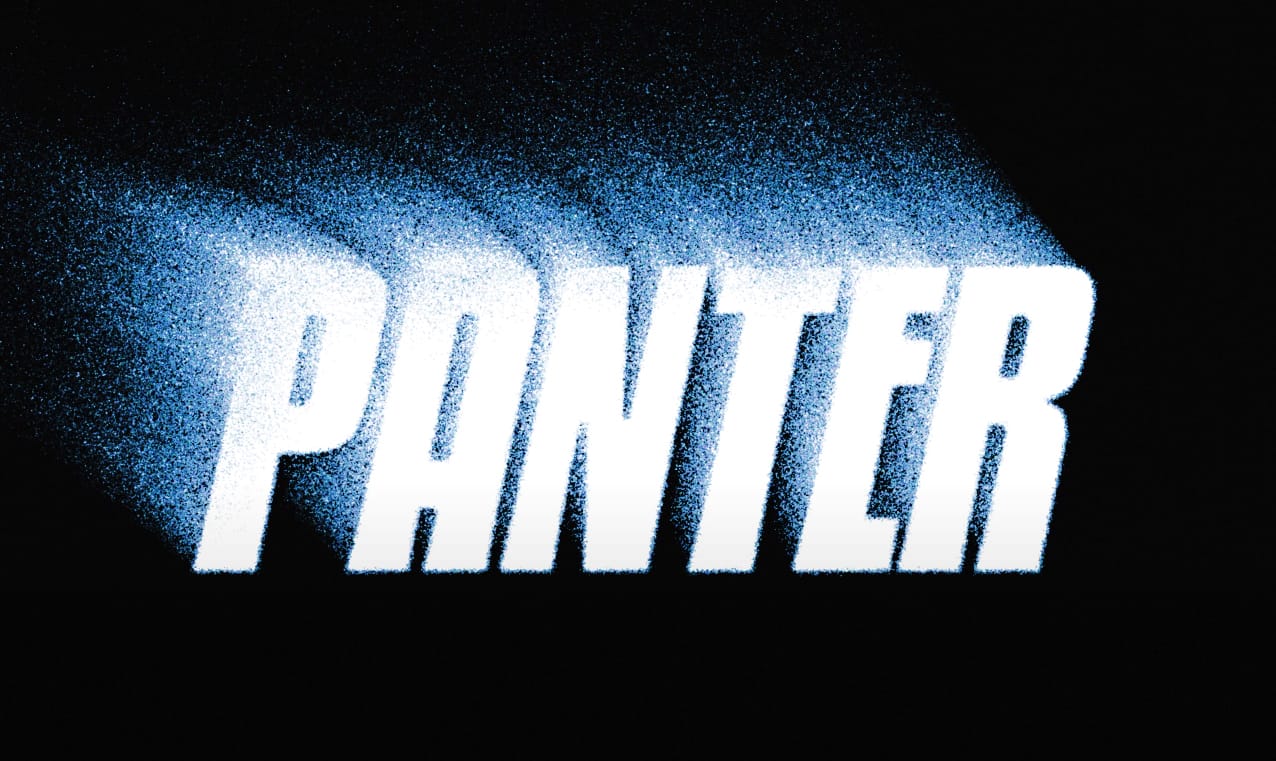

How to Make Grungy Ghost Text Effects in Photoshop
Ghost text effects combine ethereal transparency with gritty texture to create typography that feels both haunting and visually striking. This design technique has become increasingly popular in horror-themed projects, album covers, and creative branding where designers want to convey mystery or edginess. This tutorial demonstrates how to build a convincing grungy ghost text effect using Photoshop's blur gallery, blend modes, and texture techniques. You'll learn to create translucent, distorted
How to Create a 3D Retro Text Effect in Adobe Photoshop
In this Adobe Photoshop tutorial by Spoon Graphics, you'll learn how to create a great-looking retro text effect. Using a mix of layer styles and clever Photoshop techniques, this tutorial guides you through the process step-by-step. The best part is that it utilizes Smart Objects, allowing you to non-destructively create the effect, meaning the original type element can still be updated to change the wording. This approach ensures flexibility and ease of editing while achieving a stylish retr
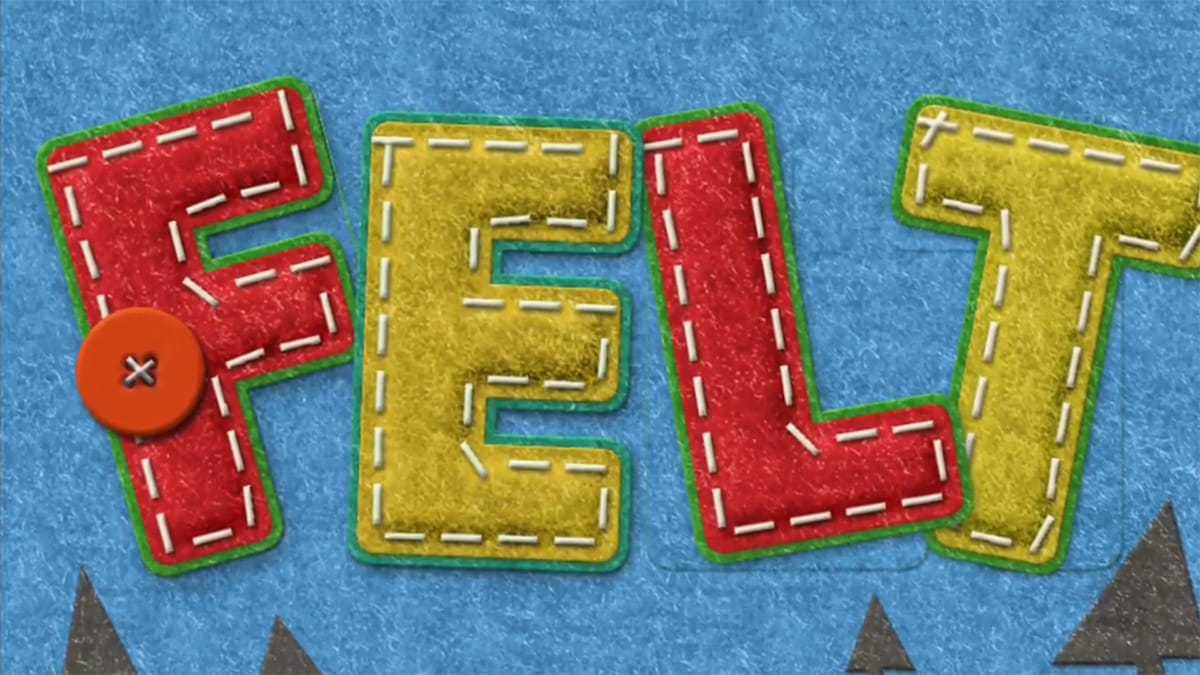
How to Create a Fun Felt Photoshop Text Effect
In this tutorial presented by Photoshop Palace, you'll learn how to create a charming and colorful stitched felt Photoshop text effect set against a rich blue felt background. This artistic endeavor includes the addition of meticulously crafted felt pine elements, enhancing the seasonal appeal, especially fitting for winter holiday-themed designs. The tutorial methodically guides you through the process with easy-to-follow steps, ensuring that even beginners can achieve a delightful and festiv
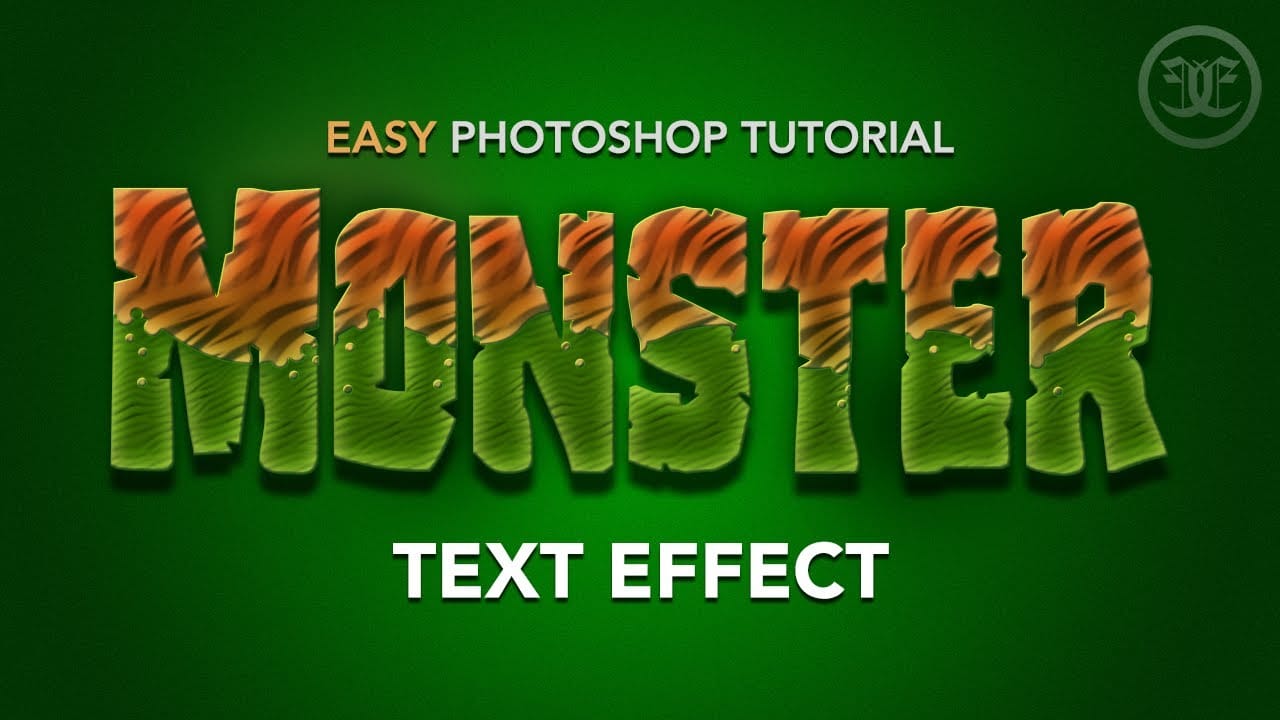
Monster themed text effect in Photoshop
In this tutorial, Evan Eckard demonstrates how to create a spooky, monster-themed text effect using Adobe Photoshop. Perfect for Halloween or other eerie art projects, this tutorial utilizes basic layer effects to achieve a fun and scary look. Throughout the video, Evan shares numerous tips and techniques that can be applied to various other styles, making it a versatile learning experience. From manipulating textures to applying layer styles, you'll gain insights into creating a unique and mo

Get tutorials & freebies delivered to you.

Subscribe to the Photoshop Roadmap newsletter, a weekly roundup of new tutorials, insights and quality downloads, trusted by 6500+ readers.

You might also like

How to Expand Photos Beyond Their Edges Using AI Generative Expand in Photoshop

Sometimes your best photos need more breathing room or a different aspect ratio. Generative Expand in Photoshop lets you extend your canvas beyond the original image boundaries, using AI to intelligently fill in missing areas with content that matches your scene. This technique works for changing portrait photos to landscape...

How to Create Digital Scrapbook Carousels in Photoshop

Digital scrapbook pages capture memories beautifully, but a single page limits your storytelling. Creating a carousel format lets you design multiple connected panels that work together as one cohesive piece while giving viewers more content to explore. This technique uses frames, custom shapes, and smart export settings to build templates...

How to Use Auto Align Layers in Photoshop for Perfect Layer Alignment

When working with multiple layers that need perfect alignment, manual positioning often falls short. Slight camera movement, different crops, or rotated images can make precise alignment seem impossible through visual adjustment alone. Auto Align Layers automatically handles rotation, scaling, and positioning to create perfect layer alignment, even when images have...

How to Use Nano Banana Pro in Adobe Firefly for Advanced AI Image Generation

Adobe Firefly now includes Gemini 3 with Nano Banana Pro, offering sharper 2K image generation with improved text clarity and precision blending. This advanced AI model works seamlessly within Firefly's generative workspace, enabling powerful workflows like multi-image composition and virtual try-on effects. The integration provides access to sophisticated...

Create Colorful Retro Text Compositions in Photoshop

Retro design trends continue to captivate audiences with their bold colors and geometric shapes. This tutorial demonstrates how to build a complete vintage-inspired composition using text, geometric elements, and vibrant color schemes that capture the essence of classic graphic design. You'll learn to combine typography with custom shapes,...

Photoshop's New Color and Temperature Tool for Advanced Color Grading

Photoshop's latest update introduces temperature and tint controls directly into the adjustment layer panel, bringing white balance tools from Camera Raw into the main editing workspace. This addition transforms color grading workflows by enabling precise local adjustments with custom brushes and blend modes. The new Color and Vibrance...

You’ve successfully subscribed to Photoshop Roadmap
Welcome back! You’ve successfully signed in.
Great! You’ve successfully signed up.
Success! Your email is updated.
Your link has expired
Success! Check your email for magic link to sign-in.