Transform a face into a creative mixed media portrait

Transform a face into a creative mixed media portrait

This tutorial demonstrates a powerful Photoshop technique for transforming standard photographs into dynamic mixed media portraits. It explores how to achieve a unique artistic aesthetic that blends traditional art elements with digital imagery.

Viewers will learn a non-destructive workflow to apply textured effects and patterns to a portrait, with the added benefit of easily replacing the subject without redoing the entire process. This approach is ideal for artists and designers seeking efficiency and flexibility in their creative projects.

Watch the Tutorial: Mixed Media Portrait Effect

Video by Blue Lightning. Any links or downloads mentioned by the creator are available only on YouTube

The Art of Mixed Media in Digital Portraiture

Mixed media art traditionally involves combining different art forms and materials within a single piece, creating a rich, layered aesthetic. In the digital realm, this concept translates into blending photographic elements with textures, patterns, and brushstroke effects to achieve a similar tactile and artistic quality.

Digital tools allow for extensive experimentation without the constraints of physical materials. This freedom enables artists to integrate diverse components—such as *paper textures*, *paint splatters*, *collage elements*, and *drawing lines*—seamlessly into a portrait. The goal is to move beyond a simple photograph, imbuing the image with character and depth that evokes a handmade feel.

The beauty of digital mixed media lies in its non-destructive nature. Techniques like Smart Objects and layer masks provide flexibility, allowing artists to adjust or replace elements long after the initial creation, ensuring a versatile and adaptable workflow.

Practical Tips for Mixed Media Portraits in Photoshop

  • Convert your photo to a Smart Object early for non-destructive editing and the ability to adjust filters at any time.
  • Utilize the Channels panel to create precise selections from texture layers, ensuring accurate masks.
  • Unlink the layer and layer mask to independently reposition or resize your subject within the applied texture, offering greater control.
  • Name your layers, especially Smart Objects, for better organization and easier identification during subject swaps.
  • Reduce opacity when aligning a new subject to see the original placement underneath, aiding in accurate resizing and positioning.

More Tutorials about Photoshop Portrait Effects

Explore additional resources to further enhance your skills in transforming portraits and blending images within Photoshop.
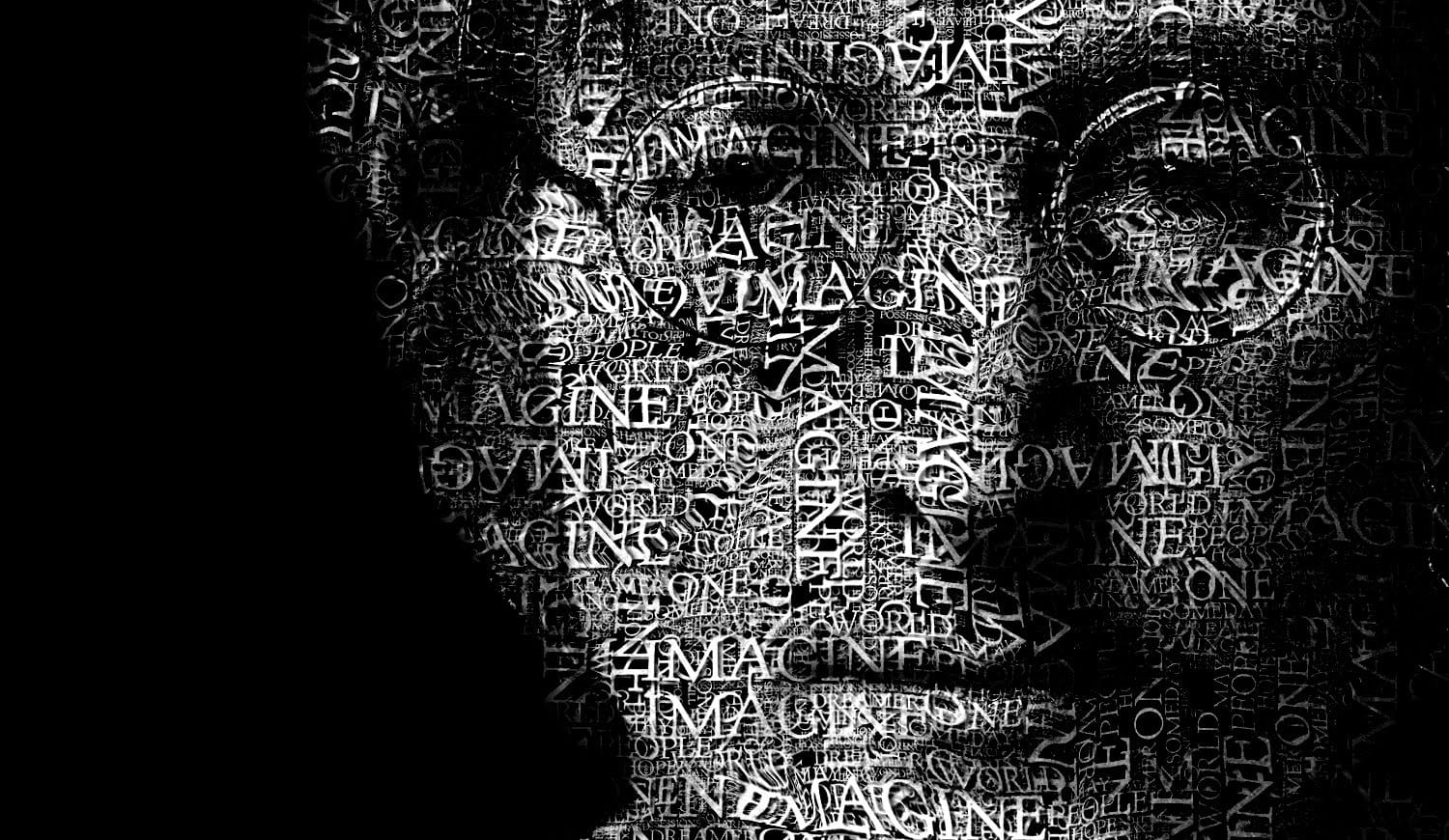
Create a Typographic Portrait in Photoshop
This Photoshop tutorial by Blue Lightning TV takes you through crafting a stunning portrait built entirely from words. Learn to prep your photo, create a text cloud filled with the subject's special words, and position and manipulate the text to perfectly follow the contours of the face. The video guides you through using displacement maps, smart objects, and adjustment layers to achieve a cohesive and personalized final image. It's a creative twist on portraiture, perfect for adding a unique t
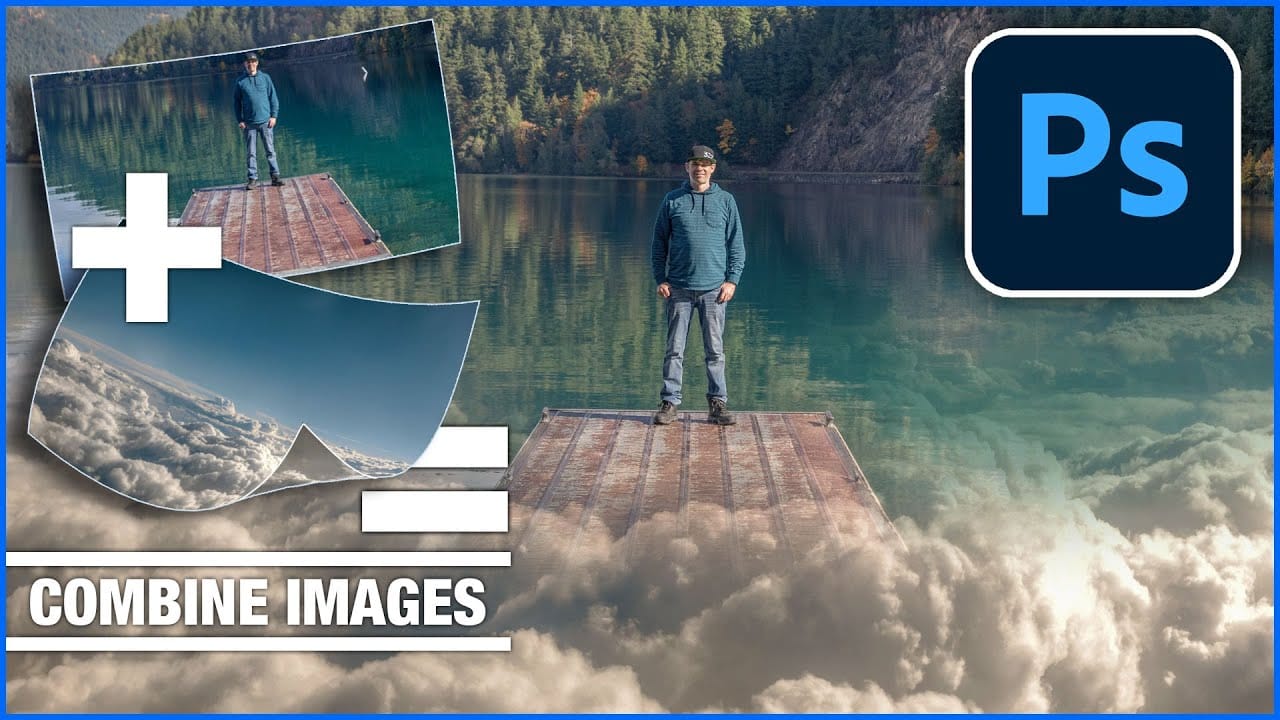
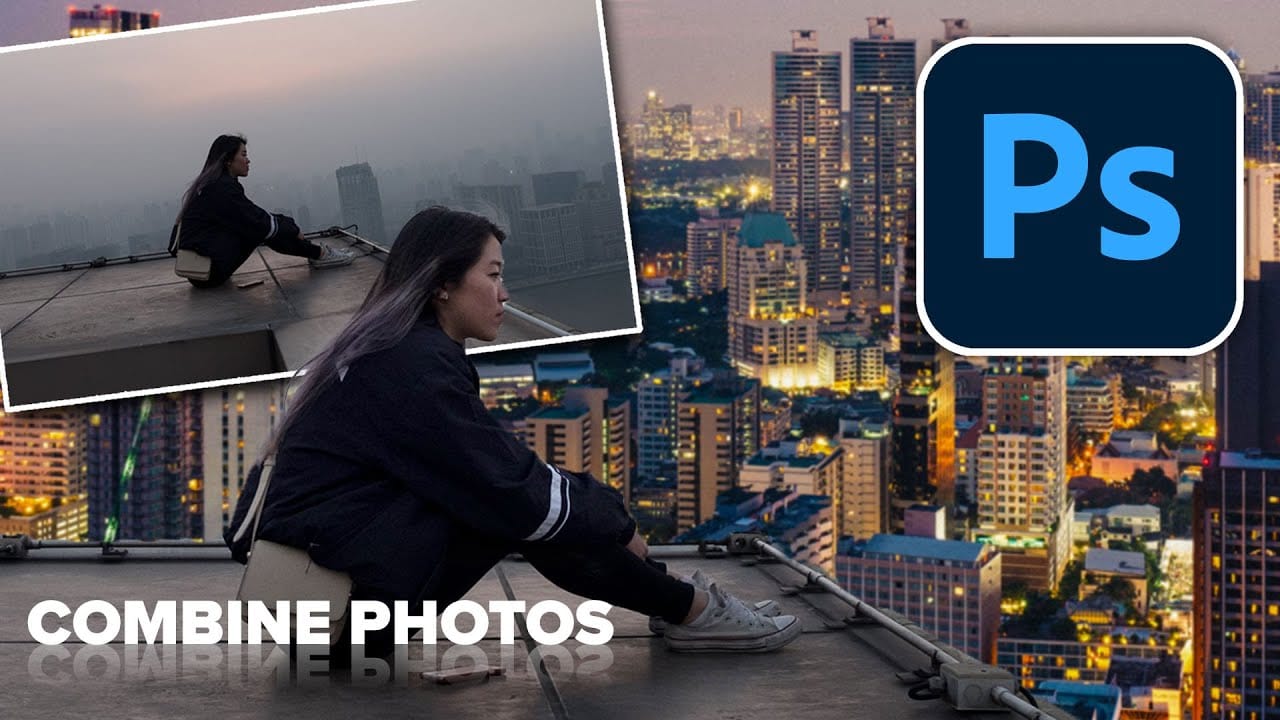
How to combine and blend photos in Photoshop
In this tutorial by Colin Smith from Photoshop Cafe, you'll explore various methods to seamlessly combine and blend photos in Photoshop. Colin covers the basics of getting photos into Photoshop and demonstrates different techniques for layering and blending images. The tutorial provides practical guidance on how to integrate multiple photos into a cohesive composition. Whether you’re working with selections or blending layers directly, you’ll learn how to achieve smooth transitions and create v
How to combine and blend photos in Photoshop
In this tutorial, Colin Smith from Photoshop Cafe demonstrates effective techniques for combining and blending multiple photos in Photoshop. You'll learn two distinct methods for merging images, allowing you to seamlessly integrate different elements into a cohesive composition. Colin also covers four advanced techniques for blending layers together, helping you achieve smooth transitions and harmonious effects. These techniques are essential for creating compelling visuals where multiple image
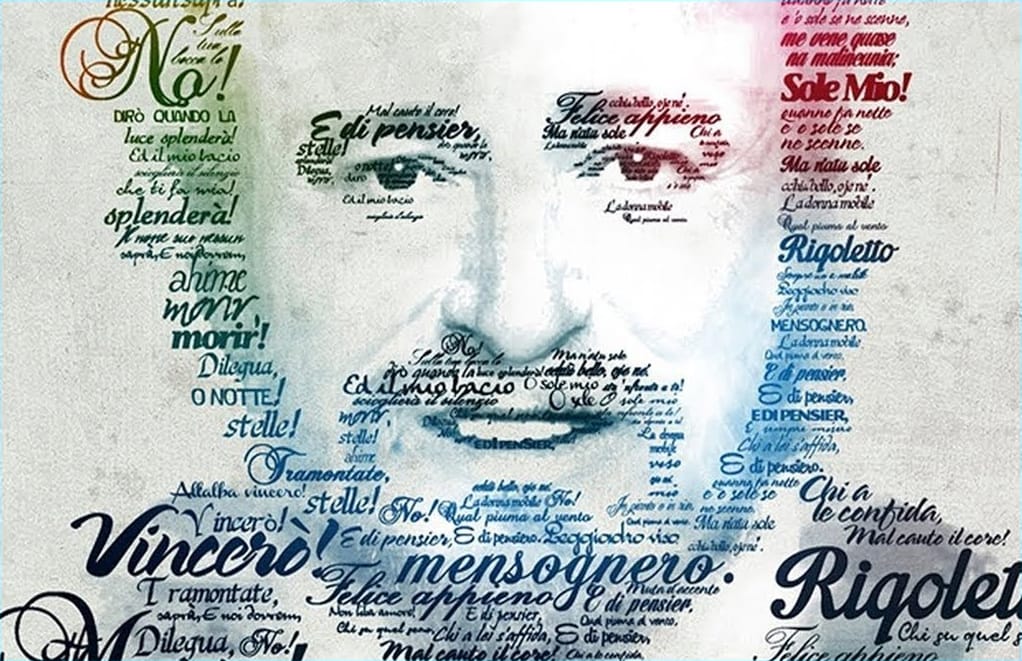
Create a creative typographic portrait in Photoshop
This tutorial by Gareth David, guides you through creating a typographic portrait of Pavarotti in Adobe Photoshop, divided into four main stages: preparation, creating a type base, type positioning, and color blending. The preparation stage involves gathering a subject image, canvas texture, color image, and text, along with downloading necessary fonts. Next, you arrange the prepared text in Photoshop to form the portrait. The final stage focuses on blending, using a type mask and color layer t

Get tutorials & freebies delivered to you.

Subscribe to the Photoshop Roadmap newsletter, a weekly roundup of new tutorials, insights and quality downloads, trusted by 6500+ readers.

You might also like

Create a Liquid Gel Logo Effect in Photoshop

Liquid gel effects transform flat logos into dimensional, glossy designs that appear to bubble and flow. This technique uses multiple layer styles and strategic duplication to build depth, creating surfaces that catch light like thick, viscous liquid. The method combines gradient overlays, bevel effects, and inner glows across several duplicated...

How to Use Photoshop's AI Sharpen Filter and When It's Worth the Cost

Photoshop's new AI Sharpen filter promises one-click sharpening powered by advanced algorithms. This tool uses technology from Topaz Labs to enhance image details without manual adjustments, but it comes with a significant cost in credits. Understanding when to use this automated approach versus traditional methods like the High...

How to Use Harmonize and Generative Upscale Tools in Photoshop

Creating realistic photo composites requires matching lighting and color between different images—a traditionally time-consuming process. Two new AI-powered tools in Photoshop solve these challenges: Harmonize automatically adjusts lighting and shadows to blend subjects seamlessly into backgrounds, while Generative Upscale enlarges small images without losing detail. These tools work together...

How to Create Convincing Scale Effects in Photoshop Composites

Creating believable scale effects requires more than simply resizing objects—it demands understanding how light, perspective, and atmospheric conditions change with distance. When tiny subjects appear massive or giant objects seem miniature, viewers should feel the illusion is completely natural. This technique combines careful attention to lighting consistency, depth cues,...

How to Flip Images Horizontally and Vertically in Photoshop

Flipping images is a fundamental technique that can dramatically change the composition and impact of your photos. Whether you need to correct the orientation of a subject, create mirror effects, or simply improve the visual flow of your design, knowing how to quickly flip images both horizontally and vertically gives...

How to Use Nano Banana Pro in Photoshop for Background Replacement and Scene Changes

Nano Banana Pro transforms how you place subjects into new environments in Photoshop. This advanced AI model maintains perfect subject likeness while seamlessly integrating them into any background you can imagine. The tool excels at matching lighting, preserving facial features, and even adapting clothing to complement new scenes, all through...

You’ve successfully subscribed to Photoshop Roadmap
Welcome back! You’ve successfully signed in.
Great! You’ve successfully signed up.
Success! Your email is updated.
Your link has expired
Success! Check your email for magic link to sign-in.