Create a Prince Poster Using Photoshop's Dynamic Text Feature

Create a Prince Poster Using Photoshop's Dynamic Text Feature

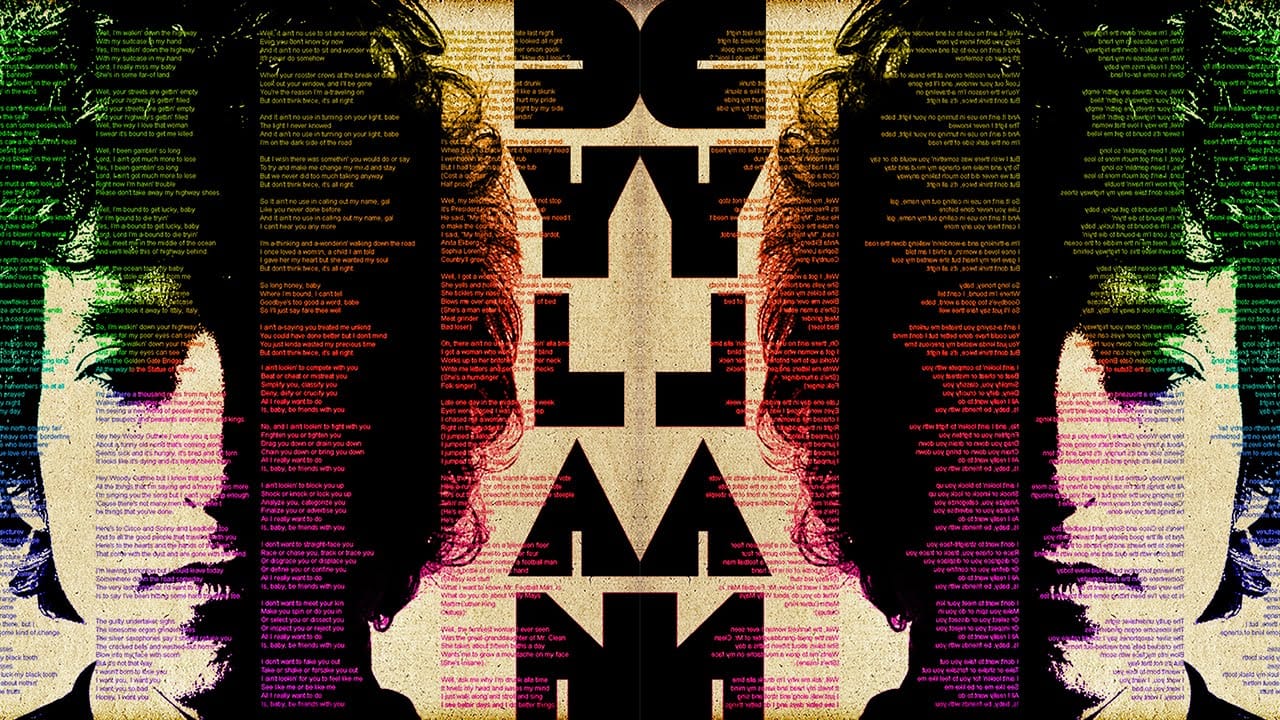
Prince's legendary status in music history deserves artwork that matches his iconic presence. Dynamic text in Photoshop offers a powerful way to create professional-looking posters that automatically adjust typography to fit perfectly within defined spaces, eliminating the tedious manual alignment process.

This technique transforms ordinary text layouts into polished designs by intelligently resizing and repositioning each line to conform to boundaries. The result captures the bold, dramatic aesthetic that defines memorable concert posters and tribute artwork.

Watch the Tutorial

Video by Photoshop Arthouse. Any links or downloads mentioned by the creator are available only on YouTube

Understanding Dynamic Text in Modern Design

Dynamic text represents a significant advancement in digital typography, addressing one of design's most time-consuming challenges: achieving perfect text alignment within complex layouts. Traditional poster design required manual adjustment of each text element, often resulting in inconsistent spacing and misaligned edges that compromised the overall visual impact.

The feature automatically calculates optimal sizing and positioning based on available space, maintaining consistent edges while preserving readability. This intelligent behavior proves particularly valuable for poster design, where bold typography serves as both informational content and visual element. Heavy, condensed fonts work best because their substantial letterforms provide enough mass to create striking visual impact when automatically scaled.

Music poster design has historically relied on dramatic contrast and geometric precision to capture attention in crowded venues and promotional materials. Dynamic text brings this professional standard within reach of designers working on tribute pieces, concert promotions, or artistic homages.

Practical Tips for Dynamic Text Posters

  • Choose thick, heavy fonts with substantial letterforms that maintain readability when automatically resized and compressed
  • Use the Ctrl/Cmd + H shortcut to toggle guidelines visibility while positioning text elements precisely within your layout
  • Save selections as alpha channels before applying effects, allowing you to reuse complex selections for layer masks and additional design elements
  • Convert text to smart objects when combining multiple styled layers, preserving the ability to resize and reposition while maintaining all applied effects
  • Apply stroke effects with outside alignment and projecting caps to create clean, professional text outlines that enhance readability against busy backgrounds

Explore more techniques for creating compelling text-based poster designs.
Create a Creative Text Portrait Poster in Photoshop
The author, Marty Geller from Blue Lightning TV, provides a tutorial on how to create a creative text portrait poster in Photoshop. This project allows you to design a powerful, custom text portrait poster of a musician, songwriter, poet, or author, featuring their lyrics, poems, or prose. The process involves using Photoshop to arrange the text elements in a visually striking way, highlighting the subject's creative work. By following the step-by-step instructions, you can craft a unique and p
Create a Striking Text Portrait Poster in Photoshop
Transforming an ordinary portrait into a captivating text-based artwork presents a unique creative challenge in Photoshop. Often, the frustration lies in making text appear to organically wrap around a subject's contours rather than just sitting flat over the image. Achieving this seamless integration, especially when dealing with complex shapes, can feel like navigating an intricate technical puzzle. This tutorial offers a clear pathway to mastering text portrait effects using advanced masking
How to make a text poster of a portrait in Photoshop
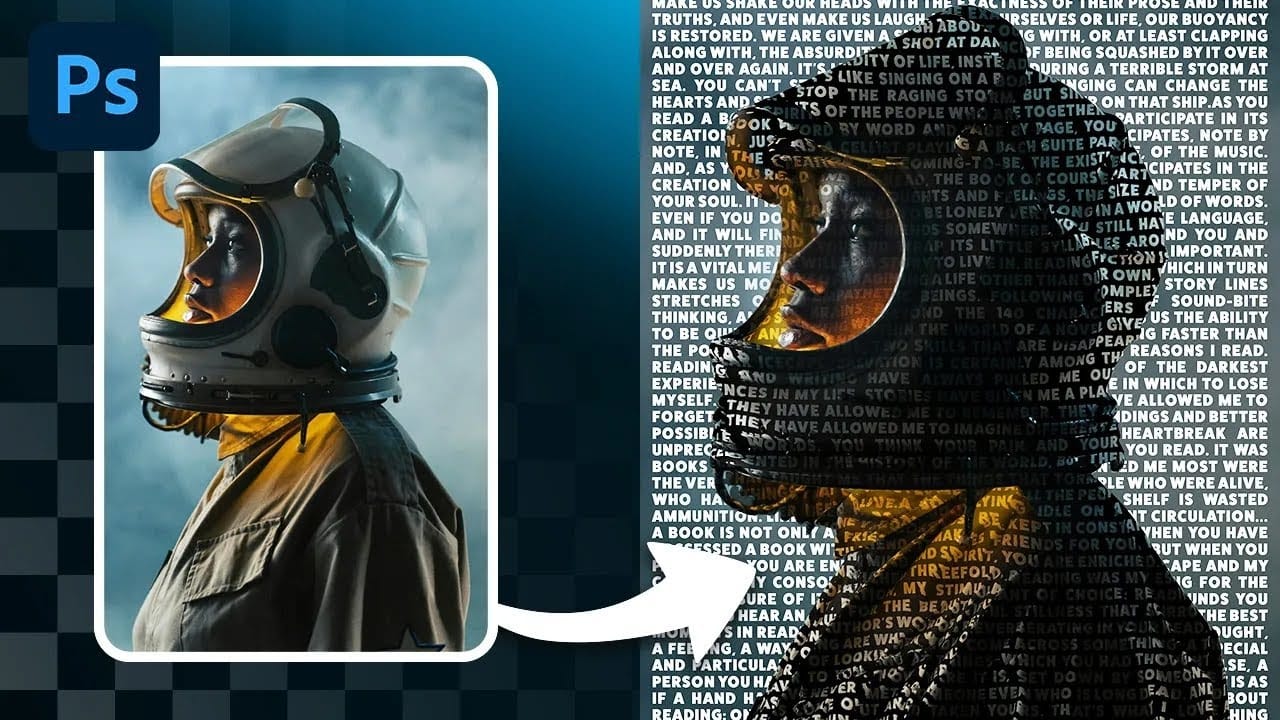
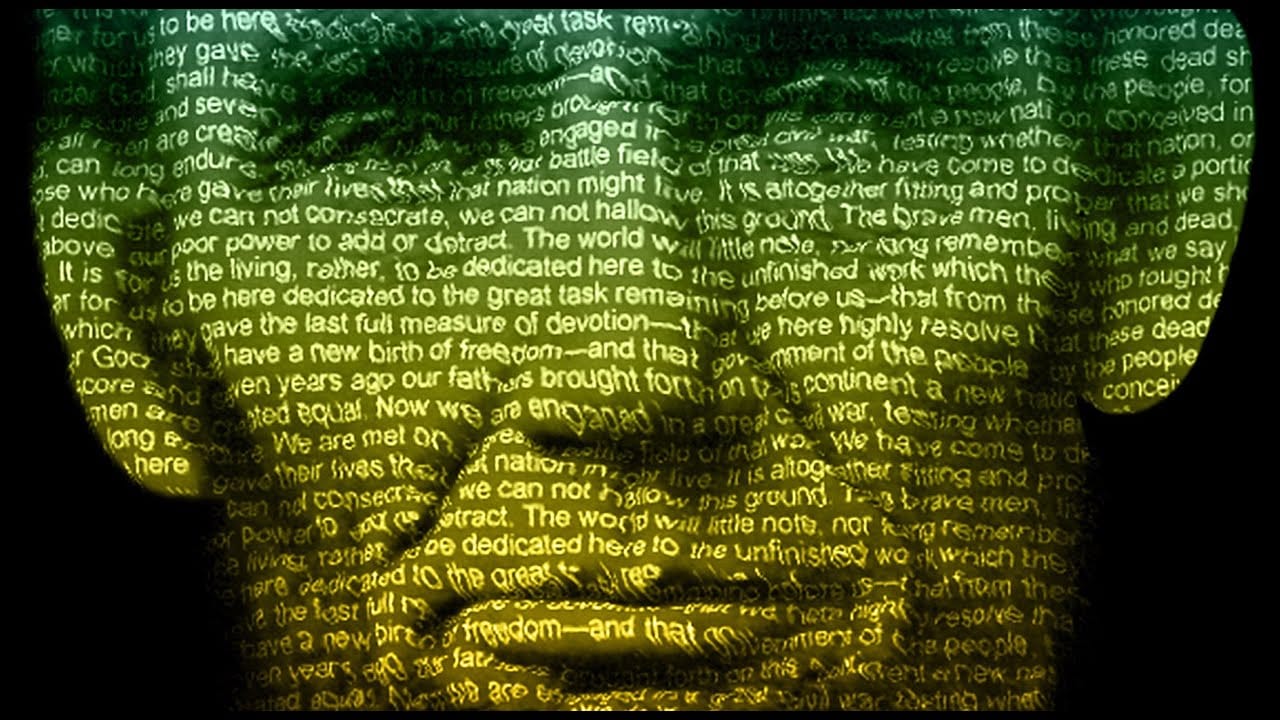
Discover the artistry of text-driven graphic posters with BlueLightningTV's latest Photoshop tutorial. This engaging guide teaches you how to craft a stunning visual tribute to your favorite celebrity, musician, poet, writer, or leader by seamlessly blending their iconic lyrics, prose, poetry, or speech with their portrait. The tutorial walks you through each step, from selecting and preparing the perfect image to intricately wrapping text around the contours of their face. Watch tutorial
Create a Wonderful 3D Typographic Poster in Photoshop
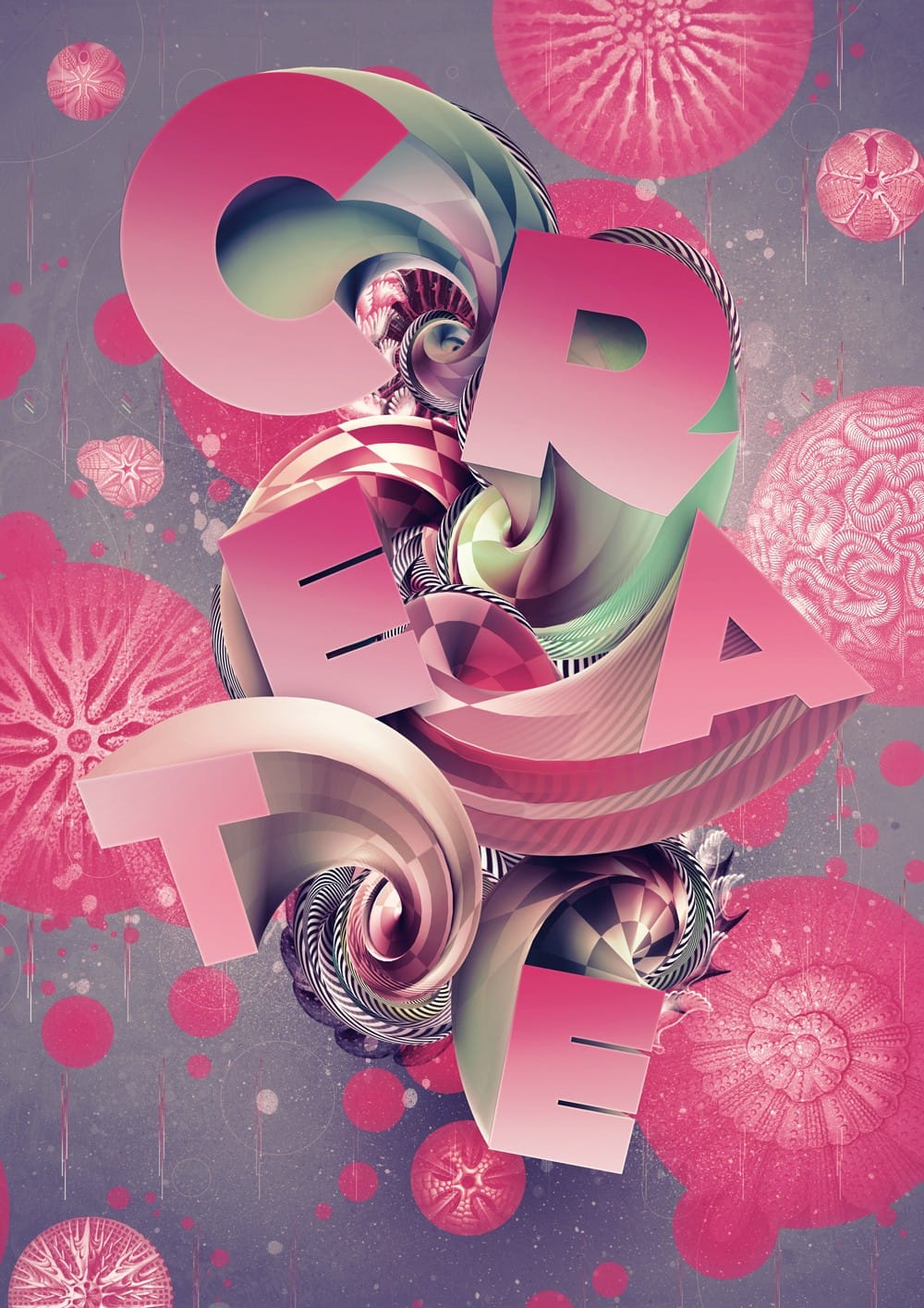
Photoshop's 3D tools have reached impressive new heights, and the Repoussé tool stands out as a notable feature. This tutorial focuses on how to extrude text, providing results akin to those achieved in full 3D applications. By utilizing this innovative feature, one can easily enhance designs with depth and dimension. In addition to the Repoussé tool, the tutorial examines traditional 3D settings, allowing you to fully harness the various material and rendering options available. This explorati

Get tutorials & freebies delivered to you.

Subscribe to the Photoshop Roadmap newsletter, a weekly roundup of new tutorials, insights and quality downloads, trusted by 6500+ readers.

You might also like

Create a Liquid Gel Logo Effect in Photoshop

Liquid gel effects transform flat logos into dimensional, glossy designs that appear to bubble and flow. This technique uses multiple layer styles and strategic duplication to build depth, creating surfaces that catch light like thick, viscous liquid. The method combines gradient overlays, bevel effects, and inner glows across several duplicated...

How to Use Photoshop's AI Sharpen Filter and When It's Worth the Cost

Photoshop's new AI Sharpen filter promises one-click sharpening powered by advanced algorithms. This tool uses technology from Topaz Labs to enhance image details without manual adjustments, but it comes with a significant cost in credits. Understanding when to use this automated approach versus traditional methods like the High...

How to Use Harmonize and Generative Upscale Tools in Photoshop

Creating realistic photo composites requires matching lighting and color between different images—a traditionally time-consuming process. Two new AI-powered tools in Photoshop solve these challenges: Harmonize automatically adjusts lighting and shadows to blend subjects seamlessly into backgrounds, while Generative Upscale enlarges small images without losing detail. These tools work together...

How to Create Convincing Scale Effects in Photoshop Composites

Creating believable scale effects requires more than simply resizing objects—it demands understanding how light, perspective, and atmospheric conditions change with distance. When tiny subjects appear massive or giant objects seem miniature, viewers should feel the illusion is completely natural. This technique combines careful attention to lighting consistency, depth cues,...

How to Flip Images Horizontally and Vertically in Photoshop

Flipping images is a fundamental technique that can dramatically change the composition and impact of your photos. Whether you need to correct the orientation of a subject, create mirror effects, or simply improve the visual flow of your design, knowing how to quickly flip images both horizontally and vertically gives...

How to Use Nano Banana Pro in Photoshop for Background Replacement and Scene Changes

Nano Banana Pro transforms how you place subjects into new environments in Photoshop. This advanced AI model maintains perfect subject likeness while seamlessly integrating them into any background you can imagine. The tool excels at matching lighting, preserving facial features, and even adapting clothing to complement new scenes, all through...

You’ve successfully subscribed to Photoshop Roadmap
Welcome back! You’ve successfully signed in.
Great! You’ve successfully signed up.
Success! Your email is updated.
Your link has expired
Success! Check your email for magic link to sign-in.