Creating Pixelated Dither Effects in Photoshop

Creating Pixelated Dither Effects in Photoshop

The pixelated dither effect transforms modern photographs into retro-inspired artwork reminiscent of early video games and vintage computer graphics. This distinctive visual style uses controlled color reduction and strategic pixelation to create images that balance nostalgic charm with contemporary design appeal.

The technique relies on Photoshop's export settings and specific file format workflows to achieve authentic dithering patterns. By manipulating resolution, color depth, and dithering algorithms, you can control the final aesthetic and create striking visual results.

Watch the Tutorial

Video by P A N T E R. Any links or downloads mentioned by the creator are available only on YouTube

Understanding Dithering Techniques

Dithering creates the illusion of color gradients using limited color palettes. The technique originated from early computer graphics when hardware limitations required creative solutions for displaying complex images with minimal color information.

The Save for Web Legacy dialog offers multiple dithering algorithms, each producing different visual characteristics. Diffusion dithering creates organic, scattered patterns, while pattern dithering produces more structured, geometric results.

Key concepts for effective dithering include:

  • Color reduction — Limiting the palette forces more pronounced dithering patterns
  • Resolution control — Lower resolutions create larger, more visible pixels
  • Algorithm selection — Different methods produce distinct aesthetic results
  • Format considerations — GIF format limitations affect the final output
  • Upscaling methods — Proper resampling preserves the pixelated appearance

Practical Tips for Dithered Effects

  • Reduce image width to 200-300 pixels before applying dithering for optimal pixel visibility
  • Limit colors to 8 or fewer in the GIF export settings to force stronger dithering patterns
  • Use Nearest Neighbor resampling when upscaling to maintain sharp pixel edges
  • Experiment with diffusion versus pattern dithering to match your desired aesthetic
  • Manually adjust individual colors in the color table to enhance specific tones

Explore more techniques for creating distinctive pixelated and digital art effects.
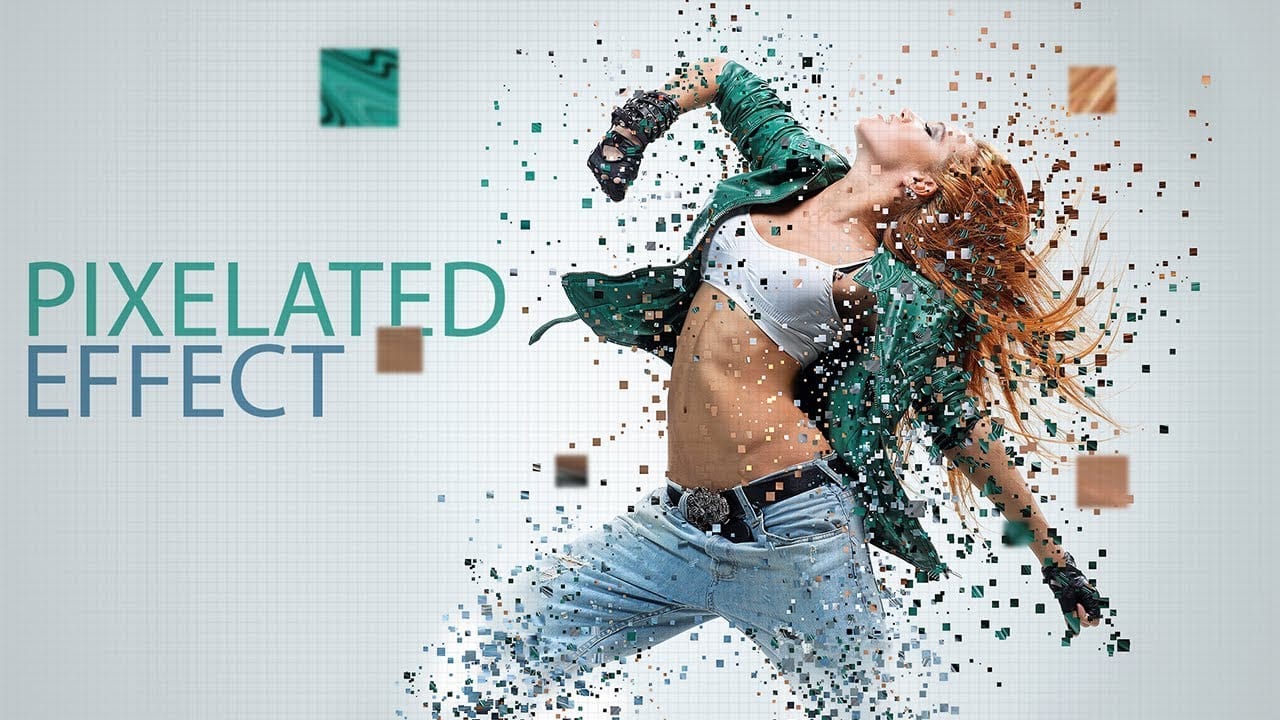
Create a pixelated dispersion effect in Photoshop
In this Photoshop tutorial, the author provides step-by-step instructions on how to create a captivating Pixelated dispersion effect. The tutorial utilizes a Pixel brush set, as well as various filters, to achieve the desired visual impact. The author guides the reader through the process, highlighting the key techniques and tools necessary to replicate the effect. By following the instructions, users can transform their images and add a unique, eye-catching element to their digital creations.
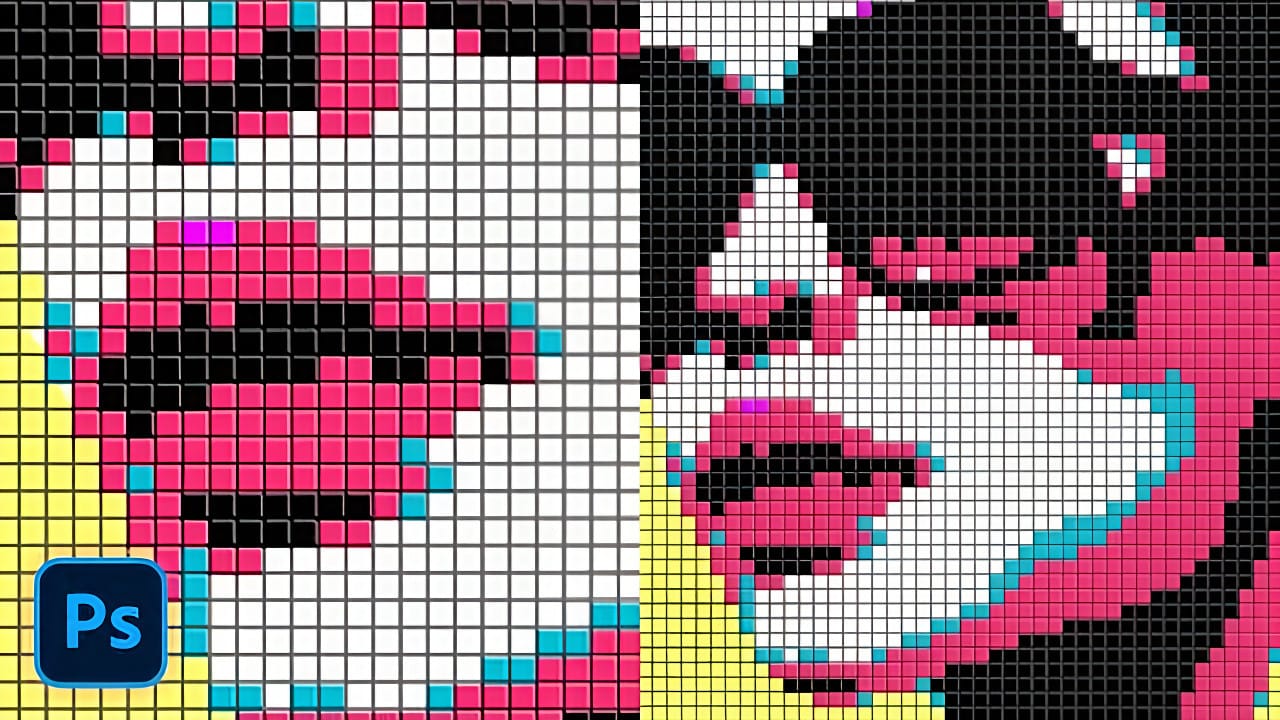
Creating a Colorful Pixelated Effect in Photoshop
The colorful pixelated effect transforms ordinary photographs into vibrant, retro-style artwork reminiscent of 8-bit video games and digital pop art. This distinctive visual style combines traditional mosaic filtering with advanced color manipulation to create bold, simplified imagery that captures attention. This technique works particularly well for portraits, creating striking poster-like results that blend nostalgic pixel aesthetics with modern design sensibilities. Watch the Tutorial U
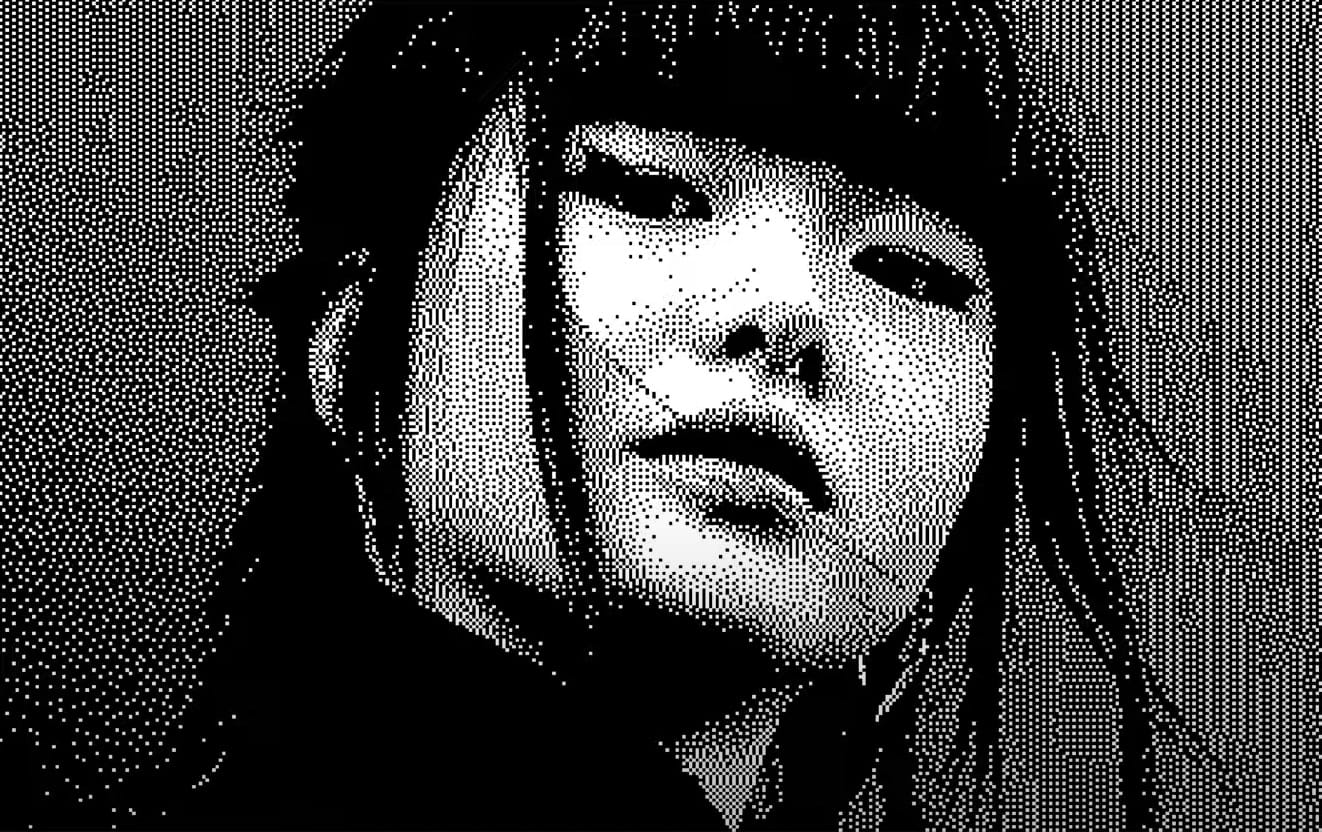
Creating a Bitmap Diffusion Dither Effect in Photoshop
Bitmap dithering creates distinctive black and white patterns that transform photographs into stylized, high-contrast artwork. This technique produces scattered dot patterns that maintain visual detail while reducing images to pure monochrome values, offering a unique alternative to traditional bitmap conversion methods. This tutorial demonstrates how to achieve professional bitmap diffusion effects using Photoshop's export settings and specific file format workflows. You'll learn to control di
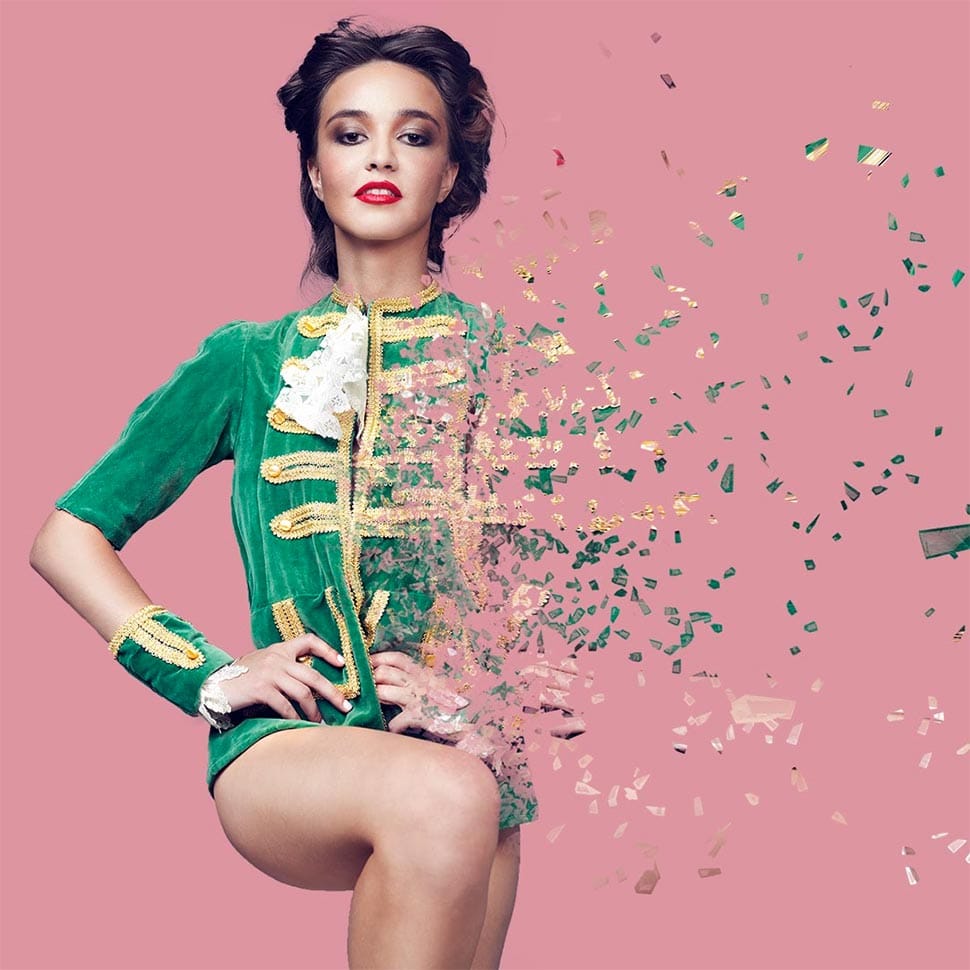
Create a amazing dispersion effect in Photoshop
This tutorial will show you how to make a photo of a model dissolving into flying particles. It's a simple process that only requires a few steps. First, the user will learn techniques to improve the colors of the image. They'll adjust the levels and curves to enhance the vibrancy and contrast of the photograph. This will help the dispersion effect stand out more prominently. Then, the user will apply the dispersion effect, making the model appear to break apart into small pieces that drift aw

Get tutorials & freebies delivered to you.

Subscribe to the Photoshop Roadmap newsletter, a weekly roundup of new tutorials, insights and quality downloads, trusted by 6500+ readers.

You might also like

How to Create Collage Text Effects in Photoshop

Collage text transforms simple typography into visually striking artwork by combining wrapped paper textures, strategic warping, and careful masking techniques. This creative approach gives letters dimension and character, perfect for artistic projects and unique design elements. The technique involves layering textured materials within letter shapes, then using Photoshop's...

How to Convert Low-Resolution Graphics to Vector Shapes in Photoshop

Pixelated logos and graphics lose their impact when scaled up for print or web projects. Photoshop's Creative Cloud Libraries feature offers a built-in solution for transforming low-resolution black and white images into crisp, scalable vector shapes. This technique works particularly well for simple graphics, logos, and icons that...

How to Use Photoshop's Select Subject Tool for One-Click Selections

Complex selections in Photoshop just became effortless. The Select Subject tool uses advanced AI to automatically identify and select main subjects in images, even those with intricate details like bicycle spokes or hair. This tutorial demonstrates how to achieve professional-quality selections with a single click, saving hours of manual masking...

Understanding Photoshop Blending Modes: A Complete Guide to Layer Blending

Blending modes transform how layers interact in Photoshop, letting you seamlessly combine images without complex masking. This technique reveals only light areas, dark areas, or specific colors from each layer. Master these essential blending groups to create professional composites and artistic effects with just a few clicks. Watch the Tutorial...

Photoshop 2026 New Features: AI Tools and Credit System Overview

Photoshop 2026 introduces powerful AI-driven features including advanced generative fill models, sophisticated upscaling tools, and seamless harmonization effects. These updates promise to streamline complex editing tasks while delivering professional-quality results. The software now operates on a credit-based system that divides features into standard and premium tiers, fundamentally changing how users...

How to Add Objects to Photos Using Photoshop's Generative Fill

Photoshop's Generative Fill transforms photo editing by letting you add realistic objects using simple text descriptions. This AI-powered feature creates seamless additions that match your image's lighting, perspective, and style. The process requires just a basic selection and a descriptive prompt to generate professional-looking results in...

You’ve successfully subscribed to Photoshop Roadmap
Welcome back! You’ve successfully signed in.
Great! You’ve successfully signed up.
Success! Your email is updated.
Your link has expired
Success! Check your email for magic link to sign-in.